Getting Started
MaPAD is a professional OSC controller designed specifically for GrandMA3 lighting consoles. It transforms your Android device into a powerful sequencer and pad controller.
Requirements
- Android 10 or later
- GrandMA3 console or onPC (software version 1.5 or later recommended)
- WiFi network connecting your Android device and console
- OSC input enabled on your GrandMA3
First Launch
- Install MaPAD from Google Play Store
- Ensure your Android device is on the same network as your GrandMA3
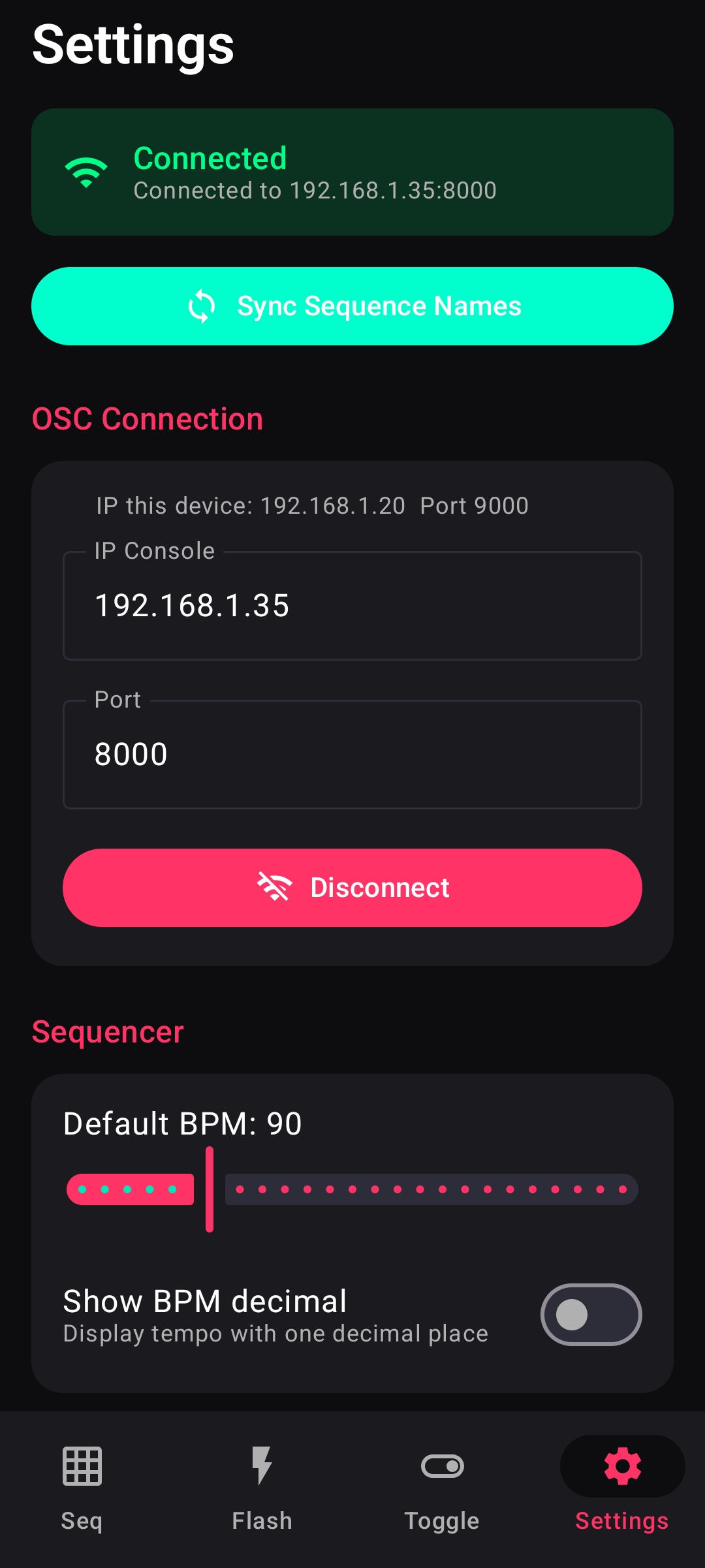
- Open MaPAD and navigate to Settings
- Enter your GrandMA3 console IP address
- Tap Connect to establish the OSC connection
OSC Setup
MaPAD communicates with GrandMA3 using the OSC (Open Sound Control) protocol over UDP.

GrandMA3 Configuration
- On your GrandMA3, go to
Menu > Network > Protocols > OSC - Enable OSC Input
- Add a new OSC input with:
- IP: Your Android device's IP (shown in MaPAD Settings)
- Port: 9000 (MaPAD's receiving port)
- Set the OSC output port to 8000 (or your custom port)
MaPAD Configuration
- Console IP: Enter your GrandMA3's IP address
- Port: Default is 8000 (must match GrandMA3's OSC output port)
Connection Status
The connection banner at the top of Settings shows your current status:
- Green (Connected): OSC link is active
- Gray (Disconnected): No active connection
- Red (Error): Connection failed - check your settings
Sequencer
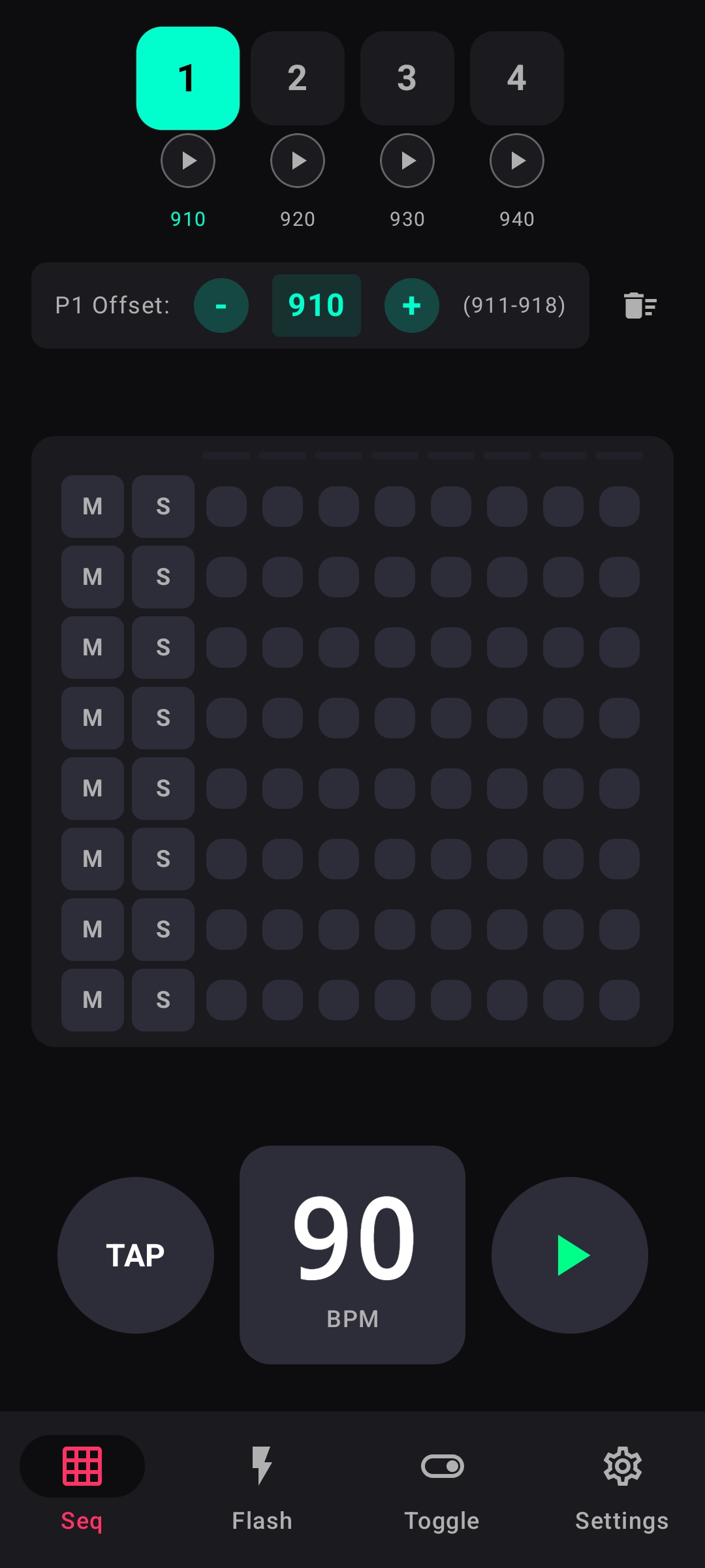
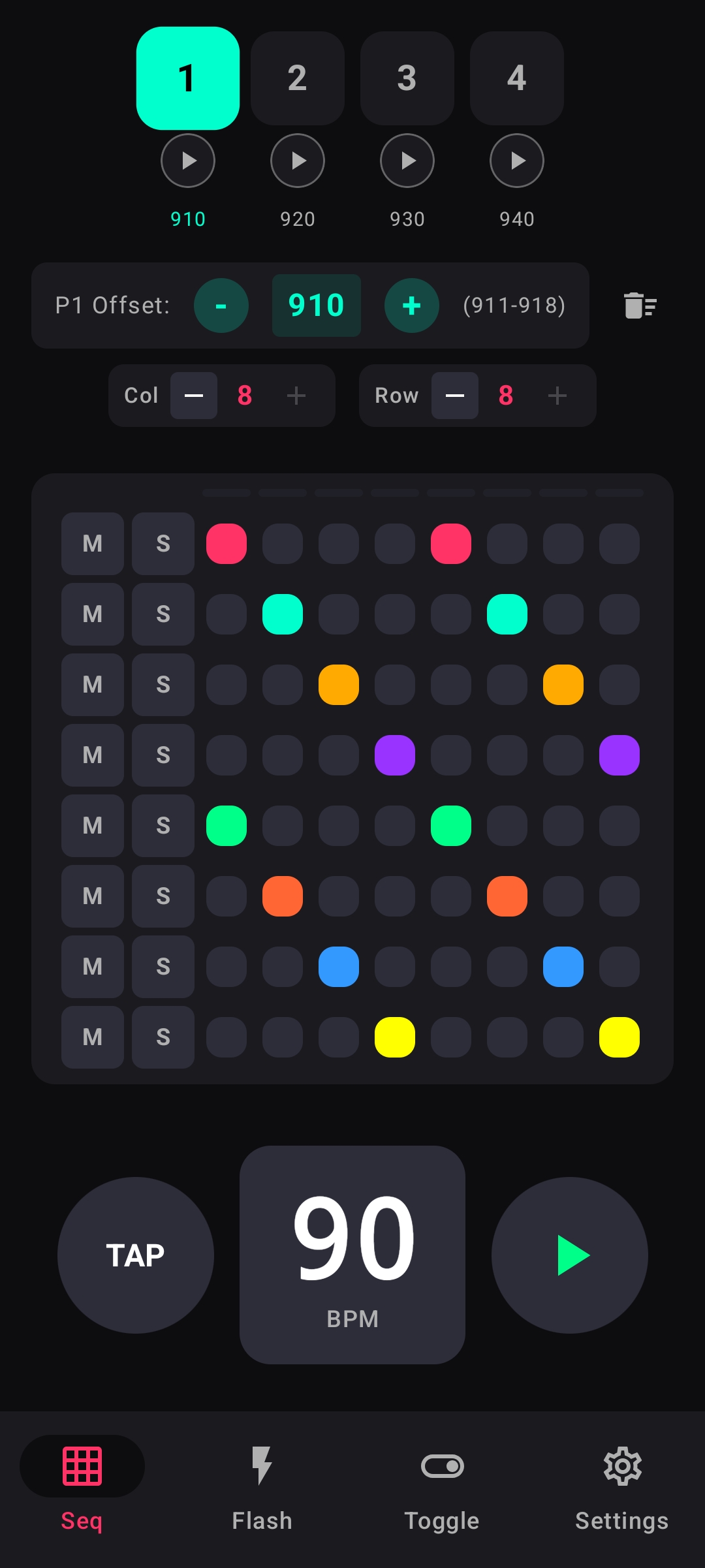
The sequencer is MaPAD's main feature - an 8-track step sequencer that sends Go+ commands to your GrandMA3 sequences in rhythm.
Pages
MaPAD provides 4 independent sequencer pages. Each page has:
- Its own pattern grid (up to 8 rows × 8 columns)
- Independent BPM setting
- Custom sequence offset
- Independent grid size settings
Switch between pages using the numbered buttons at the top. Each page also has a play button to start/stop that page independently.
Offset Configuration
The Offset determines which GrandMA3 sequence numbers are controlled. For example:
- Offset 200 means Row 1 controls Sequence 201, Row 2 controls 202, etc.
- Offset 910 means Row 1 controls Sequence 911, Row 2 controls 912, etc.
Use the +/- buttons to adjust the offset. The range display (e.g., "911-918") shows which sequences will be triggered.
Programming Patterns
- Tap any cell in the grid to toggle it on/off
- Active cells are color-coded by row for easy identification
- When playing, the playhead moves across columns
- Active cells trigger Go+ commands when the playhead passes
Track Controls
Each row has two control buttons:
- M (Mute): Silences the track - cells won't trigger even when active
- S (Solo): Only this track plays, all others are muted
BPM & Playback
- TAP button: Tap repeatedly to set BPM by feel
- BPM display: Tap to manually edit the tempo
- Play button: Start/stop sequencer playback
Grid Size Controls
MaPAD allows you to adjust the active grid size independently for each page. This is useful when you need fewer tracks or steps.
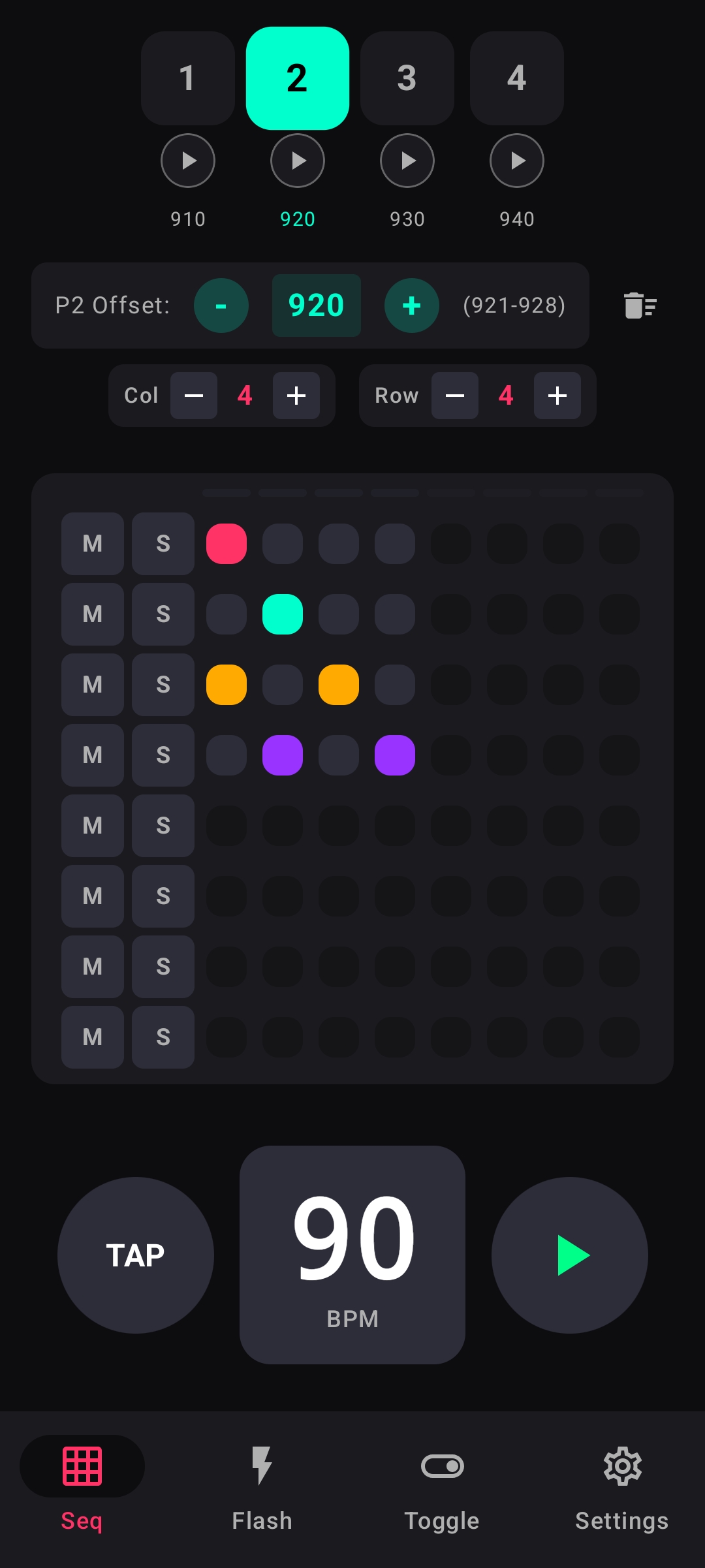
Column & Row Controls
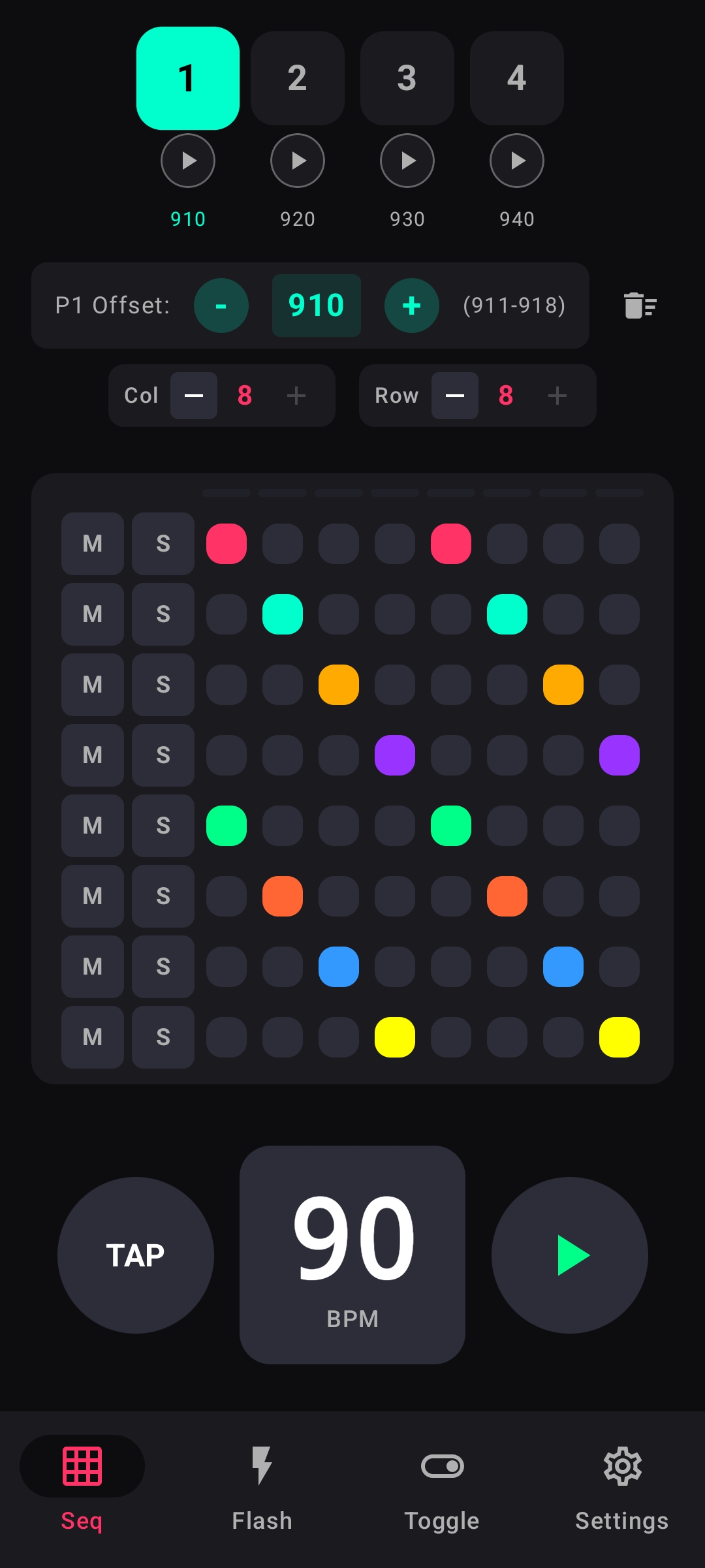
Located below the offset controls, you'll find:
- Col: Adjusts the number of active columns (steps) from 1 to 8
- Row: Adjusts the number of active rows (tracks) from 1 to 8
Use the +/- buttons to change the values.
Visual Feedback
- Active cells: Normal colored appearance, fully interactive
- Inactive cells: Very dark/dimmed, not triggered during playback
Playback Behavior
- The playhead only moves through active columns
- Only active rows send OSC commands
- Example: A 4×4 grid will cycle through 4 steps and control 4 sequences
Per-Page Settings
Each page remembers its own grid size. You can have:
- Page 1: 8×8 for a full drum sequence
- Page 2: 4×4 for a simple 4-beat pattern
- Page 3: 8×2 for two alternating sequences
- Page 4: 1×8 for a single-step trigger bank
Flash Pads
Flash pads provide instant, momentary control of sequences. They work like flash buttons on a lighting console.

How They Work
- Press and hold: Sends Go+ command to the sequence
- Release: Sends Off command to stop the sequence
This behavior is perfect for bumps, accents, and manual cue triggering during live performances.
Offset Configuration
Flash pads have their own offset setting (default: 300). With offset 300:
- Pad 1 controls Sequence 301
- Pad 2 controls Sequence 302
- ... and so on up to Pad 20 (Sequence 320)
Custom Labels
Use the "Sync Sequence Names" button in Settings to pull sequence names from your GrandMA3. Labels will appear on the pads for easy identification.
Toggle Pads
Toggle pads provide latching on/off control for sequences that need to stay running.

How They Work
- First tap: Sends Go+ command - sequence starts and stays on
- Second tap: Sends Off command - sequence stops
Active pads show a highlighted state so you can see which sequences are running.
Offset Configuration
Toggle pads have their own separate offset (default: 320). This allows you to use different sequence ranges for flash and toggle behaviors.
Use Cases
- Ambient effects that run continuously
- Fog/haze machine control
- Color washes or static looks
- Background chases that need to persist
Backup & Restore
MaPAD can save your complete show configuration to a file, allowing you to restore it later or transfer to another device.

What's Included in a Backup
- All 4 sequencer pages with their patterns
- Page offsets and grid sizes
- BPM settings per page
- Flash and Toggle pad offsets
- OSC connection settings
- App preferences (haptic feedback, screen on, etc.)
Creating a Backup
- Go to Settings and scroll to "Backup / Restore"
- Tap Create Backup
- Choose a location and filename
- Enter a name and optional description for the backup
- Tap Create Backup to save
Restoring a Backup
- Tap Restore from Backup
- Select your backup file (.mapad_backup)
- Review the backup information
- Choose restore mode:
- Replace All: Completely overwrites your current setup
- Merge: Imports settings while keeping some existing data
New Show
The "New Show" feature lets you start fresh while keeping your offset configurations intact.
What It Does
- Clears all patterns on all 4 sequencer pages
- Resets BPM to your default setting
- Resets grid sizes to 8×8
- Preserves: All offset settings (page offsets, flash/toggle offsets)
- Preserves: OSC connection settings
When to Use It
- Starting a new show at the same venue (same sequence assignments)
- Clearing test patterns before a performance
- Resetting after programming without losing offset setup
How to Use
- Go to Settings > Backup / Restore
- Tap New Show
- Read the confirmation dialog carefully
- Tap Create New Show to confirm
Settings
OSC Connection
| Setting | Description |
|---|---|
| Console IP | IP address of your GrandMA3 console |
| Port | OSC port (default: 8000) |
| Connect/Disconnect | Toggle the OSC connection |
| Sync Sequence Names | Pull sequence names from GrandMA3 for pad labels |
Sequencer
| Setting | Description |
|---|---|
| Default BPM | Initial tempo for new pages (40-300) |
| Show BPM Decimal | Display tempo with decimal precision |
Interface
| Setting | Description |
|---|---|
| Haptic Feedback | Vibrate on grid/pad taps |
| Keep Screen On | Prevent screen timeout during use |
Troubleshooting
Connection Issues
"Cannot connect to console"
- Verify both devices are on the same network
- Check that the console IP address is correct
- Ensure OSC input is enabled on GrandMA3
- Try pinging the console from your device
- Check firewall settings on your network
Sequences not triggering
- Verify the sequence numbers exist on your console
- Check your offset settings match your sequence pool
- Ensure sequences are not inhibited or protected
- Verify the OSC command prefix if using custom setup
Performance Issues
Timing feels off
- Ensure your WiFi connection is stable
- Avoid network congestion during shows
- Consider using a dedicated router for OSC traffic
App Issues
Settings not saving
- Ensure the app has storage permissions
- Try force-closing and reopening the app
- Check available device storage