Getting Started
PanoraMA is a professional followspot controller designed specifically for GrandMA3 lighting consoles. It transforms your Android device into a precise pan/tilt controller for moving head fixtures.

Requirements
- Android 8.0 or later
- GrandMA3 console or onPC (software version 1.5 or later recommended)
- WiFi network connecting your Android device and console
- OSC input enabled on your GrandMA3
- Moving head fixtures with Pan/Tilt attributes
First Launch
- Install PanoraMA from the download link
- Ensure your Android device is on the same network as your GrandMA3
- Open PanoraMA and navigate to Settings
- Enter your GrandMA3 console IP address
- Configure your fixture selection (group or fixture number)
- Tap Connect to establish the OSC connection
OSC Setup
PanoraMA communicates with GrandMA3 using the OSC (Open Sound Control) protocol over UDP.

GrandMA3 Configuration
- On your GrandMA3, go to
Menu > Network > Protocols > OSC - Enable OSC Input
- Add a new OSC input with:
- IP: Your Android device's IP (shown in PanoraMA Settings)
- Port: 8000 (or your custom port)
PanoraMA Configuration
- Console IP: Enter your GrandMA3's IP address
- Port: Default is 8000 (must match GrandMA3's OSC port)
OSC Commands
PanoraMA sends standard GrandMA3 commands via OSC:
Attribute "pan" At [value] Fade [time]Attribute "tilt" At [value] Fade [time]Attribute "dimmer" At [value]Attribute "zoom" At [value]
Touchpad Control
The touchpad is PanoraMA's main control interface - an XY pad that maps directly to your fixture's Pan and Tilt attributes.

How It Works
- Horizontal movement (X): Controls Pan
- Vertical movement (Y): Controls Tilt
- The crosshair shows your current position
- Values are sent in real-time as you move
Coordinate System
The touchpad uses a normalized 0-1 coordinate system that maps to your fixture's full pan/tilt range:
- Center (0.5, 0.5): Home position
- Left edge (0, y): Minimum Pan
- Right edge (1, y): Maximum Pan
- Top edge (x, 0): Minimum Tilt
- Bottom edge (x, 1): Maximum Tilt
Touch Modes
- Drag: Move your finger to control position
- Tap: Jump directly to the tapped position (with fade if configured)
Markers
Markers allow you to save and recall preset positions for quick access during a show.

Creating Markers
- Position your fixture using the touchpad
- Tap the "Add Marker" button
- Enter a name for the marker (e.g., "Stage Left", "Drummer", "Lead Vocal")
- The marker saves the current Pan/Tilt position
Using Markers
- Tap a marker: Instantly move to that position (uses Fade time if set)
- Long-press: Edit or delete the marker
Marker Organization
- Markers are saved per project
- Create different projects for different shows/venues
- Markers persist between app sessions
Dimmer & Zoom
Control your fixture's intensity and beam size directly from PanoraMA.
Dimmer Control
- Use the dedicated Dimmer slider or fader
- Range: 0% (blackout) to 100% (full)
- Changes apply immediately to the selected fixture(s)
Zoom Control
- Adjust the beam angle from spot to flood
- Available on fixtures with motorized zoom
- Use to adjust beam size for different performers
Gamepad Control
When using a gamepad:
- D-PAD Up/Down: Controls Dimmer (+5% / -5%)
- Left Stick Y: Controls Zoom (up = narrow, down = wide)
Move In Black (MIB)
MIB mode allows you to reposition your fixture invisibly while the beam is off.
How It Works
- Enable MIB mode in the control panel
- The dimmer automatically goes to 0%
- Position your fixture using the touchpad or markers
- Disable MIB to bring up the dimmer
Use Cases
- Prepositioning during blackouts
- Moving to the next performer without visible light
- Resetting between songs or scenes
Fade Transitions
Fade time controls how smoothly your fixture moves between positions.
Setting Fade Time
- Adjust the Fade slider in the control panel
- Range: 0s (instant) to several seconds
- Higher values = smoother, slower movements
When to Use Fade
- 0s (off): Fast following, responsive control
- 0.5-1s: Smooth transitions between positions
- 2-3s: Dramatic slow movements
Fade with Markers
When you tap a marker, the fixture moves to that position using the current Fade time. This creates smooth transitions between preset positions.
Gamepad Control
PanoraMA supports Bluetooth and USB gamepads for hands-free control.
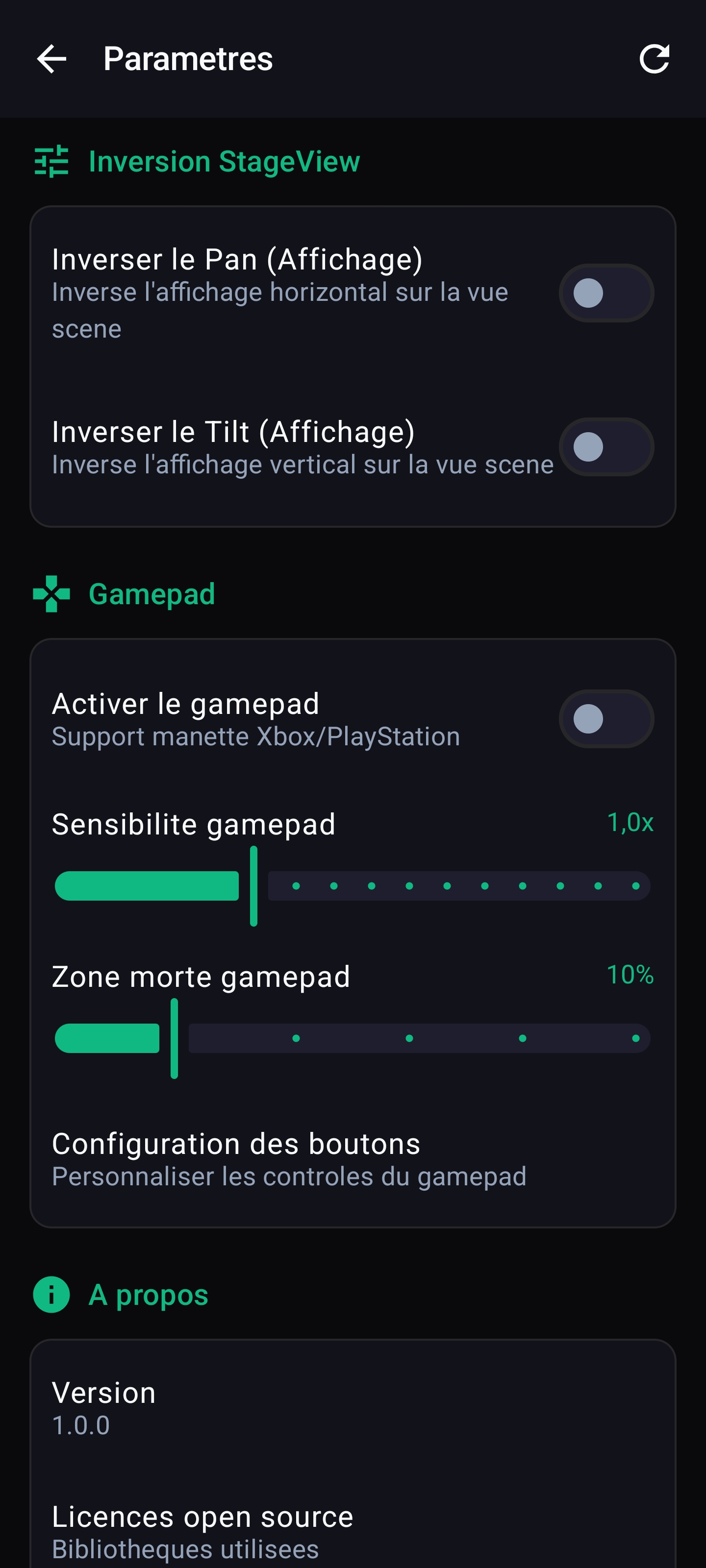
Compatible Controllers
- Xbox: Xbox One, Xbox Series X|S controllers
- PlayStation: DualShock 4, DualSense
- 8BitDo: Pro 2, SN30 Pro+
- Razer: Kishi, Wolverine
- Most generic USB/Bluetooth controllers
Default Button Mapping
| Control | Function |
|---|---|
| Right Stick | Pan / Tilt control |
| Left Stick Y | Zoom control |
| D-PAD Up | Dimmer + (increase by 5%) |
| D-PAD Down | Dimmer - (decrease by 5%) |
| A Button | Go to selected marker |
| B Button | Next marker |
| X Button | Previous marker |
| Y Button | Toggle MIB (Move In Black) |
| LB / RB | Fixture selection -/+ |
| LB + RB | Home position |
Connecting a Gamepad
- Put your controller in pairing mode
- Go to Android Bluetooth settings
- Pair the controller
- Open PanoraMA - the controller is automatically detected
Web Interface
PanoraMA includes a built-in web interface that can be accessed from any device on your network.

Enabling the Web Interface
- Go to Settings in PanoraMA
- Enable "Web Interface"
- Note the displayed URL (e.g., http://192.168.1.100:8080)
Accessing from Another Device
- Open a web browser on any device (laptop, tablet, another phone)
- Enter the PanoraMA URL
- You can now control your fixtures from that device
Use Cases
- Control from a laptop at FOH
- Multiple operators using different devices
- Backup control interface
Settings

OSC Connection
| Setting | Description |
|---|---|
| Console IP | IP address of your GrandMA3 console |
| Port | OSC port (default: 8000) |
| Connect/Disconnect | Toggle the OSC connection |
Fixture Selection
| Setting | Description |
|---|---|
| Fixture/Group | Target fixture or group number |
| Selection Mode | Single fixture or group control |
Control
| Setting | Description |
|---|---|
| Default Fade | Default fade time for movements |
| Invert Pan | Reverse Pan direction |
| Invert Tilt | Reverse Tilt direction |
Interface
| Setting | Description |
|---|---|
| Keep Screen On | Prevent screen timeout during use |
| Web Interface | Enable/disable web control |
| Web Port | Port for web interface (default: 8080) |
Troubleshooting
Connection Issues
"Cannot connect to console"
- Verify both devices are on the same network
- Check that the console IP address is correct
- Ensure OSC input is enabled on GrandMA3
- Check firewall settings on your network
Fixture not responding
- Verify the fixture/group number is correct
- Check that the fixture is patched and has Pan/Tilt attributes
- Ensure no other programmer has exclusive control
Control Issues
Movement feels inverted
- Use the Invert Pan/Tilt settings to correct direction
- This is common when fixtures are hung in different orientations
Movement is jerky
- Increase the Fade time for smoother transitions
- Check WiFi signal strength
- Reduce network congestion
Gamepad Issues
Controller not detected
- Ensure the controller is paired in Android settings
- Try reconnecting the controller
- Check if the controller is supported