Bienvenue dans RX·ONE
RX·ONE est un récepteur radio logiciel complet : il écoute de 0 à plus de 1 700 MHz, à travers une clé SDR branchée sur votre ordinateur ou des milliers de récepteurs publics sur Internet, et il réunit dans une seule façade tout ce qu'on attend d'une station d'écoute moderne : accord, filtrage, traitement audio, décodage numérique, cartes, satellites, propagation, enregistrement, carnet de trafic et réseau vocal.
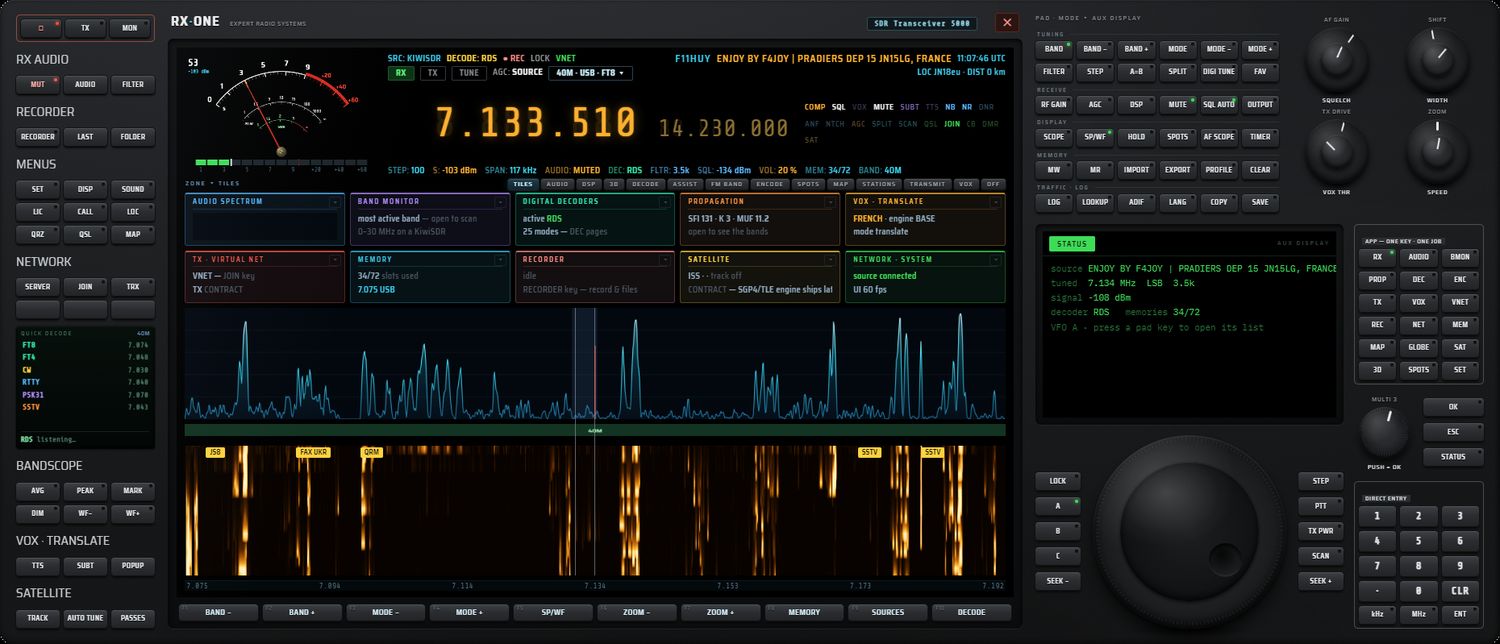
Ce que couvre ce manuel
Ce manuel décrit toutes les fonctions du logiciel, touche par touche :
- la CONSOLE 5000, la façade principale, sur PC et sur tablette Android ;
- l'interface RACK, la baie de tiroirs 19″ de l'interface précédente ;
- les pages CB 27 et le NET SERVER, qui forment le réseau vocal Virtual Net ;
- la télécommande ASSIST sur téléphone et le serveur MCP, qui permet de piloter RX·ONE depuis un assistant d'intelligence artificielle.
Les deux versions
| PC (Windows) | Tablette (Android) | |
|---|---|---|
| Récepteurs locaux | RTL-SDR, HackRF, SDRplay | RTL-SDR, HackRF |
| KiwiSDR, OpenWebRX | oui | oui |
| WebSDR | oui | non (refusé par les serveurs WebSDR) |
| Traduction et sous-titres de la voix (Whisper) | oui | non |
| Émission (HackRF) | oui | non |
| Façade | fenêtre redimensionnable | plein écran, étirable d'un double-appui |
Comment lire ce manuel
- Les touches de la façade sont écrites comme ceci : BAND, MODE, RF GAIN. Leur libellé est celui affiché par le logiciel (en anglais, dans les deux langues du manuel).
- Les gros plans de la façade portent des repères jaunes numérotés ; le tableau qui suit l'image reprend les mêmes numéros.
- Les touches F1 à F10, sous l'écran central, changent de rôle selon la page ouverte : chaque chapitre donne leur rôle pour ses pages.
- L'écran AUX (à droite) et le mini-écran (à gauche) affichent l'état et les listes de la page en cours ; leurs lignes se touchent pour choisir.
- Cliquez sur une capture pour l'agrandir. Le bouton FR | EN en haut change la langue ; PDF ouvre la version imprimable.
Organisation
- Installation et premier démarrage
- La façade
- Sources de réception
- L'écran central
- Audio et traitement
- FM BAND
- Décodage numérique
- ASSIST
- Voix, enregistrement et surveillance
- Cartes, propagation et satellites
- Mémoires, trafic et réglages
- Émission et Virtual Net
- Pages CB et NET SERVER
- L'interface RACK
- Dépannage et annexes
Installation et premier démarrage
RX·ONE existe en deux versions qui partagent la même façade, la CONSOLE 5000 : une application PC pour Windows et une application Android (APK) pour tablette. Ce chapitre explique comment installer chacune, préparer un récepteur USB, activer la licence et réussir le premier démarrage. Les sources de réception elles-mêmes sont décrites au chapitre 3.
Version PC (Windows)
Ce qu'il vous faut
- Un PC sous Windows 64 bits (Windows 10 ou 11).
- Une connexion Internet pour les récepteurs en ligne (KiwiSDR, OpenWebRX, WebSDR), l'annuaire des serveurs et l'activation de la licence.
- Facultatif : une clé RTL-SDR, un HackRF One (ou un PortaPack en mode HackRF), ou un SDRplay RSP.
Un exécutable portable
RX·ONE pour PC est livré sous la forme d'un seul fichier : RX-ONE-<version>-portable.exe. Il n'y a pas d'installeur.
- Copiez le fichier dans le dossier de votre choix (par exemple un dossier « RX-ONE » dans vos Documents).
- Double-cliquez dessus. Le premier lancement prend quelques secondes de plus : l'exécutable se décompresse.
- La façade apparaît directement sur le bureau, sans cadre Windows.
Le fichier contient tout ce qui est nécessaire : l'interface, le traitement du signal, les décodeurs, le moteur de sous-titres vocaux et le pont rtl_tcp pour la RTL-SDR. Aucun autre logiciel n'est à installer pour écouter un serveur en ligne.
La fenêtre sur PC
- La CONSOLE 5000 s'affiche détourée : la fenêtre épouse le contour de la façade. Déplacez-la en faisant glisser le bandeau de marque « RX·ONE ». Le bouton ✕ du bandeau ferme l'application.
- La taille par défaut est de 1560 × 900 pixels (900 × 500 au minimum). La taille, la position, l'état agrandi et le zoom sont retenus et restitués au lancement suivant. Si l'écran sur lequel se trouvait la fenêtre a disparu, elle est replacée sur un écran visible.
- Zoom de la page :
Ctrl++(ouCtrl+=) agrandit par pas de 10 %,Ctrl+-réduit,Ctrl+0revient à 100 %. Le zoom va de 40 % à 300 % et il est retenu. - Les liens vers des sites extérieurs (QRZ, HamQTH, Flightradar24…) s'ouvrent dans votre navigateur habituel, jamais dans RX·ONE.
- Le son et l'affichage continuent normalement quand la fenêtre n'est pas au premier plan.
Choisir la façade : CONSOLE 5000 ou RACK 19″
Par défaut, RX·ONE démarre sur la CONSOLE 5000. L'ancienne présentation en rack reste disponible :
- dans la page SET, encadré INTERFACE, touchez CONSOLE 5000 ou RACK 19″ : l'application se relance sur la façade choisie et la garde aux lancements suivants (voir SET) ;
- ou lancez l'exécutable avec l'option
--ui=rackou--ui=console(par exemple dans un raccourci Windows) : l'option l'emporte sur le choix enregistré.
Le rack s'ouvre dans une fenêtre Windows ordinaire, avec cadre et poignées. Il est décrit au chapitre 14 — RACK.
Où RX·ONE range vos fichiers
Tous vos réglages vivent dans un dossier de profil unique, %APPDATA%\RX-ONE (tapez ce chemin dans la barre d'adresse de l'Explorateur pour l'ouvrir). Ce dossier est indépendant de l'emplacement de l'exécutable : vous pouvez déplacer ou remplacer l'exécutable sans rien perdre.
| Contenu | Emplacement |
|---|---|
| Réglages de la façade (VFO, mémoires, DSP, licence…) | %APPDATA%\RX-ONE\Local Storage\ |
| Taille, position et zoom de la fenêtre | %APPDATA%\RX-ONE\window-state.json |
| Façade choisie (console ou rack) | %APPDATA%\RX-ONE\rxone-ui.json |
| Annuaire des serveurs mis à jour | %APPDATA%\RX-ONE\dir-cache.json |
| Enregistrements audio (WAV, OGG, Opus, WebM, MP3) | %APPDATA%\RX-ONE\recordings\ |
| Images et autres fichiers produits (SSTV, FAX, albums…) | votre dossier Téléchargements, sous-dossier RX-ONE |
| Journal du moteur vocal | %APPDATA%\RX-ONE\voice.log |
| Cache temporaire | %TEMP%\rxone-cache |
- La touche FOLDER du panneau gauche (bloc RECORDER) ouvre directement le dossier des enregistrements dans l'Explorateur.
- Les images et fichiers produits sont enregistrés sans boîte « Enregistrer sous » ; le chemin complet s'affiche à l'écran.
Préparer un récepteur USB
Le pilote WinUSB (Zadig)
Windows ne laisse une application accéder à une clé RTL-SDR ou à un HackRF que si le pilote WinUSB est installé sur cet appareil. Cette opération se fait une seule fois par appareil, avec l'utilitaire gratuit Zadig :
- Branchez la clé ou le HackRF.
- Lancez Zadig. Dans le menu Options, cochez List All Devices.
- Dans la liste déroulante, choisissez l'interface de votre récepteur. Pour une RTL-SDR, il s'agit en général de « Bulk-In, Interface (Interface 0) » ; pour un HackRF, de « HackRF One ».
- Vérifiez que le pilote cible (à droite de la flèche) est WinUSB, puis cliquez sur Replace Driver (ou Install Driver).
- Attendez la fin de l'installation. Il n'est pas nécessaire de redémarrer le PC.
RTL-SDR : le pont rtl_tcp intégré
Sur PC, la RTL-SDR passe toujours par le programme rtl_tcp, fourni dans l'exécutable. Vous n'avez rien à lancer vous-même :
- quand vous choisissez la RTL-SDR, RX·ONE démarre rtl_tcp en arrière-plan, sans fenêtre, et s'y connecte ;
- au premier lancement, cela peut prendre une à deux secondes ; RX·ONE réessaie jusqu'à 12 fois (environ 8 secondes) ;
- le débit par défaut est de 1,152 Msps.
Si vous avez déjà rtl_tcp installé ailleurs sur le PC, RX·ONE utilise celui qu'il embarque en priorité.
HackRF One
Le HackRF est piloté directement par RX·ONE, sans programme extérieur. Le débit est fixe : 2,4 Msps.
- Le pilote WinUSB (Zadig) est requis, comme pour la RTL-SDR.
- Un PortaPack doit être en mode HackRF : lancez l'application « HackRF » du micrologiciel Mayhem. En mode Mayhem normal, il n'est pas reconnu.
- Sur PC, RX·ONE accorde lui-même l'autorisation USB : aucune fenêtre de sélection ne s'ouvre en principe.
SDRplay
Un SDRplay RSP est utilisé à travers le serveur rsp_tcp, qui n'est pas fourni avec RX·ONE :
- Installez l'API SDRplay (pilote du fabricant).
- Procurez-vous RSPTCPServer (
rsp_tcp.exe) et placez-le à côté de l'exécutable RX·ONE, ou dans un dossier du PATH de Windows. - Dans RX·ONE, choisissez SDRplay dans le panneau LOCAL RECEIVER (chapitre 3) : l'application lance rsp_tcp sur cette machine (port 1234) et s'y connecte.
Version Android (tablette)
Ce qu'il vous faut
- Une tablette (ou un téléphone) sous Android 7.0 ou plus récent.
- Une connexion Wi-Fi pour les récepteurs en ligne et la licence.
- Pour un récepteur USB : un câble ou adaptateur USB OTG, et pour la RTL-SDR, l'application gratuite « RTL-SDR driver » de Martin Marinov (Play Store).
Installer l'APK
- Copiez le fichier APK de RX·ONE sur la tablette (câble USB, carte mémoire, téléchargement).
- Ouvrez-le depuis le gestionnaire de fichiers.
- Android demande d'autoriser l'installation d'applications provenant de cette source (« sources inconnues ») : autorisez-la pour le gestionnaire de fichiers utilisé, puis revenez en arrière et touchez Installer.
- Ouvrez RX·ONE depuis l'écran d'accueil.
L'application se relit entièrement depuis l'APK à chaque lancement : vous voyez toujours la version installée, jamais une ancienne version restée en cache.
Autorisations
RX·ONE ne demande une autorisation qu'au moment où une fonction en a besoin.
| Autorisation | Sert à | Quand elle est demandée |
|---|---|---|
| Accès à Internet et à l'état du réseau | serveurs KiwiSDR, OpenWebRX, WebSDR, annuaire, licence | accordée à l'installation |
| Micro | émission vers le Virtual Net | à la première utilisation du micro, par la fenêtre d'Android |
| Position (précise et approximative) | bouton AUTO du locator (GPS → carré Maidenhead) | à l'appui sur AUTO ; l'écran indique « permission demandee - re-appuie sur AUTO » : acceptez, puis appuyez de nouveau sur AUTO |
| Wi-Fi et maintien en éveil | garder un Wi-Fi rapide et l'écran allumé pendant l'écoute d'un serveur | automatique |
| Accès USB à un appareil | RTL-SDR, HackRF | à la première utilisation de chaque récepteur, par la fenêtre d'Android |
Plein écran et orientation
- RX·ONE s'affiche en plein écran immersif : les barres d'Android sont masquées. Balayez depuis le bord de l'écran pour les faire réapparaître un instant.
- L'application est toujours en paysage (dans les deux sens). Le mode portrait n'est pas proposé : la façade n'y occuperait qu'un petit quart de l'écran. Tourner la tablette ne recharge pas la page.
- Le pincement à deux doigts zoome dans la façade.
- La touche Retour d'Android revient à la page précédente de l'application ; s'il n'y en a pas, elle quitte RX·ONE.
Étirer la façade : double-appui sur le noir
La façade garde ses proportions : sur un écran plus haut qu'elle, des bandes noires restent visibles. Touchez deux fois rapidement une zone noire autour de la façade :
- la façade s'étire sur tout l'écran (ses proportions sont alors déformées) ; l'écran AUX affiche « stretched to fill the screen » ;
- un nouveau double-appui sur le noir rétablit la façade ajustée, aux proportions justes (« fitted, true proportions »).
Le choix est retenu sur l'appareil. Au premier démarrage, si plus de 15 % de la hauteur reste inutilisée, l'écran AUX vous propose une fois ce geste (« … % of the height is unused »).
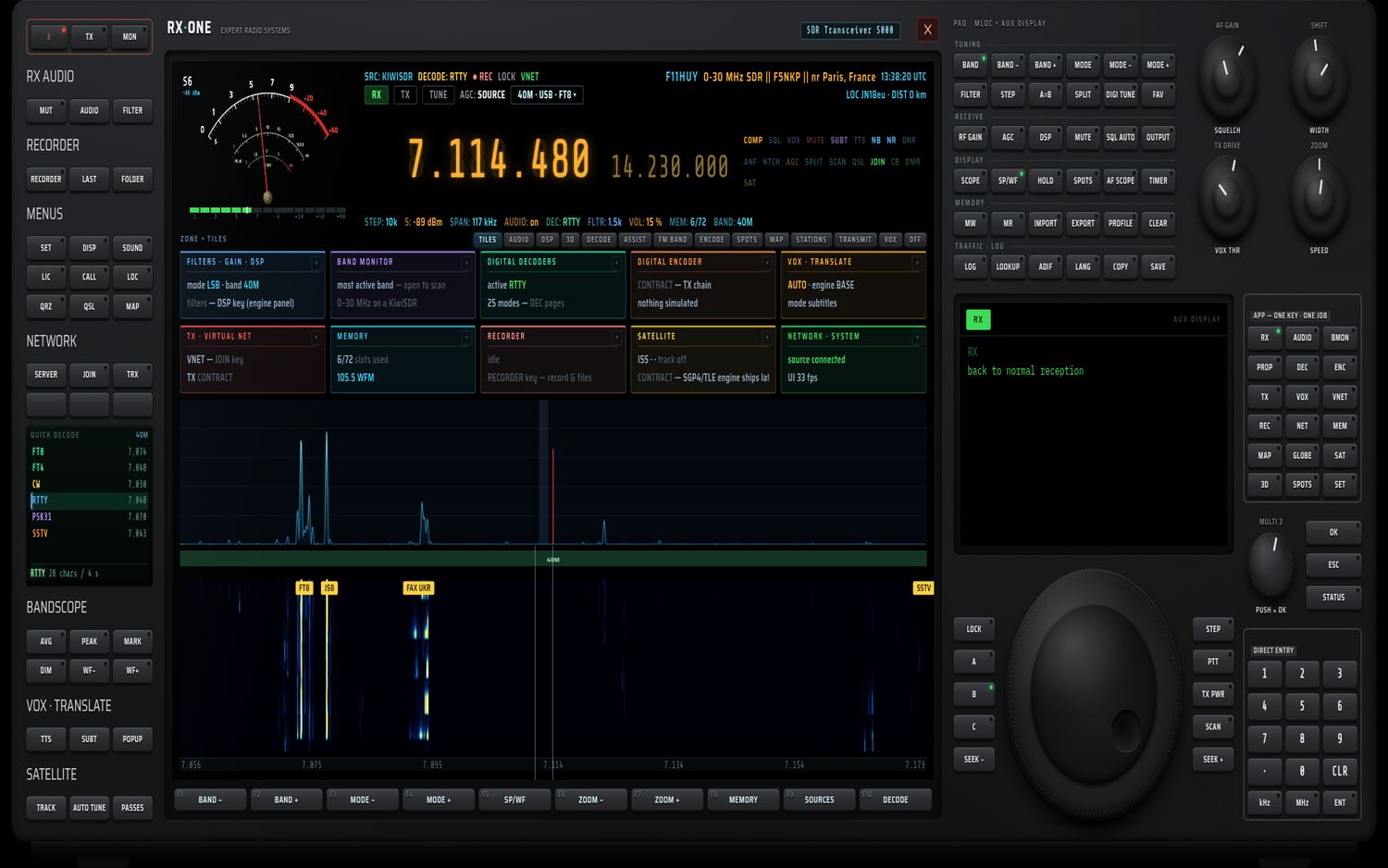
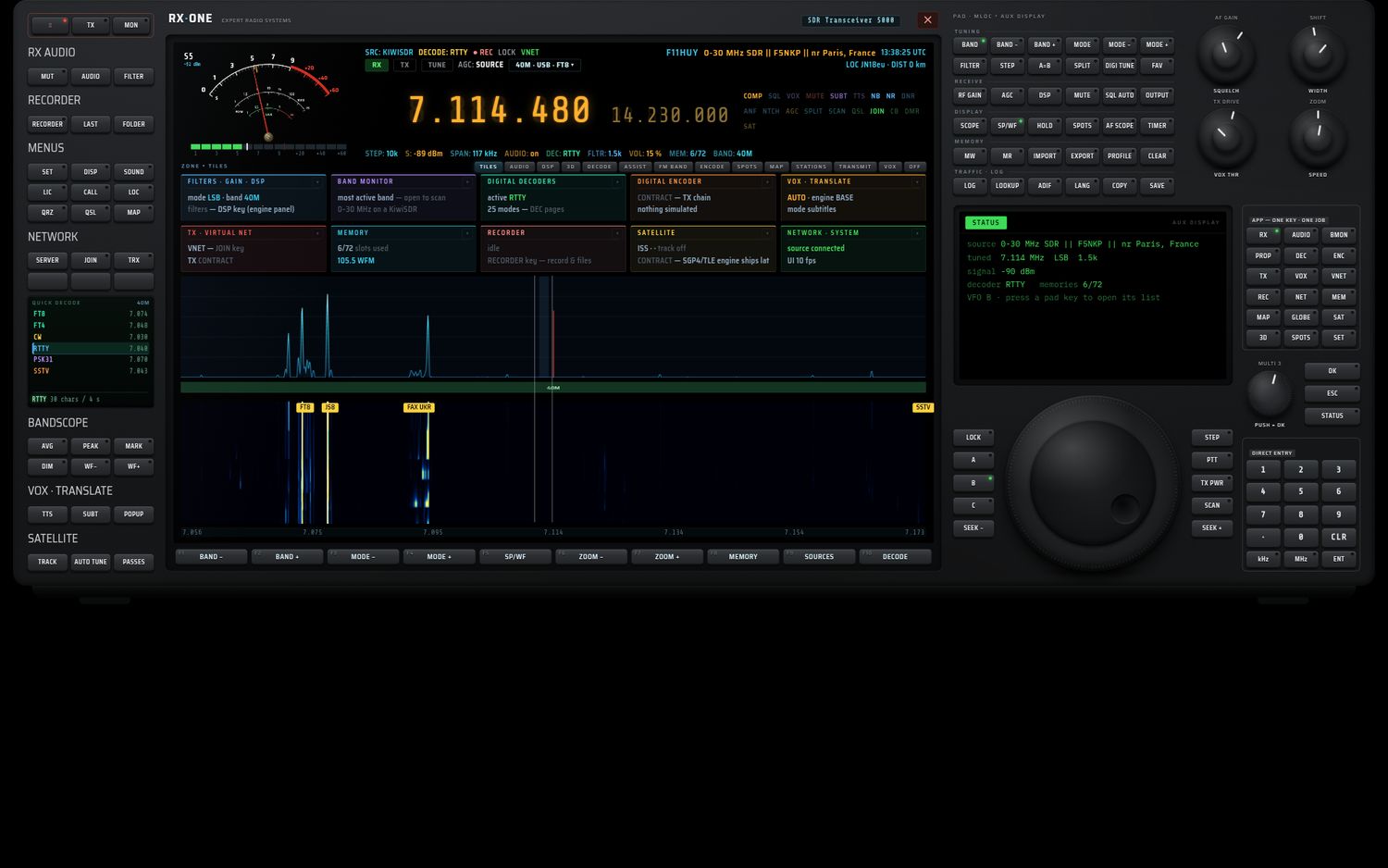
Autre possibilité : la tuile TABLET FULL de la page SET (rangée THIS SCREEN) fait occuper toute la hauteur de l'écran à la façade, avec des touches plus hautes, sans déformer le reste. Ce réglage est propre à chaque écran (voir la façade).
Récepteurs USB sur Android
- Branchement : branchez la RTL-SDR ou le HackRF avec un câble OTG. Android peut proposer d'ouvrir RX·ONE automatiquement ; si RX·ONE est déjà ouvert, la liste des récepteurs se met à jour et le bouton Local RX de l'annuaire s'encadre de vert.
- Autorisation USB : Android demande d'autoriser RX·ONE à accéder à l'appareil. Acceptez (cochez « utiliser par défaut » si vous ne voulez plus qu'on vous le demande).
- RTL-SDR : installez l'application « RTL-SDR driver » (Martin Marinov) depuis le Play Store. RX·ONE la lance lui-même quand vous choisissez la RTL-SDR, puis s'y connecte (jusqu'à 30 essais, environ 12 secondes). Si elle manque, l'écran affiche « Driver app missing: install RTL-SDR driver (Martin Marinov) from the Play Store ».
- HackRF : le pilote est intégré à RX·ONE, aucune autre application n'est nécessaire.
- Si les deux récepteurs sont branchés, RX·ONE demande lequel utiliser : « Two dongles detected. OK = RTL-SDR · Cancel = HackRF ».
Où sont vos fichiers sur Android
- Les enregistrements audio sont rangés dans le dossier Music/RXONE de la tablette (sur Android 7 à 9 :
Android/data/com.rxone.websdr/files/Music/RXONE). Aucune autorisation de stockage n'est demandée. - Les réglages et l'annuaire mis à jour sont conservés dans l'espace privé de l'application.
Activer la licence
RX·ONE demande une clé de licence. Elle est vérifiée en ligne et chaque appareil occupe une activation : une licence couvre deux appareils, un PC et un Android.
L'écran de licence au démarrage
Tant qu'aucune licence valide n'est enregistrée sur l'appareil, un écran bloque l'application : « RX·ONE », « SDR Receiver · License required », puis « Checking license… » pendant la vérification.
- Saisissez votre clé dans le champ (forme
XXXXXXXX-XXXX-XXXX-XXXX-XXXXXXXXXXXX). - Touchez Activate. L'écran affiche « Activating… », puis « License activated. Welcome! » et s'efface.
En bas de l'écran : le lien Buy a license (achat), le lien Release this device (libérer cet appareil) et l'identifiant de l'appareil.
| Message | Signification |
|---|---|
| « Enter your license key to activate RX·ONE on this device. » | aucune clé enregistrée sur cet appareil |
| « Enter a license key. » | vous avez touché Activate avec un champ vide |
| « Invalid license key. » | la clé n'existe pas : vérifiez la saisie |
| « This key does not belong to RX·ONE. » | la clé appartient à un autre produit |
| « Device limit reached (2 max: 1 PC + 1 Android). Release a device, then try again. » | les deux activations sont déjà prises : libérez l'un des appareils |
| « License expired. Renew it to continue. » | la licence a expiré |
| « This license has been disabled. » | la licence a été désactivée |
| « Unable to reach the license server. Check your Internet connection. » | pas de réseau ou serveur de licences injoignable |
| « Releasing device… » puis « Device released. You can enter a key again. » | l'appareil a été libéré |
Hors connexion
Après une vérification réussie, RX·ONE fonctionne 14 jours sans Internet. Au-delà, il demande de nouveau à joindre le serveur de licences.
Changer d'appareil
Pour transférer la licence vers un autre PC ou une autre tablette, libérez d'abord l'ancien appareil : touche LIC du panneau gauche, puis RELEASE THIS DEVICE (ou le lien Release this device de l'écran de licence). Activez ensuite la clé sur le nouvel appareil.
La fenêtre LICENCE de la console (état de la clé, appareils utilisés, date d'expiration, revalidation) est décrite au chapitre 11.

Premier démarrage
La séquence de démarrage
- Si la licence n'est pas encore validée, l'écran de licence s'affiche d'abord (voir ci-dessus). La suite attend qu'il se retire.
- Le grand écran affiche « RX·ONE 5000 » et le numéro de version, puis une ligne par élément qui démarre : moteur (« engine core OK »), récepteur et décodeurs, mémoires (« memories n/72 restored »), pages de décodage, moteur vocal, annuaire des serveurs (« n servers », ou « loading in background » s'il se charge encore), puis la façade utilisée.
- Un clic (ou un appui) sur l'écran saute la séquence (« click to skip »).
- Le récepteur est mis en marche automatiquement.
La dernière source est reconnectée
RX·ONE retient la source de chaque VFO et la rouvre au démarrage :
- environ 4 secondes après le lancement, le VFO courant retrouve son état (fréquence, mode, filtre, source…) ;
- si rien n'est reçu 7 secondes après le lancement, RX·ONE relance la source, puis encore une fois à 18 secondes. L'écran AUX affiche « reconnecting <nom du serveur>… » pour un serveur en ligne, ou « restarting HackRF… » / « restarting RTL-SDR… » pour un récepteur local, que RX·ONE rouvre grâce à l'autorisation USB déjà accordée ;
- pour un récepteur local, la fréquence et le mode mémorisés sont reposés après l'ouverture.
Tout premier lancement : choisir une source
Au tout premier lancement, aucune source n'est encore choisie. L'en-tête affiche « NOT CONNECTED — SERVER key » et le spectre « NO SOURCE - SERVER key to connect . VIRTUAL NET works offline ».
- Appuyez sur NET dans la grille APP (ou sur F9 SOURCES en réception) : l'annuaire SERVERS · NETWORK s'ouvre.
- Choisissez un récepteur et touchez TUNE ; ou touchez Local RX pour utiliser votre propre récepteur USB.
- RX·ONE s'accorde sur 7,100 MHz si le récepteur couvre le 40 m (sinon 14,100 MHz, sinon le milieu de sa couverture), en LSB sous 10 MHz et en USB au-dessus. Un récepteur local démarre sur 100,7 MHz en FM, un signal fort qui vérifie tout de suite le son.
Le chapitre 3 décrit l'annuaire et chaque type de source en détail.
Mettre à jour
RX·ONE ne se met pas à jour tout seul.
- PC : fermez RX·ONE, remplacez l'ancien fichier
RX-ONE-<version>-portable.exepar le nouveau, puis lancez-le. Vos réglages, mémoires, VFO et enregistrements sont conservés : ils sont dans%APPDATA%\RX-ONE, pas à côté de l'exécutable. - Android : installez le nouvel APK par-dessus l'ancien, sans désinstaller. Les réglages sont conservés. Si Android refuse l'installation par-dessus l'ancienne version, désinstaller puis réinstaller efface les réglages de la tablette : notez d'abord vos mémoires (touche EXPORT du pavé).
La licence reste active après une mise à jour : il n'est pas nécessaire de la saisir de nouveau.
Désinstaller proprement
- Libérez la licence sur cet appareil : LIC puis RELEASE THIS DEVICE (appuyez deux fois pour confirmer). L'activation redevient disponible pour un autre appareil.
- Sauvegardez ce que vous voulez garder : mémoires (EXPORT), enregistrements, images.
- Supprimez l'application :
- PC : fermez RX·ONE et supprimez le fichier exécutable. Pour effacer aussi tous les réglages, supprimez le dossier
%APPDATA%\RX-ONE— il contient aussi le dossier recordings de vos enregistrements. Vous pouvez supprimer de même%TEMP%\rxone-cacheet le sous-dossierRX-ONEde vos Téléchargements. - Android : désinstallez RX·ONE depuis les paramètres d'Android. Les réglages sont effacés avec l'application. Sur Android 10 et plus récent, les enregistrements du dossier Music/RXONE restent sur la tablette : supprimez-les à la main si vous le souhaitez.
- PC, facultatif : le pilote WinUSB installé avec Zadig reste en place. Si vous voulez réutiliser la clé avec un logiciel qui exige le pilote d'origine, réinstallez ce pilote depuis le Gestionnaire de périphériques de Windows.
La façade
La CONSOLE 5000 se présente comme un émetteur-récepteur de table : un panneau de touches à gauche, un grand afficheur au centre, un pavé de touches, quatre boutons rotatifs, un petit écran AUX et un grand bouton d'accord à droite. Ce chapitre décrit chaque élément de la façade, touche par touche. Les contenus du grand écran (onglets, tuiles, bandscope) sont traités au chapitre 4 — écran central.
Vue d'ensemble
Carte des zones
| Zone | Emplacement | Rôle |
|---|---|---|
| Panneau gauche | colonne de gauche | mise sous tension, audio de réception, enregistreur, menus, réseau, mini-écran, bandscope, voix, satellites |
| Bandeau de marque | au-dessus de l'afficheur | « RX·ONE », « EXPERT RADIO SYSTEMS », badge « SDR Transceiver 5000 » et bouton ✕ de fermeture |
| Afficheur | centre, en haut | S-mètre, fréquences, ligne d'état, mots d'état, ligne de valeurs, barre d'onglets |
| Grand écran | centre | tuiles ou contenu choisi, spectre, plan de bande, cascade, règle de fréquences (chapitre 4 — écran central) |
| Touches F1–F10 | sous le grand écran | dix touches dont le rôle change selon ce qui est ouvert |
| Pavé « PAD » | à droite, en haut | 36 touches rangées par geste : TUNING, RECEIVE, DISPLAY, MEMORY, TRAFFIC · LOG |
| Rotatifs | à droite du pavé | quatre boutons doubles (tête et jupe) |
| Écran AUX DISPLAY | à droite, au milieu | listes, messages et état du contexte ouvert |
| APP — ONE KEY · ONE JOB | à droite de l'écran AUX | 18 touches, une par fonction |
| MULTI 3, OK, ESC, STATUS | sous la grille APP | navigation dans les listes |
| Vernier | à droite, en bas | grand bouton d'accord et ses deux colonnes de touches |
| DIRECT ENTRY | en bas à droite | saisie directe d'une fréquence |
Principes communs
- La façade garde toujours sa disposition. Elle est agrandie ou réduite d'un seul bloc pour tenir dans la fenêtre ou l'écran, sans jamais dépasser sa taille d'origine. Aucune touche ne change de place selon la taille de l'écran.
- Témoins. Le petit point en haut à droite d'une touche est son témoin. Vert : la fonction est active. Sur les touches de mise sous tension, de sourdine, d'enregistrement et d'émission, le témoin est rouge.
- Infobulles. Les noms des touches restent courts. Laissez la souris un instant sur une touche : une infobulle explique son rôle. Pour CALL, LOC et STEP, l'infobulle affiche la valeur courante. Vous pouvez désactiver les infobulles dans DISP › TOOLTIPS.
- Écran AUX et touches F1–F10. Ils appartiennent au contexte : la liste, la fenêtre ou le contenu que vous venez d'ouvrir en prend possession. ESC les rend à la réception normale.
- Couleurs par famille. Dans les mots d'état et la ligne de valeurs, chaque famille a sa teinte : accord en cyan (STEP, SPAN, BAND, SPLIT, SCAN) ; niveaux et audio en ambre (S, VOL, AUDIO, AGC, COMP) ; filtres et bruit en bleu (FLTR, NTCH, SQL, NB, NR, DNR, ANF) ; décodage en menthe (DEC) ; voix en violet (VOX, SUBT, TTS) ; réseau et trafic en vert (JOIN, CB, DMR, QSL) ; mémoires en turquoise (MEM) ; satellite en jaune (SAT) ; MUTE en rouge. Un mot éteint garde sa teinte, très assourdie.
Bandeau de marque
- Le bouton ✕ à droite du badge « SDR Transceiver 5000 » ferme l'application.
- Sur PC, la fenêtre épouse le contour de la façade (pas de cadre Windows). Faites glisser le bandeau de marque pour déplacer la fenêtre.
Séquence de démarrage
Au lancement, le grand écran affiche « RX·ONE 5000 », le numéro de version, puis l'état des éléments qui démarrent : moteur, récepteur, mémoires (n/72), pages de décodage, moteur vocal, annuaire des serveurs, interface. Un clic sur l'écran saute cette séquence. Si l'écran de licence est affiché, la séquence l'attend.
L'afficheur

Les numéros renvoient aux repères jaunes : 1 et 2 dans Le S-mètre, 3 à 12 dans La ligne d'état, 13 et 14 dans Les fréquences, 15 dans Les mots d'état, 16 dans La ligne de valeurs, 17 dans La barre d'onglets.

Le S-mètre
- Cadran à aiguille dessiné sur le fond noir : arc blanc jusqu'à S9, puis arc rouge épais au-delà. Graduations 0 · 1 · 3 · 5 · 7 · 9 · +20 · +40 · +60. Les petites échelles PO·W et SWR, plus bas, servent à l'émission.
- Aiguille rouge et repère de crête ambre qui retombe lentement.
- Lecture numérique en haut à gauche : niveau en points S (« S5 », « S9+20 ») et en dBm. Sans mesure : « -- ».
- Échelle : 6 dB par point jusqu'à S9 (S9 = −73 dBm), puis graduations en dB au-dessus de S9.
- Bargraphe sous le cadran : 15 segments, verts de S1 à S9, ambre de +10 à +30, rouges au-delà. Un repère blanc tient la crête environ 1,6 s puis redescend. Éteint sans source.
- Quand la source ne publie aucun niveau, l'aiguille reste au repos.
- Mode DIGITAL : dans DISP › S-METER, choisissez DIGITAL. Le cadran disparaît, le bargraphe s'agrandit et affiche le niveau en clair, sous le titre « S-METER · DIGITAL ».
La ligne d'état
| N° | Élément | Ce qu'il affiche |
|---|---|---|
| 3 | SRC: | type de la source connectée (KIWISDR, OPENWEBRX, LOCALSDR…), « — » sans source |
| 4 | DECODE: | décodeur actif, « — » sans décodeur |
| 5 | REC · LOCK · VNET | trois libellés à droite de DECODE : REC (en rouge, précédé d'un point), LOCK, VNET (en vert) |
| 6 | Nom du serveur (ambre) | nom de la station réceptrice connectée ; « · connecting » tant qu'elle ne répond pas ; « NOT CONNECTED — SERVER key » sans source |
| 7 | Heure | heure UTC « HH:MM:SS UTC », mise à jour chaque seconde |
| 8 | Pastille RX | verte en réception |
| 9 | Pastille TX | rouge quand le poste émet réellement |
| 10 | Pastille TUNE | à droite de TX ; grise en réception |
| 11 | AGC: | « — » hors ligne ; « SOURCE » quand le serveur fixe le gain ; « TUNER » ou « MANUAL » avec un récepteur local |
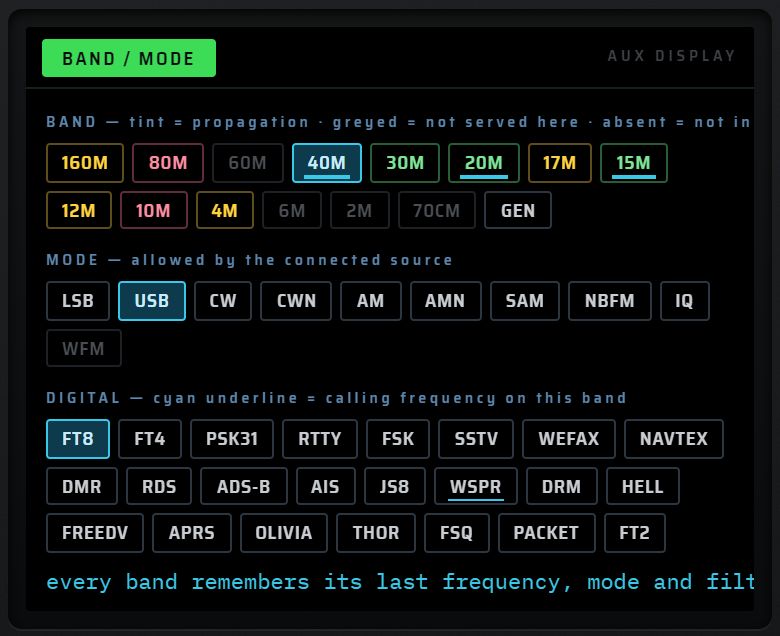
| 12 | Badge « 40M · USB · FT8 ▾ » | un clic ouvre dans l'écran AUX un raccourci BAND / MODE (voir ci-dessous) |
Le raccourci du badge. Cliquez sur le badge : l'écran AUX montre une rangée de bandes et une rangée de modes. Une bande accorde sur une fréquence fixe : 160M 1,840 · 80M 3,573 · 40M 7,074 · 30M 10,136 · 20M 14,074 · 17M 18,100 · 15M 21,074 · 12M 24,915 · 10M 28,074 · 4M 70,154 · GEN 6,000 MHz. Un mode change le mode de réception, s'il est servi par la source.
Les fréquences
- Fréquence principale (grands chiffres ambre) : la fréquence d'accord du VFO courant. Les chiffres se resserrent quand la fréquence en compte davantage (par exemple 1090 MHz).
- Molette sur un chiffre : ajoute ou retire une unité de ce chiffre (molette sur le chiffre des kHz : ±1 kHz).
- Clic sur un chiffre : moitié haute = +1 sur ce chiffre ; moitié basse = −1.
- Ces gestes respectent LOCK.
- Fréquence secondaire (plus petite, à droite) : rappelle la dernière fréquence connue de l'autre VFO.
- Pendant une saisie directe, la fréquence principale affiche les chiffres tapés suivis d'un curseur « ▏ ».
Les mots d'état
À droite de la fréquence, une grille de mots : COMP · SQL · VOX · MUTE · SUBT · TTS · NB · NR · DNR · ANF · NTCH · AGC · SPLIT · SCAN · QSL · JOIN · CB · DMR · SAT.
Un mot allumé en blanc signale une fonction active :
| Mot | Allumé quand… |
|---|---|
| MUTE | le son est coupé |
| SQL | le squelch est posé et laisse passer le signal |
| NB, NR, DNR, ANF | le traitement correspondant est en marche |
| NTCH | le notch audio est en marche |
Plusieurs mots sont cliquables :
| Mot | Effet d'un clic |
|---|---|
| MUTE | coupe ou rétablit le son |
| NTCH | met en marche ou arrête le notch audio ; l'écran AUX affiche « audio notch ON at xxxx Hz » |
| NB / NR | fait tourner le niveau : off → 1 → 2 → 3 → off |
| DNR / ANF | marche / arrêt |
| VOX | démarre la conversion voix → texte (chapitre 9 — VOX · TRANSLATE) |
| JOIN | rejoint ou quitte le Virtual Net (chapitre 12 — Virtual Net) |
| SQL | rappelle que le squelch se règle au bouton SQUELCH |
Les traitements NB, NR, DNR, ANF demandent une source connectée et du son.
La ligne de valeurs
Sous la fréquence, une ligne mise à jour chaque seconde. L'étiquette est en teinte assourdie, la valeur en teinte pleine.
| Étiquette | Valeur |
|---|---|
| STEP: | pas d'accord (1, 10, 100, 1k, 5k, 10k, 100k) |
| S: | niveau du signal en dBm |
| SPAN: | largeur affichée par le spectre, en kHz |
| AUDIO: | on, off ou MUTED (en rouge) |
| DEC: | décodeur actif |
| FLTR: | largeur du filtre FI (ex. 3.5k) |
| NTCH: | fréquence du notch, quand il est actif |
| SQL: | seuil du squelch en dBm, quand il est posé |
| VOL: | volume en % |
| MEM: | mémoires occupées sur 72 |
| BAND: | bande déduite de la fréquence d'accord |
La barre d'onglets
Juste au-dessus des tuiles, à droite de « ZONE ▾ TILES », une barre d'onglets choisit ce que montre la fente du grand écran : TILES · AUDIO · DSP · 3D · DECODE · ASSIST · FM BAND · ENCODE · SPOTS · MAP · STATIONS · TRANSMIT · VOX · OFF. Un clic droit dans la fente, ou un clic sur « ZONE ▾ », ouvre le menu ZONE sur les touches F1–F10. Tout cela est décrit au chapitre 4 — fente et onglets.
Le panneau gauche

De haut en bas : le cadre rouge, RX AUDIO, RECORDER, MENUS, NETWORK, le mini-écran, BANDSCOPE, VOX · TRANSLATE, SATELLITE. Les touches sont rangées par trois.
Cadre rouge, RX AUDIO, RECORDER
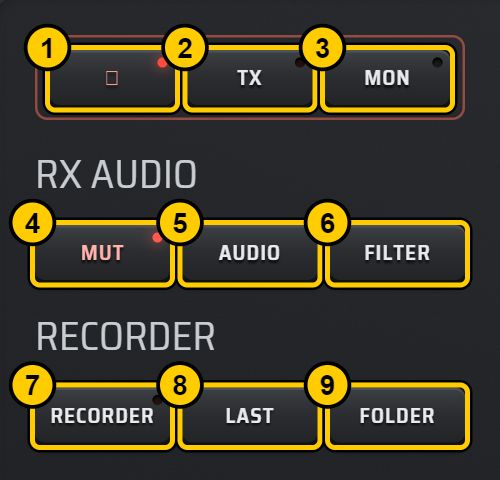
| N° | Touche | Action | Valeurs / défaut |
|---|---|---|---|
| 1 | ⏻ (marche) | Met le récepteur sous tension ou hors tension. Sous tension, le poste se reconnecte à la dernière source. Hors tension, la façade passe en veille : l'écran s'assombrit fortement, les panneaux aussi. | Témoin rouge = récepteur sous tension. Sous tension au lancement. |
| 2 | TX | Ouvre la fenêtre TRANSMIT dans le grand écran ; elle prend les touches F1–F10 et l'écran AUX. Voir le chapitre 12 — TRANSMIT. | Voie par défaut : réseau virtuel, rien n'est rayonné. |
| 3 | MON | Surveillance de l'émission : non disponible dans cette version. Un appui affiche un message dans l'écran AUX. | Témoin toujours éteint. |
| 4 | MUT | Coupe ou rétablit le son. L'état est retenu d'une session à l'autre. | Témoin rouge = son coupé ; mot MUTE allumé ; « AUDIO: MUTED » en rouge. |
| 5 | AUDIO | Ouvre ou ferme la fenêtre AUDIO LAB : égaliseur 6 bandes (100, 250, 630, 1600, 3200, 6300 Hz), passe-bande, notch, compresseur, réverbération, afficheur, préréglages. Voir le chapitre 5 — AUDIO LAB. | — |
| 6 | FILTER | Ouvre ou ferme la fenêtre FILTERS · GAIN · DSP : NB, NR, DNR, ANF, AGC audio, squelch, largeur FI, volume, sourdine, passe-bande, notch. Voir le chapitre 5 — FILTERS · GAIN · DSP. | — |
| 7 | RECORDER | Revient à l'écran de réception et ouvre RECORDER · SCHEDULER dans la fente du grand écran (chapitre 9 — RECORDER · SCHEDULER). | Témoin rouge = enregistrement en cours. |
| 8 | LAST | Relit l'enregistrement le plus récent. Sans fichier : « nothing recorded yet ». | — |
| 9 | FOLDER | Ouvre le dossier des enregistrements dans l'Explorateur Windows. L'écran AUX affiche le chemin. | PC uniquement. |
MENUS et NETWORK
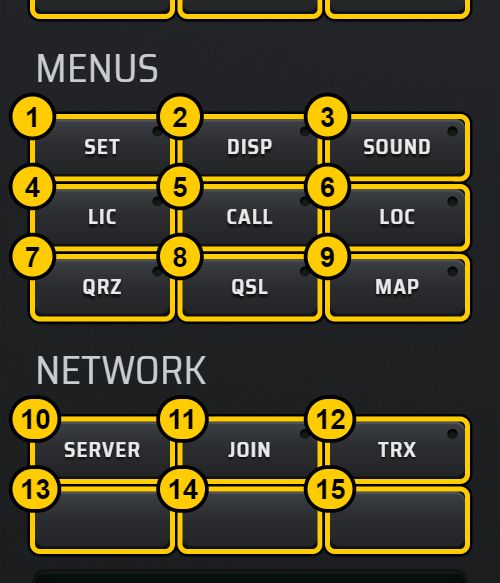
| N° | Touche | Action | Valeurs / défaut |
|---|---|---|---|
| 1 | SET | Ouvre le menu général. Les touches F1–F10 deviennent : DISPLAY, AUDIO, BAND MON, LOCAL RX, MEMORY, CALL LOG, QRZ, STATUS, RECORDER, ◂ RX. | — |
| 2 | DISP | Ouvre le panneau DISPLAY dans le grand écran : palette (11), vitesse de cascade, style du S-mètre (ANALOG / DIGITAL), étiquettes DX, lissage du spectre, contraste, plage et plancher de la cascade, hauteur du spectre, horloge, gradateur de façade, infobulles. Voir le chapitre 11 — DISPLAY. | Chaque réglage s'applique tout de suite et est retenu. |
| 3 | SOUND | Ouvre ou ferme la fenêtre SOUND : cartes son de l'ordinateur, choix de la sortie et de l'entrée micro (VOX, émission phonie). Une autorisation micro est demandée une fois pour lire le nom des périphériques. Voir le chapitre 5 — SOUND. | Sortie retenue. |
| 4 | LIC | Ouvre ou ferme la fenêtre LICENCE : état, activation ou désactivation de la clé sur cet appareil, revalidation. Voir le chapitre 11 — LICENCE. | — |
| 5 | CALL | L'infobulle affiche votre indicatif, ou « not set ». | — |
| 6 | LOC | L'infobulle affiche votre locator. | — |
| 7 | QRZ | Ouvre ou ferme la fenêtre STATION LOOKUP : recherche d'un indicatif (QRZ.com / HamQTH), position, DXCC, azimut, carnet, punaise sur la carte. Voir le chapitre 11 — STATION LOOKUP. | — |
| 8 | QSL | Ouvre le carnet directement sur la carte QSL du contact sélectionné. Voir le chapitre 11 — QSL CARD. | — |
| 9 | MAP | Ouvre ou ferme la fenêtre carte complète : votre station, les serveurs, les stations entendues, les satellites, le Virtual Net, la punaise QTH. Ne pas confondre avec la touche APP MAP. Voir le chapitre 10 — MAP. | — |
| 10 | SERVER | Lance le NET SERVER dans sa propre fenêtre, puis vérifie qu'il répond : « running · it answers — press JOIN » ou « running, but no answer yet ». Voir le chapitre 13 — NET SERVER. | PC uniquement. |
| 11 | JOIN | Ouvre la fenêtre VIRTUAL NET et rejoint le serveur si la liaison n'est pas déjà ouverte. Voir le chapitre 12 — VIRTUAL NET. | Témoin vert = connecté au net. |
| 12 | TRX | Allume ou éteint l'émetteur-récepteur réseau, dessiné dans l'écran AUX. Voir le chapitre 12 — TRX réseau. | Témoin vert = poste réseau actif. |
| 13–15 | (sans libellé) | Touches de réserve, sans fonction. | — |
Le mini-écran gauche
Sous NETWORK, un petit écran de hauteur fixe affiche une de trois vues, dans cet ordre de priorité :
- Vue du contexte. Quand la fenêtre ou le contenu ouvert fournit un complément, le mini-écran prend son nom en titre et affiche ses valeurs. Exemples : TRANSMIT (AIR, GAIN + AMP, SPLIT, ROUTE, LOCK, VOX) ; SATELLITE (SAT, ELEV, AZIM, RANGE, DOPP, UP NOW…).
- Vue RDS. Sur la bande FM 87,5–108 MHz, le mini-écran devient un afficheur RDS : nom de la station en grand, type de programme (PTY), musique ou parole, TP/TA, RadioText, horloge, fréquences alternatives, code PI en titre, qualité RDS en bas. Le RDS ne fonctionne qu'avec un récepteur local RTL-SDR ou HackRF en WFM. Sinon, le mini-écran explique pourquoi (« switch to WFM… », « this receiver does not send it »). Voir le chapitre 6 — mini-écran RDS.
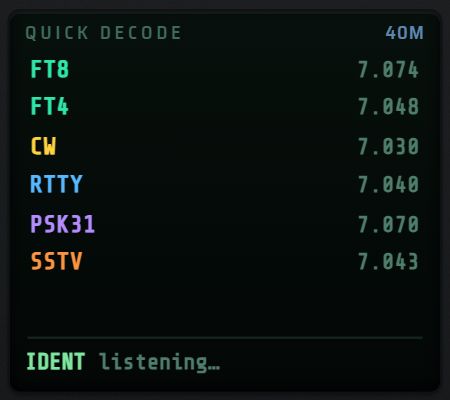
- Vue QUICK DECODE (par défaut). Titre « QUICK DECODE » et bande courante à droite (ou « out of band »). Six lignes : FT8, FT4, CW, RTTY, PSK31, SSTV, chacune avec sa fréquence de référence IARU Région 1 sur la bande où vous êtes (de 160 m à 2 m).
- Touchez une ligne : le décodeur est choisi et le poste s'accorde sur sa fréquence. En FT8, FT4 et PSK31, l'accord place la fréquence au centre de la bande passante.
- Ligne grisée : pas de fréquence de référence sur cette bande. Ligne surlignée : décodeur actif. Chaque mode a sa couleur.
- Ligne du bas : décodeur actif et activité mesurée (FT8/FT4 : nombre de décodes et position dans la tranche ; ADS-B : trames par minute et avions ; décodeurs texte : caractères reçus sur 4 s ; sinon « no decoder »).
Sur la vue d'ensemble du panneau gauche, plus haut, le mini-écran est en vue QUICK DECODE sur 40M : FT8 7.074, FT4 7.048, CW 7.030, RTTY 7.040, PSK31 7.070, SSTV 7.043, avec « RDS listening… » sur la ligne du bas.
BANDSCOPE, VOX · TRANSLATE, SATELLITE
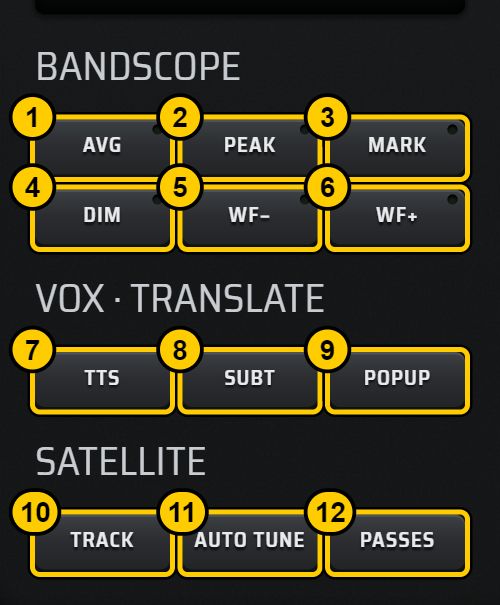
| N° | Touche | Action | Valeurs / défaut |
|---|---|---|---|
| 1 | AVG | Change le lissage du spectre et de la cascade, en cycle. | SHARP → NORMAL → SMOOTH → SHARP |
| 2 | PEAK | Maintien de crête : une trace jaune à décroissance lente s'ajoute au spectre. | Témoin = actif. Retenu, par VFO. |
| 3 | MARK | Place un marqueur sur le sommet le plus fort de la fenêtre, avec sa fréquence en MHz. | Témoin = actif. Retenu. |
| 4 | DIM | Passe à la palette de cascade suivante. | SDR++, CLASSIC, GREY, INFERNO, VIRIDIS, OCEAN, PHOSPHOR, AMBER, ICE, SUNSET, REDLINE. Retenue. |
| 5 | WF− | Ralentit le défilement de la cascade. | SLOW / MED / FAST |
| 6 | WF+ | Accélère le défilement de la cascade. | SLOW / MED / FAST |
| 7 | TTS | Lit à voix haute (synthèse vocale du système) les trois dernières lignes de sous-titres, dans la langue VOX. Sans texte : « nothing decoded yet to read out ». | Langue VOX par défaut : FR |
| 8 | SUBT | Lance la conversion voix → texte et l'affiche dans la fente du grand écran. Second appui : arrêt et retour aux tuiles. Voir le chapitre 9 — VOX · TRANSLATE. | — |
| 9 | POPUP | Même conversion, dans une fenêtre détachée que vous pouvez déplacer et redimensionner. Le bouton ATTACH de cette fenêtre la ramène. | PC uniquement |
| 10 | TRACK | Ouvre la page satellites (vue monde) sur le satellite le plus haut au-dessus de l'horizon. Appuis suivants : le satellite suivant. L'écran AUX affiche le nom, l'élévation, l'azimut et le nombre de satellites visibles. Rien au-dessus de l'horizon : « nothing above the horizon right now ». | — |
| 11 | AUTO TUNE | Ouvre la page satellites (vue ciel) si besoin et met en marche ou arrête le suivi Doppler : l'accord suit le satellite. | — |
| 12 | PASSES | Ouvre la page satellites sur la liste des prochains passages. Second appui : alterne entre la liste et le ciel polaire. | — |
Si la liste SCOPE est ouverte dans l'écran AUX, elle se met à jour après chaque appui sur une touche BANDSCOPE. Les satellites sont décrits au chapitre 10 — satellites.
Le pavé droit

Le pavé est organisé par geste, de haut en bas : TUNING (accorder), RECEIVE (recevoir), DISPLAY (afficher), MEMORY (mémoriser), TRAFFIC · LOG (trafic). Son titre « PAD · … · AUX DISPLAY » rappelle la dernière liste ouverte.
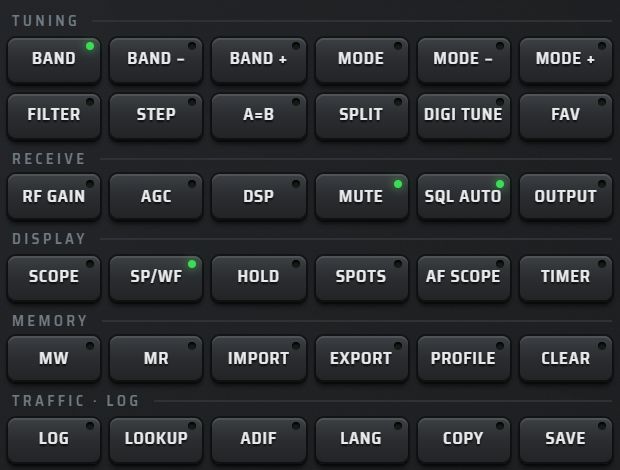
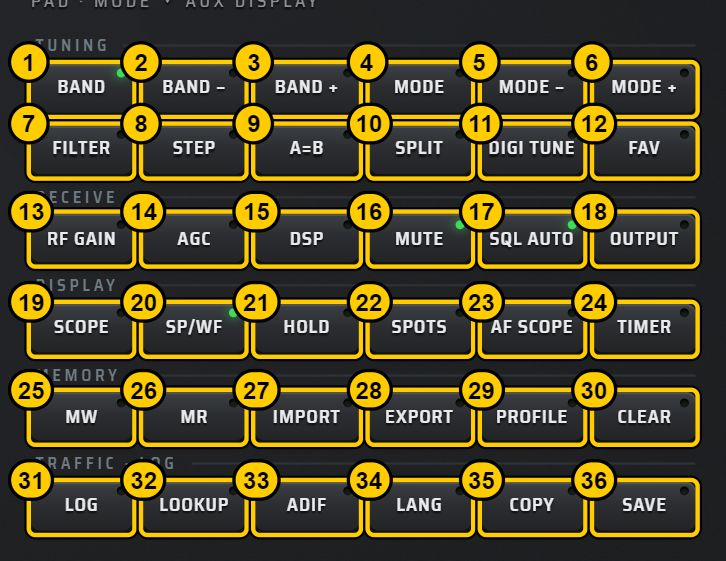
Beaucoup de touches du pavé ouvrent une liste dans l'écran AUX. Le principe est le même pour toutes : l'entrée active est surlignée et précédée de « ▸ » ; une entrée grisée est indisponible et sa raison est écrite ; touchez une entrée pour l'appliquer, ou utilisez la touche F correspondante (voir l'écran AUX).
TUNING
| N° | Touche | Action | Valeurs / défaut |
|---|---|---|---|
| 1 | BAND | Ouvre la liste des bandes. Touchez une bande : le poste revient à la dernière fréquence, au dernier mode et au dernier filtre utilisés sur cette bande, ou au centre de la bande la première fois. | 160m, 80m, 60m, 40m, 30m, 20m, 17m, 15m, 12m, 11m, 10m, 6m, 2m, 70cm, PMR |
| 2 | BAND − | Bande précédente parmi celles que la source reçoit, en boucle. L'écran AUX affiche « BAND <bande> — x.xxx MHz ». | Retour à la dernière fréquence de la bande |
| 3 | BAND + | Bande suivante, même principe. | — |
| 4 | MODE | Ouvre la liste des modes. | LSB, USB, CW, AM, SAM, DATA, FM, WFM, DMR, DSTAR, YSF, NXDN, M17, FREEDV, DRM, DAB, DIG |
| 5 | MODE − | Mode précédent parmi ceux que la source sert. L'écran AUX affiche « MODE <mode> ». | — |
| 6 | MODE + | Mode suivant, même principe. | — |
| 7 | FILTER | Ouvre la liste des largeurs de filtre FI du mode courant. | 3 crans : NAR / NOR / WID |
| 8 | STEP | Ouvre la liste des pas d'accord. | 1 Hz, 10 Hz, 100 Hz, 1 kHz, 5 kHz, 10 kHz, 100 kHz |
| 9 | A=B | Copie l'état complet du VFO courant dans le VFO suivant (A → B, B → C, C → A). L'écran AUX confirme « VFO x copied into VFO y (complete state) ». | — |
| 10 | SPLIT | Met en marche ou arrête le split : émettre sur un VFO en écoutant sur un autre. Le VFO d'émission est le prochain VFO qui a une fréquence ; s'il n'y en a pas, le split est refusé. Voir le chapitre 12 — split. | Témoin = split actif |
| 11 | DIGI TUNE | Avec un décodeur actif : liste des fréquences de référence de ce décodeur, à toucher pour s'y accorder. Voir le détail ci-dessous. | — |
| 12 | FAV | Ouvre la liste des fréquences marquées. | 40 marques au plus, retenues |
La liste BAND


- La première ligne rappelle la source connectée.
- Les bandes hors de la couverture de la source sont grisées, avec la mention « outside this source's coverage ». Exemple : un KiwiSDR reçoit jusqu'à 32 MHz ; 6m, 2m, 70cm et PMR sont alors grisés.
- Avec un serveur OpenWebRX, la liste montre les profils du serveur à la place des bandes.
- La liste compte plus de dix entrées : F1–F9 en reprennent neuf et F10 « MORE 1/2 » affiche la page suivante.
La liste MODE


Seuls les modes servis par la source sont actifs ; les autres apparaissent en gris avec « not served by this source ».
| Source | Modes disponibles |
|---|---|
| KiwiSDR | LSB, USB, CW, AM, SAM, DATA, FM, WFM, DIG |
| OpenWebRX | selon les capacités annoncées par le serveur |
| Récepteur local (RTL-SDR, HackRF) | tous |
La liste FILTER


Le bouton WIDTH (jupe du rotatif 2) parcourt la même table.
| Mode | NAR | NOR | WID |
|---|---|---|---|
| USB, LSB, DATA | 1.5k | 2.7k | 3.5k |
| CW | 80 | 300 | 500 |
| AM | 4k | 6k | 7k |
| SAM | 5k | 9k | 12k |
| FM | 8k | 12k | 25k |
| WFM | 110k | 180k | 230k |
| DIG | 2k | 3k | 4k |
| Modes voix numériques | — | NOR seul | — |
La liste STEP
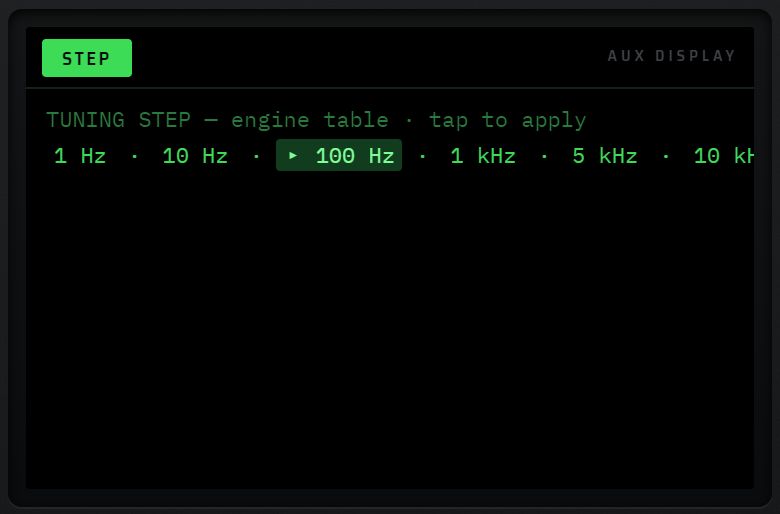

Le pas choisi règle le vernier, les flèches du clavier et l'arrondi du clic sur le spectre. Il s'affiche dans la ligne de valeurs (STEP:). La touche STEP du vernier ouvre la même liste.
DIGI TUNE
Avec un décodeur actif, DIGI TUNE ouvre la liste « <décodeur> — reference frequencies ». Touchez une fréquence pour vous y accorder.
| Décodeur | Fréquences de référence |
|---|---|
| NAVTEX | 518, 490, 4209,5 kHz |
| SSTV | 14,230 · 7,043 · 3,730 MHz |
| FAX / WEFAX | 7,880 · 3,855 · 13,8825 MHz |
| FT8 | 7,074 · 14,074 · 3,573 MHz |
| FT4 | 7,0475 · 14,080 MHz |
| RTTY | 7,040 · 14,083 MHz |
| PSK31 | 7,070 · 14,070 MHz |
| WSPR | 7,0386 · 14,0956 MHz |
| JS8 | 7,078 · 14,078 MHz |
| DMR | 434 MHz |
| ADS-B | 1090 MHz |
La liste FAV
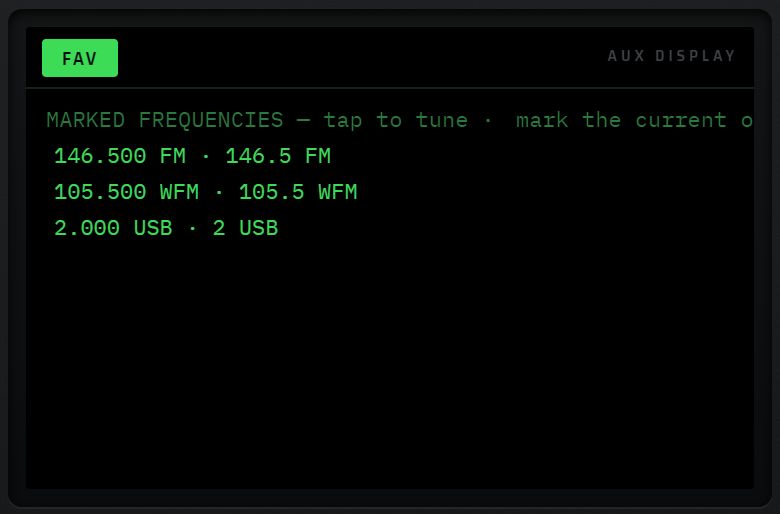

- mark the current one (F1) : marque la fréquence courante. S'il existe déjà une marque à moins de 200 Hz, elle est retirée.
- Chaque marque indique sa fréquence, son mode et son nom. Touchez-la pour vous y accorder.
- Les noms trop longs sont raccourcis sur les touches F.
RECEIVE
| N° | Touche | Action | Valeurs / défaut |
|---|---|---|---|
| 13 | RF GAIN | Ouvre la liste SOURCE GAIN : les gains du récepteur. Avec un récepteur local, chaque réglage est envoyé tout de suite au récepteur. | Voir ci-dessous |
| 14 | AGC | Ouvre la liste « AGC — two stages ». | Audio : off par défaut |
| 15 | DSP | Ouvre la liste « NOISE PROCESSING ». | Tout sur off par défaut |
| 16 | MUTE | Coupe ou rétablit le son. L'écran AUX affiche « audio muted » ou « audio on ». | Témoin = son coupé |
| 17 | SQL AUTO | Pose le squelch au plancher de bruit mesuré + 6 dB. Second appui : squelch ouvert. Sans mesure : « no signal level measured yet ». | Témoin = squelch actif |
| 18 | OUTPUT | Ouvre la liste des cartes son : sorties (touchez-en une pour l'utiliser) et entrées. | Sortie retenue |
La liste SOURCE GAIN (RF GAIN)


| Source | Réglages proposés |
|---|---|
| Serveur distant (KiwiSDR, OpenWebRX, WebSDR) | aucun : « this source sets its own gain » |
| HackRF | LNA 0 / 8 / 16 / 24 / 32 / 40 dB ; VGA 0 / 10 / 20 / 30 / 40 / 50 / 62 dB ; AMP on / off (+14 dB) |
| RTL-SDR | AGC du tuner ; gains du tuner (un cran sur deux de sa table) ; AGC numérique on / off |
Quand la liste ne contient aucune entrée, les touches F1–F10 gardent leur rôle de réception.
La liste AGC
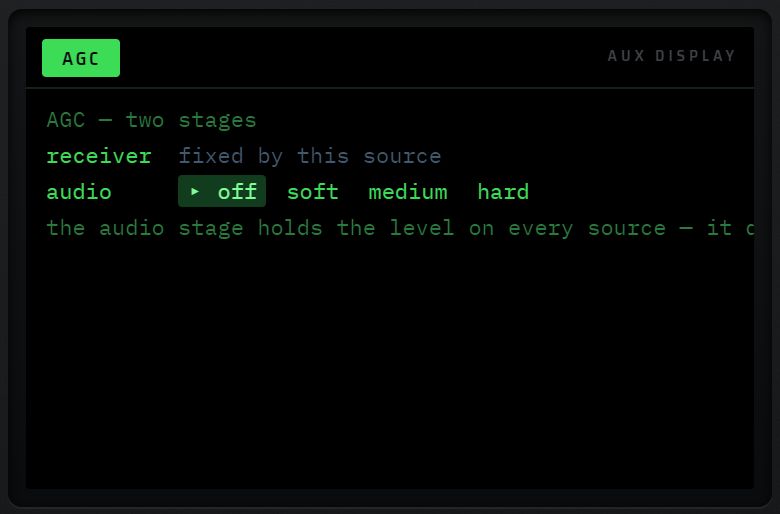

- receiver : l'AGC du tuner, réglable seulement avec un récepteur local. Avec un serveur : « fixed by this source ».
- audio : off, soft, medium, hard. C'est un compresseur qui maintient le niveau sur toutes les sources ; plus le cran est fort, plus il agit tôt.
La liste DSP
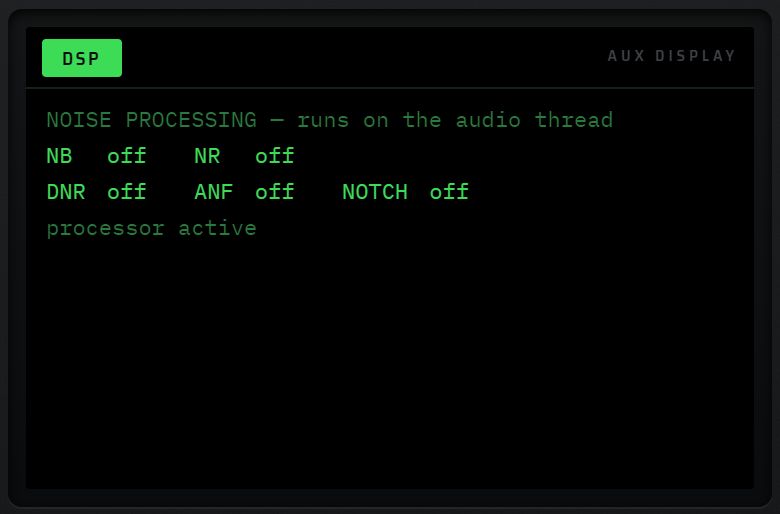

Les touches F1 à F5 suivent l'ordre de la liste : NB, NR, DNR, ANF, NOTCH. Leur libellé affiche la valeur courante. Chaque appui fait tourner la valeur :
| Traitement | Valeurs |
|---|---|
| NB (anti-parasites) | off → level 1 → 2 → 3 → off |
| NR (réduction de bruit) | off → level 1 → 2 → 3 → off |
| DNR | off / on |
| ANF (notch automatique) | off / on |
| NOTCH | off / fréquence en Hz |
Le traitement tourne sur le fil audio. Il demande une source connectée et du son.
La liste OUTPUT


Le titre de l'écran AUX est « AUDIO ». Touchez une sortie pour y envoyer le son ; le choix est retenu. Les entrées sont listées pour information. Si le son passe uniquement par le navigateur, l'écran AUX indique que la sortie par défaut du système s'applique.
DISPLAY
| N° | Touche | Action | Valeurs / défaut |
|---|---|---|---|
| 19 | SCOPE | Ouvre la liste de tous les réglages du bandscope. | Voir ci-dessous |
| 20 | SP/WF | Fait tourner trois vues : spectre + cascade → spectre seul → cascade seule → spectre + cascade. L'écran AUX nomme la vue. | Spectre + cascade au démarrage. Témoin éteint en « spectre seul ». |
| 21 | HOLD | Gèle ou relance la cascade. Raccourci clavier : Espace. | Témoin = cascade gelée |
| 22 | SPOTS | Affiche ou masque les marqueurs que la source publie sur le spectre (étiquettes jaunes, cliquables). L'écran AUX donne leur nombre. | Affichés |
| 23 | AF SCOPE | Ouvre l'onglet AUDIO de la fente : spectre audio, barres, oscilloscope. Voir le chapitre 4 — onglet AUDIO. | — |
| 24 | TIMER | Ouvre la liste du programmateur de réveil et d'arrêt. | Voir ci-dessous |
La liste SCOPE
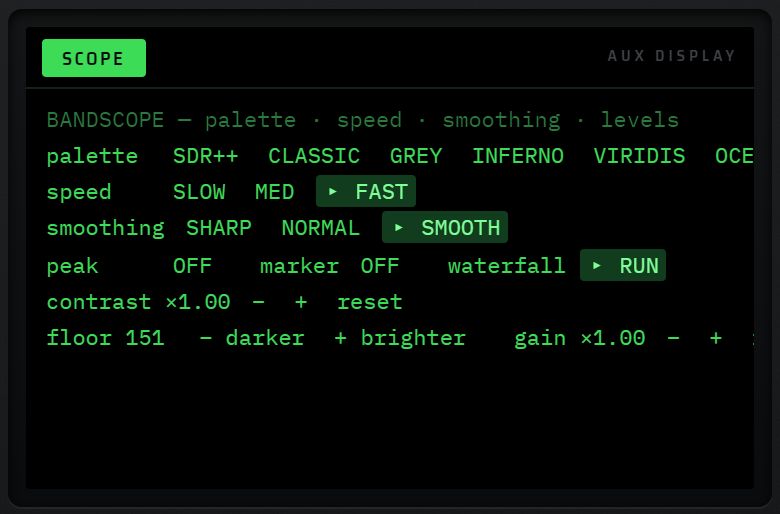

| Ligne | Choix |
|---|---|
| palette | SDR++, CLASSIC, GREY, INFERNO, VIRIDIS, OCEAN, PHOSPHOR, AMBER, ICE, SUNSET, REDLINE |
| speed | SLOW, MED, FAST |
| smoothing | SHARP, NORMAL, SMOOTH |
| peak | ON / OFF (maintien de crête) |
| marker | ON / OFF (marqueur du sommet le plus fort) |
| waterfall | RUN / HOLD |
| contrast | − / + / reset, de ×0,4 à ×3 |
| floor | − darker / + brighter (plancher de la cascade) |
| gain | − / + / reset, de ×0,35 à ×3 ; reset remet aussi le plancher et le contraste |
Tous ces réglages sont retenus. La liste est longue : F10 « MORE 1/4 » fait défiler les quatre pages de touches F.
La liste TIMER
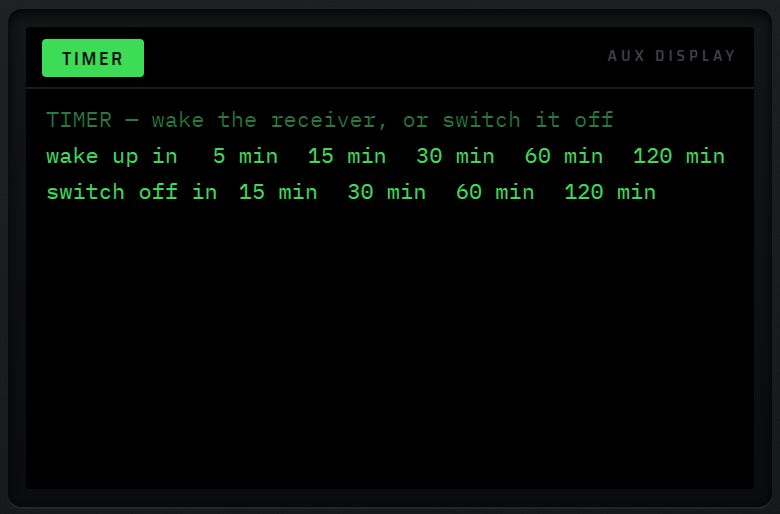

- wake up in : 5, 15, 30, 60 ou 120 min. Le poste se rallume si besoin et revient sur la fréquence et le mode courants.
- switch off in : 15, 30, 60 ou 120 min. Le poste arrête proprement l'enregistrement, se déconnecte et s'éteint.
- Un programme en cours apparaît dans la liste avec cancel pour l'annuler.
- Un programme dont l'heure est passée pendant que l'application était fermée est ignoré au lancement suivant.
MEMORY
Le poste dispose de 72 mémoires (M1 à M72).
| N° | Touche | Action | Valeurs / défaut |
|---|---|---|---|
| 25 | MW | Écrit l'état courant dans la première mémoire libre. L'écran AUX confirme « M<n> written · <libellé> · <mode> ». Si les 72 sont occupées, rien n'est écrit. | — |
| 26 | MR | Ouvre la liste des mémoires. Touchez une mémoire pour la rappeler. | Voir ci-dessous |
| 27 | IMPORT | Ouvre un sélecteur de fichier (.csv, .txt, .chirp, .tsv). Les formats CSV, EIBI, CHIRP et SDR# sont reconnus d'après leurs colonnes. Les canaux remplissent les mémoires libres. Compte rendu : « n channels stored · x lines skipped · y free slots left ». | — |
| 28 | EXPORT | Télécharge le fichier rxone-memories.csv (colonnes slot, label, freq_mhz, mode, band). | — |
| 29 | PROFILE | Ouvre la liste des profils. | Voir ci-dessous |
| 30 | CLEAR | Premier appui : demande de confirmation (« press CLEAR again within 4 s »). Second appui dans les 4 s : vide la liste de décodage FT8, les marqueurs de la source et les sous-titres VOX. | Les mémoires ne sont pas effacées. |
La liste MR
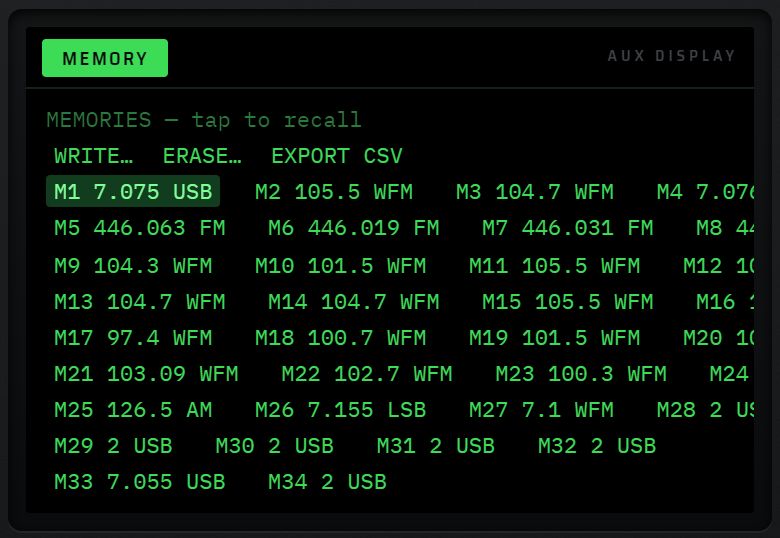

- WRITE… : choisissez ensuite la mémoire à écrire. Toutes les mémoires s'affichent, les vides en gris.
- ERASE… : choisissez ensuite la mémoire à effacer.
- EXPORT CSV : même effet que la touche EXPORT.
- En mode écriture ou effacement, cancel annule.
- En rappel, seules les mémoires occupées sont listées, avec leur fréquence et leur mode.
La liste PROFILE
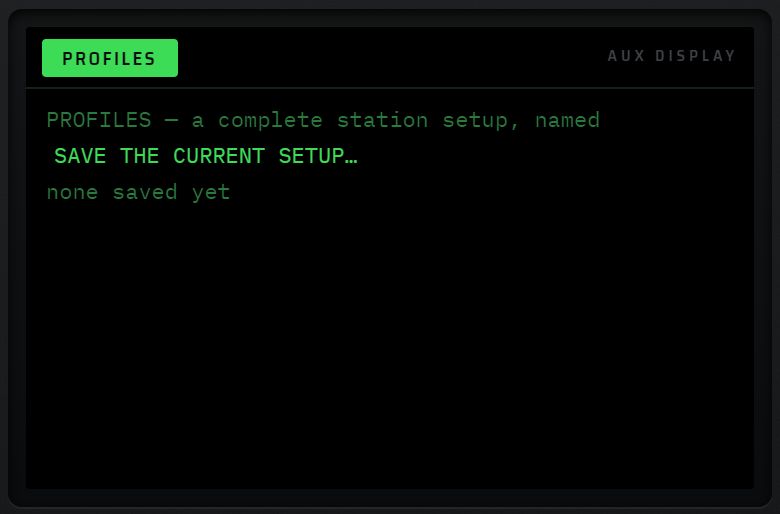

Un profil retient l'état complet du poste : source, accord, filtres, audio, affichage, décodeur, disposition de l'écran.
- SAVE THE CURRENT SETUP… : enregistre un profil, nommé automatiquement « fréquence mode HHhMM ».
- Touchez un profil pour le rappeler sur le VFO courant.
- delete supprime un profil.
TRAFFIC · LOG
| N° | Touche | Action | Valeurs / défaut |
|---|---|---|---|
| 31 | LOG | Ouvre le CALL LOG dans le grand écran ; ses commandes passent sur F1–F10. Voir le chapitre 11 — LOG. | — |
| 32 | LOOKUP | Ouvre ou ferme la fenêtre STATION LOOKUP, comme QRZ. | — |
| 33 | ADIF | Télécharge le carnet au format ADIF 3.1.4 (rxone-log.adi : CALL, QSO_DATE, TIME_ON, BAND, FREQ, MODE, RST_RCVD). Carnet vide : un message le signale. | — |
| 34 | LANG | Ouvre la liste de la langue VOX. | AUTO, FR, EN, ES, DE, IT, RU, JA, PT |
| 35 | COPY | Copie la transcription VOX dans le presse-papiers (« n lines copied »). | — |
| 36 | SAVE | Télécharge la transcription VOX (rxone-transcription.txt). | — |
La liste LANG
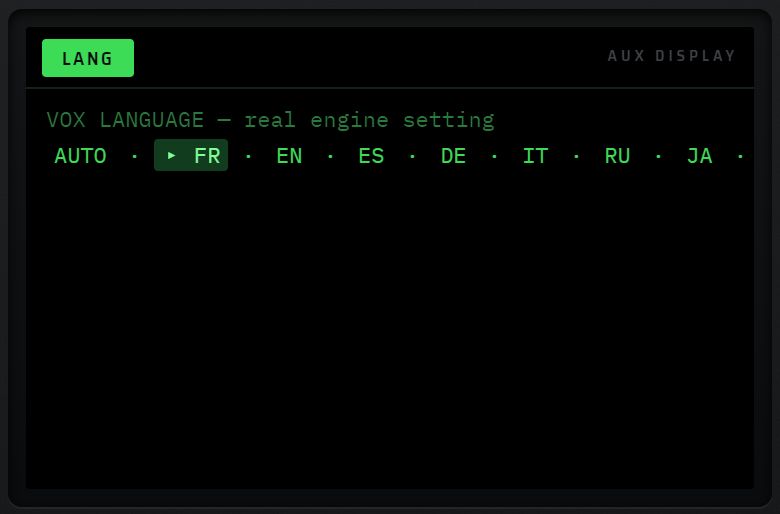

La langue choisie sert à la conversion voix → texte et à la lecture TTS. AUTO laisse le moteur reconnaître la langue. Voir le chapitre 9 — LANG.
Les quatre rotatifs
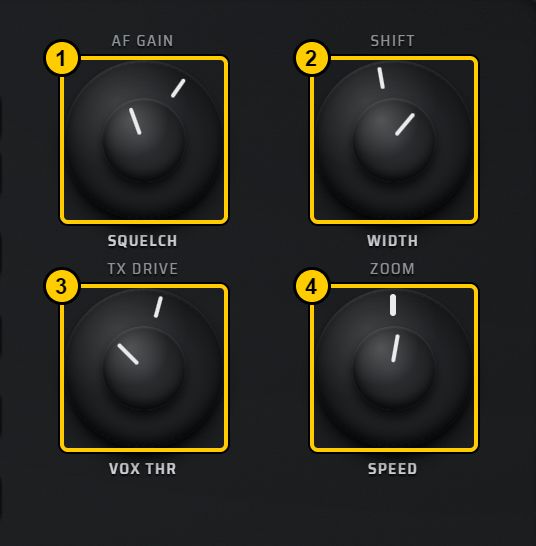
Chaque rotatif est double : la tête (le centre, nommée au-dessus) et la jupe (la couronne, nommée en dessous) règlent deux choses différentes.
- Molette sur la partie visée : un cran = un pas.
- Glisser verticalement : un pas tous les 12 pixels ; vers le haut = augmenter.
| N° | Tête (en haut) | Jupe (en bas) |
|---|---|---|
| 1 | AF GAIN : volume, ±5 % par pas, de 0 à 100 %. Retenu. L'écran AUX affiche « volume n % ». | SQUELCH : seuil, ±3 dB par pas, de −140 à −20 dBm. À −139 dBm ou moins, le squelch est ouvert. Le seuil commande une porte audio pilotée par le S-mètre, valable sur toutes les sources, et aussi le squelch propre du récepteur quand il en a un (sauf KiwiSDR). |
| 2 | SHIFT : décale la bande passante de ±50 Hz par pas, jusqu'à ±2000 Hz. Si la source ne le permet pas : « this source keeps its own passband ». | WIDTH : cran de filtre suivant ou précédent (NAR / NOR / WID), sans boucler. |
| 3 | TX DRIVE : puissance d'émission, ±1 dB par pas, de 0 à 47 dB. Réglable hors émission ; appliquée à la prise d'émission. Voir le chapitre 12 — POWER. | VOX THR : seuil du VOX d'émission, de 1 à 90. |
| 4 | ZOOM : zoom du spectre, ±1 cran. Sans source, seule la largeur affichée change (×0,5 / ×2, de 6 kHz à 4 MHz) avec le message « offline: display only ». | SPEED : vitesse de la cascade, SLOW / MEDIUM / FAST. |
L'écran AUX DISPLAY

Le petit écran au-dessus du vernier accompagne tout ce que vous faites. Son titre (à gauche, sur fond vert) nomme la liste, le contexte ou le message affiché.
Ce qu'il affiche
- Une liste cliquable, ouverte par une touche du pavé (BAND, MODE, FILTER, STEP, AGC, DSP, SCOPE, LANG, MR, FAV, TIMER, PROFILE, RF GAIN, OUTPUT, SPOTS…). L'entrée active est surlignée avec « ▸ » ; une entrée grisée est indisponible et sa raison est écrite. Touchez une entrée pour l'appliquer.
- Un message après une action : un titre et un texte. Il reste lisible 6 s, puis le contexte reprend sa place.
- L'état du contexte, quand rien d'autre n'occupe l'écran. Au repos, en réception, le titre est « STATUS » : source, fréquence, mode et largeur, niveau du signal en dBm, décodeur, mémoires occupées sur 72, VFO courant. La vue d'ensemble en début de chapitre montre cet état.
Principe des contextes
- Un contexte est ce qui est ouvert : la réception (RX), une liste, une fenêtre (TRANSMIT, VIRTUAL NET…), un menu (SET, ZONE) ou un contenu de la fente.
- Le contexte prend à la fois l'écran AUX, les touches F1–F10 et, quand il en a un, le mini-écran gauche.
- Une liste ouverte reste en place tant que le contexte ne change pas. Si la source change, la liste se redessine avec le nom de la nouvelle source.
- Quelques contextes dessinent leur propre contenu dans l'écran AUX : l'émetteur-récepteur réseau TRX, par exemple (chapitre 12 — TRX réseau).
- ESC ramène tout au contexte de réception.
Les listes et les touches F : pagination MORE
Quand une liste est ouverte, les touches F1–F10 reprennent ses entrées dans l'ordre. Le libellé d'une touche F est raccourci s'il est trop long. Au-delà de dix entrées :
- F1 à F9 portent neuf entrées ;
- F10 devient MORE n/m (page n sur m) : appuyez dessus pour afficher les neuf entrées suivantes.
Le vernier et ses colonnes
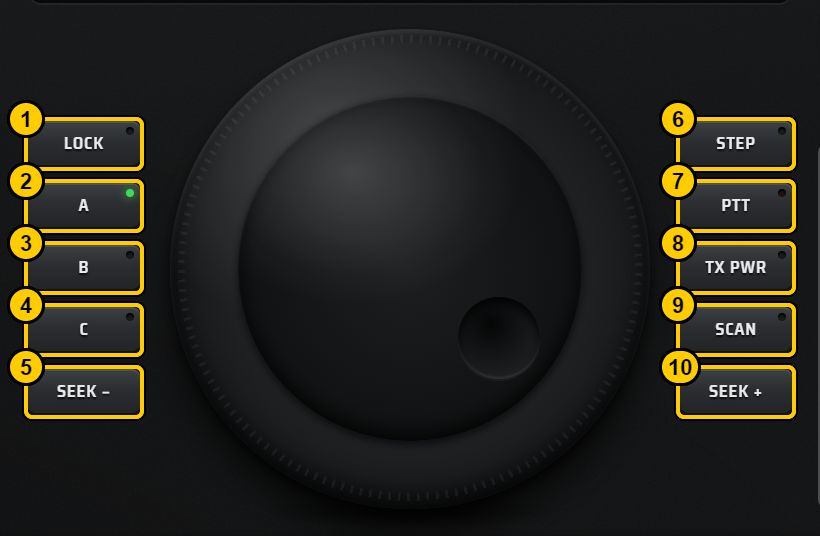
Le grand bouton d'accord
- Glisser verticalement : un pas d'accord tous les 3 pixels ; vers le haut, la fréquence monte.
- Molette : un cran = un pas. Le pas s'accélère quand vous tournez vite (jusqu'à ×17).
- Maj + molette : pas ×10.
- Le pas est celui de la liste STEP. Le vernier est sans effet quand LOCK est actif.
Les touches des colonnes
| N° | Touche | Action | Valeurs / défaut |
|---|---|---|---|
| 1 | LOCK | Verrouille l'accord : le vernier, les molettes, les flèches du clavier, le clic sur le spectre, la saisie directe et SEEK sont ignorés. L'écran AUX affiche « tuning locked (keyboard shortcut: L) ». Second appui : déverrouille. | Raccourci clavier : L |
| 2 | A | Passe sur le VFO A. Voir ci-dessous. | Témoin vert = VFO courant |
| 3 | B | Passe sur le VFO B. | — |
| 4 | C | Passe sur le VFO C. | — |
| 5 | SEEK − | Cherche le signal suivant vers le bas. Voir ci-dessous. | Raccourci : Ctrl + ← |
| 6 | STEP | Ouvre la liste des pas d'accord, comme STEP du pavé. L'infobulle affiche le pas courant. | — |
| 7 | PTT | Pédale d'émission : le poste émet tant que vous la maintenez enfoncée. Par défaut, l'émission part sur le réseau virtuel : rien n'est rayonné. Voir le chapitre 12 — commandes d'émission. | Témoin rouge et pastille TX = émission en cours |
| 8 | TX PWR | Pas de réglage propre. La puissance se règle au bouton TX DRIVE ou dans la fenêtre TRANSMIT. | — |
| 9 | SCAN | Balaie les mémoires : passe à la suivante chaque seconde, s'arrête sur un signal au-dessus du squelch (ou au-dessus de −100 dBm sans squelch), repart après environ 3 s de silence. Second appui : arrêt. | Au moins 2 mémoires. Témoin = balayage en cours. |
| 10 | SEEK + | Cherche le signal suivant vers le haut. | Raccourci : Ctrl + → |
Les trois VFO A, B, C
Chaque VFO est une session complète : source, accord, mode, bande, pas, filtre, volume, sourdine, notch, squelch, affichage, zoom, décodeur, VOX, gains du récepteur local, traitements DSP, AGC audio, réglages AUDIO LAB, contenu de la fente, bande passante dessinée, options PEAK / MARK / HOLD.
- Passer d'un VFO à l'autre ne coupe pas la réception de fond : si la session du VFO tourne encore, l'écran AUX l'indique (« live session — it never stopped receiving »). Sinon, son état complet est restitué.
- Un point vert en haut à droite d'une touche signale un VFO qui reçoit en fond.
- Appui sur le VFO déjà courant : « already on this VFO ».
- Un VFO vide prend l'état courant.
- Les trois VFO sont retenus et restitués au redémarrage.
- Une seule radio locale (RTL-SDR, HackRF) peut être active à la fois.
SEEK − et SEEK +
- SEEK cherche, dans la cascade affichée, le prochain signal 10 dB au-dessus du bruit mesuré, vers le bas ou vers le haut, et s'accorde au centre de ce signal.
- En BLU, il tente ensuite de caler la porteuse d'une station en phonie sur le kHz ou le demi-kHz.
- Rien dans la fenêtre : la recherche saute de fenêtre en fenêtre, son coupé, 30 sauts au plus, puis revient au point de départ.
- Avec OpenWebRX, dont la fenêtre est fixe, la recherche repart de l'autre bout.
- Bande FM en WFM : seuil de 6 dB, la recherche reste entre 87,5 et 108 MHz.
- Sur le Virtual Net, SEEK cherche parmi les stations annoncées par le serveur.
- Un second appui pendant la recherche l'arrête. SEEK arrête aussi le balayage SCAN.
- SEEK est refusé si LOCK est actif ou s'il n'y a pas de source.
La grille APP — ONE KEY · ONE JOB
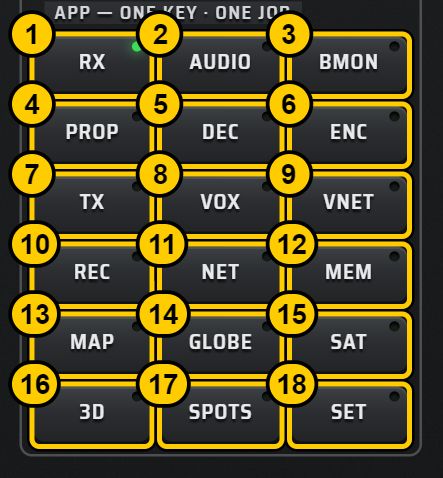
Une touche, une fonction. Chaque touche APP ferme d'abord la fenêtre ouverte : une seule fenêtre à la fois.
| N° | Touche | Ce qu'elle ouvre | Chapitre |
|---|---|---|---|
| 1 | RX | la page de réception | — |
| 2 | AUDIO | le contenu AUDIO PROCESSOR dans la fente (onglet DSP) | 5 |
| 3 | BMON | le BAND MONITOR (0–30 MHz sur KiwiSDR) | 9 |
| 4 | PROP | la PROPAGATION | 10 |
| 5 | DEC | l'onglet DECODE, liste des décodeurs | 7 |
| 6 | ENC | l'onglet ENCODE | 12 |
| 7 | TX | l'onglet TRANSMIT de la fente | 12 |
| 8 | VOX | le contenu VOX · TRANSLATE | 9 |
| 9 | VNET | le contenu TX · VIRTUAL NET | 12 |
| 10 | REC | le contenu RECORDER · SCHEDULER | 9 |
| 11 | NET | l'annuaire des récepteurs, avec sur F1–F10 : KIWI, OWRX, WEBSDR, FREE, FAV, SORT, BAND, MAP, LOCAL RX, UPDATE | 3 |
| 12 | MEM | la page des mémoires | 11 |
| 13 | MAP | la page SDR MAP (onglets SERVERS / STATIONS) | 10 |
| 14 | GLOBE | la page GLOBE (météo spatiale) | 10 |
| 15 | SAT | la page des satellites | 10 |
| 16 | 3D | l'onglet 3D WATERFALL | 4 |
| 17 | SPOTS | l'onglet SPOTS | 9 |
| 18 | SET | la page SET : boîtes STATION, THIS SCREEN (dont la tuile TABLET FULL) et INTERFACE (choix CONSOLE 5000 ou RACK 19″), avec le menu général sur F1–F10 | 11 |
Les touches PROP, TX, VNET, 3D et SPOTS allument leur témoin tant que leur contenu occupe la fente.
MULTI 3, OK, ESC, STATUS
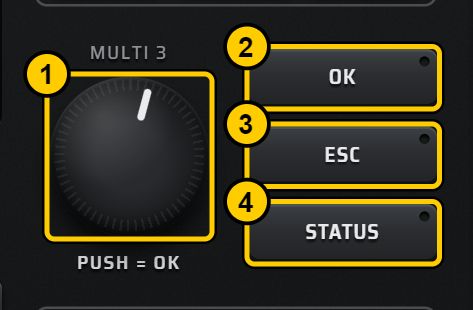
| N° | Commande | Action |
|---|---|---|
| 1 | MULTI 3 | Molette : promène un curseur ambre dans la liste ouverte de l'écran AUX ; il part de l'entrée active. Sans liste : « no list open — press a pad key first ». Le curseur revient au début quand la liste change. Appui (PUSH = OK) : valide l'entrée visée. |
| 2 | OK | Valide l'entrée visée par le curseur. Sans curseur : « turn MULTI 3 to pick an item of the open list, then OK ». |
| 3 | ESC | Retour à la réception normale : ferme les fenêtres, revient à la page de réception, rend le spectre et la cascade (fente sur TILES) et rend les touches F1–F10 au contexte RX. L'écran AUX affiche « back to normal reception ». Le décodeur en cours continue en fond. |
| 4 | STATUS | Ouvre le panneau STATUS : l'état de la liaison avec la source. |
La saisie directe
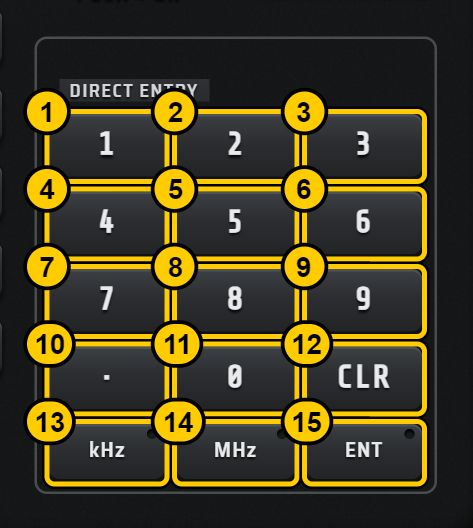

| N° | Touche | Action |
|---|---|---|
| 1–9 | 1 à 9 | Ajoutent un chiffre. La saisie s'affiche à la place de la fréquence principale, suivie du curseur « ▏ ». 10 chiffres au plus. |
| 10 | · | Ajoute le séparateur décimal (une seule fois). |
| 11 | 0 | Ajoute un zéro. |
| 12 | CLR | Efface la saisie. |
| 13 | kHz | Valide la saisie en kHz. |
| 14 | MHz | Valide la saisie en MHz. |
| 15 | ENT | Valide la saisie en MHz. |
- Exemples :
7074puis kHz → 7,074 MHz ;14.230puis MHz → 14,230 MHz. - Après validation, l'écran AUX affiche « tuned to x.xxx.xxx ».
- Sans chiffre : « type digits first — then … commits · CLR erases ».
- La saisie est sans effet sur l'accord quand LOCK est actif.
Les touches F1–F10
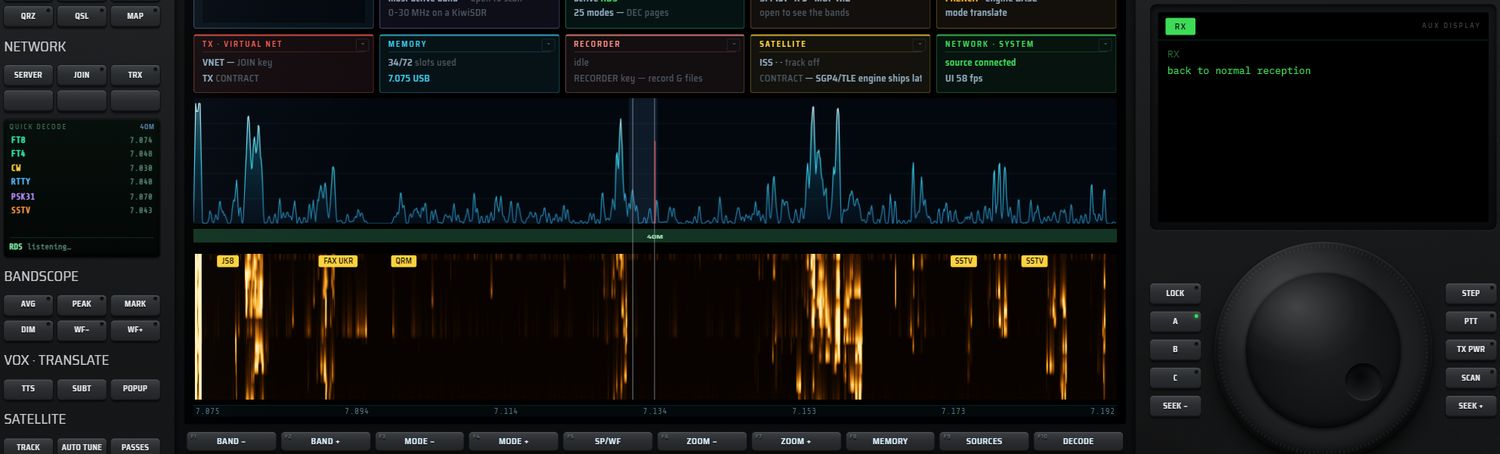
Dix touches sous le grand écran. Leur nom est écrit sur la touche, avec le numéro (F1…F10) en petit dans le coin. Une touche sans fonction est grisée. Un appui allume brièvement la touche.
Leur rôle dépend de ce qui est ouvert, dans cet ordre de priorité :
- Une liste ouverte dans l'écran AUX : les touches reprennent ses entrées (voir la pagination MORE).
- Le contexte ouvert (fenêtre, menu, contenu de la fente, panneau) : ses dix commandes. Si F10 n'a pas de rôle, il sert à sortir (« ◂ RX » ou « ◂ CLOSE »).
- Au repos, en réception (contexte RX) :
| Touche | Rôle |
|---|---|
| F1 | BAND − : bande précédente |
| F2 | BAND + : bande suivante |
| F3 | MODE − : mode précédent |
| F4 | MODE + : mode suivant |
| F5 | SP/WF : vue spectre / cascade |
| F6 | ZOOM − : zoom arrière (×2 par cran) ; l'écran AUX affiche la largeur visible |
| F7 | ZOOM + : zoom avant |
| F8 | MEMORY : mémoires |
| F9 | SOURCES : annuaire des récepteurs |
| F10 | DECODE : décodeurs |
Dans un panneau qui contient une liste, les touches F proposent ▲ ROW, ▼ ROW, TOP, BOTTOM, puis les boutons de la ligne choisie, et F10 « ◂ CLOSE ».
Quand un décodeur RTTY ou FSK est actif, les touches F deviennent : SHIFT−, SHIFT+, BAUD, REVERSE, AUTO, ANALYSE, CLEAR, COPY, EXPORT, SAVE (chapitre 7 — touches F de RTTY).
Raccourcis clavier (PC)
Les raccourcis sont inactifs pendant que vous tapez dans un champ de texte.
| Touche | Effet |
|---|---|
| → / ← | accord d'un pas vers le haut / le bas ; Maj = ×10 ; sans effet si LOCK est actif |
| Ctrl + → / Ctrl + ← | SEEK + / SEEK − |
| ↑ / ↓ | pas d'accord suivant / précédent |
| Page ↑ / Page ↓ | filtre FI plus large / plus étroit |
| M | sourdine |
| L | verrou d'accord (LOCK) |
| Espace | gel / reprise de la cascade |
| 1 … 9 | rappel des mémoires M1 … M9 |
Gestes
| Geste | Effet |
|---|---|
| Double-clic ou double-appui sur le noir autour de la façade | Bascule entre façade ajustée (proportions justes, bandes noires sur les côtés) et façade étirée (tout l'écran, proportions déformées). Retenu par appareil. Le double-appui ne déclenche pas de zoom. |
| Molette ou clic (moitié haute / basse) sur un chiffre de la fréquence | ±1 sur ce chiffre |
| Glisser ou molette sur le vernier | accord (accélération ; Maj = ×10) |
| Glisser ou molette sur la tête ou la jupe d'un rotatif | réglage (un pas tous les 12 pixels) |
| Molette sur MULTI 3 ; appui sur MULTI 3 | curseur dans la liste ; validation |
| Clic sur le spectre, la cascade ou le plan de bande | accord (chapitre 4 — gestes) |
| Molette sur le spectre | zoom (chapitre 4 — zoom) |
| Glisser un bord de filtre | réglage de la bande passante (chapitre 4 — bande passante) |
| Clic sur un marqueur jaune SPOTS | accord sur ce marqueur |
| Clic droit dans la fente ou clic sur « ZONE ▾ » | menu ZONE sur F1–F10 (chapitre 4 — menu ZONE) |
| Clic sur l'écran de démarrage | saute la séquence de démarrage |
| Survol d'une touche à la souris | infobulle |
| Bouton « ◂ RX » en bas à droite d'un panneau du grand écran | retour à la réception |
Au démarrage, si plus de 15 % de la hauteur de l'écran reste inutilisée, un message unique vous propose le double-appui sur le noir.
Différences PC / tablette
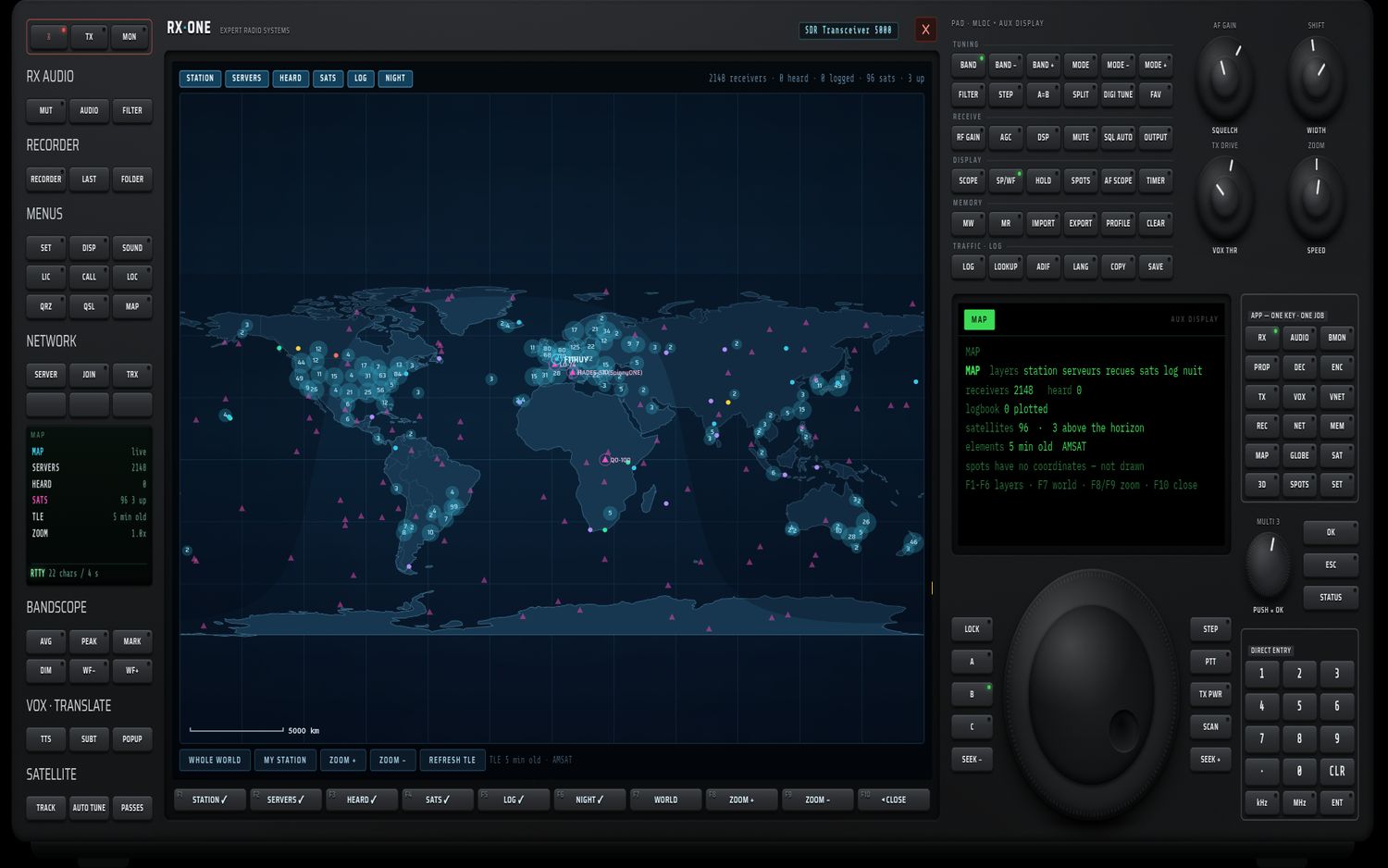
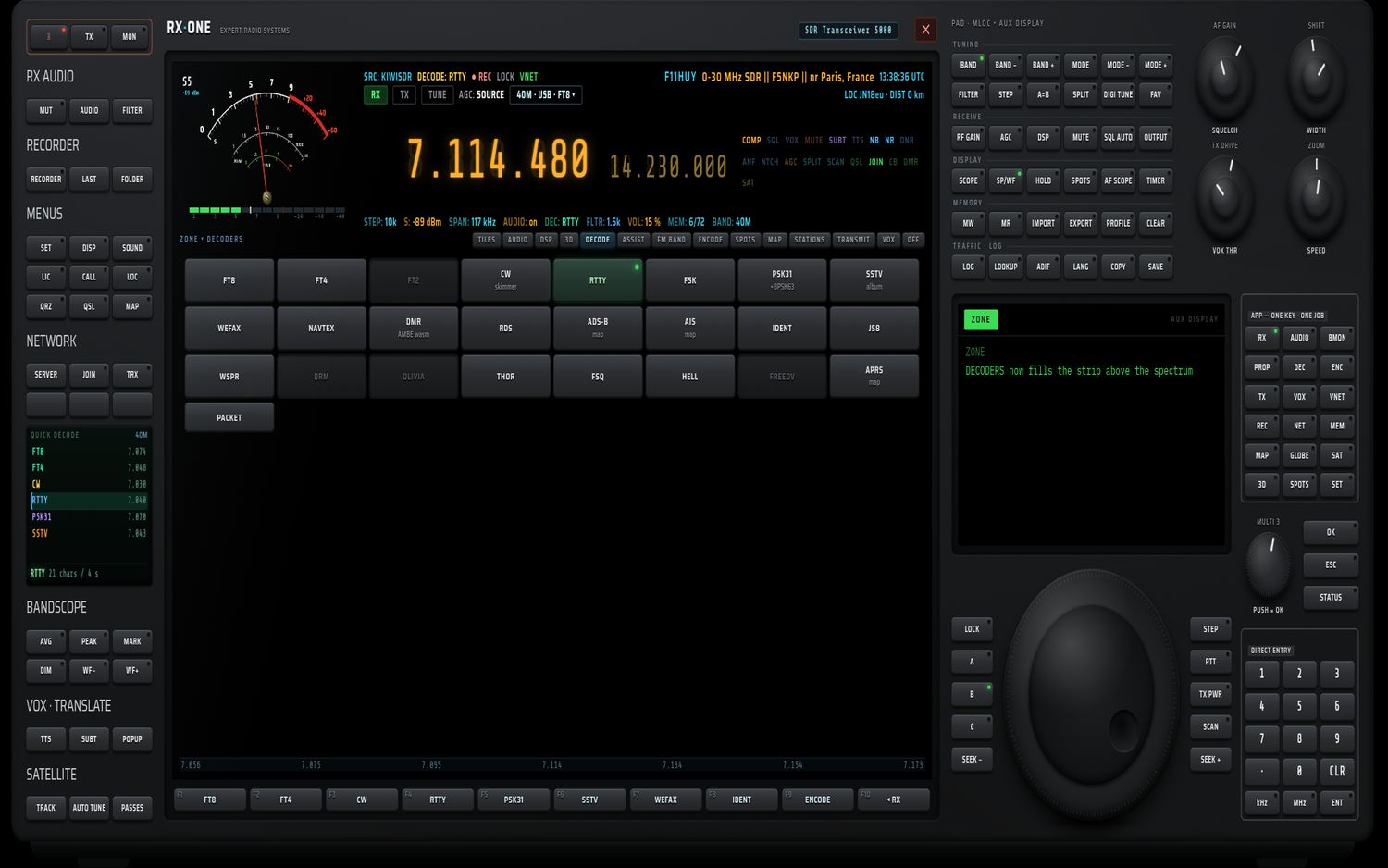
Sources de réception
RX·ONE ne contient pas de récepteur : il écoute une source. Ce peut être votre propre récepteur USB branché sur l'appareil, un serveur rtl_tcp de votre réseau, ou l'un des milliers de récepteurs en ligne du monde entier (KiwiSDR, OpenWebRX, WebSDR). Ce chapitre présente les quatre familles de sources, l'annuaire qui permet de les choisir, les réglages d'un récepteur local, l'adaptation des menus à la source, la reconnexion automatique et les trois VFO.
Les quatre familles de sources
| Récepteur local | KiwiSDR | OpenWebRX | WebSDR | |
|---|---|---|---|---|
| Matériel | RTL-SDR, HackRF, SDRplay, ou serveur rtl_tcp du réseau | serveur en ligne | serveur en ligne | serveur en ligne |
| Couverture | celle du récepteur (RTL-SDR 24 MHz–1,766 GHz ; HackRF 1 MHz–6 GHz) | 0–32 MHz | bandes publiées par le serveur (profils) | bandes publiées par le serveur |
| Démodulation | dans RX·ONE | par le serveur | par le serveur | par le serveur |
| Modes | tous | LSB, USB, CW, AM, SAM, DATA, FM, WFM, DIG | ceux que le serveur annonce | comme KiwiSDR |
| Décodeurs | tous ceux de RX·ONE | décodeurs locaux de RX·ONE | décodeurs du serveur + FT8, FT4, CW, RTTY, FSK, IDENT, ADS-B, AIS | décodeurs locaux de RX·ONE |
| Réglage du gain | dans RX·ONE (PREAMP) | par le serveur | par le serveur | par le serveur |
| Places | illimitées | nombre fixe par serveur (souvent 8) | selon le serveur | selon le serveur |
| PC | oui | oui | oui | oui |
| Android | RTL-SDR et HackRF (un seul à la fois) | oui | oui | non |
La source connectée s'affiche en permanence sur la façade :
- dans la ligne d'état, SRC: suivi du type (KIWISDR, OPENWEBRX, LOCALSDR, WEBSDR), ou « — » sans source ;
- en haut à droite, le nom de la station (suivi de « · connecting » tant qu'elle ne répond pas), votre locator et la distance jusqu'au récepteur ;
- sans source, l'en-tête affiche « NOT CONNECTED — SERVER key » et le spectre « NO SOURCE - SERVER key to connect . VIRTUAL NET works offline ».
Changer de source coupe automatiquement la précédente. Le Virtual Net, réseau de conversation entre stations RX·ONE, est une source à part décrite au chapitre 12.
Récepteur local
Le récepteur est branché sur votre PC ou votre tablette, ou il tourne sur une autre machine de votre réseau et parle le protocole rtl_tcp. RX·ONE reçoit les échantillons bruts (IQ) et fait lui-même tout le travail : démodulation, filtres, décodage. C'est la seule famille qui donne accès à tous les modes (y compris DMR, D-STAR, FreeDV…), à tous les décodeurs, à la FM large bande avec RDS, à l'ADS-B à 1090 MHz, et aux réglages du préamplificateur.
- RTL-SDR : 24 MHz à 1,766 GHz (une RTL en échantillonnage direct ou avec un convertisseur descend en HF, voir PREAMP).
- HackRF One : 1 MHz à 6 GHz, débit fixe de 2,4 Msps. C'est aussi le seul récepteur qui peut émettre (chapitre 12 — émission).
- SDRplay : par le serveur rsp_tcp, PC uniquement.
- Serveur réseau : tout programme qui parle rtl_tcp — rtl_tcp lui-même, rsp_tcp (SDRplay), SoapySDRServer ou SDR++ en mode serveur (LimeSDR…).
KiwiSDR
Les KiwiSDR sont des récepteurs HF partagés, installés par des radioamateurs du monde entier.
- Couverture 0–32 MHz : les bandes au-delà sont grisées.
- Modes analogiques seulement : LSB, USB, CW, AM, SAM, DATA, FM, WFM, DIG. Les modes numériques démodulés localement (DMR, DSTAR, YSF, NXDN, M17, FREEDV, DRM, DAB) sont grisés.
- Le serveur démodule et envoie le son ; RX·ONE fait tourner ses propres décodeurs sur ce son (FT8, CW, RTTY, SSTV…).
- Le gain et l'AGC du récepteur sont fixés par le serveur : ils ne se règlent pas depuis RX·ONE.
- Places limitées : chaque KiwiSDR accepte un nombre fixe d'auditeurs (souvent 8, parfois 2, 3 ou 4). Un serveur plein refuse la connexion. Le filtre Free et le tri free slots de l'annuaire vous aident à l'éviter.
- Cascades : un KiwiSDR a souvent moins de cascades que de voies audio (par exemple 8 voies audio pour 3 cascades). Si toutes les cascades sont prises, vous entendez le son mais le spectre reste vide ; après 6 secondes, le spectre affiche « CONNECTED, BUT NO SPECTRUM FROM <NOM> — the audio may still work - this server is not sending waterfall data. Try another one. » Ce n'est pas une panne : écoutez quand même, ou changez de serveur.
- RX·ONE essaie automatiquement plusieurs adresses du même serveur (adresse annoncée, port 8073, relais kiwisdr.com) et garde la première qui répond.
- L'accord est centré : le son correspond à la fréquence affichée au centre du filtre.
OpenWebRX
Les serveurs OpenWebRX démodulent et décodent de leur côté. Ils couvrent souvent bien plus que la HF : VHF, UHF, bande aviation, 1090 MHz…
- Profils : un serveur OpenWebRX publie des profils (une bande, une fréquence centrale, une largeur). L'accord ne se déplace qu'à l'intérieur du profil courant. Pour changer de bande, changez de profil.
- Carte SERVER BAND : à la connexion, si le serveur publie plus d'un profil, la carte SERVER BAND s'ouvre d'elle-même. Sur OpenWebRX, la touche BAND ouvre et ferme cette carte au lieu de la liste des bandes. La carte porte le nom du serveur, un champ de filtre « Filter (e.g. 7 MHz, 40m, MW, airspy)… » et le nombre de profils (« N band(s) » ; 300 au plus sont affichés). Touchez un profil pour le charger. « This server only advertises a single band. » indique un serveur à profil unique.
- Bande protégée : « Protected band: this profile requires authentication. Choose another band (BAND button). » La carte SERVER BAND s'ouvre pour que vous choisissiez une bande ouverte.
- Modes et décodeurs dynamiques : le serveur annonce ses modes et ses décodeurs ; RX·ONE grise ce qu'il ne propose pas. Les décodeurs du serveur (PSK31, NAVTEX, JS8, WSPR, PACKET, POCSAG…) arrivent tout décodés. FT8, FT4, CW, RTTY, FSK, IDENT, ADS-B et AIS restent toujours disponibles (voir le chapitre 7).
- Si l'accord est hors de la bande du serveur à la connexion, RX·ONE le recale une fois au centre du serveur.
- Pas de rapport signal/bruit ni de compteur d'auditeurs fiable dans l'annuaire : un badge OWRX les remplace.
WebSDR
Les WebSDR (logiciel de PA3FWM) sont des récepteurs à très large bande, souvent très fréquentés.
- Modes : USB, LSB, CW, AM, SAM, FM. Les autres modes sont joués en USB.
- Le serveur démodule et envoie un son compressé ; la cascade arrive par une liaison séparée.
- Si le serveur ne publie pas ses bandes, RX·ONE reste sur sa bande par défaut. Une fréquence hors couverture est ramenée sur la bande la plus proche.
- Toutes les entrées WebSDR de l'annuaire portent la pastille ? (adresse non vérifiée, voir plus bas).
L'annuaire des sources
Ouvrir l'annuaire
- Touche NET de la grille APP ;
- ou F9 SOURCES en réception (contexte RX) ;
- ou F9 SOURCES depuis la page SDR MAP.
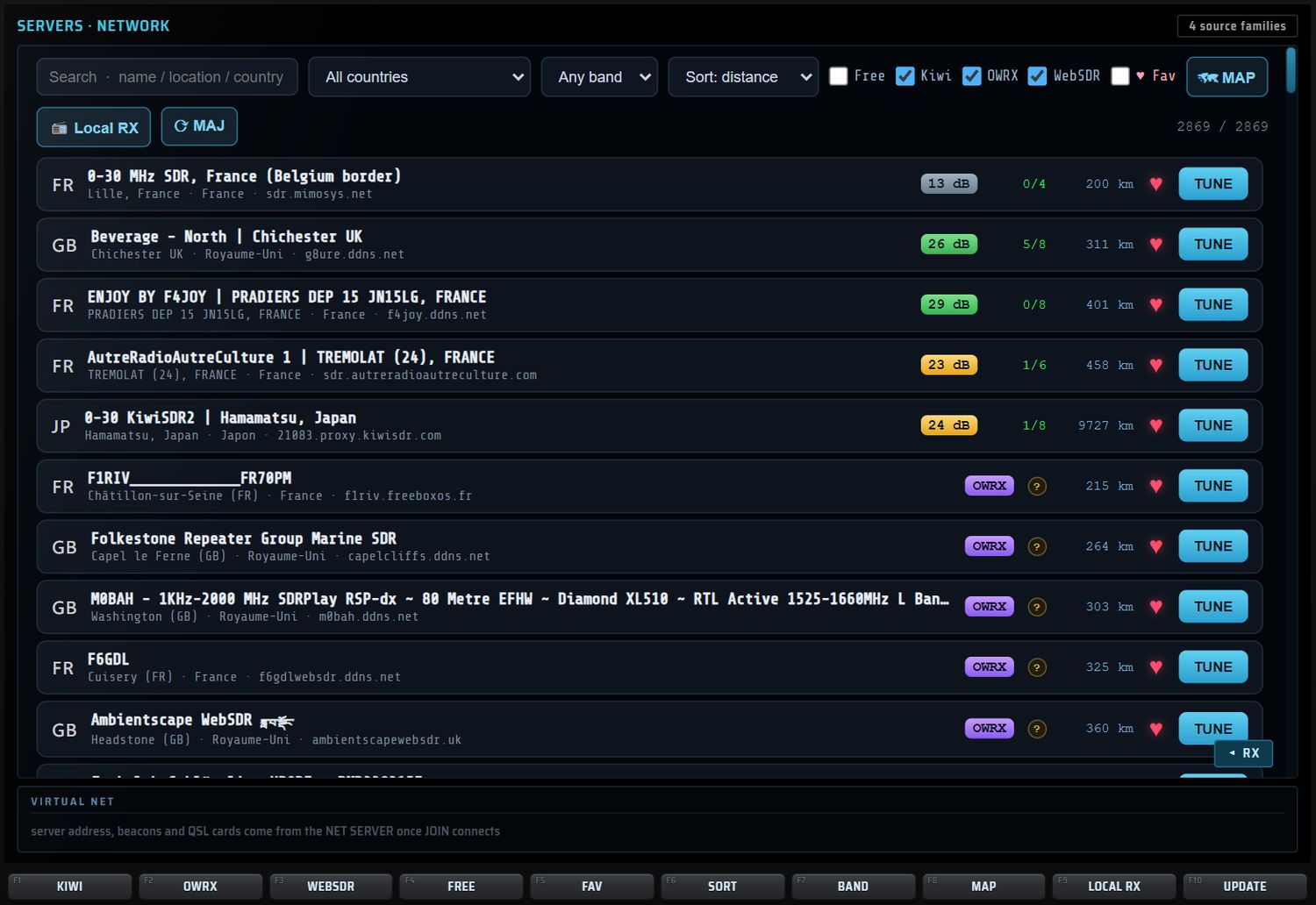
La page SERVERS · NETWORK occupe le grand écran. Le badge « 4 source families » rappelle en haut à droite les quatre familles. Le bouton ◂ RX en bas à droite revient à la réception. En bas, l'encadré VIRTUAL NET rappelle que l'adresse du serveur, les balises et les cartes QSL du Virtual Net viennent du NET SERVER une fois JOIN connecté.
La barre de filtres
| Contrôle | Valeurs | Effet |
|---|---|---|
| Champ de recherche « Search · name / location / country » | texte libre | garde les récepteurs dont le nom, le lieu, le pays ou l'adresse contient le texte (majuscules indifférentes) ; la liste se met à jour à chaque lettre |
| Pays | All countries, puis chaque pays avec son nombre de récepteurs, du plus fourni au moins fourni | un seul pays |
| Bande | Any band, puis 10 m … 2200 m | garde les récepteurs qui couvrent toute la bande choisie |
| Tri | Sort: distance (défaut), Sort: SNR, Sort: free slots, Sort: country, Sort: name | distance depuis votre locator ; meilleur rapport signal/bruit d'abord ; plus de places libres d'abord ; par pays puis SNR ; alphabétique |
| Free | coché / décoché (défaut) | seulement les récepteurs qui ont une place libre |
| Kiwi, OWRX, WebSDR | cochés par défaut | types de source affichés |
| ♥ Fav | coché / décoché (défaut) | seulement vos favoris |
| MAP | bouton | ouvre la carte des récepteurs (voir plus bas) |
| Local RX | bouton | ouvre le panneau LOCAL RECEIVER |
| ⟳ MAJ | bouton | met à jour l'annuaire ; un appui long le réinitialise (voir plus bas) |
| Compteur | « affichés / total » | par exemple « 75 / 2869 » après une recherche |
Seuls les récepteurs en ligne sont listés.
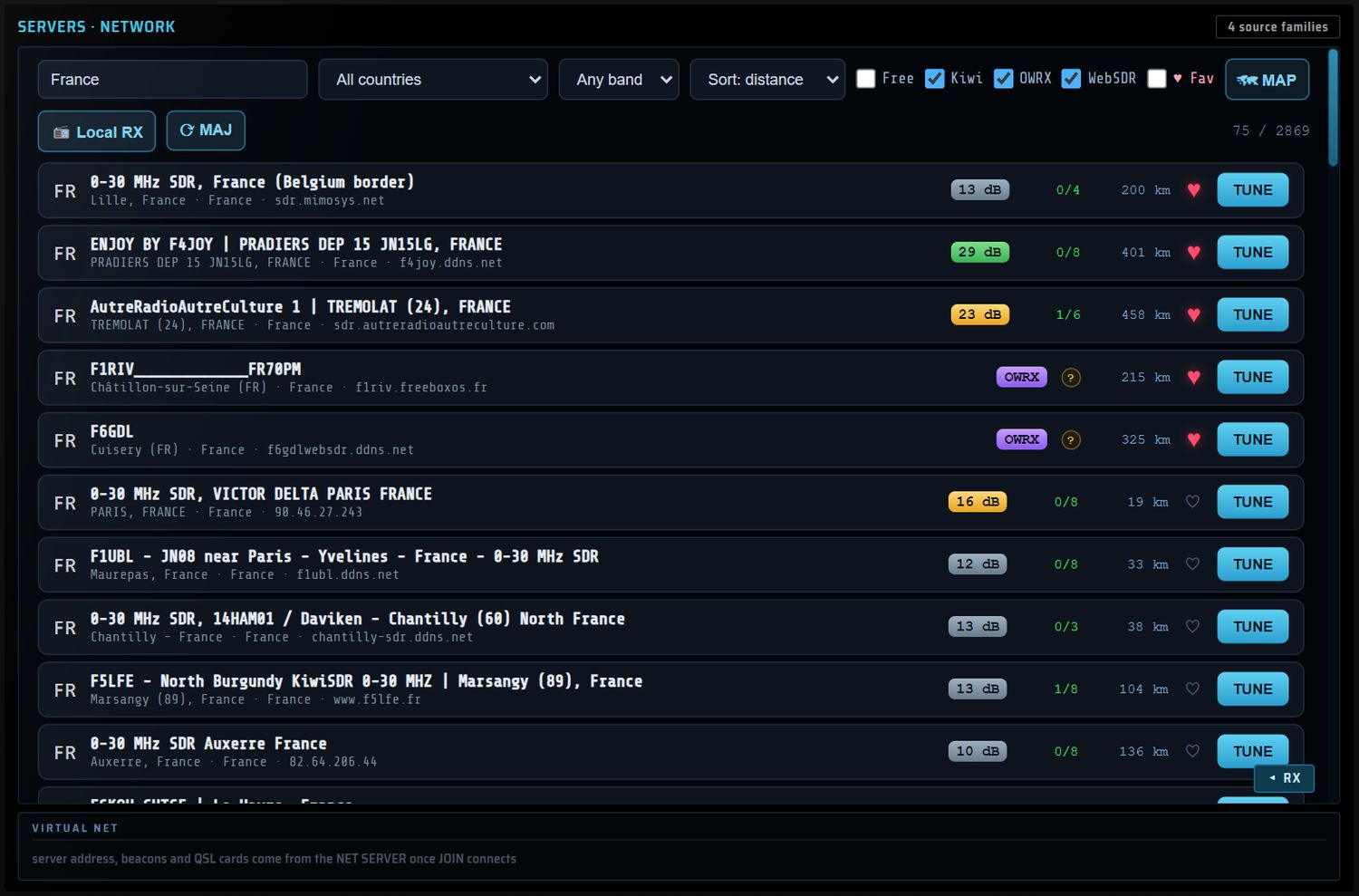
Une ligne de la liste
De gauche à droite :
| Élément | Sens |
|---|---|
| Code pays | pays du récepteur (deux lettres) |
| Nom, puis « lieu · pays · adresse » | identification du récepteur |
| SNR « NN dB » | qualité de réception mesurée : vert à partir de 25 dB, ambre de 15 à 24 dB, gris en dessous ; « — » si inconnu |
| Badge OWRX | serveur OpenWebRX (pas de SNR ni de compteur fiable) |
| Auditeurs « u/max » | auditeurs connectés et places totales ; en vert s'il reste une place |
| Pastille ? | adresse non vérifiée (infobulle « Adresse non verifiee (annuaire rx-tx.info) : la connexion peut echouer ») |
| Distance « NNN km » | depuis votre locator |
| Cœur ♡ / ♥ | ajoute ou retire le récepteur de vos favoris (retenu) |
| TUNE | se connecte à ce récepteur et revient à la réception |
Ordre de la liste : le tri choisi s'applique d'abord ; les entrées non vérifiées passent ensuite derrière les autres ; enfin vos favoris remontent en tête.
- La liste affiche 180 lignes au plus, puis « + N more — refine the search. ».
- Aucun résultat : « No receiver matches these filters. » Décochez Free ou ♥ Fav, ou revenez à « Any band ».
Les touches F de l'annuaire
| Touche | Libellé | Action |
|---|---|---|
| F1 | KIWI | affiche ou masque les KiwiSDR |
| F2 | OWRX | affiche ou masque les OpenWebRX |
| F3 | WEBSDR | affiche ou masque les WebSDR |
| F4 | FREE | seulement les récepteurs avec une place libre |
| F5 | FAV | seulement les favoris |
| F6 | SORT | passe au tri suivant |
| F7 | BAND | passe au filtre de bande suivant |
| F8 | MAP | ouvre la carte des récepteurs |
| F9 | LOCAL RX | ouvre le panneau LOCAL RECEIVER |
| F10 | UPDATE | met à jour l'annuaire (comme ⟳ MAJ) |
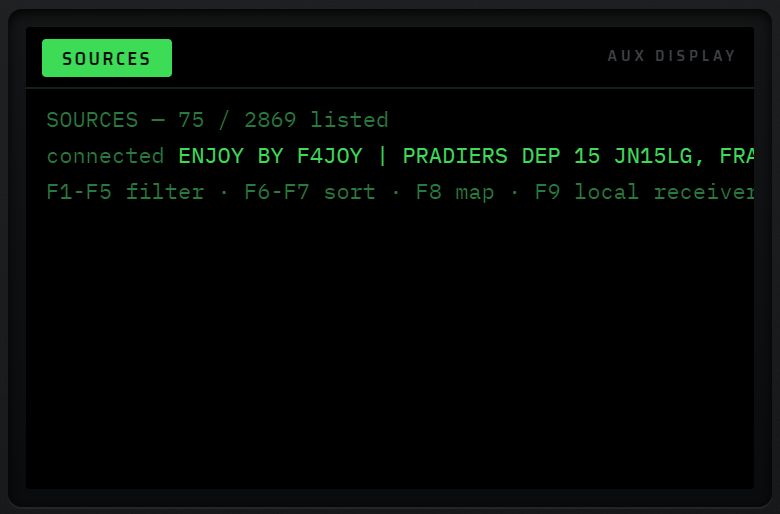
L'écran AUX affiche le nombre de récepteurs listés, la source connectée et le rôle des touches F.
Mettre à jour l'annuaire
RX·ONE contient un annuaire de départ de plus de 1 500 récepteurs. Pour le compléter avec les serveurs apparus depuis, appuyez sur ⟳ MAJ (ou F10 UPDATE) :
- Le bouton affiche « … » et le compteur suit la progression : « Téléchargement OpenWebRX… », « OpenWebRX : N · Téléchargement KiwiSDR… », « KiwiSDR : N · Téléchargement WebSDR… », « WebSDR : N · Enrichissement SNR… ».
- À la fin : « OK — N récepteurs (OWRX n · Kiwi n · WebSDR n · SNR n). »
- Le nouvel annuaire est conservé et rechargé aux démarrages suivants.
- Les récepteurs déjà connus et leurs mesures de SNR sont gardés ; les nouveaux s'ajoutent derrière, sans doublon.
- Par sécurité, rien n'est remplacé si le téléchargement rapporte moins de 400 récepteurs : « ÉCHEC : seulement N récepteurs (< 400) — rien appliqué. » En cas d'échec, le bouton affiche « MAJ échec : <raison> » et l'annuaire précédent reste en place.
- Les récepteurs ajoutés par la mise à jour portent la pastille ? : leur adresse n'a pas été vérifiée et la connexion échoue plus souvent. Préférez une entrée sans pastille quand vous avez le choix.
Réinitialiser : maintenez ⟳ MAJ appuyé plus d'une demi-seconde (650 ms). Le message « Réinitialisation de l'annuaire… » s'affiche, l'annuaire mis à jour est effacé et la page se recharge sur l'annuaire d'origine.
La carte de l'annuaire
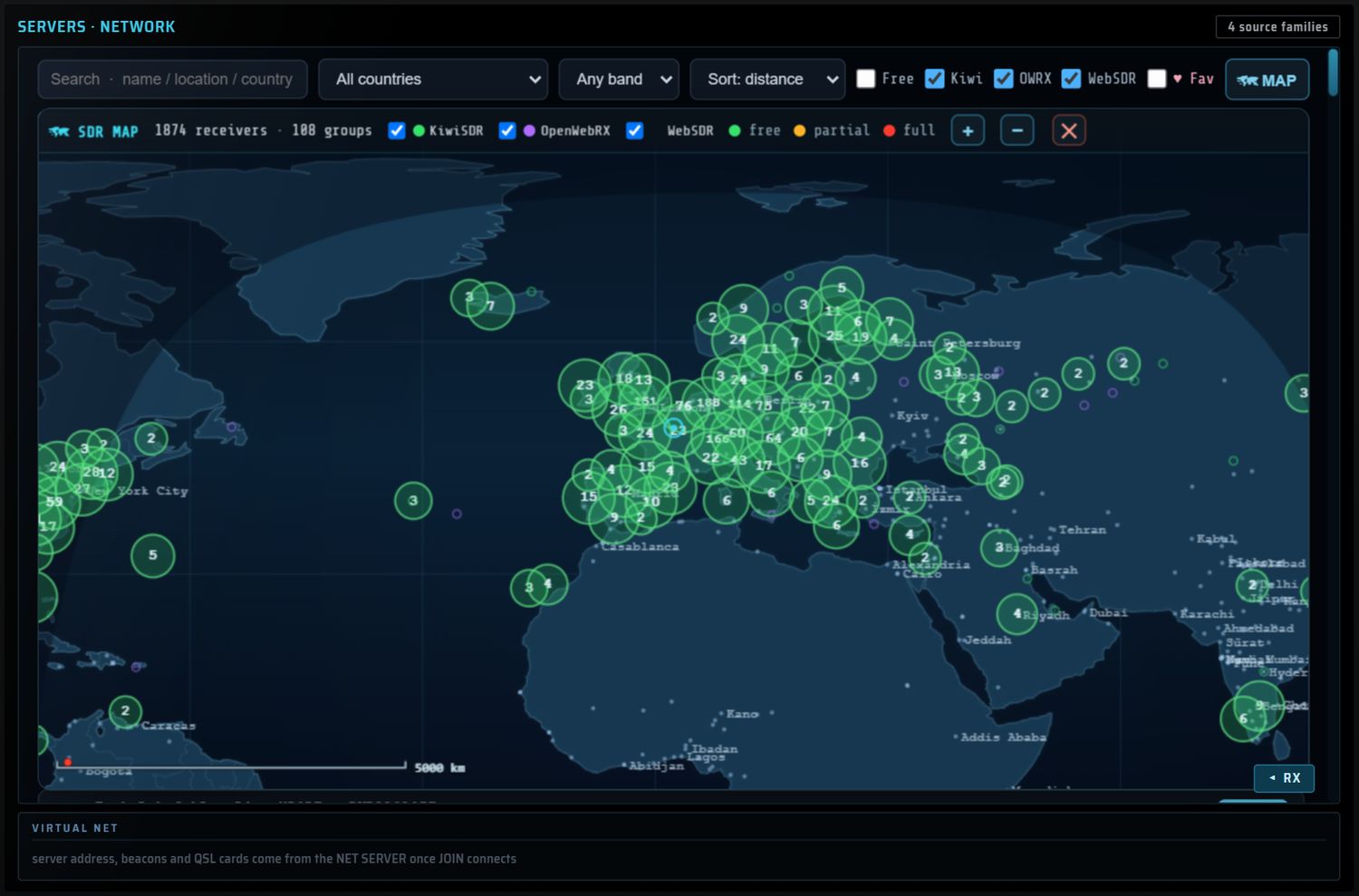
Le bouton MAP (ou F8) ouvre une carte du monde par-dessus la liste.
- La barre indique le nombre de récepteurs et de groupes, trois cases KiwiSDR, OpenWebRX, WebSDR, la légende et les boutons + (zoom avant), − (zoom arrière) et ✕ (fermer).
- La carte applique les mêmes filtres que la liste : recherche, pays, bande, Free.
- Couleur d'un repère : vert = places libres (free), ambre = en partie occupé (partial), rouge = plein (full). Un récepteur dont le nombre de places est inconnu n'est jamais rouge.
- Les récepteurs proches sont regroupés dans un cercle numéroté.
- Survol : bulle avec le nom, le lieu, le type et l'adresse.
- Clic sur un repère : une fiche « Receiver » (ou « N receivers here », 8 au plus) liste chaque récepteur avec « lieu · u/max · SNR dB » (et « · non verifie » pour une adresse non vérifiée). Un clic sur une ligne de la fiche connecte ce récepteur.
La page SDR MAP de la grille APP (MAP) présente la même carte en plein écran, avec ses propres touches F : voir le chapitre 10.
Récepteurs locaux
Le panneau LOCAL RECEIVER
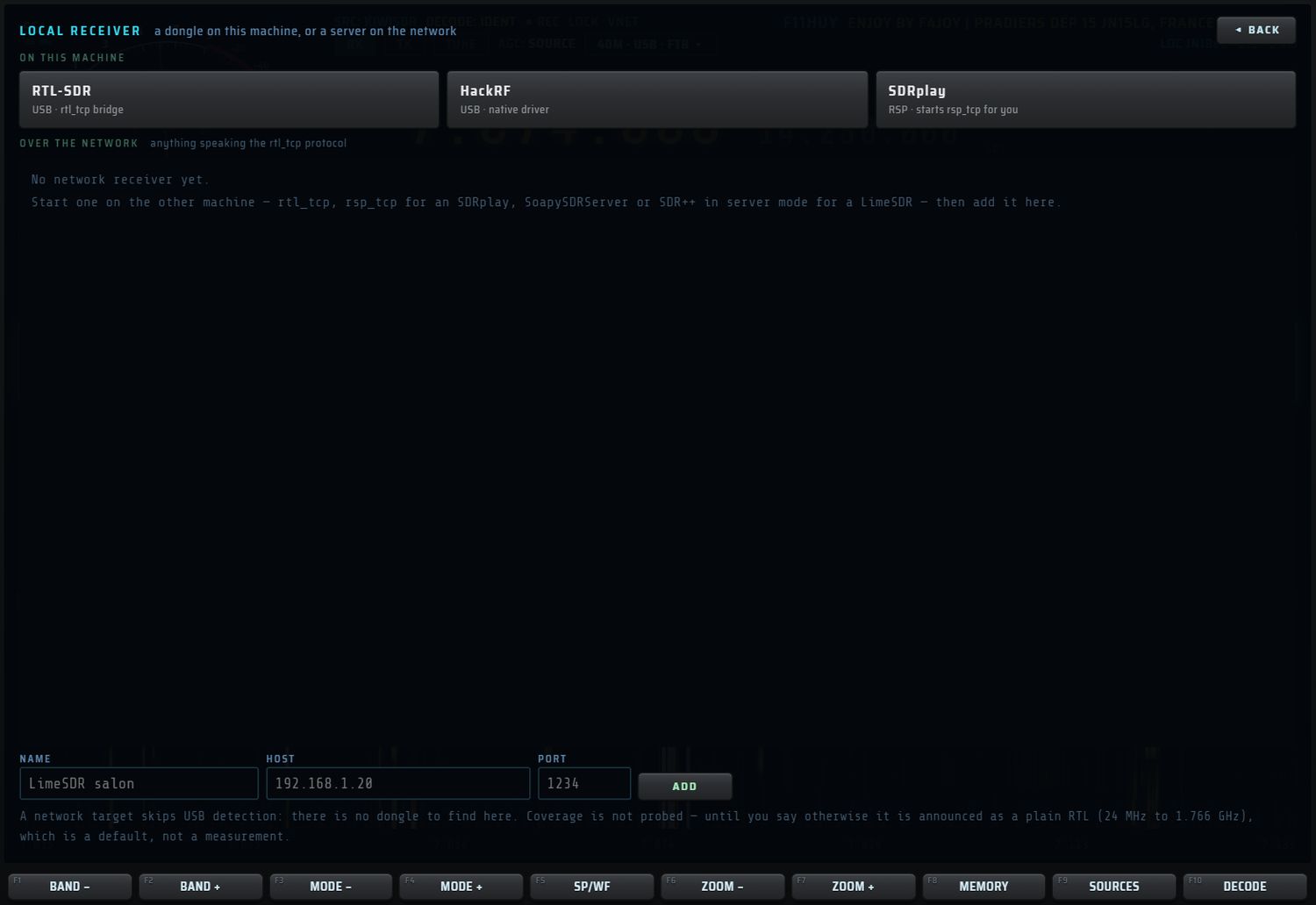
Ouvrez-le par le bouton Local RX de l'annuaire, ou par F9 LOCAL RX dans l'annuaire. L'écran AUX affiche « LOCAL RX — N network receiver(s) saved — press a line to connect · ✕ forgets it », ou, sans serveur enregistré, l'invitation à en ajouter un. ◂ BACK referme le panneau.
ON THIS MACHINE
| Bouton | Ce qu'il fait |
|---|---|
| RTL-SDR (« USB · rtl_tcp bridge ») | ouvre la clé RTL-SDR branchée. Sur PC, par le pont rtl_tcp intégré ; sur Android, par l'application « RTL-SDR driver ». L'écran AUX affiche « RTL-SDR on this machine — grant the USB access if the browser asks for it ». |
| HackRF (« USB · native driver ») | ouvre le HackRF branché, par le pilote intégré. |
| SDRplay (« RSP · starts rsp_tcp for you ») | lance rsp_tcp sur cette machine puis s'y connecte. Messages : « starting rsp_tcp… » ou « rsp_tcp already running » ; « rsp_tcp not found — install RSPTCPServer next to the app or in the PATH, and the SDRplay API with it » ; sur tablette, « SDRplay — only in the desktop app ». |
Le bouton de la source active porte un point vert. Au démarrage d'un dongle, RX·ONE s'accorde sur 100,7 MHz en FM pour vérifier le son tout de suite, puis applique vos gains mémorisés. Accordez ensuite normalement.
OVER THE NETWORK
Cette section liste les serveurs rtl_tcp de votre réseau (rtl_tcp, rsp_tcp, SoapySDRServer, SDR++ en mode serveur). Pour en ajouter un :
- NAME : un nom libre (40 caractères), par exemple « LimeSDR salon ».
- HOST : l'adresse IP ou le nom de la machine qui fait tourner le serveur. Obligatoire : sinon « a host is required — an address or a name ».
- PORT : de 1 à 65535, 1234 par défaut. Sinon « port must be between 1 and 65535 ».
- Touchez ADD (ou Entrée dans le champ PORT) : « saved · press its line to connect ».
- Jusqu'à 24 serveurs sont retenus. Saisir de nouveau la même adresse et le même port met à jour l'entrée existante.
- Touchez une ligne pour vous connecter : « connecting to <nom> — <adresse:port> · rtl_tcp protocol ». La ligne du serveur réellement connecté est verte.
- La fréquence courante est gardée si elle est dans la couverture du serveur ; sinon RX·ONE s'accorde au milieu de la couverture.
- ✕ au bout d'une ligne oublie ce serveur (« server removed »).
Le panneau LOCAL RX et le PREAMP
Les réglages du récepteur local se trouvent dans le panneau LOCAL RX (« dongle + preamp »), qui s'ouvre dans le grand écran :
- par SET puis F4 LOCAL RX ;
- par la touche RF GAIN du pavé, pour les choix rapides dans l'écran AUX (voir la liste SOURCE GAIN).
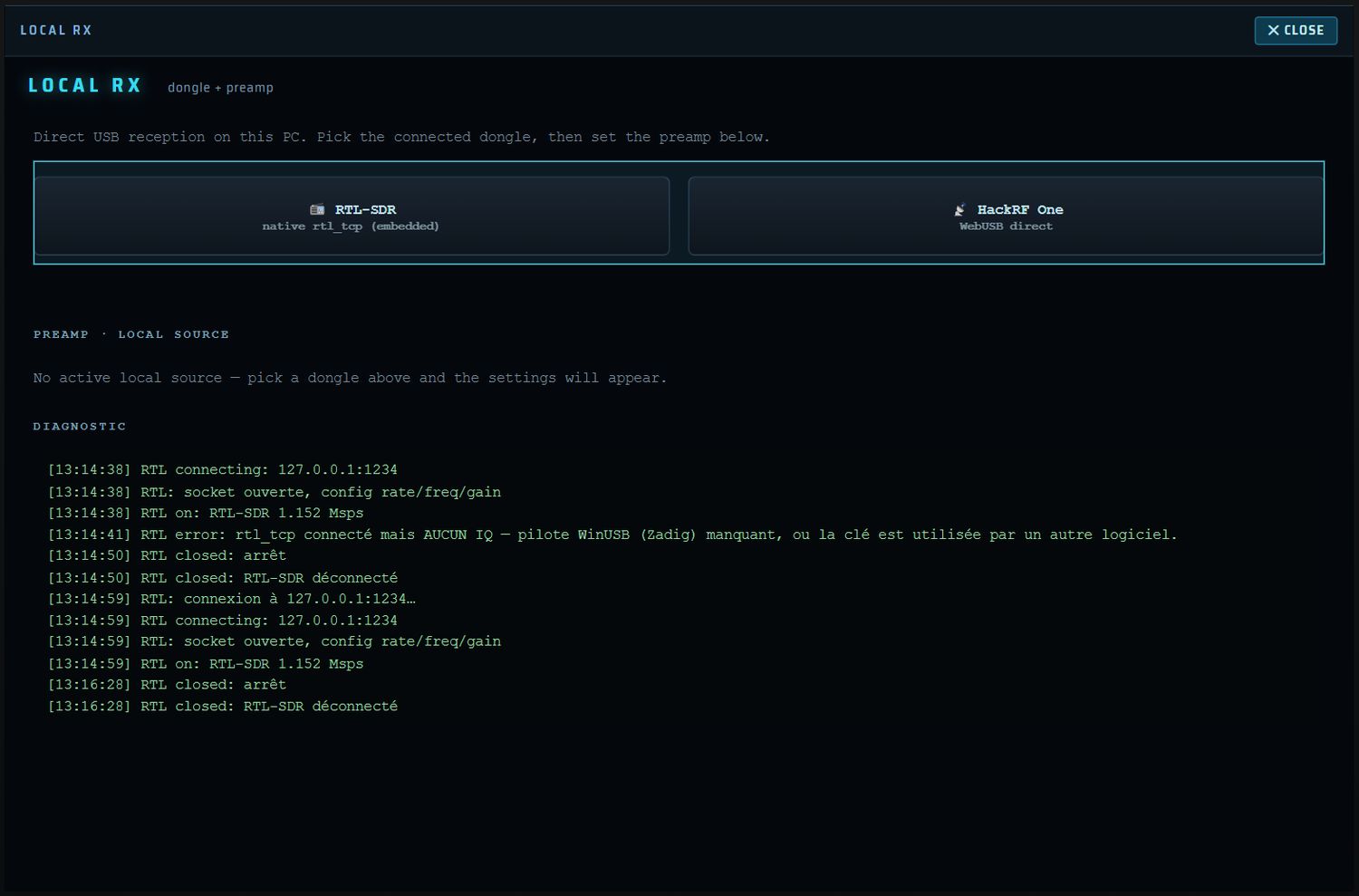
- En haut, deux boutons choisissent le récepteur : RTL-SDR et HackRF One. Leur sous-titre indique la voie utilisée : sur PC « native rtl_tcp (embedded) » et « WebUSB direct » ; sur Android « rtl_tcp driver » et « native USB ».
- La section PREAMP · LOCAL SOURCE affiche les réglages du récepteur actif, avec la mention « RTL-SDR — applied live » ou « HackRF One — applied live ». Sans récepteur local actif : « No active local source — pick a dongle above and the settings will appear. »
- Chaque réglage est envoyé tout de suite au récepteur et retenu (par VFO).
- DIAGNOSTIC (PC) : les dernières lignes horodatées du journal des récepteurs locaux. C'est là que vous lisez pourquoi une clé ne reçoit pas (voir Dépannage).
- ✕ CLOSE referme le panneau.
Réglages RTL-SDR
| Réglage | Valeurs | Défaut | Effet |
|---|---|---|---|
| AGC TUNER (« R820T tuner auto gain ») | ON / OFF | ON | gain automatique du tuner |
| RF GAIN | 29 crans : 0 · 0,9 · 1,4 · 2,7 · 3,7 · 7,7 · 8,7 · 12,5 · 14,4 · 15,7 · 16,6 · 19,7 · 20,7 · 22,9 · 25,4 · 28,0 · 29,7 · 32,8 · 33,8 · 36,4 · 37,2 · 38,6 · 40,2 · 42,1 · 43,4 · 43,9 · 44,5 · 48,0 · 49,6 dB | 20 dB | gain manuel du tuner ; grisé (« AUTO ») tant que l'AGC TUNER est sur ON |
| DIGITAL AGC (RTL2832) | ON / OFF | OFF | AGC numérique de la puce RTL2832 |
| BIAS-TEE (« 4.5 V supply — LNA/active antenna ») | ON / OFF | OFF | alimente un préampli ou une antenne active par le câble coaxial |
| SAMPLE RATE | 0,96 · 1,152 · 1,92 · 2,4 Msps | 1,152 Msps | largeur du flux ; le flux est rouvert proprement au changement |
| SAMPLING MODE | Quadrature · Direct I · Direct Q | Quadrature | Direct I / Direct Q : échantillonnage direct, pour écouter la HF sans convertisseur sur les clés qui le permettent |
| OFFSET TUNING (« mostly E4000 tuners ») | ON / OFF | OFF | décalage d'accord pour les tuners E4000 |
| SHIFT · upconv. | ON / OFF et valeur, par pas de 1 MHz | OFF, −125 MHz | décale l'accord du tuner pour un convertisseur (−125 MHz : convertisseur type Ham-It-Up) ; la fréquence affichée reste la vraie fréquence |
| CORRECT IQ (« removes the central DC ») | ON / OFF | OFF | supprime la raie parasite au centre du spectre |
| INVERT SPECTRUM | ON / OFF | OFF | inverse le spectre (convertisseurs à mélange inversé) |
| FREQ CORR (PPM) | −200 … +200 ppm, pas de 1 | 0 | corrige l'erreur de fréquence du quartz de la clé |
Réglages HackRF One
| Réglage | Valeurs | Défaut | Effet |
|---|---|---|---|
| LNA (HackRF) | 0 à 40 dB, pas de 8 | 24 dB | gain de l'étage d'entrée RF |
| VGA (HackRF) | 0 à 62 dB, pas de 2 | 20 dB | gain en bande de base |
| RF AMP · +14 dB (« input amp (overload possible) ») | ON / OFF | OFF | amplificateur d'antenne de 14 dB ; risque de saturation près d'émetteurs puissants |
| BIAS-TEE (« antenna-port supply — external LNA ») | ON / OFF | OFF | alimente un préampli extérieur par la prise d'antenne |
| FREQ CORR (PPM) | −200 … +200 ppm, pas de 1 | 0 | correction de fréquence |
Le débit du HackRF est fixe : 2,4 Msps.
Choix rapides dans l'écran AUX
La touche RF GAIN ouvre la liste SOURCE GAIN dans l'écran AUX :
| Source | Choix proposés |
|---|---|
| RTL-SDR | « tuner AGC », un cran sur deux de la table du tuner (0.0, 1.4, 3.7, 8.7…), « digital AGC on / off » ; « applied to the dongle at once » |
| HackRF | LNA 0 / 8 / 16 / 24 / 32 / 40 ; VGA 0 / 10 / 20 / 30 / 40 / 50 / 62 ; AMP on / off (« +14 dB before the mixer ») |
| Serveur en ligne | aucun réglage (voir l'image ci-dessous) |
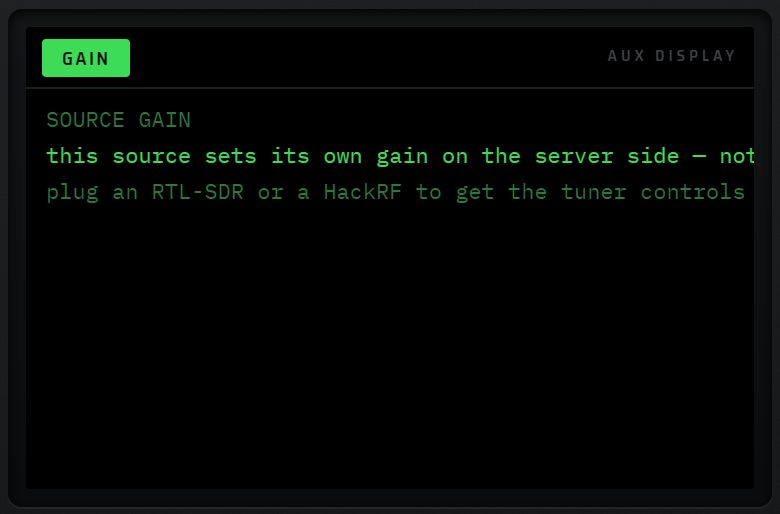
De même, sur un serveur en ligne, la touche AGC indique que l'AGC du récepteur est fixée par le serveur.
Différences PC / Android pour les récepteurs locaux
Menus adaptés à la source
Chaque source sait faire des choses différentes. RX·ONE en tient compte partout :
- ce que la source ne sait pas faire est grisé, jamais masqué ;
- un mode ou un décodeur devenu impossible après un changement de source est remplacé automatiquement, avec une bulle d'information en bas de l'écran pendant environ 3 secondes.
| Source | Modes | Décodeurs | Bandes |
|---|---|---|---|
| Aucune | tous | tous | toutes |
| Récepteur local | tous | tous | toutes |
| KiwiSDR, WebSDR | modes analogiques | décodeurs locaux | sous 32 MHz |
| OpenWebRX | ceux que le serveur annonce | ceux du serveur + FT8, FT4, CW, RTTY, FSK, IDENT, ADS-B, AIS | toutes, par profils |
Où se voit le grisage
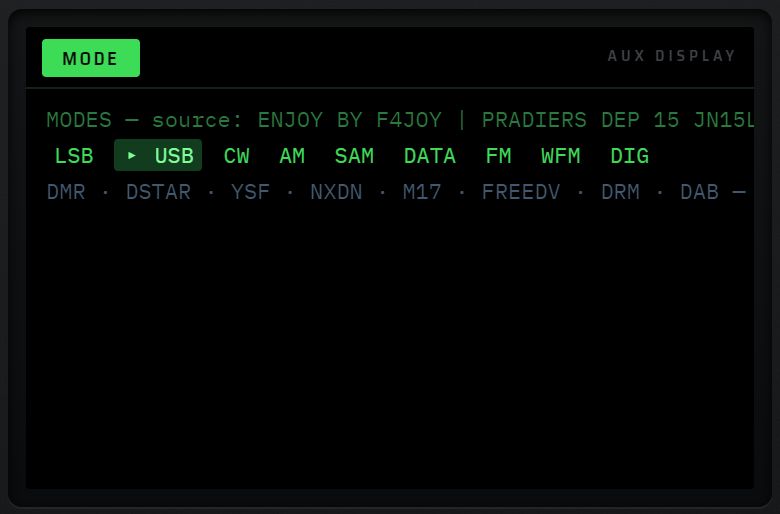
- Liste MODE (MODE) : le titre rappelle la source ; les modes impossibles sont regroupés en gris sur une ligne à part, suivis de « — not served by this source ». Si tout est possible : « every engine mode is available on this source ».
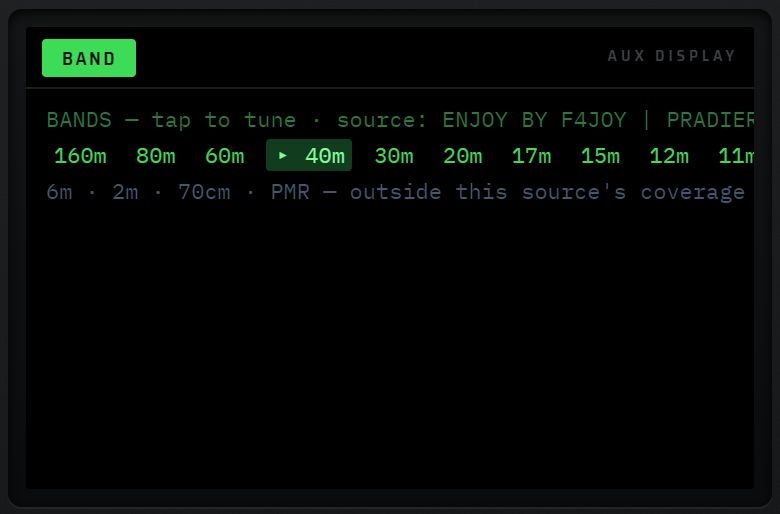
- Liste BAND (BAND) : les bandes hors couverture sont regroupées en gris, suivies de « — outside this source's coverage ». Si tout est couvert : « full coverage on this source ».
- BAND − / BAND + et MODE − / MODE + sautent les bandes et les modes impossibles.
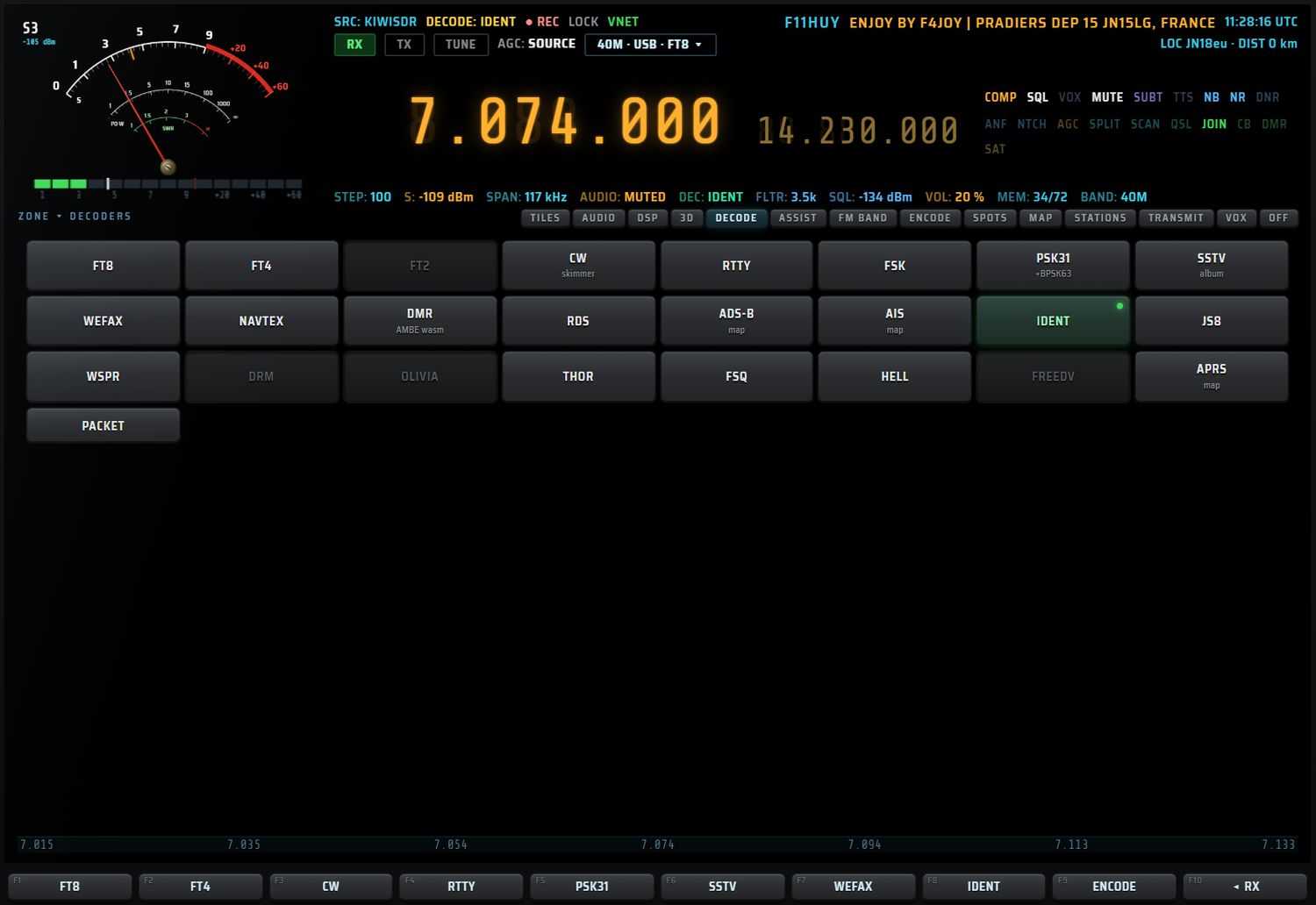
- Liste des décodeurs : une touche grisée porte l'infobulle « not served by the connected source » (ou n'a pas de décodeur dans cette version, voir le chapitre 7).
Les messages de repli
Ces bulles s'affichent en français, telles quelles :
| Message | Quand |
|---|---|
| « <MODE> indisponible sur cette source → <MODE de repli> » | le mode courant n'existe pas sur la nouvelle source ; RX·ONE passe en LSB sous 10 MHz, sinon en USB, sinon dans le premier mode permis |
| « decodeur <X> indisponible → <décodeur de repli> » | le décodeur courant n'existe pas sur la nouvelle source ; RX·ONE passe en FT8, sinon dans le premier décodeur permis |
| « <MODE> indisponible sur cette source » | vous avez touché un mode grisé |
| « <BANDE> hors de portee de cette source » | vous avez demandé une bande hors couverture |
| « <décodeur> indisponible sur cette source » / « … sur ce serveur » | vous avez touché un décodeur grisé |
BEST RX : le meilleur récepteur pour une émission
Dans ASSIST, onglet LISTEN, chaque émission de la grille des programmes porte une touche BEST RX (infobulle « connect the free KiwiSDR closest to the target area »). Elle choisit, parmi les KiwiSDR en ligne, avec une place libre, qui couvrent la fréquence et dont la position est connue, celui qui est à la fois le plus proche de la zone visée par l'émission et le mieux noté en SNR. La zone visée est celle du programme, sinon le pays de l'émetteur, sinon votre QTH.
- L'écran affiche « ASSIST · BEST RX — connecting <nom> — N km from the target (<zone>), SNR n dB… », puis RX·ONE s'accorde et règle le mode 6 secondes plus tard.
- « no free KiwiSDR covers N kHz » : aucun KiwiSDR libre ne couvre cette fréquence.
- « no receiver directory loaded » : l'annuaire n'est pas encore chargé ; attendez quelques secondes.
Voir aussi ASSIST › LISTEN.
Reconnexion automatique
- RX·ONE retient la dernière source de chaque VFO et la rouvre au démarrage (voir Premier démarrage).
- Si rien n'est reçu 7 secondes après le lancement, la source est relancée, puis une seconde fois à 18 secondes : « reconnecting <nom>… » pour un serveur ; « restarting HackRF… » ou « restarting RTL-SDR… — re-opened through the permission already granted » pour un récepteur local. La fréquence et le mode mémorisés sont ensuite reposés.
- Revenir sur un VFO dont la session était arrêtée rouvre sa source (voir ci-dessous).
- La touche ⏻ du panneau gauche coupe la source en mettant le récepteur hors tension ; remis sous tension, il se reconnecte à la dernière source. La ligne « switch off in » de la liste TIMER coupe aussi la source à l'heure dite (« receiver switched off »).
Les trois VFO : A, B, C
Les touches A, B et C (repères 2, 3, 4, à gauche du vernier) choisissent l'un des trois VFO. Chaque VFO est une session complète et autonome, avec sa propre source.
Ce que chaque VFO garde
- la source (serveur en ligne ou récepteur local) ;
- la fréquence, le mode, la bande, la largeur de filtre, le pas, le filtre dessiné ;
- le zoom et la cascade, la page affichée, le contenu de la fente ;
- le décodeur ;
- les traitements DSP (NB, NR, DNR, ANF), l'AGC audio, les réglages AUDIO LAB ;
- les gains du récepteur local ;
- la zone, la sélection, PEAK / MARK / HOLD.
Les trois VFO sont enregistrés dès qu'un réglage change, à chaque changement de VFO et à la fermeture, puis restitués au lancement suivant.
Changer de VFO
La touche du VFO courant est allumée. Un point vert sur une autre touche signale un VFO qui reçoit en fond.
| Situation | Ce qui se passe | Écran AUX |
|---|---|---|
| Appui sur le VFO déjà courant | rien | « already on this VFO — its full state is being kept » |
| VFO dont la session tourne encore | bascule immédiate, sans reconnexion | « <fréquence> MHz · <mode> · <source> », « live session — it never stopped receiving » |
| VFO dont la session est arrêtée | l'état complet est restitué et la source rouverte | « full state restored: filters, gains, audio, display, decoder » |
| VFO jamais utilisé | il prend l'état courant | « empty — it takes the current settings » |
| VFO dont le récepteur USB est débranché (PC) | la bascule est refusée ; le VFO garde ses réglages | « the HackRF is not plugged in — VFO X keeps its settings — plug it in, then press X again » |
La ligne d'état résume les VFO, par exemple « VFO A (B 14.100 USB ● · C 105.500 WFM) » : le VFO courant, puis les autres ; ● = session vivante.
Ce qui continue en fond
- Les sessions de fond continuent de recevoir, mais leur son est coupé : vous n'entendez que le VFO courant.
- Ouvrir une source sur un VFO n'arrête pas celle d'un autre VFO : elle passe en fond.
- Ces décodeurs continuent de travailler en fond, chacun pour son VFO : CW, RTTY, FSK (texte), FT8 / FT4 (80 lignes gardées), SSTV et FAX (image). SSTV et FAX ne décodent en fond que si la page SSTV ou FAX était ouverte sur ce VFO.
- Au retour sur le VFO, ce qui a été décodé est versé à l'écran : par exemple « VFO B : n décodages FT8 récupérés du fond » ou « VFO B : image <mode> reçue en fond (n lignes) ».
- Les cartes des avions et des navires sont alimentées par toutes les sessions.
Récepteurs locaux et VFO
- Un seul exemplaire de chaque récepteur à la fois : ouvrir la RTL-SDR sur le VFO B coupe la RTL-SDR d'un autre VFO, avec le message « VFO X : radio locale coupée — un seul exemplaire de chaque dongle à la fois ».
- Sur PC, une RTL-SDR et un HackRF peuvent tourner ensemble, sur deux VFO différents. Sur Android, un seul récepteur local au total.
- En revenant sur un VFO à récepteur local, RX·ONE rouvre le récepteur grâce à l'autorisation USB déjà accordée (« restarting HackRF - through the USB permission already granted »). Pour un SDRplay, rsp_tcp est relancé si besoin. La fréquence et le mode du VFO sont ensuite reposés.
A=B et SPLIT
- A=B (pavé, bloc TUNING) copie l'état complet du VFO courant dans le VFO suivant (A → B, B → C, C → A), sans changer de VFO : « VFO A copied into VFO B (complete state) ».
- SPLIT fait émettre sur un VFO et écouter sur un autre : voir le chapitre 12.
Dépannage des connexions
Où lire les messages
- Récepteur local sur PC : bloc DIAGNOSTIC du panneau LOCAL RX (SET puis F4).
- OpenWebRX : zone d'avertissement ⚠ de la carte SERVER BAND.
- Messages de la console (LOCAL RX, SOURCE, ASSIST…) : écran AUX.
- Spectre : « CONNECTED, BUT NO SPECTRUM FROM … » et « NO SOURCE … ».
Récepteur local — PC
| Message | Sens | Remède |
|---|---|---|
| « rtl_tcp connecté mais AUCUN IQ — pilote WinUSB (Zadig) manquant, ou la clé est utilisée par un autre logiciel. » | rtl_tcp tourne mais ne reçoit rien de la clé | installez WinUSB sur la clé avec Zadig ; fermez SDR#, SDR++ ou tout autre logiciel qui tient la clé |
| « démarrage de rtl_tcp… » / « RTL: rtl_tcp démarre… tentative n/12 » | RX·ONE lance rtl_tcp | patientez : jusqu'à 12 essais, environ 8 secondes |
| « RTL-SDR : rtl_tcp.exe introuvable dans le dossier pc. » | le programme rtl_tcp manque | réinstallez l'exécutable complet de RX·ONE |
| « RTL-SDR indisponible (<code>). Vérifie que la clé est branchée et le pilote WinUSB (Zadig) installé. » | échec après 12 essais | branchez la clé, installez WinUSB ; pour un serveur réseau, vérifiez l'adresse, le port et le pare-feu |
| « RTL-SDR déconnecté » / « arrêt » | flux arrêté | normal après un arrêt ou un changement de source |
| « HackRF : l'ouverture USB bloque — installe le pilote WinUSB sur le HackRF via Zadig (comme la RTL). » | le HackRF ne répond pas à l'ouverture | installez WinUSB sur le HackRF avec Zadig |
| « HackRF connecté mais AUCUNE donnée USB — pilote WinUSB manquant (installez-le via Zadig sur l'interface HackRF). » | aucune donnée en 2,5 s | installez WinUSB |
| « HackRF : impossible de réserver l'interface N (…) — … » | le HackRF est pris | fermez l'autre logiciel ; installez WinUSB |
| « HackRF: aucune interface transceiver (le PortaPack est-il en mode HackRF ?) » / « timeout <étape> — le PortaPack est-il en mode HackRF ? » | PortaPack en mode Mayhem | lancez l'application « HackRF » du PortaPack ; rebranchez |
| « HackRF introuvable : branche-le, et mets le PortaPack en MODE HackRF (appli « HackRF » du Mayhem) — en mode Mayhem il n'est pas reconnu. Pilote WinUSB (Zadig) requis. » | aucun HackRF trouvé | branchez-le, mode HackRF, WinUSB |
| « HackRF not authorised — pick it in the Local RX menu. » / « HackRF non autorisé (<raison>) » | accès USB non accordé | rouvrez le HackRF depuis LOCAL RECEIVER |
| « HackRF USB: <erreur> » | erreur de transfert USB | rebranchez, essayez un autre port USB |
| « rsp_tcp not found — install RSPTCPServer next to the app or in the PATH, and the SDRplay API with it » | rsp_tcp absent | installez l'API SDRplay et rsp_tcp (voir l'installation) |
Récepteur local — Android
| Message | Sens | Remède |
|---|---|---|
| « No SDR dongle recognized. Plug in the RTL-SDR (rtl_tcp driver app required) or the HackRF (supported directly). » | aucun récepteur reconnu sur l'USB | vérifiez le câble OTG et le branchement |
| « USB permission denied for <appareil>. » | accès USB refusé | relancez et acceptez la demande d'Android |
| « Driver app missing: install RTL-SDR driver (Martin Marinov) from the Play Store » | application pilote absente | installez-la depuis le Play Store |
| « RTL-SDR driver N kS/s » puis « RTL-SDR rtl_tcp OK N kS/s » | démarrage normal de la RTL-SDR | — |
| « stream ended » | flux de la RTL-SDR terminé | relancez la RTL-SDR |
| « HackRF not found (unplugged?) » | HackRF absent | rebranchez-le |
| « HackRF: USB permission missing » | accès USB non accordé | rouvrez le HackRF depuis LOCAL RECEIVER et acceptez |
| « HackRF: openDevice failed » / « HackRF: bulk IN endpoint not found » / « HackRF: claimInterface refused » | ouverture USB impossible | rebranchez ; fermez toute autre application qui utilise le HackRF ; essayez un autre câble OTG |
| « HackRF: stream ended » | flux terminé | relancez |
KiwiSDR
| Message | Sens | Remède |
|---|---|---|
| « server overloaded (too many clients) » | le serveur est plein (« too busy ») ou refuse la connexion | cochez Free dans l'annuaire, ou choisissez un autre serveur |
| « password required / refused » | serveur protégé par un mot de passe | choisissez un autre serveur |
| « receiver out of service » | récepteur arrêté par son propriétaire | choisissez un autre serveur |
| « no response from the server within 8 s — host unreachable, port closed, or ws:// blocked » | aucune réponse | choisissez un autre serveur ; vérifiez votre connexion |
| « serveur injoignable (N adresse(s) essayée(s) — hôte mort, port fermé, ou redirection sans issue) » | toutes les adresses du serveur ont échoué | serveur hors service : choisissez-en un autre |
| « SND closed (1006: abnormal closure) » / « (1015: TLS failed) » / « (code N) » | liaison son coupée | reconnectez ; 1015 = problème de connexion sécurisée |
| « CONNECTED, BUT NO SPECTRUM FROM <NOM> — the audio may still work - this server is not sending waterfall data. Try another one. » (sur le spectre) | toutes les cascades du serveur sont prises | écoutez quand même, ou changez de serveur |
| « no spectrum from this source yet » (SEEK) | SEEK demandé avant le premier spectre | attendez l'arrivée du spectre |
OpenWebRX
| Message | Sens | Remède |
|---|---|---|
| « no OpenWebRX response within 10 s — host/port unreachable or ws:// blocked » | aucune réponse | choisissez un autre serveur |
| « OpenWebRX closed (code N) » | liaison fermée | reconnectez |
| « Protected band: this profile requires authentication. Choose another band (BAND button). » | profil réservé | choisissez une autre bande dans SERVER BAND |
| « Server: <texte du serveur> » | le serveur signale une restriction | choisissez une autre bande ou un autre serveur |
| « server error » / « Server error. » ou texte du serveur | le récepteur du serveur est en panne ou en attente | réessayez plus tard |
WebSDR
| Message | Sens | Remède |
|---|---|---|
| « connexion refusee (en-tete Origin ?) » | le serveur refuse la connexion ; c'est toujours le cas sur Android | utilisez l'application PC |
| « bandes du serveur introuvables » | le serveur ne publie pas ses bandes : l'accord reste sur sa bande par défaut | choisissez un autre serveur |
| « serveur sature » | le serveur n'envoie plus de son | choisissez un autre serveur |
| « le serveur a ferme la connexion » | fermeture côté serveur | reconnectez |
Annuaire
| Message | Sens | Remède |
|---|---|---|
| « MAJ échec : <raison> » | la mise à jour a échoué | réessayez plus tard ; l'annuaire précédent reste en place |
| « ÉCHEC : seulement N récepteurs (< 400) — rien appliqué. » | téléchargement incomplet | réessayez plus tard |
| « No receiver matches these filters. » | filtres trop stricts | décochez Free ou ♥ Fav, choisissez « Any band » |
| Pastille ? / « · non verifie » | adresse non vérifiée | préférez un récepteur sans pastille |
L'écran central
L'écran central occupe le milieu de la façade. Il montre la réception : en-tête (S-mètre, fréquences, mots d'état), puis une fente dont vous choisissez le contenu, puis le bandscope (spectre, plan de bande, cascade, règle des fréquences). Ce chapitre décrit la fente, ses quatorze onglets, les dix tuiles, le bandscope et la vue 3D.

Organisation de l'écran
De haut en bas :
- L'en-tête : S-mètre à aiguille et barre de segments, lignes d'état (SRC, DECODE, REC, LOCK, VNET), pastilles RX / TX / TUNE, AGC, badge bande · mode · décodeur, fréquence du VFO principal en grand et du VFO secondaire à droite, mots d'état (COMP, SQL, VOX, MUTE, SUBT, TTS, NB, NR, DNR, ANF, NTCH, AGC, SPLIT, SCAN, QSL, JOIN, CB, DMR, SAT), ligne d'infos (STEP, S, SPAN, AUDIO, DEC, FLTR, SQL, VOL, MEM, BAND).
- La fente : sous l'en-tête, avec son titre à gauche (
ZONE ▾ …) et sa barre d'onglets à droite. - Le bandscope : spectre, plan de bande, cascade, règle des fréquences.
Qui prend la hauteur
La place laissée au bandscope dépend du contenu de la fente :
| Contenu de la fente | Hauteur de la fente | Bandscope |
|---|---|---|
| TILES | la grille des dix tuiles | visible |
| OFF | barre d'onglets seule | agrandi : spectre et cascade prennent la place |
| AUDIO, TRANSMIT | bande fixe au-dessus du spectre | visible |
| Tous les autres (DSP, 3D, DECODE, ASSIST, FM BAND, ENCODE, SPOTS, MAP, STATIONS, VOX, et les pages BAND MONITOR, VIRTUAL NET, RECORDER, PROPAGATION) | toute la hauteur | masqué ; seule la règle des fréquences reste en bas |
Les deux petits écrans et les touches F
- L'écran AUX (à droite, au-dessus du vernier) affiche les informations du contenu ouvert et les messages de confirmation. Un message reste environ 6 secondes. Une liste ouverte y reste tant que vous ne changez pas de contenu.
- Le mini-écran (à gauche, dans le bandeau) affiche le résumé du contenu ouvert quand il en a un. Sinon, sur la bande FM 87,5–108 MHz, il affiche le RDS ; ailleurs, la liste QUICK DECODE (FT8, FT4, CW, RTTY, PSK31, SSTV avec leur fréquence d'usage sur la bande courante ; un appui choisit le décodeur et accorde le récepteur). Sa dernière ligne indique le décodeur actif et son activité.
- Les touches F1 à F10, sous l'écran central, changent de rôle selon ce qui est ouvert. Priorité : une liste ouverte dans l'écran AUX, puis le contenu de la fente (ou la fenêtre) ouvert, puis la réception (contexte RX). Une liste de plus de dix choix occupe F1 à F9 et F10 devient
MORE n/Npour passer à la page suivante. Quand un menu ne fixe rien en F10, F10 devient◂ RX.
◂ RX (F10 de presque tous les menus) ferme les fenêtres, revient à l'écran de réception et remet la fente sur TILES (sauf si elle est déjà sur TILES ou OFF). Le décodeur choisi continue de tourner.
Touches F du contexte RX
| N° | Touche | Action |
|---|---|---|
| F1 | BAND − | bande précédente |
| F2 | BAND + | bande suivante |
| F3 | MODE − | mode précédent |
| F4 | MODE + | mode suivant |
| F5 | SP/WF | spectre + cascade / spectre seul / cascade seule (voir SP/WF) |
| F6 | ZOOM − | élargit la fenêtre affichée |
| F7 | ZOOM + | resserre la fenêtre affichée |
| F8 | MEMORY | ouvre les mémoires |
| F9 | SOURCES | ouvre le choix des sources |
| F10 | DECODE | ouvre la fente DECODE |
L'écran AUX du contexte RX résume la source, la fréquence, le mode et la largeur, le signal en dBm, le décodeur, le nombre de mémoires occupées (sur 72) et le VFO.
La fente et sa barre d'onglets

La barre d'onglets se trouve dans le coin supérieur droit de la fente. L'onglet actif est bleuté. Chaque onglet a l'infobulle « show <nom> in this strip ».
- Un clic sur un onglet pose son contenu dans la fente et donne aux touches F1–F10 le jeu de ce contenu (s'il en a un ; sinon elles restent sur le contexte RX). L'écran AUX confirme : « <TITRE> now fills the strip above the spectrum », « strip closed — the waterfall takes the space » (OFF) ou « the ten tiles are back » (TILES).
- Un nouveau clic sur l'onglet déjà actif ramène le contenu à sa première vue (DECODE et ENCODE reviennent à leur grille de modes).
- Mémorisation : l'onglet choisi est retrouvé au prochain démarrage. Il est aussi rangé avec chaque VFO : en changeant de VFO, vous retrouvez la fente que vous aviez sur ce VFO.
Les quatorze onglets
| Onglet | Titre affiché | Touches F1–F10 | Place | Détail |
|---|---|---|---|---|
| TILES | — | contexte RX | grille de tuiles | Les dix tuiles |
| AUDIO | AUDIO — SPECTRUM · BARS · SCOPE | contexte RX | bande au-dessus du spectre | AUDIO |
| DSP | AUDIO PROCESSOR | jeu de la page AUDIO | pleine hauteur | chapitre Audio et traitement |
| 3D | 3D WATERFALL | jeu de la vue 3D | pleine hauteur | La vue 3D |
| DECODE | DECODERS | liste des décodeurs, puis jeu du décodeur ouvert | pleine hauteur | chapitre Décodage (07) |
| ASSIST | ASSIST | jeu ASSIST | pleine hauteur | chapitre ASSIST (08) |
| FM BAND | FM BAND | jeu FM BAND | pleine hauteur | chapitre FM BAND |
| ENCODE | ENCODERS | liste des encodeurs | pleine hauteur | chapitre Émission (12) |
| SPOTS | SPOTS | contexte RX | pleine hauteur | SPOTS ; chapitre 9 — SPOTS |
| MAP | SDR MAP | contexte RX | pleine hauteur | MAP ; chapitre Cartes (10) |
| STATIONS | STATIONS RECEIVED | contexte RX | pleine hauteur | STATIONS ; chapitre 10 — MAP et STATIONS |
| TRANSMIT | TRANSMIT | jeu TRANSMIT | bande au-dessus du spectre | TRANSMIT ; chapitre Émission (12) |
| VOX | VOX · TRANSLATE | contexte RX | pleine hauteur | VOX ; chapitre 9 — VOX · TRANSLATE |
| OFF | — | contexte RX | barre seule | OFF |
D'autres contenus s'ouvrent dans la fente sans avoir d'onglet : BAND MONITOR, TX · VIRTUAL NET, RECORDER · SCHEDULER et PROPAGATION. On les ouvre par les tuiles ou les touches de la façade (voir BAND MONITOR et RECORDER · SCHEDULER au chapitre 9, PROPAGATION au chapitre 10, VIRTUAL NET au chapitre 12).
Le titre de la fente et le menu ZONE
Le titre, dans le coin supérieur gauche de la fente, se lit ZONE ▾ <titre du contenu> (par exemple « ZONE ▾ AUDIO — SPECTRUM · BARS · SCOPE »).
- Un clic sur le titre, ou un clic droit n'importe où dans la fente, ouvre le menu ZONE ; le titre passe en orange. L'écran AUX affiche « STRIP above the spectrum — pick what it shows », le contenu actuel, et le rappel « the spectrum and the waterfall stay on screen: DECODE here gives you the three at once ».
- Un nouveau clic referme le menu.
| N° | Touche | Contenu posé |
|---|---|---|
| F1 | TILES | les dix tuiles |
| F2 | AUDIO | AUDIO |
| F3 | DSP | page AUDIO |
| F4 | 3D | vue 3D |
| F5 | DECODE | décodeurs |
| F6 | ASSIST | ASSIST |
| F7 | FM BAND | FM BAND |
| F8 | ENCODE | encodeurs |
| F9 | SPOTS | SPOTS |
| F10 | MAP | SDR MAP |
STATIONS, TRANSMIT, VOX et OFF se choisissent par la barre d'onglets.
Les dix tuiles (TILES)
L'onglet TILES affiche une grille de cinq colonnes sur deux rangées. Chaque tuile résume une section du poste et l'ouvre au clic.
Les dix tuiles d'origine, dans l'ordre : FILTERS · GAIN · DSP, AUDIO LAB, DIGITAL DECODERS, DIGITAL ENCODER, VOX · TRANSLATE, TX · VIRTUAL NET, MEMORY, RECORDER, SATELLITE, NETWORK · SYSTEM. La tuile AUDIO LAB affiche par défaut BAND MONITOR.
Un clic sur une tuile
Avant toute ouverture, les fenêtres flottantes se ferment et l'écran revient à la réception.
| Tuile | Ouvre |
|---|---|
| FILTERS · GAIN · DSP | la page AUDIO dans la fente (onglet DSP) |
| DIGITAL DECODERS | la fente DECODE |
| VOX · TRANSLATE | la fente VOX |
| RECORDER | RECORDER · SCHEDULER dans la fente |
| TX · VIRTUAL NET | TX · VIRTUAL NET dans la fente |
| tuile qui affiche BAND MONITOR | BAND MONITOR dans la fente |
| tuile qui affiche PROPAGATION | PROPAGATION dans la fente |
| DIGITAL ENCODER, MEMORY, SATELLITE, NETWORK · SYSTEM | leur page respective |
Le sélecteur ▾
Chaque tuile porte un petit bouton ▾ dans son coin (infobulle « choose what this box shows »). Un clic ouvre dans l'écran AUX la liste « SCREEN BOX n — <nom> · pick what it shows » ; les touches F reprennent les mêmes choix.

| Contenu | Ce que la tuile montre |
|---|---|
| DEFAULT | l'état d'origine de la section |
| AUDIO SPECTRUM | le spectre en direct de ce que vous entendez (64 barres) |
| AUDIO SCOPE | la forme d'onde de la sortie audio |
| PROPAGATION | indices solaires et bandes ; un clic ouvre la page PROPAGATION |
| BAND MONITOR | l'activité des bandes HF ; un clic ouvre BAND MONITOR |
| DECODE FEED | les trois derniers décodages FT8 / FT4 |
| CALL LOG | les trois derniers QSO du journal |
| BAND ACTIVITY | l'occupation de la fenêtre (48 canaux, pourcentage occupé) |
| VOX SUBTITLES | les sous-titres de la reconnaissance vocale ; ce choix démarre la voix (PC uniquement) |
Le choix de chaque tuile est mémorisé, et aussi rangé avec chaque VFO. Les tuiles se rafraîchissent environ vingt fois par seconde.
Les contenus simples de la fente
AUDIO

L'onglet AUDIO montre l'audio réellement entendu sans masquer le bandscope. Trois cadres côte à côte, bordés de bleu :
- Spectre audio de 0 à 5 kHz : grille tous les 500 Hz, repères 1k à 5k, remplissage cyan, tenue de crête jaune qui retombe lentement, et la tonalité dominante affichée en jaune (« nnn Hz ») quand le niveau le permet.
- Oscilloscope : trace verte avec ligne médiane.
- Barres : 72 barres cyan de 0 à 5 kHz.
Il n'y a aucun réglage. Sans audio, les cadres affichent « no audio chain yet — connect a source ». La touche AF SCOPE du pavé (section DISPLAY) ouvre aussi cet onglet.
SPOTS
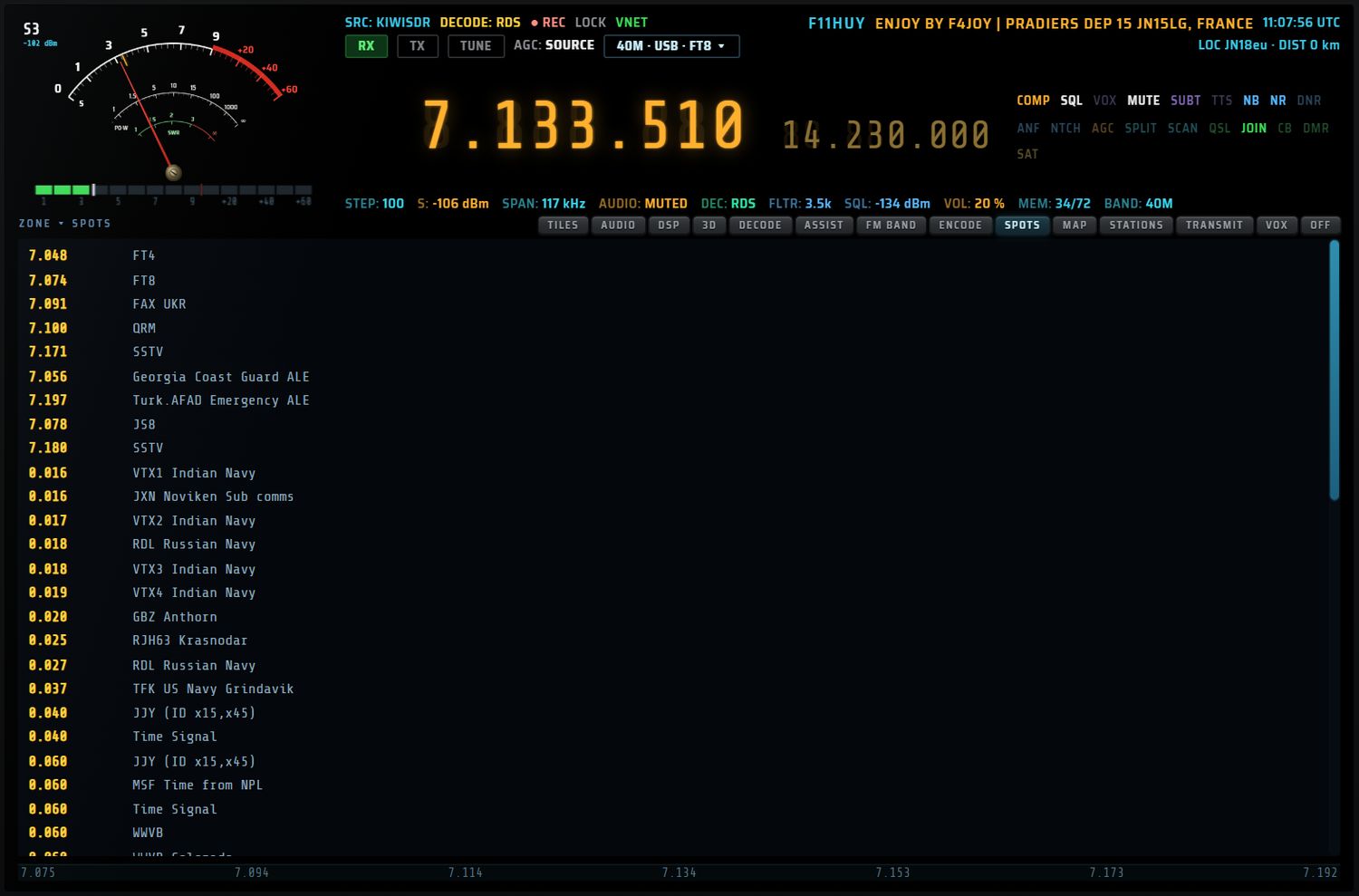
L'onglet SPOTS liste (jusqu'à 60 lignes) les marqueurs que la source publie : fréquence en MHz (trois décimales, en jaune) et libellé. Un clic sur une ligne accorde le récepteur sur cette fréquence ; l'écran AUX confirme « tuned x.xxx MHz ». Si la source ne publie aucun marqueur : « this source publishes no marker on this band ».
Ne confondez pas cet onglet avec la touche SPOTS du pavé, qui incruste les marqueurs sur le spectre (voir touches DISPLAY).
MAP
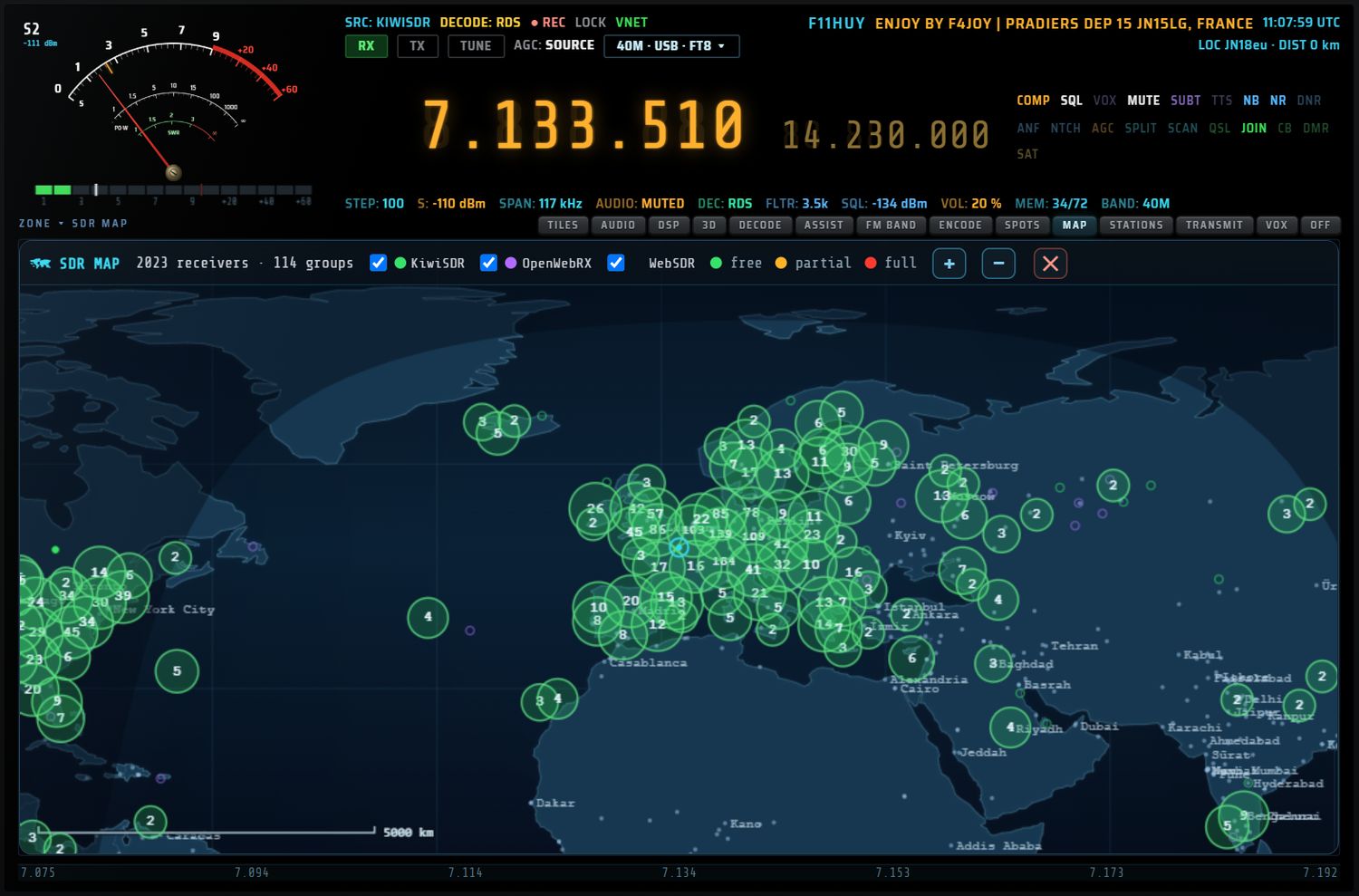
L'onglet MAP pose la carte des récepteurs en ligne dans la fente : survol pour identifier, glisser pour déplacer, molette pour zoomer, clic sur une station pour s'y connecter. La carte n'existe qu'en un exemplaire : si vous ouvrez la page MAP par la touche APP pendant que la fente l'affiche, la carte part dans la page et la fente revient sur TILES. Détail de la carte : chapitre Cartes et espace (10).
STATIONS

L'onglet STATIONS place sur une carte les stations décodées dont le locator est connu (FT8 / FT4, texte des décodeurs, recherche QRZ).
- Glisser : déplace la carte.
- Molette : zoom (×1,2 par cran).
- Survol d'un point : le curseur devient une main.
- Clic sur une station : accorde sur sa fréquence ; l'écran AUX affiche l'indicatif et la fréquence.
Les touches FIT, HOME, CLEAR… ne sont disponibles que dans la page MAP (chapitre 10 — touches F de MAP).
VOX · TRANSLATE

L'onglet VOX place dans la fente la page de transcription et de traduction de la parole reçue ; le moteur vocal démarre à l'ouverture. Les rangées ENGINE, SOURCE, TARGET et MODE, la zone de sous-titres et les touches SUBT, POPUP et TTS du bandeau gauche sont décrites au chapitre VOX et enregistrement (09).
TRANSMIT

L'onglet TRANSMIT occupe une bande au-dessus du spectre : le bandscope reste visible. Ses commandes et ses touches F sont décrites au chapitre Émission (12). Quitter l'onglet coupe l'émission.
DECODE et ENCODE
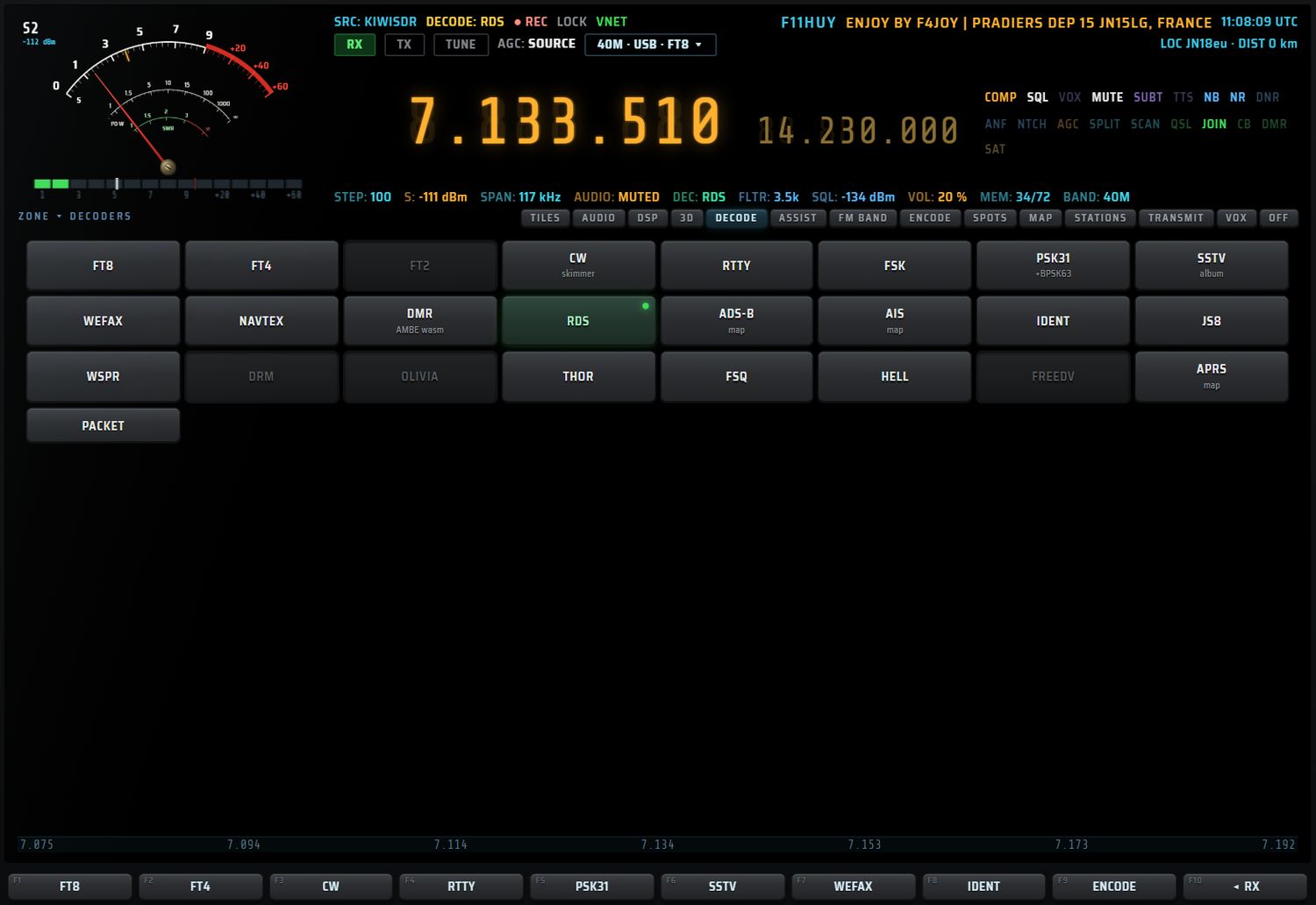
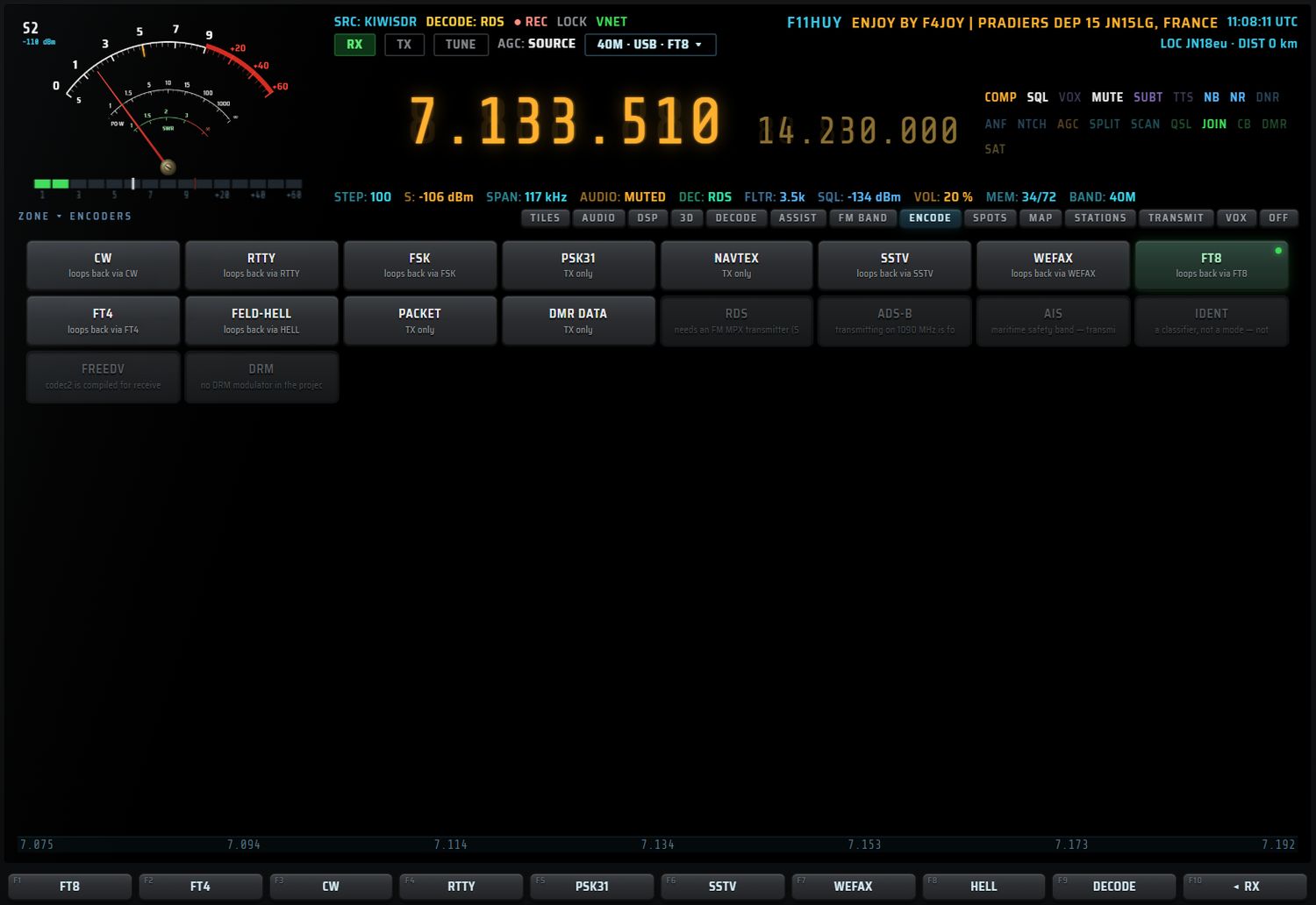
Les onglets DECODE et ENCODE affichent une grille de modes ; un clic ouvre le mode. Un nouveau clic sur l'onglet ramène la grille. Les décodeurs sont décrits au chapitre Décodage (07), les encodeurs au chapitre Émission (12).
OFF

OFF replie la fente : spectre et cascade prennent toute la hauteur. La barre d'onglets reste visible pour revenir à un autre contenu.
Le bandscope
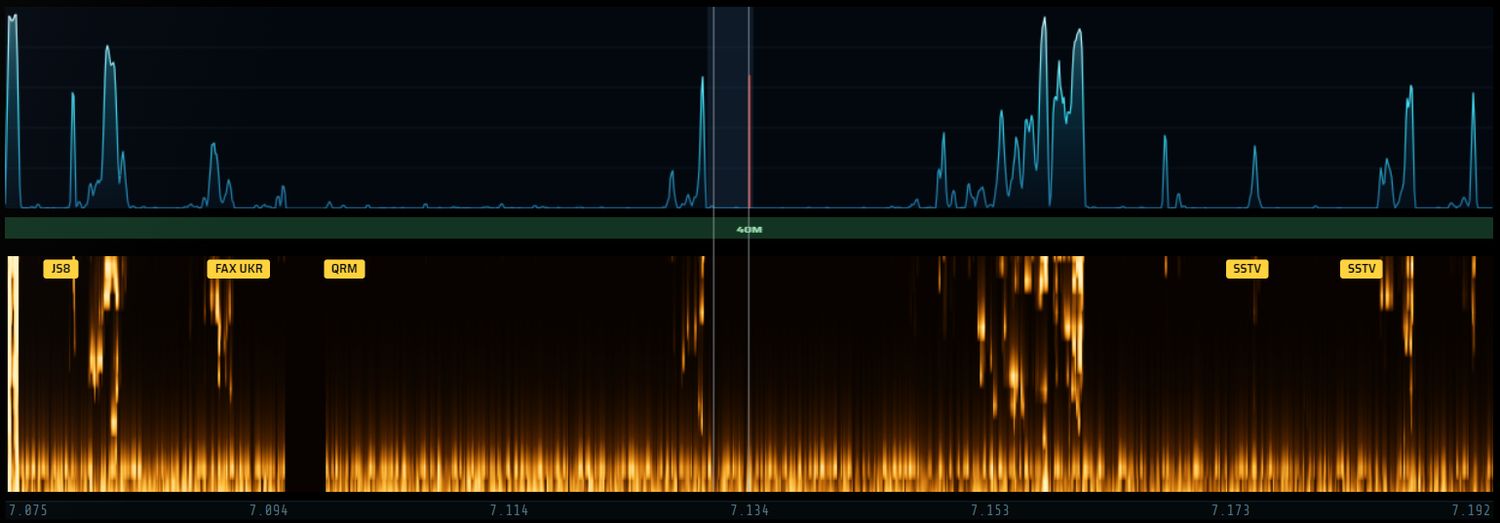
Le spectre
Le spectre montre la fenêtre affichée autour de la fréquence accordée.
- Chaque pixel prend le maximum des points qu'il couvre : une porteuse étroite ne disparaît pas quand la fenêtre est large.
- La trace est lissée dans le temps (montée et descente réglées par AVG) et légèrement dans l'espace.
- Remplissage en dégradé bleu, trace graduée du bleu sombre au bleu clair, grille de cinq lignes.
- Trait rouge : la fréquence accordée.
- Cage bleutée : la bande passante. C'est le filtre dessiné à la souris s'il existe, sinon la largeur du mode.
Messages possibles sur le spectre :
- sans source : « NO SOURCE - SERVER key to connect . VIRTUAL NET works offline » ;
- source connectée mais aucune donnée de cascade depuis 6 s : « CONNECTED, BUT NO SPECTRUM FROM <NOM> » et « the audio may still work - this server is not sending waterfall data. Try another one. »
La cascade
- Couleurs : la palette choisie par DIM ou par la liste SCOPE.
- Calibrage automatique : le plancher et la plage de la cascade sont calculés sur la tranche affichée et recalés aussitôt que vous changez de zoom ou de fréquence.
- Vitesse : SLOW (une ligne toutes les trois images), MED (une ligne toutes les deux images), FAST (une ligne à chaque image).
- HOLD fige la cascade (touche HOLD ou barre Espace).
Le plan de bande
Bande fine sous le spectre. La partie qui appartient à la bande amateur courante est en vert, avec le nom de la bande au centre quand la place le permet (« 40M »). Hors des bandes amateur : « outside the amateur band plan ».
Gestes sur le bandscope
| Geste | Où | Effet |
|---|---|---|
| Molette | spectre | zoom (niveaux 4 à 14). Récepteur local et OpenWebRX : agrandissement de l'affichage ×1 à ×64 ; KiwiSDR : zoom demandé au serveur |
| Clic | spectre | accord sur la fréquence pointée, arrondie au pas courant |
| Clic | cascade ou plan de bande | accord « aimanté » : sur le sommet réel le plus proche (à 8 pixels près) ; sinon sur la fréquence pointée arrondie au pas |
| Espace (clavier) | — | gèle / relance la cascade |
Après un clic sur la cascade, l'écran AUX affiche « TUNE x.xxxx MHz » avec « snapped to the trace under the pointer » ou « no trace there — tuned to the pointer ».
Régler la bande passante à la souris
La bande passante est définie par deux bords, chacun repéré par rapport à la fréquence accordée.
- Survolez le bandscope : le bord le plus proche s'allume en orange avec sa poignée, sur toute la hauteur (spectre, plan, cascade). Le curseur devient une double flèche sur un bord, une main dans la bande.
- Glissez un bord : seul ce bord bouge.
- Alt + glisser un bord : la bande s'élargit ou se resserre symétriquement autour de son centre.
- Maj + glisser dans la bande : décale le filtre entier. Sans Maj, un clic dans la bande accorde le récepteur.
- Double-clic sur un bord ou dans la bande : retour au filtre par défaut du mode ; l'écran AUX affiche « back to the <MODE> default · lo to hi Hz ».
Pendant le glissement, des étiquettes indiquent « lo … Hz », « hi … Hz » et « cf … Hz · … Hz wide ». Au lâcher, l'écran AUX récapitule (low edge / high edge / shifted, largeur et centre) et rappelle « drag an edge · Alt = symmetric / Shift-drag inside = shift · dbl-click = reset ».
Limites : écart minimal 50 Hz ; chaque bord à ±24 kHz au plus (±120 kHz en WFM). Le réglage part vers le récepteur pendant le geste et au lâcher. Un changement de mode, ou de largeur par les touches de largeur, efface le filtre dessiné. Le filtre dessiné est rangé avec chaque VFO.
Filtres par défaut de chaque mode
| Mode | Bas (Hz) | Haut (Hz) |
|---|---|---|
| LSB | −2850 | −150 |
| USB | 150 | 2850 |
| CW | 450 | 950 |
| CWN | 470 | 530 |
| AM, SAM | −5000 | 5000 |
| AMN | −2500 | 2500 |
| DSB | −2850 | 2850 |
| NBFM, FM, NFM | −8000 | 8000 |
| WFM | −96000 | 96000 |
| DIGU | 200 | 3200 |
| DIGL | −3200 | −200 |
| WEFAX | 500 | 3300 |
| NAVTEX | 1300 | 2100 |
| WSPR | 1200 | 1800 |
| FT8, FT4, RTTY, PSK31, SSTV, FSK | 100 | 3300 |
| IQ | −12000 | 12000 |
Les touches BANDSCOPE du bandeau gauche
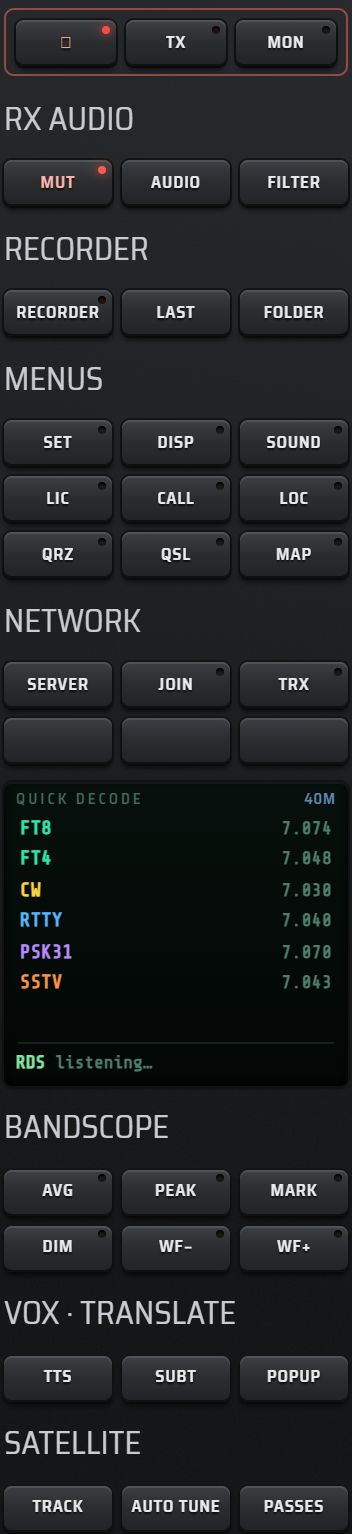
| Touche | Action | Valeurs / défaut |
|---|---|---|
| AVG | lissage du spectre, cycle à chaque appui | SHARP → NORMAL → SMOOTH ; défaut NORMAL ; témoin allumé sauf en SHARP |
| PEAK | tenue de crête : trace jaune qui retombe lentement | marche / arrêt ; témoin = état |
| MARK | marqueur sur le sommet le plus fort de la fenêtre : cercle orange et fréquence en MHz | marche / arrêt ; témoin = état |
| DIM | palette de cascade suivante | SDR++, CLASSIC, GREY, INFERNO, VIRIDIS, OCEAN, PHOSPHOR, AMBER, ICE, SUNSET, REDLINE ; mémorisée |
| WF− | cascade plus lente | SLOW, MED, FAST |
| WF+ | cascade plus rapide | SLOW, MED, FAST |
Les témoins de PEAK, MARK, HOLD et MUT sont recalés sur l'état réel toutes les 1,2 s (MUT s'allume en rouge).
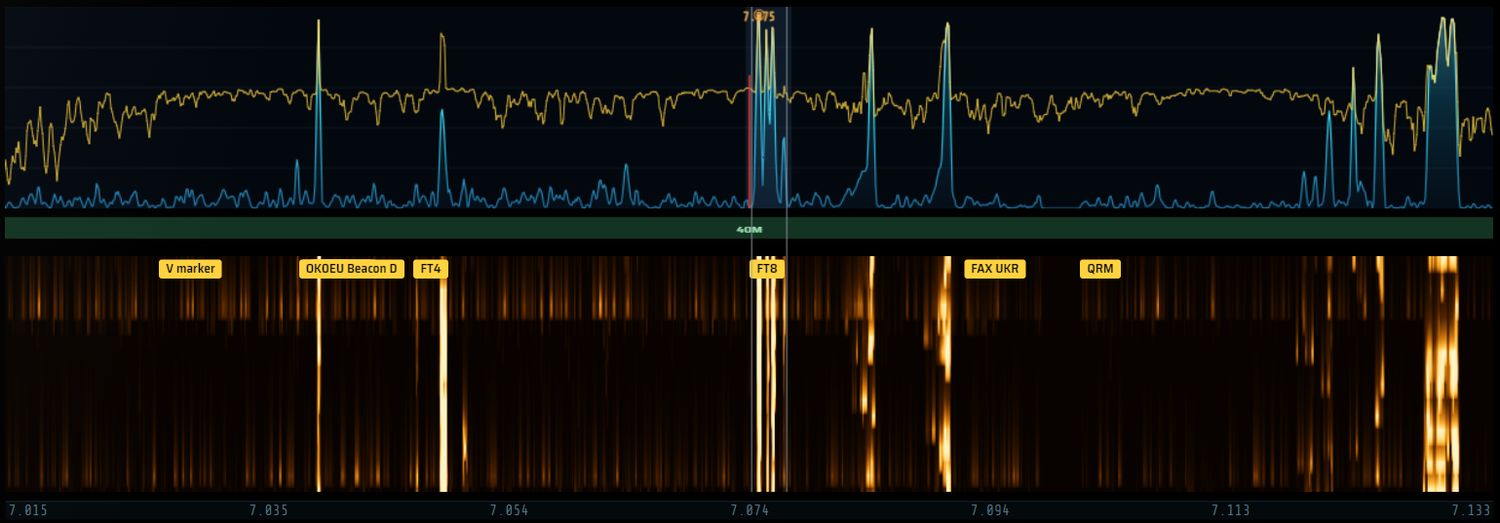
Les touches DISPLAY du pavé
| Touche | Action | Valeurs / défaut |
|---|---|---|
| SCOPE | ouvre dans l'écran AUX la liste des réglages du bandscope | voir Le réglage SCOPE |
| SP/WF | répartition spectre / cascade, cycle à chaque appui | spectre + cascade → spectre seul → cascade seule ; repart sur « les deux » au démarrage ; témoin éteint en « spectre seul » |
| HOLD | gèle / relance la cascade | raccourci : barre Espace ; AUX « WATERFALL held » / « running » |
| SPOTS | affiche / masque les marqueurs de la source sur le spectre | au plus 12 étiquettes jaunes, cliquables pour s'accorder ; témoin = état |
| AF SCOPE | ouvre l'onglet AUDIO | — |
| TIMER | minuterie de sommeil et de réveil | décrite avec le pavé |
Messages de SP/WF : « SP/WF — spectrum + waterfall », « spectrum only — the waterfall gives it its place », « waterfall only — the spectrum gives it its place ».
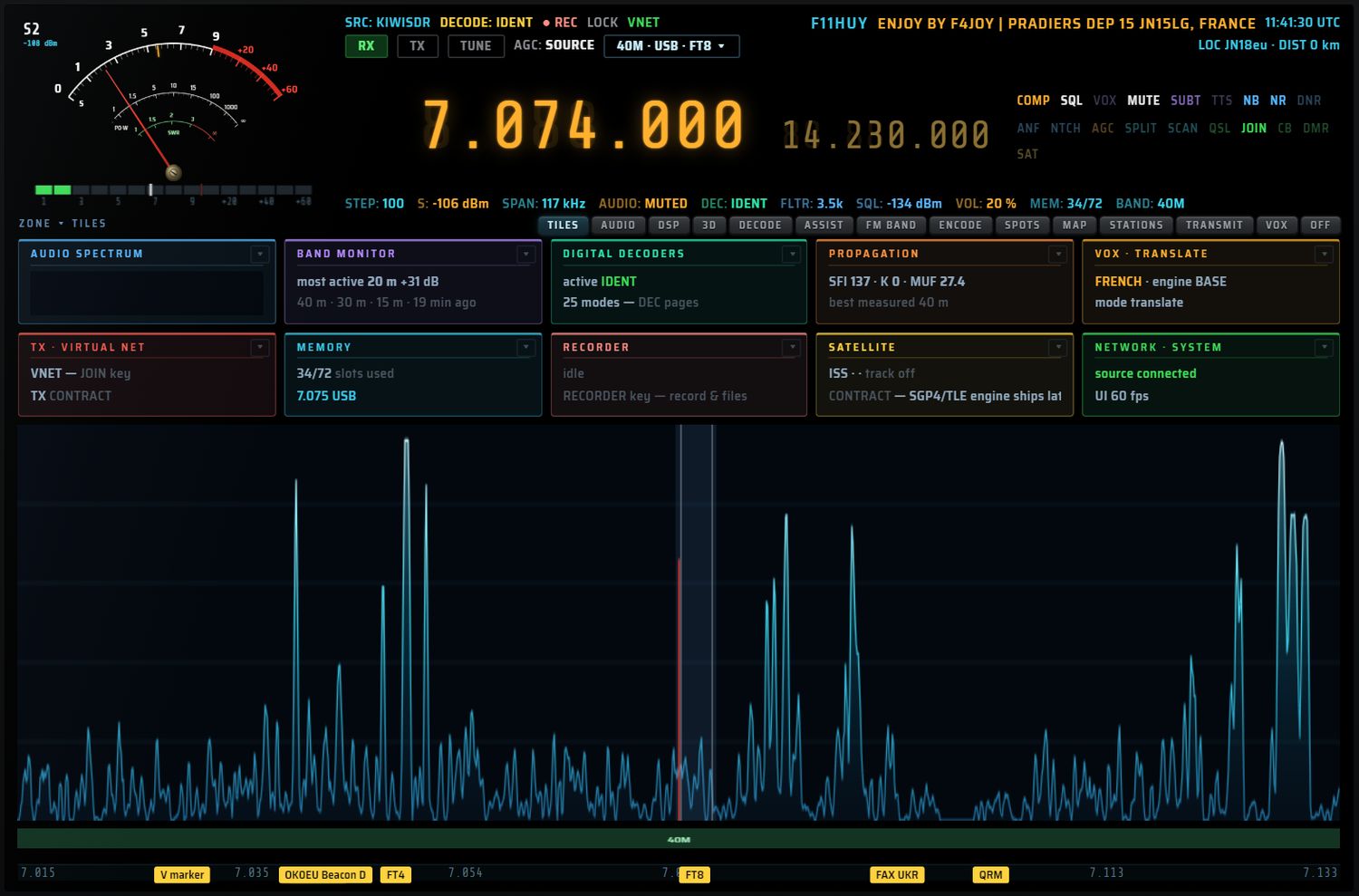
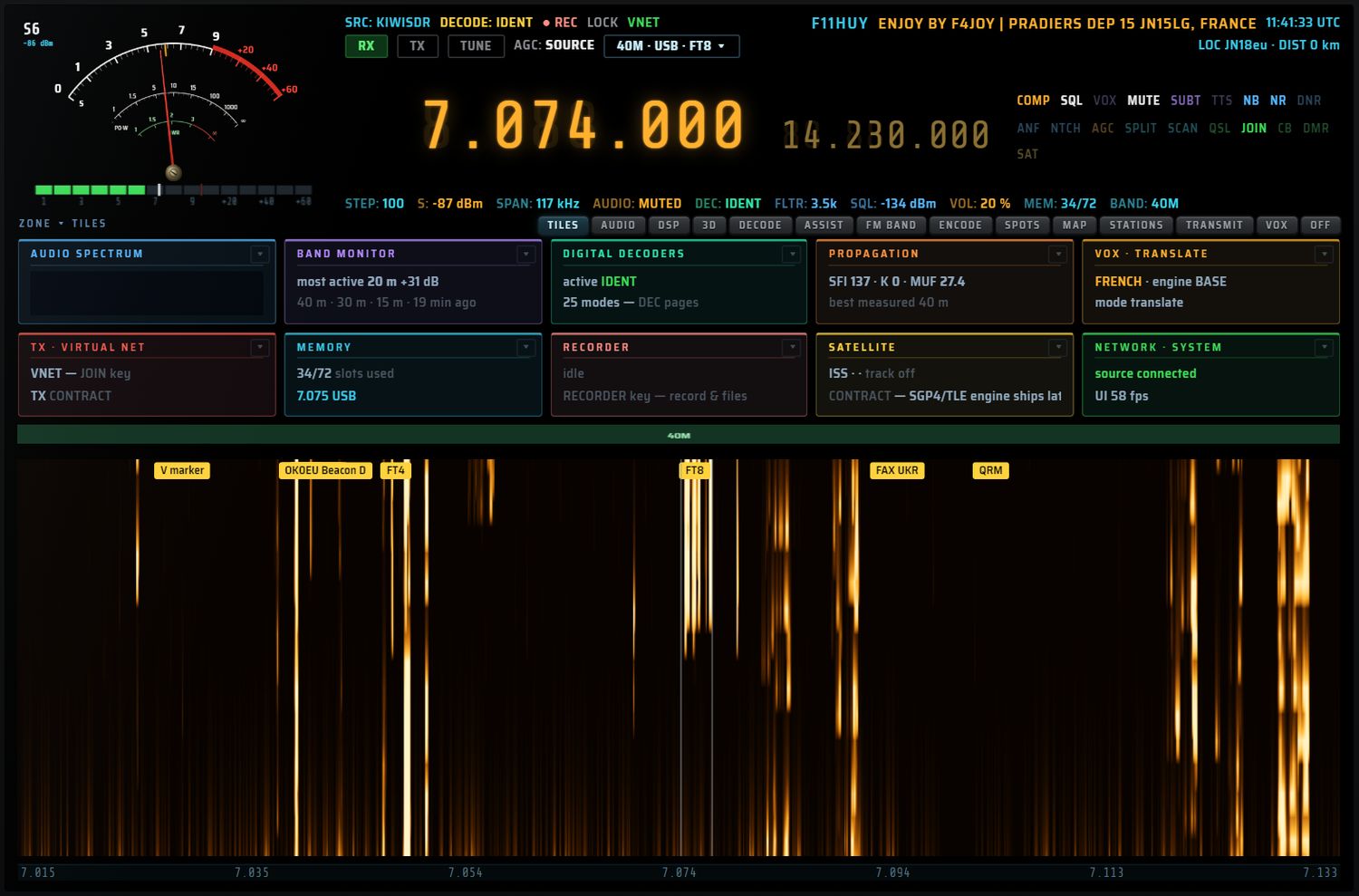
Messages de SPOTS : « n markers published by this source are shown on the spectrum », « on — this source publishes no marker at the moment », « markers hidden ». Quand un contenu occupe toute la hauteur de la fente, l'incrustation est masquée avec le spectre.
Le réglage SCOPE
SCOPE ouvre dans l'écran AUX la liste « BANDSCOPE — palette · speed · smoothing · levels ». Chaque élément se touche directement ; F1 à F9 reprennent les éléments page par page, F10 MORE n/N passe à la page suivante. Le signe ▸ marque le choix actif.
| Ligne | Choix | Effet / bornes |
|---|---|---|
| palette | les 11 palettes | couleur de la cascade ; mémorisée |
| speed | SLOW, MED, FAST | vitesse de la cascade |
| smoothing | SHARP, NORMAL, SMOOTH | lissage du spectre (comme AVG) |
| peak | ON / OFF | tenue de crête (comme PEAK) |
| marker | ON / OFF | marqueur de sommet (comme MARK) |
| waterfall | RUN / HOLD | défilement de la cascade (comme HOLD) |
| contrast | − (×0,85), + (×1,18), reset | contraste de la cascade, de ×0,4 à ×3 |
| floor | − darker (−4), + brighter (+4) | plancher de la cascade, décalage de −40 à +60 |
| gain | − (×0,85), + (×1,18), reset | gain de la cascade, de ×0,35 à ×3 ; reset remet aussi floor et contrast |
Le contraste, le plancher, le gain, le lissage, PEAK et MARK sont mémorisés et retrouvés au démarrage.
Zoom et vitesse depuis la façade
- F6 / F7 du contexte RX : ZOOM − / ZOOM + (niveaux 4 à 14). L'écran AUX affiche le facteur (×2, ×4…), la largeur affichée en kHz et le rappel « spectrum and waterfall · F6 out, F7 in ».
- Rotatif double ZOOM / SPEED : la tête règle le zoom ; la jupe (marquée SPEED) règle la vitesse de cascade SLOW / MEDIUM / FAST. Molette ou glisser vertical. Sans source, le zoom ne change que l'affichage (6 kHz à 4 MHz) et l'écran AUX le signale par « (offline: display only) ».
- Clavier : ← / → accord d'un pas (Maj : dix pas), Ctrl + ← / → SEEK, ↑ / ↓ pas d'accord, Page préc. / Page suiv. largeur FI, M sourdine, L verrou, Espace gel de la cascade, 1 à 9 mémoires.
La vue 3D

L'onglet 3D affiche la cascade en relief : 256 points de fréquence sur 128 lignes de temps, à partir des mêmes données que la cascade normale (une ligne toutes les 90 ms). L'échelle s'ajuste seule au plancher et aux sommets. La vue prend toute la hauteur de la fente ; le spectre et la cascade normale sont masqués. La vue est à gauche, le panneau de réglages à droite.
Gestes sur la vue
| Geste | Effet |
|---|---|
| Glisser | rotation (tour complet ; inclinaison limitée entre presque à plat et presque de dessus) |
| Molette | rapproche / éloigne la caméra (ne change pas la fréquence) |
| Double-clic | retour à la vue ISO |
Rotatifs
Chaque rotatif se règle par glisser vertical ou à la molette ; Maj multiplie le pas par dix.
| Rotatif | Rôle | Plage | Pas | Défaut |
|---|---|---|---|---|
| HEIGHT | hauteur du relief | 0,2 à 3 | 0,05 | 1,00 |
| FLOOR | plancher : ce qui est en dessous reste à plat | 0,02 à 0,6 | 0,01 | 0,25 |
| SHADE | ombrage | 0 à 1 | 0,05 | 0,75 |
| DEPTH | nombre de lignes de temps affichées | 16 à 128 | 8 | 128 |
Pastilles
Première rangée (un clic passe à la valeur suivante) :
| Pastille | Valeurs | Défaut |
|---|---|---|
| palette | COLD, HOT, TURBO, FIRE, VIRIDIS, ICE, AMBER | VIRIDIS |
| forme | SOLID, WIRE, POINTS, EDGES | SOLID |
| fond | DEEP, BLACK, GREY, PURPLE | PURPLE |
| sens du temps | NOW FRONT (le présent devant), NOW BACK (le présent au fond) | NOW FRONT |
Deuxième rangée :
| Pastille | Effet |
|---|---|
| SPIN | rotation lente automatique |
| GRID | grille (allumée par défaut) |
| LABELS | étiquettes de fréquence (allumées par défaut) |
| 3DSS | vue rasante, de face |
| TOP | vue de dessus |
| ISO | vue en perspective (vue de départ) |
Les trois vues (3DSS, TOP, ISO) arrêtent SPIN. Tous les réglages, y compris la position de la caméra, sont mémorisés.

Touches F, écran AUX et mini-écran
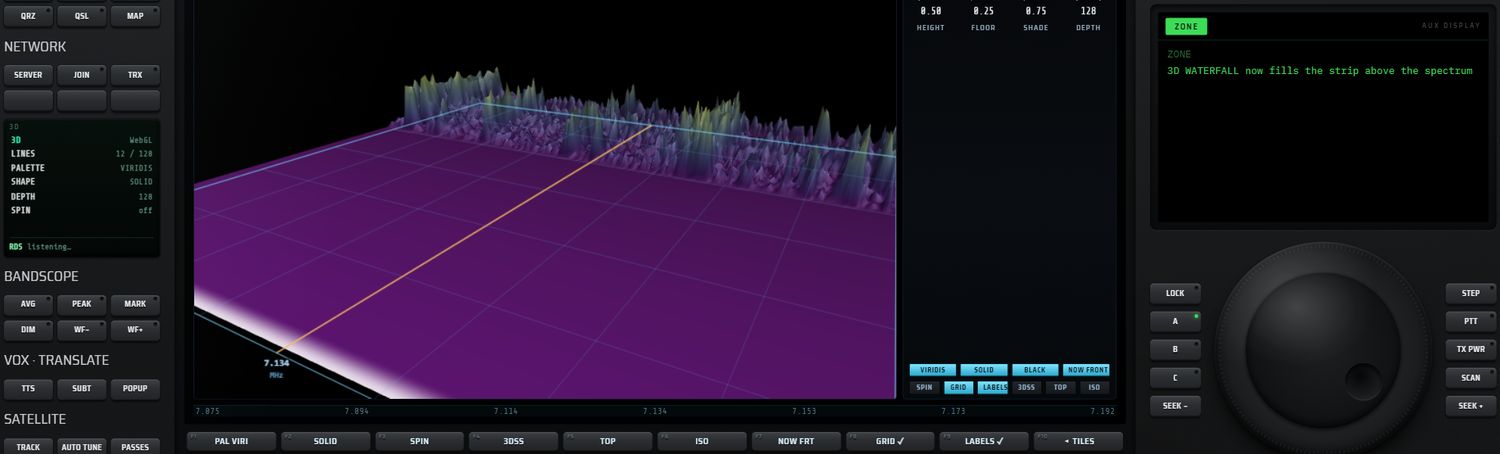
| N° | Touche | Action |
|---|---|---|
| F1 | PAL xxxx | palette suivante (le nom abrégé de la palette s'affiche) |
| F2 | forme (SOLID…) | forme suivante |
| F3 | SPIN / SPIN ✓ | rotation automatique |
| F4 | 3DSS | vue rasante |
| F5 | TOP | vue de dessus |
| F6 | ISO | vue en perspective |
| F7 | NOW FRT / NOW BCK | sens du temps |
| F8 | GRID / GRID ✓ | grille |
| F9 | LABELS / LABELS ✓ | étiquettes |
| F10 | ◂ TILES | revient aux tuiles |
- Écran AUX : « 3D WATERFALL », le moteur de rendu (WebGL ou canvas 2D), « 256 bins · n/128 lines », la palette, la forme, la profondeur, et les rappels « drag to turn · wheel to zoom · double-click resets the view » et « F1 palette · F2 shape · F3 spin · F4-F6 views · F10 tiles ». Sans données : « no waterfall frames yet — connect a source » en orange.
- Mini-écran : 3D (WebGL en vert, 2D en orange), LINES n/128, PALETTE, SHAPE, DEPTH, SPIN.
Audio et traitement
Tous les réglages du son sont réunis dans la page AUDIO (onglet DSP de la fente). Trois fenêtres complètent la page : AUDIO LAB, FILTERS · GAIN · DSP et SOUND (choix des cartes son). Ces outils agissent sur les mêmes réglages : ce que vous changez dans l'un se retrouve dans les autres.
La page AUDIO
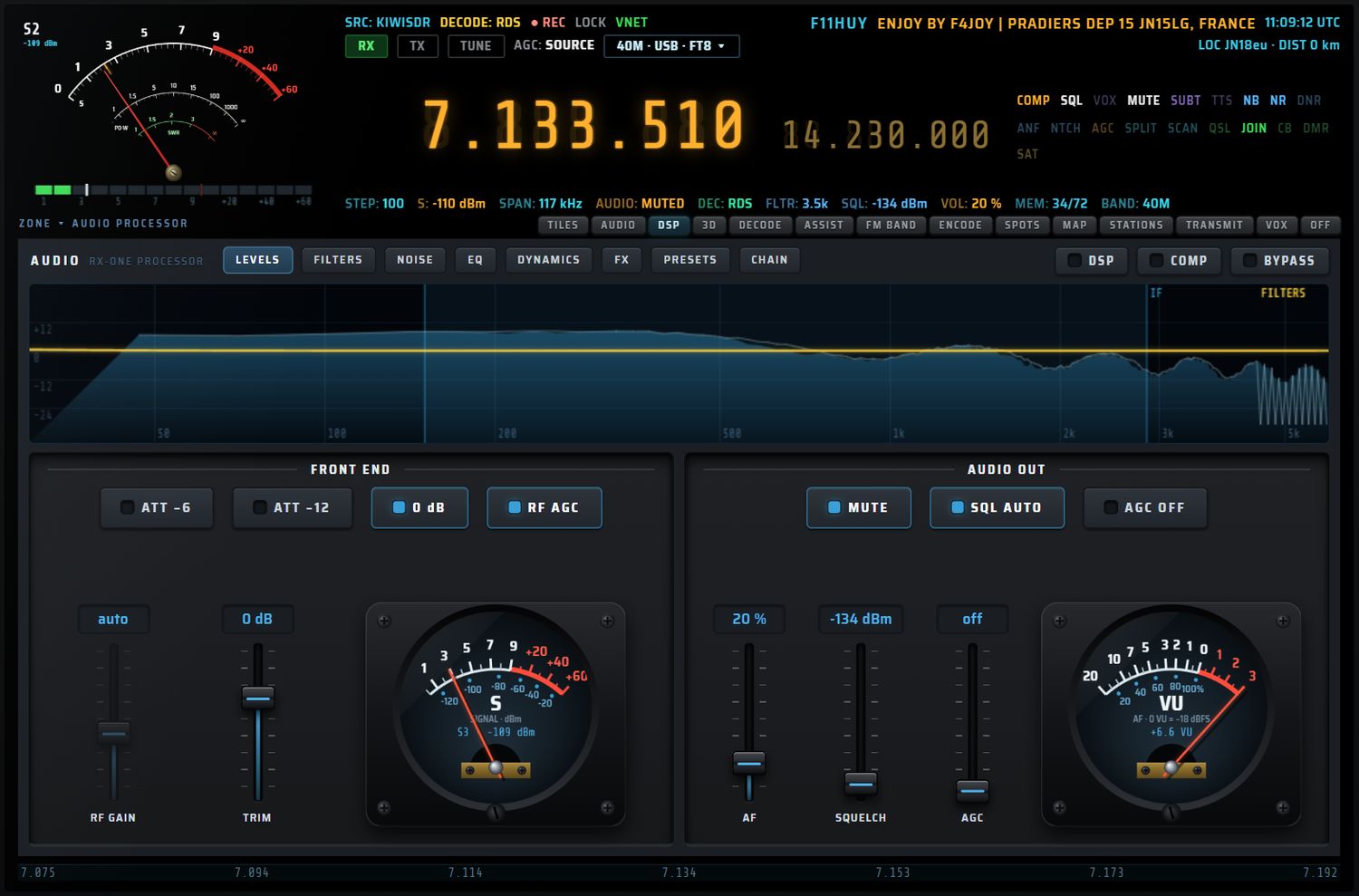
Ouvrir la page
- l'onglet DSP de la fente (titre « AUDIO PROCESSOR ») ;
- la touche APP AUDIO ;
- la tuile FILTERS · GAIN · DSP.
La page prend toute la hauteur de la fente ; le bandscope est masqué pendant qu'elle est ouverte.
Disposition
- Barre de tête : le titre
AUDIOetRX-ONE PROCESSOR, les huit sélecteurs de vueLEVELS,FILTERS,NOISE,EQ,DYNAMICS,FX,PRESETS,CHAIN(infobulle « Fn — description »), et à droite trois interrupteurs à voyant : - DSP : met hors service puis rend NB, NR, DNR et ANF ;
- COMP : compresseur en marche / arrêt ;
- BYPASS : comparaison A/B, tout le traitement hors service ; un nouvel appui rend tout tel quel.
- Analyseur (sous la barre) : axe logarithmique de 30 Hz à 6 kHz (12 kHz en WFM, AM, SAM et DSB). Spectre mesuré en bleu avec crêtes qui retombent ; zone IF bleutée = la bande passante FI réelle (étiquette « IF ») ; courbe jaune « FILTERS » = la réponse réelle de tous les filtres actifs (coupe-bas, coupe-haut, égaliseurs, notch, tonalité) ; trait rouge pointillé = le notch. Sans audio : « no audio chain yet — connect a source and unmute ».
- Corps : une ou plusieurs « baies » selon la vue.
La dernière vue utilisée est retrouvée à la prochaine ouverture (LEVELS la première fois).
Manier les faders et les rotatifs
| Geste | Effet |
|---|---|
| Glisser | règle la valeur (sur un rotatif : course de 280°, environ 160 pixels de glisser pour la course entière) |
| Molette | un pas |
| Maj + molette | dix pas |
| Flèches du clavier | un pas, une fois la commande saisie |
| Double-clic (rotatif) | retour à la valeur de repos quand elle existe (0 Hz, 0 dB…) |
Touches F, écran AUX et mini-écran
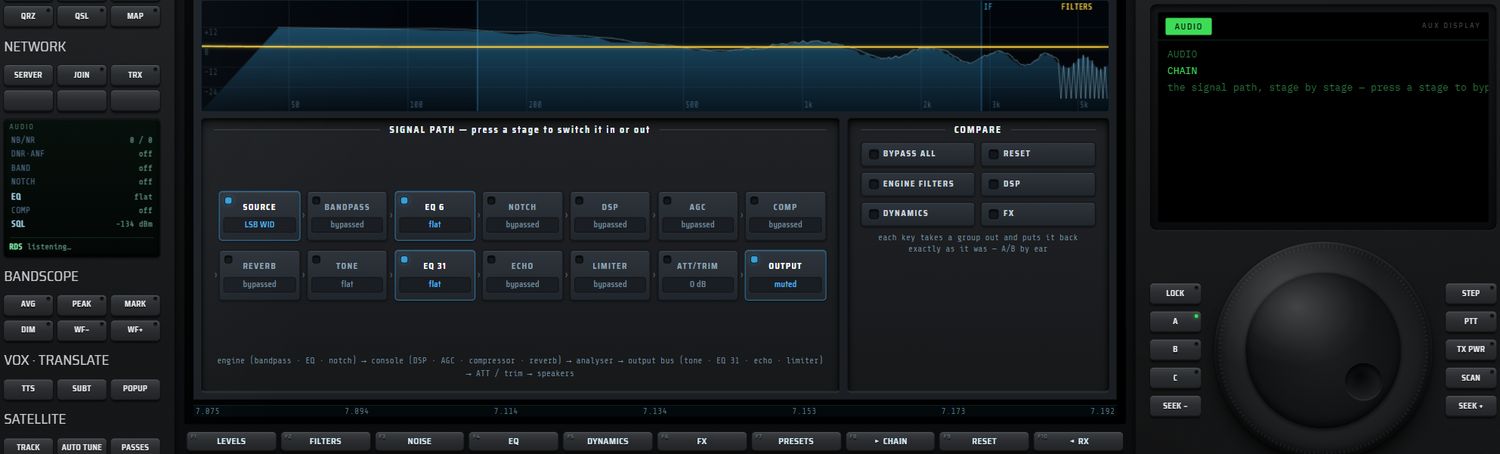
| N° | Touche | Action |
|---|---|---|
| F1 | LEVELS | vue niveaux |
| F2 | FILTERS | vue filtres |
| F3 | NOISE | vue bruit |
| F4 | EQ | vue égaliseur |
| F5 | DYNAMICS | vue dynamique |
| F6 | FX | vue effets |
| F7 | PRESETS | vue préréglages |
| F8 | CHAIN | vue chaîne |
| F9 | RESET | remise à neutre (voir RESET) |
| F10 | ◂ RX | retour à la réception |
Le signe ▸ précède la vue active. À chaque changement de vue, l'écran AUX affiche « AUDIO <VUE> » et sa description, puis « F1-F8 views · F9 reset · F10 back to receive » et l'état du bandpass, du notch et du compresseur. Le mini-écran résume NB/NR, DNR·ANF, BAND, NOTCH, EQ (égaliseur 6 bandes), COMP et SQL.
Vue F1 — LEVELS
Description : « RF · trim · volume · squelch · AGC · meters ».
Baie FRONT END
| Commande | Action | Valeurs / défaut |
|---|---|---|
| ATT −6 | atténuateur de 6 dB | marche / arrêt ; cumulable avec ATT −12 (−18 dB ensemble) |
| ATT −12 | atténuateur de 12 dB | marche / arrêt |
| 0 dB | relâche les deux atténuateurs | allumée quand aucun n'est enclenché |
| RF AGC | AGC du récepteur | récepteur local : AGC du tuner ; KiwiSDR : AGC du serveur (choix mémorisé et réappliqué à chaque connexion) ; OpenWebRX et WebSDR : grisée |
| RF GAIN (fader) | gain RF | local : 0 à 49,6 dB, pas 0,1 ; KiwiSDR : 0 à 120 dB, pas 1, actif seulement AGC coupé (sinon « auto ») ; autres sources : « server », inactif |
| TRIM (fader) | gain de sortie | −24 à +12 dB, pas 1 ; défaut 0 dB ; mémorisé |
| Galvanomètre S | force du signal | S1 à S9 (S9 = −73 dBm, 6 dB par point), puis +20, +40, +60 ; échelle secondaire en dBm ; lecture « Sn · −nn dBm » ou « S9+nn · … », « no signal » |
Messages des atténuateurs : « ATT −6 dB », « −18 dB (−6 and −12 together) », « no attenuation ». Pour une source qui n'accepte pas d'AGC : « this server … does not take an AGC command ».
Baie AUDIO OUT
| Commande | Action | Valeurs / défaut |
|---|---|---|
| MUTE | sourdine | marche / arrêt |
| SQL AUTO | squelch automatique : mesure le bruit pendant 5 s et place le seuil 6 dB au-dessus | un nouvel appui ouvre le squelch ; AUX « set to nn dBm — noise floor nn dBm + 6 dB » |
| AGC OFF / AGC SOFT / AGC MEDIUM / AGC HARD | AGC audio, cycle à chaque appui | 0, 40 %, 60 %, 85 % |
| AF (fader) | volume | 0 à 100 %, pas 1 |
| SQUELCH (fader) | seuil du squelch | −140 dBm (« open ») à −20 dBm, pas 1 ; défaut ouvert |
| AGC (fader) | quantité d'AGC audio | 0 (« off ») à 100 %, pas 1 ; défaut off |
| Galvanomètre VU | niveau de sortie | −20 à +3 VU ; 0 VU = −18 dBFS ; inertie d'environ 300 ms ; tient compte de TRIM et ATT ; « +n.n VU » ou « no audio » |
Vue F2 — FILTERS
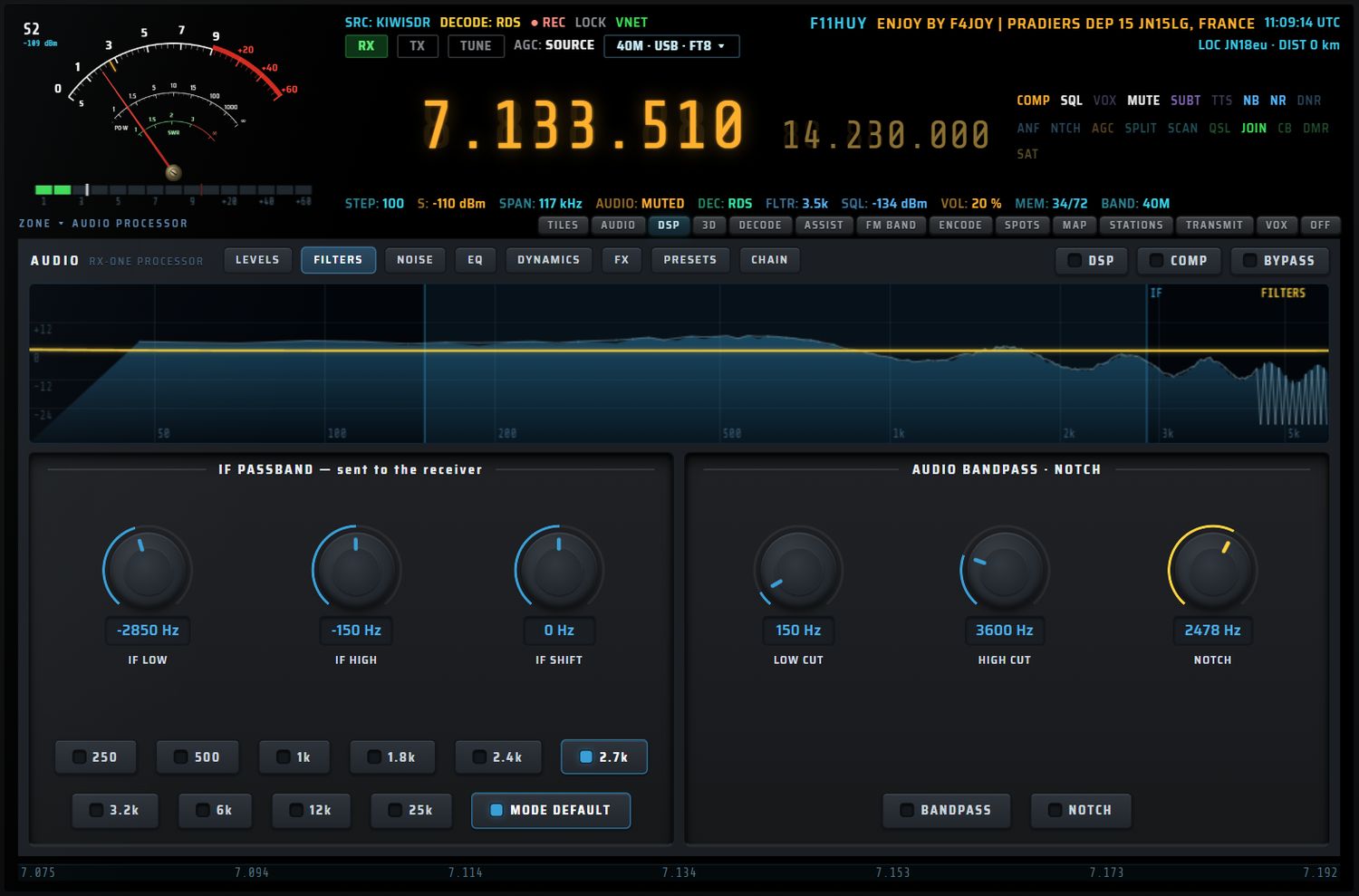
Description : « IF passband · audio bandpass · notch ».
Baie IF PASSBAND — sent to the receiver
Ces réglages partent vers le récepteur : ils agissent sur la bande passante FI, comme les poignées du bandscope.
| Commande | Action | Valeurs / défaut |
|---|---|---|
| IF LOW (rotatif) | bord bas de la bande passante | ±24 kHz (±120 kHz en WFM), pas 10 Hz |
| IF HIGH (rotatif) | bord haut | idem ; écart minimal de 50 Hz avec IF LOW |
| IF SHIFT (rotatif) | décale les deux bords pendant le geste, puis revient à 0 | ±1500 Hz, pas 10 Hz ; double-clic = 0 |
| 250 500 1k 1.8k 2.4k 2.7k 3.2k 6k 12k 25k | largeur fixe, centrée sur la bande courante | témoin allumé sur la largeur en service (à 30 Hz près) |
| MODE DEFAULT | filtre par défaut du mode | allumée quand aucun filtre manuel n'est posé |
Si la source garde sa propre bande passante, l'écran AUX l'indique : « this source keeps its own passband ».
Baie AUDIO BANDPASS · NOTCH
| Commande | Action | Valeurs / défaut |
|---|---|---|
| LOW CUT (rotatif) | coupe-bas audio | 10 à 2000 Hz, pas 10 ; défaut 150 Hz |
| HIGH CUT (rotatif) | coupe-haut audio | 800 à 12 000 Hz, pas 50 ; défaut 3600 Hz ; écart minimal 100 Hz avec LOW CUT |
| NOTCH (rotatif, jaune) | fréquence du notch | 200 à 4000 Hz, pas 10 ; défaut 1000 Hz |
| BANDPASS | met le coupe-bas / coupe-haut en service | marche / arrêt ; défaut arrêt ; toucher LOW CUT ou HIGH CUT l'enclenche |
| NOTCH | met le notch en service | marche / arrêt ; le mot NTCH de l'en-tête suit |
Vue F3 — NOISE
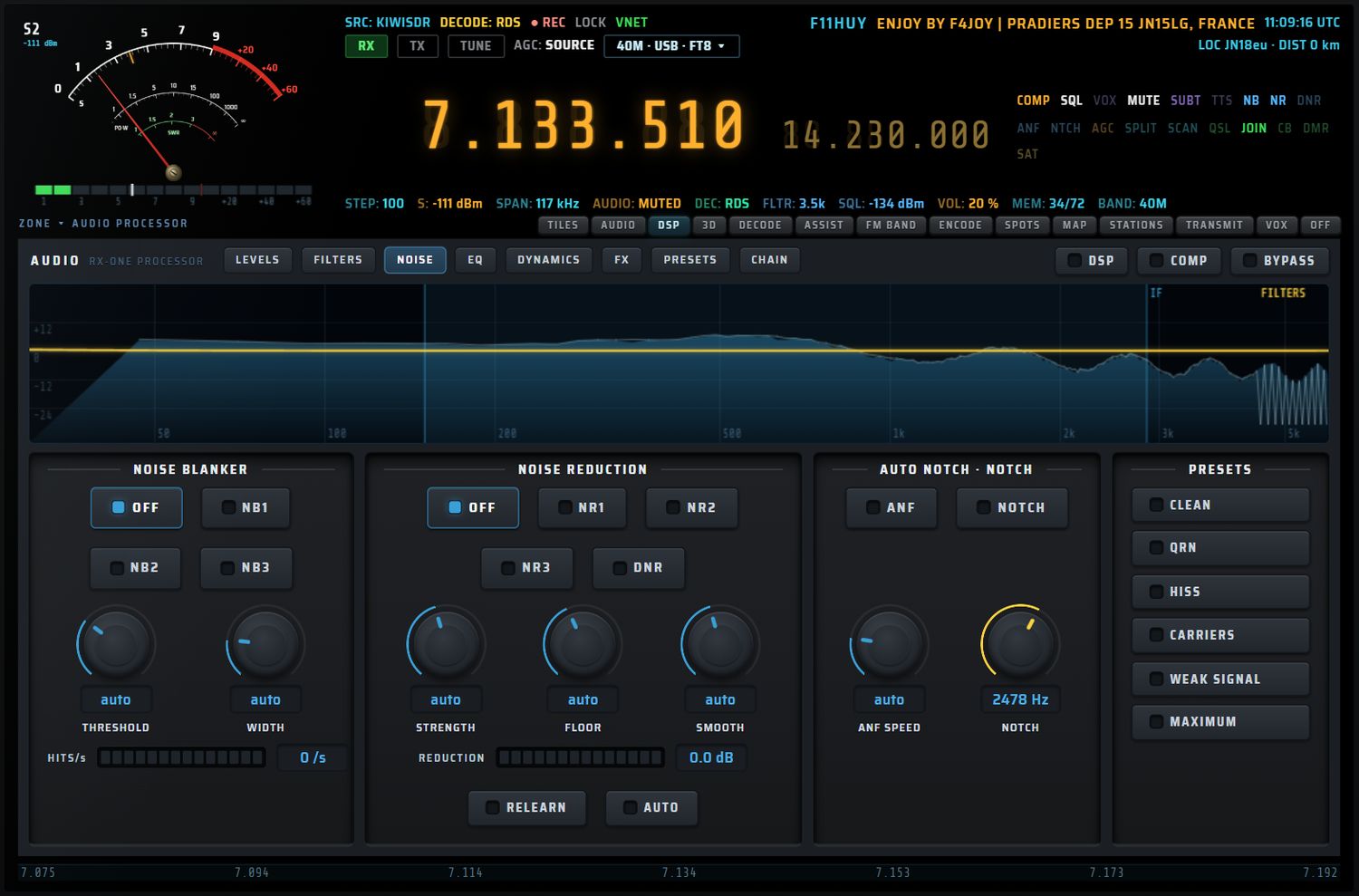
Description : « noise blanker · noise reduction · denoiser · auto-notch ».
NOISE BLANKER
| Commande | Action | Valeurs / défaut |
|---|---|---|
| OFF NB1 NB2 NB3 | niveau du suppresseur d'impulsions | défaut OFF |
| THRESHOLD (rotatif) | seuil de détection | ×2 à ×10, pas 0,5 ; « auto » tant que vous ne le touchez pas |
| WIDTH (rotatif) | largeur d'effacement | 1 à 16 échantillons ; « auto » par défaut |
| HITS/s (mesure) | impulsions supprimées par seconde | barre de 14 segments, pleine à 200/s |
NOISE REDUCTION
| Commande | Action | Valeurs / défaut |
|---|---|---|
| OFF NR1 NR2 NR3 | niveau de réduction de bruit | défaut OFF |
| DNR | débruiteur | marche / arrêt |
| STRENGTH (rotatif) | force | 1 à 6, pas 0,1 ; « auto » par défaut |
| FLOOR (rotatif) | plancher | −20 à −3 dB, pas 0,5 ; « auto » par défaut |
| SMOOTH (rotatif) | lissage | 0 à 90 %, pas 5 ; « auto » par défaut |
| REDUCTION (mesure) | réduction obtenue | en dB, pleine à 20 dB ; segments hauts en ambre |
| RELEARN | réapprend le bruit de fond | — |
| AUTO | remet les réglages fins aux valeurs du niveau choisi | — |
AUTO NOTCH · NOTCH
| Commande | Action | Valeurs |
|---|---|---|
| ANF | notch automatique (porteuses) | marche / arrêt |
| NOTCH | notch manuel | marche / arrêt |
| ANF SPEED (rotatif) | vitesse d'adaptation | 1 à 20 ; « auto » par défaut |
| NOTCH (rotatif) | fréquence du notch manuel | 200 à 4000 Hz |
PRESETS
| Touche | Réglage posé |
|---|---|
| CLEAN | tout arrêté |
| QRN | NB2, seuil 4, largeur 4 |
| HISS | NR2 et DNR |
| CARRIERS | ANF |
| WEAK SIGNAL | NB1, NR1, DNR, plancher bas |
| MAXIMUM | NB3, NR3, DNR, ANF |
Les mots NB, NR, DNR et ANF de l'en-tête s'allument selon l'état. Les réglages sont mémorisés. Si le son ne circule pas encore, le réglage est gardé : « the setting is kept and applies as soon as sound flows ».
Vue F4 — EQ
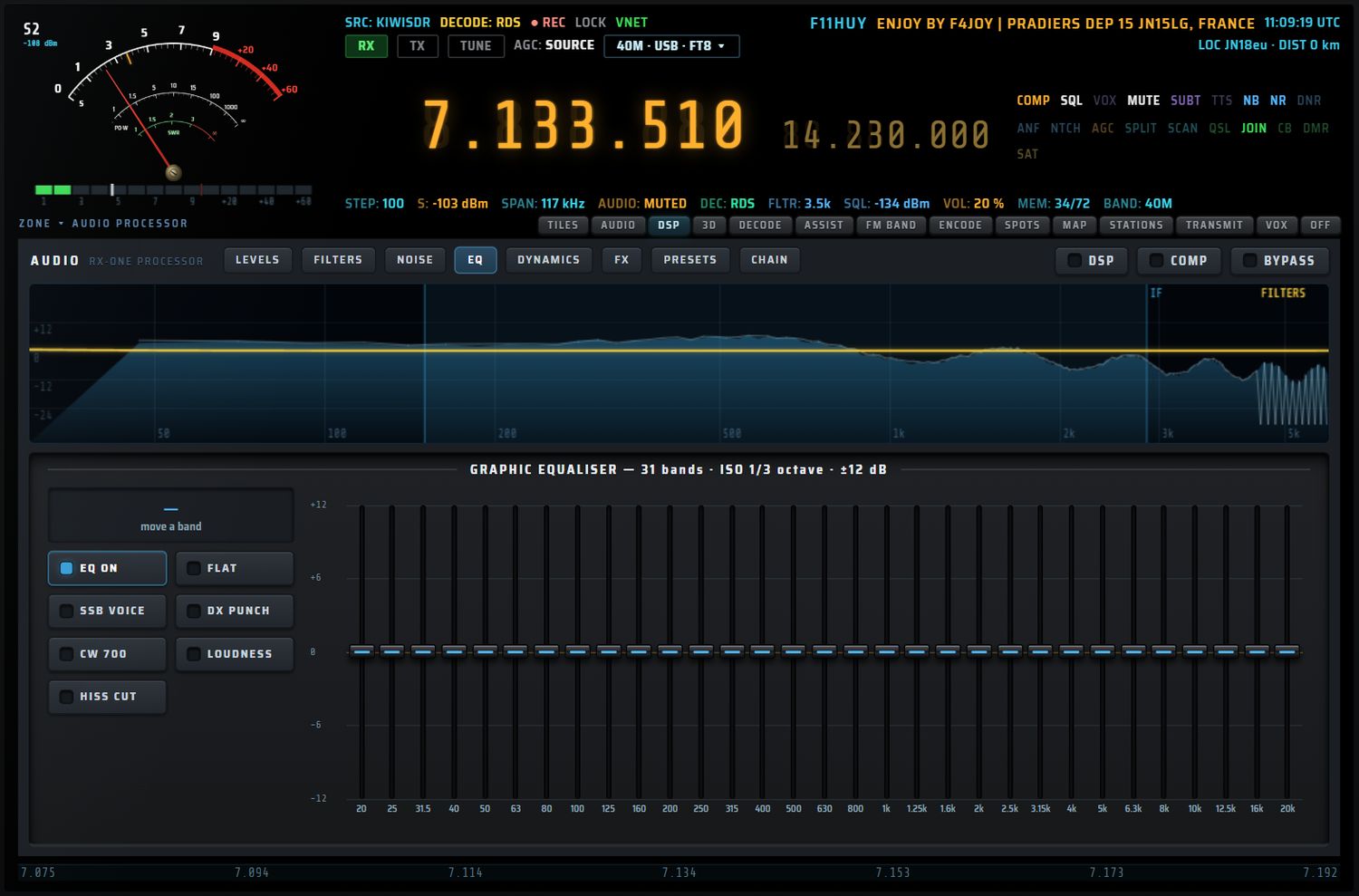
La vue EQ présente l'égaliseur graphique 31 bandes (bandes ISO au tiers d'octave de 20 Hz à 20 kHz, ±12 dB).
| Commande | Action | Valeurs / défaut |
|---|---|---|
| Curseur de bande | gain de la bande | −12 à +12 dB ; glisser ; molette ±0,5 dB (Maj : ±2 dB) ; double-clic = 0 dB ; défaut 0 dB |
| Afficheur | bande touchée et son gain | « fréquence Hz / ±x.x dB » ; « move a band » au repos |
| EQ ON | égaliseur en service / hors service | — |
| FLAT | remet à 0 dB les 31 bandes et les 6 bandes de l'égaliseur de l'AUDIO LAB | — |
| SSB VOICE DX PUNCH CW 700 LOUDNESS HISS CUT | courbes prêtes à l'emploi | — |
Les réglages sont mémorisés.
Vue F5 — DYNAMICS
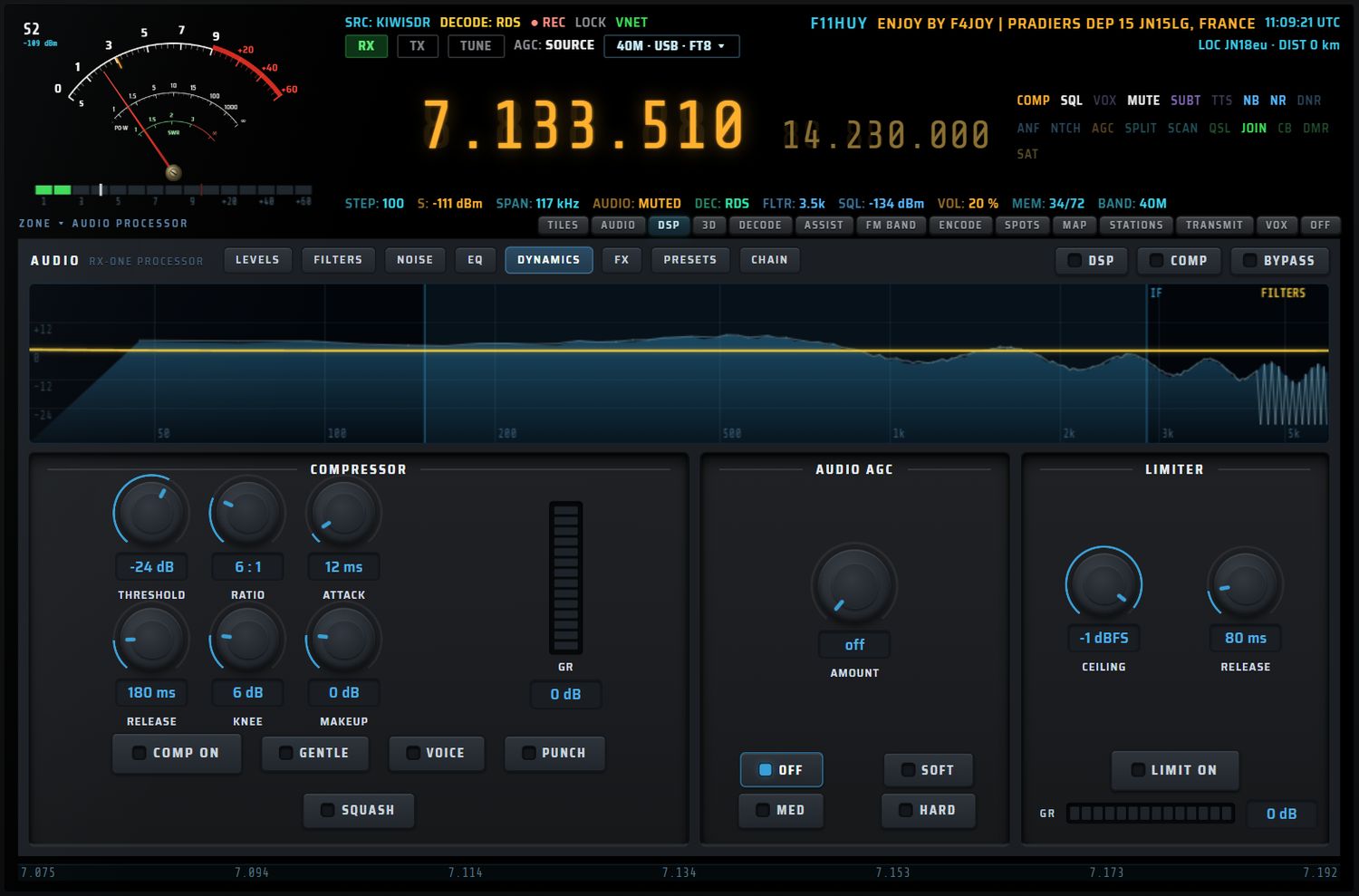
Description : « compressor with measured gain reduction ».
COMPRESSOR
| Commande | Valeurs | Défaut |
|---|---|---|
| THRESHOLD | −60 à 0 dB | −18 dB |
| RATIO | 1 à 20, pas 0,5 | 4:1 |
| ATTACK | 0 à 200 ms | 12 ms |
| RELEASE | 10 à 1000 ms, pas 10 | 180 ms |
| KNEE | 0 à 30 dB | 6 dB |
| MAKEUP | −6 à +24 dB, pas 0,5 | 0 dB |
| GR (mesure) | réduction de gain mesurée : 14 segments de 1,5 dB et valeur | — |
Toucher un rotatif met le compresseur en service. Touches : COMP ON (marche / arrêt) et quatre réglages types :
| Touche | Seuil | Taux |
|---|---|---|
| GENTLE | −12 dB | 2:1 |
| VOICE | −20 dB | 3:1 |
| PUNCH | −24 dB | 4:1 |
| SQUASH | −30 dB | 8:1 |
AUDIO AGC
Rotatif AMOUNT de 0 à 100 % (défaut off) et touches OFF, SOFT (40 %), MED (60 %), HARD (85 %). C'est le même réglage que le fader AGC de la vue LEVELS.
LIMITER
| Commande | Valeurs | Défaut |
|---|---|---|
| CEILING | −24 à 0 dBFS, pas 0,5 | −1 dBFS |
| RELEASE | 10 à 500 ms, pas 5 | 80 ms |
| LIMIT ON | marche / arrêt | arrêt |
| GR (mesure) | réduction de gain, pleine à 12 dB | — |
Le limiteur protège la sortie des crêtes. Ses réglages sont mémorisés.
Vue F6 — FX
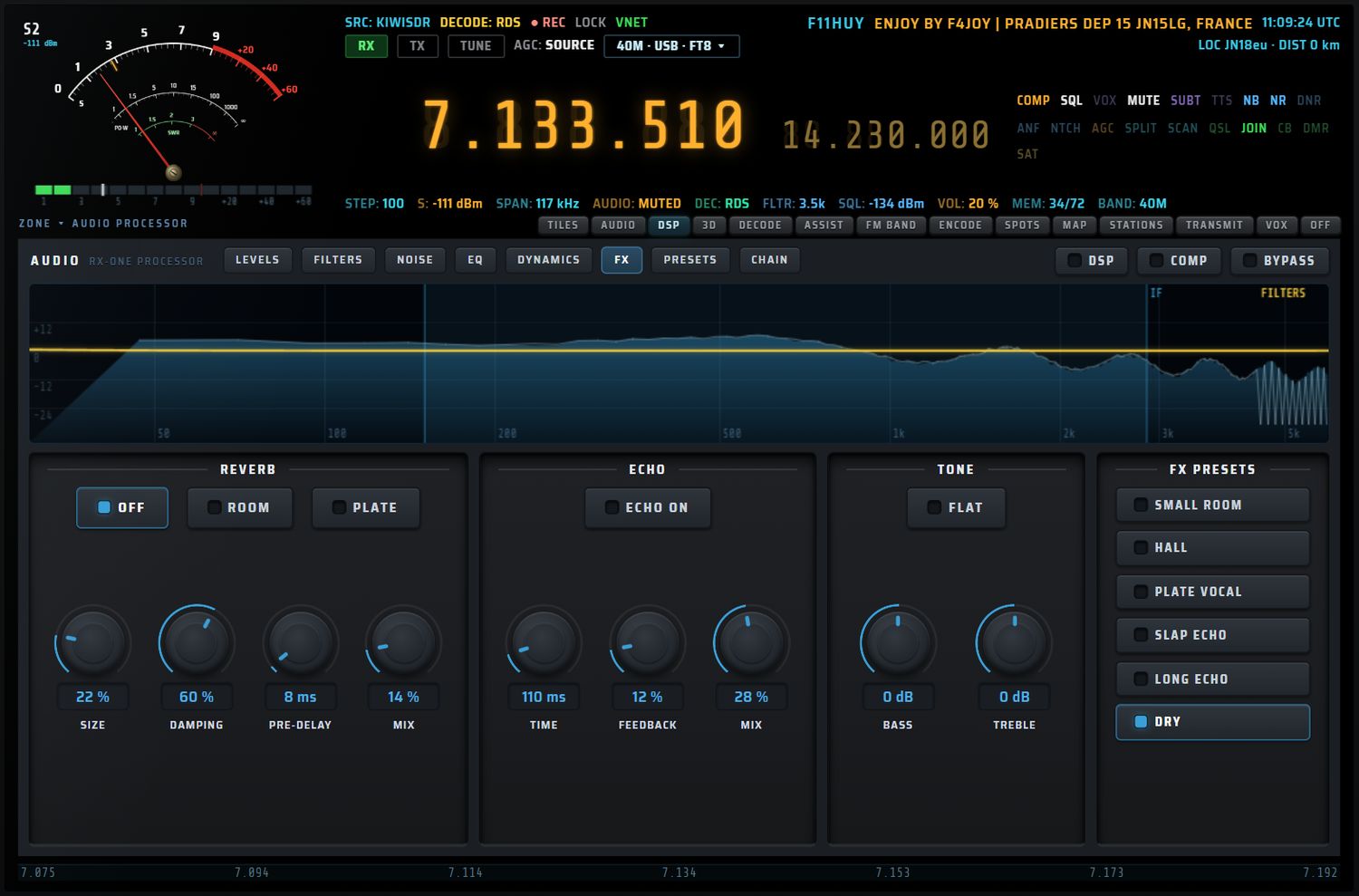
Description : « reverb — room or plate ».
REVERB
| Commande | Valeurs | Défaut |
|---|---|---|
| OFF ROOM PLATE | type de réverbération | OFF |
| SIZE | 0 à 100 % | 32 % |
| DAMPING | 0 à 100 % | 58 % |
| PRE-DELAY | 0 à 200 ms | 24 ms |
| MIX | 0 à 100 % | 14 % |
Toucher un rotatif alors que la réverbération est arrêtée la passe en ROOM.
ECHO
| Commande | Valeurs | Défaut |
|---|---|---|
| ECHO ON | marche / arrêt | arrêt |
| TIME | 20 à 800 ms, pas 5 | 180 ms |
| FEEDBACK | 0 à 85 % | 30 % |
| MIX | 0 à 60 % | 25 % |
TONE
| Commande | Valeurs | Défaut |
|---|---|---|
| BASS | plateau à 250 Hz, −12 à +12 dB, pas 0,5 ; double-clic = 0 | 0 dB |
| TREBLE | plateau à 2,5 kHz, −12 à +12 dB, pas 0,5 ; double-clic = 0 | 0 dB |
| FLAT | remet BASS et TREBLE à 0 dB | — |
FX PRESETS
SMALL ROOM, HALL, PLATE VOCAL, SLAP ECHO, LONG ECHO, DRY. Chaque touche règle ensemble la réverbération et l'écho. Son témoin reste allumé tant que les deux correspondent exactement au préréglage.
Vue F7 — PRESETS
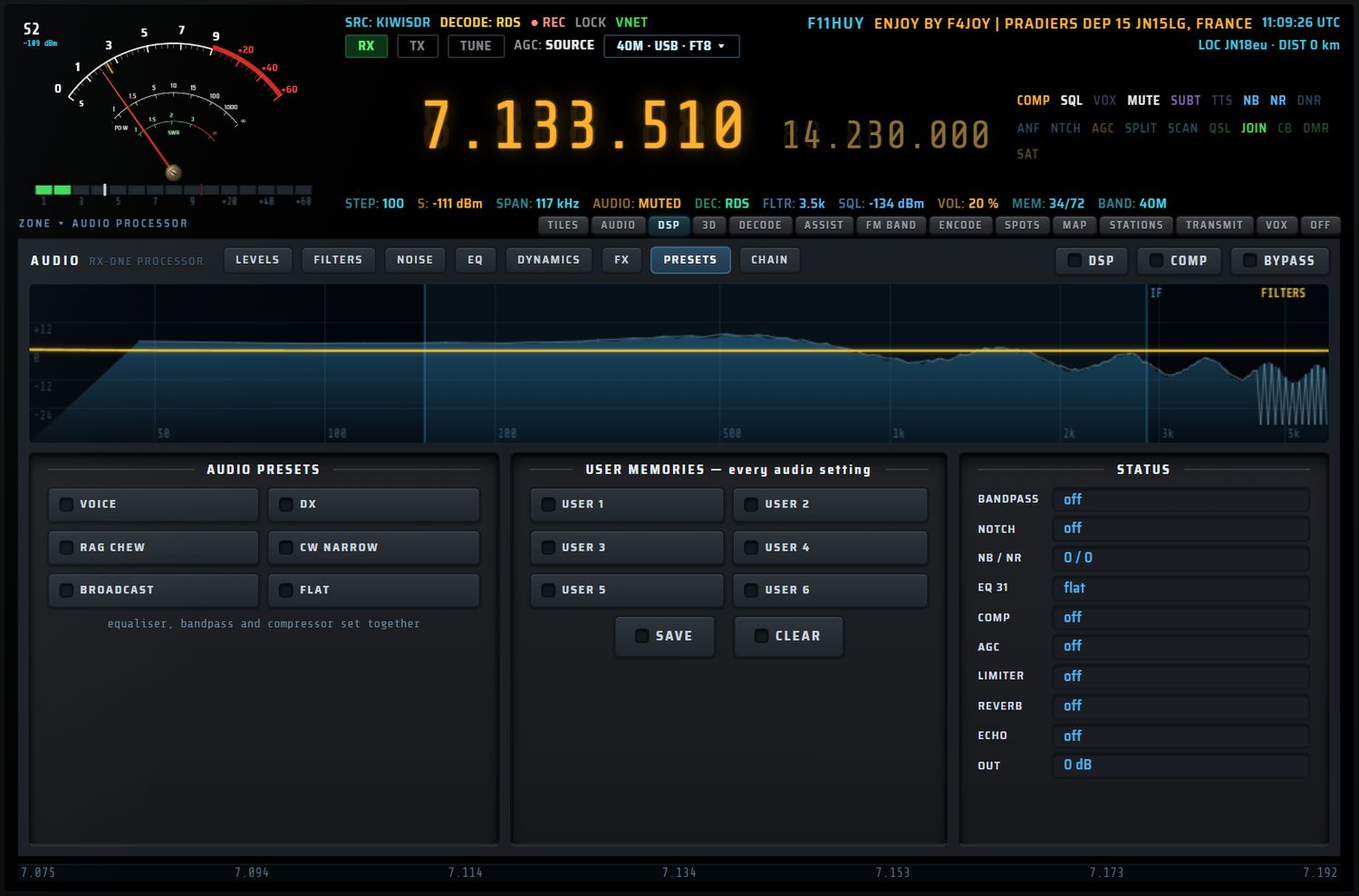
Description : « complete settings in one press ».
AUDIO PRESETS
VOICE, DX, RAG CHEW, CW NARROW, BROADCAST, FLAT : chacun règle ensemble l'égaliseur, le bandpass et le compresseur (« equaliser, bandpass and compressor set together »). Ce sont les mêmes que ceux de la fenêtre AUDIO LAB. Le témoin reste allumé tant que vous ne retouchez rien.
USER MEMORIES
Six mémoires, USER 1 à USER 6, gardent tous les réglages du son : filtres, réducteurs de bruit et leurs réglages fins, AGC, TRIM, atténuateurs, compresseur, réverbération, égaliseur 31 bandes, limiteur, écho, tonalité.
- Pour mémoriser : appuyez sur SAVE, puis sur une mémoire.
- Pour rappeler : appuyez sur une mémoire pleine.
- Pour effacer : appuyez sur CLEAR, puis sur la mémoire.
Le témoin d'une mémoire est allumé quand elle est pleine. Une mémoire vide répond « empty — press SAVE, then this slot ». Les mémoires sont conservées d'une session à l'autre.
STATUS
Dix lignes donnent l'état réel : BANDPASS, NOTCH, NB / NR, EQ 31, COMP, AGC, LIMITER, REVERB, ECHO, OUT (gain de sortie).
Vue F8 — CHAIN

Description : « the signal path, stage by stage ».
Le trajet du signal
Quatorze cases montrent les étages dans l'ordre où le son les traverse :
SOURCE › BANDPASS › EQ 6 › NOTCH › DSP › AGC › COMP › REVERB › TONE › EQ 31 › ECHO › LIMITER › ATT/TRIM › OUTPUT
Chaque case affiche l'état de son étage (bypassed, flat, 0 dB, muted…). Un clic sur une case met l'étage hors service ou le remet en service ; ses réglages sont gardés et rendus tels quels. SOURCE et OUTPUT sont fixes.
La note du bas résume le trajet : « engine (bandpass · EQ · notch) → console (DSP · AGC · compressor · reverb) → analyser → output bus (tone · EQ 31 · echo · limiter) → ATT / trim → speakers ».
Ordre du bus de sortie
Après l'analyseur, le son traverse dans l'ordre : TONE → outils son de FM BAND → EQ 31 → compresseur et réverbération de l'AUDIO LAB → ECHO → LIMITER → TRIM et ATT → haut-parleurs. Les outils son de FM BAND ne s'appliquent qu'en FM large bande (voir FM BAND).
COMPARE
| Touche | Action |
|---|---|
| BYPASS ALL | sort tout le traitement ; nouvel appui = tout rendu |
| RESET | remise à neutre (voir ci-dessous) |
| ENGINE FILTERS | sort / rend le bandpass, l'égaliseur 6 bandes et le notch |
| DSP | sort / rend NB, NR, DNR, ANF |
| DYNAMICS | sort / rend AGC, compresseur et limiteur |
| FX | sort / rend réverbération et écho |
Un groupe sort seulement les étages qui étaient en service ; le nouvel appui rend exactement ceux-là. Le témoin est allumé quand le groupe est sorti ; l'écran AUX confirme la sortie (« … out — press again to hear it back ») puis le retour (« … back in »). Si rien n'est en service dans le groupe : « nothing in service in this group ».
RESET
RESET (vue CHAIN ou F9) remet à neutre les filtres, les réducteurs de bruit et leurs réglages fins, l'AGC, le squelch, le TRIM, les égaliseurs, le compresseur, la réverbération, l'écho, la tonalité et le limiteur. Le volume, la sourdine et le gain RF ne bougent pas : l'écran AUX le rappelle par « volume, mute and RF gain are kept — they are levels, not filters ».
La fenêtre AUDIO LAB
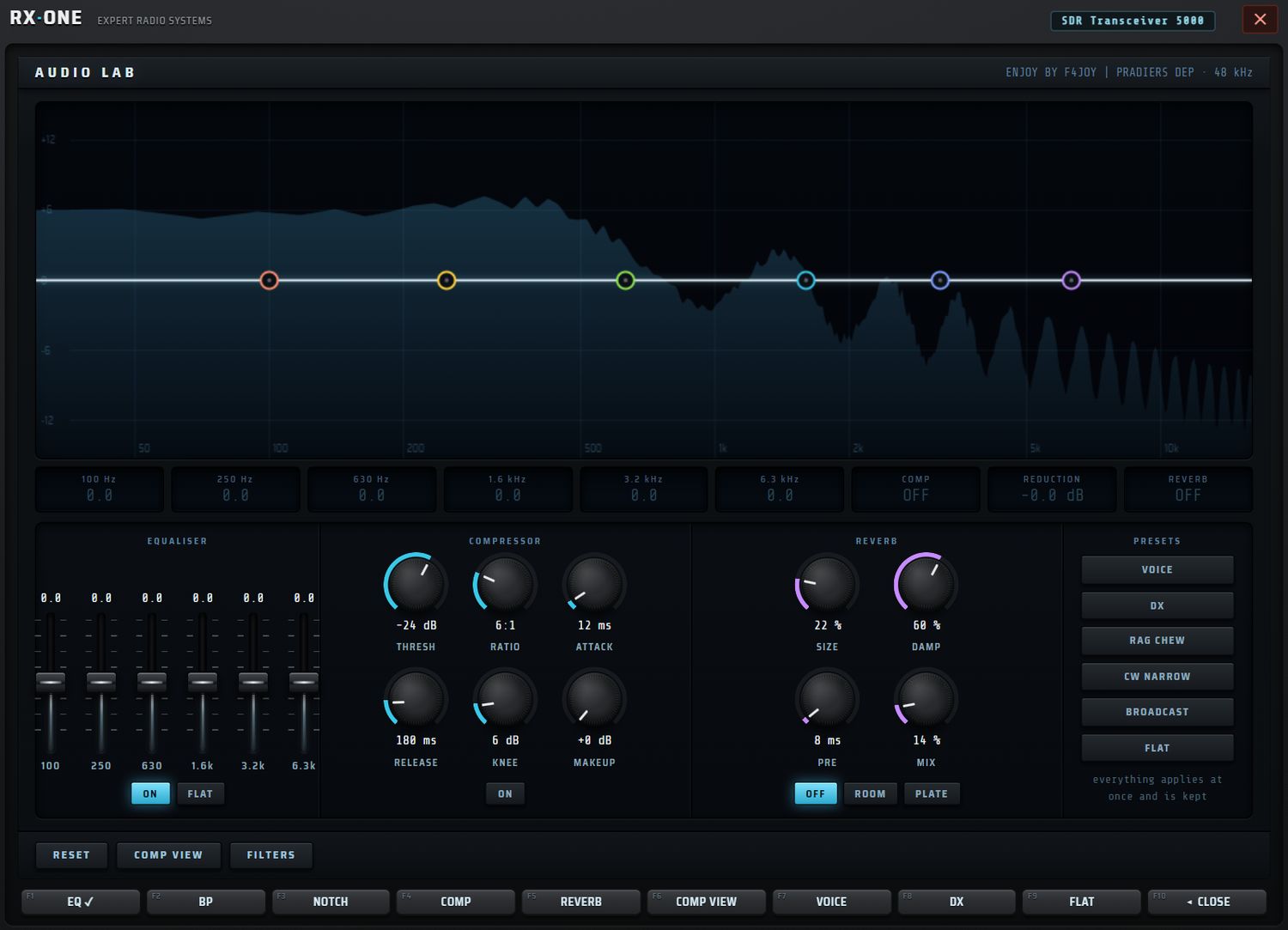

La fenêtre AUDIO LAB se pose sur l'écran central. Elle s'ouvre par la touche AUDIO du bloc RX AUDIO du bandeau gauche. Une seule fenêtre est ouverte à la fois.
- Tête :
AUDIO LAB, la source et la fréquence d'échantillonnage (« no audio running » sans son). - Courbe (vue EQ) : spectre mesuré, courbe de l'égaliseur 6 bandes, épaules du bandpass et creux du notch. Les six poignées colorées se saisissent : glisser verticalement = gain de la bande (±12 dB, pas 0,5) ; double-clic = 0 dB.
- Courbe (vue COMP) : courbe entrée / sortie du compresseur et « reduction x dB · measured ».
- Afficheurs : 100 Hz, 250 Hz, 630 Hz, 1.6 kHz, 3.2 kHz, 6.3 kHz, COMP, REDUCTION, REVERB.
| Bloc | Commandes |
|---|---|
| EQUALISER | six faders 100 Hz à 6,3 kHz, −12 à +12 dB, pas 0,5 ; ON, FLAT |
| COMPRESSOR | THRESH (−60 à 0 dB), RATIO (1 à 20), ATTACK (0 à 200 ms), RELEASE (10 à 1000 ms), KNEE et MAKEUP (dB) ; ON |
| REVERB | SIZE, DAMP, PRE, MIX ; OFF, ROOM, PLATE |
| PRESETS | VOICE, DX, RAG CHEW, CW NARROW, BROADCAST, FLAT (« everything applies at once and is kept ») |
| Pied | RESET, COMP VIEW / EQ VIEW, FILTERS (ouvre la fenêtre FILTERS · GAIN · DSP) |
RESET remet : compresseur arrêté (−18 dB, 4:1, 12 / 180 ms, knee 6, makeup 0), réverbération arrêtée (32 %, 58 %, 24 ms, 14 %), égaliseur à plat, bandpass 150–3600 Hz arrêté, notch 1000 Hz arrêté. Les réglages sont mémorisés, et aussi rangés avec chaque VFO.
| N° | Touche | Action |
|---|---|---|
| F1 | EQ / EQ ✓ | égaliseur |
| F2 | BP / BP ✓ | bandpass |
| F3 | NOTCH / NOTCH ✓ | notch |
| F4 | COMP / COMP ✓ | compresseur |
| F5 | REVERB / REV room / REV plat | réverbération : arrêt → room → plate |
| F6 | COMP VIEW / EQ VIEW | change la courbe affichée |
| F7 | VOICE | préréglage |
| F8 | DX | préréglage |
| F9 | FLAT | préréglage à plat |
| F10 | ◂ CLOSE | ferme la fenêtre |
Le mini-écran résume EQ, BAND, NOTCH, COMP, REVERB et GR. L'écran AUX récapitule eq / band / notch / comp / reverb et rappelle « drag the dots on the curve · F1 eq · F4 comp · F7-F9 presets ».
La fenêtre FILTERS · GAIN · DSP
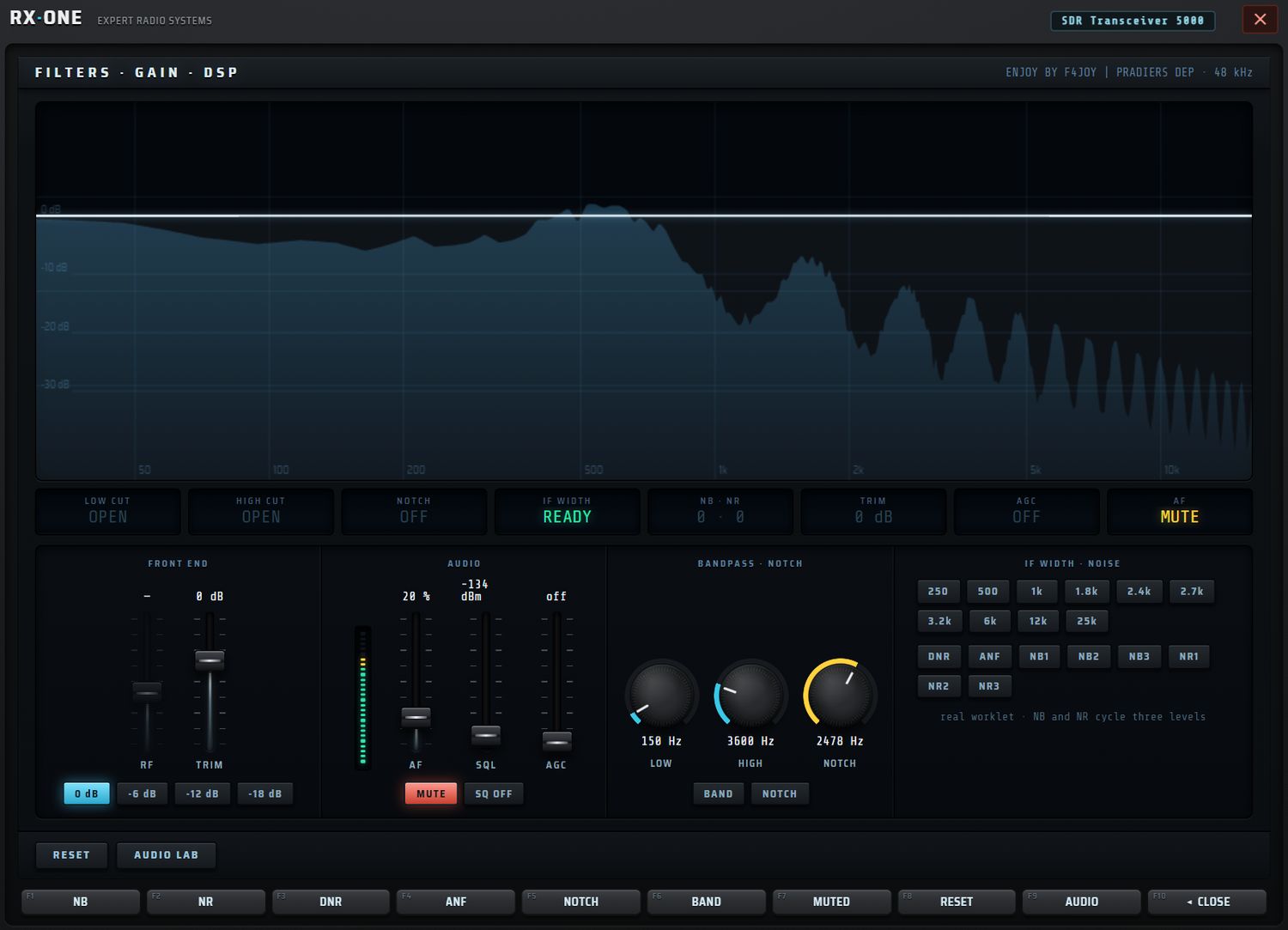
La fenêtre FILTERS · GAIN · DSP s'ouvre par la touche FILTER du bloc RX AUDIO.
- Afficheurs : LOW CUT, HIGH CUT, NOTCH, IF WIDTH (READY quand la largeur se règle, SERVER quand la source garde la sienne), NB · NR, TRIM, AGC, AF.
- Courbe : les poignées L et H (bords du bandpass) et N (notch) se saisissent à la souris quand le pointeur en est proche.
| Bloc | Commandes |
|---|---|
| FRONT END | fader RF 0 à 49,6 dB (récepteur local seulement, sinon « — ») ; fader TRIM −24 à +12 dB ; touches 0 dB, −6 dB, −12 dB, −18 dB (posent le TRIM) |
| AUDIO | faders AF 0 à 100 %, SQL −140 (off) à −20 dBm, AGC 0 à 100 % ; bargraphe de niveau (26 segments) ; MUTE (rouge quand actif), SQ OFF (ouvre le squelch) |
| BANDPASS · NOTCH | rotatifs LOW 10–2000 Hz, HIGH 800–12 000 Hz, NOTCH 200–4000 Hz ; BAND, NOTCH |
| IF WIDTH · NOISE | dix largeurs de 250 à 25k (grisées si la source garde sa bande passante) ; DNR, ANF, NB1, NB2, NB3, NR1, NR2, NR3 |
| Pied | RESET, AUDIO LAB (ouvre la fenêtre AUDIO LAB) |
RESET : réducteurs de bruit arrêtés, bandpass 150–3600 Hz arrêté, notch 1000 Hz arrêté, TRIM 0, AGC arrêtée, squelch ouvert, largeur FI du mode. Volume, sourdine et gain RF restent intacts.
| N° | Touche | Action |
|---|---|---|
| F1 | NB / NB n | suppresseur d'impulsions, cycle 0 → 1 → 2 → 3 |
| F2 | NR / NR n | réduction de bruit, cycle 0 → 1 → 2 → 3 |
| F3 | DNR / DNR ✓ | débruiteur |
| F4 | ANF / ANF ✓ | notch automatique |
| F5 | NOTCH / NOTCH ✓ | notch manuel |
| F6 | BAND / BAND ✓ | bandpass |
| F7 | MUTE / MUTED | sourdine |
| F8 | RESET | remise à neutre |
| F9 | AUDIO | ouvre AUDIO LAB |
| F10 | ◂ CLOSE | ferme la fenêtre |
Le mini-écran résume NB · NR, DNR, ANF, NOTCH, BAND et TRIM (avec l'AGC). L'écran AUX récapitule noise, band, notch, trim, agc, rf gain et if width, avec « F1-F4 noise · F5 notch · F6 band · F8 reset · F9 audio ».
La fenêtre SOUND
La fenêtre SOUND choisit les cartes son de l'ordinateur. Elle s'ouvre par la touche SOUND du bloc MENUS du bandeau gauche. Titre : « SOUND — COMPUTER AUDIO DEVICES ».
- OUTPUT · where the receive audio goes : la sortie du son reçu.
- INPUT · microphone, virtual cable in : l'entrée micro, utilisée par la prochaine capture (VOX, émission).
Chaque rangée montre une lampe, l'étiquette OUT ou IN, le nom de la carte et le badge ACTIVE pour la carte en service. Un clic sur une rangée la choisit. Les deux choix sont mémorisés ; la sortie est réappliquée au démarrage. Si la carte mémorisée n'est plus branchée : « the stored output device is not present — playing through the system default ».
Les noms des cartes n'apparaissent qu'après l'autorisation d'accès au micro (le micro est relâché aussitôt). Une note d'état figure en bas de la fenêtre ; le pied porte RESCAN.
| N° | Touche | Action |
|---|---|---|
| F1 | RESCAN | relit la liste des cartes |
| F2–F9 | — | — |
| F10 | ◂ CLOSE | ferme la fenêtre |
Le mini-écran affiche OUT, IN et FOUND (nombre de cartes). L'écran AUX affiche OUT, IN, la note et « tap a row to select it · F1 rescan · F10 close ».
FM BAND
FM BAND est une radio FM complète pour la bande 87,5–108 MHz : recherche automatique des stations, RDS en grand, visualisation du son, outils de tonalité, vue de toute la bande, mesure de la qualité de réception, douze présélections, fréquences alternatives, enregistrement nommé d'après le RDS, tri par genre, journal des titres, veille des flashs trafic et traduction en direct.
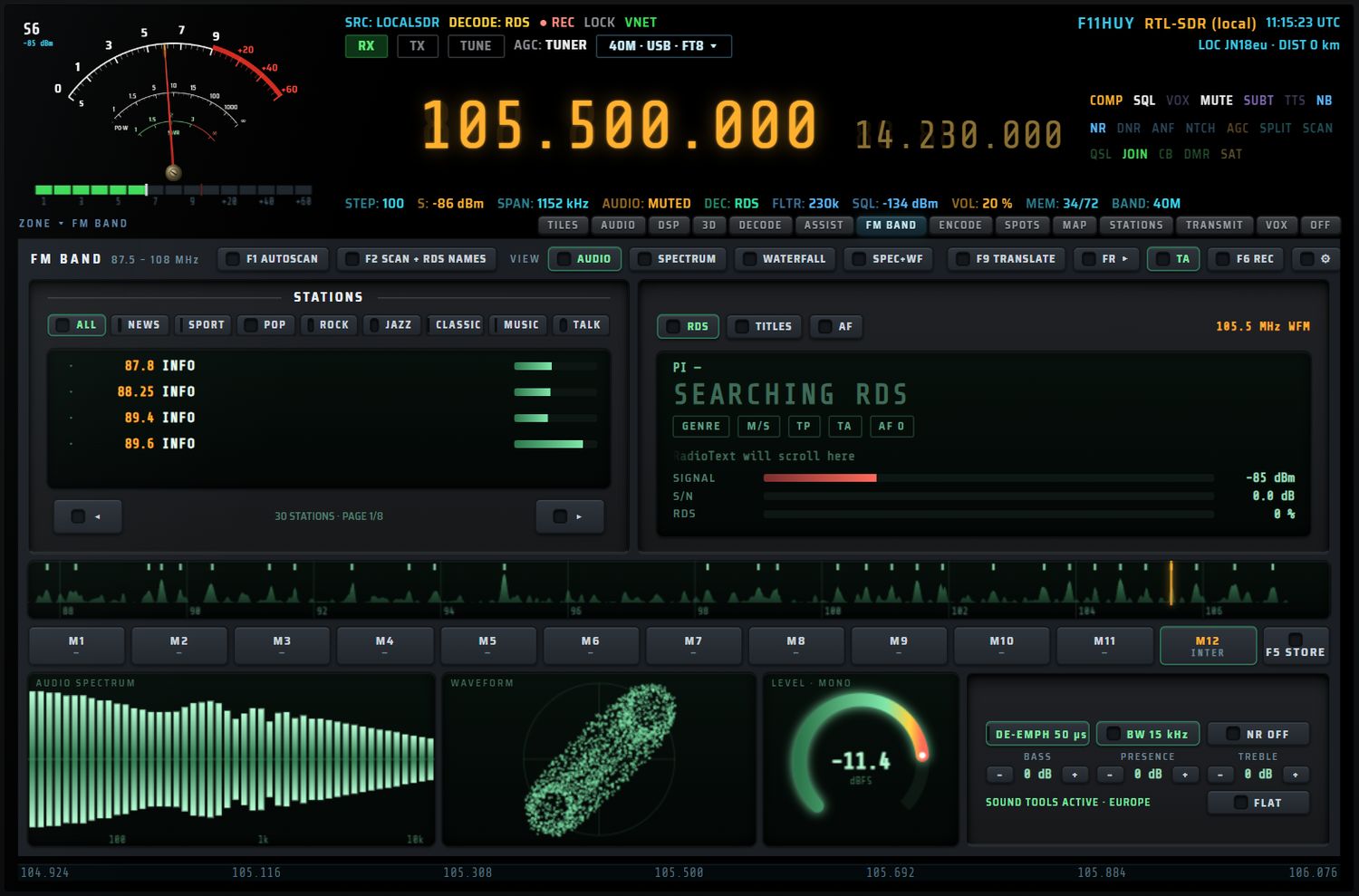
Avant de commencer
- Le RDS et la recherche automatique (AUTOSCAN) exigent le récepteur local (clé RTL-SDR ou HackRF) en mode WFM. Les récepteurs en ligne (KiwiSDR, OpenWebRX, WebSDR) ne transmettent pas le RDS.
- La démodulation FM est mono, désaccentuée à 50 µs par défaut ; il n'y a pas de stéréo. L'afficheur de niveau porte la mention « LEVEL · MONO ».
- La traduction en direct fonctionne seulement dans l'application PC.
Ouvrir FM BAND
Choisissez l'onglet FM BAND de la fente (voir La fente et sa barre d'onglets). FM BAND prend toute la hauteur de la fente.
À l'ouverture, FM BAND vous ramène automatiquement sur la dernière station FM écoutée (105,5 MHz la toute première fois). La station est retenue toutes les 3 secondes tant que vous écoutez la bande FM en WFM sur le récepteur local.
Si le récepteur local n'est pas connecté, FM BAND le connecte lui-même, puis passe en WFM. L'écran AUX affiche « switching to the local RTL-SDR… », puis « back on x MHz — the last FM station you listened to ».
L'indicateur orange en haut à droite du panneau RDS donne l'état :
| Message | Signification |
|---|---|
| « needs the local RTL-SDR / HackRF » | la source n'est pas le récepteur local |
| « tune 87.5–108 MHz » | la fréquence est hors de la bande FM |
| « switch to WFM » | le mode n'est pas WFM |
| « xx.x MHz WFM » | tout est prêt |
Disposition
De haut en bas :
- la barre de tête, sur toute la largeur ;
- le panneau STATIONS à gauche et le panneau RDS / TITLES / AF à droite ;
- la bande entière (bande fine sur toute la largeur) ;
- les présélections M1 à M12 ;
- la vue du bas : afficheurs à gauche, outils son à droite.
La barre de tête
| Touche | Action | Valeurs / défaut |
|---|---|---|
FM BAND 87.5 – 108 MHz | titre | — |
| F1 AUTOSCAN | recherche les stations de toute la bande | nouvel appui = STOP ; témoin vert pendant la recherche |
| F2 SCAN + RDS NAMES | recherche, puis lit le nom RDS de chaque station | nouvel appui = STOP |
| VIEW AUDIO SPECTRUM WATERFALL SPEC+WF | contenu de la vue du bas | défaut AUDIO ; mémorisé |
| F9 TRANSLATE | traduction en direct de la parole de la station | PC uniquement |
| FR ▸ | langue de traduction, cycle | FR, EN, ES, DE, IT, PT ; défaut FR ; mémorisée |
| TA | veille des annonces trafic | marche / arrêt ; mémorisée |
| F6 REC | enregistrement | devient F6 STOP REC (rouge) pendant l'enregistrement, F6 REC 30′ avec une minuterie |
| ⚙ | roue crantée : modèles d'afficheurs et couleur | infobulle « display models and colour » |
AUTOSCAN
F1 AUTOSCAN balaie la bande de 88,0 à 107,6 MHz par tranches de 0,9 MHz (jusqu'à 3,5 s par tranche). Une station est retenue quand elle dépasse le bruit d'au moins 6 dB sur au moins 40 kHz de large ; sa fréquence est calée sur la grille de 100 ou 50 kHz, et deux détections à moins de 60 kHz l'une de l'autre n'en font qu'une. Les noms RDS déjà connus sont gardés. La recherche relève aussi la courbe de toute la bande, affichée ensuite dans la bande entière.
Pendant la recherche, la première ligne de la liste indique la progression : « nn % · scanning xx.x MHz ». À la fin, le récepteur revient à la fréquence et au mode d'avant, et l'écran AUX affiche « n stations found ».
F2 SCAN + RDS NAMES fait la même recherche, puis visite chaque station (jusqu'à 7 s chacune) pour lire son code PI, son nom (PS, au moins trois caractères) et son genre (PTY). L'écran AUX ajoute « · n named by RDS ».
Le panneau STATIONS
Genres
Les touches de genre filtrent la liste d'après le genre RDS (PTY) de chaque station :
| Touche | Genres RDS retenus |
|---|---|
| ALL | toutes les stations |
| NEWS | actualités, informations, magazines |
| SPORT | sport |
| POP | musique pop et variétés |
| ROCK | rock |
| JAZZ | jazz |
| CLASSIC | classique (léger et sérieux) |
| MUSIC | tous les genres musicaux |
| TALK | émissions parlées (éducation, théâtre, culture, sciences, société, religion, libre antenne, voyages, loisirs, documentaires) |
Le genre choisi n'est pas mémorisé : la page s'ouvre sur ALL.
La liste
Chaque ligne affiche :
- ★ si la station est dans une présélection (sinon un point) ;
- la fréquence (en ambre) ;
- le nom RDS, ou « PI xxxx » si seul le code est connu, ou « no RDS name » ;
- le genre ;
- une barre de niveau (rapport signal / bruit relatif).
La station écoutée est surlignée. Un clic sur une ligne passe en WFM et accorde sur la station. La liste apprend en continu le nom de la station que vous écoutez, et elle est conservée d'une session à l'autre.
Listes vides : « press AUTOSCAN to list the stations » ; « no station of this genre — scan with RDS to learn the genres ».
En bas, ◂ et ▸ tournent les pages ; entre les deux : « n STATIONS · PAGE p/P » et le résultat de la dernière recherche. Le nombre de lignes par page dépend de la hauteur disponible.
Le panneau RDS / TITLES / AF
Trois sélecteurs en tête : RDS (par défaut), TITLES, AF. À droite, la fréquence et le mode (« 105.5 MHz WFM »).
RDS
- PI : « PI xxxx » (code de la station) et l'heure transmise par la station (CT).
- Nom de la station (PS) en grand caractères lumineux. Pendant l'attente : « · · · · · · · · » ou « SEARCHING RDS » ; sans RDS : « NO RDS ».
- Pastilles :
- GENRE : le nom du genre (PTY) ;
- M/S : MUSIC ou SPEECH ;
- TP : la station diffuse des informations trafic ;
- TA : annonce trafic en cours ; ambre clignotante si la veille TA est active ;
- AF n : nombre de fréquences alternatives reçues.
- RadioText (RT) : texte défilant (« RadioText will scroll here » en attente).
- Qualité : SIGNAL en dBm (barre de −100 à −40 dBm), S/N mesuré en dB (0 à 30), RDS en pourcentage de blocs reçus. Les barres sont rouges sous 33 %, ambre sous 60 %.
TITLES
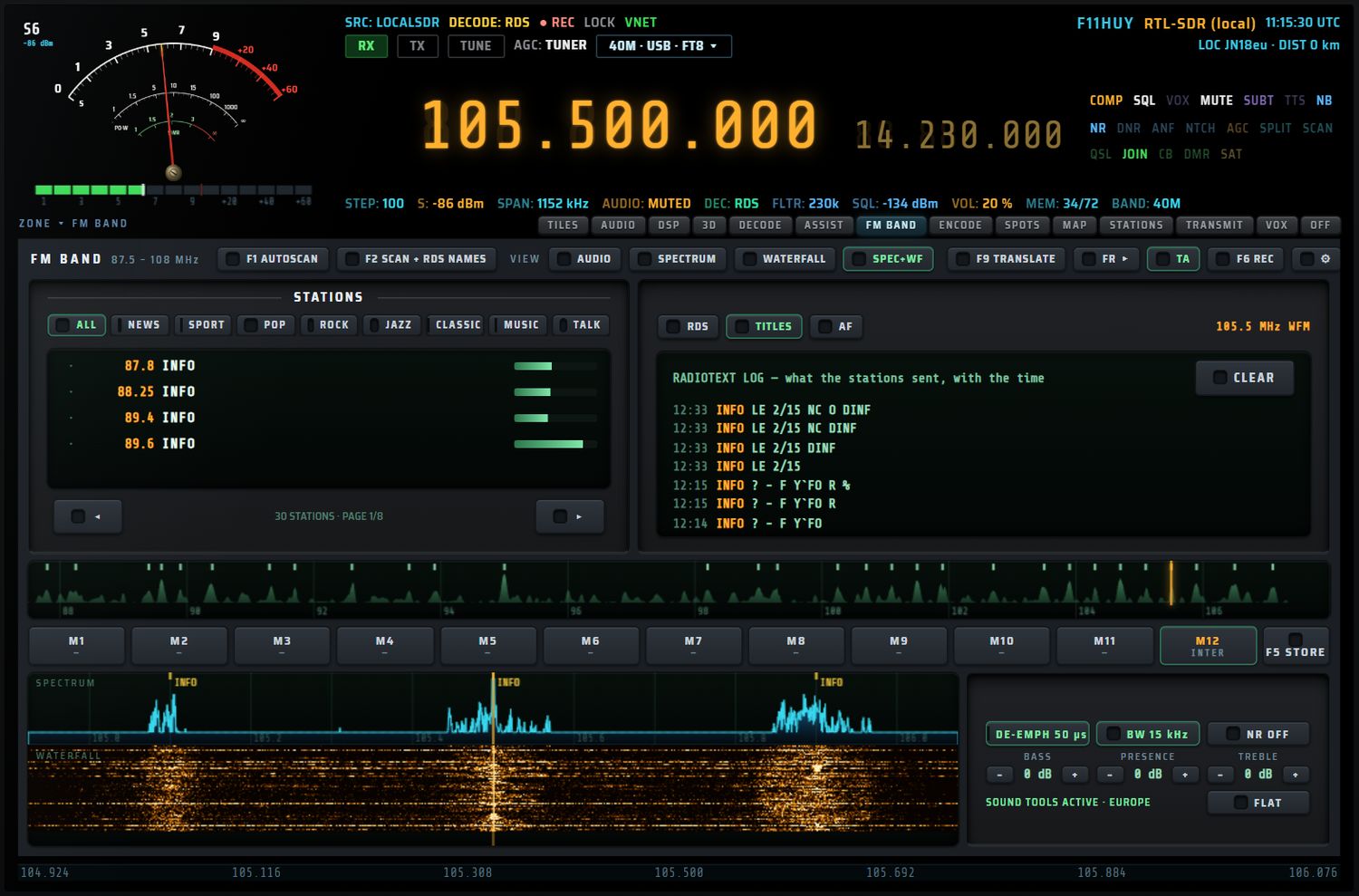
« RADIOTEXT LOG — what the stations sent, with the time » : les 14 derniers RadioText reçus, sous la forme HH:MM · station · texte. CLEAR vide le journal. Le journal garde jusqu'à 300 entrées et il est conservé d'une session à l'autre.
AF
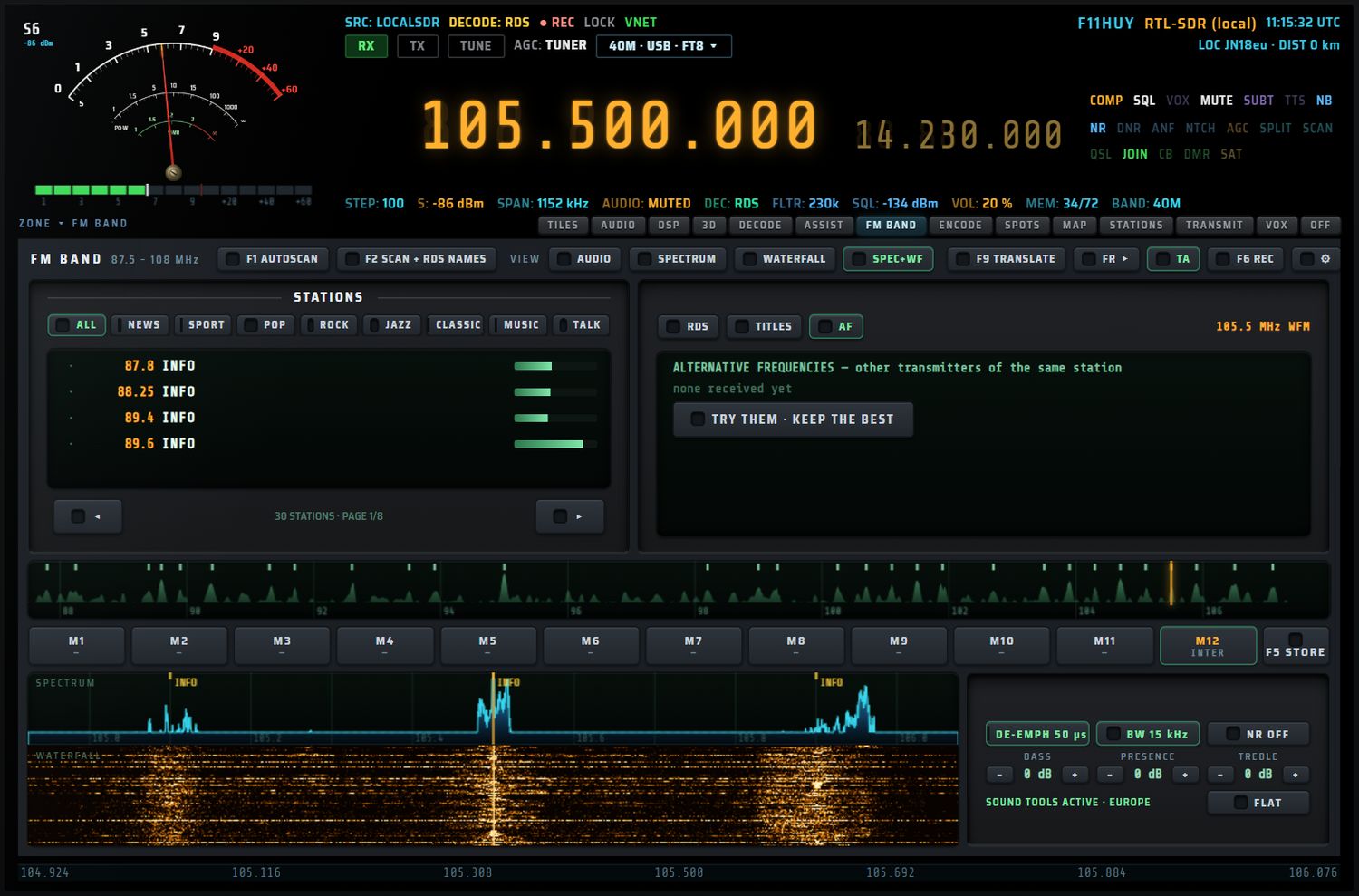
« ALTERNATIVE FREQUENCIES — other transmitters of the same station » : une touche par fréquence alternative annoncée par le RDS ; un clic accorde dessus. Tant qu'aucune n'est reçue : « none received yet ».
TRY THEM · KEEP THE BEST essaie jusqu'à huit fréquences alternatives (environ 2,5 s chacune) et garde la meilleure si elle dépasse la fréquence de départ d'au moins 1 dB. Pendant l'essai, la touche affiche TESTING… et un journal note chaque mesure (« f MHz · +x dB », la fréquence de départ marquée « (start) »).
La bande entière
La bande fine, sur toute la largeur, montre la bande FM de 88 à 108 MHz (graduations tous les 2 MHz) : la courbe relevée par la dernière recherche, des repères pour les stations (jaunes pour celles qui sont en présélection) et un curseur ambre sur la fréquence écoutée. Avant toute recherche : « the whole band appears here after an AUTOSCAN ».
Un clic accorde sur la station la plus proche à moins de 300 kHz, sinon sur la fréquence pointée arrondie à 100 kHz. Le clic n'est actif qu'après une recherche. La courbe est conservée d'une session à l'autre.
Les présélections M1–M12
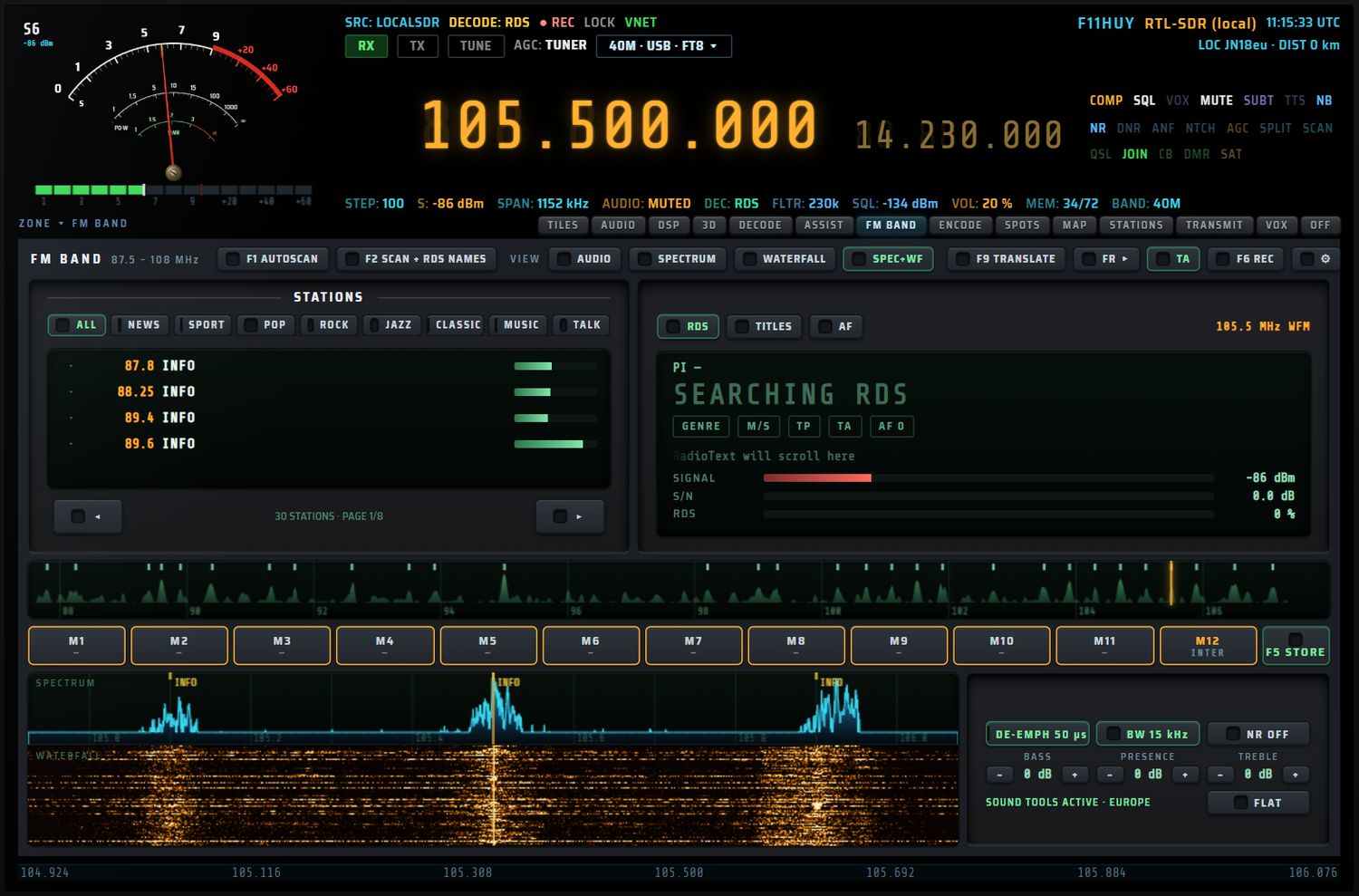
Douze cases M1 à M12, suivies de F5 STORE. Chaque case affiche en sous-titre le nom RDS ou la fréquence (8 caractères). Une case occupée a son sous-titre en ambre ; la case de la station écoutée est allumée.
- Mémoriser : appuyez sur F5 STORE (toutes les cases se bordent d'ambre), puis sur une case. La fréquence (arrondie à 50 kHz) et le nom sont retenus ; l'écran AUX confirme « Mn ← xx.x MHz NOM ».
- Rappeler : appuyez sur une case. Le récepteur passe en WFM et s'accorde.
- Case vide : « Mn is empty — press STORE, then this key ».
Les présélections sont conservées d'une session à l'autre.
La vue du bas
Le sélecteur VIEW de la barre de tête choisit ce qu'affiche la vue du bas.
- AUDIO (par défaut) : trois afficheurs,
AUDIO SPECTRUM,WAVEFORMetLEVEL · MONO. Ils analysent le son réellement envoyé aux haut-parleurs (après le TRIM). Leurs modèles se choisissent avec la roue crantée. - SPECTRUM, WATERFALL, SPEC+WF : spectre et / ou cascade radio de la fenêtre reçue, à l'échelle et dans la palette du bandscope, avec les repères et les noms des stations et un trait ambre sur la fréquence écoutée. Un clic accorde sur la station la plus proche à moins de 120 kHz, sinon sur la grille de 50 kHz.

Les outils son
À droite de la vue du bas :
| Commande | Action | Valeurs / défaut |
|---|---|---|
| DE-EMPH 50 µs / DE-EMPH 75 µs | désaccentuation | 50 µs (Europe) ou 75 µs (Amériques) ; défaut 50 µs |
| BW 15 kHz → BW 10 kHz → BW 7 kHz | bande passante audio (passe-bas), cycle | défaut 15 kHz |
| NR OFF / NR LEVEL n | réduction de bruit, niveau suivant | même réglage que la réduction de bruit de la façade |
| BASS − + | plateau à 120 Hz | −12 à +12 dB par pas de 2 dB ; défaut 0 dB |
| PRESENCE − + | cloche à 3 kHz | −12 à +12 dB par pas de 2 dB ; défaut 0 dB |
| TREBLE − + | plateau à 7 kHz | −12 à +12 dB par pas de 2 dB ; défaut 0 dB |
| FLAT | remet 50 µs, 15 kHz et 0 / 0 / 0 dB | — |
Le témoin sous les réglages indique « SOUND TOOLS ACTIVE · EUROPE » ou « … · AMERICAS » en vert. Hors de la bande FM ou hors WFM, les outils sont neutres et le témoin affiche « IDLE OUTSIDE FM WFM ». Les réglages sont mémorisés.
La veille trafic (TA)
Quand TA est allumée et que la station écoutée signale une annonce trafic :
- l'écran AUX affiche « traffic announcement on <nom> » ;
- un bip court retentit (988 Hz, environ 0,2 s) ;
- la pastille TA du panneau RDS clignote en ambre.
À la fin de l'annonce : « announcement finished ». Le réglage est mémorisé.
Enregistrer
- F6 REC démarre l'enregistrement ; la touche devient F6 STOP REC en rouge. Un nouvel appui arrête et sauvegarde.
- Le nom RDS de la station (nettoyé, 16 caractères au plus) entre dans le nom du fichier ; sans nom, le fichier porte « FMxx.x » (la fréquence).
- Minuterie : la touche F7 TIMER OFF passe à 15, 30, 60 et 120 minutes, puis revient à OFF. L'enregistrement s'arrête seul au bout du temps choisi et le fichier est sauvegardé. La touche de la barre de tête affiche alors la durée (par exemple F6 REC 30′).
- PROGRAM (F8) ouvre RECORDER · SCHEDULER avec la station déjà remplie, pour programmer un enregistrement à heure fixe (voir chapitre 9 — SCHEDULER).
La traduction en direct
F9 TRANSLATE transcrit la parole de la station écoutée et la traduit en direct dans la langue choisie par FR ▸ (FR, EN, ES, DE, IT, PT). Le texte s'affiche dans l'écran AUX ; la boîte de sous-titres VOX reste cachée pendant ce temps. À l'arrêt, le mode et la langue de VOX que vous aviez sont rendus.
La roue crantée ⚙

⚙ ouvre le panneau « DISPLAY SETTINGS — click a picture to choose what the bottom of FM BAND shows ». Il occupe toute la page FM BAND jusqu'à l'appui sur DONE.
Les quinze aperçus sont vivants : ils montrent le son réel, ou un signal de démonstration si le poste est muet. Un clic sur un aperçu choisit ce modèle pour sa rangée ; l'aperçu choisi porte « IN USE ». Chaque aperçu peut aussi être atteint au clavier (touche Tab). Par défaut, les modèles S1, W1 et L1 sont choisis.
SPECTRUM — audio frequencies, low → high
| Modèle | Ce qu'il montre |
|---|---|
| S1 BARS + PEAKS | 64 barres, chapeaux de crête qui retombent |
| S2 LED SEGMENTS | 24 colonnes de diodes, sommet ambre puis rouge |
| S3 GLOW CURVE | courbe lumineuse lissée avec trace de crête |
| S4 MIRROR | barres en miroir de part et d'autre de la ligne centrale |
| S5 1/3 OCTAVE | 31 bandes au tiers d'octave avec échelle en dB |
WAVEFORM — the sound wave itself
| Modèle | Ce qu'il montre |
|---|---|
| W1 SCOPE | trace d'oscilloscope déclenchée |
| W2 ENVELOPE | enveloppe min / max, comme un éditeur audio |
| W3 PHOSPHOR | trace avec rémanence |
| W4 SCROLLING | la sonie des 10 dernières secondes |
| W5 PHASE | nuage de points de phase (Lissajous) |
LEVEL · MONO — the loudness (dBFS)
| Modèle | Ce qu'il montre |
|---|---|
| L1 SEGMENT BAR | barre à diodes avec crête tenue |
| L2 NEEDLE VU | galvanomètre à aiguille |
| L3 RIBBON | barre horizontale et gros chiffres |
| L4 RING | jauge circulaire |
| L5 DIGITS + HISTORY | niveau en chiffres et courbe des 30 dernières secondes |
Les afficheurs de niveau sont gradués de −60 à 0 dBFS ; ils passent en ambre au-dessus de −18 dBFS et en rouge au-dessus de −6 dBFS.
COLOUR — hue of the displays
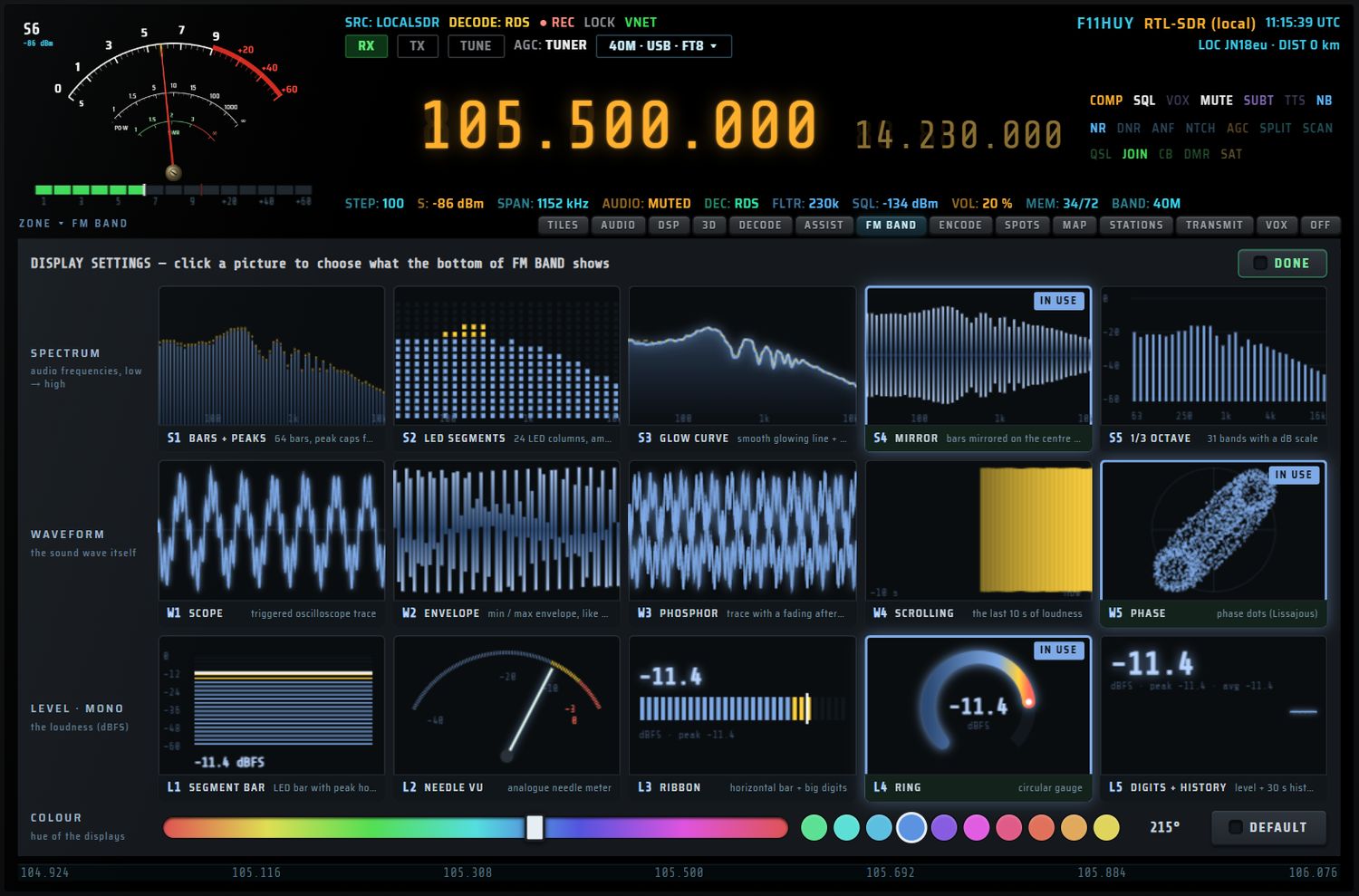
- Curseur de teinte : 0 à 360°, défaut 145° (vert).
- Dix pastilles de teintes prêtes : 145, 175, 195, 215, 260, 300, 340, 10, 35 et 55°.
- La valeur choisie s'affiche à droite des pastilles.
- DEFAULT revient à 145°.
La teinte colore tous les afficheurs de la vue du bas ; l'ambre et le rouge des alertes ne changent pas. Les modèles et la teinte sont mémorisés.
Touches F, écran AUX et mini-écran
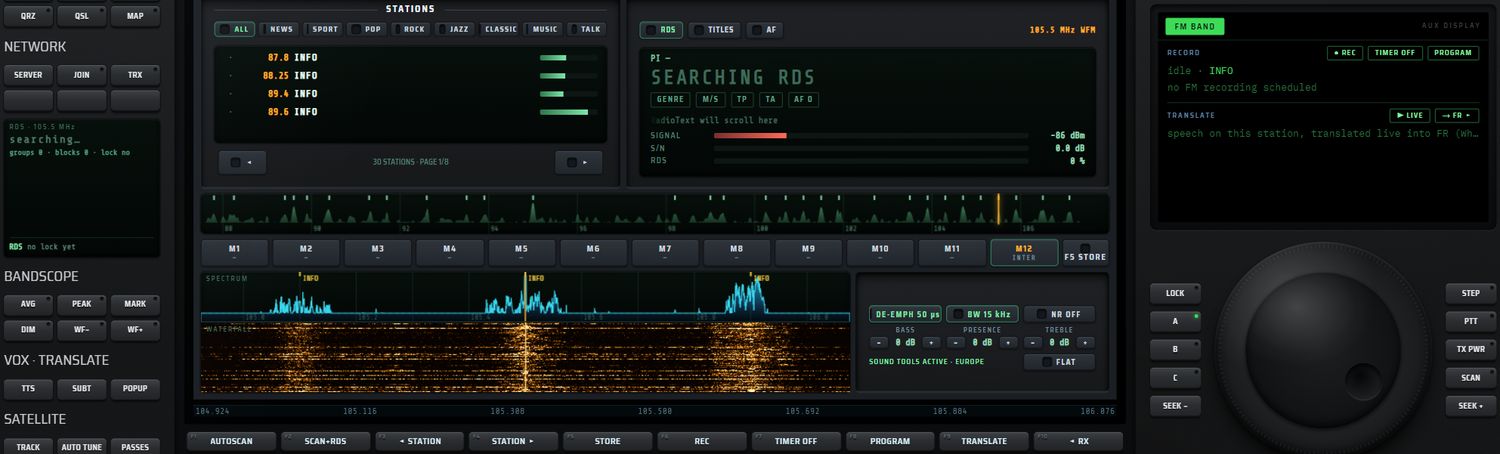
| N° | Touche | Action | Valeurs |
|---|---|---|---|
| F1 | AUTOSCAN / STOP SCAN | lance / arrête la recherche | — |
| F2 | SCAN+RDS | recherche avec lecture des noms RDS | — |
| F3 | ◂ STATION | station précédente | — |
| F4 | STATION ▸ | station suivante | — |
| F5 | STORE / STORE… | arme la mémorisation d'une présélection | — |
| F6 | REC / STOP REC | enregistrement | — |
| F7 | TIMER OFF / TIMER 15′… | durée de l'enregistrement | OFF, 15, 30, 60, 120 min |
| F8 | PROGRAM | ouvre RECORDER · SCHEDULER avec la station | — |
| F9 | TRANSLATE / TRANSL ON | traduction en direct | PC uniquement |
| F10 | ◂ RX | retour à la réception | — |
◂ STATION et STATION ▸ cherchent la station suivante directement dans le spectre : un signal d'au moins 6 dB au-dessus du bruit et d'au moins 40 kHz de large, accordé sur son centre. Arrivée à un bout de la bande, la recherche repart de l'autre (87,5 ↔ 108 MHz).
L'écran AUX

En FM BAND, l'écran AUX comporte deux blocs dont les touches se touchent directement.
RECORD
- ● REC / ■ STOP : démarre / arrête l'enregistrement ;
- TIMER … : durée (comme F7) ;
- PROGRAM : ouvre RECORDER · SCHEDULER (comme F8).
Ligne d'état : « ● hh:mm:ss NOM · stops in … » pendant l'enregistrement, ou « idle · NOM · timer n min » au repos. Ligne suivante : « next: HH:MMz NOM · … » (les trois prochains enregistrements FM programmés) ou « no FM recording scheduled ».
TRANSLATE
- ▶ LIVE / ■ STOP : démarre / arrête la traduction ;
- → FR ▸ : langue de traduction.
Au repos : « speech on this station, translated live into FR (Whisper on this PC) », ou « — PC version only » hors PC. Pendant la traduction : l'état du moteur, la dernière phrase entendue, puis « → » et sa traduction. Pendant la musique : « waiting for speech… (music is ignored) ». Les avis courts restent 5 s en bas de l'écran.
Le mini-écran RDS
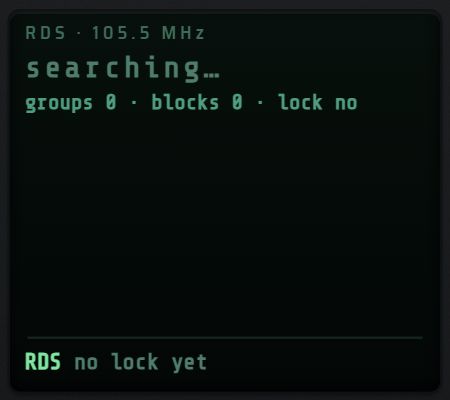
Sur la bande FM, le mini-écran de gauche affiche le RDS :
- en titre « RDS · xx.x MHz » et le code PI ;
- le nom de la station en grand ;
- genre · music/speech · TP · TA ;
- le RadioText ;
- « clock … » (heure transmise) ;
- « AF … » (fréquences alternatives) ;
- en bas, « RDS quality n % ».
Messages possibles : « RDS comes with the local RTL-SDR / HackRF in WFM — this receiver does not send it », « switch to WFM to receive RDS », « searching… » ou « waiting for RDS data », avec les compteurs « groups · blocks · lock ».
Décodage numérique
RX·ONE décode les modes numériques à partir du son que vous recevez. Deux familles de décodeurs cohabitent :
- les décodeurs locaux, qui tournent dans l'application elle-même. Ils fonctionnent avec toutes les sources (récepteur local, KiwiSDR, OpenWebRX, WebSDR), puisqu'ils travaillent sur l'audio démodulé ;
- les décodeurs serveur, qui tournent sur un serveur OpenWebRX. RX·ONE affiche alors ce que le serveur a décodé. Sans serveur OpenWebRX, ces modes ne décodent pas.
Quelques modes demandent en plus un récepteur local (RTL-SDR ou HackRF) : DMR, RDS, ADS-B.
Tout le décodage se passe dans la fente, la bande au-dessus du spectre (voir l'écran central). Une fois ouverte, la page DECODE prend la place du spectre et de la cascade.
Ouvrir le décodage
Six chemins mènent au décodage.
| Chemin | Où | Ce qui se passe |
|---|---|---|
| Onglet « DECODE » | barre d'onglets de la fente, en haut à droite de l'écran | La liste des décodeurs s'ouvre dans la fente. Un nouvel appui sur l'onglet revient toujours à la liste. |
| DEC | bloc APP du pavé droit | Retour à l'écran de réception, puis la fente DECODE s'ouvre sur la liste. |
| Tuile « DIGITAL DECODERS » | les dix tuiles de l'écran central | Même effet que DEC. |
| F10 « DECODE » | touches F, en réception normale | Ouvre la page DECODE. |
| Mini-écran « QUICK DECODE » | petit écran à gauche, en réception normale | Liste les modes numériques avec leur fréquence de référence sur la bande où vous êtes. Un appui sur une ligne choisit le décodeur, pose le mode et accorde la fréquence. L'écran AUX confirme : « tuned … MHz on the … ». |
| F7 « APPLY » de la page ASSIST | page ASSIST | Ouvre DECODE et appuie pour vous sur le bon décodeur, avec ses réglages (voir ASSIST). |
La liste des décodeurs
La première vue de la page DECODE reprend exactement les 25 touches du tiroir « DIGITAL DECODERS », sur 8 colonnes.
- Un appui sur une touche lance le décodeur et ouvre sa page (vue MODE, voir plus bas).
- La touche du décodeur réellement actif est verte, avec un témoin rond.
- Une touche grisée n'est pas servie par la source connectée (infobulle « not served by the connected source »), ou n'a pas de décodeur dans cette version.
Touches F de la liste
| Touche | Action |
|---|---|
| F1 FT8 | lance FT8 |
| F2 FT4 | lance FT4 |
| F3 CW | lance CW |
| F4 RTTY | lance RTTY |
| F5 PSK31 | lance PSK31 |
| F6 SSTV | lance SSTV |
| F7 WEFAX | lance WEFAX |
| F8 IDENT | lance l'identification de signal |
| F9 ENCODE | ouvre la page ENCODE (émission, voir le chapitre 12) |
| F10 ◂ RX | retour à la réception normale |
L'écran AUX rappelle : « DECODERS — pick a mode on the screen / F1-F8 quick picks · F9 encoders · F10 back to receive », suivi du décodeur en cours (« running … »).
Les 25 touches et ce qu'elles demandent
| Touche | Décodage | Ce qu'il faut | Section |
|---|---|---|---|
| FT8 | local (et serveur WSJT-X sur OpenWebRX) | toute source | FT8 et FT4 |
| FT4 | local (et serveur sur OpenWebRX) | toute source | FT8 et FT4 |
| FT2 | aucun | — | Sans décodeur |
| CW (skimmer) | local | toute source | CW |
| RTTY | local | toute source | RTTY |
| FSK | local | toute source | FSK |
| PSK31 (+BPSK63) | serveur | serveur OpenWebRX | PSK31 |
| SSTV (album) | local | toute source | SSTV |
| WEFAX | local | toute source | WEFAX |
| NAVTEX | serveur | serveur OpenWebRX | NAVTEX |
| DMR (AMBE wasm) | local | RTL-SDR local | DMR |
| RDS | local | récepteur local en WFM | RDS |
| ADS-B (map) | local, ou carte du serveur | RTL-SDR / HackRF local à 1090 MHz, ou OpenWebRX | ADS-B |
| AIS (map) | serveur | serveur OpenWebRX | AIS |
| IDENT | local | toute source | IDENT |
| JS8 | serveur | serveur OpenWebRX | JS8, WSPR, PACKET |
| WSPR | serveur | serveur OpenWebRX | JS8, WSPR, PACKET |
| DRM | aucun | — | Sans décodeur |
| OLIVIA | aucun | — | Sans décodeur |
| THOR | local | toute source | THOR et FSQ |
| FSQ | local | toute source | THOR et FSQ |
| HELL | local | toute source | HELL |
| FREEDV | aucun | — | Sans décodeur |
| APRS (map) | aucun dans cette version | — | APRS |
| PACKET | serveur | serveur OpenWebRX | JS8, WSPR, PACKET |
Sur un serveur OpenWebRX
- FT8, FT4, CW, RTTY, FSK, IDENT, ADS-B et AIS restent disponibles en local.
- Les autres touches dépendent de ce que le serveur annonce. Un mode que le serveur ne propose pas est grisé ; un serveur qui n'annonce rien ne grise rien.
- Quand le serveur a lui-même décodé quelque chose dans les 60 dernières secondes, les décodeurs locaux s'effacent devant lui, pour ne pas afficher deux fois la même chose.
La page d'un décodeur (vue MODE)
Un appui sur une touche de la liste ouvre la page complète du décodeur dans la fente :
- en haut à gauche, le bouton ◂ DECODERS (retour à la liste) et le nom du mode ;
- dessous, le bandeau SETTINGS ;
- puis la page du décodeur elle-même : affichage du signal, mesures, texte ou image reçus ;
- en bas à droite de la page, le bouton ◂ RX (retour à la réception normale, comme F10).
La page tient toujours dans la fente, sans barre de défilement.
Les touches F d'une page de décodeur
Les touches F changent selon le décodeur ouvert. FT8/FT4 et RTTY/FSK ont leur propre rangée (voir leurs sections). Pour les autres :
| Touche | Action |
|---|---|
| F1 CLEAR | efface le texte décodé visible |
| F2 COPY | copie le texte décodé dans le presse-papiers ; l'AUX affiche « N characters copied » (ou « clipboard refused ») |
| F3 SAVE | enregistre le texte dans un fichier rxone-<décodeur>.txt |
| F4 EXPORT | enregistre la session complète dans rxone-<décodeur>-AAAAMMJJ-HHMM.txt (voir ci-dessous) |
| TUNE <mode> | présente seulement si le mode a une fréquence de référence sur la bande courante : accorde cette fréquence (voir fréquences de référence) |
| ZOOM − / ZOOM + | zoom du spectre et de la cascade ; l'AUX affiche le facteur (« ×2 ») et la largeur montrée |
| ENCODE | présente si le mode a un encodeur jumeau : ouvre la page ENCODE sur ce mode |
| DECODERS | retour à la liste des décodeurs |
| MEMORY | complète les cases restantes : ouvre la liste des mémoires |
| F10 ◂ RX | retour à la réception normale (le décodeur continue) |
Les modes qui ont un encodeur jumeau : FT8, FT4, CW, RTTY, FSK, PSK31, NAVTEX, SSTV, WEFAX, HELL, PACKET, DMR.
SAVE et EXPORT
- SAVE écrit le texte décodé seul.
- EXPORT écrit un en-tête — date UTC, source, fréquence, mode, décodeur et ses réglages (shift, vitesse, sens, AUTO), votre indicatif et votre locator — puis tout le texte reçu.
- Sur PC, les fichiers arrivent dans le dossier Téléchargements\RX-ONE.
Mode automatique et bande latérale
Choisir un décodeur pose le mode de réception qui lui convient :
- FT8, FT4, RTTY, FSK, JS8, PSK31, WSPR, SSTV, WEFAX, NAVTEX → USB ;
- CW → CW ;
- au-dessus de 50 MHz, SSTV, WEFAX, RTTY, FSK, PSK31, PACKET et APRS passent en FM.
Quand le mode change, l'AUX l'explique (« mode X → Y … ») : dans la mauvaise bande latérale, le spectre audio est inversé et rien ne décode. Si la source ne sert pas le mode demandé, le changement est refusé.
Après une reconnexion, la règle n'est reposée que si vous êtes à ±4 kHz d'un canal du décodeur. Elle n'est jamais appliquée au démarrage ni quand un VFO est restitué.
En USB ou LSB, chaque accord applique la convention habituelle : LSB sous 10 MHz, USB au-dessus, sauf à ±4 kHz d'un canal FT8 ou FT4, toujours en USB. Les modes AM, CW, FM et DIG ne sont jamais touchés.
Fréquences de référence (TUNE)
La touche « TUNE <mode> » d'une page de décodeur, et le mini-écran QUICK DECODE, utilisent ce tableau (fréquences en kHz, usages IARU). L'accord se fait au centre de la bande passante : pour FT8, FT4 et PSK31, publiés en fréquence de cadran, RX·ONE ajoute le milieu du filtre USB. L'AUX affiche « dial … MHz — tuned … (centre of the passband) ». Hors de ces bandes : « no <mode> frequency on this band ».
| Bande | FT8 | FT4 | CW | RTTY | PSK31 | SSTV |
|---|---|---|---|---|---|---|
| 160 m | 1840 | 1841 | 1820 | 1838 | 1838 | 1890 |
| 80 m | 3573 | 3575 | 3560 | 3590 | 3580 | 3730 |
| 60 m | 5357 | 5357 | 5354 | 5357 | 5357 | 5366 |
| 40 m | 7074 | 7047.5 | 7030 | 7040 | 7070 | 7043 |
| 30 m | 10136 | 10140 | 10118 | 10142 | 10142 | 10132 |
| 20 m | 14074 | 14080 | 14030 | 14083 | 14070 | 14230 |
| 17 m | 18100 | 18104 | 18080 | 18103 | 18100 | 18160 |
| 15 m | 21074 | 21140 | 21030 | 21083 | 21070 | 21340 |
| 12 m | 24915 | 24919 | 24900 | 24923 | 24920 | 24975 |
| 10 m | 28074 | 28180 | 28030 | 28083 | 28120 | 28680 |
| 6 m | 50313 | 50318 | 50090 | 50300 | 50305 | 50950 |
| 2 m | 144174 | 144170 | 144050 | 144600 | 144144 | 144500 |
FT8 et FT4
Où écouter : 7074 kHz (40 m), 14074 kHz (20 m), 3573 kHz (80 m) et les autres fréquences du tableau. FT4 : 7047.5 kHz, 14080 kHz…
Mode : USB (posé automatiquement). Le décodage demande d'être à moins de 4 kHz d'un canal FT8 (1840, 3573, 7074, 10136, 14074, 18100, 21074, 24915, 28074, 50313 kHz) ou FT4 (3575, 7047.5, 10140, 14080, 18104, 21140, 24919, 28180 kHz), en USB ou DIG.
Heure du PC : FT8 travaille en tranches de 15 secondes (FT4 : 7,5 s). L'horloge du PC doit être juste à une seconde près ; sinon les décodes manquent (voir WHY NO DECODE?).
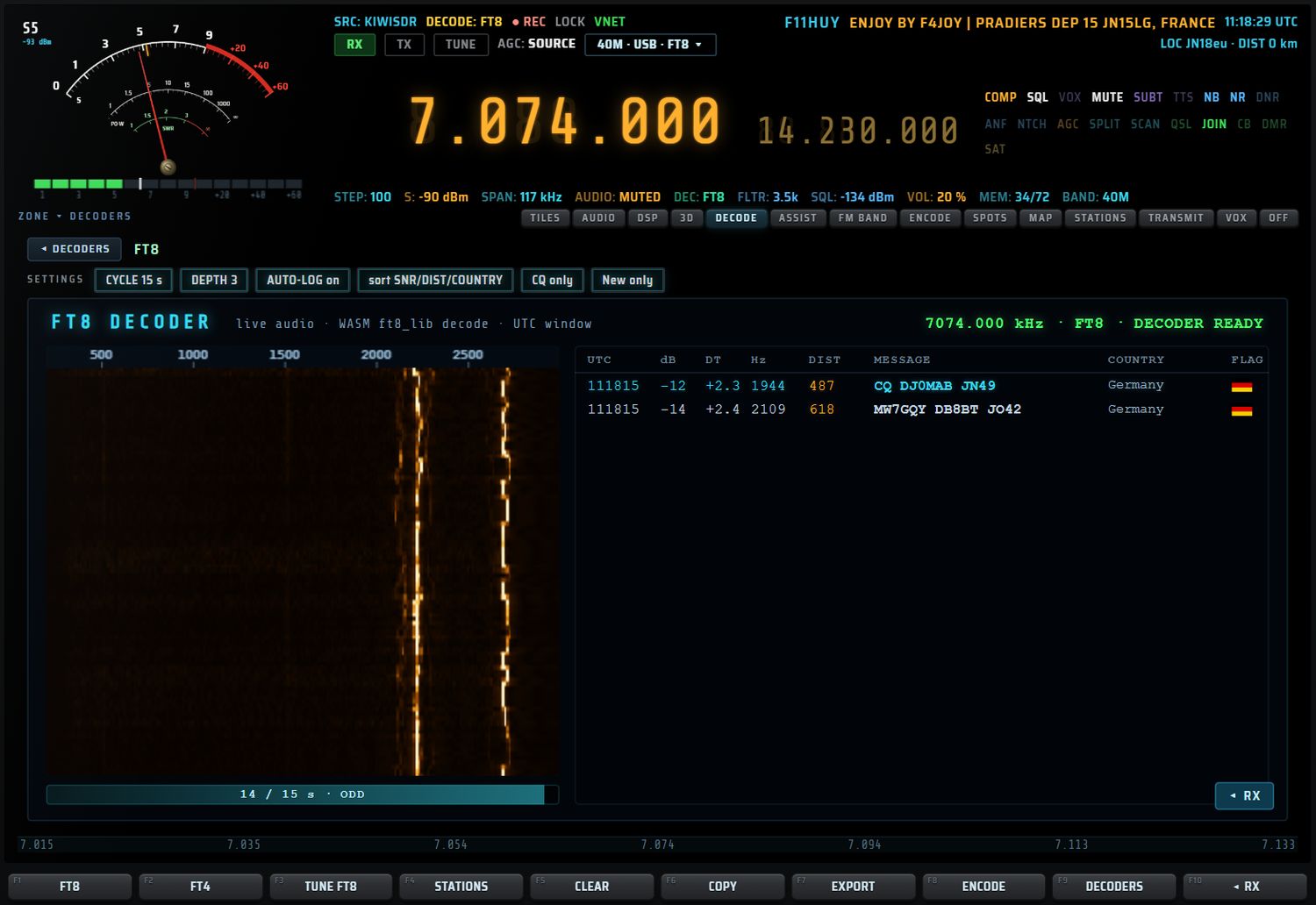
Ce qu'affiche la page
- En-tête « FT8 DECODER », à droite la fréquence, le mode et l'état (« DECODER READY »).
- À gauche, la cascade audio (repères 500 à 2500 Hz) et la barre de cycle : secondes écoulées dans la tranche, « / 15 s », et la parité de la tranche (EVEN / ODD).
- À droite, le tableau des décodes : heure UTC, rapport (dB), décalage horaire (DT), fréquence audio (Hz), distance (DIST, km), message, pays (COUNTRY) et drapeau (FLAG).
- Couleurs : le rapport passe du vert vif (≥ −3 dB) au vert (≥ −10), au cyan (≥ −16), à l'ambre (≥ −21) puis au rouge ; les CQ sont dorés, les 73 et RR73 verts ; votre indicatif est surligné en ambre.
- Les 120 derniers décodes sont gardés ; un même message reçu deux fois dans la même tranche, à la même fréquence, n'apparaît qu'une fois.
Le bandeau SETTINGS (CYCLE, DEPTH…) résume le mode ; il ne se règle pas.
Touches F de FT8 / FT4
| Touche | Action |
|---|---|
| F1 FT8 | passe en FT8 |
| F2 FT4 | passe en FT4 |
| F3 TUNE FT8 (ou TUNE FT4) | accorde le canal FT8 (FT4) de la bande courante |
| F4 STATIONS | ouvre dans la fente la carte des stations reçues |
| F5 CLEAR | efface la liste des décodes |
| F6 COPY | copie les décodes |
| F7 EXPORT | exporte la session (voir SAVE et EXPORT) |
| F8 ENCODE | ouvre l'encodeur FT8 / FT4 |
| F9 DECODERS | retour à la liste |
| F10 ◂ RX | retour à la réception normale |
- Écran AUX : nombre de décodes de la dernière tranche, seconde courante (« ss/15 s »), fréquence FT8 de la bande et fréquence accordée.
- Mini-écran gauche : les 7 dernières stations reçues, les CQ en jaune (« waiting for the first decodes… » au début).
- Tuile DECODE FEED : une tuile de l'écran central peut afficher les trois derniers décodes FT8 / FT4 (bouton ▾ de la tuile, voir les tuiles).
CW
Où écouter : 7030 kHz, 14030 kHz, 3560 kHz… (voir le tableau). Mode : CW, posé automatiquement.
Le décodeur suit seul la tonalité et la vitesse (6 à 50 mots par minute). Il n'y a rien à régler : accordez la station pour que sa note tombe dans le filtre.
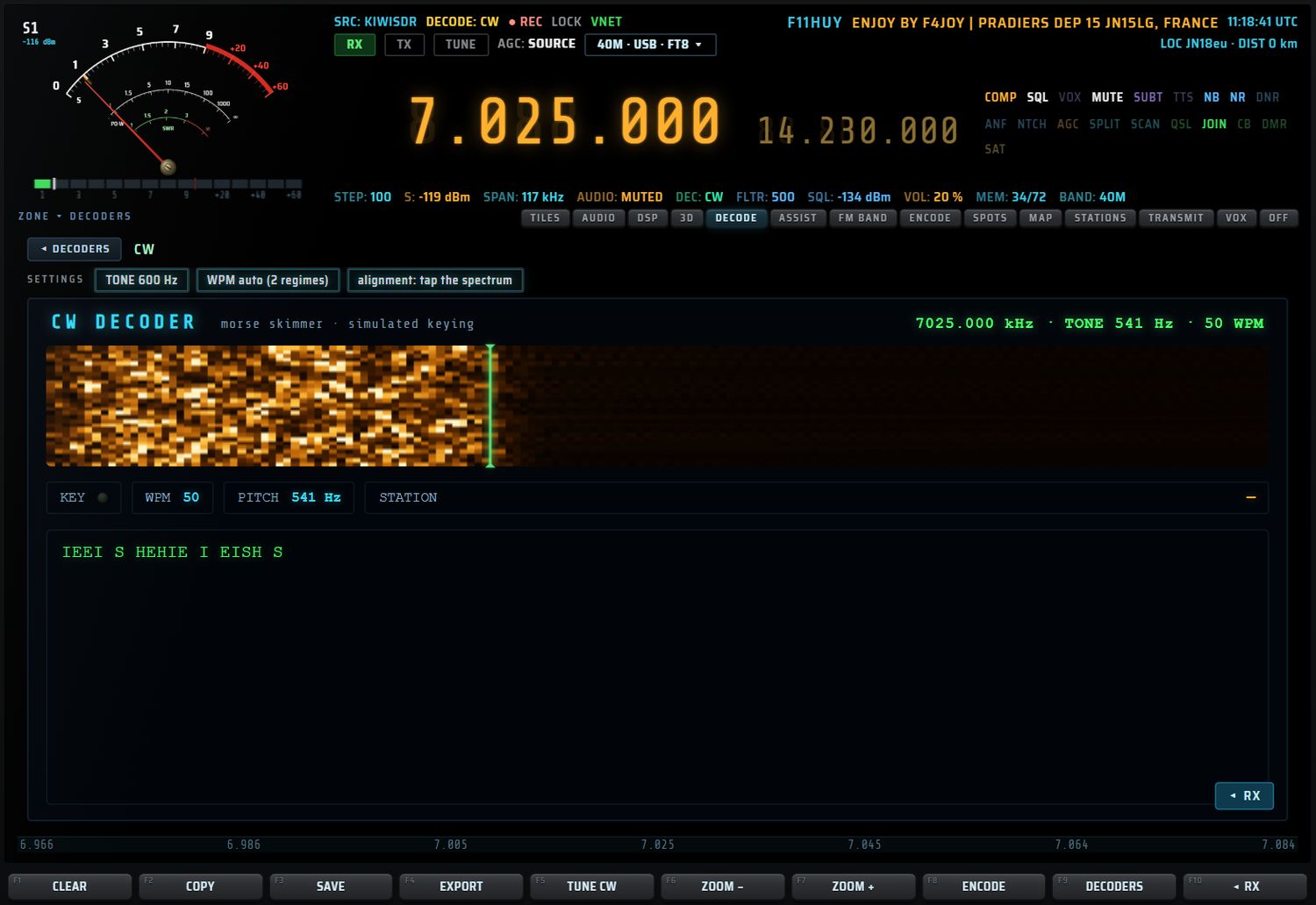
- En-tête « CW DECODER », à droite la fréquence, la tonalité mesurée (TONE) et la vitesse (WPM).
- Le bandeau défilant montre le signal reçu ; le trait vert vertical marque la tonalité suivie.
- KEY : témoin qui s'allume au rythme de la manipulation. WPM : vitesse mesurée. PITCH : tonalité mesurée. STATION : indicatif repéré dans le texte.
- La console affiche le texte décodé.
Touches F : CLEAR, COPY, SAVE, EXPORT, TUNE CW, ZOOM −, ZOOM +, ENCODE, DECODERS, ◂ RX (voir touches F d'une page).
RTTY
Où écouter :
- service météo allemand (DWD) : 10100.8 kHz, 4583 kHz, 7646 kHz (aussi 11039 et 14467.3 kHz) — 50 Bd, shift 450 Hz ;
- radioamateurs : 7040 kHz, 14083 kHz… (voir le tableau) — en général 45.45 Bd, shift 170 Hz.
Mode : USB, posé automatiquement.
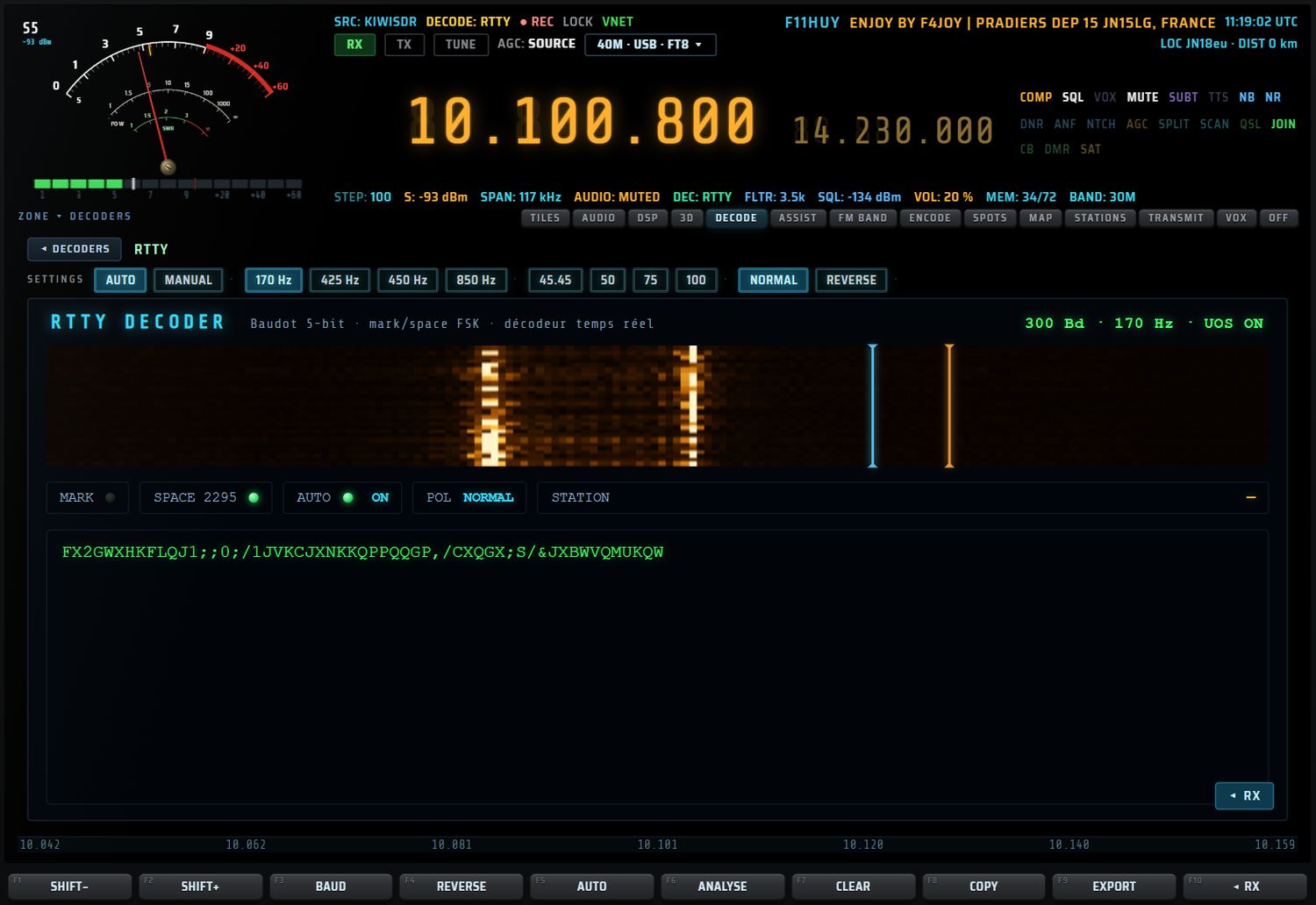
Ce qu'affiche la page
- En-tête « RTTY DECODER — Baudot 5-bit · mark/space FSK ».
- Le bandeau du signal montre les deux tonalités reçues et deux repères : MARK (bleu) et SPACE (orange). Un signal bien réglé tombe sur les deux repères.
- Témoins MARK et SPACE (allumés selon la tonalité reçue, avec sa fréquence), AUTO (cliquable : marche/arrêt de la détection automatique), POL (cliquable : NORMAL / REVERSE), STATION.
- La console affiche le texte reçu.
Réglages
| Réglage | Valeurs | Défaut |
|---|---|---|
| AUTO / MANUAL | détection automatique ou réglage à la main | AUTO |
| SHIFT | 170 · 425 · 450 · 850 Hz | 170 Hz |
| BAUD | 45.45 · 50 · 75 · 100 | 45.45 |
| SENSE | NORMAL · REVERSE | NORMAL |
| Tonalité MARK | — | 2125 Hz |
Appuyez sur une étiquette du bandeau SETTINGS pour la choisir. Un réglage manuel coupe AUTO, sinon le décodeur réimposerait sa propre mesure. L'AUX confirme (par exemple « RTTY SHIFT set to 450 »). Les réglages restent mémorisés.
Touches F de RTTY
| Touche | Action |
|---|---|
| F1 SHIFT− | shift précédent dans la liste (coupe AUTO) |
| F2 SHIFT+ | shift suivant (coupe AUTO) |
| F3 BAUD | vitesse suivante (coupe AUTO) |
| F4 REVERSE | inverse le sens (NORMAL ↔ REVERSE) |
| F5 AUTO | marche / arrêt de la détection automatique |
| F6 ANALYSE | mesure le signal et propose le réglage (voir ci-dessous) |
| F7 CLEAR | efface le texte |
| F8 COPY | copie le texte |
| F9 EXPORT | exporte la session |
| F10 ◂ RX | retour à la réception normale |
- Écran AUX : « shift … Hz · … Bd · NORMAL/REVERSE · AUTO/MANUAL » et la fréquence accordée.
- Mini-écran gauche : SHIFT, BAUD, POL, AUTO.
ANALYSE (F6)
ANALYSE écoute le signal pendant une seconde, entre 300 et 3200 Hz, et cherche les deux tonalités les plus fortes.
- Si leur écart est à ±60 Hz d'un shift normalisé (170, 425, 450 ou 850 Hz), ce shift est posé et AUTO est coupé.
- Puis l'AUX dit si l'accord est bon (« tuning is correct », à ±25 Hz près) ou de combien tourner : « turn the dial UP +N Hz » / « DOWN N Hz ».
FSK
FSK est un décodeur Baudot (ITA2) généraliste, qui détecte seul la tonalité MARK, le shift et la vitesse. Il convient aux stations utilitaires, par exemple le DWD sur 10100.8 kHz (50 Bd, 450 Hz).
Mode : USB, posé automatiquement.
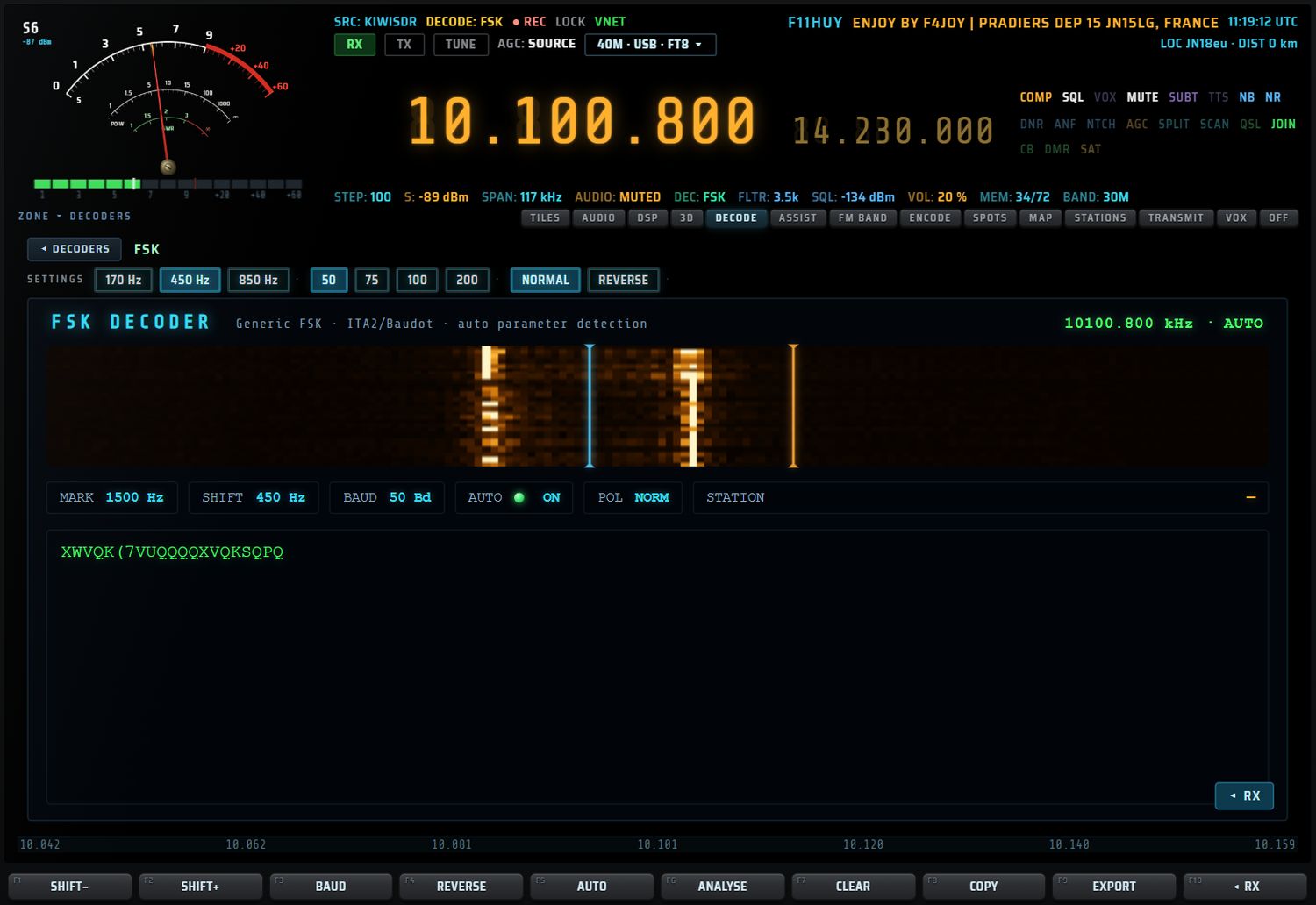
| Réglage | Valeurs | Défaut |
|---|---|---|
| SHIFT | 170 · 450 · 850 Hz | 450 Hz |
| BAUD | 50 · 75 · 100 · 200 | 50 |
| SENSE | NORMAL · REVERSE | NORMAL |
| Tonalité MARK | — | 1500 Hz |
| AUTO | détection automatique | marche |
- La page montre MARK, SHIFT, BAUD, AUTO (cliquable), POL (cliquable), STATION et la console de texte.
- Réglez shift, vitesse et sens par le bandeau SETTINGS ; un réglage manuel coupe AUTO.
- La rangée de touches F est celle de RTTY ; F6 ANALYSE fonctionne de la même façon.
PSK31 et BPSK63
Où écouter : 7070 kHz, 14070 kHz… (voir le tableau). Mode : USB.

Sur un serveur OpenWebRX, la touche ouvre la fenêtre du décodeur serveur (« PSK31 TERMINAL », voir décodeurs serveur).
SSTV
Où écouter : 14230 kHz (20 m), 7043 kHz, 3730 kHz, 21340 kHz, 28680 kHz. En VHF, la station spatiale ISS émet parfois en SSTV sur 145.800 MHz en FM (récepteur local nécessaire). Mode : USB en HF, FM au-dessus de 50 MHz.
Le décodeur reconnaît Martin M1 et M2, Scottie S1 et S2, Robot 36. Il lit le code VIS en tête d'image ; si ce code n'est pas lu, il suppose Martin M1. Aucun réglage n'est nécessaire.
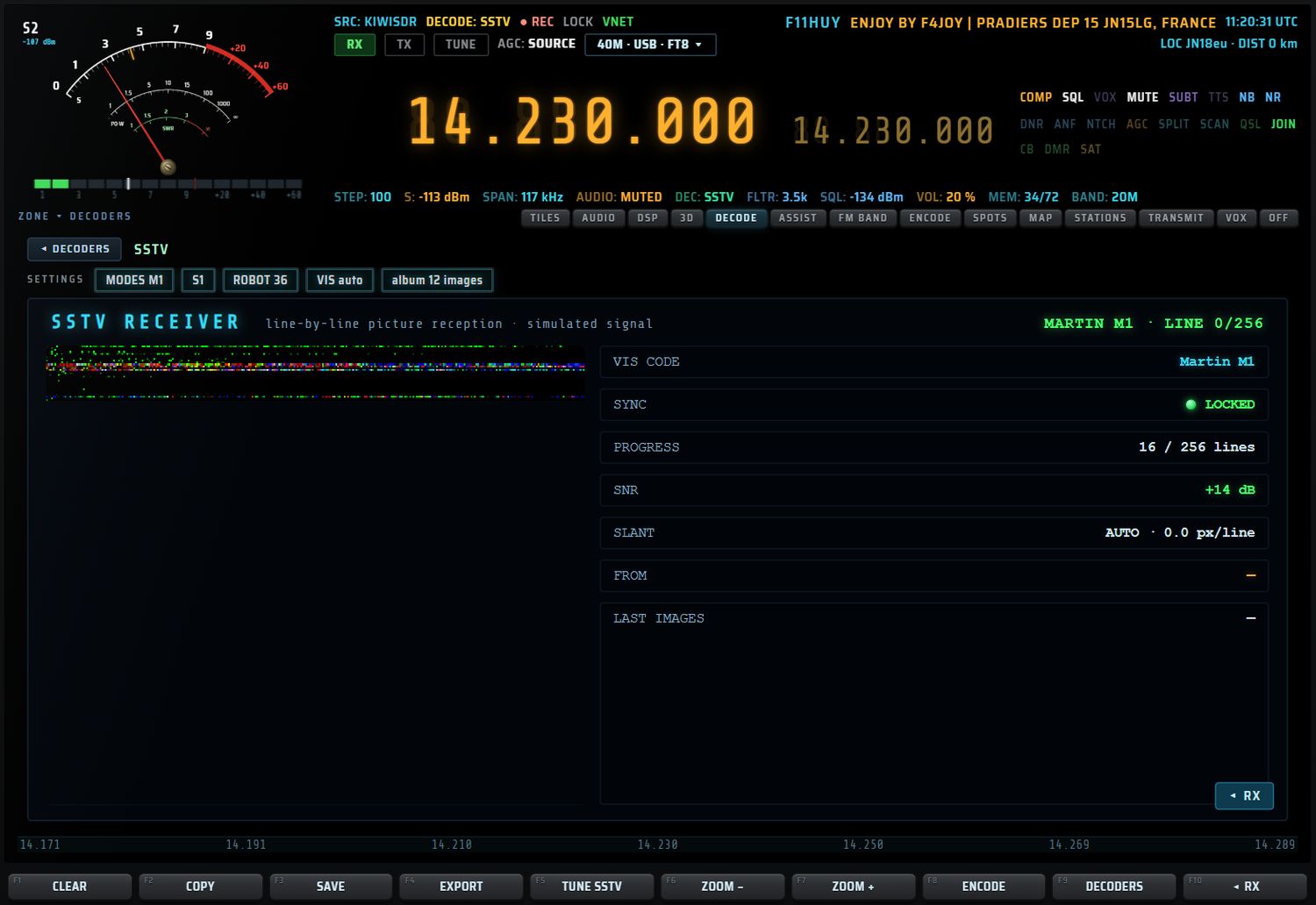
- À gauche, l'image se dessine ligne après ligne (320 × 256 pixels).
- À droite : VIS CODE (mode reconnu), SYNC (verrouillage), PROGRESS (lignes reçues sur 256), SNR, SLANT (correction d'inclinaison), FROM (indicatif repéré), LAST IMAGES (les dernières images reçues).
- Les images sont reçues même si la page n'est pas ouverte, tant que SSTV est le décodeur choisi.
Touches F : CLEAR, COPY, SAVE, EXPORT, TUNE SSTV, ZOOM −, ZOOM +, ENCODE, DECODERS, ◂ RX.
WEFAX (fac-similé météo)
Où écouter :
- DWD (Allemagne) : 3855 kHz, 7880 kHz, 13882.5 kHz ;
- Northwood (Royaume-Uni) : 8040 kHz ;
- ASSIST connaît aussi 2618.5, 4610, 6328, 9165, 11086.5, 12750, 16971 et 3289.5 kHz.
Mode : USB, posé automatiquement. Le décodeur démodule une sous-porteuse FM de 1900 ± 400 Hz : noir à 1500 Hz, blanc à 2300 Hz. L'image n'est juste que si l'accord est exact : décalé, le fax sort trop clair, trop sombre ou illisible.
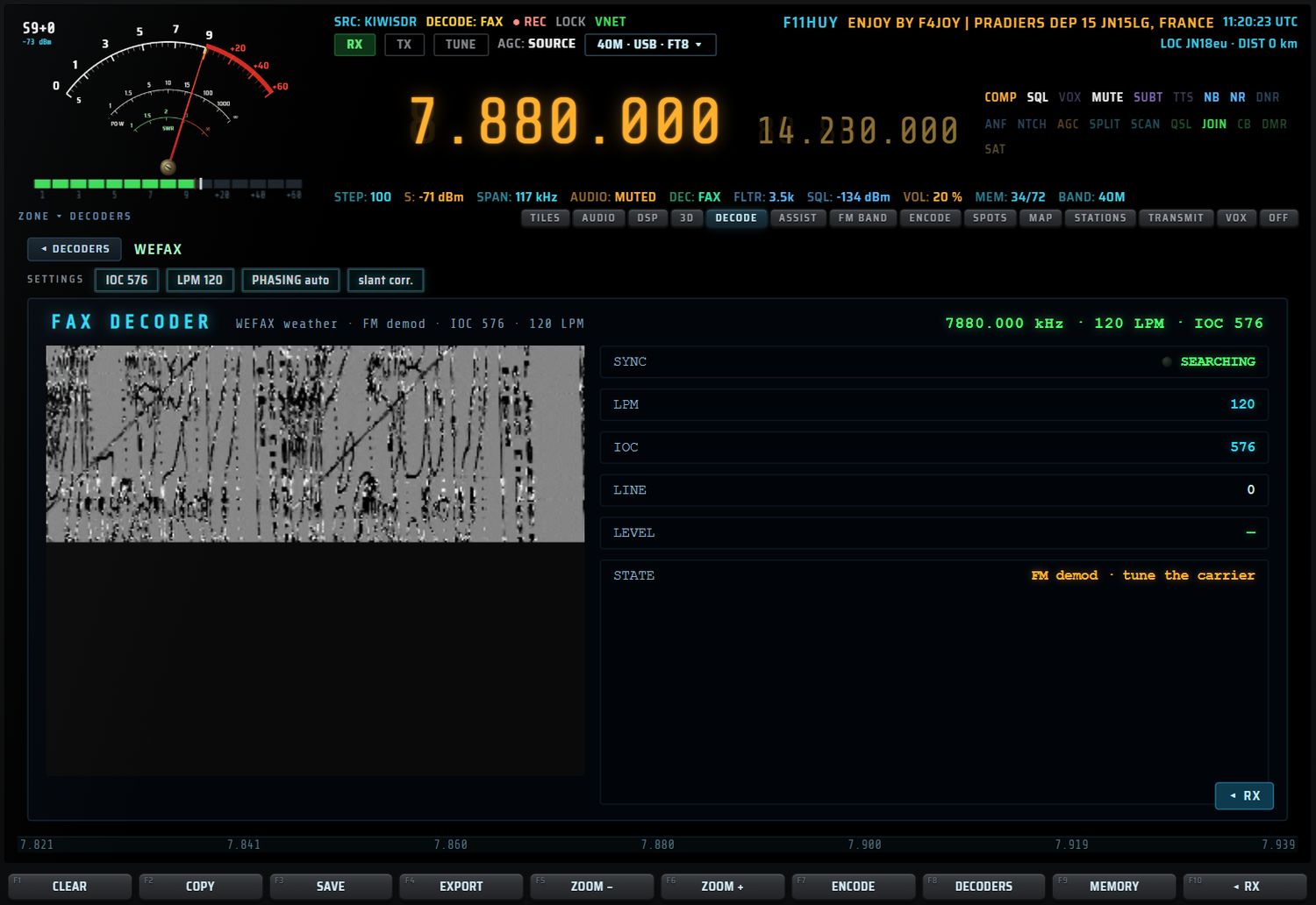
- À gauche, la carte se dessine ligne après ligne.
- À droite : SYNC (recherche ou verrouillage du début de ligne), LPM (lignes par minute : 120), IOC (indice de coopération : 576), LINE (ligne en cours), LEVEL (niveau), STATE (état et conseil, par exemple « FM demod · tune the carrier »).
- LPM 120 et IOC 576 sont fixes : ce sont les valeurs des stations météo citées plus haut.
- La carte est reçue même si la page n'est pas ouverte, tant que WEFAX est le décodeur choisi.
NAVTEX
Où écouter : 518 kHz (international, en anglais), 490 kHz (national), 4209.5 kHz. Mode : USB.
La fenêtre du serveur affiche un journal horodaté des messages (voir décodeurs serveur). Pour une veille quotidienne du 518 kHz, voir UTILITY WATCH.
DMR
Où écouter : relais et simplex dans les bandes 144–146 MHz, 430–440 MHz et 446–446.2 MHz (DIGI TUNE propose 434 MHz).
La page DMR a deux vues :
- MONITOR : métadonnées (avec un WebSDR, par exemple) ;
- VOICE (RTL-SDR local) : symboles C4FM à 4800 symboles/s, voix AMBE+2 décodée et jouée, compteur de trames (FRAMES), taux d'erreur (BER), interlocuteur (ID, slot TS, groupe TG), vumètre audio et journal.
RDS
Où écouter : radiodiffusion FM, 87.5–108 MHz, en WFM, avec un récepteur local (RTL-SDR ou HackRF).
Le RDS décode : code PI, nom de la station (PS), RadioText, type de programme (PTY), indicateurs TP / TA / MS, fréquences alternatives (AF) et heure (CT). Les informations s'affichent sous la fréquence et dans le mini-écran gauche dès que vous êtes dans la bande 88–108 MHz. Pour l'écoute de la bande FM, voir aussi le chapitre FM BAND.
ADS-B
Où écouter : 1090 MHz, avec un RTL-SDR ou un HackRF local. Sur un serveur OpenWebRX qui le propose, le service carte du serveur est utilisé.
La page ADS-B a trois onglets : RADAR, MAP et LIST (liste des avions), avec un compteur de messages reçus et validés (MSG / OK). Voir aussi le chapitre 10.
AIS
Où écouter : 161.975 et 162.025 MHz. L'AIS passe par le service carte d'un serveur OpenWebRX : la fenêtre « AIS SHIP TRACKER » liste les navires ; un clic sur un navire ouvre sa fiche MarineTraffic dans le navigateur.
IDENT (identification de signal)
IDENT écoute le signal accordé et propose le mode : CW, RTTY/FSK, FT8/FT4, PSK31, SSTV/FAX, voix BLU, porteuse ou inconnu.

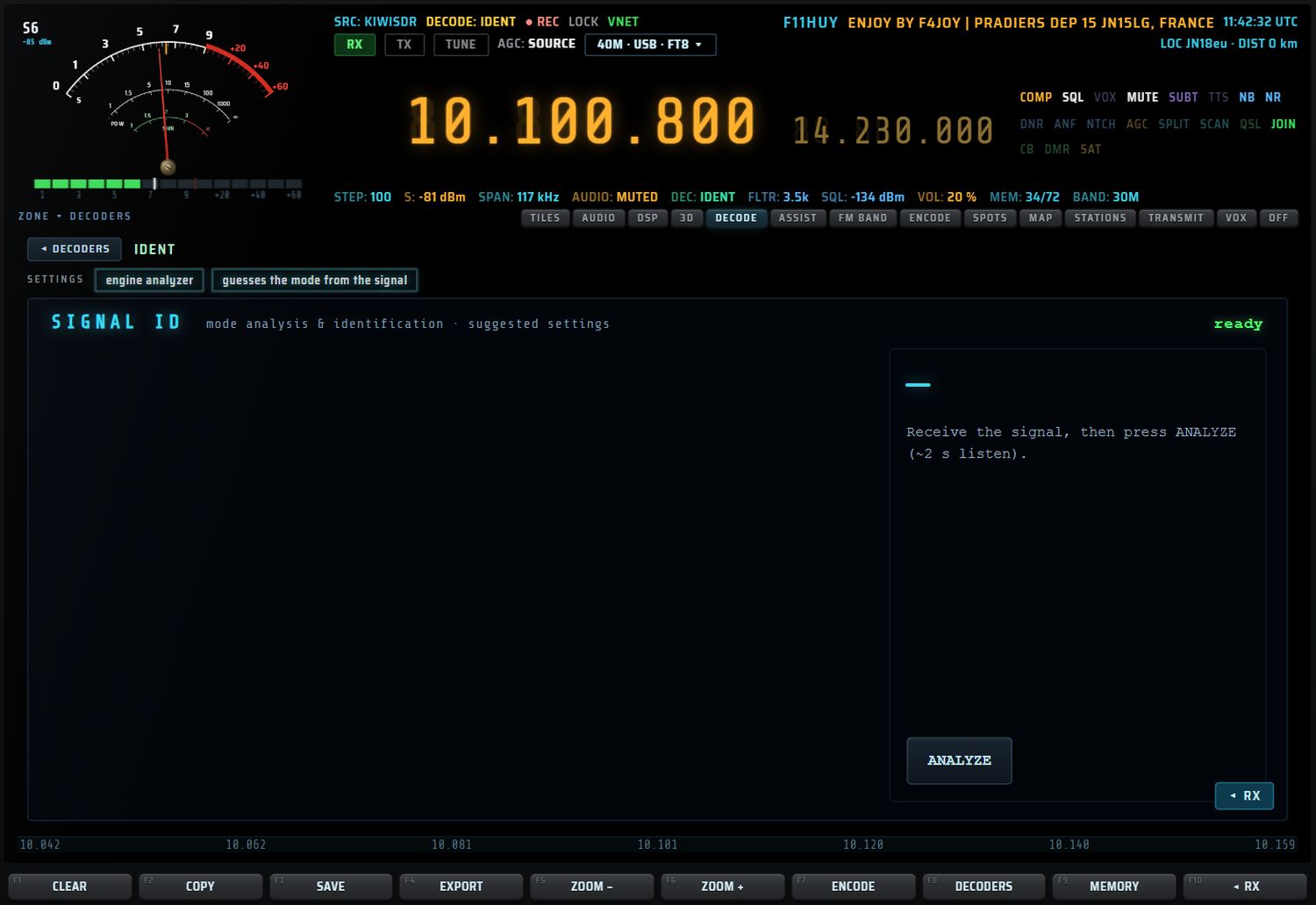
- Accordez le signal.
- Appuyez sur ANALYZE : IDENT écoute environ 2 secondes.
- La page affiche le mode proposé, l'indice de confiance, le détail de la mesure et une recommandation.
- APPLY pose le mode, le filtre, le shift et ouvre la page du décodeur.
HELL (Hellschreiber)
HELL décode le Feld-Hell (122,5 Bd, tonalité 1500 Hz par défaut). Il n'y a pas de texte à décoder : le décodeur peint la bande reçue, et vous lisez les caractères à l'œil.
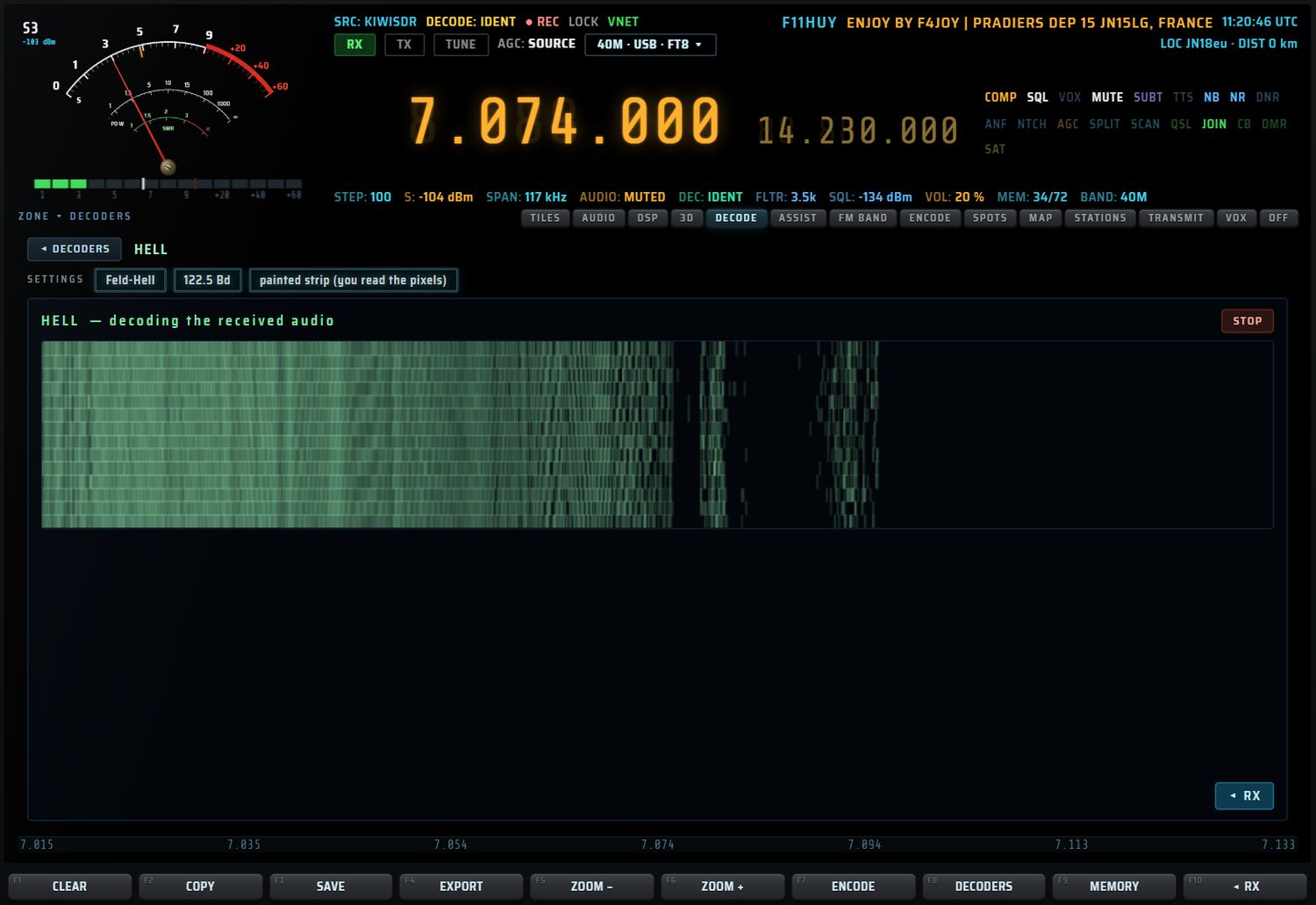
- L'AUX conseille « tune so the text stands upright » : retouchez l'accord jusqu'à ce que le texte soit droit.
- STOP arrête le décodeur.
THOR et FSQ
- THOR (famille DominoEX, 18 tonalités espacées de 7,8125 Hz, modulation IFK+).
- FSQ (33 tonalités, IFK+, 8,4 Bd).
Les deux affichent le texte reçu dans une boîte de texte, avec un bouton STOP. Mode : USB.
JS8, WSPR, PACKET : décodeurs serveur
Ces modes sont décodés par un serveur OpenWebRX. Ils n'ont pas de décodeur local.
| Touche | Fenêtre | Où écouter |
|---|---|---|
| JS8 | « JS8 MONITOR » | 7078 kHz, 14078 kHz (USB) |
| WSPR | « WSPR MONITOR » | 7038.6 kHz, 14095.6 kHz (USB) |
| PACKET | « PACKET MONITOR » | selon le serveur (FM au-dessus de 50 MHz) |
| PSK31 | « PSK31 TERMINAL » | 7070 kHz, 14070 kHz (USB) |
| NAVTEX | « NAVTEX RECEIVER » | 518 kHz (USB) |
La fenêtre d'un décodeur serveur affiche le serveur, la fréquence, le nombre de trames (ou de navires) et l'heure de la dernière, puis la liste des trames reçues.
APRS
L'APRS est émis sur 144.800 MHz en Europe (144.390 MHz en Amérique du Nord), en FM. Dans cette version, la touche APRS ne lance aucun décodeur.
FT2, DRM, OLIVIA, FREEDV : sans décodeur
Ces quatre touches sont grisées. Un appui affiche dans l'AUX « no decoder — and here is why » :
- FT2 n'est pas un mode publié ;
- DRM demande un décodeur audio xHE-AAC et OFDM qui n'est pas encore intégré ;
- OLIVIA : un décodeur partiel imprimerait du texte faux ;
- FREEDV : le codec n'est pas encore intégré à la console.
DIGI TUNE
DIGI TUNE (pavé droit, section TUNING, sous-titre « ref. freq », voir aussi le pavé) affiche, quand un décodeur est actif, une liste cliquable de fréquences de référence dans l'écran AUX. Un appui sur une fréquence l'accorde.
| Mode | Fréquences proposées |
|---|---|
| NAVTEX | 518 · 490 · 4209.5 kHz |
| SSTV | 14.230 · 7.043 · 3.730 MHz |
| FAX | 7.880 · 3.855 · 13.8825 MHz |
| FT8 | 7.074 · 14.074 · 3.573 MHz |
| FT4 | 7.0475 · 14.080 MHz |
| RTTY | 7.040 · 14.083 MHz |
| PSK31 | 7.070 · 14.070 MHz |
| WSPR | 7.0386 · 14.0956 MHz |
| JS8 | 7.078 · 14.078 MHz |
| DMR | 434 MHz |
| ADS-B | 1090 MHz |
ASSIST
ASSIST est l'aide à l'écoute et au décodage. Elle lit la cascade et le son reçu, reconnaît le signal, choisit le décodeur et ses réglages, cherche des stations, suit les satellites et vous conseille les bandes ouvertes.
ASSIST s'ouvre par l'onglet « ASSIST » de la barre d'onglets de la fente. Elle n'a pas de touche APP dédiée. Le dernier onglet utilisé est mémorisé.
L'en-tête et les touches F
En haut de la page : le titre « ASSIST » et le sous-titre de l'onglet, les cinq onglets F1 SIGNAL, F2 SCAN, F3 SATS, F4 LISTEN, F5 COACH, une zone d'état et, à droite, REMOTE (PC seulement, voir REMOTE).
| Touche | Action |
|---|---|
| F1 SIGNAL | onglet SIGNAL — « what is this signal? » |
| F2 SCAN | onglet SCAN — scanner intelligent |
| F3 SATS | onglet SATS — satellites et pilote automatique |
| F4 LISTEN | onglet LISTEN — « what do you feel like hearing? » |
| F5 COACH | onglet COACH — bandes du moment, session |
| F6 ANALYZE (FIND sur LISTEN) | analyse le signal accordé ; sur LISTEN, lance la recherche |
| F7 APPLY | applique le décodeur et ses réglages idéaux (voir APPLY) |
| F8 SCAN ▶ / SCAN ■ | lance ou arrête le scanner |
| F9 VIEW | relit la cascade (liste des signaux visibles) |
| F10 ◂ RX | retour à la réception normale |

- Écran AUX : « ASSIST — decode & listen helper », F1 à F5 pour les onglets, puis « F6 analyze · F7 apply · F8 scan · F9 read the view · F10 back ».
- Mini-écran gauche : le signal identifié, l'état du scanner (en cours, trouvé), le pilote satellite (AUTO, armé), la tournée d'écoute en cours.
Comment ASSIST écoute
- La cascade : ASSIST lit les lignes nouvelles pendant 1 à 1,5 seconde. Un signal est une région qui dépasse le bruit de fond de 6 dB ; ASSIST en donne le centre, le pic, la largeur et le rapport signal/bruit.
- Le son : ASSIST écoute 4 secondes de l'audio démodulé et mesure le spectre, les tonalités, les fréquences dominantes et l'enveloppe.
- Mesures fines : pour une tonalité unique, la largeur (PSK31 ≈ 31 Hz, PSK63 ≈ 63 Hz) et la vitesse CW (WPM) ; pour une FSK, le shift, le centre et la vitesse (45.45, 50, 75, 100, 150, 200 ou 300 Bd).
- Le plan des fréquences : une fréquence d'usage connue (FT8, NAVTEX 518 kHz, fax DWD 7880 kHz, RTTY DWD 10100.8 kHz…) renforce le verdict.
ASSIST classe alors le signal : FT8, FT4, WSPR, JS8, CW, RTTY, FSK, NAVTEX, PSK31/63, SSTV, WEFAX, APRS, AIS, ADS-B, RDS, DMR, voix (VOICE), radiodiffusion (BROADCAST), porteuse (CARRIER), MFSK, bruit (NOISE) ou inconnu (UNKNOWN). Une fiche accompagne chaque verdict.
F1 SIGNAL — « what is this signal? »

SIGNALS IN VIEW
- SCAN VIEW relit la cascade.
- ANALYZE HERE analyse le signal accordé.
- LEARN : mode apprentissage (voir ci-dessous).
- La liste montre les 13 signaux les plus forts : fréquence (MHz), largeur, niveau au-dessus du bruit (+dB). Le signal accordé est surligné.
- Un clic sur un signal l'accorde en son centre ; l'AUX affiche « listening 4 s… », puis l'analyse tombe.
Note en bas de la liste : « tune anywhere (click the waterfall): the signal is analysed after 4 s ». L'analyse automatique part quand la fréquence reste stable 4 secondes (un déplacement de plus de 30 Hz relance l'attente), si la page SIGNAL est visible ou si LEARN est actif. Elle ne part jamais pendant un scan, un balayage BANDS OPEN? ou un passage satellite piloté.
IDENTIFICATION
| Ligne | Contenu |
|---|---|
| Nom | le verdict en grand, la fréquence et le mode |
| Candidats | jusqu'à trois candidats, chacun avec sa barre de score |
| Why | pourquoi ce verdict (par exemple « usual frequency 7074 kHz ») |
| Language | la langue parlée, pour une voix ou une radiodiffusion (PC seulement, voir langue) |
| What it is | ce qu'est ce mode |
| By ear | comment il sonne |
| Ideal settings | les réglages conseillés |
| Measured | ce qu'ASSIST a mesuré : shift, centre, vitesse, ou tonalité, largeur, WPM ; largeur audio, dB au-dessus du bruit, enveloppe |
| Looks like (sigidwiki) | les ressemblances avec des signaux connus (voir ci-dessous) |
Dessous : F7 APPLY — <mode> et WHY NO DECODE?, puis un mini-spectre audio de 500 à 3500 Hz.
LOOKS LIKE
ASSIST compare la mesure à 21 signaux que RX·ONE ne décode pas : STANAG 4285 et 4529, MIL-STD-188-110, Link-11, MT63, Olivia, Contestia, THOR, Hellschreiber, ALE, SITOR-B/NAVTEX, PACTOR, plusieurs RTTY et FSK utilitaires, HFDL, DRM, DGPS, CODAR et signaux horaires. Les trois meilleurs (50 % et plus) s'affichent ; un clic ouvre leur fiche sigidwiki dans le navigateur.
LEARN
Avec LEARN allumé (réglage mémorisé), chaque signal où vous restez 4 secondes est expliqué dans l'écran AUX (« ASSIST · LEARN »), même quand la page ASSIST n'est pas affichée.
WHY NO DECODE?
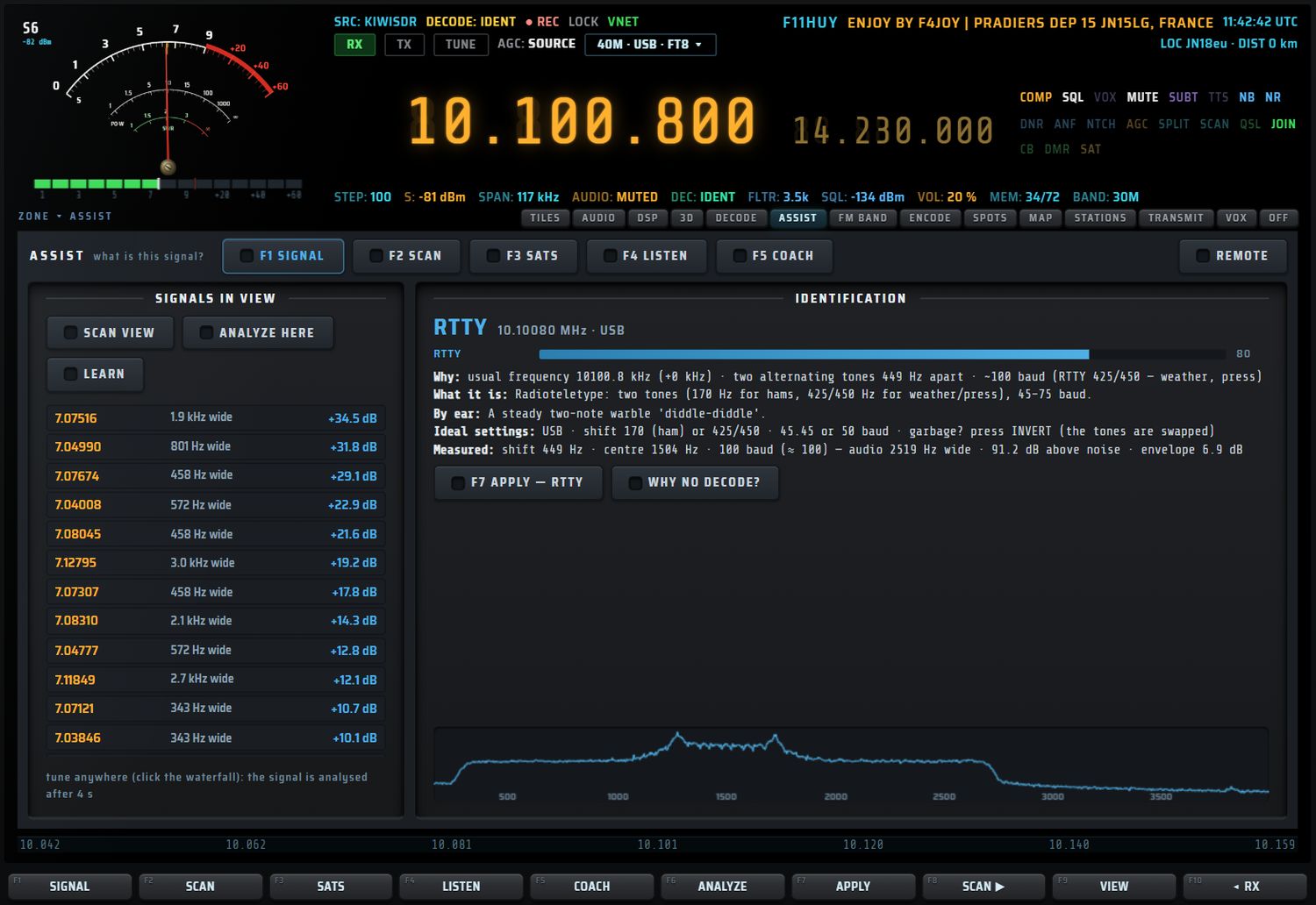
Ce diagnostic cherche pourquoi rien ne décode. Chaque ligne a un niveau : BAD, WARN, OK ou TIP.
- pas de récepteur connecté ; pas d'audio ; aucun décodeur choisi ;
- signal trop faible (moins de 10 dB au-dessus du bruit) ou faible (moins de 18 dB) ;
- signal hors du filtre (hors 250–3000 Hz) ;
- mauvaise bande latérale (mode numérique en LSB) ;
- APRS, AIS ou DMR hors FM ;
- FT8, FT4, WSPR ou JS8 à plus de 3 kHz de la fréquence normalisée ;
- horloge du PC décalée : décalage DT moyen de plus de 0,8 s sur au moins 4 décodes ;
- shift RTTY inhabituel ; conseil d'inversion (INVERT) ; vitesse CW.
Le bouton BACK TO THE SIGNAL revient à la fiche.
APPLY (F7)
APPLY prend le meilleur candidat disponible et met tout en place :
- FT8, FT4, WSPR, JS8 : accord sur la fréquence normalisée de la bande la plus proche.
- La page DECODE s'ouvre et ASSIST appuie sur la touche du mode (vue MODE).
- Le mode de réception de la fiche est posé après l'accord.
Messages : « only noise here » sur du bruit ; « analyze a signal first (F6) » sans analyse préalable. Pour un signal sans décodeur (voix, radiodiffusion), APPLY pose seulement le mode (« mode AM — no decoder needed »).
Auto-réglage du fax (WEFAX)
1,5 seconde après l'ouverture (7,5 s si l'accord a changé), ASSIST lit la tonalité dominante, la cale sur noir 1500 Hz / blanc 2300 Hz et décale l'accord si l'écart dépasse 30 Hz. L'AUX affiche « ASSIST · FAX ». S'il n'entend pas de fax : « no fax tone yet — the station may be between two charts ».

Auto-réglage RTTY et FSK
ASSIST rejoue les 6 dernières secondes reçues dans des décodeurs d'essai. Il essaie :
- la tonalité basse à ±8 Hz ;
- le shift mesuré et le shift normalisé le plus proche (170, 200, 425, 450, 850, 1000 Hz) ;
- les vitesses 45.45, 50, 75, 100 Bd et la vitesse mesurée ;
- les sens normal et inversé.
Il garde la combinaison qui produit de vrais mots (anglais, français, allemand, termes météo, ZCZC / NNNN / RYRY, groupes SYNOP de 5 chiffres), pose tonalité, shift, vitesse et sens, et coupe AUTO. L'AUX affiche par exemple « set: mark … · shift … · … Bd · normal — readable: "…" ». Si rien n'est lisible, en orange : « no readable text with any standard setting — the station may be idle, encrypted or not Baudot (see LOOKS LIKE) ».
Détection de la langue
ASSIST écoute 6 secondes et fait reconnaître la langue par le moteur vocal Whisper du PC. Il donne jusqu'à 5 langues avec leur probabilité ; le résultat est jugé sûr à partir de 50 %. Le premier usage charge le modèle (jusqu'à 45 secondes). Sans parole : « no speech heard ». Cette détection ne touche pas aux réglages de VOX.
F2 SCAN — le scanner intelligent
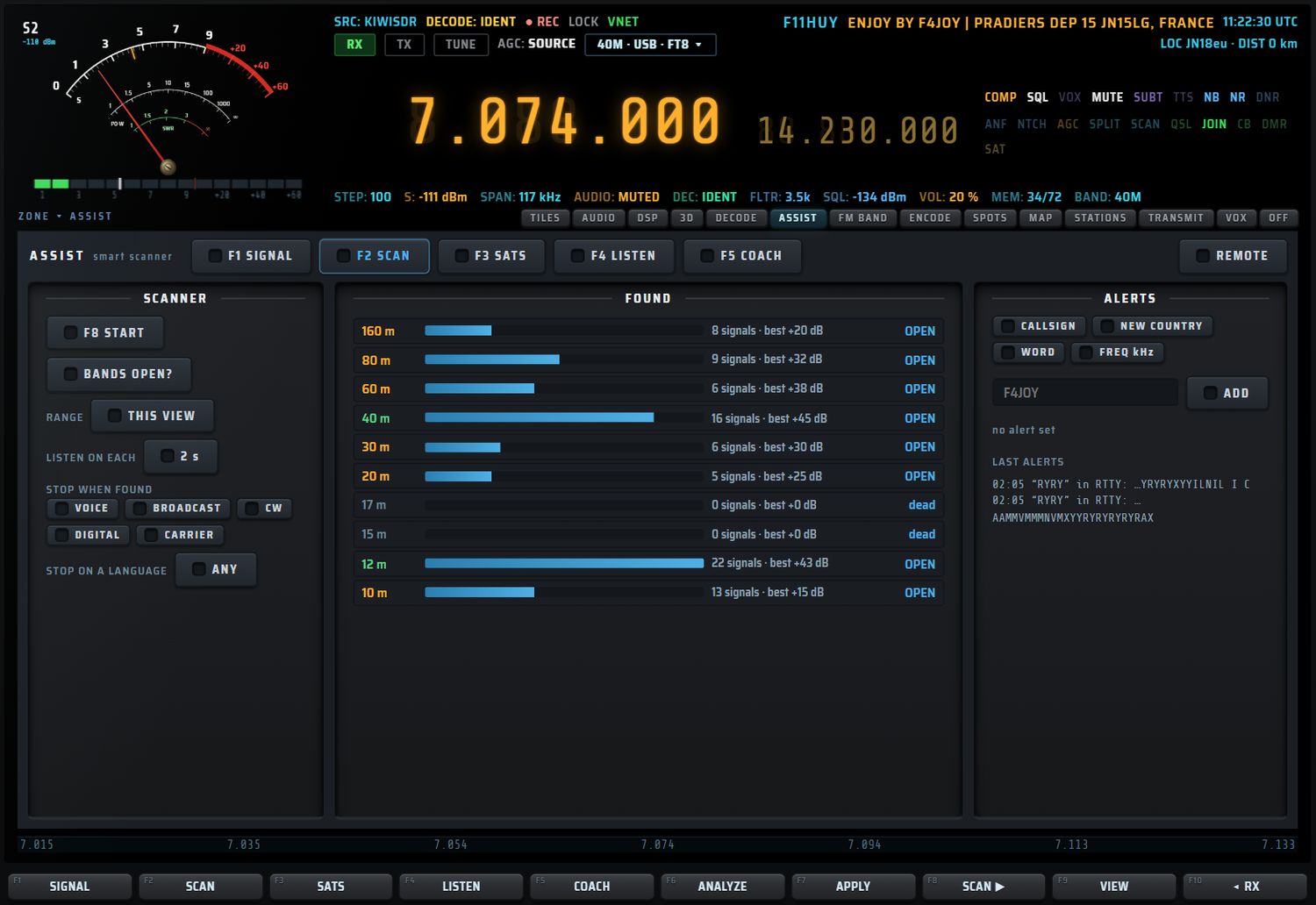
SCANNER
| Commande | Valeurs | Défaut |
|---|---|---|
| F8 START / F8 STOP | lance / arrête le scan (aussi F8) | — |
| BANDS OPEN? | balayage des bandes HF (voir ci-dessous) | — |
| RANGE | THIS VIEW (la vue de la cascade) · WHOLE BAND (la bande amateur entière) | THIS VIEW |
| LISTEN ON EACH | 2 → 4 → 6 s d'écoute par signal | 4 s |
| STOP WHEN FOUND | VOICE · BROADCAST · CW · DIGITAL · CARRIER (cochez une ou plusieurs catégories) | — |
| STOP ON A LANGUAGE | ANY → FRENCH → ENGLISH → SPANISH → GERMAN → ITALIAN → PORTUGUESE → RUSSIAN → ARABIC → CHINESE | ANY |
Les réglages du scanner sont mémorisés. STOP ON A LANGUAGE demande la version PC (Whisper).
Déroulement :
- ASSIST découpe la zone en fenêtres (pour WHOLE BAND, des fenêtres de 80 % de la largeur affichée).
- Dans chaque fenêtre, il retient les signaux à plus de 7 dB du bruit et de moins de 20 kHz de large (25 au plus). Un signal de 5 kHz ou plus passe en AM.
- Il écoute chaque signal le temps choisi (au moins 6 s quand il cherche une langue), le classe et, sur PC, reconnaît la langue.
- Sur une catégorie ou une langue cochée, il s'arrête, émet un bip à 880 Hz et applique le décodeur.
FOUND
Les 16 derniers résultats : heure, fréquence (MHz), catégorie en couleur, décodeur ou langue, niveau. Un clic accorde la fréquence et pose le bon décodage : touche du décodeur et mode pour un signal numérique ou CW ; LSB sous 10 MHz, USB au-dessus pour une voix ; AM pour une radiodiffusion.
BANDS OPEN?
ASSIST passe sur la fréquence FT8 de chaque bande HF recevable (environ 4 secondes par bande) et compte les raies étroites (400 Hz de large au plus, 10 dB au-dessus du bruit). Chaque bande reçoit un verdict : OPEN, weak ou dead, avec le nombre de signaux et le meilleur niveau. Un clic sur une bande accorde sa fréquence FT8 en USB. La fréquence et le mode d'avant sont rendus à la fin du balayage ; le résultat est gardé et sert au COACH.
ALERTS
| Type | Exemple | Se déclenche quand… |
|---|---|---|
| CALLSIGN | F4JOY | cet indicatif est décodé |
| NEW COUNTRY | — | un pays nouveau est décodé (une seule alerte de ce type, active après plus de 5 pays connus) |
| WORD | GALE | ce mot apparaît dans le texte décodé |
| FREQ kHz | 7040 | de l'activité apparaît sur cette fréquence (plus de 10 dB au-dessus du bruit dans la cascade) |
- Choisissez le type, tapez la valeur dans le champ, appuyez sur ADD.
- Un clic sur une alerte de la liste la retire.
- LAST ALERTS montre les 6 dernières alertes déclenchées.
Une alerte s'affiche dans l'AUX (« ASSIST · ALERT ») avec un bip. Les alertes sont contrôlées toutes les 3 secondes.
F3 SATS — satellites et pilote automatique
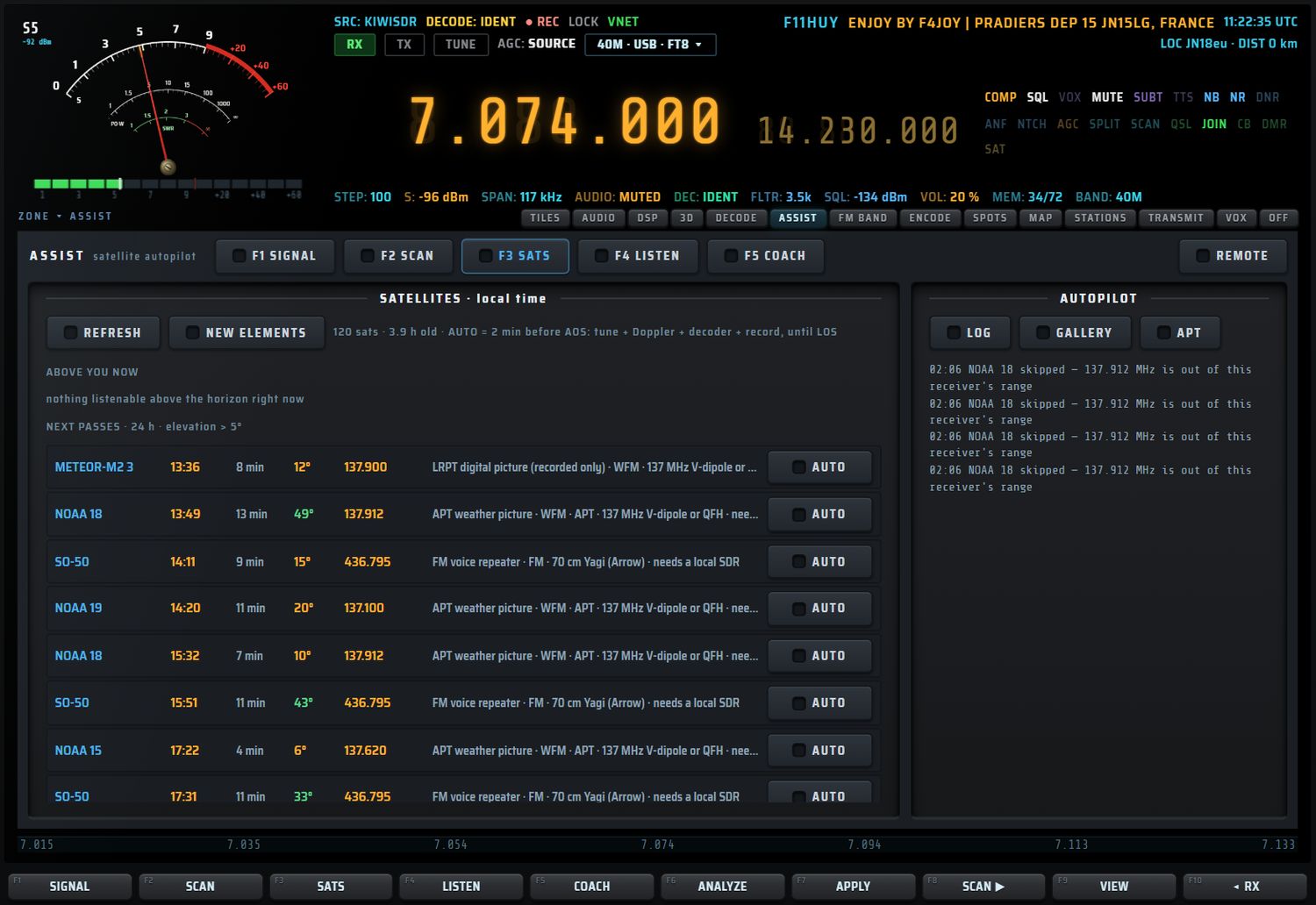
Satellites suivis
| Satellite | Fréquence | Mode | Usage |
|---|---|---|---|
| ISS | 145.800 MHz | FM | SSTV |
| ISS | 145.825 MHz | FM | APRS |
| SO-50 | 436.795 MHz | FM | relais vocal |
| AO-91 | 145.960 MHz | FM | relais vocal |
| FO-29 | 435.850 MHz | USB | transpondeur |
| NOAA 15 | 137.620 MHz | WFM | image APT |
| NOAA 18 | 137.9125 MHz | WFM | image APT |
| NOAA 19 | 137.100 MHz | WFM | image APT |
| METEOR-M2 3 | 137.900 MHz | WFM | image LRPT (enregistrée seulement) |
Chaque ligne indique aussi l'antenne conseillée (par exemple « 137 MHz V-dipole or QFH », « 70 cm Yagi (Arrow) ») et « needs a local SDR » quand le récepteur connecté ne couvre pas la fréquence.
La page
- REFRESH recalcule ; NEW ELEMENTS télécharge des éléments orbitaux frais. La ligne d'état donne le nombre de satellites et l'âge des éléments.
- ABOVE YOU NOW : les satellites au-dessus de l'horizon (élévation, azimut, montée ou descente, mode). TUNE ▸ accorde avec correction Doppler et lance le décodeur (ou l'APT).
- NEXT PASSES · 24 h · elevation > 5° (30 au plus, heure locale) : nom, heure de début (ou NOW), durée, élévation maximale (en vert au-dessus de 30°), fréquence, description, et le bouton AUTO / AUTO ON. AUTO est refusé si le récepteur ne couvre pas la fréquence.
Le pilote automatique (AUTO)
Un passage armé (AUTO ON) se déroule seul :
- 2 minutes avant le lever (AOS) : accord, décodeur (ou APT), mode, et enregistrement si aucun n'est en cours.
- Pendant le passage : le Doppler est recalculé toutes les 2 secondes ; réaccord au-delà de 150 Hz d'écart.
- Au coucher (LOS) : arrêt de l'enregistrement, capture du texte ou de l'image dans la GALLERY, ligne au journal, désarmement.
Panneau AUTOPILOT :
- LOG : les 16 dernières lignes du journal du pilote ;
- GALLERY : les 20 dernières captures avec vignette ; un clic ouvre l'image et le texte, ◂ BACK revient ;
- APT : le décodeur d'images NOAA.
APT NOAA
- Accordez un NOAA en WFM (137.100, 137.620 ou 137.9125 MHz) : « tune a NOAA in WFM, then start ».
- Appuyez sur DECODE APT HERE ; STOP APT l'arrête.
Le décodeur démodule la sous-porteuse de 2400 Hz, à 2 lignes par seconde, et construit une image de 1040 pixels de large, jusqu'à 1600 lignes.
F4 LISTEN — « I feel like listening to… »
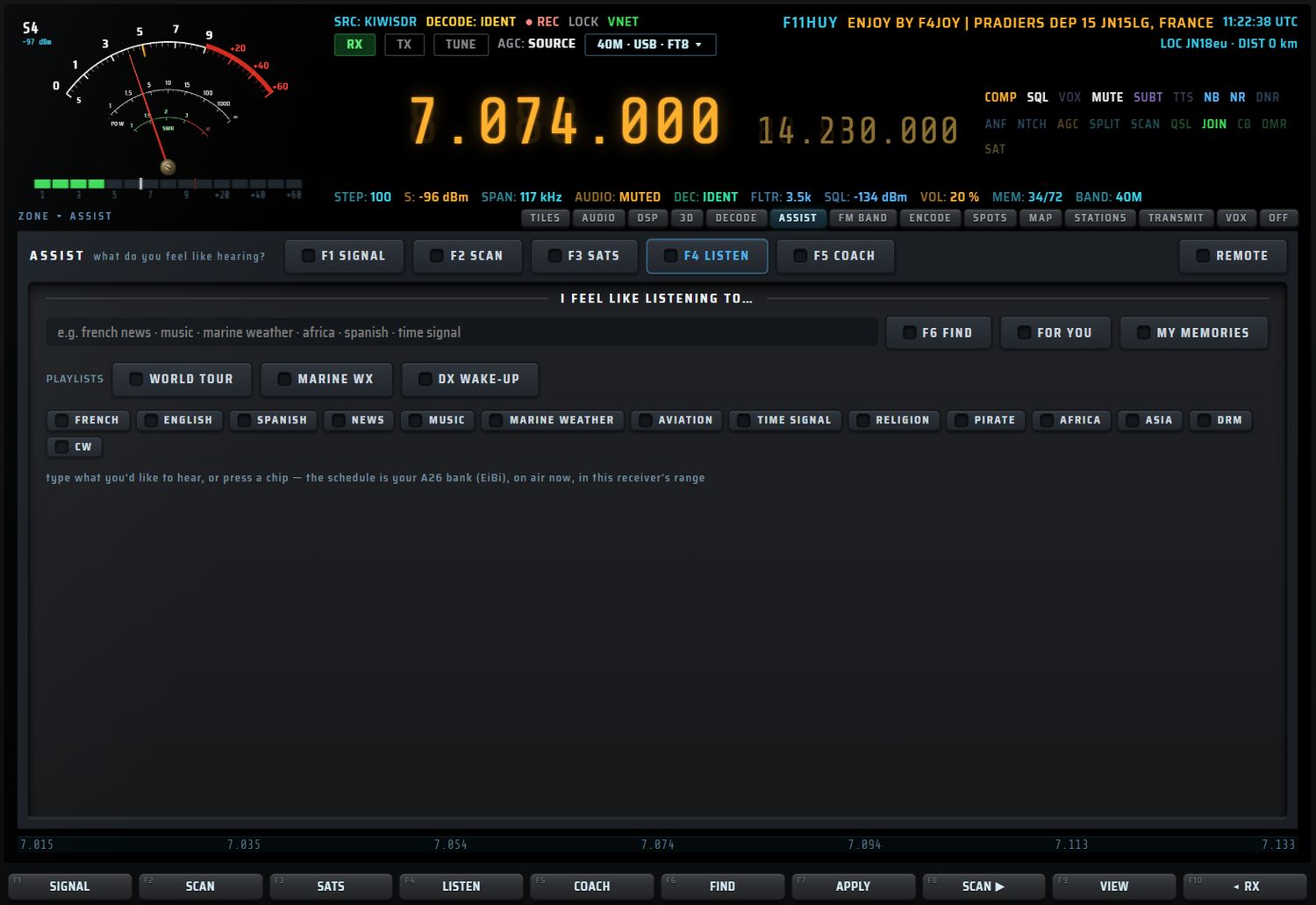
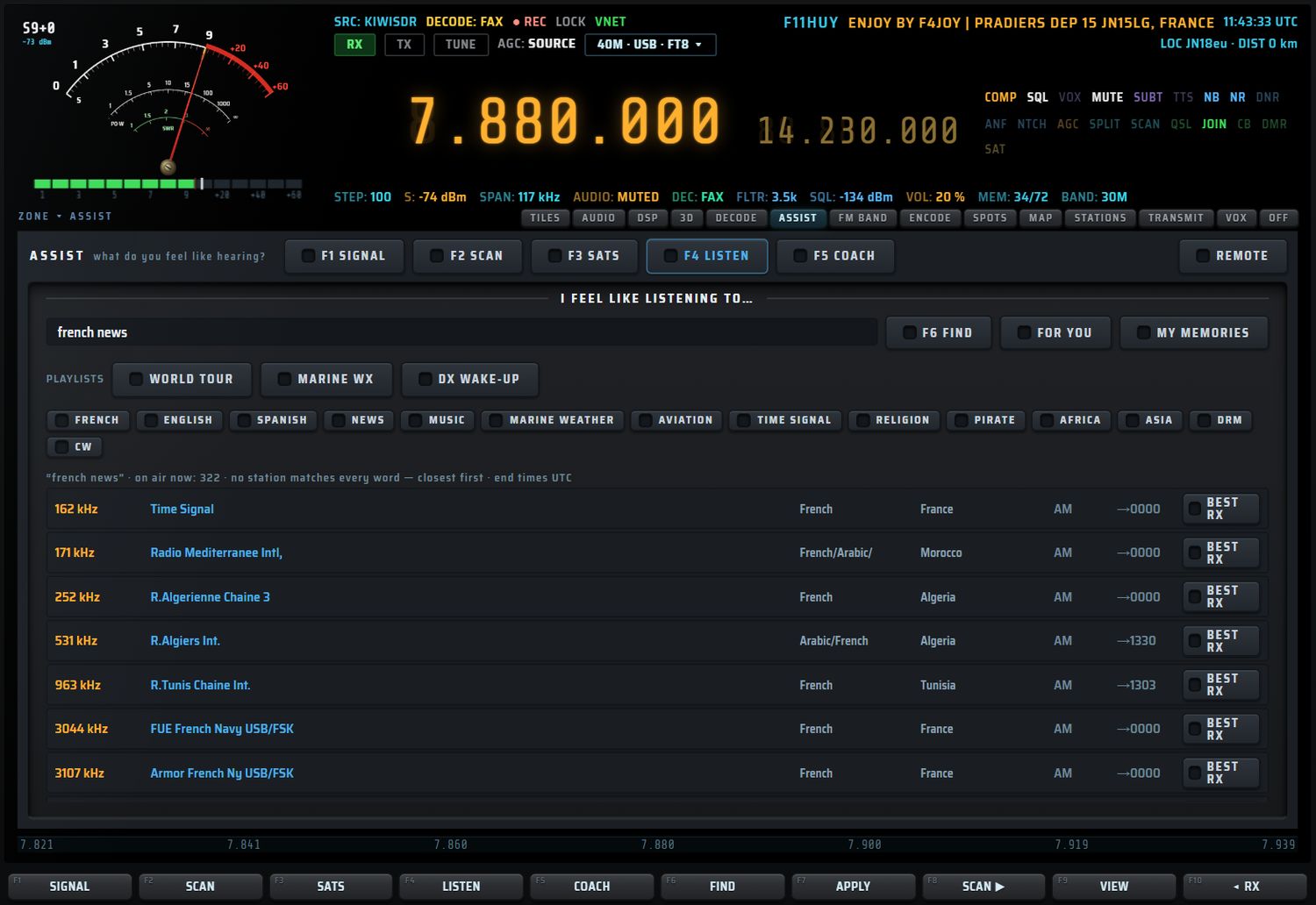
- Tapez ce que vous avez envie d'écouter (par exemple
french news) ou appuyez sur une puce. - Appuyez sur F6 FIND (ou Entrée).
- Un clic sur une ligne de résultat pose le mode (AM, USB, LSB, CW ; FAX en USB ; DRM en AM) et accorde.
La source : votre banque A26 (EiBi). Seules les émissions à l'antenne maintenant et dans la couverture du récepteur sont proposées. Les mots se cumulent ; si aucune station ne les réunit tous, la liste commence par les plus proches (« no station matches every word — closest first »). 40 lignes au plus, une par station.
Chaque ligne : fréquence (kHz), station, langue, pays, mode, heure de fin (UTC, « →HHMM ») et BEST RX.
- BEST RX se connecte au KiwiSDR libre le plus proche de la zone visée par l'émission (ou du pays émetteur, sinon de votre QTH), puis accorde 6 secondes plus tard.
- FOR YOU propose selon vos goûts appris : une écoute de plus de 90 secondes compte +1 pour la langue, le pays et la station ; un départ en moins de 20 secondes compte −0,5. Les goûts sont mémorisés.
PLAYLISTS
| Liste | Ce qu'elle fait |
|---|---|
| WORLD TOUR | une langue différente toutes les 45 secondes |
| MARINE WX | les météos marines, 60 secondes chacune |
| DX WAKE-UP | les trois meilleures bandes FT8 du COACH, 120 secondes chacune |
Un nouveau clic sur la liste en cours l'arrête (■).
MY MEMORIES
MY MEMORIES liste vos mémoires de la bande courante. CHECK les écoute une à une (40 par passage, 2,5 secondes chacune) ; STOP arrête. Chaque mémoire reçoit un état : alive si elle a été entendue (6 dB au-dessus du bruit) depuis moins de 6 heures ; DEAD si elle n'a jamais été entendue en au moins deux contrôles, ou si elle est silencieuse depuis plus de 30 jours. Un clic accorde.
F5 COACH — les bandes maintenant, la session
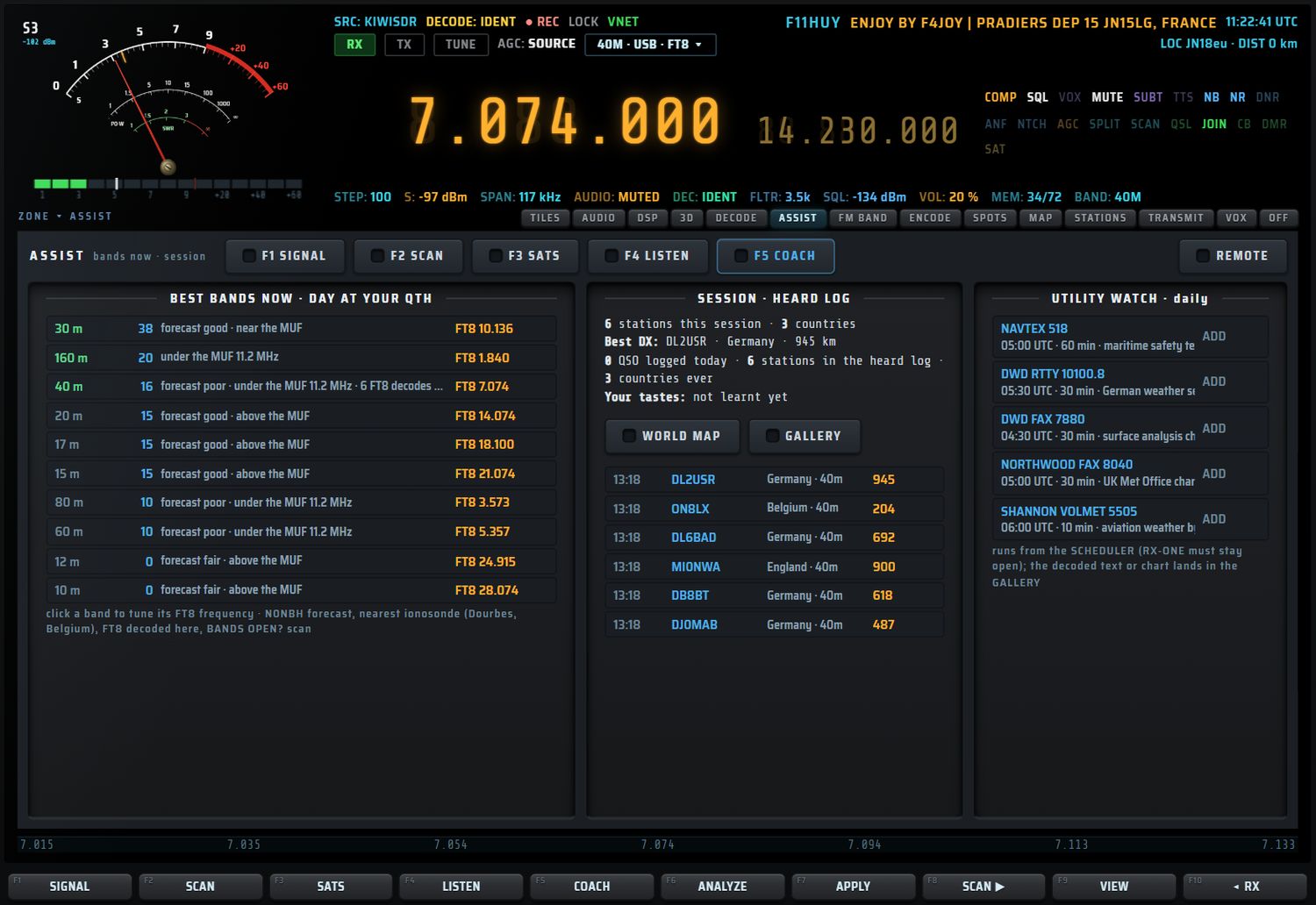
BEST BANDS NOW
Le titre indique jour ou nuit à votre QTH. Chaque bande reçoit un score qui additionne :
- la prévision N0NBH (Good +30, Fair +15, Poor −10) ;
- la MUF de l'ionosonde la plus proche (bande sous 0,9 × MUF +20, proche de la MUF +8, au-dessus −15) ;
- les décodes FT8 de la dernière heure (jusqu'à +40) ;
- les directions des pays entendus ;
- le dernier balayage BANDS OPEN?.
Les trois premières bandes sont en vert. Un clic accorde la fréquence FT8 de la bande en USB.
SESSION · HEARD LOG
Stations et pays de la session, meilleur DX, QSO du jour, stations du journal permanent (3000 au plus), pays reçus depuis toujours, vos goûts. WORLD MAP ouvre la carte des stations reçues ; GALLERY la galerie des captures. Dessous, les 30 dernières stations : heure, indicatif, pays et bande, distance (km).
UTILITY WATCH · daily
Des veilles quotidiennes prêtes à l'emploi. ADD crée la tâche dans le programmateur (enregistrement compris) ; un nouveau clic (ON) la retire. Le texte ou la carte décodés arrivent dans la GALLERY.
| Veille | Fréquence | Mode · décodeur | Heure UTC | Durée |
|---|---|---|---|---|
| NAVTEX 518 | 518 kHz | USB · NAVTEX | 05:00 | 60 min |
| DWD RTTY 10100.8 | 10100.8 kHz | USB · RTTY (50 Bd, 450 Hz) | 05:30 | 30 min |
| DWD FAX 7880 | 7880 kHz | USB · FAX | 04:30 | 30 min |
| NORTHWOOD FAX 8040 | 8040 kHz | USB · FAX | 05:00 | 30 min |
| SHANNON VOLMET 5505 | 5505 kHz | USB · voix enregistrée | 06:00 | 10 min |
REMOTE — ASSIST sur votre téléphone
REMOTE ouvre ASSIST à un téléphone ou une tablette du même réseau local.
- Appuyez sur REMOTE (en haut à droite de la page ASSIST). Le bouton s'allume.
- La zone d'état affiche l'adresse à ouvrir (
http://<adresse du PC>:8090/) et un PIN de 4 chiffres. L'AUX le rappelle : « open … on your phone or tablet · PIN ». - Sur le téléphone, ouvrez cette adresse dans le navigateur et tapez le PIN.
- Un nouvel appui sur REMOTE éteint le serveur.
- Le serveur est éteint par défaut ; il écoute sur le port 8090 du réseau local.
- Un nouveau PIN (1000 à 9999) est tiré à chaque allumage. Sans le bon PIN, le téléphone est refusé (« wrong PIN »).
- Le navigateur du téléphone mémorise le PIN.
La page mobile
La page « RX·ONE ASSIST · REMOTE » affiche en haut la fréquence, le mode et la station (rafraîchis toutes les 3 secondes), et en bas une barre de cinq onglets :
| Onglet | Contenu |
|---|---|
| SIGNAL | READ THE VIEW, ANALYZE HERE, liste des signaux (un appui accorde, attend 4 s et identifie), fiche avec APPLY, LANGUAGE?, WHY NO DECODE? |
| SCAN | START / STOP, WHOLE BAND, BANDS OPEN?, résultats cliquables |
| SATS | ABOVE YOU NOW (TUNE), NEXT PASSES · 24 H avec AUTO / AUTO ON, AUTOPILOT LOG |
| LISTEN | recherche, FIND, FOR YOU, WORLD TOUR / MARINE WX / DX WAKE-UP, puces, résultats cliquables |
| COACH | BEST BANDS NOW (un appui accorde en USB), UTILITY WATCH · DAILY, HEARD LOG |
Le serveur MCP : piloter RX·ONE depuis un assistant IA
Le serveur MCP rxone permet à un assistant IA compatible MCP (par exemple Claude Code) de piloter RX·ONE : accorder, analyser, lancer un décodeur, lire ce qui est décodé, scanner, suivre les satellites. Il ne contient aucun décodeur : il commande l'application ouverte sur le PC et appelle les mêmes fonctions que la façade et ASSIST.
Installation
- Dans le dossier
mcpde RX·ONE, installez les dépendances :npm install. - Déclarez le serveur dans le fichier
.mcp.jsonde votre assistant :{ "mcpServers": { "rxone": { "command": "node", "args": ["<dossier RX-ONE>/mcp/rxone-mcp.mjs"], "env": { "RXONE_CDP_PORT": "9222" } } } } - Lancez RX·ONE avec l'option
--remote-debugging-port=9222(raccourci « RX-ONE (debug 9222) »). Le port se change par la variableRXONE_CDP_PORT.
Si l'application n'est pas joignable, l'outil répond « RX-ONE injoignable sur le port 9222 : lance l'appli avec le raccourci « RX-ONE (debug 9222) » ».
Comme dans toute la console, une fréquence est le centre du signal ; FT8, FT4, WSPR et JS8 sont accordés sur leur fréquence normalisée.
Les 31 outils
| N° | Outil | Rôle | Paramètres |
|---|---|---|---|
| 1 | rx_status | état : source, fréquence (centre), mode, bande, décodeur actif, décodeurs disponibles, santé FT8 | — |
| 2 | rx_tune | accorde (centre du signal), mode optionnel (LSB, USB, CW, AM, SAM, FM, WFM, DATA…) ; la fréquence est posée avant le mode | freq_hz ou freq_khz, mode (facultatifs) |
| 3 | rx_rf_scan | analyse la cascade : bruit de fond et jusqu'à 25 signaux (centre, pic, largeur, S/B) | seuil_db (6), largeur_min_hz, duree_ms (1500) |
| 4 | rx_audio_analyze | analyse du son démodulé : bruit, largeur, régions, tonalités, dominantes, enveloppe | secondes 1–8 (4) |
| 5 | rx_identify | décodeurs proposés, avec leurs raisons (plan de bande, empreinte audio, cascade) | secondes 1–8 (4) |
| 6 | rx_decoder_start | lance un décodeur, comme sa touche : ft8, ft4, cw, rtty, fsk, psk, sstv, wefax, navtex, dmr, rds, adsb, ais, ident, js8, wspr, thor, fsq, hell, aprs, packet | decodeur |
| 7 | rx_decoder_read | lit le texte décodé et les 40 dernières lignes FT8/FT4 | caracteres (1500) |
| 8 | rx_autotune | accord automatique sur le signal le plus fort (ou le plus proche de cible_hz) dans ±recherche_khz ; FT8, FT4, WSPR, JS8 → fréquence normalisée en USB | cible_hz, recherche_khz (3), decodeur, appliquer |
| 9 | rx_decode_assist | analyse et propose un décodeur ; avec appliquer=true, accorde, lance le meilleur disponible et lit la sortie après attente_s | appliquer, attente_s 0–60 (15) |
| 10 | rx_assist_identify | identification par ASSIST (shift et vitesse FSK compris) ; avec signal_index, accorde ce signal puis l'analyse | signal_index |
| 11 | rx_assist_view | signaux de la cascade, numérotés (centre, largeur, S/B) | — |
| 12 | rx_assist_apply | applique la meilleure identification (accord normalisé, décodeur, mode) | — |
| 13 | rx_scan | scanner ASSIST : démarrer (zone vue ou bande), arrêter, résultats | action start / stop / results, zone |
| 14 | rx_sat_passes | passages des 24 h, état du pilote et journal | — |
| 15 | rx_sat_autopilot | arme ou désarme un passage (accord, Doppler, décodeur, enregistrement de l'AOS à la LOS) | cle, on |
| 16 | rx_listen_find | « j'ai envie d'écouter… » dans A26/EiBi, à l'antenne maintenant ; sans q, selon vos goûts (25 lignes) | q |
| 17 | rx_listen_play | accorde la ligne i du dernier rx_listen_find | i |
| 18 | rx_coach | meilleures bandes maintenant (N0NBH, MUF, FT8 local) | — |
| 19 | rx_diagnose | « pourquoi ça ne décode pas » | — |
| 20 | rx_signal_lookalike | comparaison à la base sigidwiki, lien vers la fiche | — |
| 21 | rx_language | langue parlée (Whisper local du PC) ; sur=false sous 50 % | secondes 3–8 (6) |
| 22 | rx_bands_open | balayage « bande morte ou ouverte ? » | action start / results |
| 23 | rx_alerts | alertes : liste, ajout (indicatif, pays, mot ou fréquence + valeur), retrait | action list / add / remove, type, valeur, index |
| 24 | rx_sat_overhead | satellites écoutables au-dessus du QTH ; avec cle, accorde (Doppler) | cle |
| 25 | rx_gallery | images et textes du pilote satellite et des veilles | — |
| 26 | rx_apt | décodeur APT NOAA (137 MHz, WFM) marche / arrêt | on |
| 27 | rx_memories | mémoires de la bande avec leur état (vivante, silencieuse, morte) ; verifie=true lance l'écoute de 40 mémoires | verifie |
| 28 | rx_playlist | WORLD TOUR, MARINE WX, DX WAKE-UP ; le même nom arrête | nom |
| 29 | rx_best_receiver | KiwiSDR libre le plus proche de la zone visée, pour une ligne de rx_listen_find ; simuler=true ne se connecte pas | i, simuler |
| 30 | rx_utility_watch | veilles quotidiennes (NAVTEX, DWD RTTY et FAX, Northwood FAX, Shannon VOLMET) ; i ajoute ou retire | i |
| 31 | rx_heard_log | journal permanent des stations décodées | n (50) |
Les valeurs entre parenthèses sont les valeurs par défaut.
Voix, enregistrement et surveillance
Ce chapitre regroupe ce qui travaille sur le son et sur la durée : les sous-titres et la traduction de la voix (VOX · TRANSLATE), l'enregistreur et le programmateur (RECORDER · SCHEDULER), la surveillance des bandes HF (BAND MONITOR) et les marqueurs publiés par la source (SPOTS).
VOX · TRANSLATE — sous-titres et traduction
VOX transcrit la voix reçue en texte, à la volée, et peut la traduire. La reconnaissance vocale est faite par Whisper, la traduction par M2M100, un traducteur direct entre une centaine de langues, sans passer par l'anglais. Tout tourne sur votre PC, sans service en ligne.
Ouvrir VOX
| Commande | Où | Ce qui se passe |
|---|---|---|
| Onglet « VOX » | barre d'onglets de la fente | la page VOX s'ouvre dans la fente et le moteur démarre |
| VOX | bloc APP du pavé droit | même effet |
| Tuile « VOX · TRANSLATE » | tuiles de l'écran central | même effet |
| SUBT (« voice-to-text in the main screen — press again for the tiles ») | panneau gauche, section VOX · TRANSLATE | sous-titres seuls (langue d'origine) dans la fente ; un second appui rend les tuiles et arrête le moteur |
| POPUP (« voice-to-text in its own floating window ») | panneau gauche, VOX · TRANSLATE | ouvre la fenêtre flottante « RX-ONE - VOX » (voir plus bas) |
| TTS (« reads the last subtitles aloud ») | panneau gauche, VOX · TRANSLATE | lit à voix haute les 3 dernières lignes |
| Mot d'état « VOX » | ligne de mots d'état, à droite de la fréquence | démarre VOX |
| Tuile « VOX SUBTITLES » | bouton ▾ d'une tuile | les sous-titres dans une tuile (voir plus bas) |
La page VOX
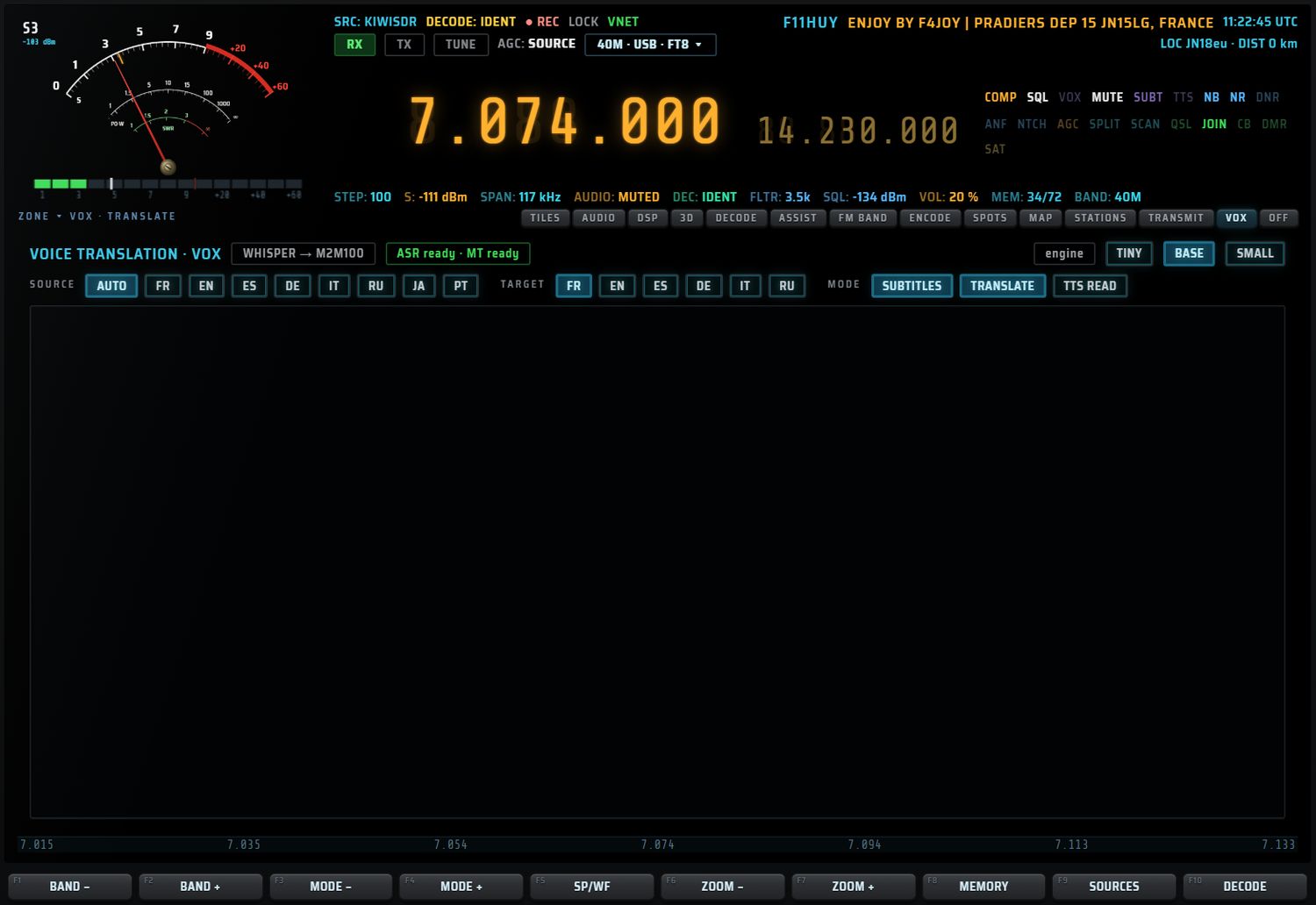
| Réglage | Valeurs | Défaut | Effet |
|---|---|---|---|
| engine | TINY · BASE · SMALL | BASE | taille du modèle Whisper : TINY est le plus léger, SMALL le plus précis. L'AUX rappelle « restart VOX to load it » : le nouveau modèle est chargé au prochain démarrage du moteur. |
| SOURCE | AUTO · FR · EN · ES · DE · IT · RU · JA · PT | AUTO | langue parlée dans le signal. Une langue choisie force la transcription dans cette langue (« every line now comes out in this language, no guessing ») ; AUTO laisse le moteur deviner. |
| TARGET | FR · EN · ES · DE · IT · RU | FR | langue de traduction. |
| MODE | SUBTITLES · TRANSLATE | — | SUBTITLES : le texte d'origine seul. TRANSLATE : le texte d'origine et sa traduction. |
| TTS READ | appui | — | lit à voix haute les 3 dernières lignes, avec la synthèse vocale du système, dans la langue cible. |
Les réglages sont mémorisés.
Les sous-titres
- Le texte d'origine s'affiche en clair, la traduction en vert, précédée de « → ».
- 400 lignes au plus sont gardées. Le texte défile seul si vous êtes en bas de la liste ; remontez pour relire, le défilement s'arrête.
- Ctrl + molette sur les sous-titres change la taille du texte, de 9 à 28 pixels (mémorisée).
- Pastille d'état : « engine loading… », « speech engine ready », « translator loading… », « translator ready », « ERROR » ou « stopped ».
Comment VOX découpe la parole
- VOX prend le son là où toutes les sources se rejoignent : il fonctionne avec toutes les sources.
- Le son est découpé en phrases par un détecteur de parole, en morceaux de 12 secondes au plus.
- Les phrases parasites typiques (« thanks for watching », jingles…) et les répétitions sont écartées. La musique n'empêche pas la transcription.
- Les modèles sont téléchargés au premier usage puis gardés sur le PC. Le premier démarrage est donc plus long.
LANG : langue cible depuis le pavé
LANG (pavé droit, section TRAFFIC · LOG) affiche dans l'écran AUX la liste « VOX LANGUAGE — real engine setting » : AUTO · FR · EN · ES · DE · IT · RU · JA · PT. Un appui choisit la langue de traduction ; la langue en cours est marquée « ▸ ».
POPUP : la fenêtre flottante
POPUP ouvre une fenêtre séparée « RX-ONE - VOX » (560 × 300 pixels, 300 × 140 au minimum), déplaçable et redimensionnable, qui reçoit les mêmes sous-titres (langue d'origine). Pratique pour garder les sous-titres au-dessus d'une autre application. Sur tablette : « the floating window needs the PC application ».
La tuile VOX SUBTITLES
Une tuile de l'écran central peut afficher les sous-titres : bouton ▾ de la tuile, puis « VOX SUBTITLES » (voir les tuiles). Ce choix démarre VOX. La tuile a ses propres commandes :
- ORIGINAL (texte d'origine), TRANSLATION (traduction seule), BOTH (les deux) ;
- un choix de langue cible parmi 12 : French, English, Spanish, German, Italian, Portuguese, Dutch, Russian, Arabic, Turkish, Chinese, Japanese ;
- DETACH (PC) : ouvre la fenêtre flottante ;
- COPY, CLEAR, et ✕ qui arrête VOX.
La tuile garde les 60 dernières lignes.
Copier et enregistrer la transcription
Dans la section TRAFFIC · LOG du pavé droit, COPY copie la transcription dans le presse-papiers, et SAVE l'enregistre dans le fichier rxone-transcription.txt.
RECORDER · SCHEDULER — enregistrer et programmer
L'enregistreur capte ce que vous entendez, après le volume, le notch et l'égaliseur. Le programmateur lance des écoutes à heure fixe : accord, décodeur, enregistrement.
Ouvrir l'enregistreur
| Commande | Où | Effet |
|---|---|---|
| RECORDER (« the full recorder screen — record, files, playback ») | panneau gauche, section RECORDER | ouvre RECORDER · SCHEDULER dans la fente ; son témoin est allumé pendant un enregistrement |
| LAST (« play the newest recording ») | panneau gauche, RECORDER | relit la liste des fichiers et joue le plus récent |
| FOLDER (« open the recordings folder in Windows Explorer ») | panneau gauche, RECORDER | ouvre le dossier des enregistrements dans l'Explorateur (PC) |
| REC | bloc APP du pavé droit | ouvre RECORDER · SCHEDULER dans la fente |
| Tuile « RECORDER » | tuiles de l'écran central | même effet |
La page
La moitié haute de la page remplace le spectre, la moitié basse la cascade.

L'enregistreur
| Commande | Action |
|---|---|
| REC (F1 ● REC / ■ STOP) | démarre / arrête l'enregistrement. Si le son est coupé (MUTE), l'AUX prévient : « audio is muted — the file will be silent ». |
| FORMAT | WAV ↔ OPUS. Impossible pendant un enregistrement. |
| témoin REC | « ● m:ss · taille » pendant l'enregistrement, sinon « idle · WAV » (ou OPUS) |
- WAV : PCM 16 bits, mono, toujours disponible.
- OPUS : fichier compressé ; si le système ne sait pas le produire, RX·ONE enregistre en WAV.
- Nom du fichier :
RXONE_AAAAMMJJ_HHMMSS_<fréquence en MHz>MHz_<MODE>suivi, depuis FM BAND, du nom de la station RDS — par exempleRXONE_20261019_093405_105.500MHz_WFM_FM105.5.wav. L'heure est l'heure locale. - Dossier (PC) :
%APPDATA%\RX-ONE\recordings. Le fichier est écrit sans geler l'application ; l'AUX confirme « written · <chemin> » ou explique « not written · <motif> ».
RECORDINGS et le lecteur
La liste RECORDINGS montre 9 fichiers (nom, taille ; « · in memory » pour une capture non écrite), puis « + N more — FOLDER opens them all ». Un clic sur un fichier le joue. Les formats lus : wav, ogg, opus, webm, mp3, triés par date.
| Commande | Action |
|---|---|
| PLAY (F2) | joue le fichier choisi, sinon le plus récent |
| PAUSE (F3) | pause / reprise ; l'AUX affiche « paused at mm:ss » |
| ◂◂ 10 s (F4) / ▸▸ 10 s (F5) | recule / avance de 10 secondes |
| NEXT (F6) | fichier suivant (« n / N ») |
| LAST (F7) | relit la liste et joue le plus récent |
| ERASE (F9) | supprime le fichier choisi |
| FOLDER | ouvre le dossier dans l'Explorateur |
| témoin PLAY | position / durée, et la barre de progression |
Le programmateur (SCHEDULER)
Les heures du programmateur sont en UTC.
NEW TASK
Chaque champ se règle avec ses boutons − et +.
| Champ | Valeurs | Défaut |
|---|---|---|
| START | heure UTC, 0 à 23 | dans 5 minutes |
| MINUTE | 0 à 55, par pas de 5 | dans 5 minutes |
| LENGTH | 1 à 600 min ; pas de 5 min (15 min au-delà d'une heure) | 30 min |
| FREQ | pas de 1 kHz sous 30 MHz, 100 kHz au-dessus ; 10 kHz minimum | fréquence actuelle |
| MODE | USB · LSB · AM · CW · FM · WFM | mode actuel (sinon USB) |
| DECODER | NONE · FT8 · FT4 · CW · RTTY · PSK31 · SSTV · WEFAX · NAVTEX | décodeur actuel s'il est dans la liste |
| RECORD | YES · NO | YES |
| REPEAT | ONCE · DAILY | ONCE |
- FROM CURRENT remplit le brouillon avec votre écoute actuelle.
- ADD TASK (ou F8) ajoute la tâche. Il faut RECORD ou un DECODER, sinon : « nothing to do — set RECORD or a DECODER ». Une heure déjà passée vaut pour le lendemain. La tâche est nommée d'après la fréquence et le décodeur (ou le mode), par exemple « 7.074 FT8 REC ».
SCHEDULE
Le tableau montre 9 tâches, de la plus proche à la plus lointaine : TASK, START (hh:mmz), LENGTH, FREQ, MODE, DECODER, REC, REPEAT. Sur chaque ligne :
- NOW lance la tâche tout de suite ; pendant son exécution, le bouton devient STOP ;
- ON / OFF active ou suspend la tâche ;
- DEL la supprime.
Une tâche en cours est en rouge : « ● n · m:ss left ».
Déroulement d'une tâche
- À l'heure dite (contrôle toutes les 5 secondes, pendant la première minute), RX·ONE note la fréquence, le mode et le décodeur en cours.
- Il accorde, pose le mode, lance le décodeur et l'enregistrement. Un enregistrement déjà en cours est gardé.
- À la fin, il arrête et rend l'état d'avant.
- Sans source connectée, la tâche est sautée : « SKIPPED … no source connected ».
- Une tâche unique dont l'heure est passée sans exécution est marquée « MISSED ».
LOG
Le journal garde 40 lignes et en montre 14 : ADDED, START, END, SKIPPED, MISSED, avec l'heure UTC (« z »). Les veilles quotidiennes d'ASSIST (voir UTILITY WATCH) apparaissent ici comme des tâches ordinaires.
Touches F
| Touche | Action |
|---|---|
| F1 ● REC / ■ STOP | démarre / arrête l'enregistrement |
| F2 PLAY | lecture |
| F3 PAUSE | pause / reprise |
| F4 ◂◂ 10s | recule de 10 s |
| F5 ▸▸ 10s | avance de 10 s |
| F6 NEXT | fichier suivant |
| F7 LAST | le plus récent |
| F8 ADD TASK | ajoute la tâche du brouillon |
| F9 ERASE | supprime le fichier choisi (sans confirmation) |
| F10 ◂ RX | retour à la réception normale |
L'écran AUX affiche l'état de l'enregistreur, la tâche en cours et « N tasks waiting · next hh:mmz ».
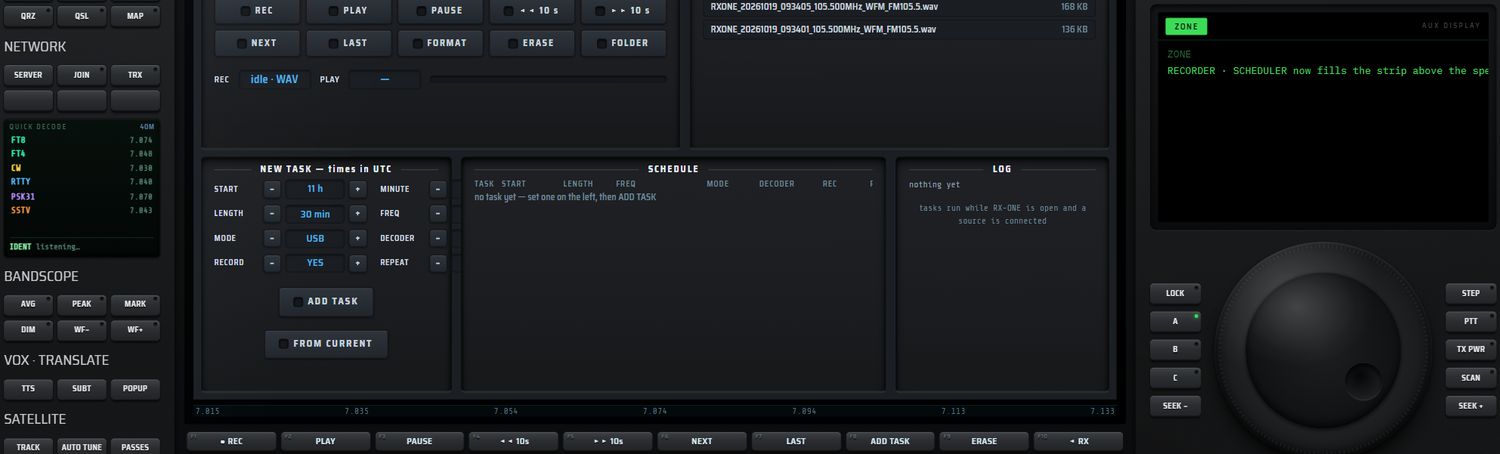
BAND MONITOR — toutes les bandes HF d'un coup d'œil
BAND MONITOR montre l'activité de 0 à 30 MHz, bande par bande, en temps réel.
Ouvrir : touche BMON du bloc APP, ou la tuile « AUDIO LAB », qui affiche BAND MONITOR par défaut.

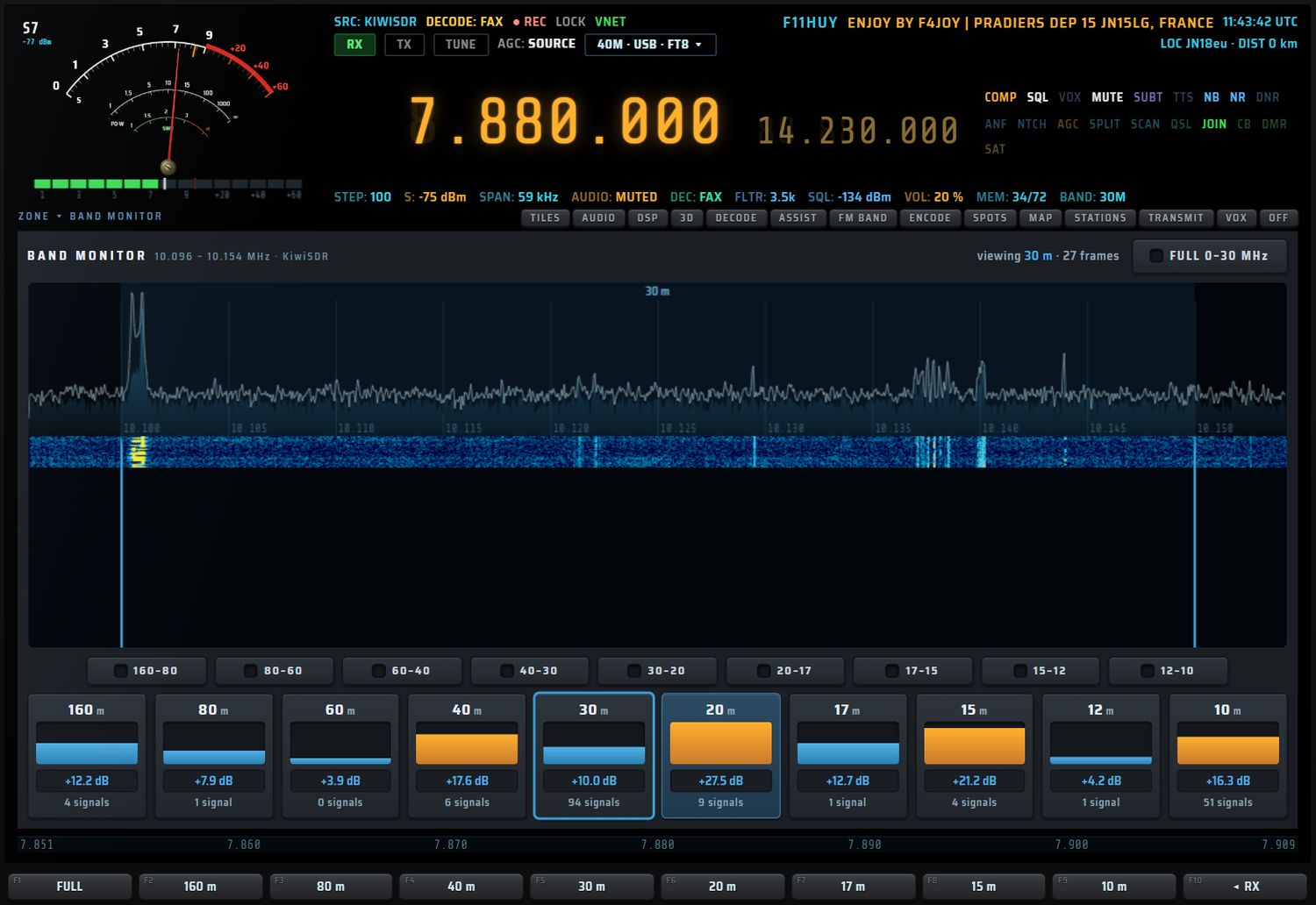
Ce qu'affiche l'écran
- En-tête : « BAND MONITOR 0 – 30 MHz · KiwiSDR », à droite la bande la plus active et le nombre de trames reçues, et le bouton FULL 0–30 MHz.
- Spectre (en haut) : le spectre moyen et les crêtes ; les bandes amateur sont repérées (160, 80, 60, 40, 30, 20, 17, 15, 12, 10) ; le trait ambre marque la fréquence accordée.
- Cascade (dessous).
- Rangée inter-bandes : 160-80, 80-60, 60-40, 40-30, 30-20, 20-17, 17-15, 15-12, 12-10 — un appui affiche en entier l'espace entre ces deux bandes.
- Cartes de bande (160 à 10 m) : barre d'activité (orange quand elle dépasse 60 %), niveau au-dessus du bruit (« +x.x dB ») et nombre de signaux. La bande la plus active est encadrée. Un appui sur une carte affiche cette bande en entier.
Comment c'est mesuré : pour chaque bande, le bruit de fond est estimé autour de la bande ; l'activité est la moyenne du quart le plus fort au-dessus de ce bruit ; un signal compte s'il dépasse le bruit de 8 dB. Les mesures sont lissées et gardées 2 heures ; la page PROPAGATION les réutilise.
Utilisation
- Un clic dans le spectre ou la cascade accorde cette fréquence (au kHz en vue large, à 100 Hz en vue étroite), puis revient à la réception.
- À la fermeture, le zoom de cascade que vous aviez est rendu.
| Touche | Action |
|---|---|
| F1 FULL | vue complète 0–30 MHz |
| F2 à F9 | 160 m · 80 m · 40 m · 30 m · 20 m · 17 m · 15 m · 10 m : vue de cette bande |
| F10 ◂ RX | retour à la réception normale |
Le mini-écran gauche affiche le classement des bandes.
SPOTS — les marqueurs de la source
Certaines sources (KiwiSDR notamment) publient des marqueurs : stations connues, fréquences d'usage, balises. RX·ONE les montre de deux façons.
L'onglet SPOTS
- Onglet « SPOTS » de la fente, ou touche SPOTS du bloc APP.
- La liste montre jusqu'à 60 marqueurs : fréquence en MHz (en jaune) et libellé, dans l'ordre où la source les publie.
- Un clic sur une ligne accorde cette fréquence ; l'AUX confirme « tuned x.xxx MHz ».
- Sans marqueur : « this source publishes no marker on this band ».
La touche SPOTS du pavé
SPOTS (pavé droit, section DISPLAY) affiche ou masque les marqueurs sur le spectre : au plus 12 étiquettes jaunes, cliquables pour s'accorder. Son témoin montre l'état. Messages : « n markers published by this source are shown on the spectrum », « on — this source publishes no marker at the moment », « markers hidden ». Quand une page occupe toute la fente, l'incrustation est masquée avec le spectre. Voir aussi les touches DISPLAY.

Cartes, propagation et satellites
Ce chapitre regroupe tout ce qui se lit sur une carte ou dans le ciel : la fenêtre MAP, la carte des récepteurs SDR MAP et celle des stations reçues, le globe de météo spatiale, le tableau PROPAGATION, le suivi des satellites et la carte des avions ADS-B.
Deux touches MAP, deux cartes
La façade porte deux touches qui s'appellent MAP. Elles n'ouvrent pas la même carte.
| Touche | Où | Ce qu'elle ouvre | Pour quoi faire |
|---|---|---|---|
| MAP (sous-titre world) | panneau gauche, bloc MENUS | la fenêtre MAP : carte du monde à couches | voir d'un coup votre station, les récepteurs, les stations entendues, les satellites, votre carnet, la nuit |
| MAP (sous-titre stations) | bloc APP | la page SDR MAP (onglets SERVERS / STATIONS) | choisir un récepteur sur la carte et s'y connecter ; revoir les stations décodées |
Les onglets MAP et STATIONS de la fente (au-dessus du spectre) affichent les deux cartes de la page SDR MAP, mais dans la fente.
La fenêtre MAP
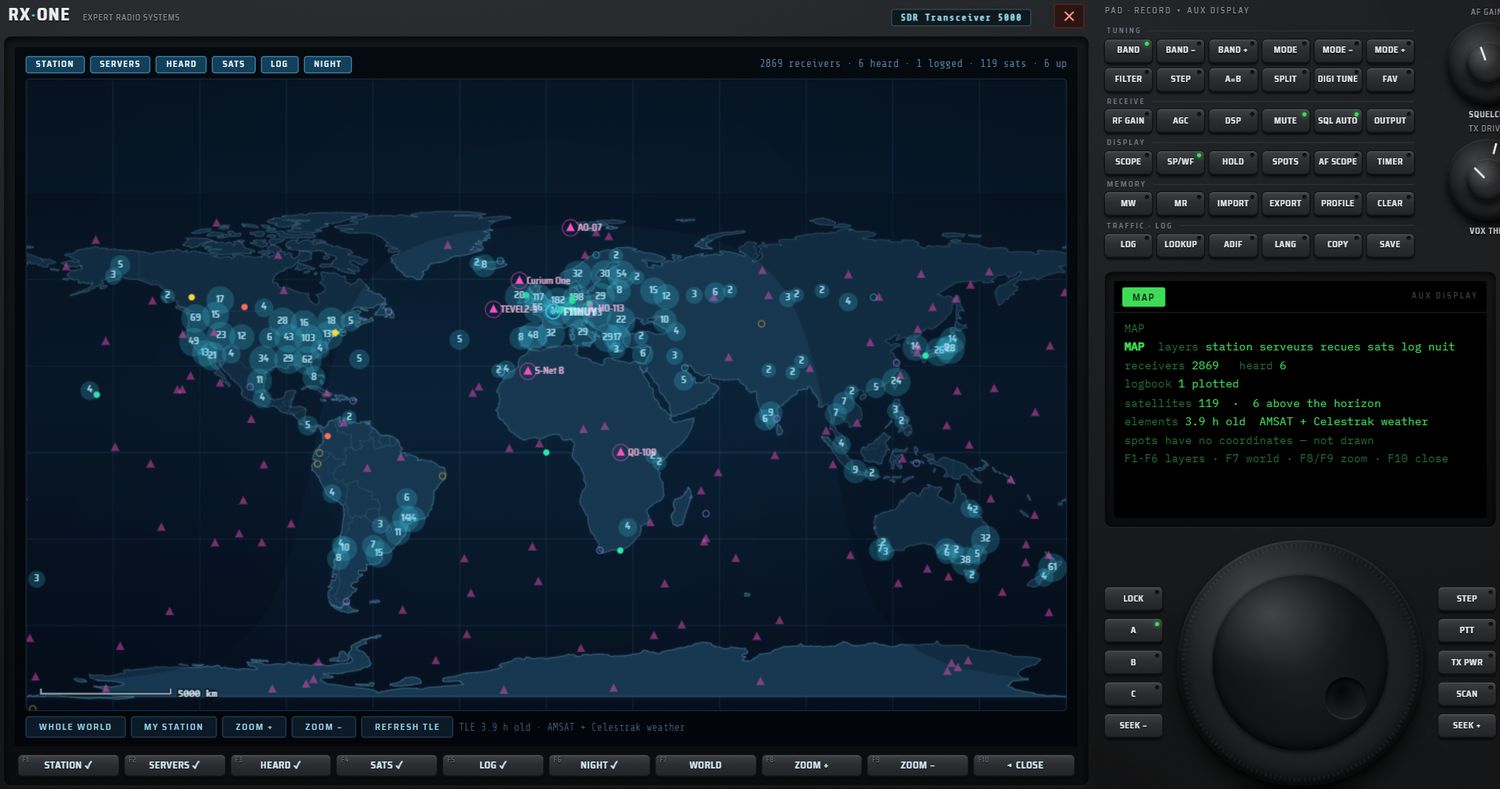
La fenêtre MAP se pose sur le grand écran. Une seule fenêtre s'ouvre à la fois.
- Ouvrir : MAP du bloc MENUS (la touche bascule), MAP (F9) de la page SAT ou de la page GLOBE, ou SHOW ON MAP dans la fenêtre STATION LOOKUP.
- Fermer : rappuyez sur MAP, appuyez sur F10 ◂ CLOSE, ou sur n'importe quelle touche du bloc APP.
- La carte se redessine chaque seconde. Le fond montre les côtes, les frontières, les grandes villes, un quadrillage et une échelle en km.
Les couches
La barre du haut porte six pastilles. Chacune affiche ou masque une couche ; F1 à F6 font la même chose (une coche ✓ signale la couche visible). Le choix est mémorisé. Toutes les couches sont visibles au premier démarrage.
| Pastille | Touche F | Ce qui est dessiné |
|---|---|---|
| STATION | F1 | votre station : cercle cyan et indicatif, à la position de votre QTH (ou au centre de votre locator) |
| SERVERS | F2 | les récepteurs de l'annuaire, regroupés en pastilles numérotées quand ils sont proches. Couleurs : OpenWebRX violet, WebSDR ambre, KiwiSDR vert (libre), jaune (occupé à plus de 60 %), rouge (plein) ; gris = hors ligne ; point creux = récepteur non vérifié |
| HEARD | F3 | les stations décodées dont la position est connue : point vert qui s'estompe en 15 minutes, et un arc de grand cercle vers les 30 plus récentes ; l'indicatif apparaît quand le zoom le permet |
| SATS | F4 | les satellites : triangle magenta, cerclé quand le satellite est au-dessus de votre horizon. Le nom s'affiche s'il est visible, sélectionné ou si le zoom est fort. Activer SATS charge les éléments orbitaux si besoin |
| LOG | F5 | les contacts du LOGBOOK qui portent un locator : losange jaune |
| NIGHT | F6 | le voile de nuit sur la partie non éclairée du globe |
À droite de la barre, un compteur résume : « N receivers · N heard · N logged (N without a locator) · N sats · N up ».
Après une recherche d'indicatif dans STATION LOOKUP, la station trouvée est marquée d'une punaise magenta reliée à votre QTH par un arc pointillé.
Se déplacer
- Glisser (souris) : déplace la carte.
- Molette : zoom avant ou arrière.
- Clic sans glisser : sélectionne l'objet le plus proche (satellite, station entendue ou récepteur) et ouvre sa fiche. Les losanges du carnet ne se sélectionnent pas.
- La vue (centre et zoom) est mémorisée.
| Bouton (bas de la fenêtre) | Action |
|---|---|
| WHOLE WORLD | revient à la vue du monde entier |
| MY STATION | centre la carte sur votre QTH et zoome ; sans locator réglé, l'écran AUX affiche « no station position — set your locator » |
| ZOOM + / ZOOM − | zoom par pas de ×1,6 |
| REFRESH TLE | télécharge de nouveaux éléments orbitaux auprès d'AMSAT ; l'écran AUX affiche « asking AMSAT… » puis le nombre de satellites, l'âge et la source |
| (texte) | « TLE x h old · source » : âge des éléments, en ambre s'ils ont plus de 72 h |
Les fiches
Un clic sur un objet ouvre sa fiche dans le coin haut droit.
- Satellite : nom, altitude, période, sous-point, élévation (en vert s'il est au-dessus de l'horizon), azimut et distance depuis votre station, décalage Doppler, prochain passage à plus de 10° dans les 24 h (ou « always above the horizon » pour un géostationnaire), âge des éléments. Le satellite sélectionné reçoit son empreinte (zone d'où il est visible) et sa trace au sol sur ±45 minutes. Un second clic le désélectionne.
- Récepteur : nom, type, pays, site, utilisateurs connectés / places, rapport signal/bruit, distance et cap depuis votre QTH, bouton CONNECT qui s'y connecte.
- Station entendue : indicatif, pays, locator, mode, rapport signal/bruit, bouton STATION CARD qui ferme la carte et ouvre la fiche STATION LOOKUP de cet indicatif.
Touches F, écran AUX et mini-écran
| Touche | Action |
|---|---|
| F1 à F6 | STATION, SERVERS, HEARD, SATS, LOG, NIGHT : couches (✓ = visible) |
| F7 | WORLD : vue du monde entier |
| F8 / F9 | ZOOM + / ZOOM − |
| F10 | ◂ CLOSE |
L'écran AUX récapitule les couches actives, le nombre de récepteurs, de stations entendues, de contacts placés, de satellites (et combien sont au-dessus de l'horizon), l'âge et la source des éléments orbitaux. Le mini-écran affiche six lignes : MAP, SERVERS, HEARD, SATS (avec « n up » en magenta quand des satellites sont visibles), TLE (âge, en ambre si périmé), ZOOM.
La page SDR MAP
Appuyez sur MAP du bloc APP. La page occupe le grand écran ; sa barre du haut porte deux onglets, SERVERS et STATIONS, et un bouton ◂ RX qui referme la page et revient à la page précédente.
Vue SERVERS : choisir un récepteur sur la carte
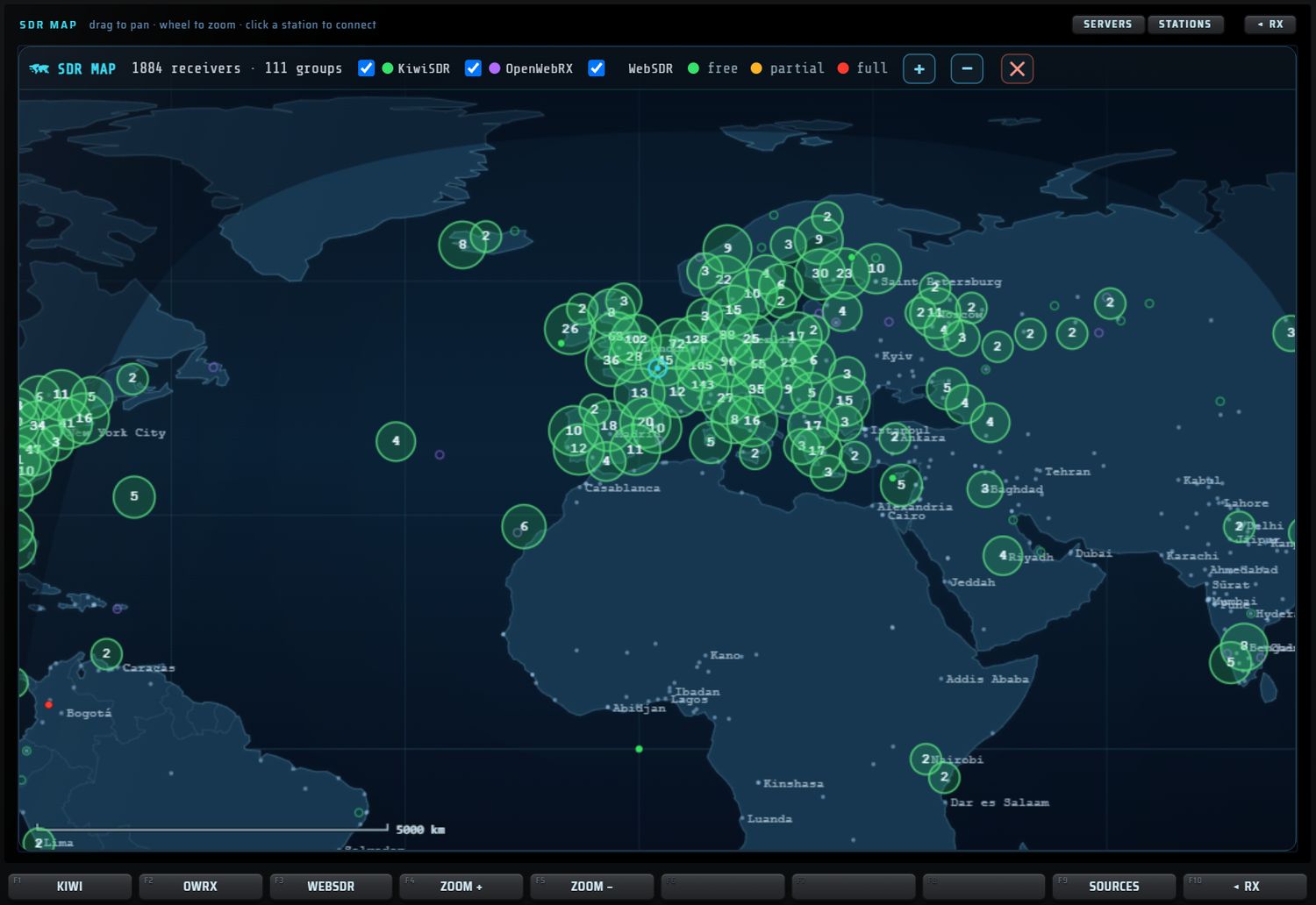
C'est la carte de l'annuaire des récepteurs.
- La barre interne indique le nombre de récepteurs et de groupes, trois cases à cocher KiwiSDR, OpenWebRX, WebSDR, la légende (vert free, ambre partial, rouge full) et les boutons +, − et ✕.
- Les récepteurs proches sont regroupés dans un cercle numéroté. Un clic sur un groupe zoome. Un clic sur un récepteur seul s'y connecte directement. Quand plusieurs récepteurs se superposent, une petite carte de choix s'ouvre (8 au maximum, avec état, utilisateurs et rapport signal/bruit).
- Le survol d'un récepteur affiche une bulle : pays, nom, lieu, type.
- Glisser = déplacer ; molette = zoom.
- La carte respecte aussi les filtres de la page des serveurs (recherche, pays, bande, libres seulement) : voir le chapitre 3 — filtres de l'annuaire.
| Touche | Action |
|---|---|
| F1 KIWI | affiche ou masque les KiwiSDR (l'écran AUX confirme « shown » / « hidden ») |
| F2 OWRX | affiche ou masque les OpenWebRX |
| F3 WEBSDR | affiche ou masque les WebSDR |
| F4 / F5 | ZOOM + / ZOOM − |
| F9 SOURCES | ferme la carte et ouvre l'annuaire des sources |
| F10 ◂ RX | retour à la réception |
Vue STATIONS : les stations reçues
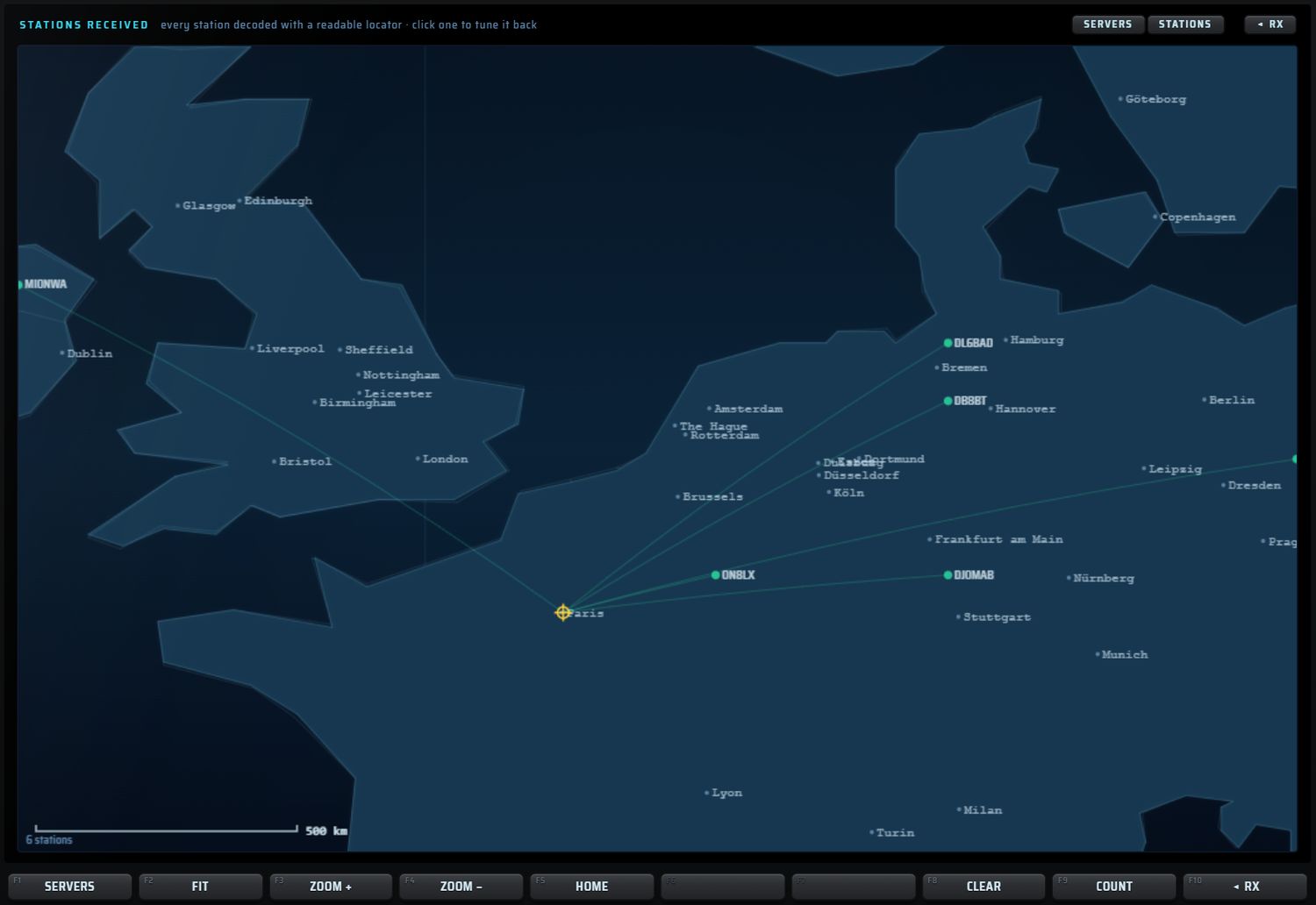
Chaque station décodée dont on lit le locator est posée sur cette carte. Elle est alimentée par :
- les messages FT8 et FT4 qui contiennent un carré locator (la station placée est celle qui annonce ce locator) ;
- le texte des décodeurs CW, RTTY, FSK, PSK et JS8 quand un indicatif et un locator figurent dans la même phrase ;
- les recherches faites dans STATION LOOKUP (mode « QRZ »).
Une station sans position n'est pas dessinée. La couleur dit le mode : FT8 vert, FT4 vert clair, CW jaune, RTTY/FSK orange, PSK violet, JS8 bleu, QRZ cyan, autres gris. Le point s'estompe en 15 minutes ; un halo marque une réception fraîche ; des arcs relient votre QTH aux 40 stations les plus récentes. Les avions ADS-B localisés y figurent aussi (flèches jaunes orientées).
- Survol : étiquette « indicatif · locator · km · dB · mode ».
- Clic sur une station : le récepteur s'accorde sur la fréquence où elle a été reçue (l'écran AUX affiche « STATIONS · indicatif · f MHz »).
- Glisser, molette : déplacer, zoomer (au doigt aussi sur tablette).
- La liste est vidée à chaque redémarrage de l'application.
| Touche | Action |
|---|---|
| F1 SERVERS | revient à la vue SERVERS |
| F2 FIT | recadre la vue sur toutes les stations reçues |
| F3 / F4 | ZOOM + / ZOOM − |
| F5 HOME | recentre sur votre QTH |
| F8 CLEAR | vide la liste des stations reçues |
| F9 COUNT | affiche le nombre de stations |
| F10 ◂ RX | retour à la réception |
Les onglets MAP et STATIONS de la fente
- MAP (titre « SDR MAP ») : la même carte des récepteurs, dans la fente. Les touches F restent celles de la page en cours.
- STATIONS (titre « STATIONS RECEIVED ») : la carte des stations reçues, sans recadrage automatique. Le menu F « STATIONS » du décodeur FT8 ouvre aussi cet onglet.
GLOBE — météo spatiale
Appuyez sur GLOBE (sous-titre space wx) dans le bloc APP. La page SPACE WEATHER s'ouvre.
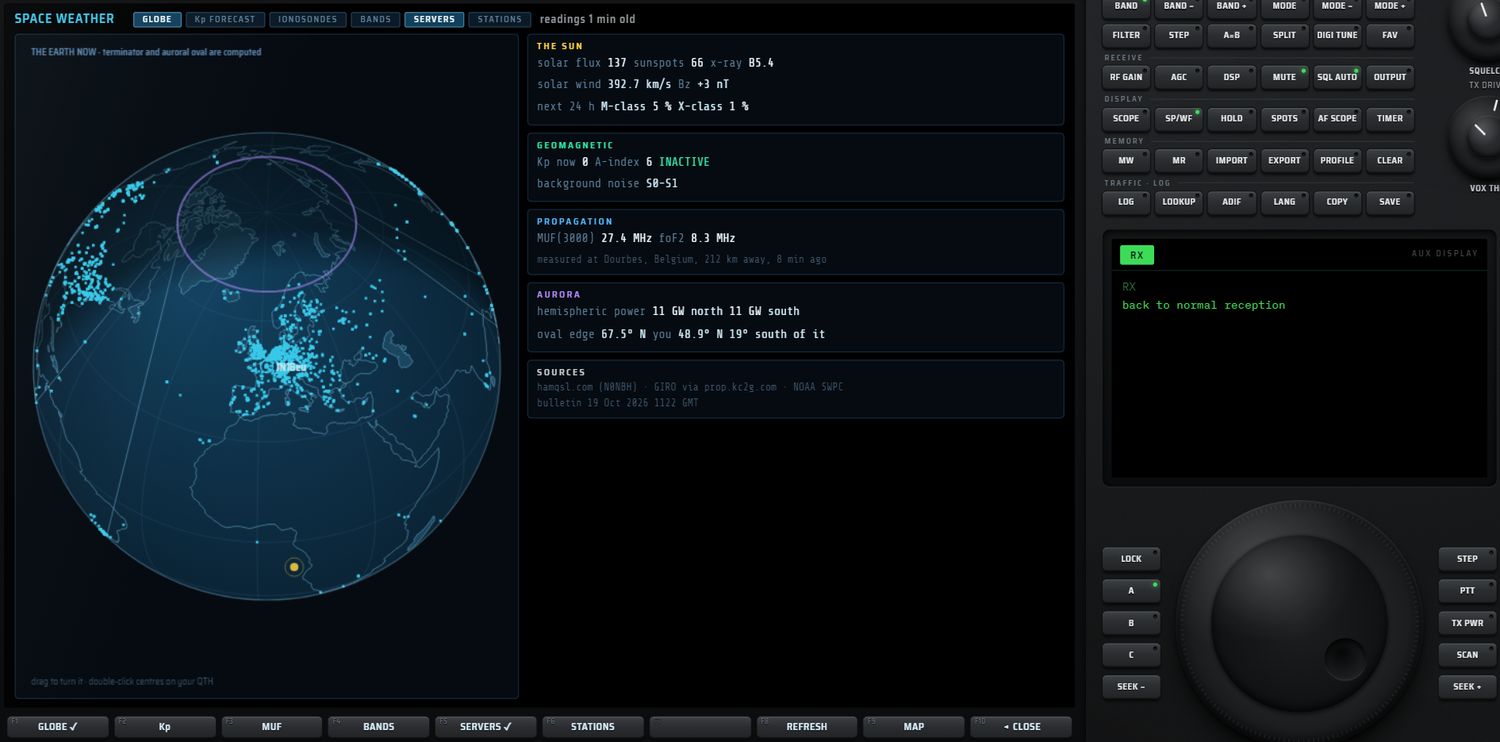
La barre du haut porte les quatre vues (GLOBE, Kp FORECAST, IONOSONDES, BANDS), deux surcouches (SERVERS, STATIONS) et l'âge des lectures (« readings x min old », en ambre au-delà de 3 h). Vue et surcouches sont mémorisées.
La colonne de droite
| Bloc | Contenu |
|---|---|
| THE SUN | flux solaire, nombre de taches, classe X-ray, vent solaire (km/s), Bz (nT), probabilité d'éruption de classe M et X dans les 24 h |
| GEOMAGNETIC | indice Kp actuel (coloré), indice A, état du champ (par ex. INACTIVE), bruit de fond (en points S) |
| PROPAGATION | MUF(3000) et foF2 mesurées par l'ionosonde la plus proche, avec son nom, sa distance et l'âge de la mesure |
| AURORA | puissance aurorale nord et sud (GW), latitude du bord de l'ovale, votre latitude et votre position par rapport à l'ovale |
| SOURCES | les serveurs qui ont répondu et l'heure du bulletin |
Si aucune source n'a répondu, la colonne affiche « NO READING » et la raison. Aucune valeur n'est inventée : une source muette laisse sa case vide.
Les quatre vues
- GLOBE : la Terre vue de l'espace, la nuit calculée avec sa pénombre, l'ovale auroral (violet), le point subsolaire (jaune) et votre QTH. Glisser fait tourner le globe ; double-clic le recentre sur votre QTH. À la première ouverture, il est centré sur vous.
- Kp FORECAST : barres de l'indice Kp planétaire prévu par NOAA sur 24 h, par tranches de 3 h ; vert, ambre à partir de 4, rouge à partir de 5. Les tranches passées sont estompées.
- IONOSONDES : les 9 ionosondes les plus proches, avec distance et barre de MUF(3000) en MHz ; la plus proche est en cyan.
- BANDS : état des bandes HF calculé par N0NBH, colonnes DAY et NIGHT (Good vert, Fair ambre, Poor rouge), et l'état de la VHF.
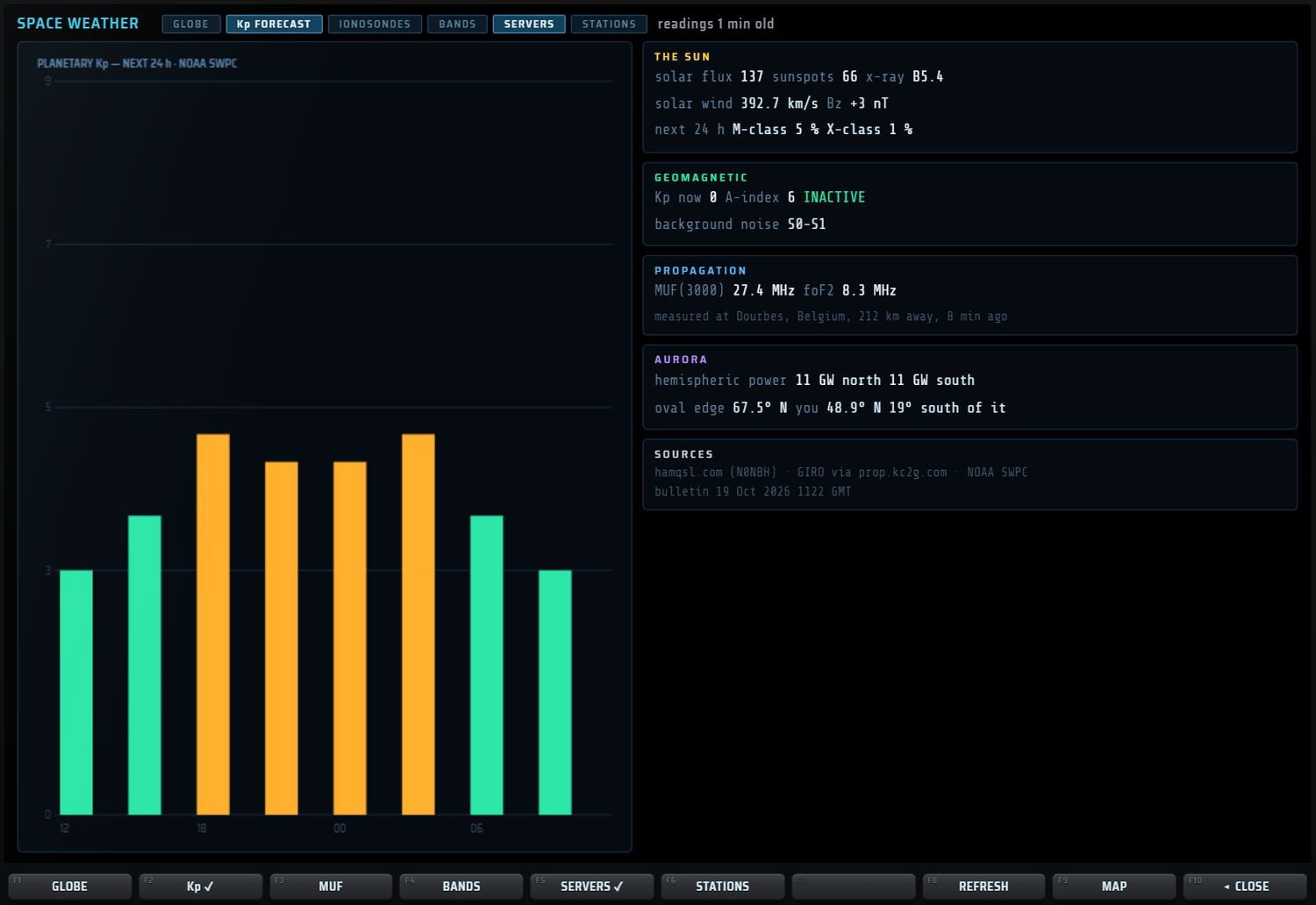
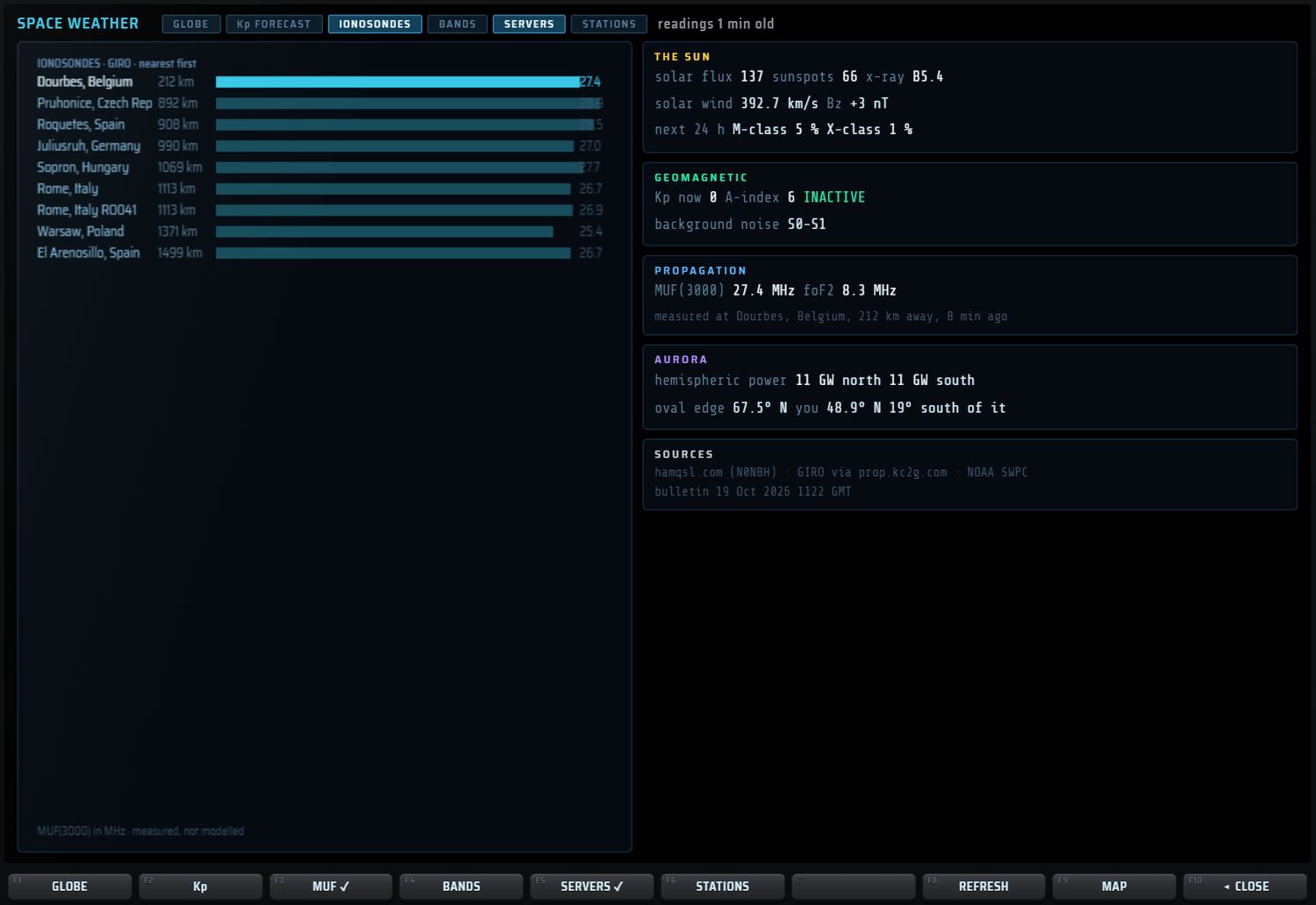
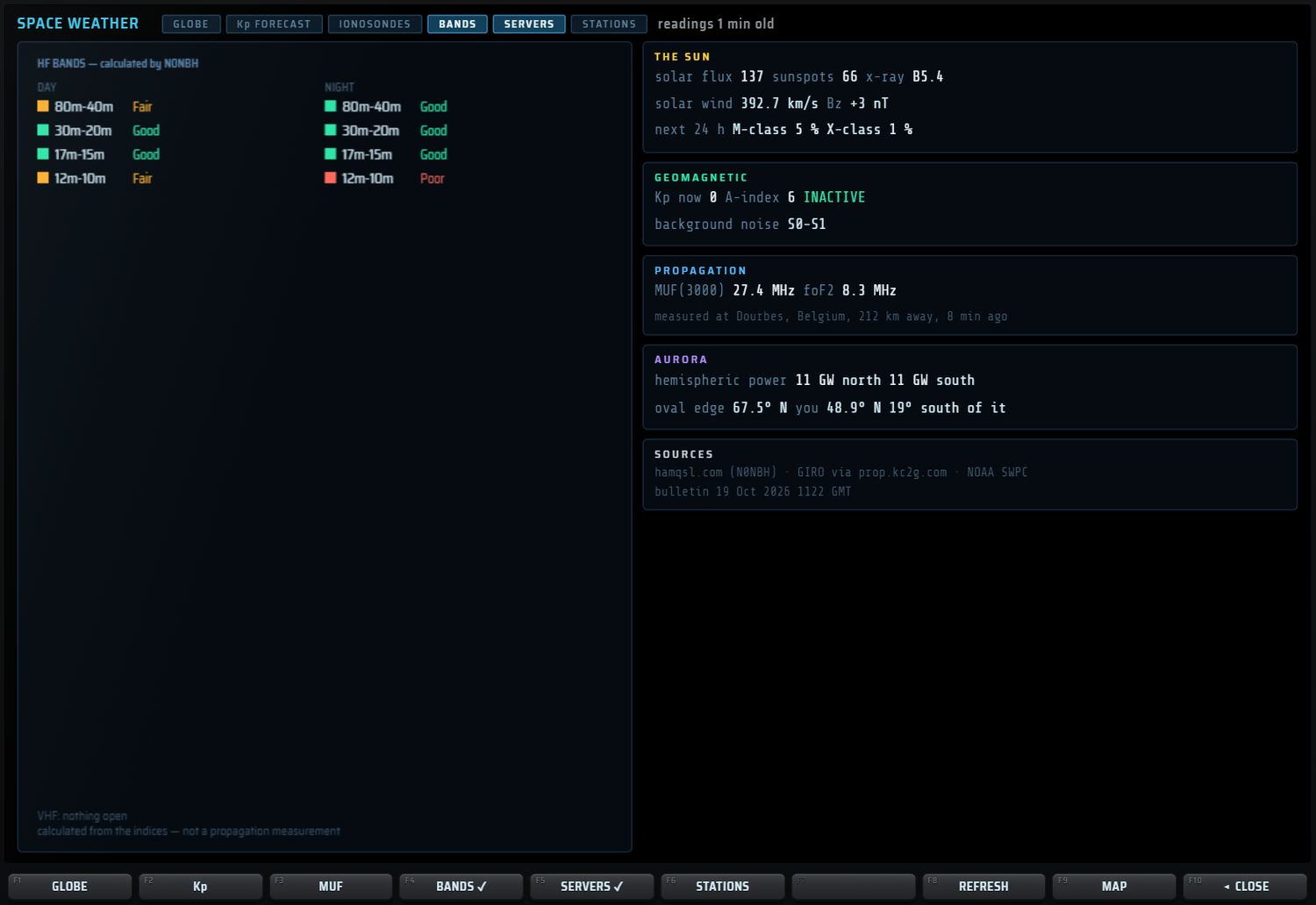
Les surcouches SERVERS (récepteurs, points cyan) et STATIONS (stations reçues, couleur du mode, avec arcs) se dessinent sur le globe ; les activer ramène la vue GLOBE.
Touches F du GLOBE
| Touche | Action |
|---|---|
| F1 GLOBE | vue globe (✓ sur la vue active) |
| F2 Kp | vue Kp FORECAST |
| F3 MUF | vue IONOSONDES |
| F4 BANDS | vue BANDS |
| F5 SERVERS | surcouche des récepteurs (✓) |
| F6 STATIONS | surcouche des stations reçues (✓) |
| F8 REFRESH | interroge à nouveau les observatoires (« asking the observatories… ») |
| F9 MAP | ouvre la fenêtre MAP |
| F10 ◂ CLOSE | ferme la page |
Le mini-écran affiche SFI, KP (coloré), A, MUF, XRAY et READ (âge des lectures). L'écran AUX reprend les indices, la MUF avec sa station et la prévision des bandes du jour.
PROPAGATION
PROPAGATION répond à une question : où et quand trafiquer maintenant. Le tableau s'ouvre dans la fente, à la place du spectre et de la cascade.
- Ouvrir : touche PROP du bloc APP, ou clic sur une tuile réglée sur PROPAGATION (voir le chapitre 4 — tuiles). Il n'y a pas d'onglet PROPAGATION dans la fente.
- À l'ouverture, les indices sont relus s'ils datent de plus de 15 minutes.

L'en-tête affiche « PROPAGATION — where and when to operate », l'âge des lectures et deux boutons : REFRESH (relit toutes les sources) et MEASURE BANDS (ouvre BAND MONITOR pour mesurer l'activité réelle des bandes).
SUN & FIELD et Kp
| Ligne | Contenu | Alerte |
|---|---|---|
| SOLAR FLUX | flux solaire en sfu | ambre sous 80 |
| SUNSPOTS | nombre de taches | |
| A · K | indices A et K | ambre K ≥ 4, rouge K ≥ 5 |
| X-RAY | classe du rayonnement X | rouge en classe M ou X |
| SOLAR WIND | vitesse du vent solaire | ambre au-delà de 600 km/s |
| Bz | composante Bz du champ interplanétaire | ambre sous −5 nT |
| GEOMAG | état géomagnétique | rouge en tempête (STORM) |
| NOISE | bruit de fond estimé (points S) | |
| FLARE 24 h | probabilité d'éruption M et X | |
| AURORA | puissance aurorale | ambre au-delà de 50 GW |
Sous ce bloc, Kp — measured · forecast (NOAA) trace les barres de Kp ; la prévision est plus pâle que la mesure, avec des repères à 3, 5 et 7 et les heures en UTC.
IONOSONDES
Les 6 ionosondes les plus proches de votre QTH : STATION, MUF, foF2, KM et âge de la mesure (en minutes). La MUF(3000) est la plus haute fréquence qui se réfléchit sur un bond de 3000 km, mesurée par sondage vertical (réseau GIRO). Les ionosondes dont la mesure a plus de 3 h sont écartées.
BANDS — prévision, MUF et mesure
Une ligne par bande, de 160 m à 10 m :
| Colonne | Contenu |
|---|---|
| BAND | la bande |
| DAY / NIGHT | prévision N0NBH (Good, Fair, Poor). La colonne de la période en cours chez vous est encadrée (jour = 6 h 30 à 18 h 30, heure solaire de votre QTH) |
| MUF | comparaison avec la MUF de l'ionosonde la plus proche : open (bien sous la MUF), edge (près de la MUF), above (au-dessus) |
| ACTIVITY | barre d'activité mesurée sur votre récepteur par BAND MONITOR (la bulle donne les dB et le nombre de signaux) ; « not measured » tant qu'aucune mesure n'existe |
| FT8/h | nombre de décodages FT8 faits ici sur cette bande dans la dernière heure |
| TUNE | accorde la bande |
La bande la plus active mesurée est surlignée en bleu.
TUNE accorde le signal le plus fort mesuré par BAND MONITOR dans la bande ; sans mesure, il accorde la fréquence centrale de la bande (1,84 · 3,6 · 5,36 · 7,1 · 10,13 · 14,1 · 18,1 · 21,1 · 24,9 · 28,1 MHz). La fente revient ensuite à la réception normale.
Touches F, AUX et mini-écran

| Touche | Action |
|---|---|
| F1 REFRESH | relit les sources |
| F2 MEASURE | ouvre BAND MONITOR |
| F3 BEST BAND | accorde la meilleure bande mesurée ; sans mesure : « nothing measured yet — press MEASURE » |
| F4 à F9 | accord direct sur 40 m, 30 m, 20 m, 17 m, 15 m, 10 m |
| F10 ◂ RX | retour à la réception |
Le mini-écran liste 80, 60, 40, 30, 20, 17 et 15 m avec la prévision de la période en cours et l'état MUF. L'écran AUX reprend SFI, A, K, l'état du champ et la MUF avec sa station.
D'où viennent les données
| Source | Ce qu'elle fournit | Nature |
|---|---|---|
| hamqsl.com (bulletin N0NBH) | flux solaire, A, K, taches, X-ray, vent solaire, Bz, ovale auroral, bruit, état géomagnétique, prévision des bandes jour/nuit, ouvertures VHF | indices publiés ; la prévision des bandes est calculée |
| GIRO via prop.kc2g.com | MUF(3000) et foF2 des ionosondes | mesures (écartées après 3 h) |
| NOAA SWPC | puissance aurorale, prévision Kp 24 h, probabilité d'éruption | mesures et prévisions |
Les données sont relues automatiquement au-delà de 15 minutes et gardées en mémoire entre deux sessions. Elles sont jugées fiables pendant 3 h. Une connexion Internet est nécessaire.
Satellites — page SAT
Appuyez sur SAT dans le bloc APP. La page calcule la position des satellites en temps réel avec un modèle orbital SGP4/SDP4 complet, à partir des éléments orbitaux (TLE).
En-tête
L'en-tête porte, de gauche à droite :
- la famille : ALL (tous), HAM (radioamateurs), WEATHER (météo) ;
- ABOVE HORIZON : ne montrer que les satellites au-dessus de l'horizon ;
- la vue : WORLD, SKY VIEW, PASSES ;
- à droite : nombre de satellites, âge des TLE et source (en ambre si les éléments sont périmés).
Tous ces choix, ainsi que le satellite sélectionné, sont mémorisés. La page n'a pas de bouton de fermeture : utilisez F10 ou la touche RX du bloc APP.
Colonne de droite
- TRACKING · nom : élévation (en vert au-dessus de l'horizon), azimut, distance ; altitude, période, sous-point ; downlink (fréquence de descente, mode, montée éventuelle, « inverting » pour un transpondeur inverseur) ; doppler en Hz et fréquence accordée, avec « TRACKING » quand le suivi est actif ; description de la fréquence et son origine (« SatNOGS » ou « published ») ; passage : en cours (« now · LOS hh:mmZ · max x° »), prochain (« next hh:mmZ in N min · max x° · durée »), « always above the horizon », ou « no pass above 5° in the next 24 h ».
- SATELLITES : la liste filtrée, avec élévation (verte si positive) et azimut. Les satellites visibles viennent d'abord, du plus haut au plus bas, puis les autres par ordre alphabétique. Un clic choisit le satellite.
- Les fréquences viennent de la base SatNOGS (interrogée pour le satellite choisi) ; à défaut, d'une table intégrée : ISS 145,800 FM (voix et SSTV) et 145,825 (APRS) ; SO-50 436,795 ; AO-91 145,960 ; FO-29 435,850 (SSB/CW, inverseur) ; RS-44 435,640 (inverseur) ; QO-100 10 489,750 (convertisseur 10 GHz nécessaire) ; NOAA 15 137,620, NOAA 18 137,9125, NOAA 19 137,100 (APT) ; METEOR-M 2 137,100, M2 3 137,900, M2 4 137,100 (LRPT).
Les trois vues
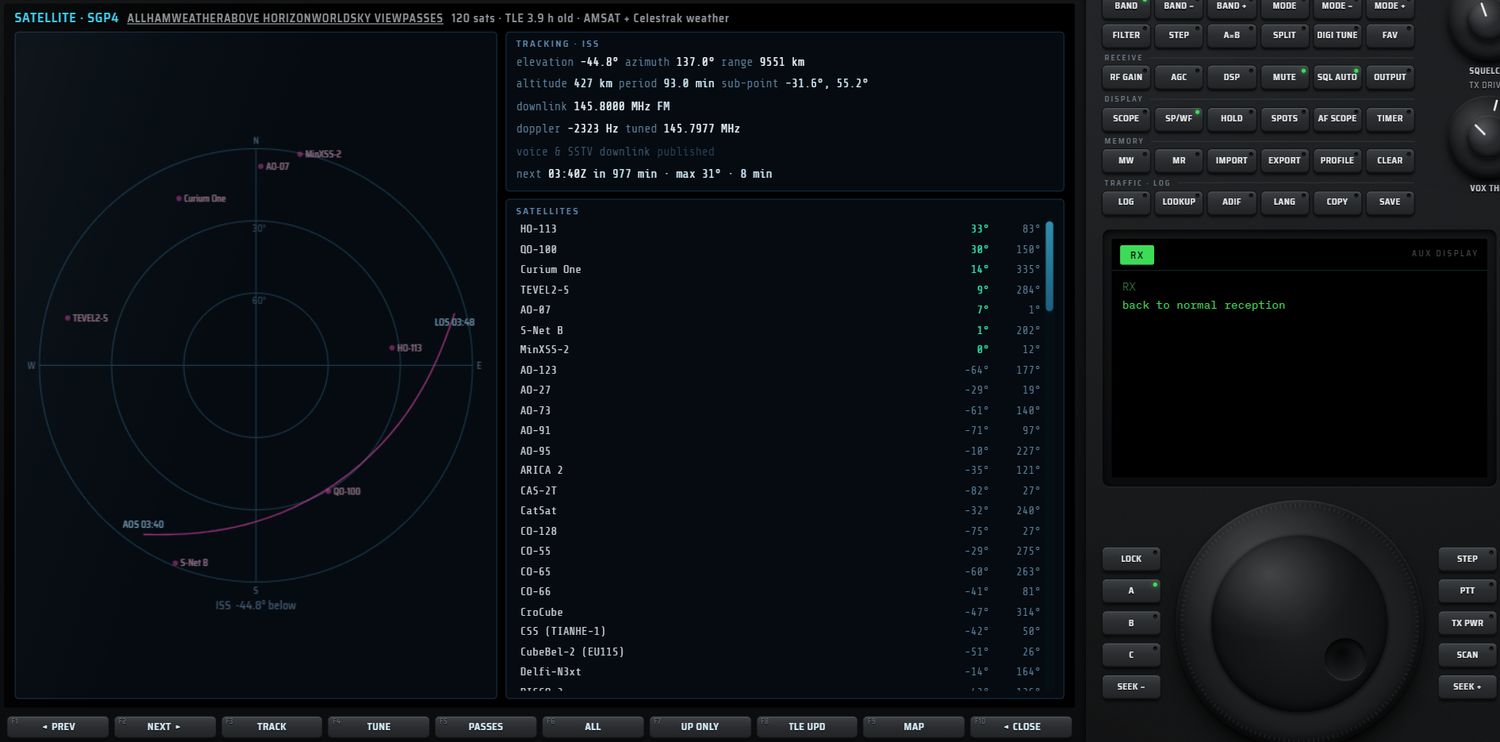
SKY VIEW : le ciel vu de votre station. Le cercle extérieur est l'horizon, les cercles intérieurs 30° et 60° ; N, S, E, W sont marqués. La trajectoire du passage en cours, ou du prochain, est tracée en magenta avec ses heures « AOS » (lever) et « LOS » (coucher) en UTC. Les autres satellites visibles sont des points pâles. Si le satellite suivi est sous l'horizon, « nom x° below » s'affiche sous le cercle.
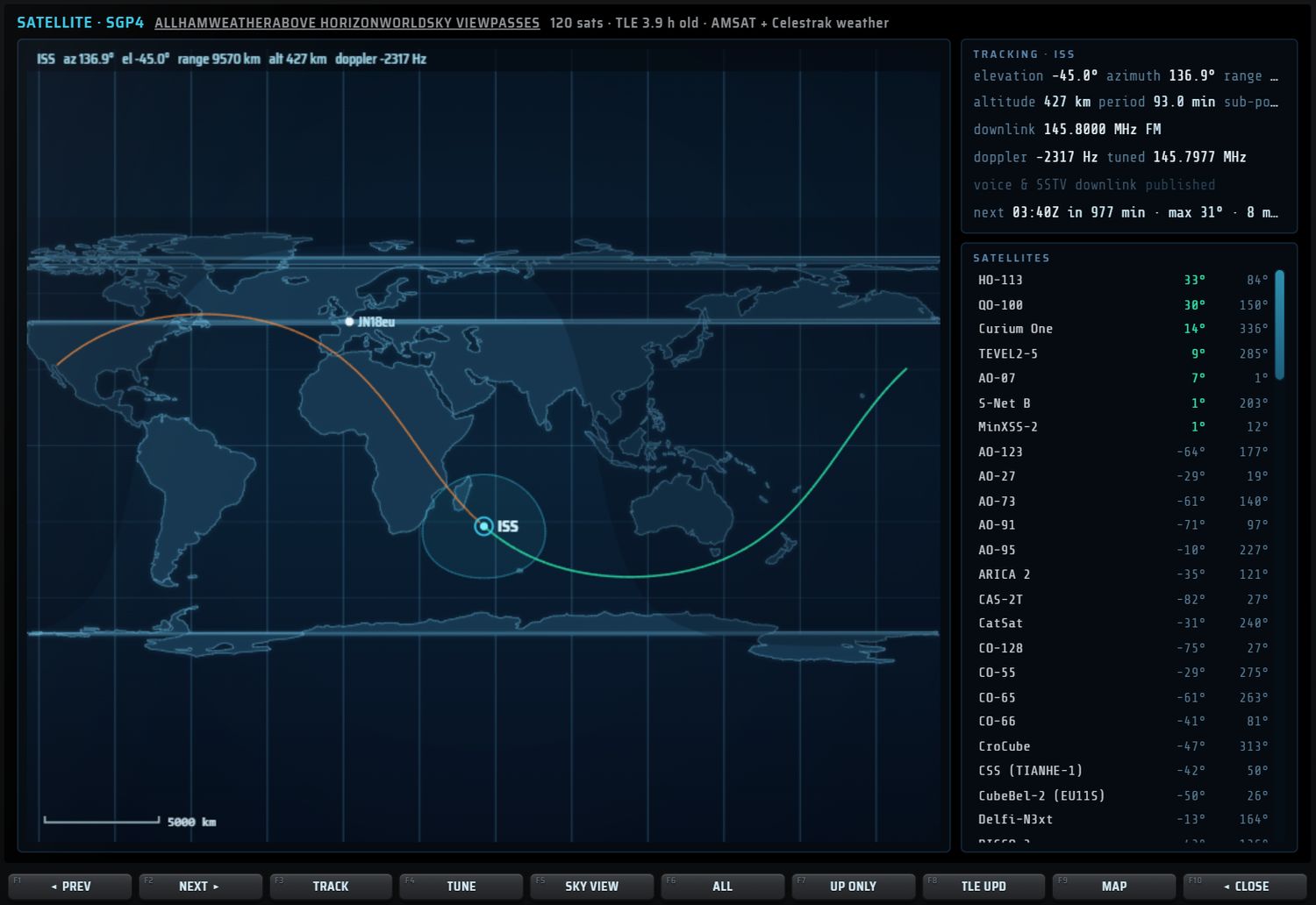
WORLD : planisphère centré sur le satellite, avec la nuit, son empreinte (cyan), sa trace au sol passée (orange) et future (verte), votre QTH (point blanc et locator). La ligne du haut donne azimut, élévation, distance, altitude et Doppler. Dans cette vue, la colonne de droite se rétrécit.
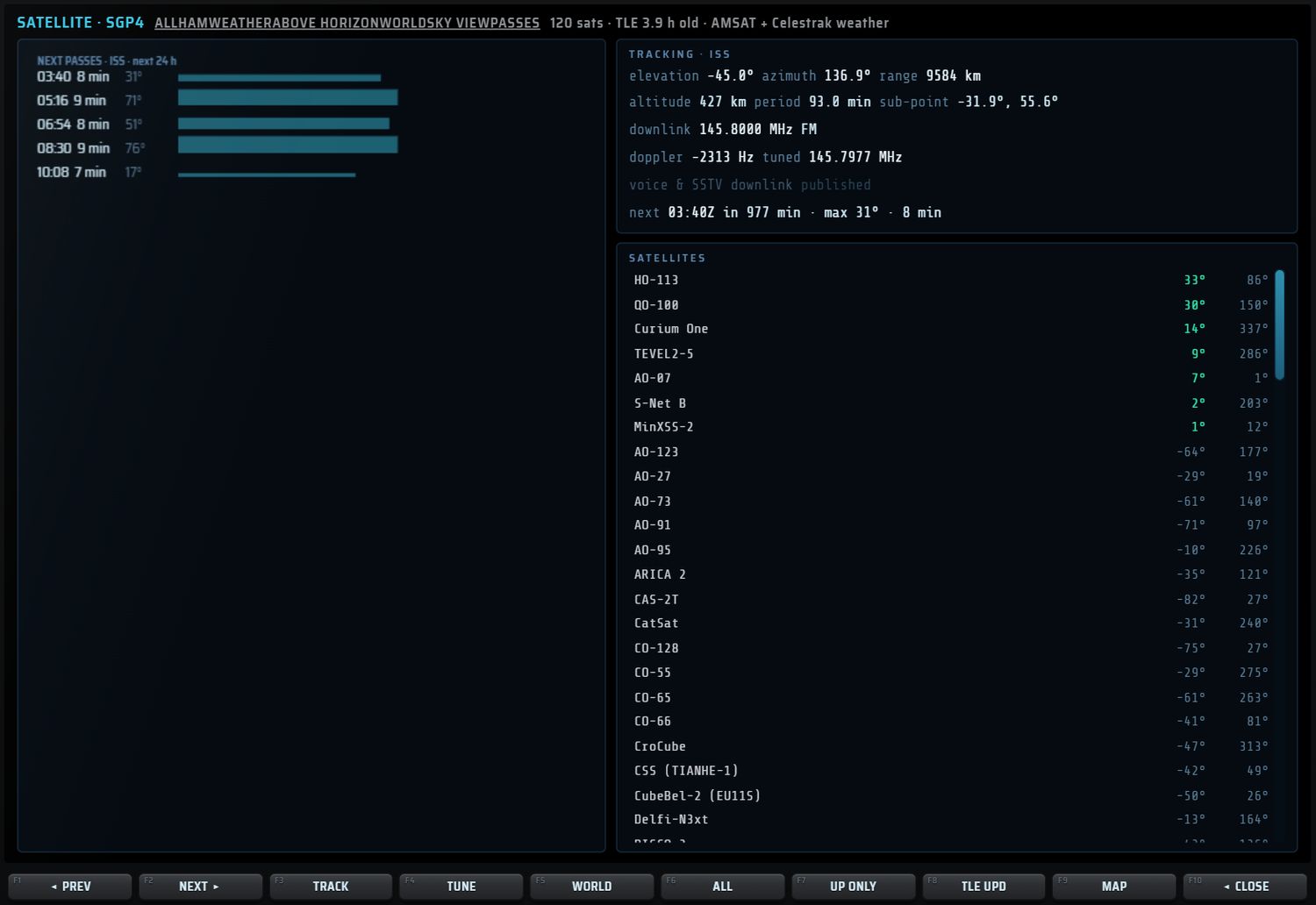
PASSES : « NEXT PASSES · nom · next 24 h ». Une ligne par passage : heure UTC de début, durée, élévation maximale, et une barre dont la longueur suit la durée et l'épaisseur l'élévation. Un passage en cours est en vert. Seuls les passages qui montent au-dessus de 5° sont listés ; la liste est recalculée au changement de satellite.
Accorder et suivre le Doppler
- TUNE (F4) : accorde une fois le récepteur sur la descente corrigée du Doppler. L'écran AUX affiche « nom · f MHz (dl + n Hz) ». Sans fréquence connue : « no known downlink for … ».
- TRACK (F3, ✓ quand actif) : suivi Doppler. Chaque seconde, le récepteur est réaccordé sur la descente corrigée.
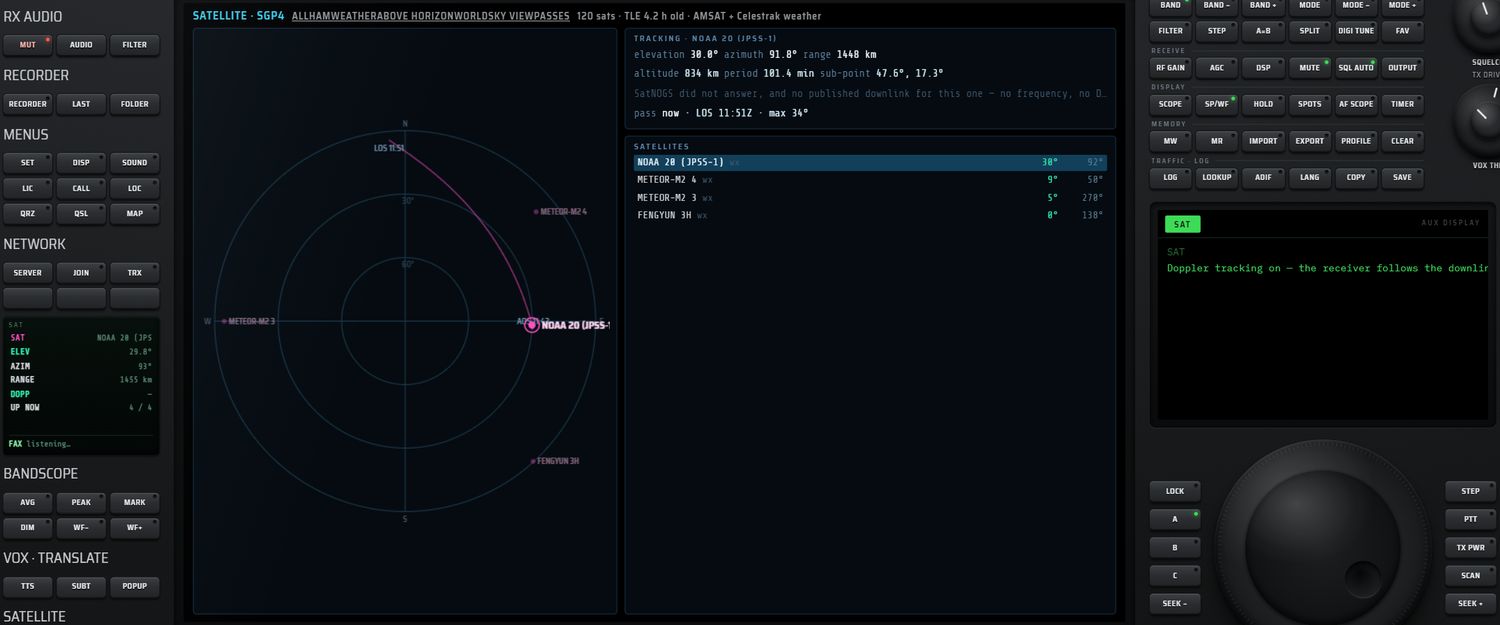
Touches F de la page SAT
| Touche | Action |
|---|---|
| F1 ◂ PREV / F2 NEXT ▸ | satellite précédent / suivant dans la liste filtrée |
| F3 TRACK | suivi Doppler (✓) |
| F4 TUNE | accord unique corrigé du Doppler |
| F5 | change de vue ; le libellé annonce la vue suivante (en SKY VIEW il affiche PASSES, en PASSES il affiche WORLD, en WORLD il affiche SKY VIEW) |
| F6 | famille ; le libellé montre la famille courante (ALL → HAM → WEATHER) |
| F7 UP ONLY | seulement les satellites au-dessus de l'horizon (✓) |
| F8 TLE UPD | télécharge de nouveaux éléments orbitaux |
| F9 MAP | ouvre la fenêtre MAP centrée sur le sous-point du satellite (cliquez le satellite pour voir sa trace) |
| F10 ◂ CLOSE | ferme la page et revient à la réception |
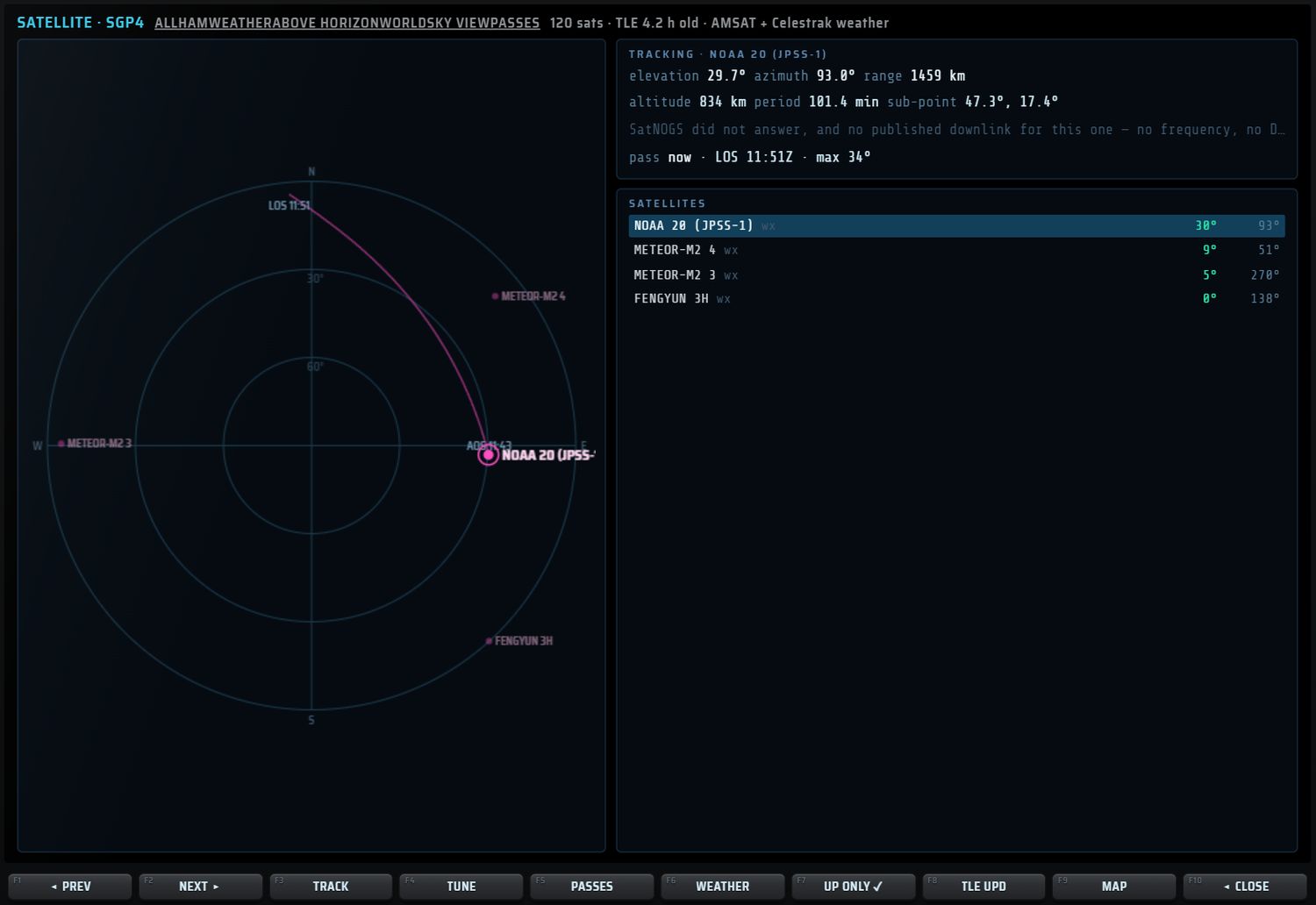
L'écran AUX résume le satellite (élévation, azimut, distance, descente, mode, Doppler, prochain passage, âge des TLE). Sans éléments chargés : « no elements loaded — F8 fetches them ». Le mini-écran affiche SAT, ELEV, AZIM, RANGE, DOPP (en vert pendant le suivi) et UP NOW (visibles / total).
Bloc SATELLITE du panneau gauche
| N° | Touche | Action |
|---|---|---|
| 10 | TRACK (what is up now) | prend le satellite suivant parmi ceux au-dessus de l'horizon (chaque appui passe au suivant) et ouvre la page en vue WORLD. AUX : « nom · x° up, az y° (N above the horizon) », ou « nothing above the horizon right now » |
| 11 | AUTO TUNE (follows the satellite) | ouvre la page en SKY VIEW si besoin et active ou coupe le suivi Doppler. AUX : « Doppler tracking on — the receiver follows the downlink » / « … off » |
| 12 | PASSES (next windows) | ouvre la page en vue PASSES ; un nouvel appui bascule entre PASSES et SKY VIEW |
Ces trois touches n'ont pas de voyant. Les touches 1 à 9 sont décrites au chapitre 4 — touches BANDSCOPE et au chapitre 9 — VOX · TRANSLATE.
Éléments orbitaux (TLE)
- Source principale : AMSAT (satellites radioamateurs), avec Celestrak en secours. Les satellites météo (METEOR, FENGYUN, METOP, NOAA) viennent en complément de Celestrak ; si Celestrak ne répond pas, la source affichée est « AMSAT » seule et la famille WEATHER peut être vide.
- Les éléments sont gardés entre deux sessions et retéléchargés automatiquement après 12 h. Ils sont jugés fiables pendant 72 h ; au-delà, l'âge s'affiche en ambre (« stale »).
- F8 TLE UPD (page SAT) ou REFRESH TLE (fenêtre MAP) forcent le téléchargement.
ADS-B : la carte des avions
Le décodeur ADS-B (1090 MHz) s'ouvre dans DECODE et exige un récepteur local RTL-SDR ou HackRF : son fonctionnement est décrit au chapitre 7 — ADS-B. Côté cartes :
- l'onglet RADAR du décodeur montre les avions sur des cercles de portée (40, 80, 120 par défaut, 200, 300 NM ; la molette change la portée) ;
- l'onglet MAP du décodeur affiche les avions sur une carte sombre zoomable, avec votre QTH et le cercle de portée ; un clic sur un avion ouvre sa fiche ;
- l'onglet LIST les classe par distance ;
- les avions localisés apparaissent aussi sur la carte STATIONS (flèches jaunes orientées).
Mémoires, trafic et réglages
Ce chapitre couvre les mémoires (les 72 cases USER et les banques importées), les listes rapides du pavé (FAV, PROFILE, TIMER), les journaux de trafic (LOG, LOGBOOK, ADIF, carte QSL), la recherche d'indicatif, la licence et les menus de réglage SET et DISP.
Où se trouvent les commandes
| N° | Touche | Ouvre | Section |
|---|---|---|---|
| 1 | SET (general) | la page MENU · SETTINGS et son MAIN MENU | SET |
| 2 | DISP (screen) | le panneau DISPLAY | DISP |
| 3 | SOUND | la fenêtre SOUND (cartes son de l'ordinateur) | chapitre 5 — SOUND |
| 4 | LIC (key) | la fenêtre LICENCE | LICENCE |
| 5 | CALL | son sous-titre affiche votre indicatif | indicatif et locator |
| 6 | LOC | son sous-titre affiche votre locator | indicatif et locator |
| 7 | QRZ | la fenêtre STATION LOOKUP | STATION LOOKUP |
| 8 | QSL (gallery) | la fenêtre LOGBOOK, vue QSL CARD | LOGBOOK |
| 9 | MAP (world) | la fenêtre MAP | chapitre 10 — MAP |
Les touches 10 à 15 (bloc NETWORK) sont décrites au chapitre 12 — émission et Virtual Net.
Dans le pavé droit (« PAD — BY USE »), ce chapitre utilise :
- section TUNING : FAV ;
- section DISPLAY : TIMER ;
- section MEMORY : MW, MR, IMPORT, EXPORT, PROFILE, CLEAR ;
- section TRAFFIC · LOG : LOG, LOOKUP, ADIF (LANG, COPY et SAVE servent à la transcription VOX : voir le chapitre 9 — VOX).
Les deux sortes de mémoires
- USER : les 72 cases mémoire du récepteur (M1 à M72). Chaque case garde une fréquence, un mode et un nom (12 caractères au plus, par défaut « 7.074 USB »). Elles sont rangées par pages de 12 : M1 à M12 = FN1, M13 à M24 = FN2, etc.
- Banques importées : des listes nommées, chargées depuis un fichier (horaires EiBi, listes de radiodiffusion, export CHIRP…). Elles peuvent compter des milliers de lignes, avec horaires et jours d'émission.
Les deux se consultent dans la même page, MEMORY MANAGER.
La page MEMORY MANAGER
Ouvrez-la avec MEM (bloc APP), avec la tuile MEMORY ou avec F5 MEMORY de la page SET.
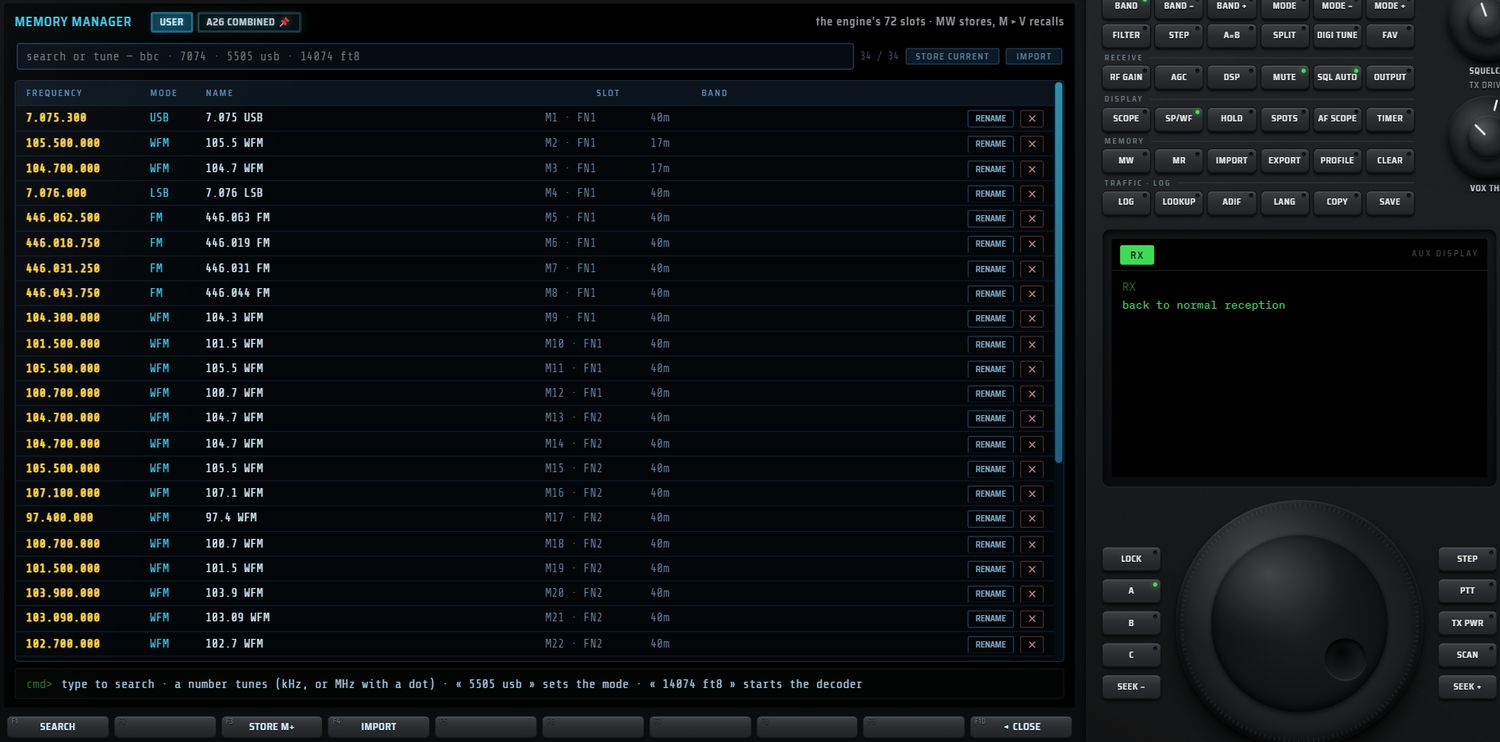
En-tête et barre d'outils
- Puces de banques : USER, puis une puce par banque importée (une punaise signale une banque épinglée). Un clic change de banque.
- À droite : « the engine's 72 slots · MW stores, M▸V recalls » pour USER, ou le format et la date d'import pour une banque.
| Élément | Visible | Action |
|---|---|---|
| ON AIR NOW | banques | ne montre que les stations en émission maintenant (heure UTC et jour). Actif par défaut. Une ligne sans horaire est considérée comme toujours active |
| champ « search or tune » | toujours | recherche et ligne de commande (voir plus bas) ; Échap vide le champ |
| compteur | toujours | lignes affichées / total (« 400+ » au-delà) |
| STORE CURRENT | USER | écrit l'accord en cours dans la première case libre ; si tout est plein : « all 72 USER slots are full » |
| PIN ON SCOPE | banques | épingle la banque sur le spectre (voir plus bas) |
| IMPORT | toujours | importe un fichier .txt ou .csv comme nouvelle banque |
| DELETE BANK | banques | supprime la banque ; deux appuis sont nécessaires (« press DELETE BANK again to really delete … ») |
La table
Au plus 400 lignes sont affichées ; au-delà, affinez la recherche. Les fréquences s'écrivent « M.kkk.hhh » (par exemple 7.074.000).
Banque USER : FREQUENCY · MODE · NAME · SLOT (par ex. « M12 · FN1 ») · BAND, et deux boutons par ligne :
- RENAME : ouvre un champ de 12 caractères ; Entrée valide, Échap annule.
- ✕ : efface la case, sans confirmation.
Banque importée : FREQUENCY · MODE · STATION · TIME UTC (hhmm-hhmm) · DAYS · CTY (pays) · TARGET (zone visée), et un bouton → M qui copie la ligne dans la première case USER libre (nom en majuscules, 12 caractères).
Un clic sur une ligne accorde immédiatement le récepteur : rappel de la case pour USER, fréquence et mode pour une banque (le mode n'est appliqué que si la source le propose). L'écran AUX affiche « nom · f MHz · mode ».
La ligne de commande
Le champ de recherche sert aussi de ligne de commande.
- Taper filtre la table instantanément : sur le nom (USER) ; sur la station, le pays, la cible et la langue (banque). Un nombre filtre sur le début de la fréquence en kHz.
- Entrée sur un nombre accorde :
7074= 7 074 kHz ;14.074(avec un point) = 14,074 MHz. - Un mot après le nombre choisit le mode (USB, LSB, AM, CW, FM, WFM ; NFM = FM, SAM = AM) ou lance un décodeur (FT8, FT4, WSPR, RTTY, PSK31, SSTV, NAVTEX, WEFAX). Exemples :
5505 usb,14074 ft8. Un mot inconnu est ignoré (« "x" ignored (not a mode) »). Un mode que la source ne propose pas est refusé. - Entrée sur du texte garde simplement le filtre.
La ligne cmd> en bas de la page rappelle cette aide et affiche le bilan des imports.
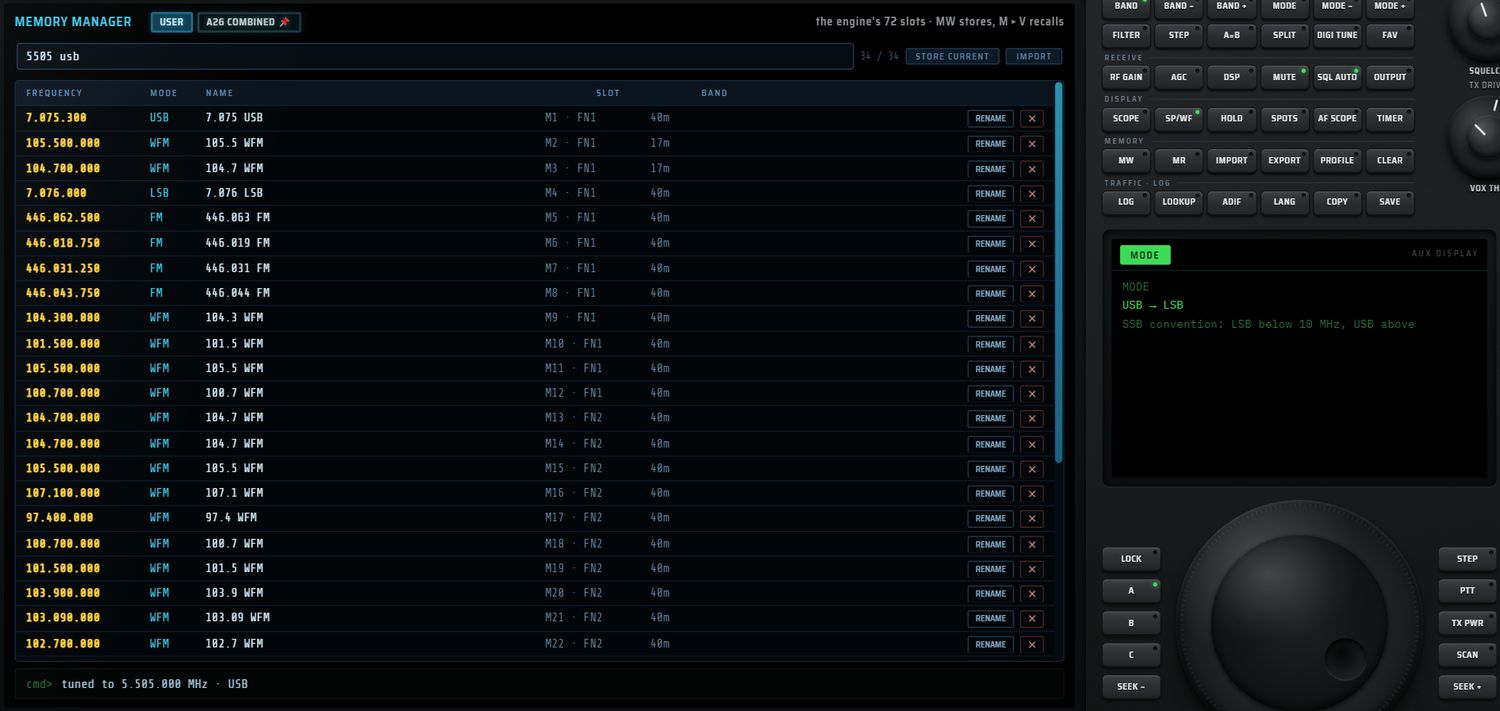
Importer une banque
Appuyez sur IMPORT (ou F4) et choisissez un fichier .txt ou .csv. Le format est reconnu automatiquement :
| Format | Reconnu par | Unité de fréquence |
|---|---|---|
| CSV « Combined SWBC » (EiBi + Aoki + HFCC) | entête Frequency,M,Station,On,Off | Hz |
| CSV CHIRP | entête Location,Name,Frequency | MHz |
| EiBi « frequency version » (texte en colonnes) | « kHz » et « Time(UTC) » en tête de fichier | kHz ; mode AM, ou CW pour les lignes « -CW » |
| CSV générique | une colonne freq, mhz, khz ou hz | celle de l'entête ; sinon déduite de la valeur (moins de 30 = MHz, moins de 1 000 000 = kHz, au-delà Hz) |
- La banque prend le nom du fichier, en majuscules (22 caractères). Un fichier de même nom remplace la banque existante.
- Bilan : « format · N rows imported · N rejected ». Si la banque est trop grosse pour être gardée, elle reste disponible pendant la session seulement (« kept for this session only »).
- Les fichiers
frequencies.xmlde SDR# ne sont pas reconnus ici.
Épingler une banque sur le spectre
PIN ON SCOPE (ou F5 PIN) épingle la banque affichée. Toutes les 2,5 s, les stations de cette banque en émission à l'heure actuelle apparaissent comme marqueurs sur le spectre, comme les marqueurs DX. Désépingler les retire. Plusieurs banques peuvent être épinglées. La banque USER ne s'épingle pas (« pinning is for imported banks »).
Touches F, AUX et mini-écran
| Touche | Action |
|---|---|
| F1 SEARCH | place le curseur dans le champ |
| F2 NOW | ON AIR NOW / toute la banque (✓) — banques seulement |
| F3 STORE M+ | passe sur USER si besoin et écrit l'accord en cours dans la première case libre |
| F4 IMPORT | importe un fichier |
| F5 PIN | épingle / désépingle (✓) — banques seulement |
| F10 ◂ CLOSE | ferme la page et revient à la réception |
L'écran AUX affiche « MEMORY MANAGER · banque », le bilan et l'aide. Le mini-écran affiche BANK, SHOWN (affichées / total), FILTER (on air now / whole bank), PINNED (nombre de banques) et SEARCH.
Les touches MEMORY du pavé
| Touche | Action |
|---|---|
| MW (write) | écrit l'accord en cours (fréquence, mode) dans la première case USER libre ; AUX « M n written · nom · mode ». Si les 72 cases sont pleines, rien n'est écrit |
| MR (recall) | ouvre la liste MEMORIES (voir ci-dessous) |
| IMPORT | remplit les cases USER libres depuis un fichier (voir ci-dessous) |
| EXPORT | enregistre les cases occupées dans rxone-memories.csv (colonnes slot,label,freq_mhz,mode,band) ; sans mémoire : « no memory to export » |
| PROFILE (setups) | ouvre la liste PROFILES (voir ci-dessous) |
| CLEAR (lists) | vide les listes de travail (voir ci-dessous) |
MR : la liste MEMORIES
- Un clic sur une case (M1 … M72) la rappelle. La case active est en surbrillance.
- WRITE… : l'en-tête demande « pick the slot to WRITE into » ; toutes les cases s'affichent, vides comprises (« — ») ; cliquez la case qui recevra l'accord en cours.
- ERASE… : l'en-tête demande « pick the slot to ERASE » ; cliquez la case à effacer.
- cancel : apparaît pendant WRITE… ou ERASE… et abandonne.
- EXPORT CSV : même effet que EXPORT.
- Les choix sont aussi sur F1 à F9. Quand la liste dépasse 10 entrées, F10 MORE n/N passe à la page suivante.
IMPORT du pavé : remplir les cases USER
IMPORT ouvre un sélecteur de fichier (.csv, .txt, .chirp, .tsv). Contrairement à l'IMPORT de la page MEMORY, il ne crée pas de banque : il écrit chaque ligne dans une case USER libre.
- Séparateur : point-virgule, tabulation ou virgule.
- Colonnes reconnues par l'entête : fréquence, nom (22 caractères), mode.
- Bilan : « N channels stored from fichier · N lines skipped · N free slots left ».
PROFILE : configurations complètes
Un profil est un instantané complet du VFO : source, accord, mode, filtres, audio, affichage, décodeur et disposition.
- SAVE THE CURRENT SETUP… enregistre l'état actuel sous un nom automatique « f MHz mode HHhMM » (heure locale).
- Un clic sur un profil le rappelle sur le VFO courant (« "nom" restored »).
- delete, à côté de chaque profil, le supprime.
FAV : fréquences marquées
FAV (section TUNING) ouvre la liste MARKED FREQUENCIES, plus rapide que les mémoires pour garder une fréquence en passant.
- mark the current one (F1) marque la fréquence en cours. Si une marque existe déjà à ±200 Hz, elle est retirée : le même geste marque et démarque.
- Chaque marque « f MHz mode · nom » se rappelle d'un clic (bande, mode et fréquence).
- 40 marques au plus, la plus récente en tête.
TIMER : réveil et arrêt programmés
TIMER (section DISPLAY, sleep · wake) programme le récepteur.
- wake up in 5, 15, 30, 60 ou 120 min : rallume le récepteur s'il est éteint, puis reprend le mode et la fréquence mémorisés au moment du réglage.
- switch off in 15, 30, 60 ou 120 min : arrête proprement un enregistrement en cours, déconnecte la source et éteint.
- Quand un programme existe, la liste affiche « wake-up in N min » ou « switch-off in N min » et un choix cancel.
- Un seul programme à la fois. L'application doit rester ouverte.
CLEAR : vider les listes de travail
CLEAR demande deux appuis en moins de 4 s. Il vide la liste des décodages FT8, les marqueurs posés sur le spectre et les sous-titres VOX. Les mémoires ne sont pas touchées.
Les journaux de trafic
RX·ONE tient deux journaux distincts :
| Journal des décodages (CALL LOG) | Carnet de trafic (LOGBOOK) | |
|---|---|---|
| Contenu | toutes les lignes FT8/FT4 décodées (ce que vous avez entendu) | vos contacts : messages FT8 qui commencent par votre indicatif, contacts importés, saisies |
| Taille | les 500 dernières lignes sont gardées | jusqu'à 20 000 contacts |
| Ouverture | LOG (pavé) | QSL (MENUS), tuile QSL de la page SET, F4 LOG de STATION LOOKUP |
| Export ADIF | ADIF (pavé) → rxone-log.adi | EXPORT ADIF / F8 → RXONE_log_AAAAMMJJ.adi |
LOG : le journal des décodages
LOG ouvre le panneau CALL LOG — FT8/FT4 decodes · ADIF dans le grand écran :
- la liste des 200 dernières lignes : heure, rapport signal/bruit, message, distance en km ;
- un compteur « N QSO » ;
- EXPORT ADIF affiche le texte ADIF, prêt à copier ; le bouton devient BACK TO LIST ;
- CLEAR vide ce journal.
Les boutons du panneau sont repris sur les touches F ; F10 ◂ CLOSE le ferme.
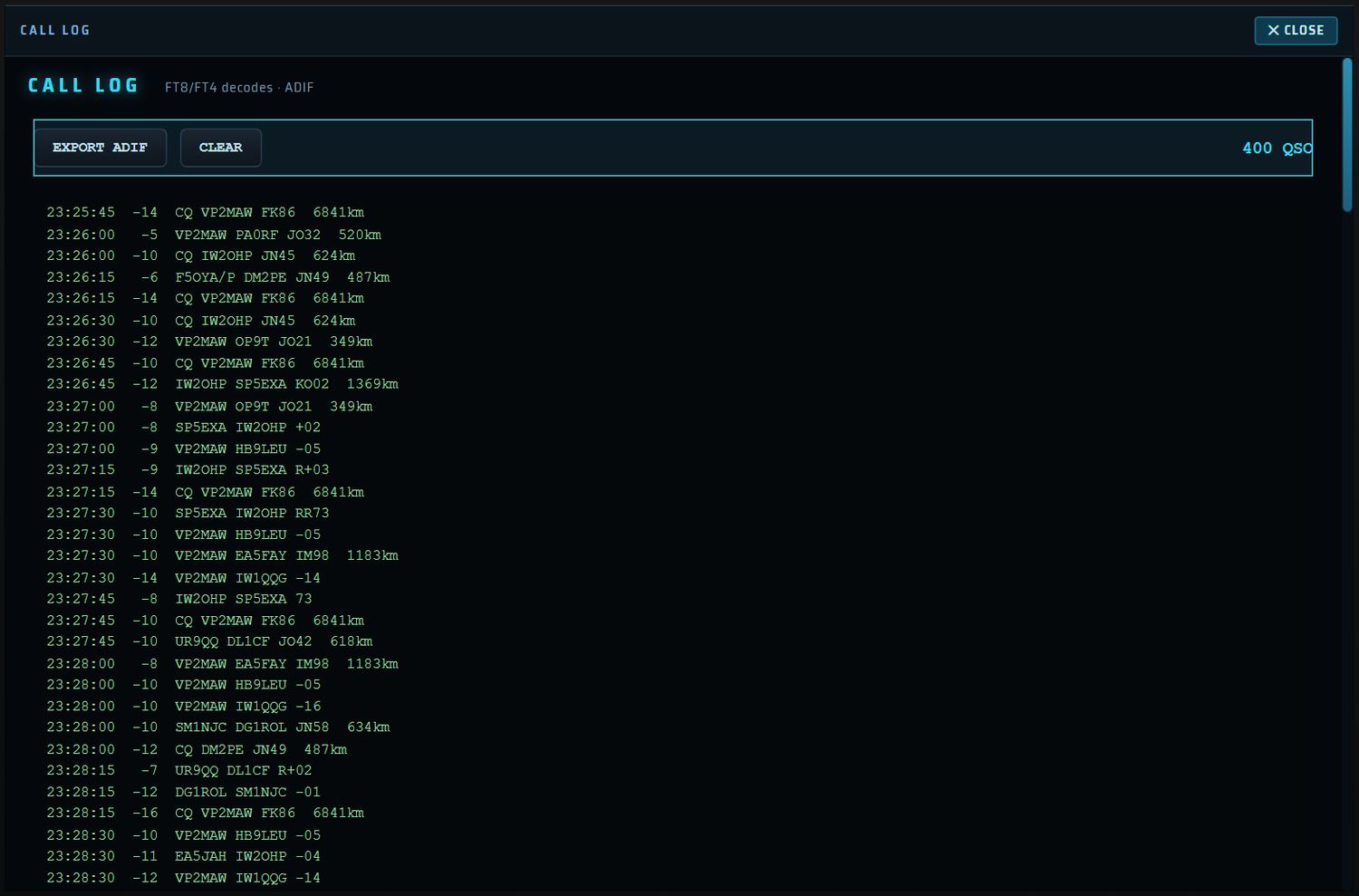
ADIF : exporter les décodages
ADIF enregistre le journal des décodages au format ADIF 3.1.4 (rxone-log.adi) : indicatif, date, heure, bande, fréquence, mode, rapport reçu. Journal vide : « log is empty — decoded FT8/FT4 contacts land there ».
LOGBOOK : le carnet de trafic
La fenêtre LOGBOOK s'ouvre devant le grand écran. Son titre rappelle la vue et le bilan : « N QSO · N DXCC · N grids — indicatif ».
Boutons du bas
| Bouton | Action |
|---|---|
| BOOK | vue carnet |
| ENTRY | vue fiche du contact sélectionné |
| QSL CARD | vue carte QSL |
| SAVE CARD | enregistre la carte en image PNG (QSL_INDICATIF_AAAAMMJJ_HHMM.png) ; sur PC, dans le dossier des enregistrements |
| SEND BY SSTV | charge la carte dans l'encodeur SSTV (voir plus bas) |
| IMPORT ADIF | importe un fichier .adi / .adif |
| EXPORT ADIF | exporte le carnet en ADIF |
| AUTO-LOG | enregistrement automatique des contacts FT8 (✓, actif par défaut) |
| DELETE | supprime le contact sélectionné, après deux appuis (« press DELETE again to remove … this cannot be undone ») |
Vue BOOK
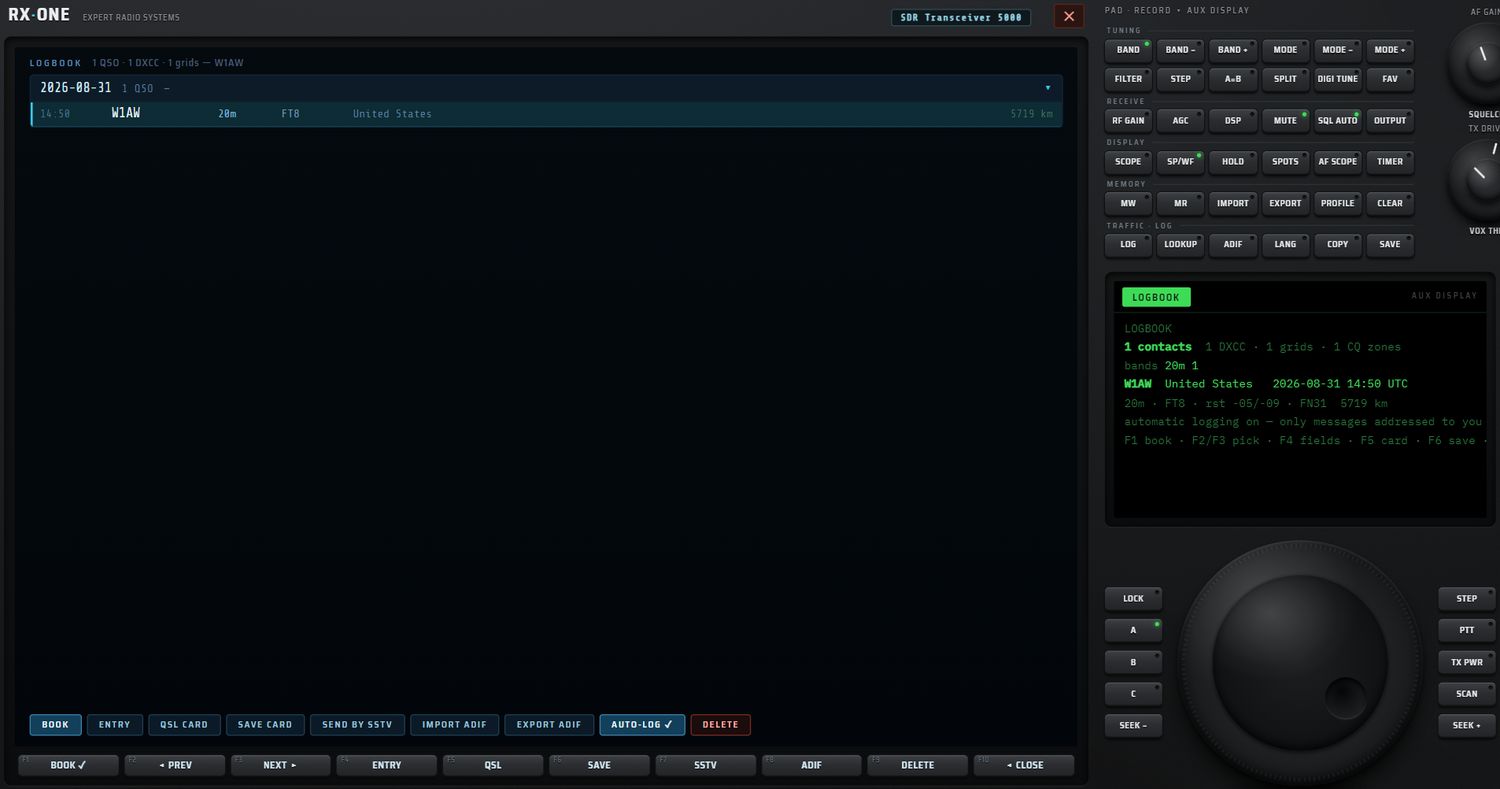
Les contacts sont groupés par jour (« AAAA-MM-JJ · N QSO · durée »), un seul jour ouvert à la fois (▾ / ▸). Chaque ligne donne l'heure UTC, l'indicatif, la bande, le mode, le pays et la distance. Un clic sélectionne le contact. Carnet vide : « The book is empty… ».
Vue ENTRY
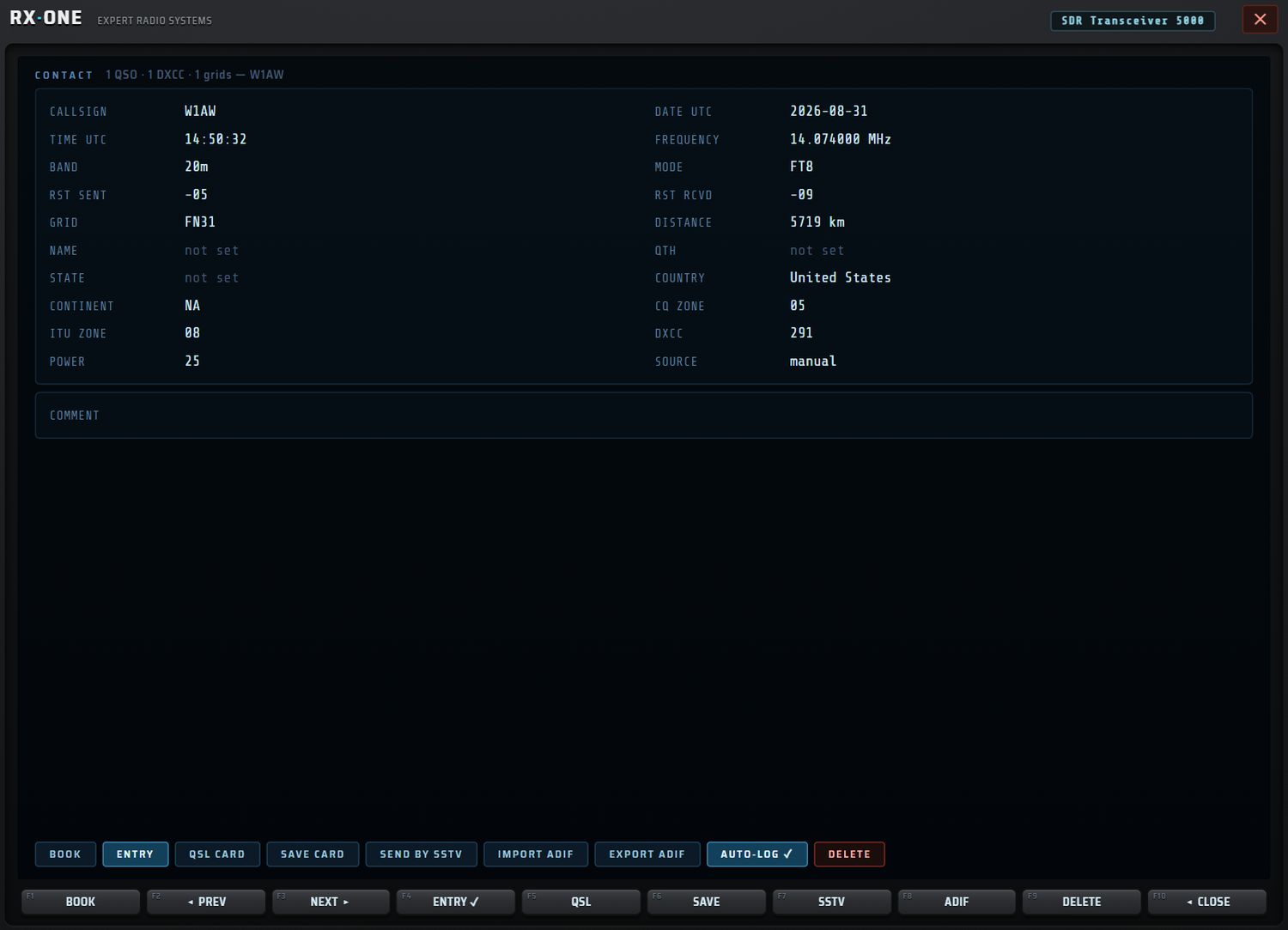
Tous les champs du contact. Modifiables sur place : callsign, mode, rst sent, rst rcvd, grid (la distance est recalculée), name, qth, state, power, comment. En lecture seule : date et heure UTC, fréquence, bande, distance, pays, continent, zones CQ et ITU, DXCC, source.
Le pays vient d'une table intégrée (hors ligne). Les zones CQ/ITU, le continent et le numéro DXCC sont demandés à HamQTH (sans compte) puis gardés en mémoire.
Vue QSL CARD

La carte est dessinée à partir du contact : votre indicatif, votre locator et votre ligne de station, « CONFIRMING TWO-WAY CONTACT WITH », l'indicatif du correspondant, son pays et son continent, puis DATE, TIME, FREQUENCY, BAND, MODE et les champs cochés ; en pied, le message d'accueil et « PSE QSL ».
| Réglage | Valeurs / défaut |
|---|---|
| GREETING | texte libre ; défaut « TNX FOR THE QSO · 73 » |
| STATION LINE | texte libre (matériel, antenne) |
| PICTURE | ADD IMAGE, puis CHANGE / REMOVE ; l'image est réduite à 640 px et gardée |
| FIELDS ON THE CARD | RST S, RST R, GRID, DIST, POWER, ZONES, COMMENT ; tous cochés par défaut |
| ACCENT | CYAN (défaut), GREEN, AMBER, RED, VIOLET, WHITE |
| SEND | BY SSTV ; 320x256 montre l'aperçu au format SSTV |
La personnalisation est gardée d'une session à l'autre.
Envoyer la carte en SSTV
SEND BY SSTV (ou F7) charge la carte, au format 320 × 256, dans l'encodeur SSTV (mode courant, MARTIN M1 par défaut) et ferme la fenêtre. L'écran AUX indique « card loaded into the SSTV encoder … press SEND when ready ». L'émission elle-même se fait depuis ENCODE (chapitre 12 — ENCODE).

Auto-log et ADIF
- AUTO-LOG n'enregistre que les messages FT8 adressés à votre indicatif (votre indicatif en premier mot), une fois par correspondant et par créneau. L'écran AUX confirme « QSO logged — indicatif ». Votre indicatif doit être réglé.
- IMPORT ADIF écarte les doublons (même indicatif, même bande, même mode à moins de 15 minutes). Bilan : « N contacts imported · N already in the book · N records without a callsign ».
- EXPORT ADIF écrit
RXONE_log_AAAAMMJJ.adiavec votre indicatif et votre locator, et pour chaque contact : indicatif, date, heure, fréquence, bande, mode, RST, locator, nom, QTH, état, pays, DXCC, zones CQ et ITU, puissance, distance, commentaire.
Touches F du LOGBOOK
| Touche | Action |
|---|---|
| F1 BOOK | vue carnet (✓) |
| F2 ◂ PREV / F3 NEXT ▸ | contact précédent / suivant |
| F4 ENTRY | vue fiche (✓) |
| F5 QSL | vue carte (✓) |
| F6 SAVE | SAVE CARD |
| F7 SSTV | SEND BY SSTV |
| F8 ADIF | EXPORT ADIF |
| F9 DELETE | supprime le contact (deux appuis) |
| F10 ◂ CLOSE | ferme la fenêtre |
L'écran AUX affiche le nombre de contacts, de DXCC, de locators et de zones CQ, les bandes, le contact sélectionné et l'état de l'auto-log. Le mini-écran affiche QSO, DXCC, AUTO, CALL, BAND et DIST.
STATION LOOKUP : chercher un indicatif
QRZ (MENUS) ou LOOKUP (pavé) ouvrent la fenêtre STATION LOOKUP ; un nouvel appui la ferme.
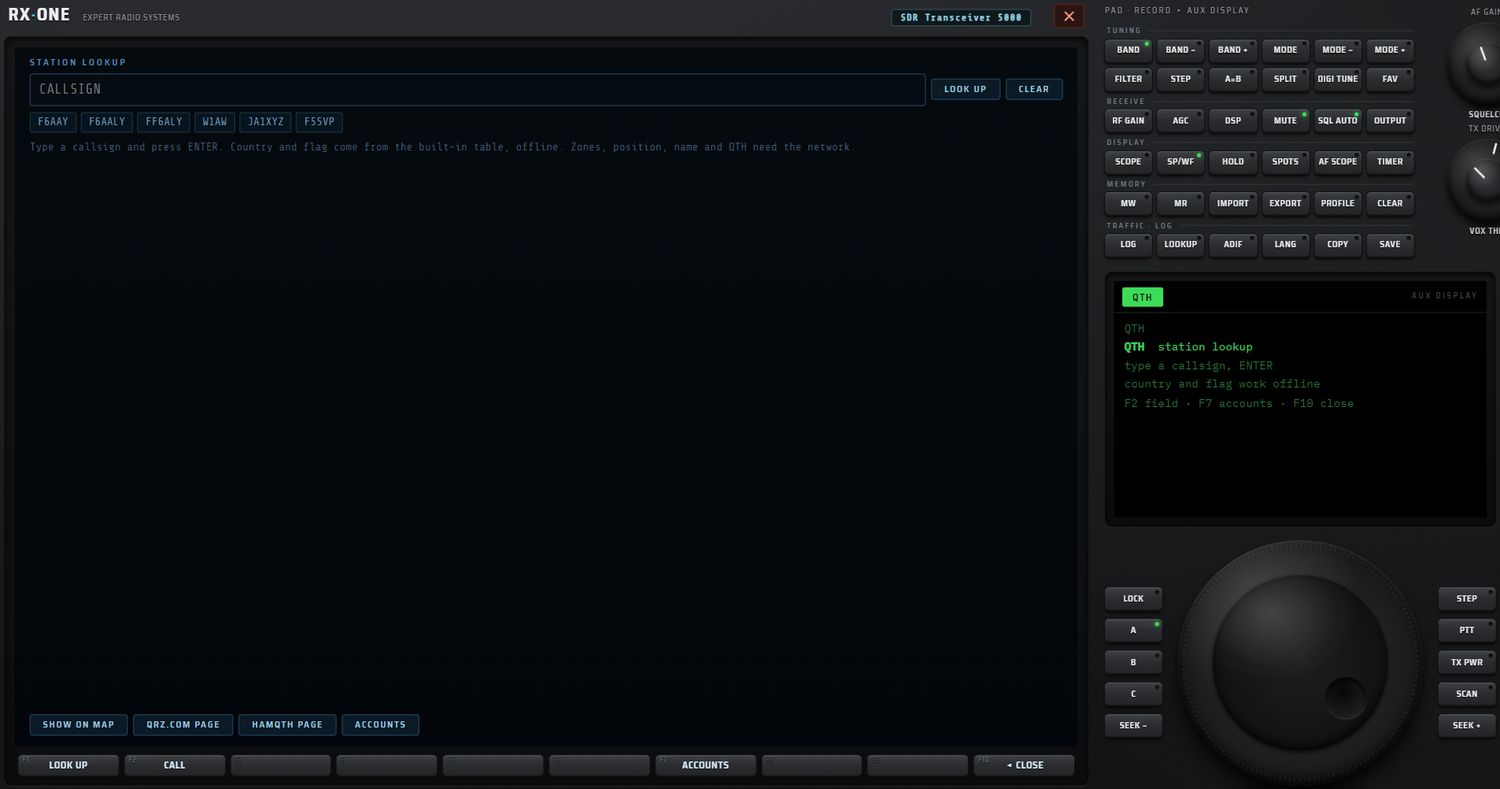
- Tapez l'indicatif dans CALLSIGN (le champ a le focus à l'ouverture) puis Entrée ou LOOK UP. CLEAR efface la fiche.
- Les 12 dernières recherches s'affichent sous le champ ; un clic relance la recherche.
- L'indicatif est simplifié : seule la partie qui contient un chiffre est cherchée (« DL/F5SVP/P » → F5SVP) ; les suffixes /P, /M, /MM, /AM, /QRP… sont ignorés.
La fiche
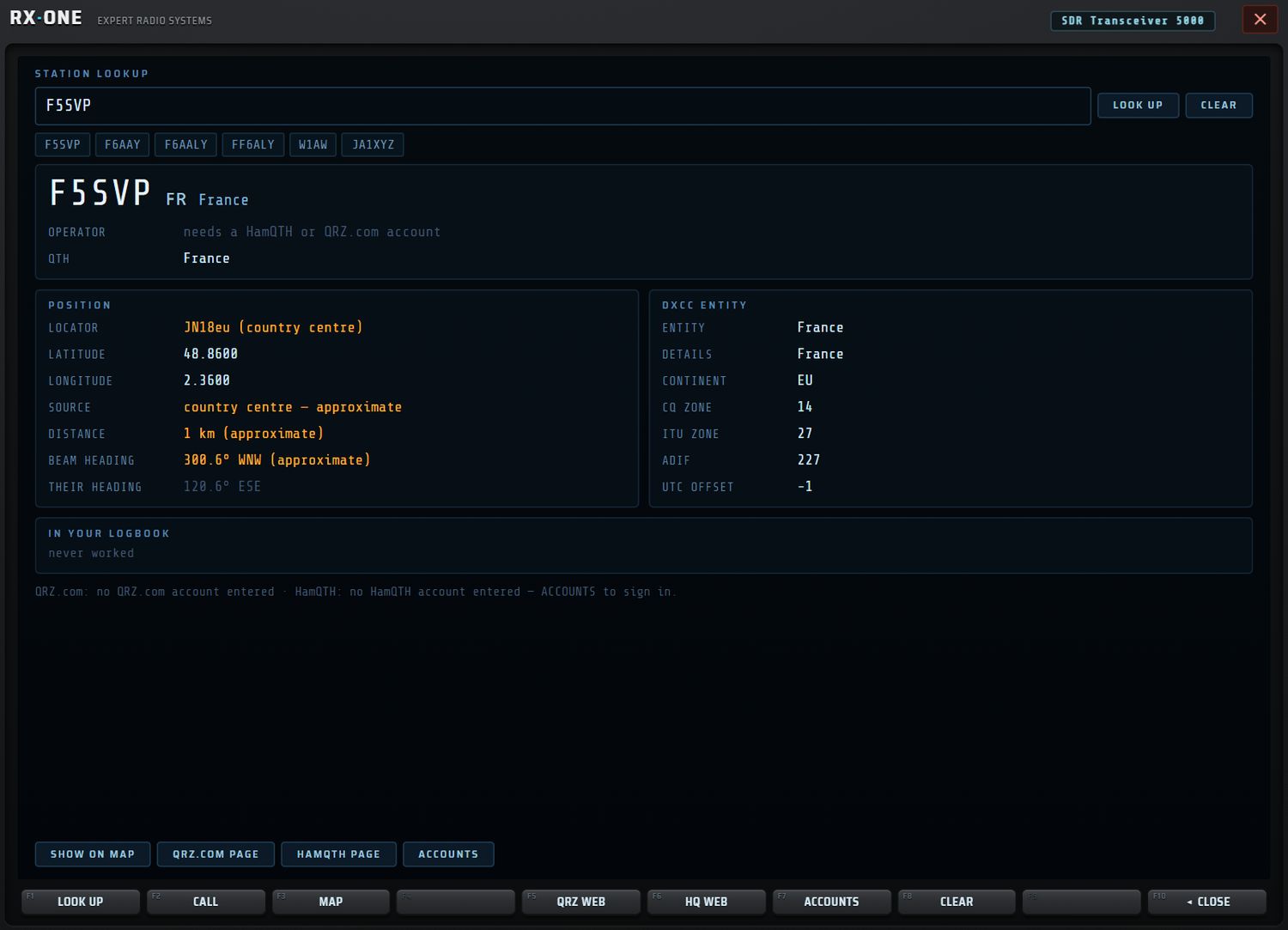
- En-tête : indicatif, pays ; operator, qth, qsl via. Sans compte : « needs a HamQTH or QRZ.com account ».
- POSITION : locator, latitude, longitude, source, distance, beam heading (cap à donner à votre antenne, avec la rose à 16 points) et their heading (le cap inverse). Quand la position n'est que le centre du pays, les valeurs s'affichent en ambre avec « (country centre) » / « approximate ». Sans votre propre locator : « set your locator to get it ».
- DXCC ENTITY : entité, détails, continent, zone CQ, zone ITU, numéro ADIF, décalage UTC.
- IN YOUR LOGBOOK : nombre de contacts (et confirmés), dernier, premier, bandes, modes ; ou « never worked ».
- En bas, une ligne signale les annuaires qui n'ont pas répondu ou pour lesquels aucun compte n'est saisi.
D'où viennent les informations
La recherche interroge en parallèle, chaque source étant limitée à une dizaine de secondes (« … did not answer in N s ») :
- le pays, hors ligne (table intégrée) ;
- les zones et l'entité DXCC (HamQTH, sans compte) ;
- la position et le nom (bases publiques, puis centre DXCC en dernier recours) ;
- QRZ.com, si un compte est saisi ;
- HamQTH, si un compte est saisi.
QRZ.com prime sur le centre du pays.
ACCOUNTS (F7) ouvre la saisie des comptes : HamQTH (gratuit : nom, QTH, locator) et QRZ.com (abonnement XML payant : nom, adresse, QSL manager, classe). L'identifiant et le mot de passe sont gardés sur cet appareil uniquement.
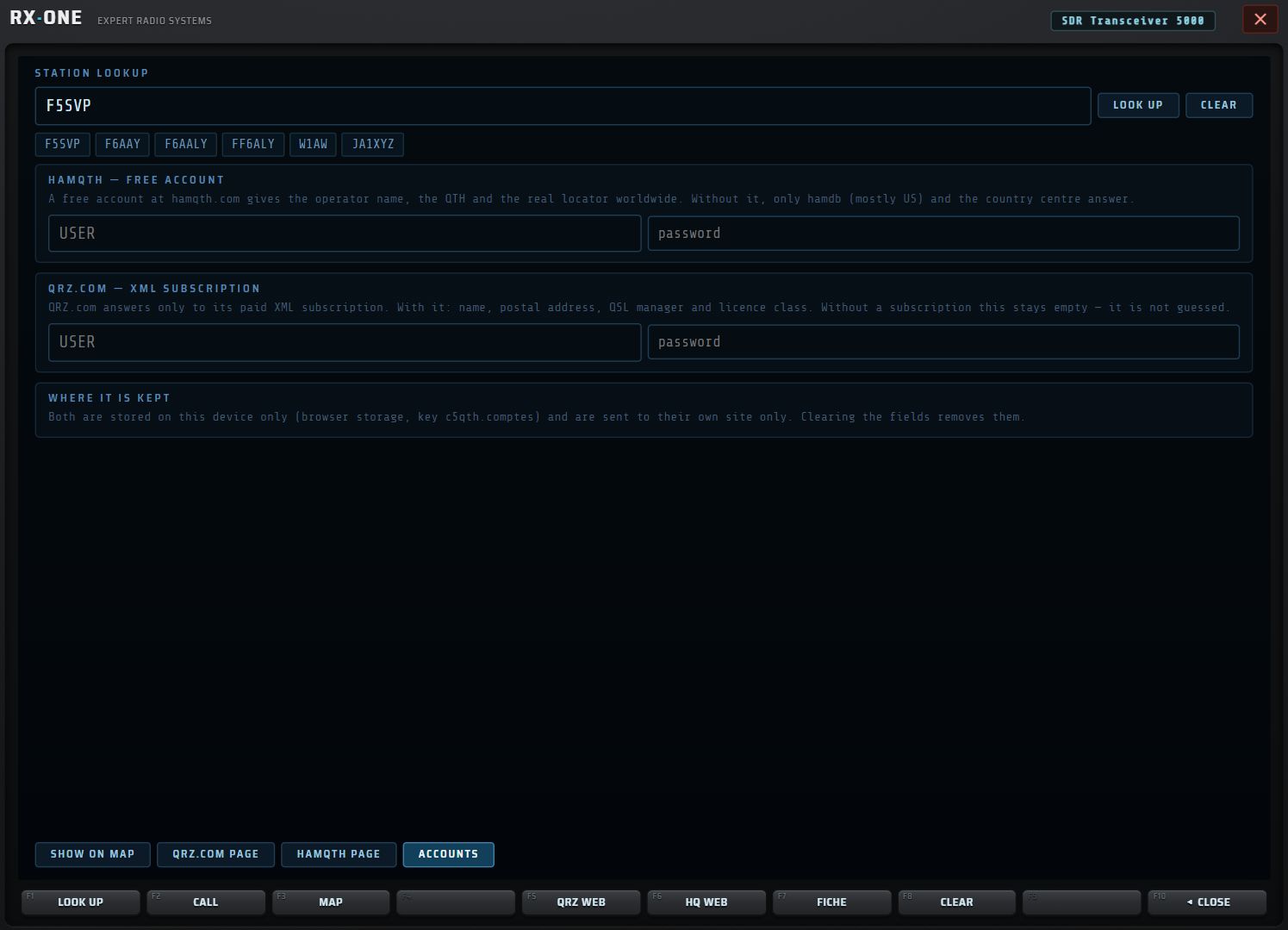
Punaise sur les cartes
Quand une position réelle est trouvée, la station est posée sur la fenêtre MAP (punaise magenta) et sur la carte STATIONS (couleur cyan, mode « QRZ ») : voir le chapitre 10 — couches de la carte. Une position qui n'est que le centre du pays n'est pas posée. CLEAR retire aussi la punaise.
| Bouton / touche | Action |
|---|---|
| SHOW ON MAP / F3 MAP | ouvre la fenêtre MAP centrée sur la station ; « this is the country centre, not the station » en ambre si la position est approximative ; « no position for this callsign » en rouge s'il n'y en a pas |
| QRZ.COM PAGE / F5 QRZ WEB | ouvre la page QRZ.com de l'indicatif dans le navigateur |
| HAMQTH PAGE / F6 HQ WEB | ouvre la page HamQTH de l'indicatif |
| ACCOUNTS / F7 | comptes (le libellé revient à la fiche quand la vue ACCOUNTS est ouverte) |
| F1 LOOK UP | lance la recherche |
| F2 CALL | place le curseur dans le champ et sélectionne son contenu |
| F4 LOG | si l'indicatif est déjà dans le carnet : ouvre le LOGBOOK |
| F8 CLEAR | efface la fiche |
| F10 ◂ CLOSE | ferme la fenêtre |
Le mini-écran affiche CALL, COUNTRY, GRID, DIST, AZIM (en ambre si approximatif) et LOG ; sans fiche, l'état des zones et des comptes. L'écran AUX résume la fiche.
Indicatif et locator
Votre indicatif (callsign) et votre locator servent partout : messages FT8, auto-log, carte QSL, distances et caps, passages des satellites, position sur les cartes.
- Les sous-titres de CALL et LOC (bloc MENUS) affichent en permanence les valeurs en cours, ou « not set ».
- Pour les régler : SET, puis dans le MAIN MENU la catégorie SYSTEM, et SETTINGS, CALLSIGN ou LOCATOR. La page SETTINGS du récepteur s'ouvre, avec les champs CALLSIGN et LOCATOR et un bouton AUTO qui propose la position de l'appareil.
LICENCE
LIC (MENUS) ou la tuile LICENSE de la page SET ouvrent la fenêtre LICENCE.
Ce qu'on lit
- État : LICENSED (vert), NOT LICENSED (rouge) ou NO SERVICE, suivi de la raison en clair (par ex. « licence valid », clé expirée, limite d'appareils atteinte, clé désactivée, hors ligne).
- product, registered to, devices (« x of y used » : appareils activés sur le nombre autorisé), key status, expires (« no expiry » pour une licence permanente).
- THIS DEVICE : plateforme (PC, Android ou Web), identifiant de l'appareil, identifiant du produit.
Activer une clé
Saisissez la clé dans ACTIVATE A KEY ON THIS DEVICE (format XXXXXXXX-XXXX-XXXX-XXXX-XXXXXXXXXXXX), puis ACTIVATE ou Entrée. Messages : « activating… », puis « activated on this device » ou la raison de l'échec.
Après une validation réussie, RX·ONE continue de fonctionner hors connexion pendant 14 jours.
Boutons
| Bouton | Touche | Action |
|---|---|---|
| RE-CHECK | F1 | revalide la licence auprès du serveur de licences |
| (champ clé) | F2 KEY | place le curseur dans le champ |
| ACTIVATE | F3 | active la clé saisie |
| BUY A LICENCE | F5 BUY | achat d'une clé (voir le chapitre 1 — licence) |
| RELEASE THIS DEVICE | F8 RELEASE | libère la place occupée par cet appareil |
| F10 ◂ CLOSE | ferme la fenêtre |
L'écran AUX résume l'état, le produit, les places, l'expiration, l'appareil et le dernier message. Le mini-écran affiche STATE, PRODUCT, SEATS, KEY et DEVICE.
SET : la page MENU · SETTINGS
SET (MENUS) ou la touche SET du bloc APP ouvrent la page MENU · SETTINGS.
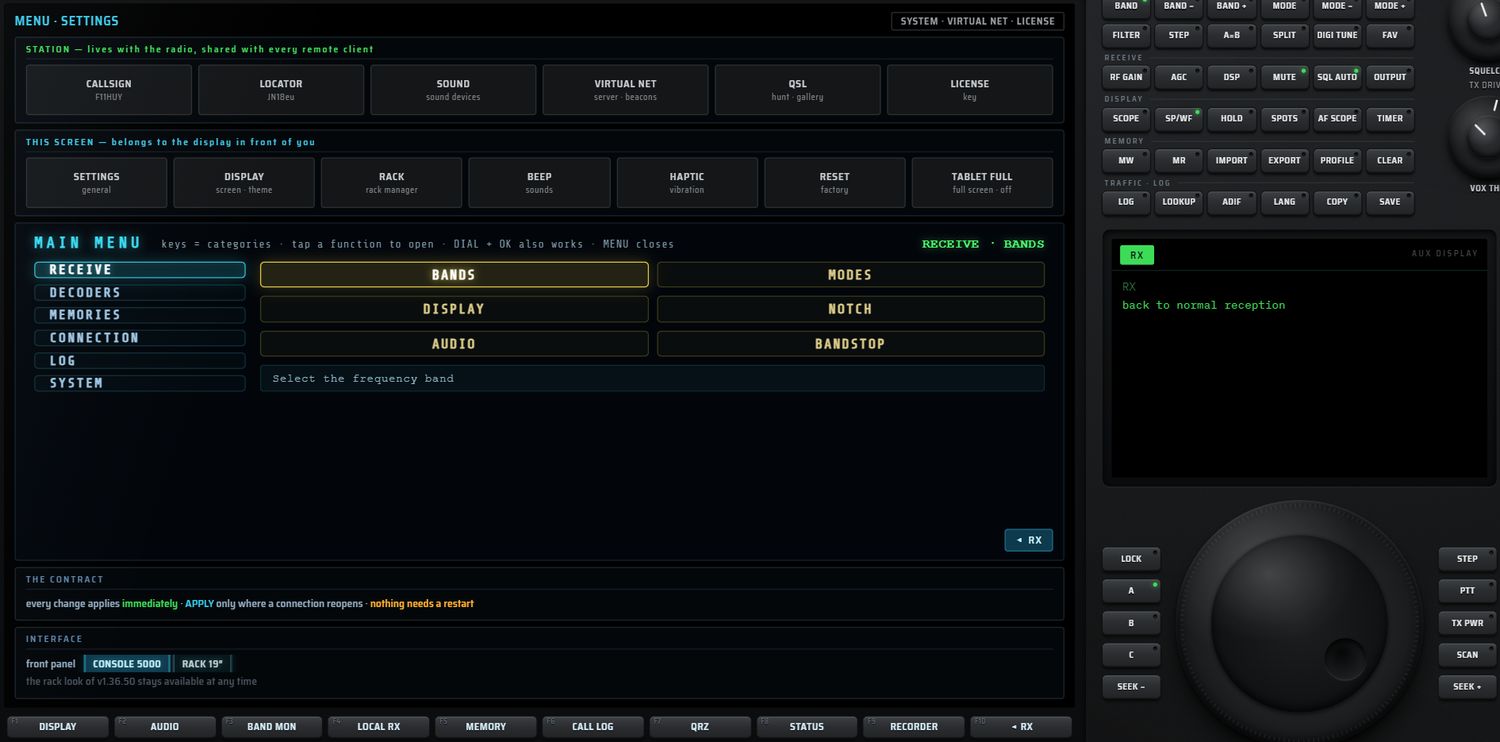
Tuiles
| Tuile | Action |
|---|---|
| SOUND (sound devices) | fenêtre SOUND (chapitre 5 — SOUND) |
| VIRTUAL NET (server · beacons) | Virtual Net (chapitre 12 — Virtual Net) |
| QSL (hunt · gallery) | LOGBOOK, vue QSL CARD |
| LICENSE (key) | fenêtre LICENCE |
| TABLET FULL (full screen · off/ON) | la façade prend toute la hauteur de l'écran (utile sur une tablette 16:10) ; réglage propre à chaque écran ; AUX « on — the front panel takes the full height of this screen » / « off — original layout » |
L'encadré INTERFACE choisit la façade : CONSOLE 5000 ou RACK 19″ (l'ancienne présentation, toujours disponible ; voir le chapitre 14 — RACK).
MAIN MENU
Les touches de gauche sont les catégories ; un clic sur une fonction l'ouvre. La molette et OK fonctionnent aussi. La ligne du bas décrit la fonction pointée.
| Catégorie | Fonctions |
|---|---|
| RECEIVE | BANDS, MODES, DISPLAY, NOTCH, AUDIO, BANDSTOP (limites de bandes IARU) |
| DECODERS | FT8, FT4, SSTV, CW, RTTY, FSK, SIGNAL ID, FAX, DMR, ADS-B, VOX |
| MEMORIES | MANAGER, RECALL, STORE, CLEAR, SERVER (mémoires fournies par le serveur WebSDR), ERASE (efface toutes les mémoires locales) |
| CONNECTION | SERVERS, LOCAL RX, VIRT NET, DISCONN, STATUS |
| LOG | CALL LOG, QRZ, EXPORT |
| SYSTEM | SETTINGS, CALLSIGN, LOCATOR, BEEP, HAPTIC, RESET (remise à zéro usine) |
Touches F de la page SET
| Touche | Action |
|---|---|
| F1 DISPLAY | panneau DISPLAY |
| F2 AUDIO | panneau audio |
| F3 BAND MON | BAND MONITOR |
| F4 LOCAL RX | récepteur local (RTL-SDR, HackRF) |
| F5 MEMORY | page MEMORY MANAGER |
| F6 CALL LOG | journal des décodages |
| F7 QRZ | recherche d'indicatif simple du récepteur (hamdb) |
| F8 STATUS | état du récepteur, du signal, de la distance |
| F9 RECORDER | enregistreur |
| F10 ◂ RX | retour à la réception |
DISP : le panneau DISPLAY
DISP (MENUS) ouvre le panneau DISPLAY. Chaque rangée montre toutes ses valeurs ; la valeur active est en vert. Un clic applique le choix immédiatement et le garde. ✕ CLOSE ferme le panneau.
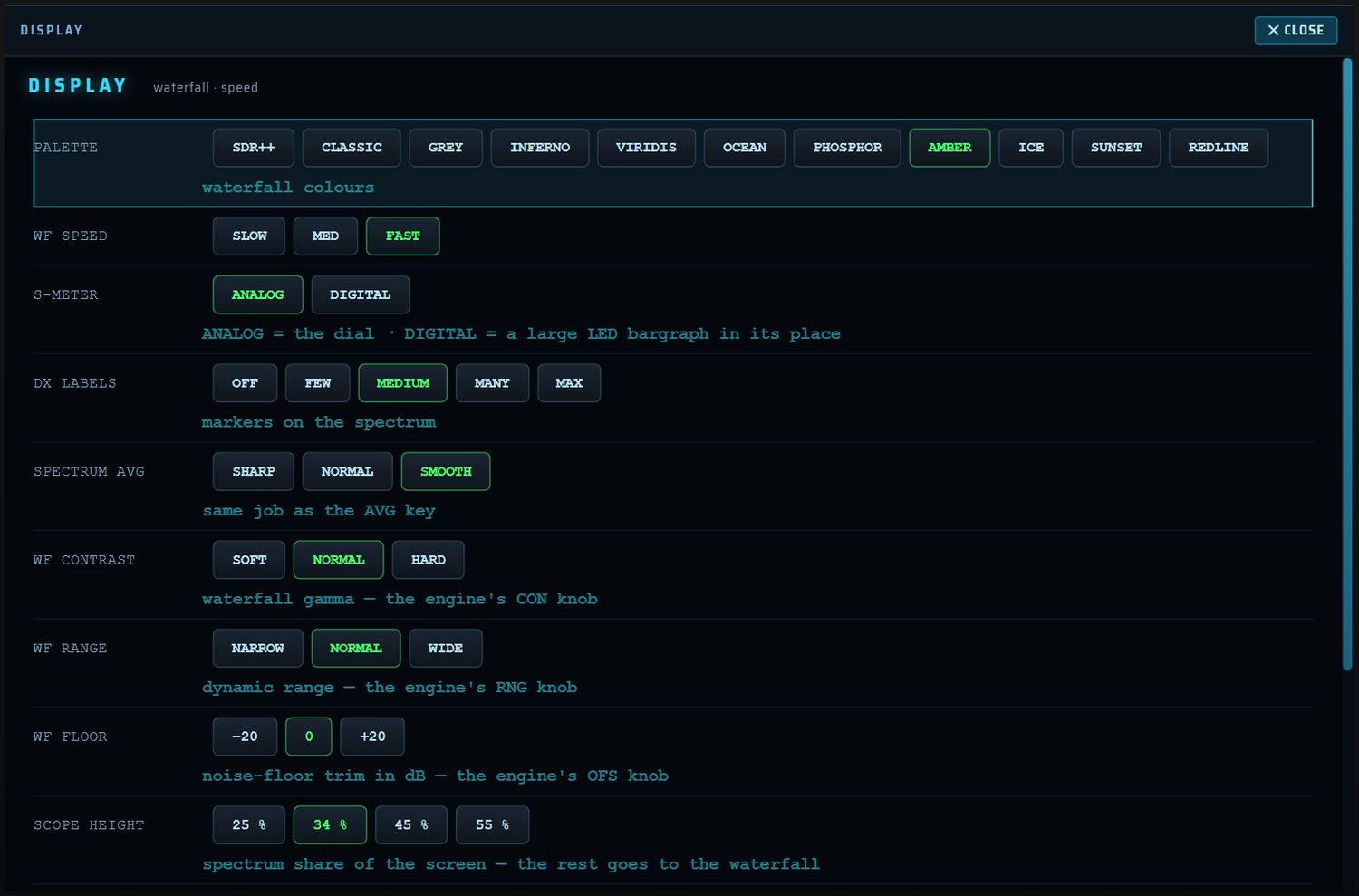
| Rangée | Valeurs | Défaut | Effet |
|---|---|---|---|
| PALETTE | SDR++, CLASSIC, GREY, INFERNO, VIRIDIS, OCEAN, PHOSPHOR, AMBER, ICE, SUNSET, REDLINE | couleurs de la cascade | |
| WF SPEED | SLOW, MED, FAST | MED | vitesse de défilement de la cascade |
| S-METER | ANALOG, DIGITAL | ANALOG | ANALOG = galvanomètre ; DIGITAL = grand bargraphe à LED à sa place |
| DX LABELS | OFF, FEW, MEDIUM, MANY, MAX | MEDIUM | densité des marqueurs sur le spectre |
| SPECTRUM AVG | SHARP, NORMAL, SMOOTH | NORMAL | lissage du spectre (même rôle que la touche AVG) |
| WF CONTRAST | SOFT, NORMAL, HARD | NORMAL | contraste (gamma) de la cascade |
| WF RANGE | NARROW, NORMAL, WIDE | NORMAL | dynamique de la cascade |
| WF FLOOR | −20, 0, +20 | 0 | correction du plancher de bruit, en dB |
| SCOPE HEIGHT | 25 %, 34 %, 45 %, 55 % | 34 % | part de l'écran donnée au spectre, le reste à la cascade |
| CLOCK | UTC, LOCAL | UTC | horloge de l'en-tête |
| FACE DIMMER | 100 %, 80 %, 60 %, 45 % | 100 % | assombrit toute la façade (usage de nuit) |
| TOOLTIPS | ON, OFF | ON | bulles d'aide au survol des touches |
Émission et Virtual Net
RX·ONE propose trois façons d'« émettre ». Elles n'ont ni le même matériel, ni les mêmes conséquences.
| Voie | Ce qui part | Matériel | PC / tablette |
|---|---|---|---|
| NET (Virtual Net) | La voix du micro, ou le son d'un encodeur, envoyés à un NET SERVER par le réseau. Rien ne rayonne. | Aucun matériel radio ; un NET SERVER joignable | PC et tablette |
| RADIO depuis TRANSMIT ou PTT | Une porteuse CW non modulée, décalée de la valeur OFFSET. La phonie (BLU, FM, AM) depuis le micro n'est pas transmise par le HackRF. | HackRF One autorisé dans LOCAL RX | PC seulement |
| RADIO depuis ENCODE | Le signal d'un encodeur numérique (CW, RTTY, SSTV, FT8…), modulé en USB, LSB, NBFM ou AM | HackRF One | PC seulement |
Trois garde-fous valent pour toute émission radio :
- semi-duplex : la réception du HackRF est suspendue pendant l'émission, puis reprise ;
- démarrage à gain nul, amplificateur coupé ; votre réglage de puissance est appliqué ensuite ;
- temporisations : la limite LIMIT de la fenêtre TRANSMIT (30 s par défaut), plus une coupure automatique après 12 s sans données envoyées à l'appareil.
Commandes d'émission de la façade
| N° | Touche | Action | Valeurs / défaut |
|---|---|---|---|
| 2 (bandeau gauche) | TX | Ouvre la fenêtre TRANSMIT dans le grand écran central. Les autres fenêtres se ferment (une seule fenêtre à la fois). N'émet pas à elle seule. | — |
| 3 (bandeau gauche) | MON | Pas d'écoute de l'émission avec cette touche dans cette version. Pour entendre ce que vous émettez, utilisez la sortie MONITOR de la page ENCODE. | — |
| 7 (vernier) | PTT | Appuyer-maintenir : l'émission démarre à l'appui et s'arrête au relâchement, ou quand le doigt quitte la touche. Fonctionne depuis n'importe quelle page, sans ouvrir TRANSMIT. Emprunte la voie (ROUTE) choisie dans TRANSMIT. La touche s'allume pendant l'émission ; le témoin TX de l'en-tête suit l'émission réelle. | Voie NET par défaut |
| 8 (vernier) | TX PWR | Ne règle pas la puissance. La puissance se règle avec TX VGA dans TRANSMIT, avec le rotatif TX DRIVE, ou avec DRIVE dans ENCODE. | — |
| 3 (rotatifs), tête | TX DRIVE | Puissance voulue du HackRF : ±1 dB par cran de molette ou tous les 12 px de glisser vertical. Hors émission, le mini-écran indique « applied when transmission opens ». Au-delà de 40 dB, un avertissement rouge s'ajoute : « near maximum — check your filter ». | 0 à 47 dB, défaut 0 ; mémorisé |
| 3 (rotatifs), jupe | VOX THR | Seuil de déclenchement du VOX d'émission, ±1 par cran. | 1 à 90 |
| 10 (NETWORK) | SERVER | Lance le NET SERVER dans sa propre fenêtre, puis vérifie au bout de 3 s qu'il répond. Voir Lancer le serveur depuis la console. | PC seulement |
| 11 (NETWORK) | JOIN | Ouvre la fenêtre VIRTUAL NET dans la fente au-dessus du spectre et rejoint le serveur si la liaison n'est pas déjà ouverte. La LED reste allumée tant que vous êtes connecté. | — |
| 12 (NETWORK) | TRX | Allume ou éteint le TRX réseau dans l'écran AUX. Si le poste est allumé mais caché par une autre fenêtre, un appui le ramène au lieu de l'éteindre. LED allumée tant que le poste est en marche. | — |
| 13 à 15 (NETWORK) | (vierges) | Sans fonction. | — |
Fenêtre TRANSMIT
La fenêtre TRANSMIT s'ouvre avec TX. Elle se ferme avec ✕ CLOSE en haut à droite ou avec F10 ◂ RX ; les deux arrêtent l'émission avant de fermer.
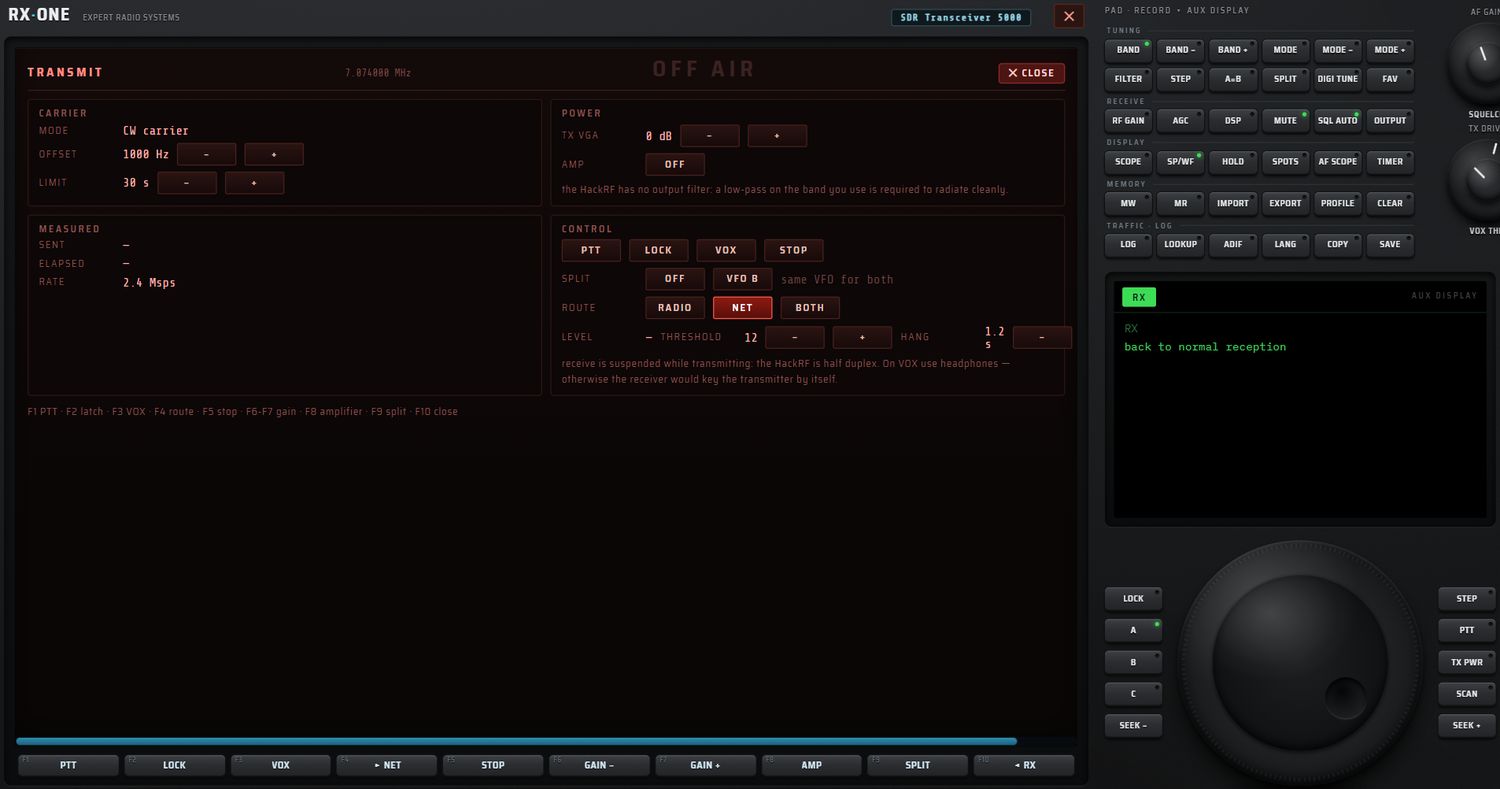
Bandeau
| Élément | Contenu |
|---|---|
TRANSMIT | titre |
| fréquence | fréquence du VFO en MHz, 6 décimales, rafraîchie toutes les 0,4 s |
| OFF AIR / ON AIR | état d'émission ; ON AIR s'allume en rouge vif avec un halo |
| ✕ CLOSE | arrête l'émission, puis ferme la fenêtre |
Cadre CARRIER
| Réglage | Action | Valeurs / défaut |
|---|---|---|
| MODE | Affichage fixe « CW carrier » : la voie RADIO de cette fenêtre émet une porteuse non modulée. | — |
| OFFSET − / + | Décalage de la porteuse par rapport à la fréquence affichée. | 100 à 50 000 Hz, pas de 100 Hz, défaut 1000 Hz |
| LIMIT − / + | Durée maximale d'une émission radio. À l'échéance, l'émission s'arrête avec « stopped — N s limit reached ». Ne concerne que la voie RADIO. | 5 à 300 s, pas de 5 s, défaut 30 s ; revient à 30 s à chaque lancement |
Cadre POWER
| Réglage | Action | Valeurs / défaut |
|---|---|---|
| TX VGA − / + | Gain d'émission du HackRF. Réglable hors émission : il est appliqué à l'ouverture de l'émission (« applied when transmission opens »). La valeur affichée est celle que l'appareil applique réellement : hors émission, elle peut rester à 0 même si vous avez réglé une puissance ; le mini-écran donne la valeur voulue. | 0 à 47 dB, pas de 1 dB, défaut 0 ; mémorisé |
| AMP | Amplificateur +11 dB. Hors émission, il change le réglage voulu ; en émission, il agit tout de suite et affiche « +11 dB — a low-pass filter is required ». | OFF par défaut ; mémorisé |
Un texte rappelle : « the HackRF has no output filter: a low-pass on the band you use is required to radiate cleanly. »
Cadre MEASURED
| Mesure | Contenu |
|---|---|
| SENT | octets réellement acceptés par l'appareil (Ko ou Mo) |
| ELAPSED | durée de l'émission en cours, en secondes |
| RATE | cadence d'échantillonnage : 2.4 Msps |
Cadre CONTROL
| Commande | Action | Valeurs / défaut |
|---|---|---|
| PTT | Un clic démarre l'émission. Ce bouton ne s'arrête pas au relâchement : arrêtez avec STOP, F5, ou un second clic si LOCK est actif. | — |
| LOCK / LOCKED | Verrou du PTT : un appui pour émettre, un second pour rendre. Désactiver LOCK pendant l'émission la coupe. La limite LIMIT reste active. | off |
| VOX / VOX ON | Émission déclenchée par la voix. Ouvre le micro choisi dans la fenêtre SOUND, sinon le micro par défaut, sans traitement du navigateur. | off |
| STOP | Coupe l'émission. | — |
| SPLIT OFF / ON | Émet sur un VFO et écoute sur un autre. Refusé si le VFO d'émission n'a pas encore de fréquence : « VFO x has no frequency yet ». | OFF |
| VFO | Choisit le VFO d'émission suivant parmi ceux qui ont une fréquence, en sautant le VFO d'écoute. À côté, un texte indique « tx … · rx … » ou « same VFO for both ». | — |
| ROUTE RADIO / NET / BOTH | Voie d'émission. Changer de voie coupe l'émission en cours. | NET à chaque lancement |
| LEVEL | Niveau du micro, de 0 à 100 sur une échelle logarithmique. Affiché seulement quand le VOX est actif. | — |
| THRESHOLD − / + | Seuil du VOX. | 1 à 90, pas de 2, défaut 12 |
| HANG − / + | Temps de maintien du VOX après la dernière parole. | 0,2 à 5 s, pas de 0,2 s, défaut 1,2 s |
Un avertissement rappelle : « receive is suspended while transmitting… On VOX use headphones — otherwise the receiver would key the transmitter by itself. »
Messages selon la voie
- NET : « nothing is radiated on this route » ; à l'appui, « ON AIR — virtual net ».
- RADIO ou BOTH : « the radio will actually transmit », en rouge.
- Client réseau absent : « no virtual net client — virtualnet.js did not load ».
- Pas de HackRF : « no transmitter on this machine — a HackRF is needed, and it must be authorised in LOCAL RX ».
- Refus de l'appareil : « transmit refused » suivi de la raison, par exemple « no HackRF found — plug it in, then pick it in LOCAL RX ».
Le split, deux cas
- Récepteur local (HackRF) : l'appareil est semi-duplex. À l'appui, il s'accorde sur le VFO d'émission, puis revient sur le VFO d'écoute.
- Récepteur réseau (KiwiSDR, OpenWebRX, WebSDR) : l'écoute continue sur son VFO pendant que le HackRF émet sur l'autre. Vous êtes alors en vrai duplex.
Touches F1 à F10
La ligne d'aide de la fenêtre résume : « F1 PTT · F2 latch · F3 VOX · F4 route · F5 stop · F6-F7 gain · F8 amplifier · F9 split · F10 close ».
| Touche | Libellé | Action |
|---|---|---|
| F1 | PTT / ON AIR | Démarre l'émission ; si LOCK est actif, l'arrête au second appui. |
| F2 | LOCK / LOCKED | Verrou du PTT. |
| F3 | VOX / VOX nn | VOX on/off, avec le niveau affiché. |
| F4 | ▸ NET / ▸ RADIO / ▸ BOTH | Fait tourner la voie : NET → RADIO → BOTH → NET. |
| F5 | STOP | Coupe l'émission. |
| F6 / F7 | GAIN − / GAIN + | TX VGA −1 / +1 dB. |
| F8 | AMP / AMP ON | Amplificateur +11 dB. |
| F9 | SPLIT / SPL x | Active le split ; une fois actif, passe au VFO d'émission suivant. |
| F10 | ◂ RX | Coupe, ferme et revient en réception. |
Mini-écran et écran AUX
- Mini-écran (à gauche), six lignes : AIR (on/off), GAIN (dB et AMP), SPLIT, ROUTE, LOCK, VOX (niveau, seuil et limite).
- Écran AUX (à droite) : la voie en clair (« RADIO (HackRF, full band, no lockout) », « VIRTUAL NET (nothing radiated) » ou « RADIO + VIRTUAL NET »), le détail du split, le VOX, la fréquence et l'offset, l'état ON AIR, le gain, l'amplificateur et le rappel du filtre passe-bas.
Version compacte : onglet TRANSMIT de la fente
L'onglet TRANSMIT de la barre ZONE affiche une version compacte de la fenêtre, en bande au-dessus du spectre. La cascade reste visible.
Les mêmes commandes y sont rangées en six groupes :
- OFF AIR / ON AIR et PTT ;
- LOCK, VOX, STOP ;
- ROUTE : RADIO, NET, BOTH, SPLIT, VFO, TX ON (VFO d'émission ou « same VFO »), LEVEL, THRESH − / +, HANG − / + ;
- POWER : TX VGA − / +, AMP ;
- CARRIER : MODE, OFFSET − / +, LIMIT − / + (un message confirme « offset … Hz » ou « limit … s ») ;
- MEASURED : FREQ, SENT, ELAPSED, RATE.
Différences avec la grande fenêtre :
- ici, le PTT est une vraie pédale : il émet à l'appui et relâche au lever du doigt ou quand le doigt quitte le bouton, sauf si LOCK est actif ;
- quitter l'onglet coupe l'émission en cours ;
- si la chaîne d'émission n'est pas chargée, le voyant affiche « NO TX ».
Page ENCODE : encodeurs numériques
ENCODE fabrique un signal numérique (CW, RTTY, SSTV, FT8…) à partir d'un texte ou d'une image. Vous pouvez le relire vous-même, l'écouter, l'envoyer sur le Virtual Net ou, sur PC avec un HackRF, le rayonner.
Ouvrir ENCODE
- La touche ENC du pavé d'applications ou l'onglet ENCODE de la barre ZONE ouvre la liste des encodeurs dans la fente.
- Un clic sur un mode ouvre son panneau complet. Le bouton ◂ ENCODERS revient à la liste.
- Depuis un décodeur, la touche F ENCODE ouvre l'encodeur jumeau (par exemple FT8 → FT8, FAX → WEFAX).
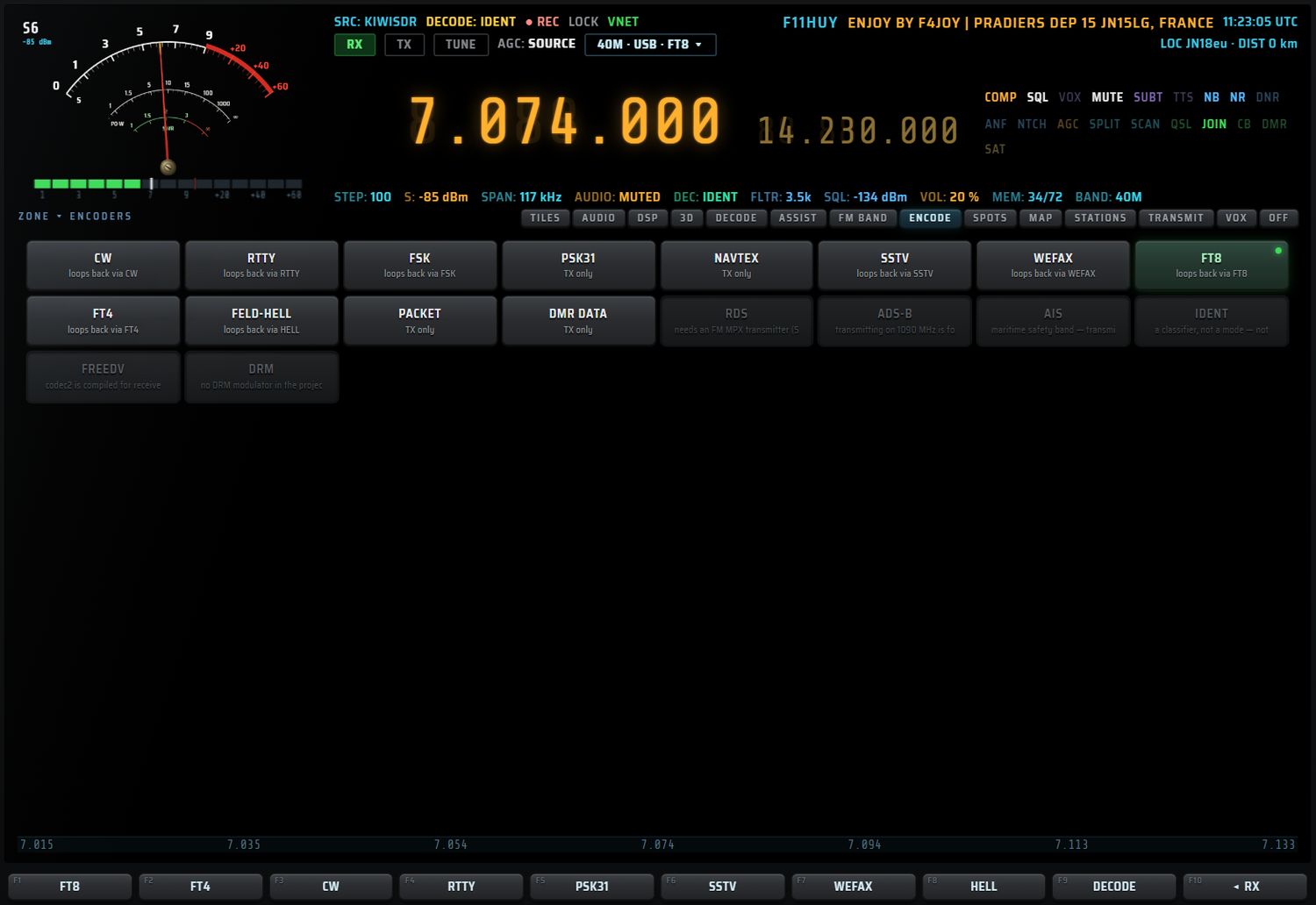
Chaque touche de mode porte un sous-titre : « loops back via XXX » quand la console sait relire le mode, sinon « TX only ».
Les 12 modes encodables
| Touche | Relecture (LOOPBACK) | Cadence | Réglages (libellé, plage, défaut) |
|---|---|---|---|
| CW | décodeur CW | 12 kHz | SPEED 5–50 WPM (20) ; TONE 300–1500 Hz, pas de 25 (600) ; WEIGHT 2,5–4, pas de 0,1 (3,0) ; FARNSWORTH 0–40 WPM (0) ; RAMP 1–12 ms (4) |
| RTTY | décodeur RTTY | 12 kHz | BAUD 45.45 / 50 / 75 / 100 (45.45) ; SHIFT 170 / 425 / 850 Hz (170) ; CENTRE 500–2200 Hz, pas de 25 (1000) ; USOS on/off (on) ; CR+LF on/off (on) |
| FSK | décodeur FSK | 12 kHz | BAUD 45.45 / 50 / 75 / 100 / 200 (50) ; SHIFT 170 / 450 / 850 Hz (450) ; CENTRE commun avec RTTY. Émis sans USOS. |
| PSK31 | aucune (« TX only ») | 12 kHz | TONE 400–2400 Hz (1000) ; RATE BPSK31 / BPSK63 / BPSK125 (BPSK31) |
| NAVTEX | aucune (« TX only ») | 12 kHz | CENTRE 500–2200 Hz (1000) ; PHASING 2–40, pas de 2 (8) ; REVERSE on/off (off). Décalage fixe de 170 Hz, imposé par la norme. |
| SSTV | décodeur SSTV (image) | 48 kHz | MODE MARTIN M1 / SCOTTIE S1 / ROBOT 36 (MARTIN M1) ; CALL OVERLAY on/off (on) |
| WEFAX | décodeur WEFAX (image) | 48 kHz | LPM 60 / 90 / 120 / 180 (120) ; IOC 288 / 576 (576) ; PHASING 4–40 lignes, pas de 2 (20) |
| FT8 | décodeur FT8 (liste FT8 de la fente DECODE) | 12 kHz | BASE 200–2700 Hz, pas de 10 (1500). Message de 77 bits. |
| FT4 | décodeur FT4 | 12 kHz | BASE 200–2700 Hz (1200) |
| FELD-HELL | décodeur HELL (bande DECODE) | 12 kHz | BAUD 122.5 / 245 (122.5) ; TONE 400–2000 Hz, pas de 20 (980) |
| PACKET | aucune (« TX only ») | 12 kHz | AX.25 AFSK 1200. FROM (texte, NOCALL) ; TO (APRX) ; VIA (vide) ; SSID 0–15 (0) |
| DMR DATA | aucune (« TX only ») | 12 kHz | Salve de données seulement. TALKGROUP 1–99999 (208) ; COLOUR 0–15 (1) ; SLOT 1 / 2 (1) ; SOURCE ID 1–16777215 (2081234) |
Les 6 modes non encodables
Ces touches sont grisées. Un clic affiche la raison dans l'écran AUX.
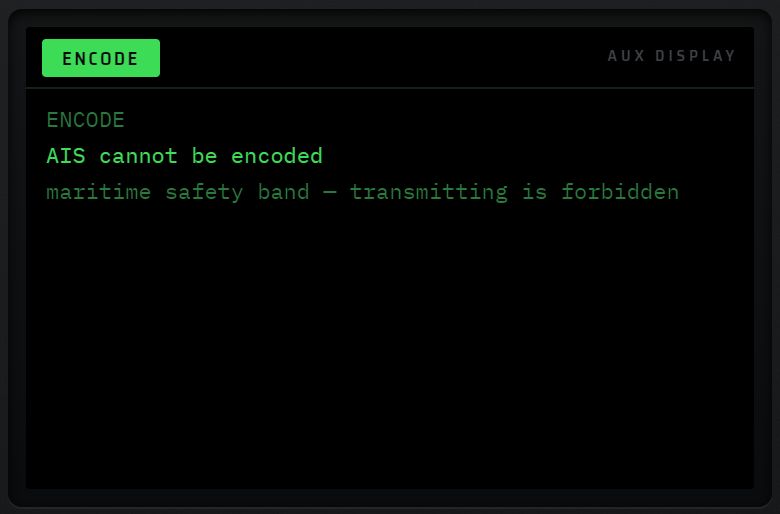
| Touche | Raison affichée |
|---|---|
| RDS | needs an FM MPX transmitter (57 kHz subcarrier) |
| ADS-B | transmitting on 1090 MHz is forbidden |
| AIS | maritime safety band — transmitting is forbidden |
| IDENT | a classifier, not a mode — nothing to encode |
| FREEDV | codec2 is compiled for receive only (freedv_rx) |
| DRM | no DRM modulator in the project |
Le panneau d'un encodeur
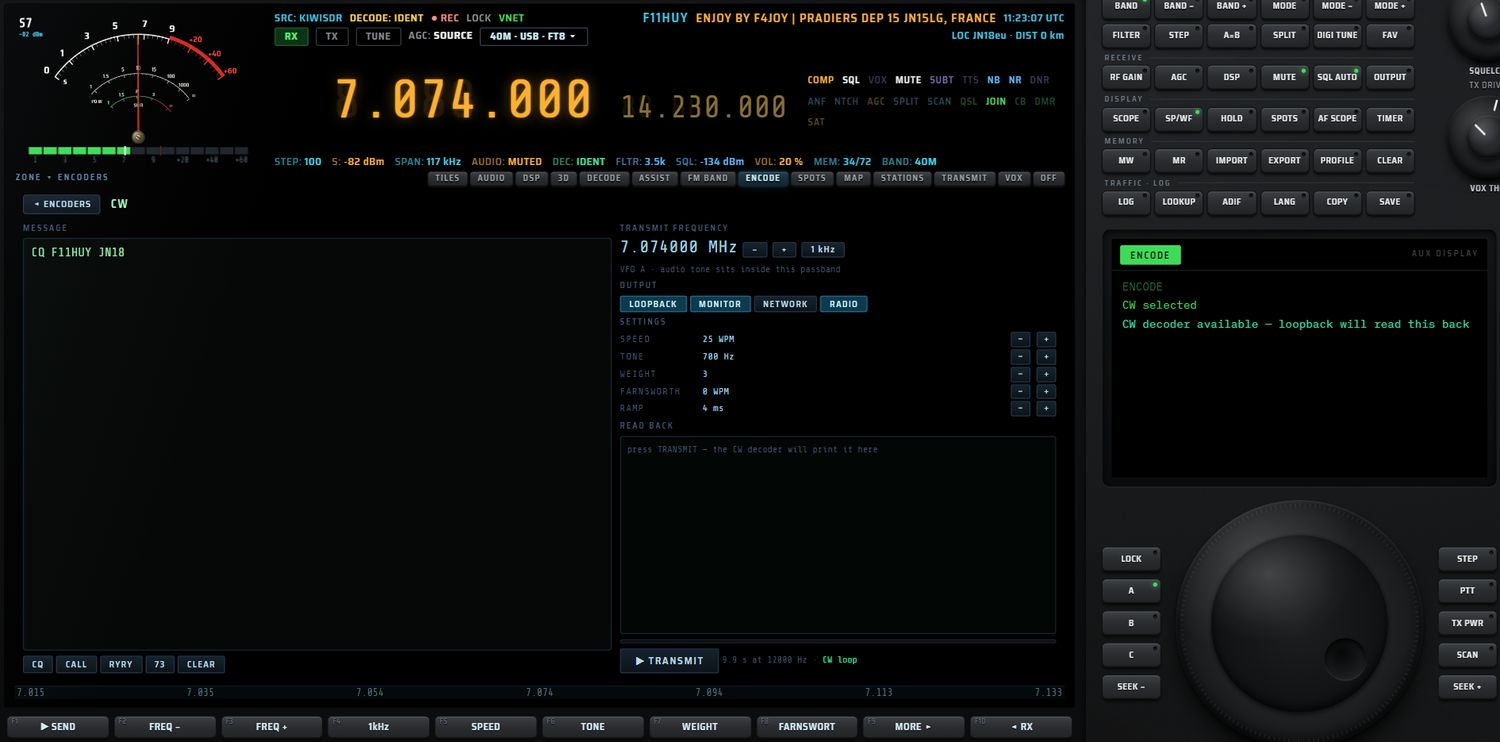
Colonne gauche
- Titre MESSAGE, MESSAGE (77-bit) pour FT8 et FT4, ou PICTURE pour SSTV et WEFAX.
- Zone de texte libre, sans correcteur orthographique.
- Modes image : un aperçu de l'image et trois boutons :
- FILE… choisit un fichier image sur l'appareil ;
- LAST RX reprend la dernière image SSTV décodée par la console (« no decoded picture yet » s'il n'y en a pas) ;
- TEST CARD charge une mire de barres de couleur et de gris, avec votre indicatif.
- Une note sous les boutons donne le nom de l'image, ou « no picture ».
- Macros sous le texte :
- modes texte : CQ (
CQ CQ DE <indicatif> <indicatif> PSE K), CALL (DE <indicatif> <indicatif>), RYRY, 73 (TNX QSO 73 DE <indicatif> SK), CLEAR ; - FT8 et FT4 : CQ (
CQ <indicatif> <locator 4 caractères>), 73, CLEAR. - L'indicatif est celui configuré dans la console.
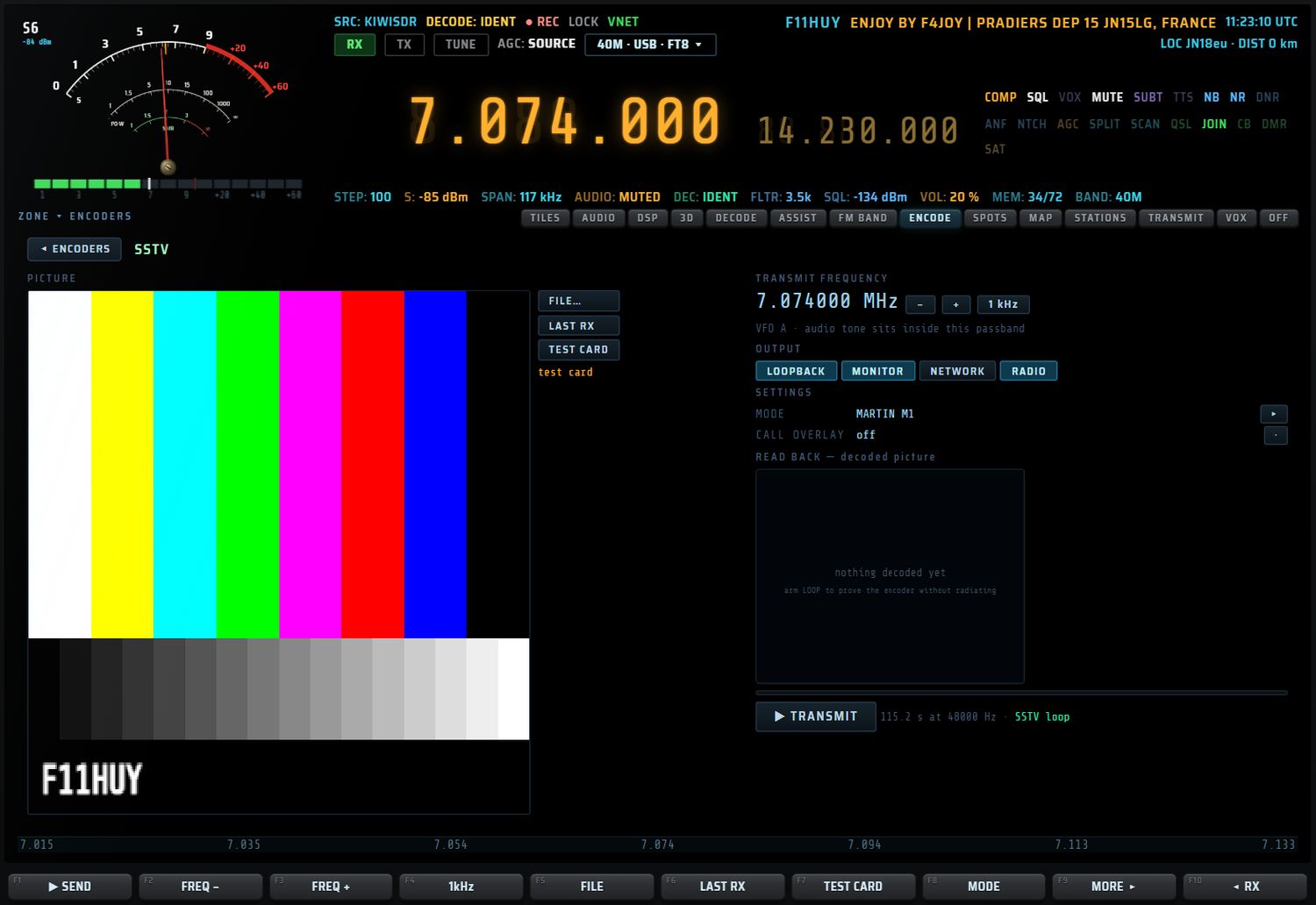
Colonne droite
| Bloc | Éléments | Détail |
|---|---|---|
| TRANSMIT FREQUENCY | fréquence, −, +, bouton de pas | Pas de 1 Hz, 10 Hz, 100 Hz, 1 kHz (défaut), 10 kHz ou 100 kHz ; mémorisé. Sous-ligne : « VFO x · audio tone sits inside this passband ». Si le split est actif, l'accord ici est refusé et le panneau indique sur quel VFO régler. |
| OUTPUT | LOOPBACK, MONITOR, NETWORK, RADIO | Bascules indépendantes. Défaut : LOOPBACK et MONITOR armés. Basculer une sortie arrête l'émission en cours. |
| SETTINGS | réglages du mode | Boutons − / + (valeur), ▸ (choix dans une liste), · (on/off) ou champ de texte. Les bornes sont respectées. |
| READ BACK | texte ou image relus | Voir Relecture. |
| barre de progression | part du signal déjà envoyée | — |
| ▶ TRANSMIT / ■ STOP | lance ou arrête l'émission | rouge vif pendant l'émission |
| note | à droite du bouton | Hors émission : durée calculée (« x s at 12000 Hz ») et « XXX loop » ou « TX only ». En émission : temps écoulé / total et niveau. |
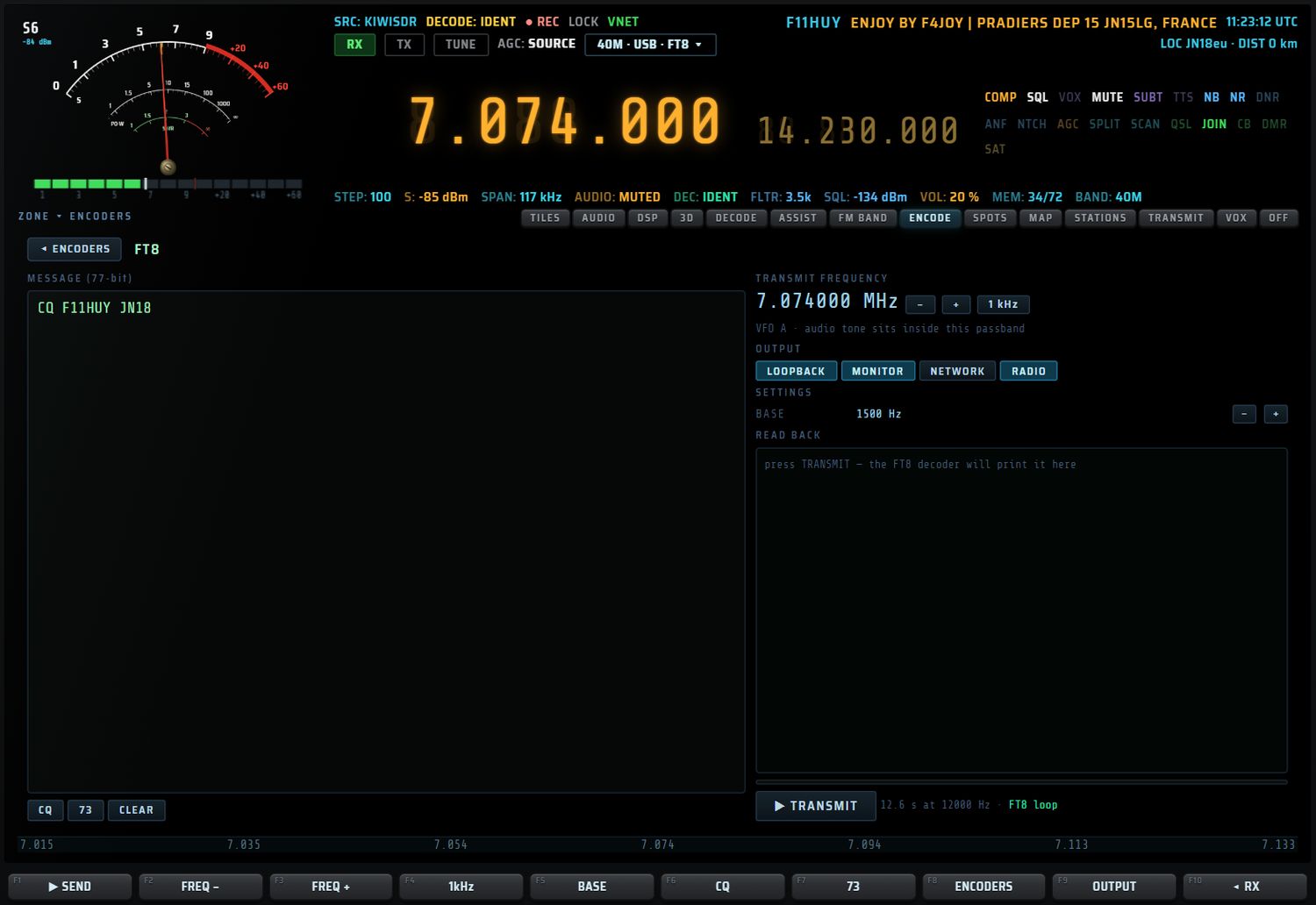
Les quatre sorties
| Sortie | Ce qu'elle fait | Condition |
|---|---|---|
| LOOPBACK | Le son est relu par un décodeur de la console : un décodeur interne pour CW, RTTY, FSK, SSTV, WEFAX ; la vraie chaîne de décodage pour HELL, FT8, FT4 (« watch the DECODE strip »). Rien ne rayonne, rien ne part sur le réseau. | — |
| MONITOR | Le son passe par la chaîne audio de la console (AUDIO LAB, volume) et sort au casque. L'enregistreur le capte aussi. | — |
| NETWORK | Le son part sur le Virtual Net, sans micro, rééchantillonné à 48 kHz. | Avoir rejoint le net. Sinon : « not connected to the net — JOIN first, in the VIRTUAL NET window ». |
| RADIO | Le HackRF rayonne réellement. À l'armement : « this will actually radiate », avec la modulation, la fréquence et le drive. | PC + HackRF. Sinon la touche est grisée : « no transmitter on this machine — the HackRF bridge is PC only ». |
- Aucune sortie armée : « no output armed — arm LOOPBACK to prove the encoder, MONITOR to hear it ».
- Pas d'image en SSTV ou WEFAX : « no picture loaded — F2 picks one… ».
La sortie RADIO en détail
- Modulation RF : auto par défaut, c'est-à-dire USB sous 50 MHz et NBFM à partir de 50 MHz. Le choix manuel tourne dans l'ordre auto → USB → LSB → NBFM → AM ; il est mémorisé. En USB, une tonalité audio de 1000 Hz sort à F + 1000 Hz ; en LSB, à F − 1000 Hz. NBFM utilise une excursion de 2500 Hz, AM un taux de modulation de 80 %.
- Puissance : c'est la même que celle de la fenêtre TRANSMIT. Depuis ENCODE, DRIVE − / + change le gain par pas de 2 dB (0 à 47 dB) et AMP bascule l'amplificateur.
- Ouverture : l'appareil s'ouvre à gain nul, puis votre réglage est appliqué. Si RADIO était la seule sortie armée et qu'elle est refusée, tout s'arrête : « radio route refused… nothing else was armed — stopped ».
Relecture (READ BACK)
- Texte : les 400 derniers caractères relus. À vide : « press TRANSMIT — the XXX decoder will print it here », « loopback is off — arm it to read yourself back » ou « this decoder runs in the engine — watch … ».
- Image (SSTV, WEFAX) : d'abord l'image relue par LOOPBACK ; à défaut, l'image que le récepteur décode en direct, avec la mention « off air · mode · n lines · état ». À vide : « nothing decoded yet », « listening for it off air… » ou « loopback is off ».
Touches F1 à F10 (ENCODE)
Liste des encodeurs : F1 FT8 · F2 FT4 · F3 CW · F4 RTTY · F5 PSK31 · F6 SSTV · F7 WEFAX · F8 HELL · F9 DECODE · F10 ◂ RX.
Panneau d'un mode :
| Touche | Libellé | Action |
|---|---|---|
| F1 | ▶ SEND / ■ STOP | Émettre / arrêter. |
| F2 / F3 | FREQ − / FREQ + | Fréquence d'émission −/+ un pas. |
| F4 | 1Hz … 100kHz | Change le pas. |
| F5 à F8 | commandes du mode | Les quatre premières commandes du mode (voir ci-dessous). Les cases libres reçoivent ENCODERS et DECODE. |
| F9 | MORE ▸ ou OUTPUT | MORE ▸ quand le mode a plus de quatre commandes, sinon OUTPUT. |
| F10 | ◂ RX | Retour en réception. |
- Ordre des commandes : modes image = FILE, LAST RX, TEST CARD, puis les réglages ; modes texte = les réglages, puis CQ, RYRY, CLEAR ; FT8 et FT4 = BASE, CQ, 73.
- Une touche F de réglage fait défiler des valeurs prédéfinies quand il y en a (par exemple SPEED 12 / 15 / 18 / 20 / 25 / 30 / 35 WPM, TONE 500 / 600 / 700 / 800 / 1000 Hz) ; sinon elle ajoute un pas. Pour un champ texte (FROM, TO, VIA), elle place le curseur dans le champ.
- Sous-menu MORE : F1 envoi · F2 à F7 suite des commandes · F8 OUTPUT · F9 ◂ BACK · F10 ◂ RX.
- Sous-menu OUTPUT : F1 LOOP · F2 MON · F3 NET · F4 RF (✓ si armée) · F5 modulation RF (
~USBsignifie auto) · F6 DRIVE − · F7 DRIVE + · F8 AMP · F9 ◂ BACK · F10 ◂ RX.
Mini-écran et écran AUX (ENCODE)
- Mini-écran : MODE, TX (fréquence), STEP, AIR, SENT % ou LENGTH, LOOP, MON, NET (« joined » ou « not joined »), RF (modulation et dB).
- Écran AUX : le mode et sa relecture, la fréquence d'émission avec le pas et le VFO (ou le split), les réglages, le message (nombre de caractères) ou l'image, la ligne RADIO (modulation, drive, blocs envoyés, erreur), les sorties, la durée et le rôle des touches F.
Le mode choisi, le texte, les sorties armées, les réglages, le pas et la modulation RF sont conservés d'une session à l'autre.
Virtual Net
Principe
Le Virtual Net est un univers radio artificiel, hébergé par un NET SERVER (voir le chapitre Pages CB et NET SERVER). Il comporte des bandes virtuelles avec leur plan de bande, des balises, un modèle de propagation et la liste des stations présentes. Rien n'y rayonne : tout passe par Internet ou par le réseau local.
Pour RX·ONE, le Virtual Net est une source de réception comme une autre :
- vous accordez avec le vernier, à l'intérieur des bandes virtuelles ;
- la cascade est reconstruite dans la console à partir des informations du serveur ;
- le serveur ne vous envoie la voix que des stations proches de votre fréquence : il l'active à ±3,5 kHz et la coupe au-delà de ±4,5 kHz ;
- en BLU, le son change de hauteur selon l'écart d'accord, comme sur un vrai récepteur ;
- le niveau reçu (S-mètre, QSB) est décidé par le serveur, selon la propagation simulée.
En émission, votre micro est codé en Opus 48 kHz (ou en PCM 12 kHz si Opus n'est pas disponible) et envoyé au serveur en trames de 20 ms.
Bandes virtuelles par défaut
| Bande | Bornes | Segments |
|---|---|---|
| 80m « 80 metres » | 3,690–3,740 MHz | CW 3690–3700 · DIGI 3700–3710 · LSB 3710–3740 kHz |
| 40m « 40 metres » | 7,080–7,130 MHz | CW 7080–7090 · DIGI 7090–7100 · LSB 7100–7130 kHz |
| 20m « 20 metres » | 14,200–14,250 MHz | CW 14200–14210 · DIGI 14210–14220 · USB 14220–14250 kHz |
| 11m « CB 27 MHz » | 26,965–27,405 MHz | FM sur toute la bande (40 canaux) |
- Modes autorisés par défaut : LSB, USB, FM, CW, RTTY, PSK31, SSTV, FT8, DMR. AM, NAVTEX et FAX sont refusés par défaut.
- Une fréquence hors bande est ramenée par le serveur dans la bande active la plus proche.
- Selon la politique choisie sur le serveur, une émission hors segment est acceptée, signalée ou refusée.
- Ces réglages appartiennent au serveur : son opérateur peut les changer à tout moment.
Le serveur peut répondre à vos émissions :
- refus : « server refused: … » en rouge, et l'émission est relâchée ;
- avertissement : « server warning: … » en ambre.
Fenêtre VIRTUAL NET
La fenêtre s'ouvre avec JOIN (bandeau NETWORK) ou avec la tuile « TX · VIRTUAL NET ». Elle se loge dans la fente au-dessus du spectre. Elle se ferme avec ◂ RX en bas à droite ou F10.
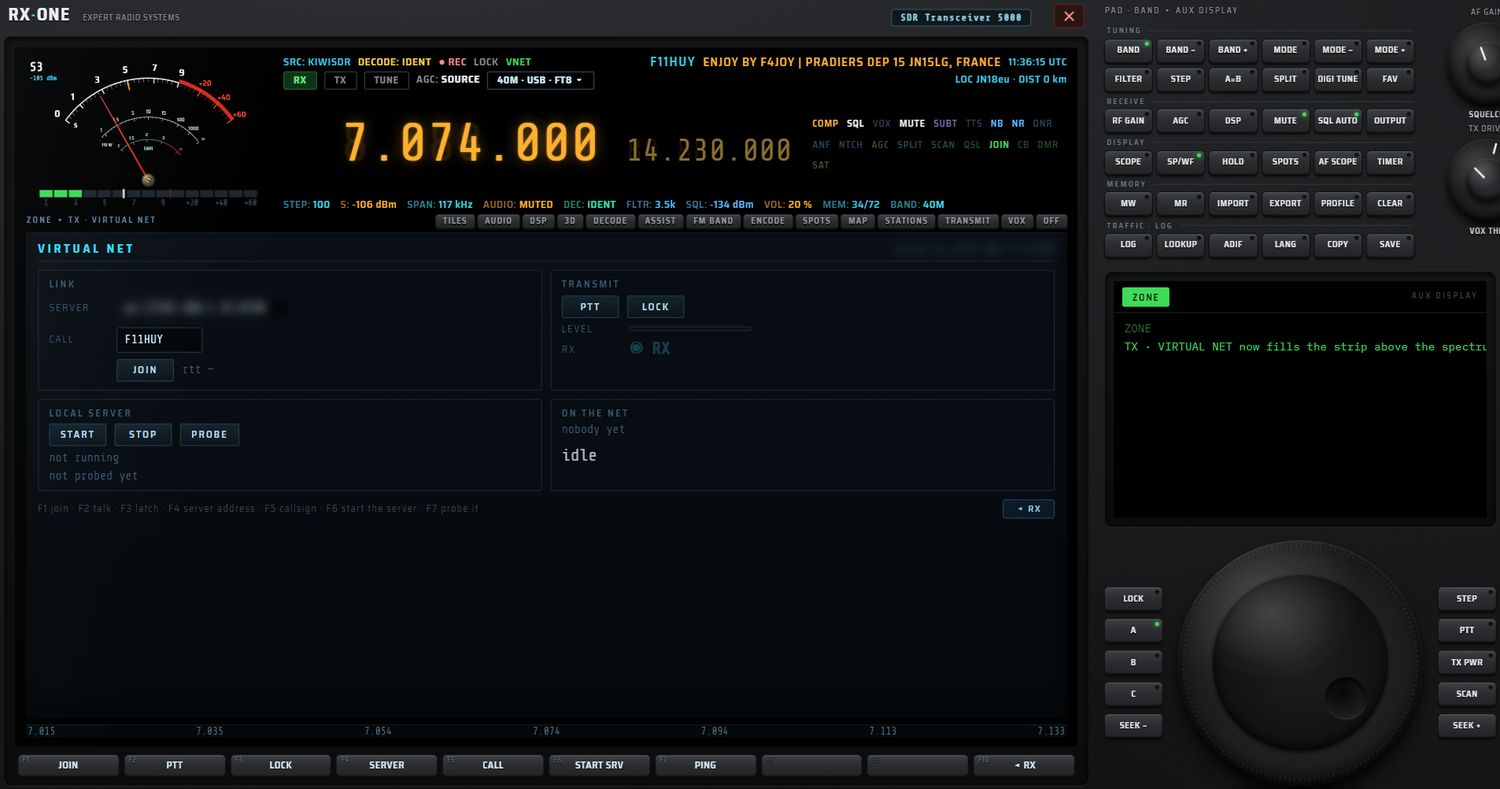
| Cadre | Élément | Action / valeur |
|---|---|---|
| LINK | SERVER (champ) | Adresse du serveur, sous la forme ws://hôte:port ou wss://…. Par défaut, le serveur local sur le port 8730. Mémorisée. |
| CALL (champ) | Votre indicatif, en majuscules. Par défaut, l'indicatif de la console ; « NOCALL » s'il est vide au moment de rejoindre. | |
| JOIN / LEAVE | Se connecter / se déconnecter. | |
| rtt | Temps aller-retour vers le serveur, en ms. | |
| TRANSMIT | PTT / ON AIR | Appuyer-maintenir pour parler. Un appui très bref est tenu jusqu'à l'ouverture du micro, puis relâché. |
| LOCK | PTT verrouillable : un appui pour parler, un appui pour rendre. Mémorisé. Désactiver LOCK en émission coupe l'émission. | |
| LEVEL | Barre de niveau du micro, du vert au jaune. | |
| ◉ RX | Témoin qui clignote à chaque trame reçue. | |
| LOCAL SERVER | START | Lance le NET SERVER sur ce PC (voir ci-dessous). |
| STOP | Arrête le NET SERVER lancé par la console. | |
| PROBE | Interroge le serveur indiqué dans SERVER (délai 1,8 s), sans s'y connecter. | |
| état serveur | « running on port 8730 » ou « not running ». | |
| état sonde | « server answers · … », « no answer on … », « not probed yet ». | |
| ON THE NET | liste | Indicatifs présents ; en ambre avec ⚡ et leur fréquence quand ils émettent ; « nobody yet » si personne. |
| statut | « idle », « connecting … », « on the net · codec OPUS » (ou PCM), « left the net », « connection failed (server down? URL?) », « mic denied: … », « server refused: … ». |
Ce que JOIN change
Rejoindre le net avec JOIN ou avec le bouton JOIN de la fenêtre fait passer le récepteur principal sur la source VIRTUAL NET : la cascade, le S-mètre et le son viennent alors du réseau virtuel, et non plus de votre source précédente. Si le TRX réseau a déjà ouvert la liaison, la touche JOIN se contente d'ouvrir la fenêtre, sans couper cette liaison.
Touches F1 à F10 (VIRTUAL NET)
La ligne d'aide résume : « F1 join · F2 talk · F3 latch · F4 server address · F5 callsign · F6 start the server · F7 probe it ».
| Touche | Libellé | Action |
|---|---|---|
| F1 | JOIN / LEAVE | Se connecter / se déconnecter. |
| F2 | PTT | Impulsion de 0,9 s : émission puis relâchement automatique. Avec LOCK actif, bascule l'émission. |
| F3 | LOCK / UNLOCK | Verrou du PTT. |
| F4 | SERVER | Place le curseur dans le champ d'adresse. |
| F5 | CALL | Place le curseur dans le champ indicatif. |
| F6 | START SRV / SRV ON | Lance le NET SERVER. |
| F7 | PING | Sonde le serveur. |
| F8, F9 | (vides) | — |
| F10 | ◂ RX | Ferme et revient en réception. |
- Mini-écran : LINK (joined / idle), RTT, SRV (local / up / down / —), ON NET (nombre de présents) et jusqu'à quatre indicatifs.
- Écran AUX : serveur, indicatif, état, RTT, présents, résultat de la sonde, aide des touches.
Le micro sur le Virtual Net
- PC : le micro est capté brut, sans annulation d'écho, réduction de bruit ni contrôle automatique de gain.
- Tablette et téléphone : la capture normale du système est utilisée, complétée par un compresseur d'appoint.
- Le son passe ensuite par un passe-haut à 120 Hz, un passe-bas vers 4,8 kHz et une porte de bruit douce.
- En réception, rien n'est joué pendant que vous émettez (anti-larsen) ; un tampon adaptatif absorbe les irrégularités du réseau ; en FM, le souffle disparaît quand un signal correct est présent.
Lancer le serveur depuis la console
SERVER, START (LOCAL SERVER) ou F6 lancent le NET SERVER dans sa propre fenêtre. Messages possibles : « starting… on port 8730 », « it did not stay up », « running · it answers — press JOIN », « running, but no answer yet ».
TRX réseau
Le TRX réseau est un petit émetteur-récepteur qui vit entièrement dans l'écran AUX. Il émet et reçoit en phonie sur le Virtual Net sans changer la source du récepteur principal : vous pouvez écouter un KiwiSDR dans la console et rester en QSO sur le net.
- Allumage : TRX. À l'allumage, le poste rejoint le serveur si ce n'est pas déjà fait (adresse et indicatif de la fenêtre VIRTUAL NET).
- Extinction : F10 ◂ CLOSE, ou TRX de nouveau. La liaison n'est coupée que si le récepteur principal ne l'utilise pas.
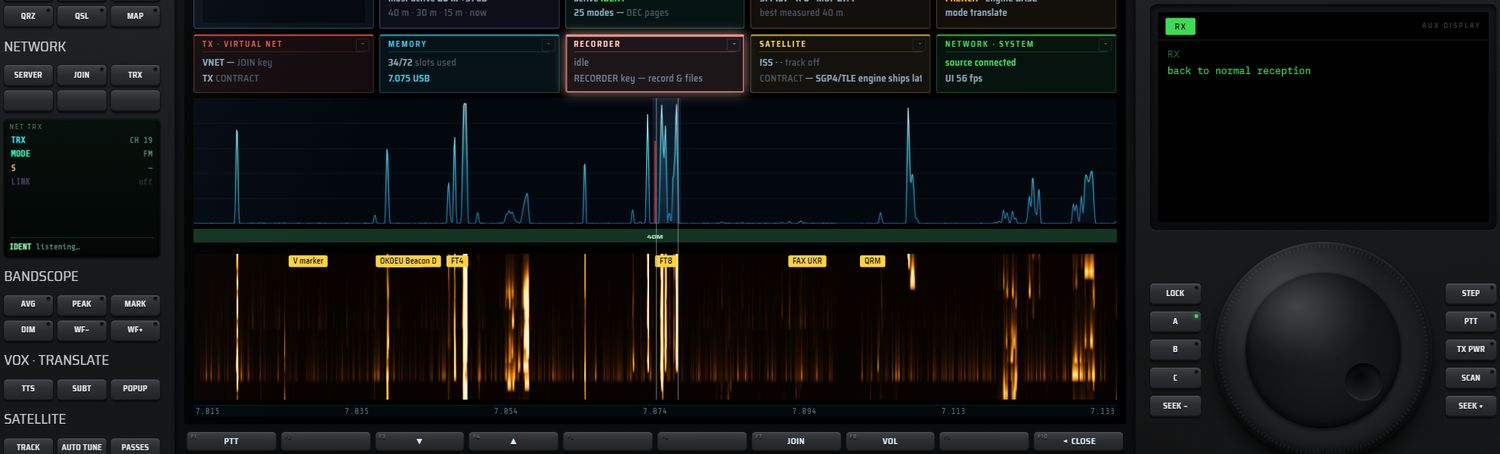
La façade du TRX
| Élément | Description |
|---|---|
| Afficheur ambre | Fréquence en MHz ; en mode CB, « CH nn ». |
| Lampe ON AIR | Rouge pendant l'émission. |
| S-mètre | 14 segments : 9 verts (S1 à S9) puis 5 rouges, gradués 1-3-5-7-9-+20-+40. Valeur texte S0 à S9 ou S9+xx. Il montre le signal le plus fort à ±4,5 kHz selon le serveur, sinon le bruit de bande ; « — » hors ligne. |
| LSB · USB · AM · FM | Boutons de mode, phonie seulement. Inactifs pendant l'émission. |
| ▼ / ▲ | En mode CB seulement : canal précédent / suivant, en boucle sur les 40 canaux. |
| PTT (large) | Appuyer-maintenir à l'écran : émet à l'appui, relâche au lever du doigt. |
| Interrupteur CB | Passe en poste CB : la fréquence est remplacée par le numéro de canal ; le mode passe en FM s'il n'était ni FM ni AM. En sortant du mode CB, le poste revient à sa dernière fréquence. Inactif en émission. |
| Interrupteur LOCK | Fige le poste dans l'écran AUX : aucune autre fenêtre ne peut le remplacer tant qu'il est allumé et visible. |
| Ligne d'état | Refus du serveur pendant 5 s, ou « transmitting — F1 stops (roger beep) », « RX <indicatif> », « listening », « not on the net — F7 joins » ; puis rtt, nombre de présents, pas, volume. S'y ajoutent « one radio — the receiver follows this dial » (voir ci-dessous) et « off channel » hors canal. |
Canaux CB : les 40 canaux de 26,965 à 27,405 MHz. Comme sur les postes CB, le canal 23 (27,255 MHz) se trouve au-dessus du 25 (27,245 MHz). Canal par défaut : 19 (27,185 MHz).
Valeurs par défaut et mémorisation
- Fréquence 7,105 MHz, mode LSB, CB off, canal 19, pas 1000 Hz, volume 40 %, LOCK off.
- Pas possibles : 100, 500, 1000 ou 2500 Hz. Volumes : 20, 40, 60, 80 ou 100 %.
- Hors CB, la fréquence ne descend pas sous 100 kHz ; le serveur la ramène ensuite dans une bande active.
- L'état du poste est conservé d'une session à l'autre.
Touches F1 à F10 (NET TRX)
| Touche | Libellé | Action |
|---|---|---|
| F1 | PTT / ON AIR | Bascule : un appui émet, un second arrête. En CB, l'arrêt envoie un roger bip. |
| F2 | (vide) | Les modes se choisissent à l'écran. |
| F3 / F4 | ▼ / ▲ | Fréquence −/+ un pas, ou canal −/+ en CB. Bloqué pendant l'émission. |
| F5 | STEP | Change le pas (absent en mode CB). |
| F6 | (vide) | — |
| F7 | JOIN / LEAVE | Se connecter / se déconnecter. LEAVE ne coupe pas la liaison du récepteur principal. |
| F8 | VOL | Fait tourner le volume de 20 à 100 %. |
| F9 | (vide) | — |
| F10 | ◂ CLOSE | Éteint le poste. |
Le mini-écran affiche TRX (canal ou fréquence), MODE, S et LINK (ou TX en émission).
Un seul poste pour deux
La console n'a qu'une liaison et qu'une fréquence vers le Virtual Net. Si le récepteur principal écoute lui aussi la source VIRTUAL NET, le TRX accorde la radio elle-même : son afficheur suit la fréquence du récepteur, et le canal CB est déduit de cette fréquence. La ligne d'état l'indique par « one radio — the receiver follows this dial ».
Pages CB et NET SERVER
Ce chapitre décrit deux outils qui entourent le Virtual Net :
- les pages CB, des postes CB 27 MHz simplifiés qui s'ouvrent dans un navigateur, par exemple sur un téléphone, et se connectent au Virtual Net ;
- le NET SERVER, l'application qui héberge le Virtual Net : bandes, modes, balises, propagation et relais de la voix entre stations.
Page CB 27
La page RX·ONE CB 27 est un poste CB de 40 canaux en FM, prévu pour le téléphone. Elle sert à tester le Virtual Net à plusieurs, sans installer RX·ONE : chaque testeur ouvre la page, tape son indicatif et parle.
Écran d'accueil
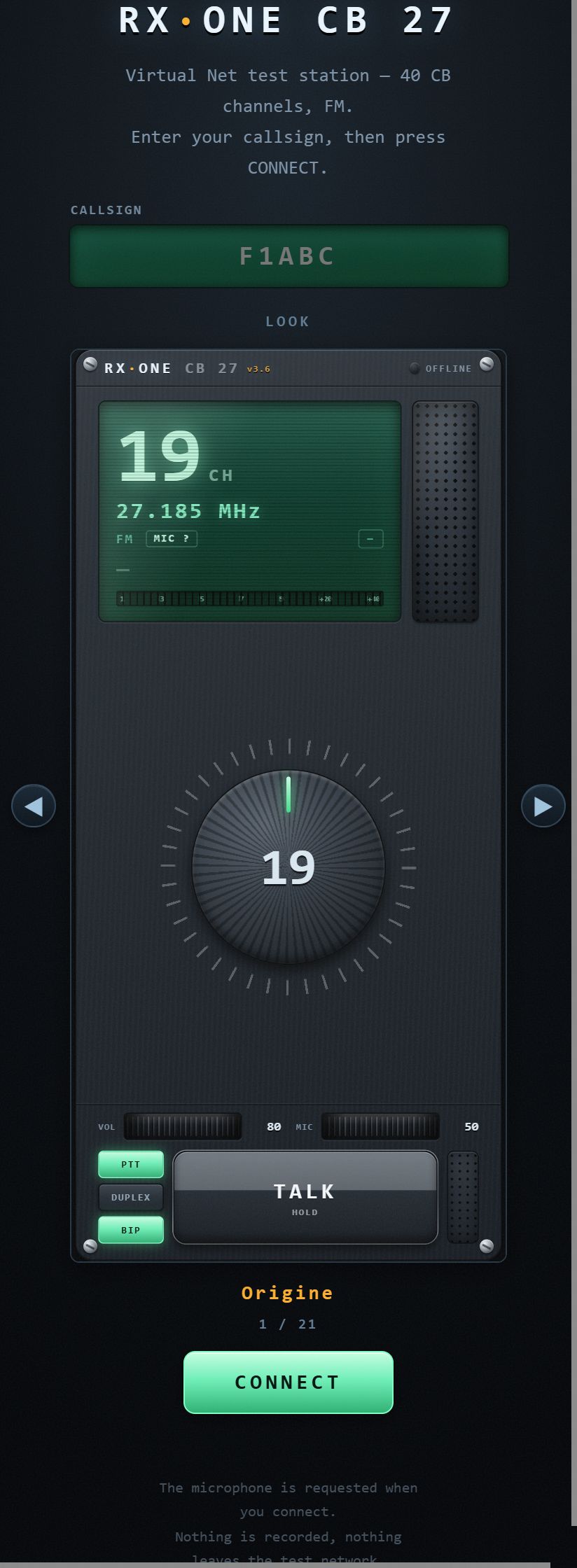
| Élément | Action | Valeurs / défaut |
|---|---|---|
| Texte d'accueil | « Virtual Net test station — 40 CB channels, FM. Enter your callsign, then press CONNECT. » | — |
| CALLSIGN | Votre indicatif, converti en majuscules. | 10 caractères maximum ; exemple affiché « F1ABC » ; mémorisé |
| LOOK ◀ / ▶ | Choisit l'habillage du poste. Le compteur affiche « n / 21 ». | « Origine » + 20 habillages ; mémorisé |
| CONNECT | Demande l'accès au micro, puis se connecte au serveur. | — |
| Mention | « The microphone is requested when you connect. Nothing is recorded, nothing leaves the test network. » | — |
Messages possibles sous CONNECT : « callsign too short », « connecting… », « microphone refused — receive only », « no answer from … » (après 8 s), « cannot reach server », « invalid address », « expected host:port or wss://… ».
Les habillages LOOK
Chaque habillage redessine les mêmes commandes avec un autre style. Les 20 habillages proposés, après « Origine » :
| N° | Nom affiché | N° | Nom affiché |
|---|---|---|---|
| 01 | Broadcast console | 11 | Portatif DMR |
| 02 | VHF marine | 12 | Verre industriel |
| 03 | Rack studio 19″ | 13 | Camion US |
| 04 | Manpack tactique | 14 | Laiton expedition |
| 05 | Cockpit avionique | 15 | Monolithe audio |
| 06 | Console crypto | 16 | TSF acajou |
| 07 | Transceiver HF | 17 | Ampli à lampes |
| 08 | Vintage 70s | 18 | Station à lampes |
| 09 | SDR hybride | 19 | Lampes DELTA-V |
| 10 | Cyberdeck | 20 | Talkie tactique |
Adresse de la page
La page trouve seule l'adresse du serveur : elle lit le fichier net.json publié à côté d'elle par le NET SERVER (voir PUBLICATION). Le testeur n'a donc que son indicatif à saisir. Vous pouvez aussi compléter l'adresse de la page :
| Paramètre | Effet |
|---|---|
?c= | pré-remplit l'indicatif |
?u= | impose l'adresse complète du serveur (wss://…) |
?h= et &p= | imposent l'hôte et le port du serveur |
?look= | impose un habillage (par exemple ?look=08-vintage-70s) |
Le poste
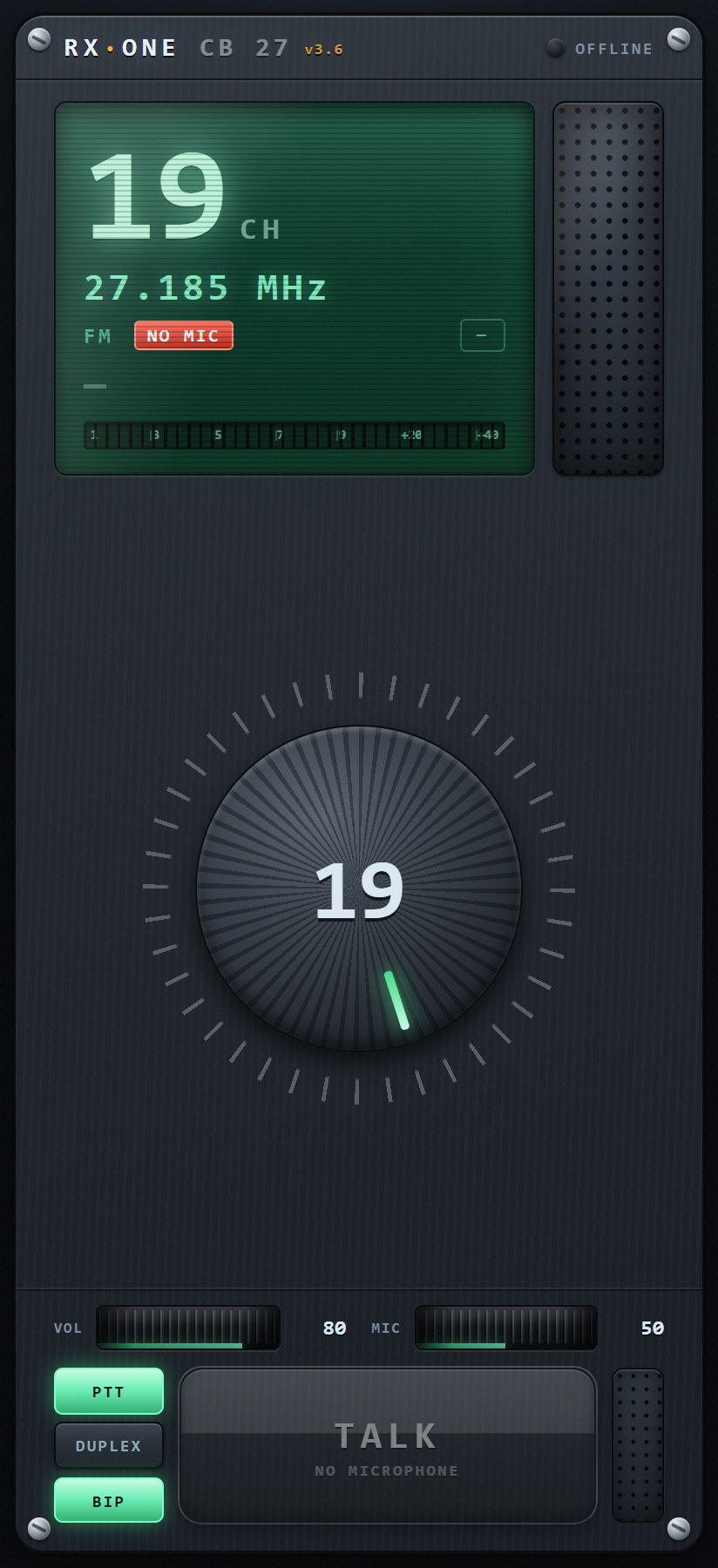
| Élément | Action | Valeurs / défaut |
|---|---|---|
| En-tête | « RX·ONE CB 27 » et numéro de version ; voyant de liaison. | OFFLINE, LINKING, ONLINE, TRANSMIT |
| Écran | Canal (« 19 CH »), fréquence (« 27.185 MHz »), mode FM, état du micro (OPUS, PCM ou NO MIC), indicateur (—, RX, ON AIR, REFUSED), nom de la station qui parle (vert quand vous écoutez, rouge quand c'est vous), S-mètre gradué de 1 à +40. | canal 19 |
| Sélecteur rotatif | Tourner change de canal : un cran tous les 9°, sans butée ; un tour complet parcourt les 40 canaux. | — |
| Molette VOL | Volume d'écoute. Tirez horizontalement. | 0–100, défaut 80 |
| Molette MIC | Niveau du micro à l'émission : c'est la cible du compresseur interne. Tirez horizontalement. | 0–100, défaut 50 |
| PTT / DUPLEX | PTT : maintenir TALK pour parler. DUPLEX : émission ouverte en permanence ; vous entendez les autres pendant que vous parlez. | PTT |
| BIP | Roger bip on/off : une tonalité de 1500 Hz de 0,1 s, envoyée juste avant la fin de votre émission pour que les autres l'entendent. | on |
| TALK | Maintenir pour parler en mode PTT. Le sous-titre indique HOLD, DUPLEX ou la raison de l'absence de micro. Grisée sans micro. | — |
Le silencieux (squelch) est fixe : il n'y a pas de réglage SQL sur cette page.
Comportements à connaître
- Changer de canal pendant l'émission déplace l'émission sur le nouveau canal.
- Sans micro, la page n'émet rien.
- La page émet toujours en FM.
- Si le codec Opus ne produit rien au bout d'une seconde, la page passe seule en PCM : l'écran affiche alors PCM.
- Après une coupure, la page se reconnecte toute seule toutes les 3 s.
- La page envoie régulièrement un petit rapport technique au serveur (codec, trames envoyées et reçues, mode de capture). L'opérateur du serveur le lit dans l'onglet JOURNAL.
Vérifier le micro : le VU-mètre d'émission
Pendant l'émission, le S-mètre devient un VU-mètre : il affiche le niveau brut du micro.
- S'il bouge quand vous parlez, votre voix part bien vers le serveur.
- S'il ne bouge pas, le problème se situe avant la page : micro coupé dans le téléphone, casque Bluetooth qui a pris la main, autorisation retirée…
Si l'on vous entend trop faiblement, montez la molette MIC ; si l'on vous entend saturé, baissez-la.
Page DMR CB (historique)
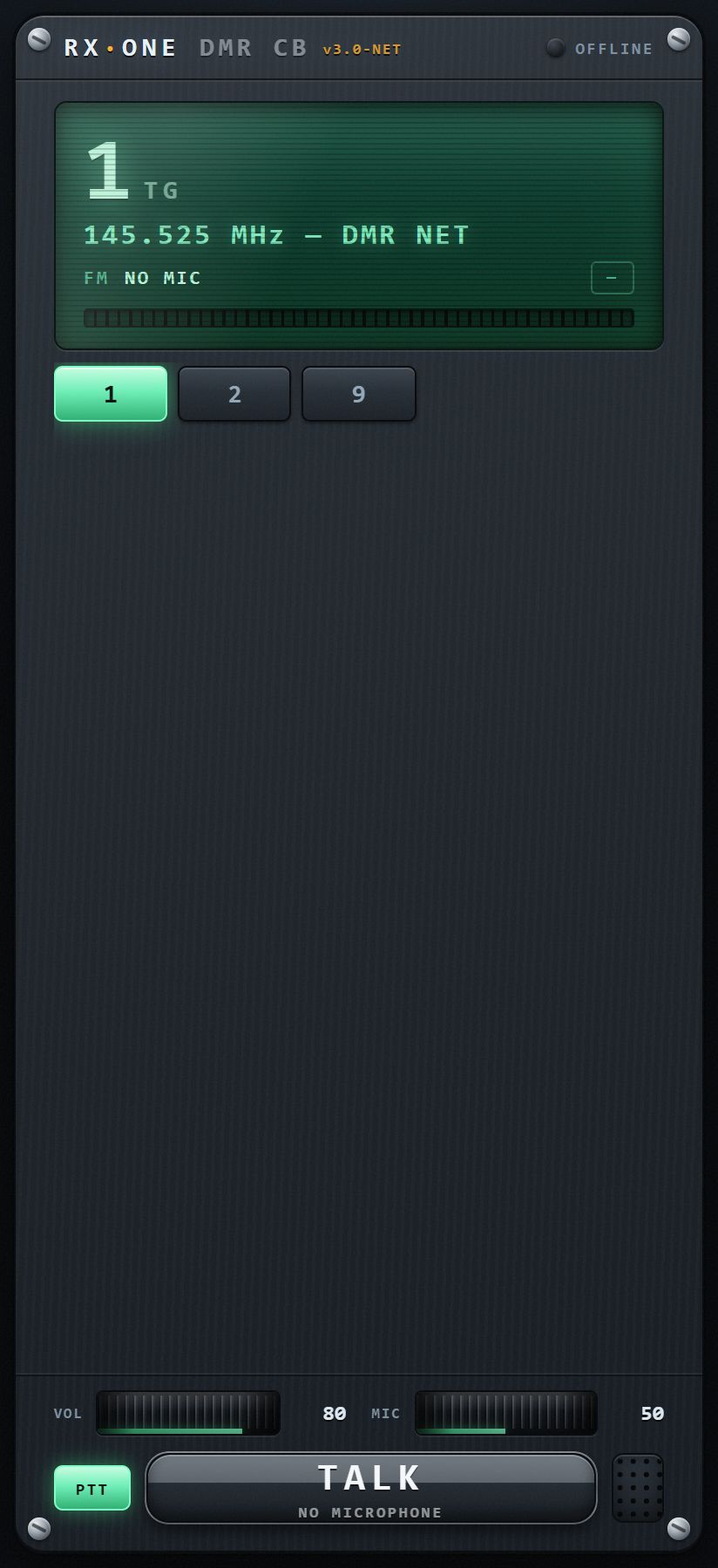
| Élément | Description | Valeurs / défaut |
|---|---|---|
| Accueil | Champ YOUR NAME, puis CONNECT. L'identifiant radio est calculé à partir du nom. | 12 caractères |
| Écran | Talkgroup (« 1 TG ») et fréquence (« 145.525 MHz — DMR NET »). | TG 1 |
| Talkgroups 1, 2, 9 | Choisissent le groupe ; la fréquence affichée vaut 145,5 MHz + TG × 25 kHz. | 1 |
| VOL, MIC | Volume d'écoute et niveau du micro. | 80 et 50 |
| PTT / TALK | Appuyer-maintenir pour parler. | — |
NET SERVER
Le NET SERVER (« RX-ONE NET SERVER ») est l'application qui fait exister le Virtual Net : plan de bandes, modes autorisés, balises, propagation, et relais de la voix entre les stations connectées. C'est une application de bureau Windows séparée de RX·ONE, avec sa propre fenêtre. Tous ses réglages s'appliquent à chaud, sans déconnecter personne.
Installation et lancement
- Le NET SERVER est livré comme application Windows portable : il n'y a rien à installer ; lancez l'exécutable.
- Depuis RX·ONE sur PC, SERVER, START (fenêtre VIRTUAL NET) ou F6 le lancent seulement s'il est installé à côté de RX·ONE (voir Lancer le serveur depuis la console).
- Le serveur écoute sur le port 8730 par défaut. Les postes s'y connectent avec une adresse
ws://<adresse du PC>:8730, que l'onglet POSTE affiche prête à copier. - Sa configuration (l'univers) est enregistrée automatiquement à chaque changement, dans
%APPDATA%\RX-ONE-NETSERVER\univers.json. - Fermer la fenêtre arrête le serveur et le tunnel de publication : aucun processus ne reste en arrière-plan.
En-tête
- Un interrupteur maître OFF / ON à levier démarre ou arrête le serveur ; une lampe verte s'allume quand il tourne.
- Le texte d'état indique « serveur arrêté », « démarrage… », « arrêt… », « en service · n station(s) » ou « échec : … ». Exemple d'échec : « port 8730 déjà utilisé par un autre serveur », affiché 10 s.
- Le titre de la fenêtre porte le numéro de version.
Huit onglets suivent : POSTE · CARTE DU MONDE · BANDES & MODES · BALISES · PROPAGATION · JEUX · PUBLICATION · JOURNAL.
Onglet POSTE
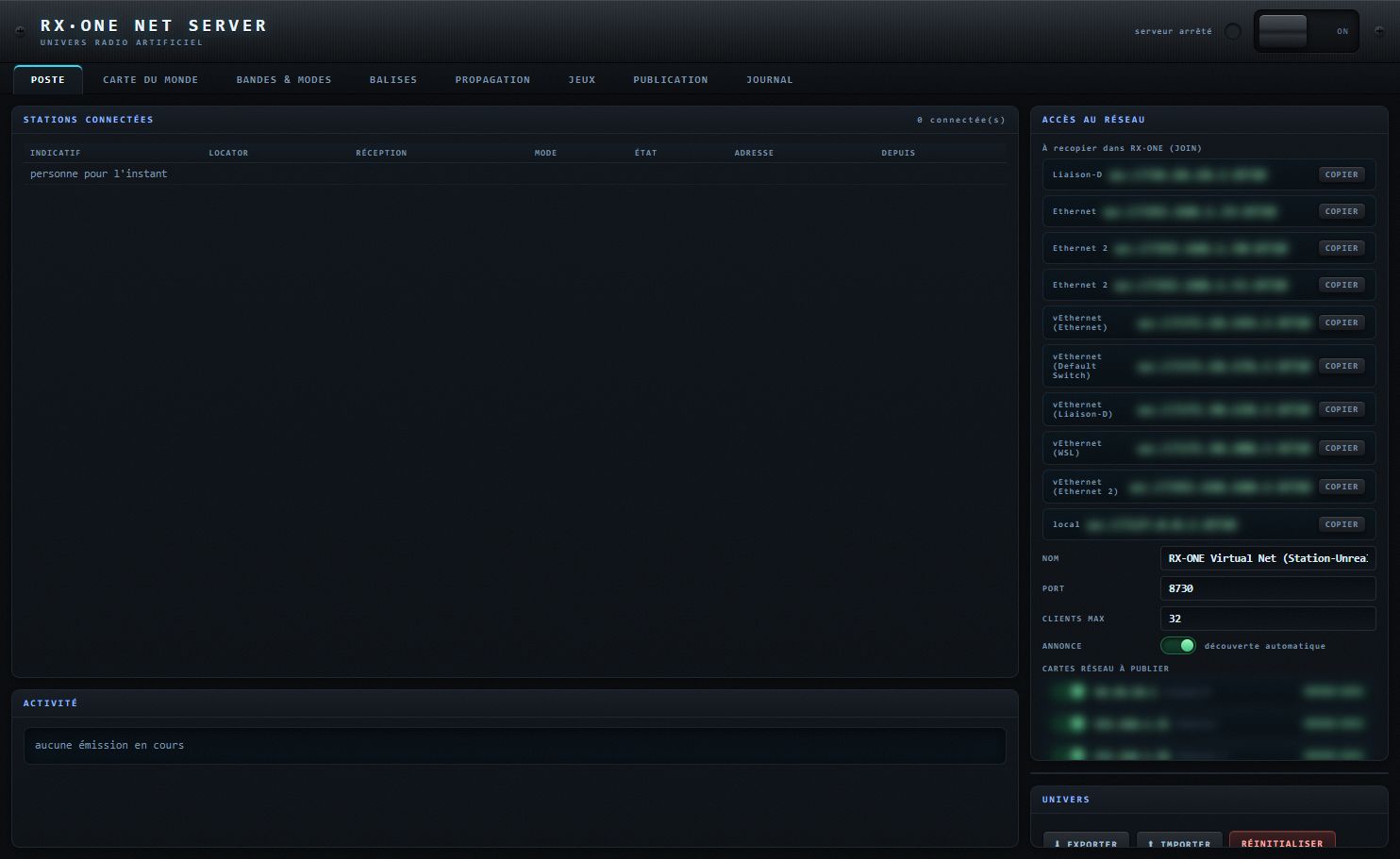
| Bloc | Élément | Rôle | Valeurs / défaut |
|---|---|---|---|
| STATIONS CONNECTÉES | tableau | INDICATIF, LOCATOR, RÉCEPTION (MHz), MODE, ÉTAT (« ÉMET f » ou « écoute »), ADRESSE, DEPUIS. | — |
| ACTIVITÉ | liste | Qui émet, et sur quelle fréquence. | — |
| ACCÈS AU RÉSEAU | « À recopier dans RX·ONE (JOIN) » | Une adresse ws://…:port par carte réseau retenue, plus l'adresse locale, chacune avec un bouton COPIER. Collez-la dans le champ SERVER de la fenêtre VIRTUAL NET. | — |
| NOM | Nom de la station serveur. | « RX-ONE Virtual Net (<nom du PC>) » | |
| PORT | Port d'écoute. | 1–65535, défaut 8730 | |
| CLIENTS MAX | Nombre maximal de stations. Au-delà, la connexion est fermée avec « serveur plein ». | 1–200, défaut 32 | |
| ANNONCE | Annonce automatique du serveur sur le réseau local, pour qu'il soit découvert. | active | |
| CARTES RÉSEAU À PUBLIER | interrupteurs | Un par adresse IPv4 de la machine, marqué « RESEAU LOCAL » ou « VIRTUELLE » (WSL, Docker, VirtualBox…). Aucune carte cochée = toutes les cartes. | — |
| ÉTAT DU SERVEUR | lecture | SERVEUR, NOM, PORT, BALISES, STATIONS, EN SERVICE (durée), CONNEXIONS, TRAFIC (Mo). | — |
| UNIVERS | ⬇ EXPORTER | Enregistre toute la configuration dans un fichier .json. | — |
| ⬆ IMPORTER | Charge un fichier .json exporté. | — | |
| RÉINITIALISER | Après la confirmation « Remettre tout l'univers dans son état d'origine ? », revient aux valeurs d'usine. | — |
Onglet CARTE DU MONDE
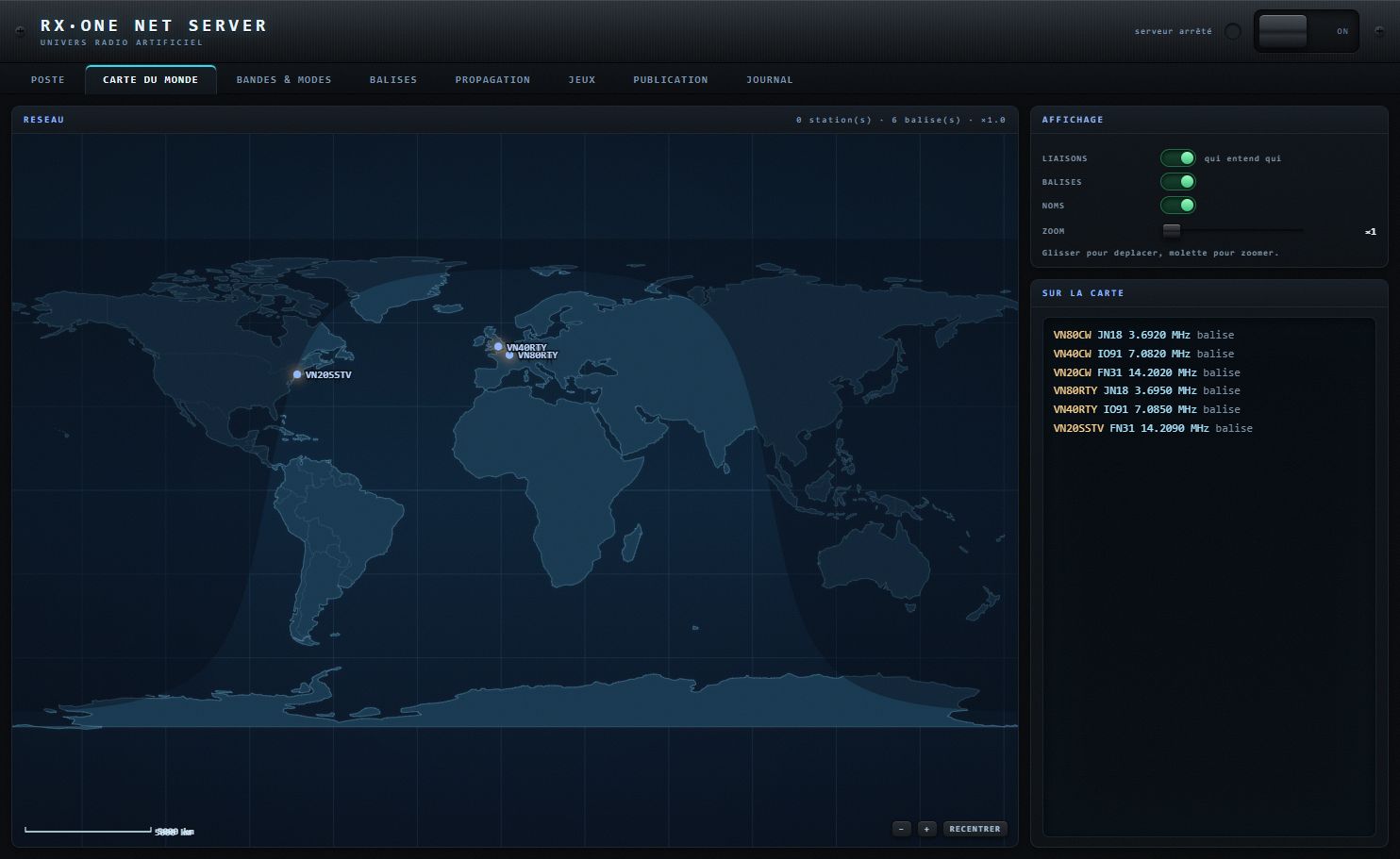
- Carte des stations et des balises. Glissez pour déplacer, molette pour zoomer, ou boutons −, + et RECENTRER.
- Interrupteurs : LIAISONS (« qui entend qui »), BALISES, NOMS.
- Réglette ZOOM et liste SUR LA CARTE.
Onglet BANDES & MODES
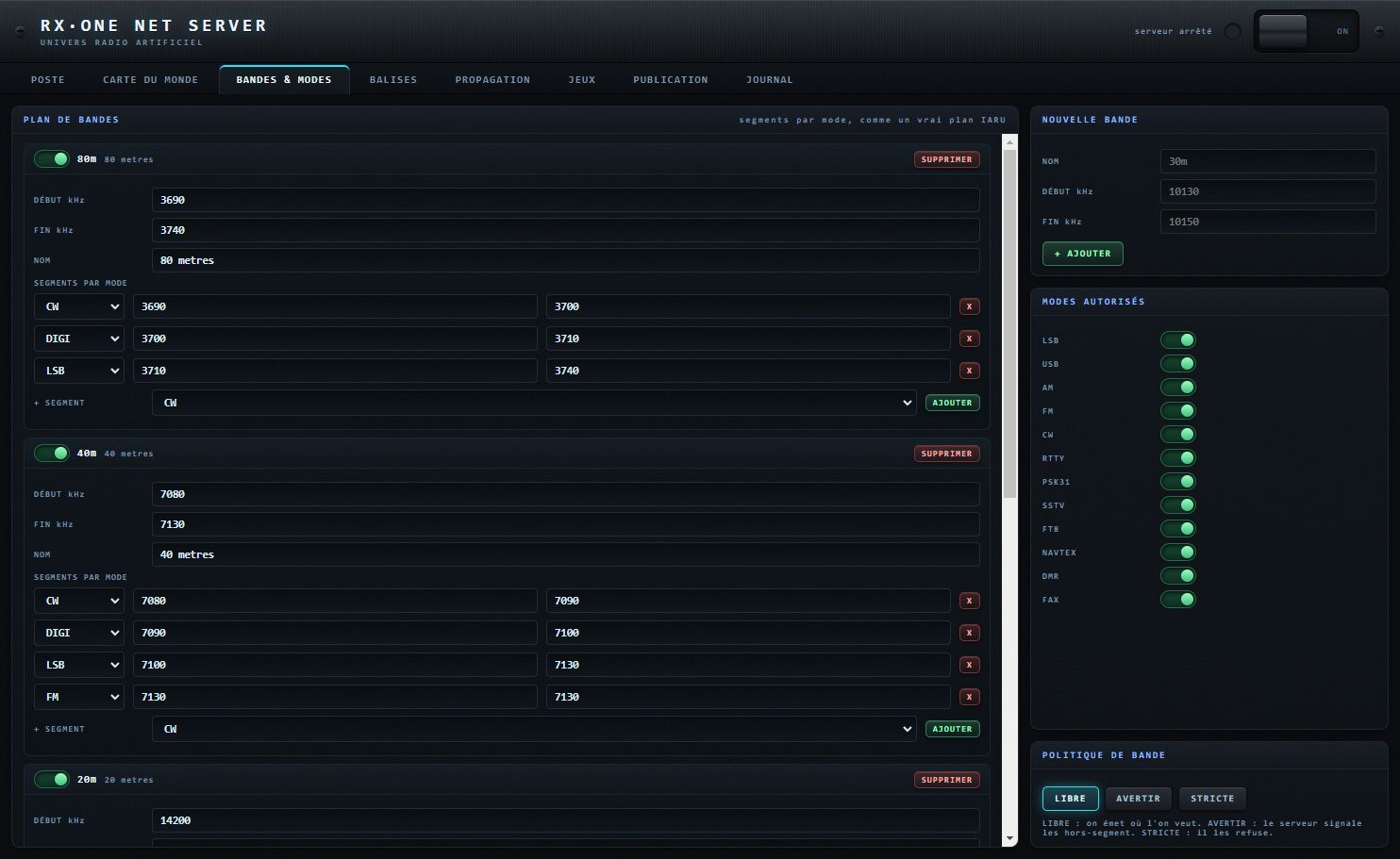
PLAN DE BANDES
Une carte par bande, avec :
- un interrupteur actif et un bouton SUPPRIMER ;
- DÉBUT kHz et FIN kHz, au pas de 0,1 kHz. Si vous tapez un début au-dessus de la fin, ou une fin sous le début, toute la bande est déplacée avec ses segments ;
- NOM ;
- SEGMENTS PAR MODE : liste de segments CW, DIGI, LSB, USB, AM ou FM, avec leur début et leur fin, et X pour en supprimer un ;
- + SEGMENT : choisissez le mode, puis AJOUTER ; le nouveau segment occupe toute la place restante.
Une bande sans segment est couverte automatiquement : LSB sous 10 MHz, USB au-dessus.
NOUVELLE BANDE
Champs NOM (exemple « 30m »), DÉBUT kHz (10130), FIN kHz (10150), puis + AJOUTER. Un champ laissé vide prend la valeur d'exemple. Erreurs possibles : « début et fin doivent être des kHz », « la fin doit être au-dessus du début », « la bande « x » existe déjà ».
MODES AUTORISÉS et POLITIQUE DE BANDE
- MODES AUTORISÉS : un interrupteur par mode : LSB, USB, AM, FM, CW, RTTY, PSK31, SSTV, FT8, NAVTEX, DMR, FAX. Par défaut, AM, NAVTEX et FAX sont coupés. Une station qui émet dans un mode coupé reçoit un refus.
- POLITIQUE DE BANDE :
- LIBRE : « on émet où l'on veut » (défaut) ;
- AVERTIR : « le serveur signale les hors-segment » ;
- STRICTE : « il les refuse ».
- LSB et USB sont tolérés l'un pour l'autre, et le segment DIGI accepte tous les modes.
Onglet BALISES
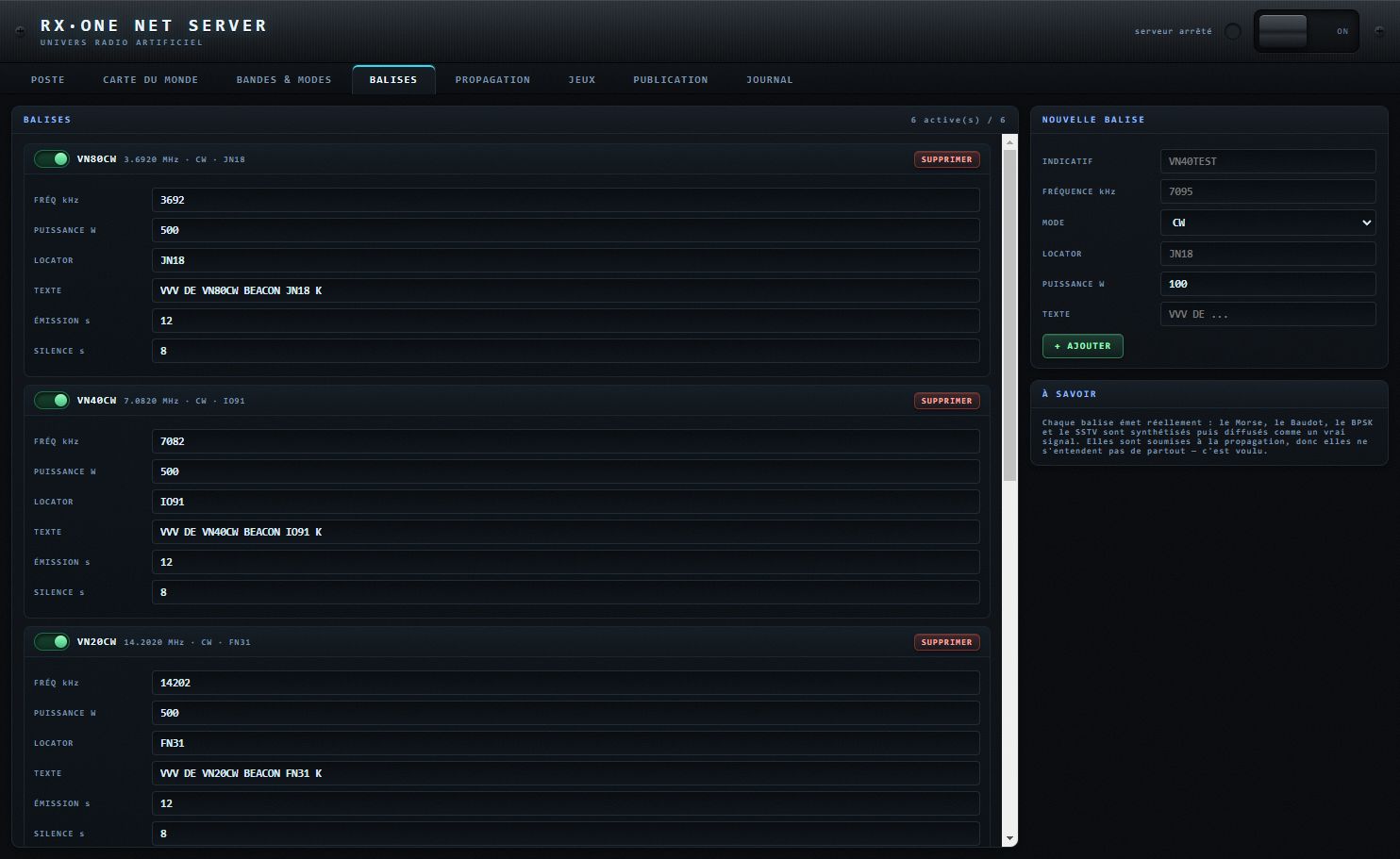
Les balises émettent réellement dans l'univers virtuel et subissent la propagation simulée : elles sont un bon repère pour vérifier l'écoute.
- Chaque balise : interrupteur actif, SUPPRIMER, FRÉQ kHz, PUISSANCE W, LOCATOR, TEXTE, ÉMISSION s, SILENCE s.
- NOUVELLE BALISE : INDICATIF, FRÉQUENCE kHz, MODE (CW, RTTY, PSK31 ou SSTV), LOCATOR (défaut JN18), PUISSANCE W (défaut 100), TEXTE (défaut « VVV DE <indicatif> »), puis + AJOUTER.
Balises par défaut :
| Indicatif | Fréquence | Mode | Locator |
|---|---|---|---|
| VN80CW | 3692 kHz | CW | JN18 |
| VN40CW | 7082 kHz | CW | IO91 |
| VN20CW | 14202 kHz | CW | FN31 |
| VN80RTY | 3695 kHz | RTTY | JN18 |
| VN40RTY | 7085 kHz | RTTY | IO91 |
| VN20SSTV | 14209 kHz | SSTV | FN31 |
Onglet PROPAGATION
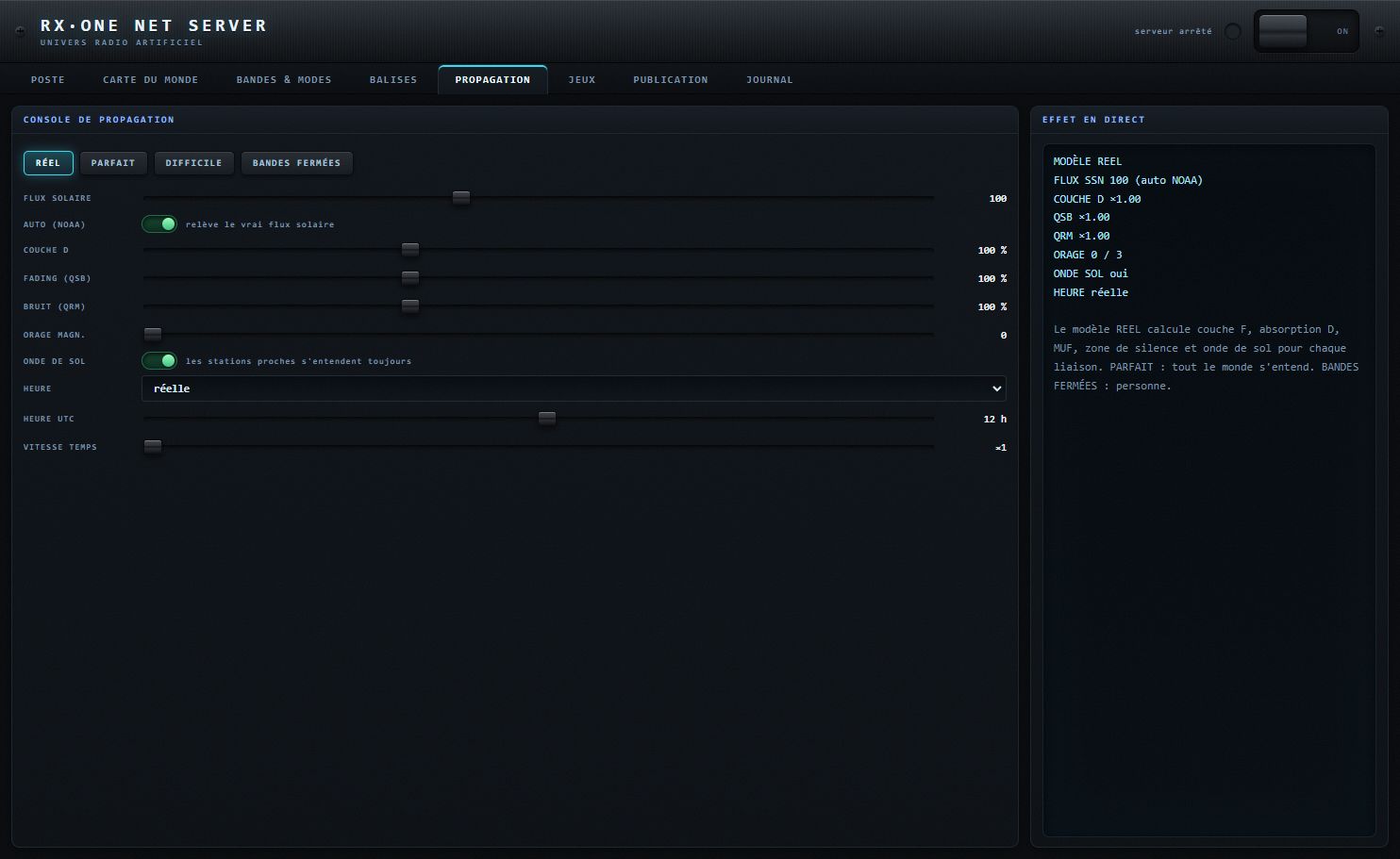
| Réglage | Rôle | Valeurs / défaut |
|---|---|---|
| Modèle | RÉEL, PARFAIT, DIFFICILE ou BANDES FERMÉES. | RÉEL |
| FLUX SOLAIRE | Indice de flux solaire utilisé par le modèle. | 0–250, défaut 100 |
| AUTO (NOAA) | Relève le vrai flux solaire en ligne. | actif |
| COUCHE D | Absorption de la couche D. | 0–300 %, défaut 100 % |
| FADING (QSB) | Profondeur du fading. | 0–300 %, défaut 100 % |
| BRUIT (QRM) | Niveau de bruit de bande. | 0–300 %, défaut 100 % |
| ORAGE MAGN. | Intensité d'un orage magnétique. | 0–3, défaut 0 |
| ONDE DE SOL | « les stations proches s'entendent toujours ». | active |
| HEURE | Heure utilisée par le modèle : réelle, figée ou accélérée. | réelle |
| HEURE UTC | Heure fixée quand l'heure est figée. | 0–23,5 h, défaut 12 h |
| VITESSE TEMPS | Accélération quand l'heure est accélérée. | ×1 à ×60 |
Le panneau EFFET EN DIRECT montre l'effet des réglages.
Onglet JEUX
Trois scénarios sont annoncés, chacun avec un bouton PRÉPARER : CHASSE AU RENARD, TRIANGULATION, CONCOURS. L'onglet indique « Le moteur de jeux arrive à la prochaine étape » : ces jeux ne sont pas encore jouables dans cette version.
Onglet PUBLICATION
Une page web servie en https (comme la page CB 27 publiée sur un site) ne peut se connecter qu'à une adresse sécurisée wss://. L'onglet PUBLICATION rend votre serveur joignable depuis Internet, sans ouvrir de port sur votre box :
- le serveur lance un tunnel Cloudflare rapide (cloudflared, sans compte) vers son port local ;
- il récupère l'adresse attribuée (
https://….trycloudflare.com) et la convertit enwss://…; - il dépose cette adresse dans un petit fichier
net.json, envoyé par FTP sur votre site, à côté de la page CB 27 ; - la page lit
net.jsontoute seule : le testeur ne tape que son indicatif.
| Bloc | Élément | Rôle | Défaut |
|---|---|---|---|
| ADRESSE PUBLIÉE | écran d'état et pastille | TUNNEL (ARRÊTÉ, DÉMARRAGE…, EN LIGNE, ERREUR) ; ADRESSE (celle du tunnel, l'adresse imposée ou « aucune ») ; FICHIER (destination de net.json) ; PUBLIÉ (heure et résultat, ou « jamais depuis ce lancement »). | — |
| TUNNEL & PUBLICATION | ACTIVE | Lie le tunnel et la publication de net.json à la marche du serveur. Agit tout de suite. | inactif |
| URL IMPOSÉE | Vide = adresse du tunnel automatique ; sinon, une adresse wss:// à publier telle quelle. | vide | |
| PUBLIER MAINTENANT | Publie net.json tout de suite (« PUBLICATION… » pendant l'envoi). Le résultat s'inscrit au JOURNAL : « net.json publie : … » ou « publication impossible : … ». | — | |
| DÉPÔT FTP | HÔTE, PORT, UTILISATEUR, MOT DE PASSE, DOSSIER | Accès FTP de votre site. Le mot de passe est masqué, reste sur cette machine et n'apparaît jamais dans le journal. | PORT 21 |
Cycle de vie :
- le tunnel suit le serveur : il démarre et s'arrête avec lui ;
- l'adresse du tunnel change à chaque lancement ; net.json est republié automatiquement à chaque nouvelle adresse ;
- si le tunnel tombe, il est relancé au bout de 5 s ;
- le fichier net.json contient l'adresse
wss://…et la date de mise à jour.
Où placer cloudflared.exe : le serveur le cherche, dans cet ordre, au chemin indiqué dans sa configuration, à côté de l'exécutable du NET SERVER, dans son sous-dossier outils, puis dans le PATH de Windows. S'il ne le trouve pas, le journal affiche « cloudflared.exe introuvable ».
Onglet JOURNAL
- Les 500 dernières lignes s'affichent ; rien n'est écrit dans un fichier : le journal repart à zéro à chaque lancement.
- Couleurs : information en cyan, avertissement en ambre, erreur en rouge.
- Vous y lisez les connexions et identifications des stations, les publications, et les rapports techniques envoyés par les pages CB (codec, trames émises, reçues et perdues, mode de capture, navigateur). C'est le premier endroit à consulter quand un testeur dit « on ne m'entend pas ».
Relais pour les pages web
Le NET SERVER sert aussi de relais aux pages RX·ONE ouvertes en https, pour joindre certains récepteurs SDR. Ce relais n'accepte que les ports de SDR connus, refuse les adresses privées et se limite à 20 liaisons simultanées. Les refus s'inscrivent au JOURNAL (« cible illisible », « adresse privee », « port hors liste », « trop de ponts »).
Tiroir CB 27 de l'interface RACK
L'interface RACK propose un tiroir CB 27 : un poste CB de 40 canaux sur le Virtual Net, avec écran bleu, galvanomètre, liste des stations et menu FUNC (MODE PTT/DUPLEX, AF SQUELCH, MIC GAIN, COMP, NB FILTER, ROGER BIP). Il est décrit dans le chapitre consacré à l'interface RACK.
L'interface RACK
L'interface RACK est la présentation d'origine de RX·ONE : une baie 19″ dans laquelle sont empilés des tiroirs. Chaque tiroir regroupe une fonction (réception, filtres, bandscope, décodeurs, satellites…). Elle utilise le même récepteur que la CONSOLE 5000 : sources, mémoires du poste et décodeurs sont les mêmes ; seule la façade change.
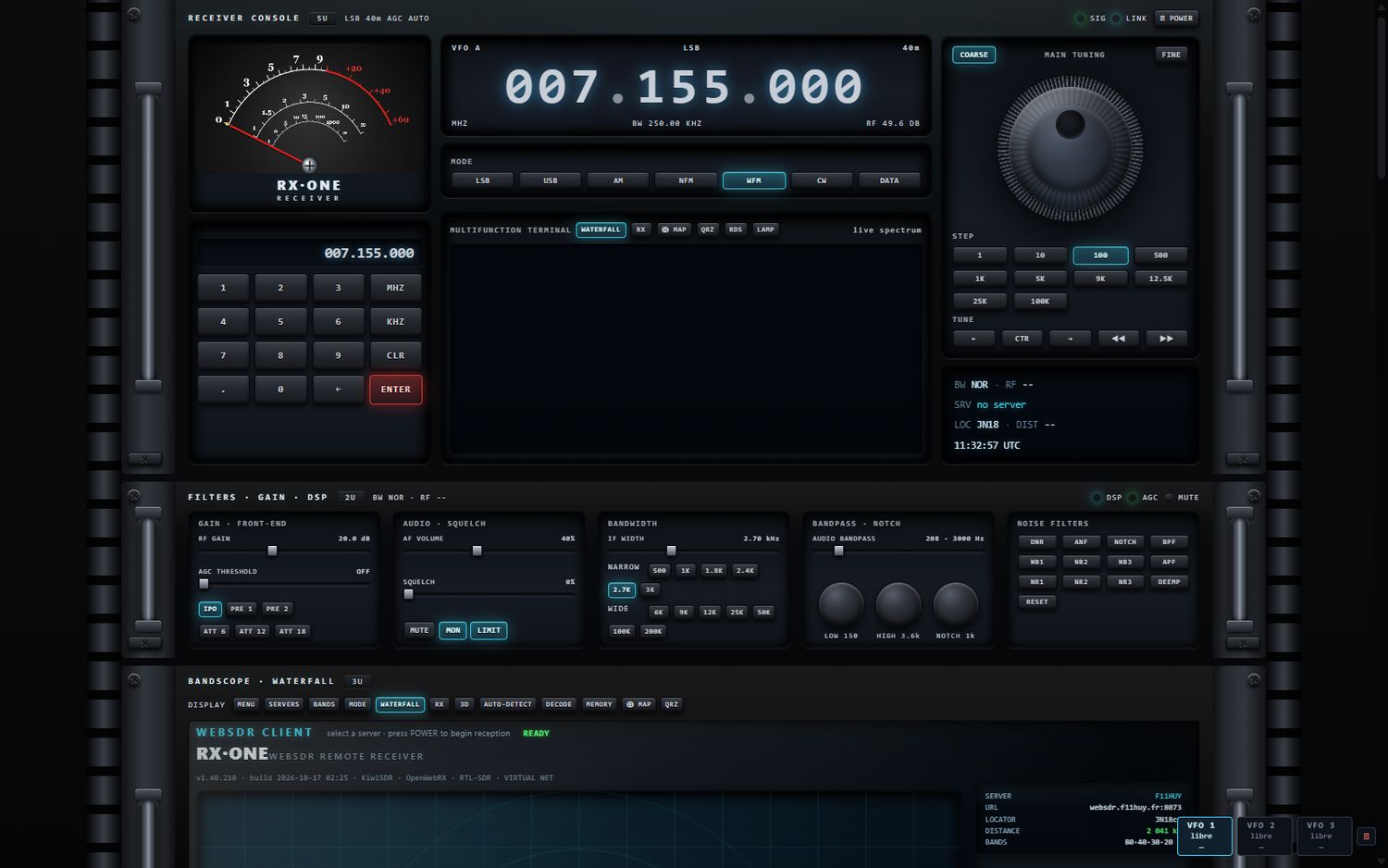

Accéder au rack
Sur PC, deux moyens :
- depuis la CONSOLE 5000 : touche SET, encadré INTERFACE, puce RACK 19″. L'application se relance aussitôt sur le rack et le garde aux lancements suivants. Pour revenir : même encadré, puce CONSOLE 5000 ;
- au lancement : option
--ui=rack(ou--ui=console), par exemple dans un raccourci Windows. L'option l'emporte sur le choix enregistré. Voir Choisir la façade.
Le rack s'ouvre dans une fenêtre Windows ordinaire (cadre, poignées), 1560 × 900 pixels la première fois, 900 × 500 au minimum. Sa taille et sa position sont retrouvées au lancement suivant.
| Raccourci | Effet |
|---|---|
Ctrl + + (ou Ctrl + =) | agrandit tout le rack, jusqu'à ×3 |
Ctrl + - | réduit tout le rack, jusqu'à ×0,4 |
Ctrl + 0 | revient à ×1 |
Le zoom choisi est conservé. La mise en page se recalcule à chaque palier.
Les fichiers produits par le rack (images SSTV et FAX, enregistrements) sont rangés sans boîte de dialogue : l'audio dans le dossier des enregistrements, le reste dans Téléchargements\RX-ONE. Voir Où RX·ONE range vos fichiers.
La baie
Anatomie d'un tiroir
Chaque tiroir a :
- deux oreilles (gauche et droite) avec leurs vis et une poignée verticale ;
- un en-tête : nom du tiroir, plaque de hauteur (« 5U », « 2U »…), une ligne d'état et des témoins lumineux à droite ;
- la façade avec ses commandes.
Ordre d'origine des tiroirs :
| Tiroir | Hauteur |
|---|---|
| RECEIVER CONSOLE | 5U |
| FILTERS · GAIN · DSP | 2U |
| BANDSCOPE · WATERFALL | 3U |
| AUDIO LAB | 3U |
| DIGITAL DECODERS | 4U |
| DIGITAL ENCODER | 4U |
| VOICE TRANSLATION · VOX | 2U |
| VIRTUAL NET · SERVER | 3U |
| SATELLITE · TRACKING | 3U |
| RACK CONTROL | 1U |
| TRANSMISSION · VIRTUAL NET | 3U |
| RECORDER | 1U |
| CB 27 | 3U |
Composer la baie
- Déplacer un tiroir : saisissez une de ses poignées et glissez vers le haut ou le bas. Le tiroir prend sa nouvelle place au lâcher ; l'ordre est conservé.
- Monter / démonter, colonnes, configurations : tiroir RACK CONTROL ou menu SYSTEM › RACK.
- 1, 2 ou 3 colonnes : les tiroirs se répartissent côte à côte ; chaque tiroir garde sa colonne.
- Zoom de la baie (SYSTEM › RACK, touches − / 100% / +) : agrandit ou réduit la baie proportionnellement, de ×0,35 à ×3. Ce zoom est conservé.
- FRAMELESS : la fenêtre est recréée sans cadre, sur fond transparent ; le rack semble posé sur le bureau.
- FIT : ajuste la taille de la fenêtre à la baie.
Tiroir RECEIVER CONSOLE
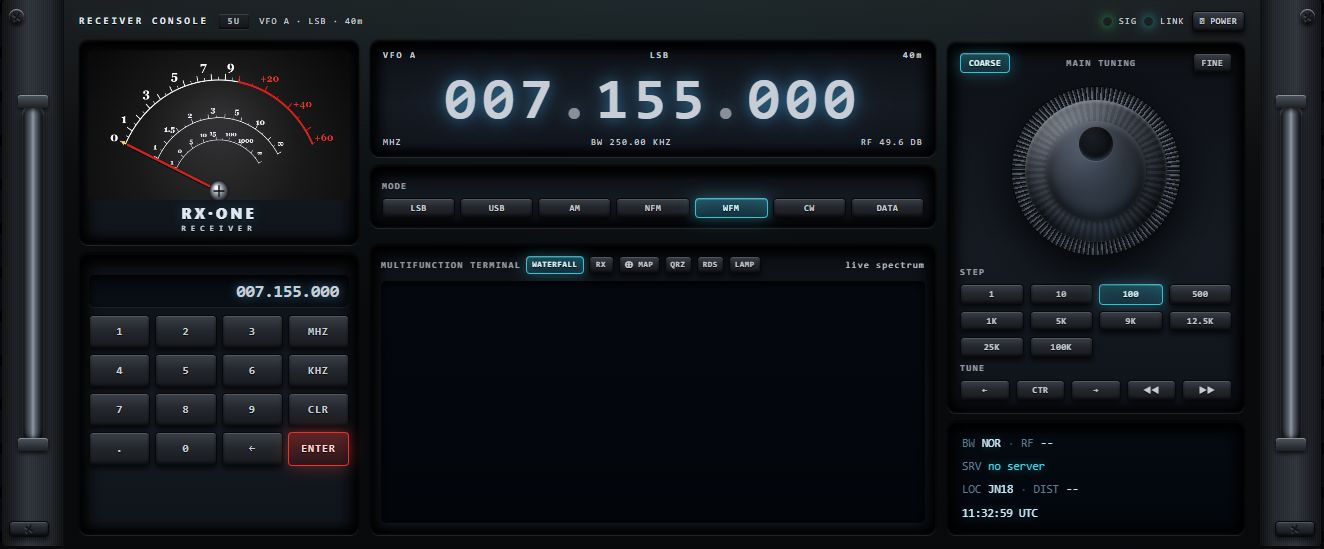

En-tête : ligne d'état (VFO, mode, bande), témoins SIG (vert, signal) et LINK (cyan, liaison avec la source), bouton ⏻ POWER qui met le récepteur en marche ou à l'arrêt. À la mise en marche, le bandscope passe de lui-même en vue cascade dès la fin de la séquence de démarrage.
Galvanomètre et clavier
Le galvanomètre (S-mètre à aiguille, échelles S0 à S9 puis +20, +40, +60) suit le niveau de signal mesuré, avec un repère de crête qui redescend lentement.
| Touche | Action | Valeurs / défaut |
|---|---|---|
0…9, . | saisie de la fréquence dans l'afficheur du clavier (12 caractères au plus, un seul point) | — |
| MHZ | accorde sur la valeur saisie, lue en MHz | — |
| KHZ | accorde sur la valeur saisie, lue en kHz | — |
| ENTER (rouge) | accorde : valeur lue en MHz si elle contient un point, en kHz sinon | 7074 ENTER = 7,074 MHz ; 7.074 ENTER = 7,074 MHz |
| CLR | efface la saisie | — |
| ← | efface le dernier caractère | — |
Afficheur VFO, MODE et terminal
L'afficheur VFO donne la fréquence (format 007.155.000, en MHz), le mode et la bande en haut, la largeur de bande (BW) et le gain (RF) en bas. La molette de la souris sur l'afficheur accorde aussi.
Rangée MODE : LSB USB AM NFM WFM CW DATA. Un mode que la source connectée ne propose pas est grisé (voir Menus adaptatifs).
MULTIFUNCTION TERMINAL
Petit écran à onglets ; le libellé à droite (« live spectrum »…) rappelle ce qu'il affiche.
| Onglet | Contenu |
|---|---|
| WATERFALL (défaut) | spectre en direct (« live spectrum ») |
| RX | état du récepteur : POWER (ON / STANDBY), LINK, SERVER, BACKEND, fréquence du VFO A, MODE et BAND, DECODER, S-METER en dBm, VOLUME (MUTED si coupé), heure UTC |
| ⊕ MAP | carte des stations entendues ; un second appui revient à la cascade |
| QRZ | recherche d'indicatif : tapez un indicatif puis LOOKUP ; la fiche vient du réseau et une punaise est posée sur la carte du bandscope (DISPLAY › ⊕ MAP, filtre QRZ) |
| RDS | nom de station (PS), code PI, groupes reçus, RadioText. Hors 88–108 MHz : « out of FM band ». Le RDS n'est décodé que sur une source locale (RTL-SDR ou HackRF) en WFM |
| LAMP | une lampe à filament décorative dans sa niche |
Après ▶ APPLIQUER dans AUTO-DETECT (voir AUTO-DETECT), le terminal bascule sur la sortie du décodeur (« decoder output ») : indicatifs en cyan, CQ en orange, locators et distances en vert.
MAIN TUNING, STEP et TUNE
| Commande | Action | Valeurs / défaut |
|---|---|---|
| Molette d'accord | tournez-la en suivant son bord (rotation continue, 60 crans par tour) ; chaque cran avance d'un pas. La molette de la souris l'actionne aussi, cran par cran | — |
| COARSE / FINE | COARSE : un cran = le pas STEP. FINE : un cran = un dixième du pas (1 Hz au minimum) | COARSE |
| STEP | 1 10 100 500 1K 5K 9K 12.5K 25K 100K (Hz). Le pas sert aussi à Maj + molette dans la cascade | 100 Hz ; mémorisé |
| TUNE ← / → | descend / monte d'un pas | — |
| TUNE CTR | ramène le zoom du bandscope à la pleine largeur | — |
| TUNE ◀◀ / ▶▶ | aucune action dans cette version | — |
Bloc d'informations (sous la molette) : BW (largeur, « NOR » = largeur normale du mode), RF (niveau de signal en dBm, « -- » sans mesure), SRV (serveur, « no server »), LOC (locator) et DIST, heure UTC.
Tiroir FILTERS · GAIN · DSP

En-tête : ligne d'état « BW … · RF … » (largeur de bande et niveau de signal en dBm, rafraîchis en continu ; « -- » sans mesure), témoins DSP, AGC et MUTE.
GAIN · FRONT-END
| Commande | Action | Valeurs / défaut |
|---|---|---|
| RF GAIN | gain d'entrée | dB |
| AGC THRESHOLD | seuil de la commande automatique de gain audio | OFF / dB ; mémorisé |
| IPO / PRE 1 / PRE 2 | préamplification : un seul choix à la fois ; un nouvel appui sur le PRE allumé revient à IPO (0 dB) | IPO |
| ATT 6 / ATT 12 / ATT 18 | atténuateur en dB : un seul à la fois ; un nouvel appui sur l'ATT allumé le coupe | coupé |
Front-end d'un récepteur local
Sur une source locale, RF GAIN et la rangée IPO/PRE sont remplacés par les vraies commandes du matériel :
| Récepteur | Commande | Type | Plage |
|---|---|---|---|
| HackRF | LNA (HACKRF) | curseur | 0 à 40 dB, par pas de 8 |
| HackRF | VGA (HACKRF) | curseur | 0 à 62 dB, par pas de 2 |
| HackRF | RF AMP | bouton | marche / arrêt |
| RTL-SDR | RF GAIN | curseur | paliers du tuner ; affiche « AUTO » et reste figé quand l'AGC du tuner est en service |
| RTL-SDR | AGC TUNER | bouton | marche / arrêt |
| RTL-SDR | DIG AGC | bouton | marche / arrêt |
AGC THRESHOLD reste présent : c'est l'AGC audio, indépendante du matériel.
AUDIO · SQUELCH
| Commande | Action | Valeurs / défaut |
|---|---|---|
| AF VOLUME | volume d'écoute | % |
| SQUELCH | seuil de silencieux | 0 % ; mémorisé |
| MUTE | coupe le son ; le témoin MUTE de l'en-tête s'allume | — |
| MON | écoute de contrôle de la chaîne AUDIO LAB (même réglage que MON de l'AUDIO LAB) | — |
| LIMIT | limiteur de sortie (même réglage que LIMIT de l'AUDIO LAB) | — |
BANDWIDTH
- Curseur IF WIDTH : largeur du filtre de fréquence intermédiaire (affichée en kHz).
- NARROW :
5001K1.8K2.4K2.7K3K; WIDE :6K9K12K25K50K100K200K. Chaque puce impose cette largeur au récepteur ; une seule est allumée.
BANDPASS · NOTCH
- Curseur AUDIO BANDPASS : bornes basse et haute du filtre audio (affichées en Hz, par exemple « 208 – 3000 Hz »).
- Rotatifs LOW (bord bas), HIGH (bord haut) et NOTCH (fréquence du filtre réjecteur). Ce sont les mêmes réglages que dans l'AUDIO LAB.
NOISE FILTERS
| Bouton | Rôle | Fonctionnement |
|---|---|---|
| NB1 / NB2 / NB3 | suppresseur d'impulsions, de doux (1) à fort (3) | un seul à la fois ; un nouvel appui coupe |
| NR1 / NR2 / NR3 | réduction de bruit spectrale, de légère (1) à forte (3) | un seul à la fois ; un nouvel appui coupe |
| DNR | réduction de bruit douce | marche / arrêt |
| ANF | réjecteur automatique de porteuses (sifflements) | marche / arrêt |
| NOTCH | réjecteur manuel, réglé par le rotatif NOTCH | marche / arrêt |
| APF | filtre de crête pour la télégraphie | marche / arrêt |
| BPF | filtre passe-bande audio | marche / arrêt |
| DEEMP | désaccentuation (atténue les aigus) | marche / arrêt |
| RESET | remise à zéro du tiroir (voir ci-dessous) | — |
Les familles se cumulent. Ordre de traitement : ATT/PRE → NB → NR/DNR → ANF → NOTCH → APF/BPF → DEEMP → SQUELCH. L'état des filtres est mémorisé et retrouvé au démarrage.
RESET du tiroir
RESET (info-bulle « Tous les filtres et reglages du tiroir a zero ») s'allume brièvement et remet : IPO ; ATT, NB, NR, DNR, ANF, APF, BPF, DEEMP et NOTCH coupés ; AGC et squelch à 0 ; filtre audio coupé et ramené à 300–3000 Hz ; égaliseur à plat ; largeur FI normale du mode (puces BANDWIDTH éteintes). AF VOLUME et RF GAIN ne sont pas touchés, pour que la radio ne devienne pas muette.
Tiroir BANDSCOPE · WATERFALL

Le bandscope est le grand écran du rack : spectre en haut, cascade en dessous. Les pages du récepteur (menu, serveurs, bandes, modes…) s'y affichent aussi. Poste éteint, il montre un radar centré sur le dernier serveur choisi, avec sa fiche (SERVER, URL, LOCATOR, DISTANCE, BANDS).

Barre DISPLAY
Un seul bouton est allumé à la fois. Toute nouvelle connexion ramène l'écran sur la cascade.
| Bouton | Ce qui s'affiche dans l'écran |
|---|---|
| MENU | le menu général par catégories (voir Menus du rack) |
| SERVERS | l'annuaire des sources de réception (voir Sources) |
| BANDS | les bandes ; seules celles que le serveur couvre sont proposées |
| MODE | les modes ; seuls ceux que la source accepte sont proposés |
| WATERFALL (défaut) | spectre et cascade |
| RX | la page de réception, avec un volet d'analyse : spectre audio et oscillogramme |
| 3D | spectre et cascade en relief (« Spectre et cascade en relief ») |
| AUTO-DETECT | le labo d'analyse de signal (voir ci-dessous) |
| DECODE | la page du décodeur sélectionné |
| MEMORY | le gestionnaire de mémoires |
| ⊕ MAP | la carte des stations reçues |
| QRZ | la fenêtre de recherche d'indicatif |


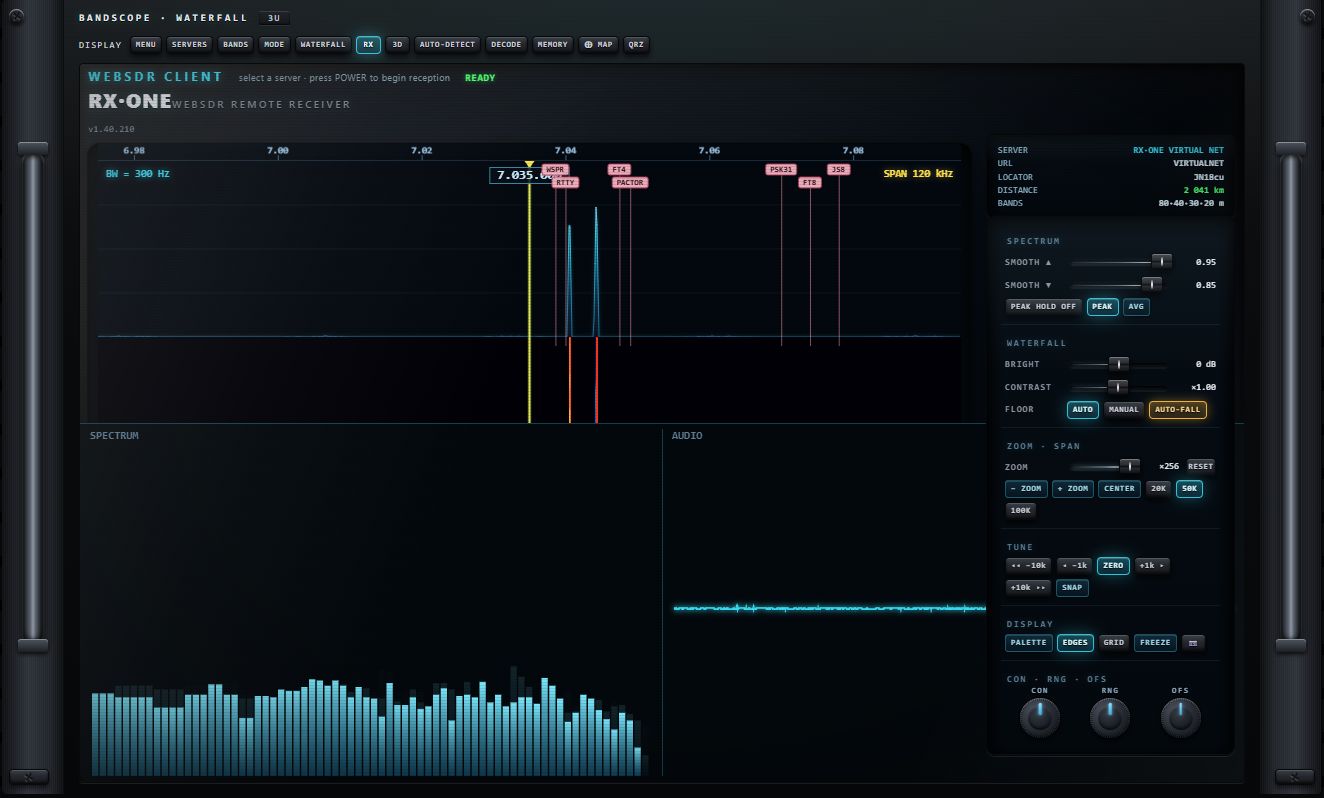
Vue 3D
Spectre et cascade dessinés en relief ; un panneau de réglages accompagne la vue et ses réglages sont conservés. La molette de la souris agit sur la vue. Si la carte graphique ne permet pas le relief, une vue en perspective plus simple la remplace.
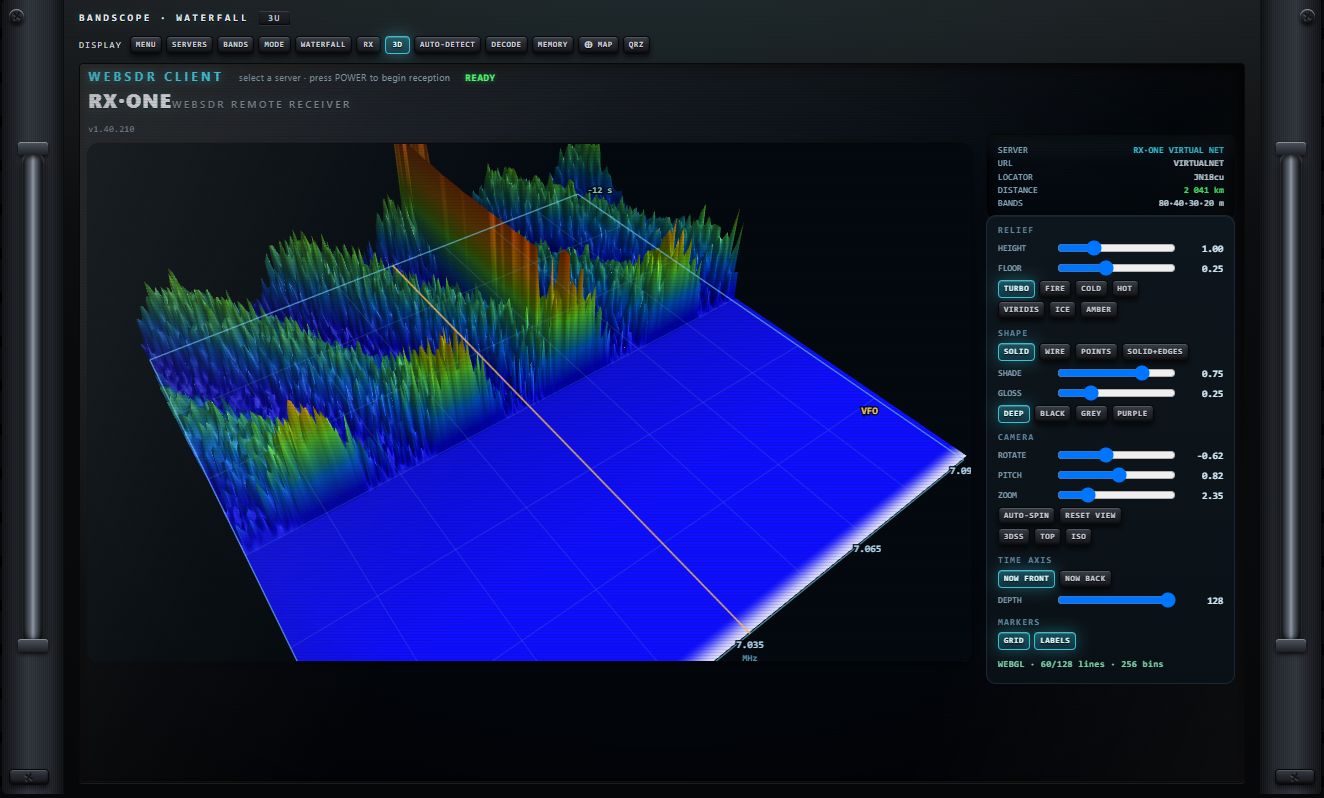
Carte ⊕ MAP
Carte des stations décodées. Molette = zoom centré sur le pointeur ; glisser = déplacer. Filtres : TOUS, FT8, FT4, CW, RTTY, FSK, QRZ. Le filtre QRZ ne montre que les punaises des indicatifs cherchés à la main (onglet QRZ du terminal ou bouton QRZ) ; ouvrir la carte depuis une recherche la recentre sur la punaise.
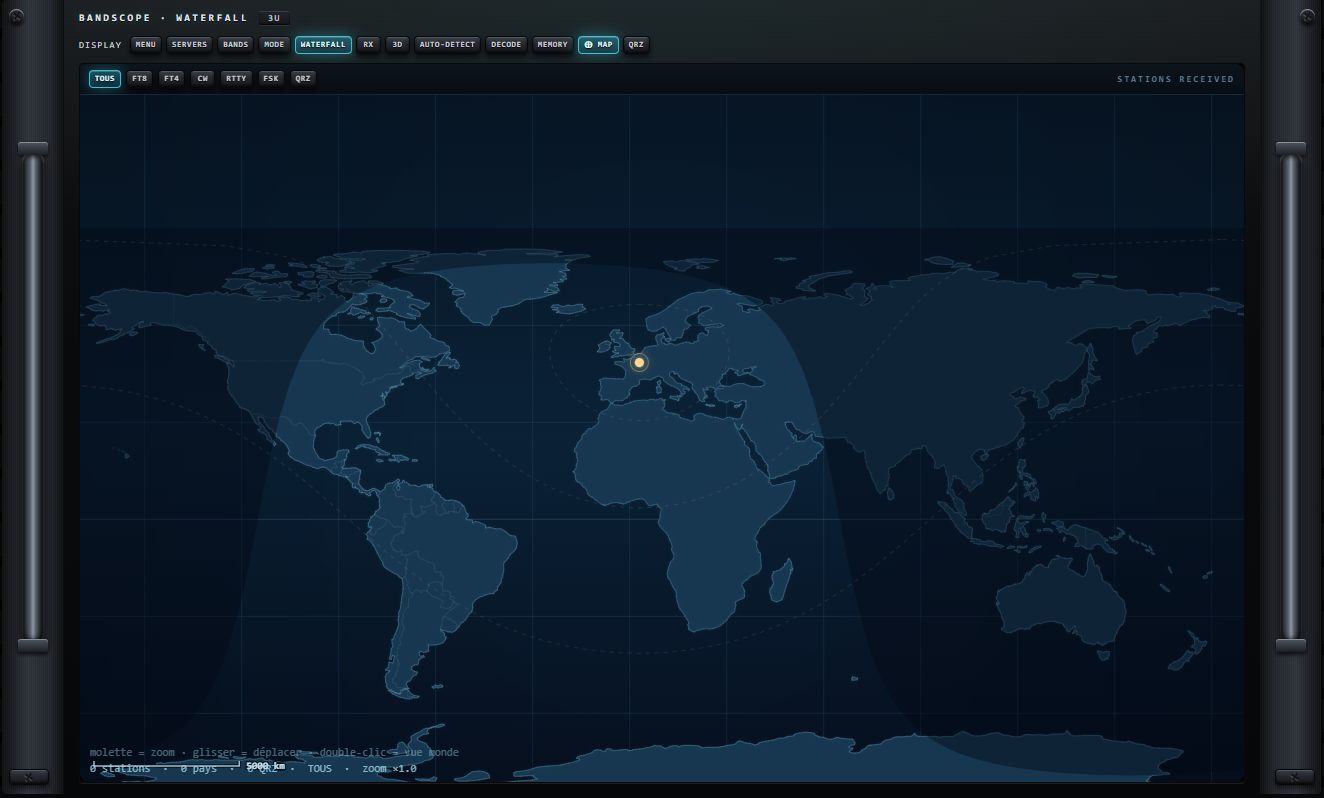
AUTO-DETECT
Panneau d'analyse posé sur l'écran, rafraîchi en continu. Il mesure le signal écouté et propose un réglage :
- BANDE : largeur occupée, en Hz, avec ses bornes ;
- TONALITES : nombre de tonalités repérées ;
- CENTRAGE : « signal centre » ou « desaxe de … Hz », avec le bouton ◉ ALIGNER qui recentre l'accord ;
- VERDICT : le mode reconnu (CW, RTTY, FSK, FT8/FT4, PSK31, SSTV/FAX, VOIX SSB, PORTEUSE) et une recommandation ;
- ▶ APPLIQUER : mode · largeur · shift · décodeur (si la confiance suffit) : applique le réglage, choisit le décodeur et bascule le terminal sur sa sortie.
Choisir une autre vue du bandscope ferme le panneau.
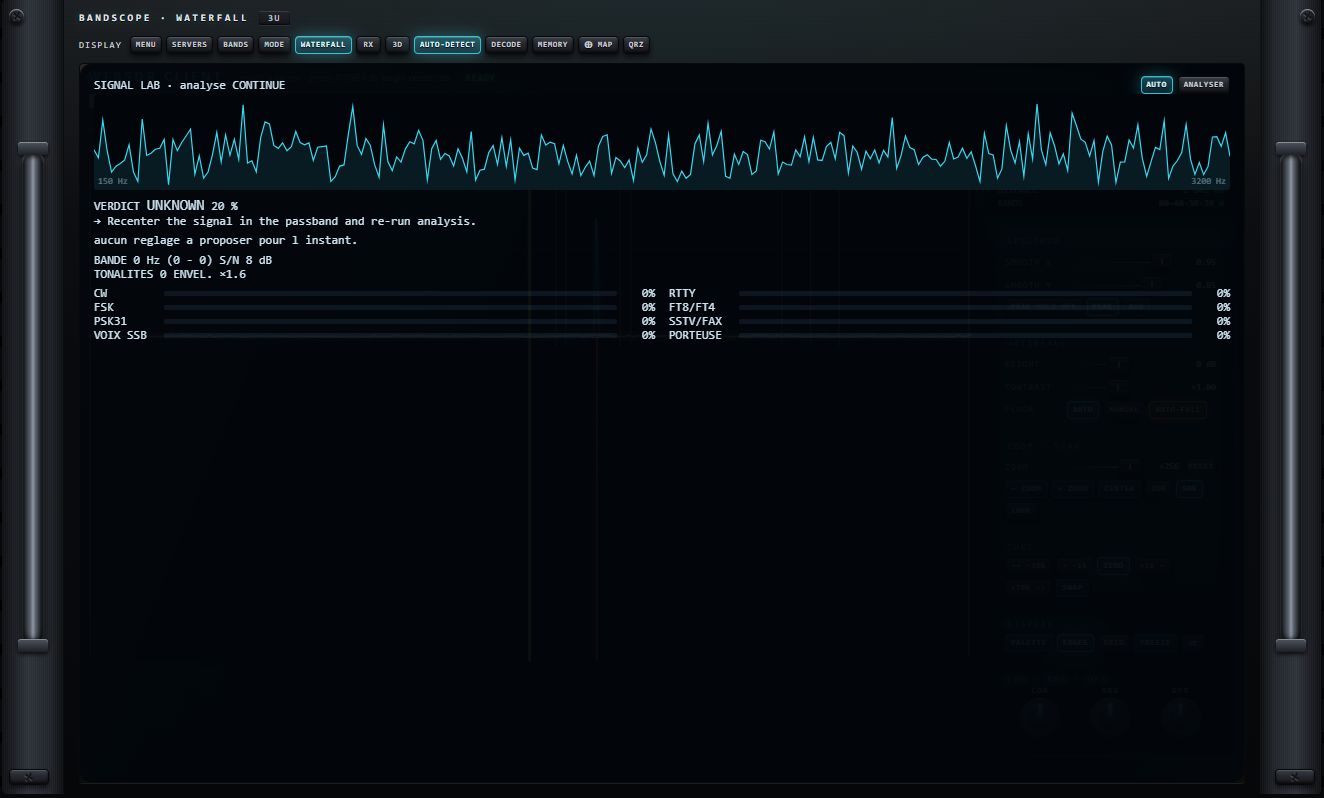
Réglages de la cascade
Colonne de droite du bandscope.
| Groupe | Commande | Action | Valeurs / défaut |
|---|---|---|---|
| SPECTRUM | SMOOTH ▲ | lissage à la montée du spectre | 0.95 ; mémorisé |
| SPECTRUM | SMOOTH ▼ | lissage à la descente | 0.85 ; mémorisé |
| SPECTRUM | PEAK HOLD OFF / ON | maintien des crêtes ; le libellé indique l'état | OFF |
| SPECTRUM | PEAK | trace de crête | allumé |
| SPECTRUM | AVG | trace moyennée | éteint |
| WATERFALL | BRIGHT | luminosité de la cascade | 0 dB |
| WATERFALL | CONTRAST | contraste | ×1.00 |
| WATERFALL | FLOOR AUTO / MANUAL | plancher de la cascade calculé automatiquement, ou figé et réglé à la main (BRIGHT, RNG, OFS) | AUTO ; mémorisé |
| WATERFALL | AUTO-FALL (ambre) | défilement automatique de la cascade | allumé |
| ZOOM · SPAN | curseur ZOOM + RESET | facteur de zoom ; RESET revient à la pleine largeur et à des réglages de cascade neutres | — |
| ZOOM · SPAN | − ZOOM / + ZOOM / CENTER | zoom arrière, zoom avant, recentrage sur l'accord | — |
| ZOOM · SPAN | 20K / 50K / 100K | largeur affichée | 50K |
| TUNE | ◂◂ −10k / ◂ −1k / +1k ▸ / +10k ▸▸ | déplace l'accord de 10 ou 1 kHz | — |
| TUNE | ZERO | arrondit l'accord au kHz | — |
| TUNE | SNAP | arrondit l'accord à 500 Hz | — |
| DISPLAY | PALETTE | palette de couleurs suivante ; son nom s'affiche un instant sur le bouton | — |
| DISPLAY | EDGES | bords du filtre de réception sur le spectre | allumé |
| DISPLAY | GRID | grille | éteint |
| DISPLAY | FREEZE | fige l'affichage ; « FREEZE » s'inscrit sur le spectre | éteint |
| DISPLAY | 📷 | capture de l'écran | — |
| CON · RNG · OFS | rotatifs CON, RNG, OFS | contraste, dynamique et décalage du plancher de la cascade | — |
PEAK, PEAK HOLD, AVG, GRID et EDGES sont dessinés sur un calque au-dessus du spectre ; leur état est mémorisé.
Le gestionnaire MEMORY
Le bouton MEMORY de la barre DISPLAY ouvre, dans l'écran du bandscope, la page MEMORY · GESTION DES MÉMOIRES : un terminal à écriture fine, avec la colonne des listes à gauche, le tableau au centre et une ligne de saisie en bas. Un nouvel appui sur MEMORY (ou ✕) la ferme.
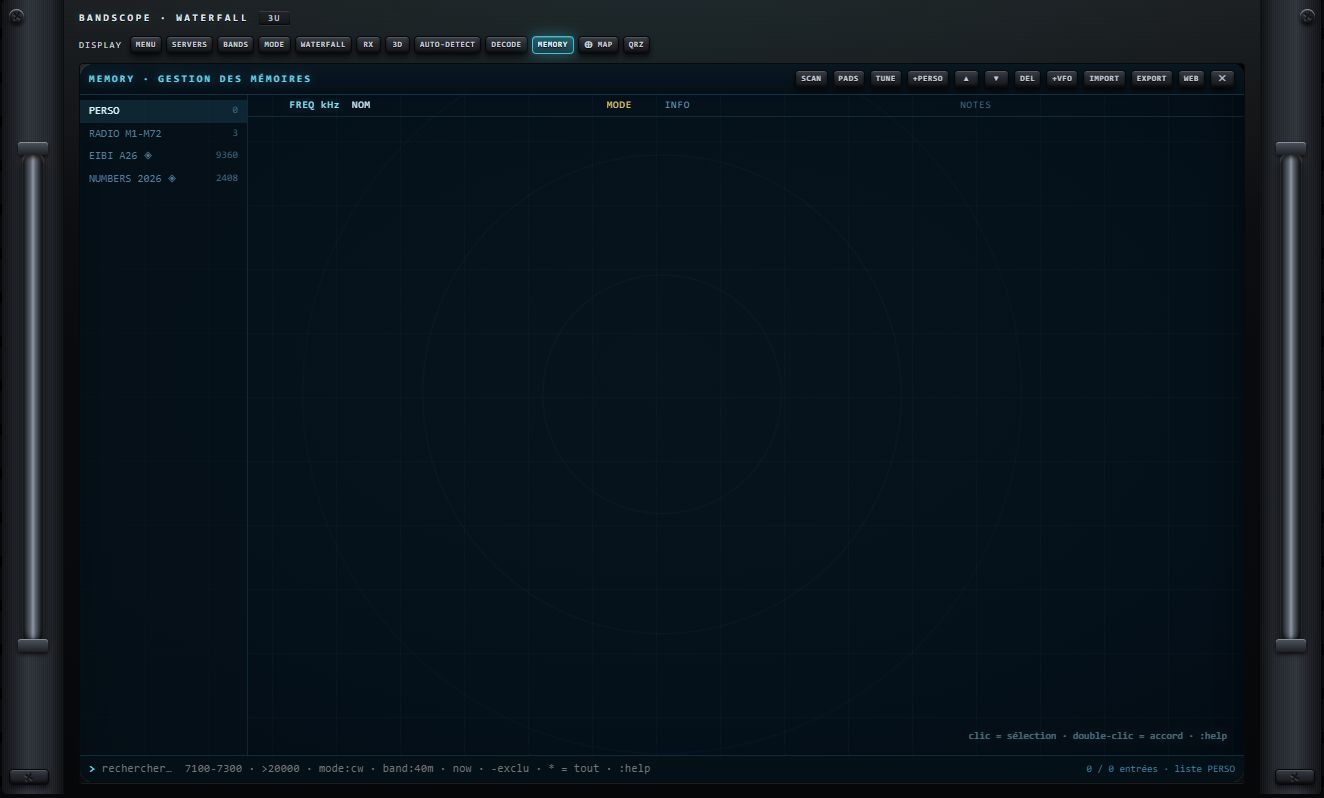
Les listes
| Liste | Contenu | Modifiable |
|---|---|---|
| PERSO | votre liste personnelle, toujours présente | oui |
| RADIO M1-M72 | les mémoires du poste (celles du clavier et du menu MEMORIES) | lecture |
| EIBI A26 | grille horaire des stations ondes courtes, embarquée | non (◈) |
| NUMBERS 2026 | stations de chiffres et signaux étranges, embarqués | non (◈) |
| listes importées ou créées | une liste par import, par téléchargement ou par :new | oui |
Une liste en lecture seule porte le signe ◈. Le nombre d'entrées s'affiche à droite de chaque nom. Cliquer une liste l'ouvre (et arrête le scan).
Tableau : colonnes FREQ kHz, NOM, MODE, INFO, NOTES. Cliquer un en-tête (FREQ, NOM, MODE) trie ; un second clic inverse le tri. En bas à droite : « n / total entrées · liste NOM ».
| Geste | Effet |
|---|---|
| clic sur une ligne | la sélectionne |
Ctrl + clic | sélection multiple |
| double-clic | accorde le récepteur (fréquence, et mode si la source l'accepte) |
Boutons de la page
| Bouton | Action |
|---|---|
| SCAN | lance ou arrête le scan de la vue affichée |
| PADS / LISTE | bascule entre le tableau et une page de pavés tactiles (120 au plus ; un toucher = accord ; sur chaque pavé : ✎ renommer, ⧉ copier vers PERSO, ✕ supprimer) |
| TUNE | accorde sur la ligne sélectionnée |
| +PERSO | copie les lignes sélectionnées dans PERSO (sans doublon) |
| ▲ / ▼ | monte / descend la ligne sélectionnée (une seule) |
| DEL | supprime les lignes sélectionnées |
| +VFO | ajoute la fréquence et le mode actuels à PERSO |
| IMPORT | importe un fichier .csv, .txt, .xml ou .json |
| EXPORT | exporte la liste courante en CSV |
| WEB | ouvre ou ferme le panneau des listes en ligne |
| ✕ | ferme la page |
Recherche
Taper dans la ligne du bas filtre instantanément la liste ouverte. Plusieurs termes séparés par des espaces doivent tous être vrais. Échap vide la recherche.
| Syntaxe | Exemple | Trouve | ||
|---|---|---|---|---|
| texte | volmet | ce texte dans n'importe quelle colonne | ||
| `a\ | b` | `dwd\ | northwood` | l'un ou l'autre |
-terme | -china | exclut ce terme | ||
| nombre | 4625 | une fréquence à ±2 kHz, ou ce nombre dans le texte | ||
| plage | 7100-7300 | fréquences entre ces bornes (kHz) | ||
>x, <x | >20000 | fréquences au-dessus / au-dessous (kHz) | ||
f:x | f:4625 | fréquence à ±2 kHz seulement | ||
mode:x | mode:cw | dans la colonne MODE (m: accepté) | ||
name:x | name:shannon | dans la colonne NOM (n:, nom:) | ||
info:x, notes:x | info:meteo | dans INFO (i:) ou NOTES (o:) | ||
band:x | band:40m | dans cette bande du plan de bandes | ||
now | now band:31m | à l'antenne maintenant (plages horaires UTC de la colonne INFO) | ||
* en tête | * 5505 | cherche dans toutes les listes ; la liste d'origine s'affiche entre crochets |
Importer et télécharger des listes
IMPORT reconnaît le format tout seul :
- fichier EIBI (première ligne commençant par
kHz:) ; - CHIRP (en-tête
Location,Name,Frequency…) ; - SDR# (fichier
.xmlde fréquences) ; - CSV générique : séparateur
;ou,, colonnes reconnues par leur titre (freq/kHz/MHz/Hz, name/station/nom, mode, time/info, note/comment…).
Chaque import crée une nouvelle liste portant le nom du fichier. EXPORT produit un CSV khz;name;mode;info;notes ; :export json produit un fichier JSON.
Panneau WEB
| Ligne | Bouton | Ce qui est chargé |
|---|---|---|
| EN LIGNE | ONDES COURTES · EIBI | la grille EIBI de la saison en cours |
| EN LIGNE | SATELLITES · SATNOGS | les émetteurs de satellites actifs (liste SATELLITES) |
| EN LIGNE | RELAIS FR · F4IGO | les relais radioamateurs France / Belgique en service (liste RELAIS-F4IGO) |
| EN LIGNE | champ « pays / ville » + RELAIS · HEARHAM | les relais de l'annuaire mondial dont la ville ou l'indicatif correspond au mot tapé (liste RELAIS-…) ; le mot est obligatoire |
| BANQUE | MÉTÉO · FAX, SSTV · RTTY, AVIATION · PARIS, BANDES · R1 | listes gravées dans le logiciel, sans réseau (fax et RTTY météo, VOLMET, NAVTEX ; fréquences d'appel SSTV et RTTY ; fréquences d'Orly, Roissy et Paris Contrôle ; segments IARU Région 1) |
| URL | champ + CHARGER | toute liste EIBI, CHIRP, SDR# ou CSV en ligne, par son adresse |
| ÉTAT | — | l'avancement et le résultat du dernier chargement |
Une liste du même nom est remplacée : recharger une source la met à jour. Le téléchargement exige une connexion Internet.
Ligne de commande
Une saisie qui commence par : est une commande, exécutée par Entrée. La recherche en cours est conservée.
| Commande | Effet |
|---|---|
:new NOM | crée une liste vide et l'ouvre |
:ren NOM | renomme la liste ouverte |
:name TEXTE | renomme l'entrée sélectionnée (une seule) |
:del | supprime les entrées sélectionnées |
:dellist | supprime la liste ouverte (PERSO et les listes en lecture seule sont protégées) |
:add | ajoute le VFO actuel à PERSO |
:export / :export json | exporte la liste ouverte en CSV / JSON |
:scan [s] [seuil] | lance le scan ; s = secondes par canal, seuil = niveau en dBm qui retient le scan |
:scan off | arrête le scan |
:web | télécharge la grille EIBI de la saison en cours |
:web sat | émetteurs satellites (SatNOGS) |
:web f4igo (ou :web fr) | relais France (f4igo) |
:web relais PAYS | relais de l'annuaire mondial filtrés par pays, ville ou indicatif |
:web ADRESSE | une liste en ligne quelconque |
:banque NOM | charge une liste gravée : METEO-FAX (par défaut), SSTV-RTTY, AVIATION-PARIS, BANDES-HAM-R1 |
:help | rappelle les commandes et la syntaxe de recherche |
Les noms de listes sont mis en majuscules et limités à 18 caractères.
Scan des mémoires
Le scan parcourt la vue affichée : la liste entière, ou le résultat d'une recherche (par exemple now band:40m). Il accorde chaque entrée, la sélectionne et l'annonce sur la ligne de note.
- Temps par canal : 3 s par défaut ;
:scan 5le porte à 5 s (de 0,25 à 30 s). - Seuil :
:scan 5 -95retient le scan tant que le signal dépasse −95 dBm (20 s au plus), puis le scan reprend après un délai de 2 s. - Tout clic sur une ligne ou un pavé, un changement de liste ou de recherche, ou la fermeture de la page arrête le scan (« scan stopped »).
Tiroir AUDIO LAB
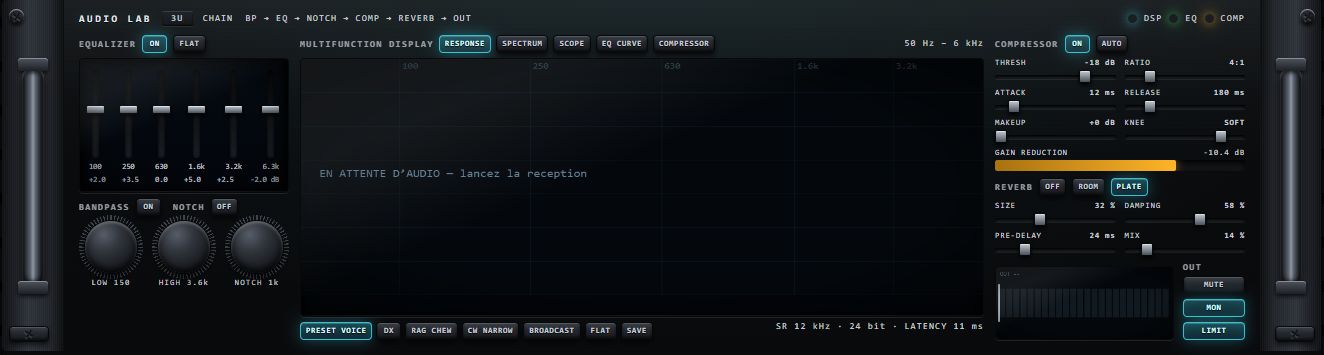
En-tête : chaîne de traitement « BP → EQ → NOTCH → COMP → REVERB → OUT » et témoins DSP, EQ, COMP. Égaliseur et filtre audio sont partagés avec le reste du récepteur. L'état du tiroir est mémorisé. Voir aussi la page AUDIO de la console.
| Bloc | Commande | Action | Valeurs |
|---|---|---|---|
| EQUALIZER | ON / FLAT | met l'égaliseur en service / le remet à plat | — |
| EQUALIZER | 6 curseurs | gain des bandes 100, 250, 630, 1.6k, 3.2k, 6.3k Hz | dB, affichés sous chaque curseur |
| EQUALIZER | BANDPASS ON/OFF, NOTCH ON/OFF | filtre audio passe-bande, réjecteur | — |
| EQUALIZER | rotatifs LOW, HIGH, NOTCH | bord bas, bord haut, fréquence du réjecteur | ex. 150 Hz, 3.6 kHz, 1 kHz |
| MULTIFUNCTION DISPLAY | RESPONSE, SPECTRUM, SCOPE, EQ CURVE, COMPRESSOR | réponse de la chaîne réelle, spectre, oscilloscope, courbe d'égalisation, courbe du compresseur | RESPONSE |
| MULTIFUNCTION DISPLAY | PRESET VOICE, DX, RAG CHEW, CW NARROW, BROADCAST, FLAT | réglages d'égaliseur tout faits | — |
| MULTIFUNCTION DISPLAY | SAVE | enregistre votre réglage | — |
| COMPRESSOR | ON / AUTO | met le compresseur en service / réglage automatique | — |
| COMPRESSOR | THRESH, RATIO, ATTACK, RELEASE, MAKEUP, KNEE | seuil, taux, attaque, retour, gain de compensation, genou | ex. −18 dB, 4:1, 12 ms, 180 ms, +0 dB ; KNEE HARD / MED / SOFT |
| COMPRESSOR | barre GAIN REDUCTION | réduction de gain appliquée | dB |
| REVERB | OFF / ROOM / PLATE | type de réverbération | — |
| REVERB | SIZE, DAMPING, PRE-DELAY, MIX | taille, amortissement, pré-délai, dosage | %, ms |
| OUT | vu-mètre | niveau de sortie | dB |
| OUT | MUTE, MON, LIMIT | coupure, écoute de contrôle, limiteur | — |
Poste éteint, l'écran affiche « EN ATTENTE D'AUDIO — lancez la reception ». La carte son de sortie se choisit dans SYSTEM › AUDIO.

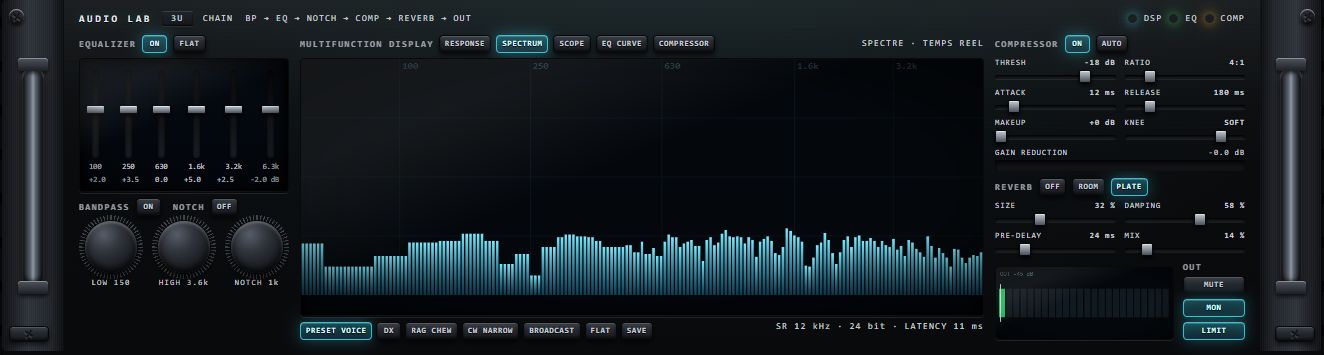


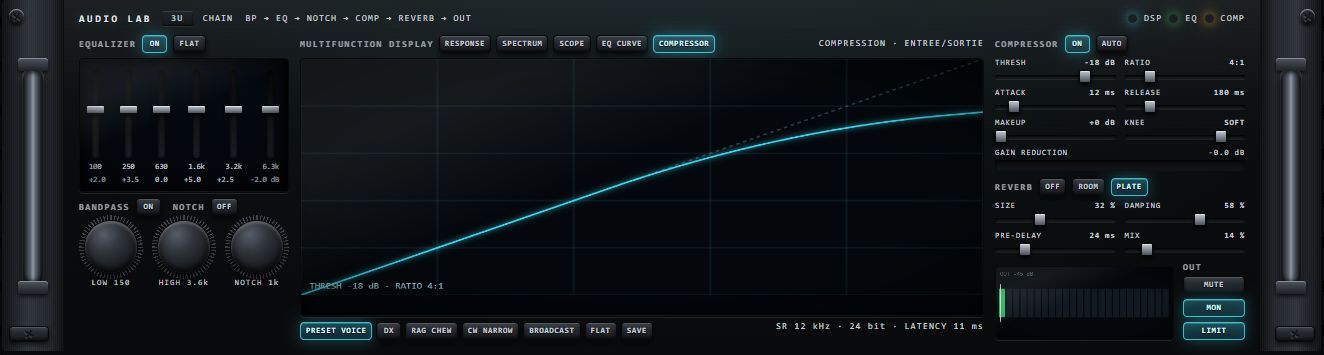
Tiroir DIGITAL DECODERS

En-tête : décodeur actif et compteur (« FT8 · 00 / 15 s »), témoins DECODE et SYNC.
Rangée des décodeurs : FT8 FT4 CW RTTY FSK PSK31 SSTV FAX NAVTEX DMR RDS ADS-B AIS PACKET IDENT, puis EXPORT ADIF, LOOKUP et CLEAR.
- FT8 est actif au démarrage.
- Cliquer un décodeur l'active et éteint les autres ; son panneau remplace le précédent.
- Cliquer à nouveau le décodeur actif l'arrête : la console affiche « … : decodeur arrete · cliquer le bouton pour reprendre », la ligne d'état indique « … · ARRETE ». Un nouveau clic le relance.
- Un décodeur que la source ne permet pas est grisé. Sur un serveur OpenWebRX, choisir un décodeur peut lancer celui du serveur.
Le décodage en détail (principe de chaque mode, fréquences où écouter) est décrit au chapitre Décodage.
Les panneaux
Chaque panneau a trois blocs : la sortie (texte, liste ou image) à gauche, un écran d'accord ou une cascade au centre, l'état à droite. En bas du bloc d'état, trois boutons communs :
| Bouton | Action |
|---|---|
| ● LISTEN (ou ● RECEIVE pour SSTV et FAX, ● ANALYZE pour IDENT) | pour un décodeur du tiroir : démarre ou arrête l'écoute (« STOPPED » à l'arrêt) ; pour les autres : réarme le décodeur (« REARMED » un instant) |
| PAUSE / FROZEN | fige l'affichage et le décodage ; un nouvel appui reprend |
| CLEAR | efface la sortie ; pour un décodeur du tiroir, le redémarre à zéro |
| Décodeur | Blocs propres |
|---|---|
| FT8 | DECODES · LIVE TRAFFIC (ALL, CQ ONLY, EXPORT ADIF) ; AUDIO WATERFALL · DECODER TAP avec la barre et le compteur SLOT … / 15 s ; STATUS · STATIONS. Une ligne orange dit pourquoi rien ne décode (récepteur arrêté, aucune source, moteur pas prêt, mode autre que USB…) ; « engine READY » en vert quand tout est prêt |
| FT4 | FAST DECODES · 7.5 s, mêmes boutons ; SLOT … / 7,5 s |
| CW | DECODED TEXT · STANDALONE SKIMMER (COPY TEXT) ; TUNING — CLICK = TONE (cliquer le spectre choisit la tonalité ; curseur THRESHOLD) ; READINGS |
| RTTY, FSK | RECEIVED TAPE / RECEIVED STREAM (COPY) ; TUNING — CLICK = CENTER (spectre d'accord avec les filtres mark et space, scope XY, oscillogramme des bits) ; LINE |
| PSK31 | RECEIVED TEXT · BPSK31 (COPY) ; PHASE — CLICK = CARRIER ; QUALITY |
| NAVTEX | BULLETINS avec filtres ALL, A NAV, B WX, E FCST ; MESSAGE · RAW FEED (cliquer un bulletin l'affiche en entier) ; LINE · 518 kHz |
| SSTV | IMAGE RECEIVING ; RECEIVED IMAGES ALBUM (📷 SAVE TO ALBUM + PNG, CLEAR ALBUM ; cliquer une vignette l'enregistre) ; STATUS |
| FAX | ROLL (l'image) ; MACHINE ; OUTPUT avec SAVE PNG |
| PACKET | AX.25 / APRS TRAFFIC (mark 1200 · space 2200) ; STATUS |
| DMR | ACTIVITY · TS1 / TS2 (COPY) ; 4-FSK SYMBOLS ; STATUS. Seules les trames de données sont décodées ici ; la voix demande un vocodeur breveté et ne s'entend que via une source locale |
| RDS | RADIOTEXT (nom de station, code PI, texte), TUNE FM BAND · 100.0 ; ALT. FREQUENCIES ; QUALITY. Uniquement en WFM sur une source locale, 88–108 MHz |
| ADS-B | carte ; AIRCRAFT (cliquer un avion ouvre sa fiche en ligne ; EXPORT CSV) ; RECEIVE · 1090 MHz. Source locale réglée sur 1090 MHz |
| AIS | carte ; VESSELS (EXPORT CSV) ; RECEIVE · 161.975 MHz. Source locale ou serveur OpenWebRX côtier |
| IDENT | ANALYZED SIGNAL (🔎 ANALYZE SIGNAL) ; ENGINE HYPOTHESES (OPEN RECOMMENDED DECODER) ; READINGS |


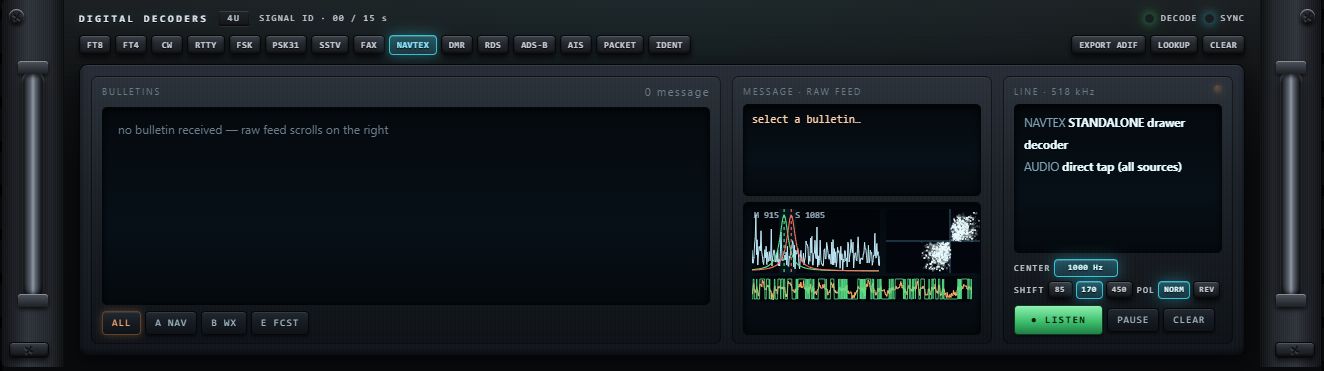
![Panneau SSTV en marche : IMAGE RECEIVING avec le signal et « [SSTV] attente VIS - 12 modes en AUTO (Martin/Scottie/Robot/PD/SC2) » ; album vide (« no image ») avec SAVE TO ALBUM + PNG et CLEAR ALBUM ; STATUS (MODE MARTIN M1), réglages MODE AUTO, FULL AUTO, TRACK, CAL VFO, SLANT AUTO, SLANT 0 ppm, PHASE 0 px, SAVE, RESET, et ● RECEIVE allumé](v5/rack-on-dec-sstv.png)
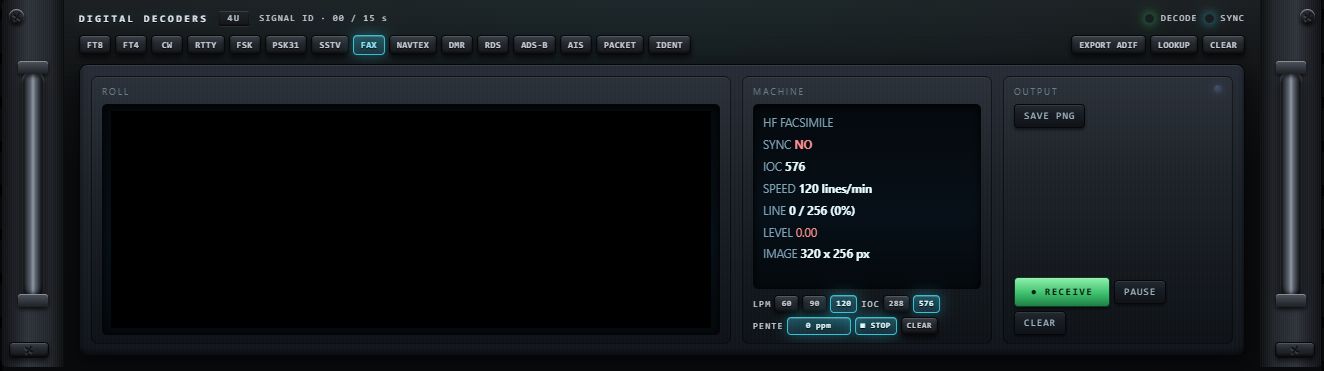

Réglages des décodeurs du tiroir
CW, RTTY, FSK, PSK31, NAVTEX, FAX, SSTV, DMR et PACKET tournent dans le tiroir, avec leur propre prise audio, quelle que soit la source. Leurs réglages apparaissent dans le bloc d'état et sont mémorisés pour chaque décodeur. Une valeur numérique se règle en glissant horizontalement sur sa case.
| Décodeur | Réglage | Valeurs | Défaut |
|---|---|---|---|
| PSK31 | CARRIER | 300 à 3000 Hz, pas de 10 | 1000 Hz |
| PSK31 | SPEED | 31.25 / 62.5 | 31.25 |
| PSK31 | AFC | ON / OFF | ON |
| NAVTEX | CENTER | 400 à 3000 Hz, pas de 10 | 1000 Hz |
| NAVTEX | SHIFT | 85 / 170 / 450 | 170 |
| NAVTEX | POL | NORM / REV | NORM |
| RTTY | CENTER | 300 à 3000 Hz, pas de 5 | 1000 Hz |
| RTTY | BAUD | 45.45 / 50 / 75 / 100 | 45.45 |
| RTTY | SHIFT | 170 / 425 / 450 / 850 | 170 |
| RTTY | POL | NORM / REV | NORM |
| RTTY | UOS (retour en lettres après un espace) | ON / OFF | ON |
| RTTY | AFC | ON / OFF | OFF |
| FSK | mêmes réglages que RTTY | — | shift 450, 50 bauds, UOS OFF |
| FAX | LPM | 60 / 90 / 120 | 120 |
| FAX | IOC | 288 / 576 | 576 |
| FAX | PENTE (correction d'inclinaison) | −3000 à +3000 ppm | 0 |
| FAX | ■ STOP / ▶ START, CLEAR | arrête ou reprend le tracé ; efface l'image | en marche |
| CW | TONE | 300 à 1200 Hz | 600 Hz |
| CW | WPM | AUTO / 12 / 18 / 25 / 35 | AUTO |
| CW | THRESHOLD | ×1.5 à ×8 (au-dessus du bruit) | ×3.0 |
| CW | CLR TEXT | efface le texte | — |
| PACKET | BAUD | 1200 / 300 | 1200 |
| PACKET | RESET | remet les compteurs de trames à zéro | — |
| DMR | — | aucun réglage côté réception | — |
SSTV a un bandeau complet :
| Réglage | Action | Défaut |
|---|---|---|
| MODE | AUTO (reconnaissance du code VIS) ou un mode imposé : MARTIN M1, MARTIN M2, SCOTTIE S1, SCOTTIE S2, SCOTTIE DX, ROBOT 36, ROBOT 72, PD 50, PD 90, PD 120, PD 180, SC2-180 | AUTO |
| FULL AUTO | veille sans opérateur : recale l'accord entre deux images, enregistre chaque image (album + PNG) et se réarme ; active aussi TRACK et SLANT AUTO | mémorisé |
| TRACK | compense dans le décodeur l'écart de fréquence mesuré | — |
| CAL VFO | corrige l'accord du récepteur de l'écart mesuré | — |
| SLANT AUTO | corrige automatiquement l'inclinaison de l'image | — |
| SLANT | correction manuelle d'inclinaison, −5000 à +5000 ppm (coupe SLANT AUTO) | 0 |
| PHASE | décalage horizontal de l'image, −160 à +160 px | 0 |
| SAVE | enregistre l'image en PNG | — |
| RESET | attend une nouvelle image | — |
| scope de calage | spectre 1000–2500 Hz : 1200 sync, 1500 noir, 1900 leader, 2300 blanc | — |
Tiroir DIGITAL ENCODER
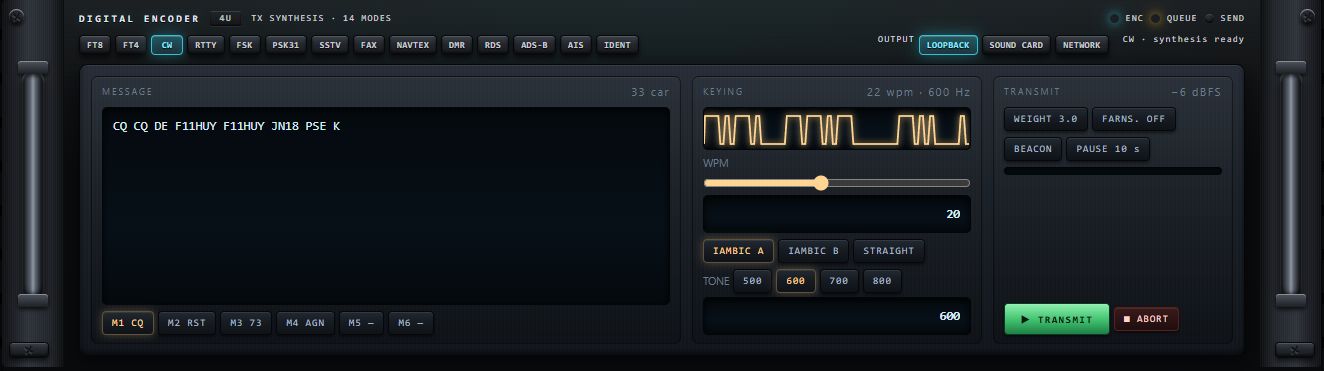
En-tête : « TX SYNTHESIS · 14 MODES », témoins ENC, QUEUE et SEND.
Modes : FT8 FT4 CW (défaut) RTTY FSK PSK31 SSTV FAX NAVTEX DMR RDS ADS-B AIS IDENT. Chaque mode a son panneau, construit sur trois blocs (message ou image, paramètres, envoi).
OUTPUT — où part le signal produit (choix mémorisé) :
| Sortie | Destination |
|---|---|
| LOOPBACK (défaut) | vers les décodeurs de RX·ONE, pour un essai sans rien envoyer |
| SOUND CARD | vers la sortie choisie dans SYSTEM › AUDIO |
| NETWORK | vers le Virtual Net (connexion JOIN nécessaire) |
Exemples de commandes au repos (panneau CW) : mémoires M1 CQ, M2 RST, M3 73, M4 AGN, M5, M6 ; WPM ; IAMBIC A / IAMBIC B / STRAIGHT ; TONE 500 / 600 / 700 / 800 Hz ; WEIGHT, FARNS., BEACON, PAUSE 10 s ; une jauge de progression ; ▶ TRANSMIT et ■ ABORT. Les panneaux FT8 et FT4 ont une liste de trafic (clic = appeler), les touches CQ, REPLY, RR73, 73, LOG QSO et un curseur de fréquence audio ; RTTY, FSK et PSK31 un bloc LINE & TRANSMIT ; SSTV un texte d'incrustation ; NAVTEX l'en-tête du message.
DMR (voix), RDS, ADS-B, AIS et IDENT affichent TX NOT AVAILABLE avec la raison : vocodeur breveté, sous-porteuse hors de la chaîne audio, systèmes de sécurité aérienne et maritime, simple analyseur.
Tiroir VOICE TRANSLATION · VOX

![Tiroir VOICE TRANSLATION · VOX avec une transcription : lignes [EN] reconnues en gris, phrase anglaise remise en forme et sa traduction [FR] « report de signal cinq neuf, je m'appelle Kelly » ; TRANSLATE, AUTO-DETECT et SUBTITLES allumés, SOURCE AUTO, TARGET FR ; à droite VOX LEVEL, VOX THRESHOLD x2.6, SEGMENT 11.2 s et « standing by »](v5/rack-on-vox.png)
Transcription et traduction de la voix reçue, hors ligne. En-tête : « WHISPER-BASE → M2M100 · OFFLINE », témoins ASR (reconnaissance), MT (traduction) et VOX. Voir aussi VOX · TRANSLATE.
| Commande | Action | Valeurs / défaut |
|---|---|---|
| ▶ START VOX / ■ STOP VOX | démarre / arrête ; l'état s'affiche à côté | « arrêté » |
| ● TRANSLATE, AUTO-DETECT, SUBTITLES | affichage : traduction, texte original, ou les deux | — |
| TTS READ | lecture à voix haute | — |
| SAVE TRANSCRIPT, COPY | enregistre / copie la transcription | — |
| ENGINE: BASE ▾ | modèle de reconnaissance | BASE |
| SOURCE | langue parlée : AUTO, FR, EN, ES, DE, IT, RU, JA, PT | AUTO |
| TARGET | langue de traduction : FR, EN, ES, DE, IT, RU | FR |
| VOX LEVEL | niveau mesuré | dB |
| VOX THRESHOLD | seuil de détection de parole | ×2.2 |
| SEGMENT | durée d'une tranche transcrite | 12.0 s |
La ligne du bas (« standing by ») indique l'activité du moteur.
Tiroir VIRTUAL NET · SERVER
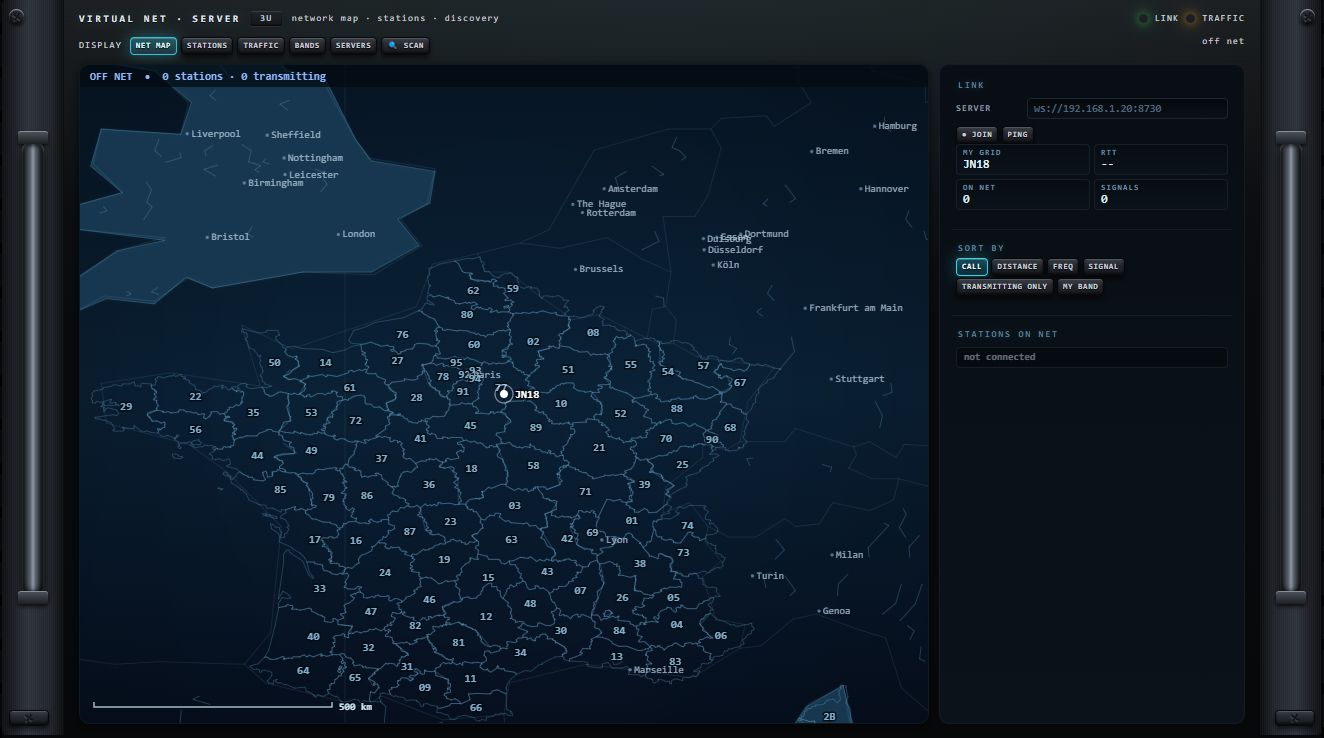
Carte et liste des stations du Virtual Net, le réseau radio simulé de RX·ONE (voir Virtual Net). En-tête : « network map · stations · discovery », témoins LINK et TRAFFIC, état (« off net » hors connexion).
| Commande | Action |
|---|---|
| NET MAP (défaut), STATIONS, TRAFFIC, BANDS, SERVERS | vues : carte, liste des stations, trafic, bandes, serveurs |
| 🔍 SCAN | cherche les serveurs sur le réseau local et affiche la vue SERVERS |
| SERVER | adresse du serveur, sous la forme ws://adresse:port (port 8730 par défaut) |
| ● JOIN | rejoint le serveur |
| PING | mesure le temps d'aller-retour (RTT) |
| MY GRID, RTT, ON NET, SIGNALS | votre locator, temps d'aller-retour, nombre de stations, nombre de signaux |
| SORT BY : CALL, DISTANCE, FREQ, SIGNAL | tri de la liste (CALL par défaut) |
| TRANSMITTING ONLY, MY BAND | ne montrer que les stations en émission / sur votre bande |
| STATIONS ON NET | la liste (« not connected » hors réseau) |
La vue SERVERS ouvre aussi une saisie d'adresse et de port (validation par Entrée), avec une option de connexion automatique au démarrage. Balises et trophées QSL se gèrent depuis le menu VIRTUAL NET.
Tiroir SATELLITE · TRACKING
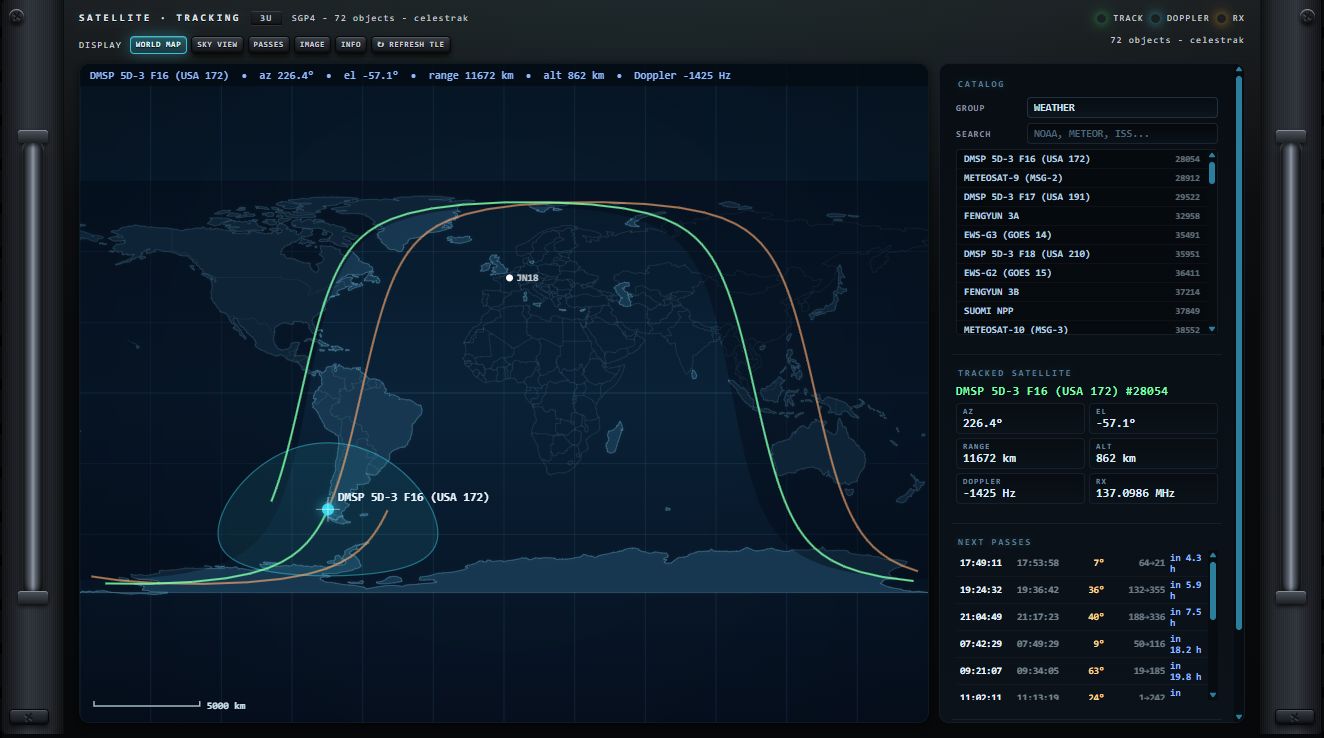
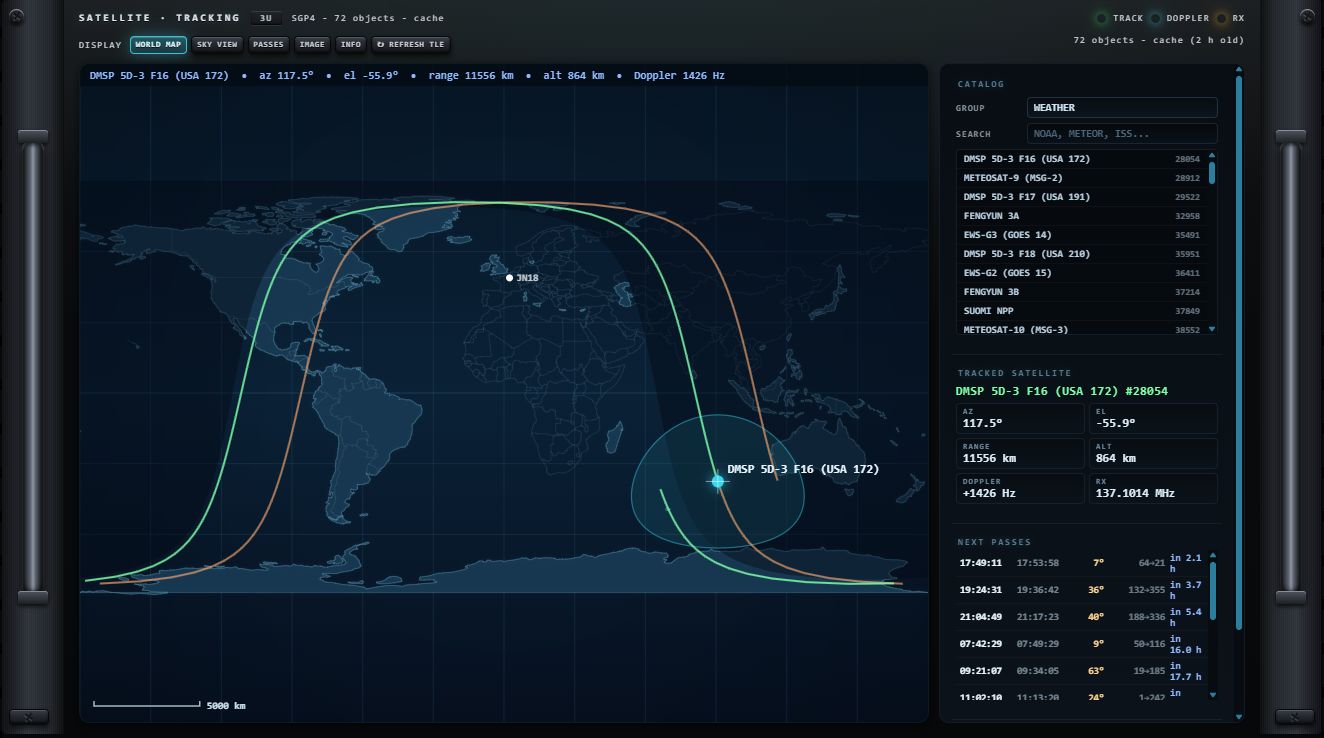
Suivi des satellites par le calcul orbital SGP4 ; votre locator sert de point d'observation. En-tête : témoins TRACK, DOPPLER et RX, état du catalogue (« catalogue not loaded » tant qu'aucun TLE n'est chargé). Voir aussi Satellites.
| Commande | Action |
|---|---|
| WORLD MAP, SKY VIEW, PASSES, IMAGE, INFO | vues : carte du monde, ciel polaire, passages, image, fiche |
| ↻ REFRESH TLE | télécharge les éléments orbitaux |
| CATALOG : GROUP, SEARCH | groupe de satellites (ex. WEATHER) ; recherche par nom (« NOAA, METEOR, ISS... ») ; cliquer un satellite le suit |
| TRACKED SATELLITE | AZ, EL, RANGE, ALT, DOPPLER, RX (fréquence corrigée) ; « - no satellite - » sans suivi |
| NEXT PASSES | heure de début, de fin, élévation maximale, azimuts, délai |
| RECEIVER : DOWNLINK | fréquence de descente en MHz |
| TUNE + DOPPLER | accorde le récepteur sur la descente corrigée de l'effet Doppler |
| AUTO TRACK | suit le satellite en continu |
Tiroir RACK CONTROL

Maquette vivante de la baie (« click = mount / unmount · drag = move »).
| Commande | Action |
|---|---|
| clic sur un tiroir de la maquette | le monte ou le démonte |
| glisser un tiroir de la maquette | le déplace, y compris d'une colonne à l'autre |
| 1 COL / 2 COLS / 3 COLS | nombre de colonnes |
| ALL ON | monte tous les tiroirs |
| MINIMAL | ne garde que RECEIVER CONSOLE, BANDSCOPE et RACK CONTROL |
| SETUP 1 … 5 | rappelle la configuration enregistrée (« setup n recalled ») ; vide : « slot n empty - press SAVE first » |
| ⬇ SAVE puis SETUP n | enregistre la configuration actuelle dans cet emplacement (« setup n saved ») |
Une configuration retient les tiroirs montés, leur ordre, leur colonne, le nombre de colonnes, ainsi que la taille et la position de la fenêtre. Un emplacement occupé est marqué ; son info-bulle donne son nom, « empty slot » s'il est vide. Le compteur indique les tiroirs montés (« 12 / 12 mounted »).
Tiroir TRANSMISSION · VIRTUAL NET

En-tête : « LSB · OPUS 20 kbps · JOIN to transmit », témoins TX, NET et MIC.
| Commande | Rôle | Défaut |
|---|---|---|
| PTT | appuyer-maintenir : parole vers le Virtual Net ; l'en-tête rappelle « JOIN to transmit » | — |
| ● JOIN | cherche un serveur (adresse déjà utilisée, puis serveurs découverts sur le réseau local) et le rejoint ; sans réponse : « no server found » | — |
| CONSOLE | ouvre ou ferme le panneau du réseau vocal en direct | — |
| MON · MIC | écoute locale du micro | — |
| galvanomètres A et B | sélecteurs MIC / COMP / PWR : niveau micro, compression, puissance | MIC (A), PWR (B) |
| MIC GAIN | gain micro | 100 % |
| COMP | compression | OFF |
| TX PWR | puissance affichée | 100 W |
| NET / CALL | réseau, indicatif (« NO CALL » s'il n'est pas renseigné), locator, état (« OFF NET ») | — |
Les réglages sont mémorisés.
Tiroir RECORDER

Enregistre le son du récepteur (« records the receiver audio »).
| Commande | Action | Défaut |
|---|---|---|
| ● REC | démarre / arrête l'enregistrement ; le témoin REC s'allume | — |
| TIME, SIZE, FORMAT, RATE | durée, taille, format, fréquence d'échantillonnage | — |
| FORMAT : WAV / OPUS | format du fichier | WAV |
| ⬇ SAVE | enregistre le fichier (grisé tant qu'il n'y a rien) | — |
| état | « idle » au repos | — |
Tiroir CB 27

Poste CB de 40 canaux sur le Virtual Net (« 40-channel CB transceiver on the Virtual Net »). Il accorde le récepteur sur le canal choisi. Voir aussi CB.
| Commande | Action | Défaut |
|---|---|---|
| ● NET | rejoint le serveur | — |
| VOL - / VOL + | volume des voix du réseau, indépendant du volume du récepteur | 80 |
| ▲ / ▼ | canal suivant / précédent | canal 19 |
| ◄ / ► | volume (hors menu) | — |
| FUNC | ouvre le menu dans l'écran | — |
| TALK (HOLD) | parole en maintenant appuyé | — |
| écran | canal, fréquence, mode et nom du canal, stations présentes, galvanomètre ; un canal indisponible est grisé avec sa raison | — |
Menu FUNC : ▲▼ choisissent l'entrée, ◄► la règlent ; FUNC referme (ou quelques secondes sans toucher).
| Entrée | Valeurs |
|---|---|
| MODE | PTT / DUPLEX |
| AF SQUELCH | OFF, puis par pas de 5 % |
| MIC GAIN | 50 / 100 / 150 / 200 % (défaut 100 %) |
| COMP | OFF à 20 dB |
| NB FILTER | OFF / NB1 / NB2 / NB3 |
| ROGER BIP | ON / OFF |
Le multi-VFO du rack
Le rack tient trois VFO indépendants, chacun avec sa source. La barre VFO flotte en bas à droite de la fenêtre.
| Élément | Action |
|---|---|
| puce VFO 1 / VFO 2 / VFO 3 | bascule sur ce VFO. Elle affiche la source (11 caractères au plus, « libre » si aucune) et la fréquence |
| ✕ sur une puce | éteint ce VFO |
| ⏻ (rouge) | désactive le multi-VFO (retour au fonctionnement à un seul VFO) ; le rack se recharge |
| barre | se déplace à la souris ; sa position est conservée |
Basculer de VFO échange tout l'affichage : fréquence, mode, bande, zoom, cascade, page et décodeur. Les sessions laissées en fond restent connectées ; FT8 et FT4 peuvent continuer à décoder en arrière-plan. Les trois VFO sont retrouvés au lancement suivant.
Multi-VFO désactivé, une pastille VFO ×3 apparaît en bas à droite ; un clic le réactive et recharge le rack.
Les menus du rack
Le bouton MENU du bandscope ouvre le menu général. Dans le rack, il est épuré : les catégories RECEIVE, DECODERS, MEMORIES, CONNECTION et LOG sont masquées (leurs fonctions sont dans les tiroirs) ; DISPLAY est rangé dans SYSTEM.
SYSTEM › RACK
Écran de composition de la baie (« switch = mount / unmount · ▲▼ = reorder · ◀▶ = column ») : chaque tiroir y figure en façade miniature.
| Commande | Action |
|---|---|
| interrupteur lumineux | monte / démonte le tiroir |
| ▲ / ▼ | change sa place |
| ◀ / ▶ | change sa colonne (avec plusieurs colonnes) |
| 1 COL / 2 COLS / 3 COLS | nombre de colonnes |
| ▢ FRAMELESS | fenêtre sans cadre, rack posé sur le bureau (« no window frame: the rack sits on the desktop ») |
| ⇲ FIT | ajuste la fenêtre au rack (« resize the window to the rack ») |
| − / 100% / + | zoom de la baie, de ×0,35 à ×3 |
| CLOSE ✕ | ferme l'écran |
Les changements s'appliquent aussitôt et sont conservés.
SYSTEM › AUDIO
Écran AUDIO SYSTEME : entrées et sorties son de l'ordinateur, câbles audio virtuels compris.
- Appuyez sur DETECTER. Windows peut demander l'accès au micro : il sert seulement à lire le nom des cartes.
- Colonne SORTIE (« ou part le son (TX, monitoring) ») : cliquez la carte voulue ; elle porte la mention ACTIVE. Elle sert à la sortie SOUND CARD de l'encodeur et, si possible, à l'écoute.
- Colonne ENTREE (micro, câble virtuel entrant) : même principe.
Le choix est conservé. CLOSE ✕ ferme l'écran.
VIRTUAL NET
| Entrée | Action |
|---|---|
| CONNECT | branche le Virtual Net comme source : les balises deviennent des porteuses dans le spectre |
| DISCONNECT | débranche cette source |
| BEACONS | réglages du réseau : propagation, bandes, nombre et détail des balises |
| QSL | galerie des trophées QSL : chaque balise décodée livre sa carte |
| LIVE NET | réseau vocal en direct : JOIN, PTT (serveur sur le port 8730 nécessaire) |
LICENSE
STATUS : état de la licence, activation, libération du poste. Voir Licence.
Dépannage et annexes
Ce dernier chapitre rassemble ce qu'il faut avoir sous la main quand quelque chose ne marche pas comme prévu : les symptômes courants et leurs remèdes, les messages affichés par RX·ONE, les raccourcis clavier et les gestes, l'emplacement de vos fichiers, un glossaire et l'historique de version.
Dépannage
Avant tout, regardez l'écran AUX : presque chaque action y laisse un message pendant 6 secondes, avec la raison d'un refus. Pour un récepteur local sur PC, le bloc DIAGNOSTIC du panneau LOCAL RX (SET puis F4) donne le détail. Voir Où lire les messages.
Pas de son
| Cause probable | Ce que vous voyez | Remède |
|---|---|---|
| Sourdine active | témoin rouge sur MUT, mot MUTE allumé, « AUDIO: MUTED » en rouge | appuyez sur MUT ou sur la touche M du clavier ; la sourdine est retenue d'une session à l'autre (panneau gauche) |
| Volume à zéro | « volume 0 % » dans l'écran AUX | tournez la tête AF GAIN du premier rotatif (les rotatifs) |
| Squelch fermé | le son revient seulement sur les signaux forts | tournez la jupe SQUELCH jusqu'à −139 dBm ou moins, ou rappuyez sur SQL AUTO dans la page AUDIO (baie AUDIO OUT) |
| Aucune source | « NO SOURCE - SERVER key to connect . VIRTUAL NET works offline » sur le spectre | choisissez une source : NET ou F9 SOURCES (premier lancement) |
| Le serveur ne répond pas | le nom de la station reste suivi de « · connecting » | attendez quelques secondes, puis choisissez un autre serveur (KiwiSDR, OpenWebRX, WebSDR) |
| Récepteur hors tension | façade très assombrie | appuyez sur ⏻ : le poste se reconnecte à la dernière source (reconnexion) |
| Vous écoutez un autre VFO | point vert sur une touche A, B ou C | seul le VFO courant est entendu ; les autres reçoivent en fond, son coupé (ce qui continue en fond) |
| Émission en cours | pastille TX, témoin rouge du PTT | la réception est suspendue pendant l'émission ; relâchez le PTT ou appuyez sur STOP (messages selon la voie) |
| Mauvaise carte son | « the stored output device is not present — playing through the system default » | ouvrez SOUND et choisissez la sortie, puis RESCAN si besoin (fenêtre SOUND) |
| Réglages audio extrêmes | son faible, déformé ou étouffé | page AUDIO, RESET : filtres, DSP, AGC, squelch et égaliseurs reviennent à neutre ; volume, sourdine et gain RF sont gardés (RESET) |
| Tablette en arrière-plan | son haché, coupures | gardez RX·ONE au premier plan pendant l'écoute d'un serveur (récepteurs USB sur Android) |
Pas de spectre ou de cascade
| Cause probable | Ce que vous voyez | Remède |
|---|---|---|
| Aucune source | « NO SOURCE - SERVER key to connect . VIRTUAL NET works offline » | connectez une source |
| KiwiSDR sans cascade libre | « CONNECTED, BUT NO SPECTRUM FROM <NOM> — the audio may still work - this server is not sending waterfall data. Try another one. » | ce n'est pas une panne : toutes les cascades du serveur sont prises. Écoutez quand même, ou changez de serveur (KiwiSDR) |
| Répartition spectre / cascade | seul le spectre, ou seule la cascade, est visible | appuyez sur SP/WF jusqu'à « SP/WF — spectrum + waterfall » (touches DISPLAY) |
| Cascade gelée | la cascade ne défile plus | appuyez sur HOLD ou sur la barre Espace (« running ») |
| Un contenu occupe la fente | FM BAND, la page AUDIO, la vue 3D ou une page de décodeur masque le bandscope | ESC ou F10 « ◂ RX » rend le spectre et la cascade (organisation de l'écran) |
| Cascade trop sombre ou saturée | tout est noir, ou tout est clair | liste SCOPE : gain puis reset, ou réglez floor et contrast (réglage SCOPE) |
| Vue 3D | « no waterfall frames yet — connect a source » | connectez une source ; sans WebGL, la vue se dessine en 2D (vue 3D) |
La clé RTL-SDR (ou le HackRF) ne démarre pas
Sur PC :
- Pilote WinUSB. Sans lui, rtl_tcp démarre mais ne reçoit rien : « rtl_tcp connecté mais AUCUN IQ — pilote WinUSB (Zadig) manquant, ou la clé est utilisée par un autre logiciel. » Installez WinUSB une fois pour toutes avec Zadig, sur la bonne interface (Zadig).
- Un autre logiciel tient la clé. Fermez SDR#, SDR++, HDSDR… : une clé ne sert qu'à un programme à la fois.
- Laissez le temps au démarrage. RX·ONE fait jusqu'à 12 essais (environ 8 secondes) : « RTL: rtl_tcp démarre… tentative n/12 ». Après 12 échecs : « RTL-SDR indisponible (<code>)… ».
- Un seul exemplaire de chaque récepteur. Ouvrir la RTL-SDR sur un VFO la coupe sur un autre VFO (récepteurs locaux et VFO).
- HackRF / PortaPack. Le PortaPack doit être en mode HackRF (application « HackRF » du micrologiciel Mayhem) ; en mode Mayhem, il n'est pas reconnu.
- VFO refusé. « the HackRF is not plugged in — VFO X keeps its settings — plug it in, then press X again » : rebranchez le récepteur, puis rappuyez sur la touche du VFO.
Sur tablette :
- Installez l'application « RTL-SDR driver » (Martin Marinov) depuis le Play Store ; sinon : « Driver app missing: install RTL-SDR driver (Martin Marinov) from the Play Store ».
- Vérifiez le câble ou l'adaptateur USB OTG : « No SDR dongle recognized… » indique qu'aucun récepteur n'est vu.
- Acceptez la demande d'autorisation USB d'Android (« USB permission denied for <appareil>. » si elle a été refusée).
- Un seul récepteur local fonctionne à la fois sur Android.
Tous les messages, avec leur remède, sont dans les tableaux Récepteur local — PC et Récepteur local — Android.
Le KiwiSDR refuse ou coupe la connexion
| Situation | Remède |
|---|---|
| « server overloaded (too many clients) » | le serveur est plein. Cochez Free dans l'annuaire, triez par free slots, ou choisissez un autre serveur (annuaire) |
| La liaison tombe après quelques secondes | certains KiwiSDR coupent les clients qu'ils prennent pour une application extérieure. RX·ONE se présente au serveur comme sa propre page web pour l'éviter ; si la coupure persiste sur ce serveur, choisissez-en un autre |
| « password required / refused » | serveur protégé par mot de passe : choisissez-en un autre |
| « receiver out of service » | le propriétaire a arrêté le récepteur |
| « no response from the server within 8 s… » ou « serveur injoignable (N adresse(s) essayée(s)…) » | serveur hors ligne, ou port bloqué : choisissez-en un autre ; RX·ONE a déjà essayé toutes les adresses connues du serveur |
| « SND closed (1006: abnormal closure) » | liaison son coupée (réseau) : reconnectez. Sur tablette, gardez RX·ONE au premier plan |
| Le son marche, pas le spectre | voir Pas de spectre |
| Les bandes au-dessus de 30 MHz et les modes numériques sont grisés | c'est normal : un KiwiSDR couvre 0–32 MHz et ne démodule que les modes analogiques (menus adaptés à la source) |
WebSDR refusé
- Sur tablette, une station WebSDR ne se connecte jamais : les serveurs WebSDR refusent toute connexion qui ne vient pas de leur propre page web, et seule l'application PC contourne ce contrôle. Le nom reste suivi de « · connecting », sans son. Choisissez un KiwiSDR ou un OpenWebRX (WebSDR).
- Sur PC, « connexion refusee (en-tete Origin ?) » signale tout de même un refus du serveur ; « serveur sature » un serveur qui n'envoie plus de son. Changez de serveur (dépannage WebSDR).
- « bandes du serveur introuvables » : le serveur ne publie pas ses bandes, l'accord reste sur sa bande par défaut.
Le décodeur ne décode pas
Commencez par WHY NO DECODE? dans ASSIST › SIGNAL : il vérifie le récepteur, l'audio, le décodeur, le niveau du signal, le filtre, la bande latérale, la fréquence et l'horloge (WHY NO DECODE?). Puis :
| Cause | Remède |
|---|---|
| Le décodeur n'est pas servi par la source (touche grisée) | PSK31, NAVTEX, JS8, WSPR, PACKET et AIS sont décodés par un serveur OpenWebRX ; DMR demande un RTL-SDR local ; RDS un récepteur local en WFM (les 25 touches) |
| Touche sans décodeur | FT2, DRM, OLIVIA, FREEDV et APRS n'ont pas de décodeur dans cette version (sans décodeur) |
| Mauvaise bande latérale | les modes numériques se reçoivent en USB ; en LSB, le spectre audio est inversé (bande latérale) |
| FT8 / FT4 hors canal | restez à moins de 4 kHz d'un canal FT8 ou FT4 ; la touche « TUNE <mode> » accorde la bonne fréquence (FT8 et FT4) |
| Horloge du PC décalée | FT8 exige une horloge juste à une seconde près ; WHY NO DECODE? le signale quand le décalage DT moyen dépasse 0,8 s. Synchronisez l'heure de Windows ou d'Android |
| Signal trop faible ou hors du filtre | moins de 10 dB au-dessus du bruit, rien ne sort ; le signal doit tomber entre 250 et 3000 Hz dans la bande passante |
| RTTY / FSK : shift, vitesse ou sens incorrects | F7 APPLY d'ASSIST essaie toutes les combinaisons et garde celle qui donne du texte lisible (auto-réglage RTTY) |
| WEFAX en négatif ou penché | laissez ASSIST caler l'accord (auto-réglage du fax) |
| Station silencieuse | « no fax tone yet — the station may be between two charts », ou « no readable text with any standard setting… » : la station ne transmet peut-être rien de décodable pour l'instant |
FM BAND reste muet
- FM BAND, le RDS et AUTOSCAN exigent le récepteur local (RTL-SDR ou HackRF) en WFM, entre 87,5 et 108 MHz. L'indicateur orange du panneau RDS dit ce qui manque : « needs the local RTL-SDR / HackRF », « tune 87.5–108 MHz » ou « switch to WFM » (avant de commencer).
- Les récepteurs en ligne ne transmettent pas le RDS : « RDS comes with the local RTL-SDR / HackRF in WFM — this receiver does not send it ».
- Liste vide : « press AUTOSCAN to list the stations » ; lancez F1 AUTOSCAN (AUTOSCAN).
- Station trouvée mais pas de RDS : « RDS no lock yet » ou « waiting for RDS data » ; le signal est peut-être trop faible, ou la station n'émet pas de RDS.
- Pas de son du tout : voir Pas de son (sourdine, volume, squelch), puis La clé RTL-SDR ne démarre pas.
- FM BAND est mono : il n'y a pas de stéréo.
Sous-titres ou traduction indisponibles
| Situation | Explication et remède |
|---|---|
| « VOX — needs the PC application (the speech engine runs in its own process) » | VOX, la traduction de FM BAND (« live translation needs the PC version (Whisper) »), la détection de langue d'ASSIST et la fenêtre POPUP n'existent que dans l'application PC (VOX) |
| « engine loading… » longtemps | au premier usage, les modèles sont téléchargés puis gardés sur le PC : le premier démarrage est plus long, et il faut une connexion Internet ce jour-là (découpage de la parole) |
| Le changement de moteur (TINY / BASE / SMALL) ne change rien | « restart VOX to load it » : arrêtez puis relancez VOX (la page VOX) |
| Transcription fantaisiste | choisissez la langue SOURCE au lieu d'AUTO ; en AUTO, un moteur qui ne devine pas retombe sur le français |
| Pastille « ERROR » | relancez VOX ; le détail est écrit dans le journal du moteur vocal %APPDATA%\RX-ONE\voice.log (fichiers) |
| Rien ne s'affiche sur de la musique | seule la parole est transcrite ; les phrases parasites et les répétitions sont écartées |
Licence
| Situation | Remède |
|---|---|
| « Unable to reach the license server. Check your Internet connection. » | rétablissez la connexion ; après une vérification réussie, RX·ONE fonctionne 14 jours hors ligne (hors connexion) |
| « Device limit reached (2 max: 1 PC + 1 Android). Release a device, then try again. » | libérez l'ancien appareil : LIC puis RELEASE THIS DEVICE, deux appuis en moins de 6 s (changer d'appareil) |
| « Invalid license key. » / « This key does not belong to RX·ONE. » | vérifiez la saisie, forme XXXXXXXX-XXXX-XXXX-XXXX-XXXXXXXXXXXX |
| « License expired. Renew it to continue. » / « This license has been disabled. » | renouvelez ou contactez le vendeur (lien Buy a license) |
| Réinstallation, mise à jour | la licence reste active après une mise à jour ; libérez l'appareil avant de désinstaller (désinstaller) |
Autres cas fréquents
| Symptôme | Cause et remède |
|---|---|
| Mode, bande ou décodeur grisé | la source ne le sert pas ; un mode devenu impossible est remplacé automatiquement (messages de repli) |
| L'accord ne bouge pas | LOCK est actif (« tuning locked (keyboard shortcut: L) ») : rappuyez sur LOCK ou sur L |
| Les raccourcis clavier ne répondent pas | le curseur est dans un champ de texte ; cliquez ailleurs sur la façade |
| Bandes noires autour de la façade (tablette) | double-appui sur le noir, ou tuile TABLET FULL de la page SET (étirer la façade) |
| Un enregistrement est silencieux | la sourdine était active : « audio is muted — the file will be silent » (l'enregistreur) |
| Une tâche programmée n'a pas tourné | RX·ONE doit être ouvert et une source connectée ; sinon « SKIPPED … no source connected » ou « MISSED » (déroulement d'une tâche) |
| BAND MONITOR vide | il demande un KiwiSDR (« BAND MONITOR needs a KiwiSDR… ») (BAND MONITOR) |
| Page SAT vide | renseignez votre locator (« set your locator… ») et chargez les éléments orbitaux (« no elements loaded — F8 fetches them ») (TLE, indicatif et locator) |
| L'émission ne part pas | « no transmitter on this machine » : la voie RADIO demande un HackRF sur PC ; « not connected to the net — JOIN first… » pour le Virtual Net (messages selon la voie) |
| SERVER répond « absent… » | le NET SERVER est une application séparée : installez-le et lancez-le vous-même (lancer le serveur) |
| Mémoires importées à la mauvaise fréquence | indiquez l'unité (khz, mhz, hz) dans l'entête de la colonne fréquence (IMPORT du pavé) |
Messages affichés
Les messages sont reproduits tels qu'ils s'affichent, en anglais ou en français selon le cas. <…> remplace une valeur variable. Les messages propres à une connexion figurent en détail au chapitre 3.
Démarrage, source et licence
| Message | Sens | Que faire |
|---|---|---|
| « NOT CONNECTED — SERVER key » | aucune source choisie | NET ou F9 SOURCES |
| « NO SOURCE - SERVER key to connect . VIRTUAL NET works offline » | spectre sans source | idem |
| « <nom> · connecting » | le serveur ne répond pas encore | patientez ; sinon changez de serveur |
| « reconnecting <nom>… » / « restarting HackRF… » / « restarting RTL-SDR… » | relance automatique de la dernière source | rien : patientez |
| « Checking license… » / « Activating… » | vérification de la licence en cours | patientez |
| « License activated. Welcome! » | licence acceptée | — |
| « Enter a license key. » | champ vide | saisissez la clé |
| « Invalid license key. » | clé inconnue | vérifiez la saisie |
| « This key does not belong to RX·ONE. » | clé d'un autre produit | utilisez votre clé RX·ONE |
| « Device limit reached (2 max: 1 PC + 1 Android). Release a device, then try again. » | deux activations déjà prises | libérez un appareil |
| « License expired. Renew it to continue. » | licence expirée | renouvelez-la |
| « This license has been disabled. » | licence désactivée | contactez le vendeur |
| « Unable to reach the license server. Check your Internet connection. » | pas de réseau | rétablissez Internet |
| « no free KiwiSDR covers N kHz » | BEST RX ne trouve aucun KiwiSDR libre | réessayez plus tard |
| « no receiver directory loaded » | annuaire pas encore chargé | attendez quelques secondes |
| « No receiver matches these filters. » | filtres de l'annuaire trop stricts | décochez Free ou ♥ Fav, choisissez « Any band » |
| « MAJ échec : <raison> » | mise à jour de l'annuaire échouée | réessayez plus tard |
Récepteur local
| Message | Sens | Que faire |
|---|---|---|
| « rtl_tcp connecté mais AUCUN IQ — pilote WinUSB (Zadig) manquant, ou la clé est utilisée par un autre logiciel. » | la clé ne livre rien | WinUSB avec Zadig ; fermez l'autre logiciel |
| « RTL-SDR indisponible (<code>). Vérifie que la clé est branchée et le pilote WinUSB (Zadig) installé. » | échec après 12 essais | branchez la clé, installez WinUSB |
| « HackRF introuvable : branche-le, et mets le PortaPack en MODE HackRF… » | aucun HackRF trouvé | branchez-le, mode HackRF, WinUSB |
| « HackRF connecté mais AUCUNE donnée USB — pilote WinUSB manquant… » | aucune donnée en 2,5 s | installez WinUSB |
| « rsp_tcp not found — install RSPTCPServer next to the app or in the PATH, and the SDRplay API with it » | serveur SDRplay absent | installez rsp_tcp |
| « Driver app missing: install RTL-SDR driver (Martin Marinov) from the Play Store » | application pilote absente (Android) | installez-la |
| « No SDR dongle recognized. Plug in the RTL-SDR (rtl_tcp driver app required) or the HackRF (supported directly). » | aucun récepteur vu (Android) | vérifiez le câble OTG |
| « USB permission denied for <appareil>. » | autorisation USB refusée | relancez et acceptez |
| « Two dongles detected. OK = RTL-SDR · Cancel = HackRF » | deux récepteurs branchés (Android) | choisissez-en un |
| « VFO X : radio locale coupée — un seul exemplaire de chaque dongle à la fois » | le même récepteur a été ouvert sur un autre VFO | normal |
| « this source sets its own gain on the server side » | le gain ne se règle pas sur un serveur en ligne | — |
| « plug an RTL-SDR or a HackRF to get the tuner controls » | réglages du tuner sans récepteur local | branchez un récepteur |
Serveurs en ligne
| Message | Sens | Que faire |
|---|---|---|
| « server overloaded (too many clients) » | KiwiSDR plein ou refus du serveur | filtre Free, autre serveur |
| « password required / refused » | KiwiSDR protégé | autre serveur |
| « receiver out of service » | KiwiSDR arrêté | autre serveur |
| « CONNECTED, BUT NO SPECTRUM FROM <NOM> — the audio may still work - this server is not sending waterfall data. Try another one. » | cascades du serveur toutes prises | écoutez, ou changez de serveur |
| « no spectrum from this source yet » | SEEK demandé avant le premier spectre | attendez le spectre |
| « no OpenWebRX response within 10 s — host/port unreachable or ws:// blocked » | OpenWebRX muet | autre serveur |
| « Protected band: this profile requires authentication. Choose another band (BAND button). » | profil OpenWebRX réservé | autre bande dans SERVER BAND |
| « connexion refusee (en-tete Origin ?) » | WebSDR refuse la connexion | application PC ; autre serveur |
| « WebSDR needs the PC application (the server refuses other origins) » | WebSDR sur tablette | KiwiSDR ou OpenWebRX |
| « serveur sature » | WebSDR n'envoie plus de son | autre serveur |
| « <MODE> indisponible sur cette source → <MODE de repli> » | mode remplacé après un changement de source | — |
| « decodeur <X> indisponible → <décodeur de repli> » | décodeur remplacé | — |
| « <BANDE> hors de portee de cette source » | bande hors couverture | autre source |
| « this source keeps its own passband » | SHIFT impossible sur cette source | — |
Façade, audio et affichage
| Message | Sens | Que faire |
|---|---|---|
| « back to normal reception » | retour au contexte RX (ESC) | — |
| « tuning locked (keyboard shortcut: L) » | accord verrouillé | LOCK ou L pour déverrouiller |
| « no list open — press a pad key first » | MULTI 3 sans liste ouverte | ouvrez une liste du pavé |
| « type digits first — then … commits · CLR erases » | validation sans chiffre | tapez la fréquence |
| « offline: display only » | zoom sans source | connectez une source |
| « no audio chain yet — connect a source and unmute » | aucun son ne circule | connectez une source, coupez la sourdine |
| « no audio running » | AUDIO LAB sans son | idem |
| « the stored output device is not present — playing through the system default » | carte son mémorisée absente | SOUND, choisissez une sortie |
| « this browser cannot move the Web Audio graph — system default applies » | choix de sortie impossible hors PC | sortie par défaut du système |
| « stretched to fill the screen » / « fitted, true proportions » | façade étirée / ajustée (tablette) | double-appui sur le noir pour basculer |
| « already on this VFO — its full state is being kept » | appui sur le VFO courant | — |
| « nothing recorded yet » | LAST sans enregistrement | — |
| « the server can only be started from the desktop application » | SERVER sur tablette | lancez le NET SERVER sur PC |
Décodage et ASSIST
| Message | Sens | Que faire |
|---|---|---|
| « not served by the connected source » | décodeur grisé | changez de source |
| « no <mode> frequency on this band » | pas de fréquence de référence sur cette bande | changez de bande |
| « mode X → Y … » | le décodeur a changé le mode de réception | — |
| « waiting for the first decodes… » | FT8 / FT4 attend la fin de la tranche | patientez 15 s |
| « clipboard refused » | copie refusée par le système | réessayez |
| « only noise here » | APPLY sur du bruit | accordez un signal |
| « analyze a signal first (F6) » | APPLY sans analyse | F6 ANALYZE |
| « no fax tone yet — the station may be between two charts » | aucune tonalité de fax | attendez la carte suivante |
| « no readable text with any standard setting — the station may be idle, encrypted or not Baudot (see LOOKS LIKE) » | RTTY illisible | voir LOOKS LIKE |
| « language detection needs the PC version (Whisper) » | détection de langue sur tablette | application PC |
| « set your locator first (MENUS › LOC) » | satellites sans locator | renseignez le locator |
Voix, enregistrement, cartes, mémoires
| Message | Sens | Que faire |
|---|---|---|
| « VOX — needs the PC application (the speech engine runs in its own process) » | VOX sur tablette | application PC |
| « live translation needs the PC version (Whisper) » | traduction FM sur tablette | application PC |
| « the floating window needs the PC application » | POPUP sur tablette | application PC |
| « restart VOX to load it » | nouveau moteur choisi | relancez VOX |
| « audio is muted — the file will be silent » | enregistrement avec sourdine | coupez la sourdine |
| « not written · no writer in this build » | enregistrement gardé en mémoire (tablette) | — |
| « select a file on disk first » | ERASE sur une capture en mémoire | choisissez un fichier du disque |
| « SKIPPED … no source connected » | tâche sautée faute de source | connectez une source |
| « BAND MONITOR needs a KiwiSDR… » | BAND MONITOR sans KiwiSDR | connectez un KiwiSDR |
| « no station position — set your locator » | carte sans votre position | renseignez le locator |
| « no elements loaded — F8 fetches them » | pas de TLE | F8 TLE UPD |
| « nothing above the horizon right now » | aucun satellite visible | attendez le prochain passage |
| « no memory to export » | EXPORT sans mémoire | — |
| « all 72 USER slots are full » | cases USER pleines | libérez des cases |
| « log is empty — decoded FT8/FT4 contacts land there » | journal des décodages vide | — |
Émission et réseau
| Message | Sens | Que faire |
|---|---|---|
| « no transmitter on this machine » | pas de voie RADIO (tablette, ou pas de HackRF) | voie NET, ou HackRF sur PC |
| « no HackRF found — plug it in, then pick it in LOCAL RX » | HackRF absent | branchez-le, choisissez-le dans LOCAL RX |
| « stopped — N s limit reached » | limite de durée d'émission atteinte | augmentez LIMIT si besoin |
| « not connected to the net — JOIN first, in the VIRTUAL NET window » | sortie NETWORK sans liaison | JOIN |
| « connection failed (server down? URL?) » | Virtual Net injoignable | vérifiez l'adresse du serveur |
| « server refused: … » | le serveur refuse (mode, bande) | voir le texte du refus |
| « entrée choisie indisponible — micro par défaut » | micro choisi absent | SOUND, choisissez l'entrée |
| « absent… the NET SERVER is a separate application » | NET SERVER non installé | installez-le à part |
| « running, but no answer yet » | serveur lancé, pas encore prêt | patientez, puis JOIN |
Raccourcis clavier et gestes
Clavier (PC)
Les raccourcis sont inactifs pendant que vous tapez dans un champ de texte.
| Touche | Effet |
|---|---|
| → / ← | accord d'un pas vers le haut / le bas (sans effet si LOCK est actif) |
| Maj + → / ← | accord de dix pas |
| Ctrl + → / Ctrl + ← | SEEK + / SEEK − |
| ↑ / ↓ | pas d'accord suivant / précédent |
| Page ↑ / Page ↓ | filtre FI plus large / plus étroit |
| M | sourdine |
| L | verrou d'accord (LOCK) |
| Espace | gel / reprise de la cascade |
| 1 … 9 | rappel des mémoires M1 … M9 |
Ctrl + + (ou Ctrl + =) / Ctrl + - / Ctrl + 0 | zoom de la page, de 40 % à 300 % ; 100 % |
| Entrée | dans la fenêtre LICENCE, active la clé saisie |
| Flèches | sur une commande saisie de la page AUDIO : un pas |
Souris (PC)
| Geste | Où | Effet |
|---|---|---|
| Glisser vertical | vernier | accord, un pas tous les 3 pixels |
| Molette | vernier | accord, accéléré jusqu'à ×17 ; Maj = ×10 |
| Molette ou glisser vertical | tête ou jupe d'un rotatif | un pas (un pas tous les 12 pixels) |
| Molette ou clic (moitié haute / basse) | chiffre de la fréquence | ±1 sur ce chiffre |
| Molette ; appui | MULTI 3 | curseur dans la liste ; validation |
| Clic | spectre | accord sur la fréquence pointée |
| Clic | cascade ou plan de bande | accord « aimanté » sur le sommet le plus proche |
| Molette | spectre | zoom |
| Glisser un bord | bandscope | règle ce bord du filtre |
| Alt + glisser un bord | bandscope | filtre élargi ou resserré symétriquement |
| Maj + glisser dans la bande | bandscope | décale le filtre entier |
| Double-clic sur un bord ou dans la bande | bandscope | filtre par défaut du mode |
| Clic droit | fente | menu ZONE sur F1–F10 |
| Glisser ; molette ; double-clic | vue 3D | rotation ; distance de la caméra ; retour à la vue ISO |
| Glisser ; molette ; Maj ; double-clic | faders et rotatifs de la page AUDIO | réglage ; un pas ; dix pas ; valeur de repos |
| Ctrl + molette | sous-titres VOX | taille du texte (9 à 28 pixels) |
| Glisser le bandeau de marque | façade | déplace la fenêtre |
| Survol | touche | infobulle |
| Clic | écran de démarrage | saute la séquence |
Tablette
| Geste | Effet |
|---|---|
| Double-appui sur le noir autour de la façade | façade étirée / ajustée (retenu sur l'appareil) |
| Pincement à deux doigts | zoom dans la façade |
| Balayage depuis le bord de l'écran | fait réapparaître un instant les barres d'Android |
| Touche Retour d'Android | page précédente de l'application ; sinon quitte RX·ONE |
| Appui sur une entrée de l'écran AUX | applique l'entrée (remplace MULTI 3 et OK) |
Appui sur le titre ZONE ▾ | menu ZONE (pas de clic droit) |
| Glisser un bord de filtre | règle ce bord (pas d'élargissement symétrique ni de décalage) |
| Double-appui sur le globe | recentre sur votre QTH |
Fichiers et dossiers
Sur PC
Tout ce qui vous appartient vit hors de l'exécutable : remplacer l'exécutable lors d'une mise à jour ne perd rien. Tapez le chemin dans la barre d'adresse de l'Explorateur pour ouvrir un dossier.
| Contenu | Emplacement |
|---|---|
| Réglages de la façade (VFO, mémoires, DSP, licence…) | %APPDATA%\RX-ONE\Local Storage\ |
| Taille, position et zoom de la fenêtre | %APPDATA%\RX-ONE\window-state.json |
| Façade choisie (console ou rack) | %APPDATA%\RX-ONE\rxone-ui.json |
| Annuaire des serveurs mis à jour | %APPDATA%\RX-ONE\dir-cache.json |
| Enregistrements audio (touche FOLDER) | %APPDATA%\RX-ONE\recordings\ |
| Cartes QSL enregistrées (SAVE CARD) | %APPDATA%\RX-ONE\recordings\ |
| Journal du moteur vocal | %APPDATA%\RX-ONE\voice.log |
| Images SSTV et FAX, textes et exports | dossier Téléchargements, sous-dossier RX-ONE |
| Cache temporaire | %TEMP%\rxone-cache |
| Configuration du NET SERVER (l'univers) | %APPDATA%\RX-ONE-NETSERVER\univers.json |
Voir aussi Où RX·ONE range vos fichiers.
Sur tablette
- Enregistrements audio : dossier Music/RXONE (sur Android 7 à 9 :
Android/data/com.rxone.websdr/files/Music/RXONE). - Réglages et annuaire : espace privé de l'application, effacé à la désinstallation.
- L'ouverture d'un fichier et l'enregistrement d'un export peuvent ne pas être disponibles : faites vos imports et exports sur PC. Voir Où sont vos fichiers sur Android.
Noms des fichiers produits
| Fichier | Produit par |
|---|---|
RXONE_AAAAMMJJ_HHMMSS_<fréquence>MHz_<MODE>.wav (ou .opus) | l'enregistreur ; depuis FM BAND, suivi du nom RDS de la station ; heure locale (l'enregistreur) |
rxone-<décodeur>.txt | SAVE d'une page de décodeur |
rxone-<décodeur>-AAAAMMJJ-HHMM.txt | EXPORT d'une page de décodeur, avec un en-tête (SAVE et EXPORT) |
rxone-memories.csv | EXPORT du pavé (colonnes slot,label,freq_mhz,mode,band) |
rxone-log.adi | ADIF du pavé : journal des décodages, ADIF 3.1.4 (ADIF) |
RXONE_log_AAAAMMJJ.adi | EXPORT ADIF du LOGBOOK : vos QSO (auto-log et ADIF) |
QSL_INDICATIF_AAAAMMJJ_HHMM.png | SAVE CARD de la carte QSL |
rxone-transcription.txt | SAVE de la section TRAFFIC · LOG (transcription VOX) |
Glossaire
| Terme | Définition |
|---|---|
| ADIF | format de fichier standard d'échange des carnets de trafic radioamateur. |
| ADS-B | messages de position émis par les avions sur 1090 MHz. |
| AF | fréquence audio ; le bouton AF GAIN règle le volume. |
| AGC | commande automatique de gain : maintient un niveau de son régulier malgré les variations du signal. |
| AIS | messages de position des navires, en VHF marine. |
| ANF | filtre coupe-bande automatique : il repère et retire les sifflements fixes. |
| APT | images transmises par les satellites météo NOAA sur 137 MHz. |
| AUX | l'écran AUX DISPLAY, au-dessus du vernier : listes, messages et état du contexte. |
| Bande latérale | partie haute (USB) ou basse (LSB) du spectre d'un signal BLU. |
| Bandscope | ensemble du spectre, du plan de bande et de la cascade. |
| BFO | oscillateur de battement qui rend audibles la BLU et la CW. |
| Cascade | défilement dans le temps du spectre, en couleurs (waterfall). |
| CW | télégraphie Morse. |
| Doppler | décalage de fréquence dû au mouvement d'un satellite par rapport à vous. |
| DMR | radio numérique professionnelle et radioamateur en VHF / UHF. |
| DNR | débruiteur, complément de NR dans la baie NOISE REDUCTION. |
| DSP | traitement numérique du signal : NB, NR, DNR, ANF, égaliseur, compresseur… |
| DXCC | liste des entités (pays) reconnues pour les diplômes radioamateurs. |
| Fente | bande d'onglets au-dessus du spectre, qui accueille tuiles, pages et décodeurs. |
| FI (IF) | fréquence intermédiaire ; la largeur FI est la bande passante du filtre de réception. |
| FT8 / FT4 | modes numériques radioamateurs en tranches de 15 s (FT8) ou 7,5 s (FT4). |
| IQ | échantillons bruts (en phase et en quadrature) livrés par un récepteur SDR. |
| Kiwi (KiwiSDR) | récepteur HF partagé en ligne, 0–32 MHz. |
| Kp | indice d'agitation du champ magnétique terrestre (0 à 9). |
| Locator | position en carré Maidenhead (par ex. JN18) : sert aux distances, caps et passages. |
| MUF | fréquence maximale utilisable sur un trajet ionosphérique. |
| NB | suppresseur de parasites impulsionnels (noise blanker). |
| NR | réduction du bruit de fond. |
| OpenWebRX | logiciel de serveur SDR en ligne qui démodule et décode côté serveur. |
| PI | code d'identification d'une station FM, transmis par le RDS. |
| PTT | commande d'émission (push to talk). |
| PTY | type de programme d'une station FM (actualités, rock…), transmis par le RDS. |
| RDS | données numériques transmises par les stations FM : nom, texte, genre, fréquences alternatives. |
| rtl_tcp | programme qui partage une clé RTL-SDR sur le réseau ; RX·ONE l'embarque sur PC. |
| RTTY | téléimprimeur radio en code Baudot. |
| SDR | radio logicielle : le récepteur numérise le signal et le logiciel fait le reste. |
| Shift | écart entre les deux tonalités d'un signal RTTY ou FSK. |
| SNR (S/N) | rapport signal sur bruit, en dB. |
| Squelch | seuil sous lequel le son est coupé. |
| SSB (BLU) | modulation à bande latérale unique : USB ou LSB. |
| SSTV | images fixes transmises en audio. |
| TA / TP | annonces trafic / programme avec infos trafic (RDS). |
| TLE | éléments orbitaux qui permettent de calculer la position d'un satellite. |
| VFO | oscillateur à fréquence variable ; dans RX·ONE, chacun des trois VFO A, B, C est une session complète. |
| Virtual Net | réseau de conversation entre stations RX·ONE, sans émission radio. |
| WEFAX | cartes météo transmises par fac-similé en HF. |
| WebSDR | récepteur en ligne à très large bande (PC uniquement dans RX·ONE). |
| WFM | FM large bande, celle de la radiodiffusion 87,5–108 MHz. |
| Whisper | moteur de reconnaissance vocale utilisé par VOX, sur PC. |
| WinUSB | pilote Windows nécessaire pour la RTL-SDR et le HackRF, installé avec Zadig. |
Versions
| Version de RX·ONE décrite | 1.40.217 |
| Date du manuel | 2026-10-19 |
| Plates-formes | PC Windows 10 / 11 (64 bits), Android 7.0 et plus récent |
Le numéro de version s'affiche sur l'écran de démarrage, sous « RX·ONE 5000 ». Le nom de l'exécutable PC le reprend : RX-ONE-<version>-portable.exe. Pour mettre à jour, voir Mettre à jour.
Selon la version installée, certains libellés ou messages peuvent différer légèrement de ceux de ce manuel.
Welcome to RX·ONE
RX·ONE is a complete software-defined radio receiver: it listens from 0 to more than 1,700 MHz, through an SDR dongle plugged into your computer or thousands of public receivers on the Internet, and it brings together in a single front panel everything you expect from a modern listening station: tuning, filtering, audio processing, digital decoding, maps, satellites, propagation, recording, logging and a voice network.
What this manual covers
This manual describes every function of the software, key by key:
- the CONSOLE 5000, the main front panel, on PC and on Android tablet;
- the RACK interface, the 19″ drawer bay of the previous interface;
- the CB 27 pages and the NET SERVER, which make up the Virtual Net voice network;
- the ASSIST remote control on a phone and the MCP server, which lets an artificial-intelligence assistant drive RX·ONE.
The two versions
| PC (Windows) | Tablet (Android) | |
|---|---|---|
| Local receivers | RTL-SDR, HackRF, SDRplay | RTL-SDR, HackRF |
| KiwiSDR, OpenWebRX | yes | yes |
| WebSDR | yes | no (refused by WebSDR servers) |
| Voice translation and subtitles (Whisper) | yes | no |
| Transmission (HackRF) | yes | no |
| Front panel | resizable window | full screen, stretched with a double tap |
How to read this manual
- Front-panel keys are written like this: BAND, MODE, RF GAIN. Their label is the one the software displays.
- Close-ups of the front panel carry numbered yellow markers; the table that follows the picture uses the same numbers.
- The F1 to F10 keys under the central screen change role with the page that is open: each chapter gives their role for its pages.
- The AUX screen (right) and the mini screen (left) show the state and the lists of the current page; tap a line to choose it.
- Click a screenshot to enlarge it. The FR | EN button at the top switches language; PDF opens the printable version.
Organisation
- Installation and first start
- The front panel
- Receiving sources
- The central screen
- Audio and processing
- FM BAND
- Digital decoding
- ASSIST
- Voice, recording and monitoring
- Maps, propagation and satellites
- Memories, logging and settings
- Transmission and Virtual Net
- CB pages and NET SERVER
- The RACK interface
- Troubleshooting and appendices
Installation and first start
RX·ONE comes in two versions that share the same front panel, the CONSOLE 5000: a PC application for Windows and an Android application (APK) for tablets. This chapter explains how to install each one, prepare a USB receiver, activate the licence and get through the first start. The receiving sources themselves are described in chapter 3.
PC version (Windows)
What you need
- A PC running 64-bit Windows (Windows 10 or 11).
- An Internet connection for online receivers (KiwiSDR, OpenWebRX, WebSDR), the server directory and licence activation.
- Optional: an RTL-SDR dongle, a HackRF One (or a PortaPack in HackRF mode), or an SDRplay RSP.
A portable executable
RX·ONE for PC is delivered as a single file: RX-ONE-<version>-portable.exe. There is no installer.
- Copy the file to the folder of your choice (for example an "RX-ONE" folder in your Documents).
- Double-click it. The first start takes a few seconds longer: the executable unpacks itself.
- The front panel appears directly on the desktop, without a Windows frame.
The file contains everything that is needed: the interface, the signal processing, the decoders, the voice subtitle engine and the rtl_tcp bridge for the RTL-SDR. No other software has to be installed to listen to an online server.
The window on PC
- The CONSOLE 5000 is displayed cut out: the window follows the outline of the front panel. Move it by dragging the "RX·ONE" brand strip. The ✕ button on the strip closes the application.
- The default size is 1560 × 900 pixels (900 × 500 minimum). Size, position, maximised state and zoom are kept and restored at the next start. If the screen the window was on has gone, the window is moved onto a visible screen.
- Page zoom:
Ctrl++(orCtrl+=) enlarges in 10 % steps,Ctrl+-reduces,Ctrl+0returns to 100 %. The zoom ranges from 40 % to 300 % and is kept. - Links to outside websites (QRZ, HamQTH, Flightradar24…) open in your usual browser, never inside RX·ONE.
- Sound and display carry on normally when the window is not in the foreground.
Choosing the front panel: CONSOLE 5000 or RACK 19″
By default, RX·ONE starts on the CONSOLE 5000. The older rack layout is still available:
- in the SET page, INTERFACE box, tap CONSOLE 5000 or RACK 19″: the application restarts on the chosen front panel and keeps it for later starts (see SET);
- or start the executable with the option
--ui=rackor--ui=console(for example in a Windows shortcut): the option overrides the saved choice.
The rack opens in an ordinary Windows window, with frame and handles. It is described in chapter 14 — RACK.
Where RX·ONE keeps your files
All your settings live in a single profile folder, %APPDATA%\RX-ONE (type this path in the Explorer address bar to open it). This folder does not depend on where the executable is: you can move or replace the executable without losing anything.
| Content | Location |
|---|---|
| Front panel settings (VFOs, memories, DSP, licence…) | %APPDATA%\RX-ONE\Local Storage\ |
| Window size, position and zoom | %APPDATA%\RX-ONE\window-state.json |
| Chosen front panel (console or rack) | %APPDATA%\RX-ONE\rxone-ui.json |
| Updated server directory | %APPDATA%\RX-ONE\dir-cache.json |
| Audio recordings (WAV, OGG, Opus, WebM, MP3) | %APPDATA%\RX-ONE\recordings\ |
| Images and other files produced (SSTV, FAX, albums…) | your Downloads folder, RX-ONE subfolder |
| Voice engine log | %APPDATA%\RX-ONE\voice.log |
| Temporary cache | %TEMP%\rxone-cache |
- The FOLDER key on the left panel (RECORDER block) opens the recordings folder directly in Explorer.
- Images and produced files are saved without a "Save as" dialog; the full path is shown on screen.
Preparing a USB receiver
The WinUSB driver (Zadig)
Windows lets an application access an RTL-SDR dongle or a HackRF only if the WinUSB driver is installed on that device. This is done once per device, with the free Zadig utility:
- Plug in the dongle or the HackRF.
- Start Zadig. In the Options menu, tick List All Devices.
- In the drop-down list, choose your receiver's interface. For an RTL-SDR it is usually "Bulk-In, Interface (Interface 0)"; for a HackRF, "HackRF One".
- Check that the target driver (to the right of the arrow) is WinUSB, then click Replace Driver (or Install Driver).
- Wait for the installation to finish. There is no need to restart the PC.
RTL-SDR: the built-in rtl_tcp bridge
On PC, the RTL-SDR always goes through the rtl_tcp program, supplied inside the executable. You do not have to start anything yourself:
- when you choose the RTL-SDR, RX·ONE starts rtl_tcp in the background, without a window, and connects to it;
- the first time, this can take one or two seconds; RX·ONE retries up to 12 times (about 8 seconds);
- the default sample rate is 1.152 Msps.
If rtl_tcp is already installed elsewhere on the PC, RX·ONE uses its own copy first.
HackRF One
The HackRF is driven directly by RX·ONE, without an outside program. The sample rate is fixed: 2.4 Msps.
- The WinUSB driver (Zadig) is required, as for the RTL-SDR.
- A PortaPack must be in HackRF mode: start the "HackRF" application of the Mayhem firmware. In normal Mayhem mode it is not recognised.
- On PC, RX·ONE grants the USB permission itself: normally no selection window opens.
SDRplay
An SDRplay RSP is used through the rsp_tcp server, which is not supplied with RX·ONE:
- Install the SDRplay API (the manufacturer's driver).
- Get RSPTCPServer (
rsp_tcp.exe) and place it next to the RX·ONE executable, or in a folder on the Windows PATH. - In RX·ONE, choose SDRplay in the LOCAL RECEIVER panel (chapter 3): the application starts rsp_tcp on this machine (port 1234) and connects to it.
Android version (tablet)
What you need
- A tablet (or phone) running Android 7.0 or later.
- A Wi-Fi connection for online receivers and the licence.
- For a USB receiver: a USB OTG cable or adapter, and for the RTL-SDR, the free "RTL-SDR driver" application by Martin Marinov (Play Store).
Installing the APK
- Copy the RX·ONE APK file to the tablet (USB cable, memory card, download).
- Open it from the file manager.
- Android asks you to allow installing apps from this source ("unknown sources"): allow it for the file manager you are using, then go back and tap Install.
- Open RX·ONE from the home screen.
The application reloads itself entirely from the APK at each start: you always see the installed version, never an old version left in a cache.
Permissions
RX·ONE asks for a permission only when a function needs it.
| Permission | Used for | When it is requested |
|---|---|---|
| Internet and network state | KiwiSDR, OpenWebRX, WebSDR servers, directory, licence | granted at installation |
| Microphone | transmitting on the Virtual Net | the first time the microphone is used, through Android's dialog |
| Location (precise and approximate) | the locator's AUTO button (GPS → Maidenhead square) | when you press AUTO; the screen shows "permission demandee - re-appuie sur AUTO": accept, then press AUTO again |
| Wi-Fi and keep awake | keep a fast Wi-Fi link and the screen on while listening to a server | automatic |
| USB device access | RTL-SDR, HackRF | the first time each receiver is used, through Android's dialog |
Full screen and orientation
- RX·ONE runs in immersive full screen: the Android bars are hidden. Swipe from the edge of the screen to bring them back for a moment.
- The application is always in landscape (either way round). Portrait is not offered: the front panel would fill only a small quarter of the screen. Rotating the tablet does not reload the page.
- Two-finger pinch zooms into the front panel.
- Android's Back key returns to the previous page of the application; if there is none, it leaves RX·ONE.
Stretching the front panel: double-tap on the black
The front panel keeps its proportions: on a screen taller than the panel, black bands remain visible. Tap twice quickly on a black area around the front panel:
- the front panel is stretched over the whole screen (its proportions are then distorted); the AUX screen shows "stretched to fill the screen";
- another double-tap on the black restores the fitted front panel with true proportions ("fitted, true proportions").
The choice is kept on the device. At the first start, if more than 15 % of the height is unused, the AUX screen suggests this gesture once ("… % of the height is unused").
Another option: the TABLET FULL tile of the SET page (THIS SCREEN row) makes the front panel fill the whole height of the screen, with taller keys, without distorting the rest. This setting is specific to each screen (see the front panel).
USB receivers on Android
- Plugging in: connect the RTL-SDR or the HackRF with an OTG cable. Android may offer to open RX·ONE automatically; if RX·ONE is already open, the receiver list is refreshed and the directory's Local RX button gets a green frame.
- USB permission: Android asks you to allow RX·ONE to access the device. Accept (tick "use by default" if you no longer want to be asked).
- RTL-SDR: install the "RTL-SDR driver" application (Martin Marinov) from the Play Store. RX·ONE starts it itself when you choose the RTL-SDR, then connects to it (up to 30 attempts, about 12 seconds). If it is missing, the screen shows "Driver app missing: install RTL-SDR driver (Martin Marinov) from the Play Store".
- HackRF: the driver is built into RX·ONE; no other application is needed.
- If both receivers are plugged in, RX·ONE asks which one to use: "Two dongles detected. OK = RTL-SDR · Cancel = HackRF".
Where your files are on Android
- Audio recordings are stored in the tablet's Music/RXONE folder (on Android 7 to 9:
Android/data/com.rxone.websdr/files/Music/RXONE). No storage permission is requested. - Settings and the updated directory are kept in the application's private storage.
Activating the licence
RX·ONE requires a licence key. It is checked online and each device uses one activation: a licence covers two devices, one PC and one Android.
The licence screen at start-up
As long as no valid licence is registered on the device, a screen blocks the application: "RX·ONE", "SDR Receiver · License required", then "Checking license…" during the check.
- Type your key in the field (format
XXXXXXXX-XXXX-XXXX-XXXX-XXXXXXXXXXXX). - Tap Activate. The screen shows "Activating…", then "License activated. Welcome!" and disappears.
At the bottom of the screen: the Buy a license link, the Release this device link and the device identifier.
| Message | Meaning |
|---|---|
| "Enter your license key to activate RX·ONE on this device." | no key registered on this device |
| "Enter a license key." | you tapped Activate with an empty field |
| "Invalid license key." | the key does not exist: check what you typed |
| "This key does not belong to RX·ONE." | the key belongs to another product |
| "Device limit reached (2 max: 1 PC + 1 Android). Release a device, then try again." | both activations are already used: release one of the devices |
| "License expired. Renew it to continue." | the licence has expired |
| "This license has been disabled." | the licence has been disabled |
| "Unable to reach the license server. Check your Internet connection." | no network, or the licence server cannot be reached |
| "Releasing device…" then "Device released. You can enter a key again." | the device has been released |
Offline
After a successful check, RX·ONE works 14 days without Internet. After that, it needs to reach the licence server again.
Changing device
To move the licence to another PC or tablet, release the old device first: LIC key on the left panel, then RELEASE THIS DEVICE (or the Release this device link on the licence screen). Then activate the key on the new device.
The console's LICENCE window (key status, devices used, expiry date, re-check) is described in chapter 11.
First start
The start-up sequence
- If the licence has not been validated yet, the licence screen is shown first (see above). The rest waits until it goes away.
- The large screen shows "RX·ONE 5000" and the version number, then one line per element that starts: engine ("engine core OK"), receiver and decoders, memories ("memories n/72 restored"), decoder pages, voice engine, server directory ("n servers", or "loading in background" if it is still loading), then the front panel in use.
- A click (or tap) on the screen skips the sequence ("click to skip").
- The receiver is switched on automatically.
The last source is reconnected
RX·ONE remembers the source of each VFO and reopens it at start-up:
- about 4 seconds after start-up, the current VFO gets its state back (frequency, mode, filter, source…);
- if nothing is being received 7 seconds after start-up, RX·ONE restarts the source, and once more at 18 seconds. The AUX screen shows "reconnecting <server name>…" for an online server, or "restarting HackRF…" / "restarting RTL-SDR…" for a local receiver, which RX·ONE reopens through the USB permission already granted;
- for a local receiver, the stored frequency and mode are set again after opening.
Very first start: choosing a source
At the very first start, no source has been chosen yet. The header shows "NOT CONNECTED — SERVER key" and the spectrum "NO SOURCE - SERVER key to connect . VIRTUAL NET works offline".
- Press NET in the APP grid (or F9 SOURCES in receive): the SERVERS · NETWORK directory opens.
- Choose a receiver and tap TUNE; or tap Local RX to use your own USB receiver.
- RX·ONE tunes to 7.100 MHz if the receiver covers 40 m (otherwise 14.100 MHz, otherwise the middle of its coverage), in LSB below 10 MHz and USB above. A local receiver starts on 100.7 MHz FM, a strong signal that checks the sound straight away.
Chapter 3 describes the directory and each type of source in detail.
Updating
RX·ONE does not update itself.
- PC: close RX·ONE, replace the old
RX-ONE-<version>-portable.exefile with the new one, then start it. Your settings, memories, VFOs and recordings are kept: they are in%APPDATA%\RX-ONE, not next to the executable. - Android: install the new APK over the old one, without uninstalling. Settings are kept. If Android refuses to install over the old version, uninstalling and reinstalling erases the tablet's settings: save your memories first (EXPORT key on the pad).
The licence stays active after an update: there is no need to enter it again.
Uninstalling cleanly
- Release the licence on this device: LIC then RELEASE THIS DEVICE (press twice to confirm). The activation becomes available for another device.
- Save what you want to keep: memories (EXPORT), recordings, images.
- Remove the application:
- PC: close RX·ONE and delete the executable file. To erase all settings too, delete the
%APPDATA%\RX-ONEfolder — it also contains the recordings folder with your recordings. You can likewise delete%TEMP%\rxone-cacheand theRX-ONEsubfolder of your Downloads. - Android: uninstall RX·ONE from Android's settings. Settings are erased with the application. On Android 10 and later, recordings in the Music/RXONE folder remain on the tablet: delete them by hand if you wish.
- PC, optional: the WinUSB driver installed with Zadig stays in place. If you want to use the dongle again with software that requires the original driver, reinstall that driver from the Windows Device Manager.
The front panel
The CONSOLE 5000 looks like a desktop transceiver: a panel of keys on the left, a large display in the centre, and on the right a key pad, four rotary knobs, a small AUX screen and a large tuning knob. This chapter describes every element of the front panel, key by key. What the large screen shows (tabs, tiles, bandscope) is covered in chapter 4 — central screen.
Overview
Map of the zones
| Zone | Location | Purpose |
|---|---|---|
| Left panel | left column | power, receive audio, recorder, menus, network, mini-screen, bandscope, voice, satellites |
| Brand strip | above the display | "RX·ONE", "EXPERT RADIO SYSTEMS", "SDR Transceiver 5000" badge and the ✕ close button |
| Display | centre, top | S-meter, frequencies, status line, status words, values line, tab bar |
| Large screen | centre | tiles or the chosen content, spectrum, band plan, waterfall, frequency ruler (chapter 4 — central screen) |
| F1–F10 keys | below the large screen | ten keys whose role changes with what is open |
| "PAD" | right, top | 36 keys arranged by task: TUNING, RECEIVE, DISPLAY, MEMORY, TRAFFIC · LOG |
| Knobs | right of the pad | four dual knobs (cap and skirt) |
| AUX DISPLAY screen | right, middle | lists, messages and the state of the open context |
| APP — ONE KEY · ONE JOB | right of the AUX screen | 18 keys, one per function |
| MULTI 3, OK, ESC, STATUS | below the APP grid | navigation in lists |
| Tuning knob | right, bottom | the large tuning knob and its two columns of keys |
| DIRECT ENTRY | bottom right | direct frequency entry |
Common principles
- The front panel always keeps its layout. It is scaled up or down as a single block to fit the window or screen, never beyond its original size. No key ever moves because of the screen size.
- Indicators. The small dot at the top right of a key is its indicator. Green: the function is active. On the power, mute, recording and transmit keys, the indicator is red.
- Tooltips. Key names are kept short. Rest the mouse on a key for a moment: a tooltip explains its role. For CALL, LOC and STEP, the tooltip shows the current value. You can turn tooltips off in DISP › TOOLTIPS.
- AUX screen and F1–F10 keys. They belong to the context: the list, window or content you have just opened takes them over. ESC gives them back to normal reception.
- Colours by family. In the status words and the values line, each family has its own tint: tuning in cyan (STEP, SPAN, BAND, SPLIT, SCAN); levels and audio in amber (S, VOL, AUDIO, AGC, COMP); filters and noise in blue (FLTR, NTCH, SQL, NB, NR, DNR, ANF); decoding in mint (DEC); voice in violet (VOX, SUBT, TTS); network and traffic in green (JOIN, CB, DMR, QSL); memories in turquoise (MEM); satellite in yellow (SAT); MUTE in red. A word that is off keeps its tint, heavily dimmed.
Brand strip
- The ✕ button to the right of the "SDR Transceiver 5000" badge closes the application.
- On PC, the window follows the outline of the front panel (no Windows frame). Drag the brand strip to move the window.
Start-up sequence
At launch, the large screen shows "RX·ONE 5000", the version number, then the state of each part as it starts: engine, receiver, memories (n/72), decoder pages, voice engine, server directory, interface. Click the screen to skip this sequence. If the licence screen is shown, the sequence waits for it.
The display
The numbers refer to the yellow markers: 1 and 2 in The S-meter, 3 to 12 in The status line, 13 and 14 in The frequencies, 15 in The status words, 16 in The values line, 17 in The tab bar.
The S-meter
- Needle dial drawn on the black background: white arc up to S9, then a thick red arc beyond. Scale marks 0 · 1 · 3 · 5 · 7 · 9 · +20 · +40 · +60. The small PO·W and SWR scales below are used when transmitting.
- Red needle and an amber peak marker that falls back slowly.
- Digital reading at the top left: level in S-units ("S5", "S9+20") and in dBm. No measurement: "--".
- Scale: 6 dB per S-unit up to S9 (S9 = −73 dBm), then dB marks above S9.
- Bar graph below the dial: 15 segments, green from S1 to S9, amber from +10 to +30, red beyond. A white marker holds the peak for about 1.6 s, then falls. Off when there is no source.
- When the source publishes no level, the needle stays at rest.
- DIGITAL mode: in DISP › S-METER, choose DIGITAL. The dial disappears, the bar graph grows and shows the level in plain figures, under the title "S-METER · DIGITAL".
The status line
| N° | Element | What it shows |
|---|---|---|
| 3 | SRC: | type of the connected source (KIWISDR, OPENWEBRX, LOCALSDR…), "—" with no source |
| 4 | DECODE: | active decoder, "—" with no decoder |
| 5 | REC · LOCK · VNET | three labels to the right of DECODE: REC (red, preceded by a dot), LOCK, VNET (green) |
| 6 | Server name (amber) | name of the connected receiving station; "· connecting" while it does not answer; "NOT CONNECTED — SERVER key" with no source |
| 7 | Time | UTC time "HH:MM:SS UTC", updated every second |
| 8 | RX pill | green while receiving |
| 9 | TX pill | red when the station is actually transmitting |
| 10 | TUNE pill | to the right of TX; grey while receiving |
| 11 | AGC: | "—" offline; "SOURCE" when the server sets the gain; "TUNER" or "MANUAL" with a local receiver |
| 12 | "40M · USB · FT8 ▾" badge | a click opens a BAND / MODE shortcut in the AUX screen (see below) |
The badge shortcut. Click the badge: the AUX screen shows a row of bands and a row of modes. A band tunes to a fixed frequency: 160M 1.840 · 80M 3.573 · 40M 7.074 · 30M 10.136 · 20M 14.074 · 17M 18.100 · 15M 21.074 · 12M 24.915 · 10M 28.074 · 4M 70.154 · GEN 6.000 MHz. A mode changes the receive mode, if the source serves it.
The frequencies
- Main frequency (large amber digits): the tuned frequency of the current VFO. The digits tighten when the frequency has more of them (for example 1090 MHz).
- Mouse wheel on a digit: adds or removes one unit of that digit (wheel on the kHz digit: ±1 kHz).
- Click on a digit: upper half = +1 on that digit; lower half = −1.
- These gestures respect LOCK.
- Secondary frequency (smaller, on the right): recalls the last known frequency of the other VFO.
- During direct entry, the main frequency shows the digits typed, followed by a "▏" cursor.
The status words
To the right of the frequency, a grid of words: COMP · SQL · VOX · MUTE · SUBT · TTS · NB · NR · DNR · ANF · NTCH · AGC · SPLIT · SCAN · QSL · JOIN · CB · DMR · SAT.
A word lit in white shows an active function:
| Word | Lit when… |
|---|---|
| MUTE | the sound is muted |
| SQL | the squelch is set and lets the signal through |
| NB, NR, DNR, ANF | the matching processing is running |
| NTCH | the audio notch is running |
Several words are clickable:
| Word | Effect of a click |
|---|---|
| MUTE | mutes or restores the sound |
| NTCH | turns the audio notch on or off; the AUX screen shows "audio notch ON at xxxx Hz" |
| NB / NR | steps the level: off → 1 → 2 → 3 → off |
| DNR / ANF | on / off |
| VOX | starts speech-to-text (chapter 9 — VOX · TRANSLATE) |
| JOIN | joins or leaves the Virtual Net (chapter 12 — Virtual Net) |
| SQL | reminds you that the squelch is set with the SQUELCH knob |
NB, NR, DNR and ANF need a connected source and sound.
The values line
Below the frequency, a line updated every second. The label is in a dimmed tint, the value in the full tint.
| Label | Value |
|---|---|
| STEP: | tuning step (1, 10, 100, 1k, 5k, 10k, 100k) |
| S: | signal level in dBm |
| SPAN: | width shown by the spectrum, in kHz |
| AUDIO: | on, off or MUTED (in red) |
| DEC: | active decoder |
| FLTR: | IF filter width (e.g. 3.5k) |
| NTCH: | notch frequency, when it is active |
| SQL: | squelch threshold in dBm, when it is set |
| VOL: | volume in % |
| MEM: | memories in use out of 72 |
| BAND: | band worked out from the tuned frequency |
The tab bar
Just above the tiles, to the right of "ZONE ▾ TILES", a tab bar chooses what the strip of the large screen shows: TILES · AUDIO · DSP · 3D · DECODE · ASSIST · FM BAND · ENCODE · SPOTS · MAP · STATIONS · TRANSMIT · VOX · OFF. A right-click in the strip, or a click on "ZONE ▾", opens the ZONE menu on the F1–F10 keys. All of this is described in chapter 4 — strip and tabs.
The left panel
From top to bottom: the red frame, RX AUDIO, RECORDER, MENUS, NETWORK, the mini-screen, BANDSCOPE, VOX · TRANSLATE, SATELLITE. Keys are arranged in rows of three.
Red frame, RX AUDIO, RECORDER
| No. | Key | Action | Values / default |
|---|---|---|---|
| 1 | ⏻ (power) | Switches the receiver on or off. When switched on, the station reconnects to the last source. When off, the front panel goes to standby: the screen dims strongly, and so do the panels. | Red indicator = receiver on. On at launch. |
| 2 | TX | Opens the TRANSMIT window in the large screen; it takes over the F1–F10 keys and the AUX screen. See chapter 12 — TRANSMIT. | Default route: virtual network, nothing is radiated. |
| 3 | MON | Transmit monitoring: not available in this version. A press shows a message in the AUX screen. | Indicator always off. |
| 4 | MUT | Mutes or restores the sound. The state is kept from one session to the next. | Red indicator = muted; MUTE word lit; "AUDIO: MUTED" in red. |
| 5 | AUDIO | Opens or closes the AUDIO LAB window: 6-band equaliser (100, 250, 630, 1600, 3200, 6300 Hz), band-pass, notch, compressor, reverb, display, presets. See chapter 5 — AUDIO LAB. | — |
| 6 | FILTER | Opens or closes the FILTERS · GAIN · DSP window: NB, NR, DNR, ANF, audio AGC, squelch, IF width, volume, mute, band-pass, notch. See chapter 5 — FILTERS · GAIN · DSP. | — |
| 7 | RECORDER | Returns to the receive screen and opens RECORDER · SCHEDULER in the strip of the large screen (chapter 9 — RECORDER · SCHEDULER). | Red indicator = recording in progress. |
| 8 | LAST | Plays back the most recent recording. No file: "nothing recorded yet". | — |
| 9 | FOLDER | Opens the recordings folder in Windows Explorer. The AUX screen shows the path. | PC only. |
MENUS and NETWORK
| No. | Key | Action | Values / default |
|---|---|---|---|
| 1 | SET | Opens the general menu. The F1–F10 keys become: DISPLAY, AUDIO, BAND MON, LOCAL RX, MEMORY, CALL LOG, QRZ, STATUS, RECORDER, ◂ RX. | — |
| 2 | DISP | Opens the DISPLAY panel in the large screen: palette (11), waterfall speed, S-meter style (ANALOG / DIGITAL), DX labels, spectrum smoothing, waterfall contrast, range and floor, spectrum height, clock, front panel dimmer, tooltips. See chapter 11 — DISPLAY. | Each setting applies at once and is kept. |
| 3 | SOUND | Opens or closes the SOUND window: the computer's sound cards, choice of output and microphone input (VOX, voice transmission). Microphone permission is requested once to read the device names. See chapter 5 — SOUND. | Output kept. |
| 4 | LIC | Opens or closes the LICENCE window: status, activation or deactivation of the key on this device, revalidation. See chapter 11 — LICENCE. | — |
| 5 | CALL | The tooltip shows your callsign, or "not set". | — |
| 6 | LOC | The tooltip shows your locator. | — |
| 7 | QRZ | Opens or closes the STATION LOOKUP window: callsign search (QRZ.com / HamQTH), position, DXCC, azimuth, log, pin on the map. See chapter 11 — STATION LOOKUP. | — |
| 8 | QSL | Opens the log straight on the QSL card of the selected contact. See chapter 11 — QSL CARD. | — |
| 9 | MAP | Opens or closes the full map window: your station, the servers, the stations heard, satellites, the Virtual Net, the QTH pin. Not to be confused with the APP MAP key. See chapter 10 — MAP. | — |
| 10 | SERVER | Starts the NET SERVER in its own window, then checks that it answers: "running · it answers — press JOIN" or "running, but no answer yet". See chapter 13 — NET SERVER. | PC only. |
| 11 | JOIN | Opens the VIRTUAL NET window and joins the server if the link is not already open. See chapter 12 — VIRTUAL NET. | Green indicator = connected to the net. |
| 12 | TRX | Turns the network transceiver, drawn in the AUX screen, on or off. See chapter 12 — network TRX. | Green indicator = network station active. |
| 13–15 | (unlabelled) | Spare keys, no function. | — |
The left mini-screen
Below NETWORK, a small fixed-height screen shows one of three views, in this order of priority:
- Context view. When the open window or content provides extra information, the mini-screen takes its name as title and shows its values. Examples: TRANSMIT (AIR, GAIN + AMP, SPLIT, ROUTE, LOCK, VOX); SATELLITE (SAT, ELEV, AZIM, RANGE, DOPP, UP NOW…).
- RDS view. On the FM band, 87.5–108 MHz, the mini-screen becomes an RDS display: station name in large type, programme type (PTY), music or speech, TP/TA, RadioText, clock, alternative frequencies, PI code as title, RDS quality at the bottom. RDS only works with a local RTL-SDR or HackRF receiver in WFM. Otherwise the mini-screen explains why ("switch to WFM…", "this receiver does not send it"). See chapter 6 — RDS mini screen.
- QUICK DECODE view (default). Title "QUICK DECODE" and the current band on the right (or "out of band"). Six lines: FT8, FT4, CW, RTTY, PSK31, SSTV, each with its IARU Region 1 reference frequency on the band you are on (from 160 m to 2 m).
- Tap a line: the decoder is selected and the station tunes to its frequency. In FT8, FT4 and PSK31, tuning puts the frequency in the centre of the passband.
- Greyed line: no reference frequency on this band. Highlighted line: active decoder. Each mode has its own colour.
- Bottom line: active decoder and measured activity (FT8/FT4: number of decodes and position in the time slot; ADS-B: frames per minute and aircraft; text decoders: characters received over 4 s; otherwise "no decoder").
In the overview of the left panel above, the mini-screen is in QUICK DECODE view on 40M: FT8 7.074, FT4 7.048, CW 7.030, RTTY 7.040, PSK31 7.070, SSTV 7.043, with "RDS listening…" on the bottom line.
BANDSCOPE, VOX · TRANSLATE, SATELLITE
| No. | Key | Action | Values / default |
|---|---|---|---|
| 1 | AVG | Changes the smoothing of the spectrum and waterfall, in a cycle. | SHARP → NORMAL → SMOOTH → SHARP |
| 2 | PEAK | Peak hold: a slowly decaying yellow trace is added to the spectrum. | Indicator = active. Kept, per VFO. |
| 3 | MARK | Puts a marker on the strongest peak in the window, with its frequency in MHz. | Indicator = active. Kept. |
| 4 | DIM | Switches to the next waterfall palette. | SDR++, CLASSIC, GREY, INFERNO, VIRIDIS, OCEAN, PHOSPHOR, AMBER, ICE, SUNSET, REDLINE. Kept. |
| 5 | WF− | Slows down the waterfall. | SLOW / MED / FAST |
| 6 | WF+ | Speeds up the waterfall. | SLOW / MED / FAST |
| 7 | TTS | Reads aloud (system speech synthesis) the last three lines of subtitles, in the VOX language. No text: "nothing decoded yet to read out". | Default VOX language: FR |
| 8 | SUBT | Starts speech-to-text and shows it in the strip of the large screen. Second press: stops and returns to the tiles. See chapter 9 — VOX · TRANSLATE. | — |
| 9 | POPUP | Same conversion, in a detached window that you can move and resize. The ATTACH button of that window brings it back. | PC only |
| 10 | TRACK | Opens the satellite page (world view) on the satellite highest above the horizon. Further presses: the next satellite. The AUX screen shows the name, elevation, azimuth and the number of satellites in view. Nothing above the horizon: "nothing above the horizon right now". | — |
| 11 | AUTO TUNE | Opens the satellite page (sky view) if needed and turns Doppler tracking on or off: tuning follows the satellite. | — |
| 12 | PASSES | Opens the satellite page on the list of next passes. Second press: switches between the list and the polar sky. | — |
If the SCOPE list is open in the AUX screen, it updates after each press on a BANDSCOPE key. Satellites are described in chapter 10 — satellites.
The right-hand pad
The pad is organised by task, from top to bottom: TUNING, RECEIVE, DISPLAY, MEMORY, TRAFFIC · LOG. Its title "PAD · … · AUX DISPLAY" recalls the last list opened.
Many pad keys open a list in the AUX screen. The principle is the same for all of them: the active entry is highlighted and preceded by "▸"; a greyed entry is unavailable and its reason is written; tap an entry to apply it, or use the matching F key (see the AUX screen).
TUNING
| No. | Key | Action | Values / default |
|---|---|---|---|
| 1 | BAND | Opens the list of bands. Tap a band: the station returns to the last frequency, mode and filter used on that band, or to the centre of the band the first time. | 160m, 80m, 60m, 40m, 30m, 20m, 17m, 15m, 12m, 11m, 10m, 6m, 2m, 70cm, PMR |
| 2 | BAND − | Previous band among those the source receives, in a loop. The AUX screen shows "BAND <band> — x.xxx MHz". | Back to the band's last frequency |
| 3 | BAND + | Next band, same principle. | — |
| 4 | MODE | Opens the list of modes. | LSB, USB, CW, AM, SAM, DATA, FM, WFM, DMR, DSTAR, YSF, NXDN, M17, FREEDV, DRM, DAB, DIG |
| 5 | MODE − | Previous mode among those the source serves. The AUX screen shows "MODE <mode>". | — |
| 6 | MODE + | Next mode, same principle. | — |
| 7 | FILTER | Opens the list of IF filter widths for the current mode. | 3 steps: NAR / NOR / WID |
| 8 | STEP | Opens the list of tuning steps. | 1 Hz, 10 Hz, 100 Hz, 1 kHz, 5 kHz, 10 kHz, 100 kHz |
| 9 | A=B | Copies the complete state of the current VFO into the next VFO (A → B, B → C, C → A). The AUX screen confirms "VFO x copied into VFO y (complete state)". | — |
| 10 | SPLIT | Turns split on or off: transmit on one VFO while listening on another. The transmit VFO is the next VFO that has a frequency; if there is none, split is refused. See chapter 12 — split. | Indicator = split active |
| 11 | DIGI TUNE | With an active decoder: list of that decoder's reference frequencies, to tap to tune to them. See the details below. | — |
| 12 | FAV | Opens the list of marked frequencies. | Up to 40 marks, kept |
The BAND list
- The first line names the connected source.
- Bands outside the source's coverage are greyed, with the words "outside this source's coverage". Example: a KiwiSDR receives up to 32 MHz; 6m, 2m, 70cm and PMR are then greyed.
- With an OpenWebRX server, the list shows the server's profiles instead of bands.
- The list has more than ten entries: F1–F9 carry nine of them and F10 "MORE 1/2" shows the next page.
The MODE list
Only the modes served by the source are active; the others appear in grey with "not served by this source".
| Source | Available modes |
|---|---|
| KiwiSDR | LSB, USB, CW, AM, SAM, DATA, FM, WFM, DIG |
| OpenWebRX | according to the capabilities announced by the server |
| Local receiver (RTL-SDR, HackRF) | all |
The FILTER list
The WIDTH knob (skirt of knob 2) steps through the same table.
| Mode | NAR | NOR | WID |
|---|---|---|---|
| USB, LSB, DATA | 1.5k | 2.7k | 3.5k |
| CW | 80 | 300 | 500 |
| AM | 4k | 6k | 7k |
| SAM | 5k | 9k | 12k |
| FM | 8k | 12k | 25k |
| WFM | 110k | 180k | 230k |
| DIG | 2k | 3k | 4k |
| Digital voice modes | — | NOR only | — |
The STEP list
The chosen step sets the tuning knob, the keyboard arrows and the rounding of a click on the spectrum. It is shown in the values line (STEP:). The STEP key of the tuning knob opens the same list.
DIGI TUNE
With an active decoder, DIGI TUNE opens the list "<decoder> — reference frequencies". Tap a frequency to tune to it.
| Decoder | Reference frequencies |
|---|---|
| NAVTEX | 518, 490, 4209.5 kHz |
| SSTV | 14.230 · 7.043 · 3.730 MHz |
| FAX / WEFAX | 7.880 · 3.855 · 13.8825 MHz |
| FT8 | 7.074 · 14.074 · 3.573 MHz |
| FT4 | 7.0475 · 14.080 MHz |
| RTTY | 7.040 · 14.083 MHz |
| PSK31 | 7.070 · 14.070 MHz |
| WSPR | 7.0386 · 14.0956 MHz |
| JS8 | 7.078 · 14.078 MHz |
| DMR | 434 MHz |
| ADS-B | 1090 MHz |
The FAV list
- mark the current one (F1): marks the current frequency. If a mark already exists within 200 Hz, it is removed.
- Each mark shows its frequency, mode and name. Tap it to tune to it.
- Names that are too long are shortened on the F keys.
RECEIVE
| No. | Key | Action | Values / default |
|---|---|---|---|
| 13 | RF GAIN | Opens the SOURCE GAIN list: the receiver gains. With a local receiver, each setting is sent to the receiver at once. | See below |
| 14 | AGC | Opens the list "AGC — two stages". | Audio: off by default |
| 15 | DSP | Opens the list "NOISE PROCESSING". | Everything off by default |
| 16 | MUTE | Mutes or restores the sound. The AUX screen shows "audio muted" or "audio on". | Indicator = muted |
| 17 | SQL AUTO | Sets the squelch to the measured noise floor + 6 dB. Second press: squelch open. No measurement: "no signal level measured yet". | Indicator = squelch active |
| 18 | OUTPUT | Opens the list of sound cards: outputs (tap one to use it) and inputs. | Output kept |
The SOURCE GAIN list (RF GAIN)
| Source | Settings offered |
|---|---|
| Remote server (KiwiSDR, OpenWebRX, WebSDR) | none: "this source sets its own gain" |
| HackRF | LNA 0 / 8 / 16 / 24 / 32 / 40 dB; VGA 0 / 10 / 20 / 30 / 40 / 50 / 62 dB; AMP on / off (+14 dB) |
| RTL-SDR | tuner AGC; tuner gains (every other step of its table); digital AGC on / off |
When the list has no entry, the F1–F10 keys keep their receive role.
The AGC list
- receiver: the tuner AGC, adjustable only with a local receiver. With a server: "fixed by this source".
- audio: off, soft, medium, hard. It is a compressor that holds the level on every source; the harder the setting, the earlier it acts.
The DSP list
Keys F1 to F5 follow the order of the list: NB, NR, DNR, ANF, NOTCH. Their label shows the current value. Each press steps the value:
| Processing | Values |
|---|---|
| NB (noise blanker) | off → level 1 → 2 → 3 → off |
| NR (noise reduction) | off → level 1 → 2 → 3 → off |
| DNR | off / on |
| ANF (automatic notch) | off / on |
| NOTCH | off / frequency in Hz |
The processing runs on the audio thread. It needs a connected source and sound.
The OUTPUT list
The AUX screen title is "AUDIO". Tap an output to send the sound there; the choice is kept. Inputs are listed for information. If the sound goes through the browser only, the AUX screen says that the system default output applies.
DISPLAY
| No. | Key | Action | Values / default |
|---|---|---|---|
| 19 | SCOPE | Opens the list of all bandscope settings. | See below |
| 20 | SP/WF | Steps through three views: spectrum + waterfall → spectrum only → waterfall only → spectrum + waterfall. The AUX screen names the view. | Spectrum + waterfall at start-up. Indicator off in "spectrum only". |
| 21 | HOLD | Freezes or restarts the waterfall. Keyboard shortcut: Space. | Indicator = waterfall frozen |
| 22 | SPOTS | Shows or hides the markers the source publishes on the spectrum (yellow labels, clickable). The AUX screen gives their number. | Shown |
| 23 | AF SCOPE | Opens the AUDIO tab of the strip: audio spectrum, bars, oscilloscope. See chapter 4 — AUDIO tab. | — |
| 24 | TIMER | Opens the list of the wake-up and switch-off timer. | See below |
The SCOPE list
| Line | Choices |
|---|---|
| palette | SDR++, CLASSIC, GREY, INFERNO, VIRIDIS, OCEAN, PHOSPHOR, AMBER, ICE, SUNSET, REDLINE |
| speed | SLOW, MED, FAST |
| smoothing | SHARP, NORMAL, SMOOTH |
| peak | ON / OFF (peak hold) |
| marker | ON / OFF (marker on the strongest peak) |
| waterfall | RUN / HOLD |
| contrast | − / + / reset, from ×0.4 to ×3 |
| floor | − darker / + brighter (waterfall floor) |
| gain | − / + / reset, from ×0.35 to ×3; reset also restores floor and contrast |
All these settings are kept. The list is long: F10 "MORE 1/4" pages through the four pages of F keys.
The TIMER list
- wake up in: 5, 15, 30, 60 or 120 min. The station switches back on if needed and returns to the current frequency and mode.
- switch off in: 15, 30, 60 or 120 min. The station stops recording cleanly, disconnects and switches off.
- A pending timer appears in the list with cancel to cancel it.
- A timer whose time passed while the application was closed is ignored at the next launch.
MEMORY
The station has 72 memories (M1 to M72).
| No. | Key | Action | Values / default |
|---|---|---|---|
| 25 | MW | Writes the current state into the first free memory. The AUX screen confirms "M<n> written · <label> · <mode>". If all 72 are in use, nothing is written. | — |
| 26 | MR | Opens the list of memories. Tap a memory to recall it. | See below |
| 27 | IMPORT | Opens a file picker (.csv, .txt, .chirp, .tsv). CSV, EIBI, CHIRP and SDR# formats are recognised from their columns. The channels fill the free memories. Report: "n channels stored · x lines skipped · y free slots left". | — |
| 28 | EXPORT | Downloads the file rxone-memories.csv (columns slot, label, freq_mhz, mode, band). | — |
| 29 | PROFILE | Opens the list of profiles. | See below |
| 30 | CLEAR | First press: asks for confirmation ("press CLEAR again within 4 s"). Second press within 4 s: clears the FT8 decode list, the source's markers and the VOX subtitles. | Memories are not erased. |
The MR list
- WRITE…: then choose the memory to write. All memories are shown, empty ones in grey.
- ERASE…: then choose the memory to erase.
- EXPORT CSV: same as the EXPORT key.
- In write or erase mode, cancel cancels.
- In recall mode, only the memories in use are listed, with their frequency and mode.
The PROFILE list
A profile keeps the complete state of the station: source, tuning, filters, audio, display, decoder, screen layout.
- SAVE THE CURRENT SETUP…: saves a profile, named automatically "frequency mode HHhMM".
- Tap a profile to recall it on the current VFO.
- delete removes a profile.
TRAFFIC · LOG
| No. | Key | Action | Values / default |
|---|---|---|---|
| 31 | LOG | Opens the CALL LOG in the large screen; its commands move to F1–F10. See chapter 11 — LOG. | — |
| 32 | LOOKUP | Opens or closes the STATION LOOKUP window, like QRZ. | — |
| 33 | ADIF | Downloads the log in ADIF 3.1.4 format (rxone-log.adi: CALL, QSO_DATE, TIME_ON, BAND, FREQ, MODE, RST_RCVD). Empty log: a message says so. | — |
| 34 | LANG | Opens the list of VOX languages. | AUTO, FR, EN, ES, DE, IT, RU, JA, PT |
| 35 | COPY | Copies the VOX transcript to the clipboard ("n lines copied"). | — |
| 36 | SAVE | Downloads the VOX transcript (rxone-transcription.txt). | — |
The LANG list
The chosen language is used by speech-to-text and by TTS read-out. AUTO lets the engine recognise the language. See chapter 9 — LANG.
The four rotary knobs
Each knob is dual: the cap (the centre, named above) and the skirt (the outer ring, named below) set two different things.
- Mouse wheel on the part you point at: one notch = one step.
- Vertical drag: one step every 12 pixels; upwards = increase.
| No. | Cap (top) | Skirt (bottom) |
|---|---|---|
| 1 | AF GAIN: volume, ±5 % per step, from 0 to 100 %. Kept. The AUX screen shows "volume n %". | SQUELCH: threshold, ±3 dB per step, from −140 to −20 dBm. At −139 dBm or below, the squelch is open. The threshold drives an audio gate controlled by the S-meter, valid on every source, and also the receiver's own squelch when it has one (except KiwiSDR). |
| 2 | SHIFT: shifts the passband by ±50 Hz per step, up to ±2000 Hz. If the source does not allow it: "this source keeps its own passband". | WIDTH: next or previous filter step (NAR / NOR / WID), without wrapping. |
| 3 | TX DRIVE: transmit power, ±1 dB per step, from 0 to 47 dB. Adjustable outside transmission; applied when transmission starts. See chapter 12 — POWER. | VOX THR: transmit VOX threshold, from 1 to 90. |
| 4 | ZOOM: spectrum zoom, ±1 step. Without a source, only the displayed width changes (×0.5 / ×2, from 6 kHz to 4 MHz) with the message "offline: display only". | SPEED: waterfall speed, SLOW / MEDIUM / FAST. |
The AUX DISPLAY screen
The small screen above the tuning knob accompanies everything you do. Its title (on the left, on a green background) names the list, context or message shown.
What it shows
- A clickable list, opened by a pad key (BAND, MODE, FILTER, STEP, AGC, DSP, SCOPE, LANG, MR, FAV, TIMER, PROFILE, RF GAIN, OUTPUT, SPOTS…). The active entry is highlighted with "▸"; a greyed entry is unavailable and its reason is written. Tap an entry to apply it.
- A message after an action: a title and a text. It stays readable for 6 s, then the context takes its place again.
- The state of the context, when nothing else occupies the screen. At rest, while receiving, the title is "STATUS": source, frequency, mode and width, signal level in dBm, decoder, memories in use out of 72, current VFO. The overview at the start of this chapter shows this state.
How contexts work
- A context is whatever is open: reception (RX), a list, a window (TRANSMIT, VIRTUAL NET…), a menu (SET, ZONE) or a strip content.
- The context takes over the AUX screen, the F1–F10 keys and, when it has one, the left mini-screen.
- An open list stays in place as long as the context does not change. If the source changes, the list is redrawn with the name of the new source.
- Some contexts draw their own content in the AUX screen: the TRX network transceiver, for example (chapter 12 — network TRX).
- ESC brings everything back to the receive context.
Lists and F keys: MORE paging
When a list is open, the F1–F10 keys carry its entries in order. An F key label is shortened if it is too long. Beyond ten entries:
- F1 to F9 carry nine entries;
- F10 becomes MORE n/m (page n of m): press it to show the next nine entries.
The tuning knob and its columns
The large tuning knob
- Vertical drag: one tuning step every 3 pixels; upwards, the frequency rises.
- Mouse wheel: one notch = one step. The step accelerates when you turn fast (up to ×17).
- Shift + wheel: step ×10.
- The step is the one from the STEP list. The knob has no effect while LOCK is active.
The column keys
| No. | Key | Action | Values / default |
|---|---|---|---|
| 1 | LOCK | Locks tuning: the tuning knob, mouse wheels, keyboard arrows, clicks on the spectrum, direct entry and SEEK are ignored. The AUX screen shows "tuning locked (keyboard shortcut: L)". Second press: unlocks. | Keyboard shortcut: L |
| 2 | A | Switches to VFO A. See below. | Green indicator = current VFO |
| 3 | B | Switches to VFO B. | — |
| 4 | C | Switches to VFO C. | — |
| 5 | SEEK − | Searches for the next signal downwards. See below. | Shortcut: Ctrl + ← |
| 6 | STEP | Opens the list of tuning steps, like the pad's STEP. The tooltip shows the current step. | — |
| 7 | PTT | Transmit pedal: the station transmits as long as you hold it down. By default, transmission goes to the virtual network: nothing is radiated. See chapter 12 — transmit controls. | Red indicator and TX pill = transmitting |
| 8 | TX PWR | No setting of its own. Power is set with the TX DRIVE knob or in the TRANSMIT window. | — |
| 9 | SCAN | Scans the memories: moves to the next one every second, stops on a signal above the squelch (or above −100 dBm without squelch), resumes after about 3 s of silence. Second press: stop. | At least 2 memories. Indicator = scanning. |
| 10 | SEEK + | Searches for the next signal upwards. | Shortcut: Ctrl + → |
The three VFOs A, B, C
Each VFO is a complete session: source, tuning, mode, band, step, filter, volume, mute, notch, squelch, display, zoom, decoder, VOX, local receiver gains, DSP processing, audio AGC, AUDIO LAB settings, strip content, drawn passband, PEAK / MARK / HOLD options.
- Switching from one VFO to another does not stop background reception: if the VFO's session is still running, the AUX screen says so ("live session — it never stopped receiving"). Otherwise its complete state is restored.
- A green dot at the top right of a key marks a VFO receiving in the background.
- Pressing the VFO already in use: "already on this VFO".
- An empty VFO takes the current state.
- The three VFOs are kept and restored at restart.
- Only one local radio (RTL-SDR, HackRF) can be active at a time.
SEEK − and SEEK +
- SEEK searches the displayed waterfall for the next signal 10 dB above the measured noise, downwards or upwards, and tunes to the centre of that signal.
- In SSB, it then tries to set the carrier of a voice station on the kHz or half-kHz.
- Nothing in the window: the search jumps from window to window, sound muted, 30 jumps at most, then returns to the starting point.
- With OpenWebRX, whose window is fixed, the search wraps round to the other end.
- FM band in WFM: 6 dB threshold, the search stays between 87.5 and 108 MHz.
- On the Virtual Net, SEEK searches the stations announced by the server.
- A second press during the search stops it. SEEK also stops the SCAN memory scan.
- SEEK is refused if LOCK is active or if there is no source.
The APP grid — ONE KEY · ONE JOB
One key, one function. Each APP key first closes the open window: one window at a time.
| No. | Key | What it opens | Chapter |
|---|---|---|---|
| 1 | RX | the receive page | — |
| 2 | AUDIO | the AUDIO PROCESSOR content in the strip (DSP tab) | 5 |
| 3 | BMON | the BAND MONITOR (0–30 MHz on KiwiSDR) | 9 |
| 4 | PROP | PROPAGATION | 10 |
| 5 | DEC | the DECODE tab, list of decoders | 7 |
| 6 | ENC | the ENCODE tab | 12 |
| 7 | TX | the TRANSMIT tab of the strip | 12 |
| 8 | VOX | the VOX · TRANSLATE content | 9 |
| 9 | VNET | the TX · VIRTUAL NET content | 12 |
| 10 | REC | the RECORDER · SCHEDULER content | 9 |
| 11 | NET | the receiver directory, with on F1–F10: KIWI, OWRX, WEBSDR, FREE, FAV, SORT, BAND, MAP, LOCAL RX, UPDATE | 3 |
| 12 | MEM | the memories page | 11 |
| 13 | MAP | the SDR MAP page (SERVERS / STATIONS tabs) | 10 |
| 14 | GLOBE | the GLOBE page (space weather) | 10 |
| 15 | SAT | the satellites page | 10 |
| 16 | 3D | the 3D WATERFALL tab | 4 |
| 17 | SPOTS | the SPOTS tab | 9 |
| 18 | SET | the SET page: STATION, THIS SCREEN (including the TABLET FULL tile) and INTERFACE boxes (choice of CONSOLE 5000 or RACK 19″), with the general menu on F1–F10 | 11 |
The PROP, TX, VNET, 3D and SPOTS keys light their indicator while their content occupies the strip.
MULTI 3, OK, ESC, STATUS
| No. | Control | Action |
|---|---|---|
| 1 | MULTI 3 | Mouse wheel: moves an amber cursor through the open list in the AUX screen; it starts on the active entry. No list: "no list open — press a pad key first". The cursor returns to the start when the list changes. Push (PUSH = OK): confirms the entry pointed at. |
| 2 | OK | Confirms the entry pointed at by the cursor. No cursor: "turn MULTI 3 to pick an item of the open list, then OK". |
| 3 | ESC | Back to normal reception: closes windows, returns to the receive page, restores the spectrum and waterfall (strip on TILES) and gives the F1–F10 keys back to the RX context. The AUX screen shows "back to normal reception". The running decoder continues in the background. |
| 4 | STATUS | Opens the STATUS panel: the state of the link with the source. |
Direct entry
| No. | Key | Action |
|---|---|---|
| 1–9 | 1 to 9 | Add a digit. The entry is shown in place of the main frequency, followed by the "▏" cursor. 10 digits at most. |
| 10 | · | Adds the decimal separator (once only). |
| 11 | 0 | Adds a zero. |
| 12 | CLR | Clears the entry. |
| 13 | kHz | Confirms the entry in kHz. |
| 14 | MHz | Confirms the entry in MHz. |
| 15 | ENT | Confirms the entry in MHz. |
- Examples:
7074then kHz → 7.074 MHz;14.230then MHz → 14.230 MHz. - After confirmation, the AUX screen shows "tuned to x.xxx.xxx".
- With no digit: "type digits first — then … commits · CLR erases".
- The entry has no effect on tuning while LOCK is active.
The F1–F10 keys
Ten keys below the large screen. Their name is written on the key, with the number (F1…F10) small in the corner. A key with no function is greyed. A press briefly lights the key.
Their role depends on what is open, in this order of priority:
- A list open in the AUX screen: the keys carry its entries (see MORE paging).
- The open context (window, menu, strip content, panel): its ten commands. If F10 has no role, it is used to exit ("◂ RX" or "◂ CLOSE").
- At rest, while receiving (RX context):
| Key | Role |
|---|---|
| F1 | BAND −: previous band |
| F2 | BAND +: next band |
| F3 | MODE −: previous mode |
| F4 | MODE +: next mode |
| F5 | SP/WF: spectrum / waterfall view |
| F6 | ZOOM −: zoom out (×2 per step); the AUX screen shows the visible width |
| F7 | ZOOM +: zoom in |
| F8 | MEMORY: memories |
| F9 | SOURCES: receiver directory |
| F10 | DECODE: decoders |
In a panel that contains a list, the F keys offer ▲ ROW, ▼ ROW, TOP, BOTTOM, then the buttons of the selected row, and F10 "◂ CLOSE".
When an RTTY or FSK decoder is active, the F keys become: SHIFT−, SHIFT+, BAUD, REVERSE, AUTO, ANALYSE, CLEAR, COPY, EXPORT, SAVE (chapter 7 — RTTY F keys).
Keyboard shortcuts (PC)
Shortcuts are inactive while you are typing in a text field.
| Key | Effect |
|---|---|
| → / ← | tune one step up / down; Shift = ×10; no effect while LOCK is active |
| Ctrl + → / Ctrl + ← | SEEK + / SEEK − |
| ↑ / ↓ | next / previous tuning step |
| Page Up / Page Down | wider / narrower IF filter |
| M | mute |
| L | tuning lock (LOCK) |
| Space | freeze / resume the waterfall |
| 1 … 9 | recall memories M1 … M9 |
Gestures
| Gesture | Effect |
|---|---|
| Double-click or double-tap on the black area around the front panel | Switches between a fitted front panel (correct proportions, black bars at the sides) and a stretched one (whole screen, distorted proportions). Kept per device. A double-tap does not trigger a zoom. |
| Wheel or click (upper / lower half) on a frequency digit | ±1 on that digit |
| Drag or wheel on the tuning knob | tuning (acceleration; Shift = ×10) |
| Drag or wheel on the cap or skirt of a knob | adjustment (one step every 12 pixels) |
| Wheel on MULTI 3; push MULTI 3 | cursor in the list; confirmation |
| Click on the spectrum, waterfall or band plan | tuning (chapter 4 — gestures) |
| Wheel on the spectrum | zoom (chapter 4 — zoom) |
| Drag a filter edge | passband adjustment (chapter 4 — passband) |
| Click on a yellow SPOTS marker | tune to that marker |
| Right-click in the strip or click on "ZONE ▾" | ZONE menu on F1–F10 (chapter 4 — ZONE menu) |
| Click on the start-up screen | skips the start-up sequence |
| Mouse over a key | tooltip |
| "◂ RX" button at the bottom right of a panel in the large screen | back to reception |
At start-up, if more than 15 % of the screen height is left unused, a one-time message suggests the double-tap on the black area.
PC / tablet differences
Receiving sources
RX·ONE does not contain a receiver: it listens to a source. This can be your own USB receiver plugged into the device, an rtl_tcp server on your network, or one of the thousands of online receivers around the world (KiwiSDR, OpenWebRX, WebSDR). This chapter presents the four families of sources, the directory used to choose them, the settings of a local receiver, how the menus adapt to the source, automatic reconnection and the three VFOs.
The four families of sources
| Local receiver | KiwiSDR | OpenWebRX | WebSDR | |
|---|---|---|---|---|
| Hardware | RTL-SDR, HackRF, SDRplay, or an rtl_tcp server on the network | online server | online server | online server |
| Coverage | that of the receiver (RTL-SDR 24 MHz–1.766 GHz; HackRF 1 MHz–6 GHz) | 0–32 MHz | bands published by the server (profiles) | bands published by the server |
| Demodulation | in RX·ONE | by the server | by the server | by the server |
| Modes | all | LSB, USB, CW, AM, SAM, DATA, FM, WFM, DIG | those the server announces | as KiwiSDR |
| Decoders | all of RX·ONE's | RX·ONE's local decoders | the server's decoders + FT8, FT4, CW, RTTY, FSK, IDENT, ADS-B, AIS | RX·ONE's local decoders |
| Gain setting | in RX·ONE (PREAMP) | by the server | by the server | by the server |
| Slots | unlimited | fixed number per server (often 8) | depends on the server | depends on the server |
| PC | yes | yes | yes | yes |
| Android | RTL-SDR and HackRF (one at a time) | yes | yes | no |
The connected source is always shown on the front panel:
- in the status line, SRC: followed by the type (KIWISDR, OPENWEBRX, LOCALSDR, WEBSDR), or "—" without a source;
- at the top right, the station name (followed by "· connecting" as long as it does not answer), your locator and the distance to the receiver;
- without a source, the header shows "NOT CONNECTED — SERVER key" and the spectrum "NO SOURCE - SERVER key to connect . VIRTUAL NET works offline".
Changing source automatically disconnects the previous one. The Virtual Net, a conversation network between RX·ONE stations, is a separate source described in chapter 12.
Local receiver
The receiver is plugged into your PC or tablet, or it runs on another machine on your network and speaks the rtl_tcp protocol. RX·ONE receives the raw samples (IQ) and does all the work itself: demodulation, filters, decoding. This is the only family that gives access to all modes (including DMR, D-STAR, FreeDV…), all decoders, wideband FM with RDS, ADS-B at 1090 MHz, and the preamplifier settings.
- RTL-SDR: 24 MHz to 1.766 GHz (an RTL in direct sampling or with a converter goes down to HF, see PREAMP).
- HackRF One: 1 MHz to 6 GHz, fixed sample rate of 2.4 Msps. It is also the only receiver that can transmit (chapter 12 — transmit).
- SDRplay: through the rsp_tcp server, PC only.
- Network server: any program that speaks rtl_tcp — rtl_tcp itself, rsp_tcp (SDRplay), SoapySDRServer or SDR++ in server mode (LimeSDR…).
KiwiSDR
KiwiSDRs are shared HF receivers, installed by radio amateurs around the world.
- Coverage 0–32 MHz: bands above are greyed out.
- Analogue modes only: LSB, USB, CW, AM, SAM, DATA, FM, WFM, DIG. Digital modes demodulated locally (DMR, DSTAR, YSF, NXDN, M17, FREEDV, DRM, DAB) are greyed out.
- The server demodulates and sends the audio; RX·ONE runs its own decoders on that audio (FT8, CW, RTTY, SSTV…).
- The receiver's gain and AGC are set by the server: they cannot be adjusted from RX·ONE.
- Limited slots: each KiwiSDR accepts a fixed number of listeners (often 8, sometimes 2, 3 or 4). A full server refuses the connection. The directory's Free filter and free slots sort help you avoid this.
- Waterfalls: a KiwiSDR often has fewer waterfalls than audio channels (for example 8 audio channels for 3 waterfalls). If all the waterfalls are taken, you hear the audio but the spectrum stays empty; after 6 seconds the spectrum shows "CONNECTED, BUT NO SPECTRUM FROM <NAME> — the audio may still work - this server is not sending waterfall data. Try another one." This is not a fault: listen anyway, or change server.
- RX·ONE automatically tries several addresses of the same server (announced address, port 8073, kiwisdr.com relays) and keeps the first one that answers.
- Tuning is centred: the audio corresponds to the frequency shown at the centre of the filter.
OpenWebRX
OpenWebRX servers demodulate and decode on their side. They often cover much more than HF: VHF, UHF, airband, 1090 MHz…
- Profiles: an OpenWebRX server publishes profiles (a band, a centre frequency, a width). Tuning moves only within the current profile. To change band, change profile.
- SERVER BAND card: on connection, if the server publishes more than one profile, the SERVER BAND card opens by itself. On OpenWebRX, the BAND key opens and closes this card instead of the band list. The card shows the server name, a filter field "Filter (e.g. 7 MHz, 40m, MW, airspy)…" and the number of profiles ("N band(s)"; at most 300 are shown). Tap a profile to load it. "This server only advertises a single band." indicates a single-profile server.
- Protected band: "Protected band: this profile requires authentication. Choose another band (BAND button)." The SERVER BAND card opens so that you can choose an open band.
- Dynamic modes and decoders: the server announces its modes and decoders; RX·ONE greys out what it does not offer. The server's decoders (PSK31, NAVTEX, JS8, WSPR, PACKET, POCSAG…) arrive already decoded. FT8, FT4, CW, RTTY, FSK, IDENT, ADS-B and AIS always remain available (see chapter 7).
- If the tuning is outside the server's band on connection, RX·ONE moves it once to the centre of the server.
- No signal-to-noise ratio or reliable listener count in the directory: an OWRX badge replaces them.
WebSDR
WebSDRs (PA3FWM's software) are very wideband receivers, often very busy.
- Modes: USB, LSB, CW, AM, SAM, FM. Other modes are played as USB.
- The server demodulates and sends compressed audio; the waterfall arrives over a separate link.
- If the server does not publish its bands, RX·ONE stays on its default band. A frequency outside the coverage is brought back to the nearest band.
- All WebSDR entries in the directory carry the ? badge (unverified address, see below).
The source directory
Opening the directory
- NET key in the APP grid;
- or F9 SOURCES in receive (RX context);
- or F9 SOURCES from the SDR MAP page.
The SERVERS · NETWORK page fills the large screen. The "4 source families" badge at the top right recalls the four families. The ◂ RX button at the bottom right returns to receive. At the bottom, the VIRTUAL NET box reminds you that the Virtual Net server address, beacons and QSL cards come from the NET SERVER once JOIN connects.
The filter bar
| Control | Values | Effect |
|---|---|---|
| Search field "Search · name / location / country" | free text | keeps receivers whose name, location, country or address contains the text (case-insensitive); the list updates at each letter |
| Country | All countries, then each country with its number of receivers, from most to fewest | a single country |
| Band | Any band, then 10 m … 2200 m | keeps receivers that cover the whole chosen band |
| Sort | Sort: distance (default), Sort: SNR, Sort: free slots, Sort: country, Sort: name | distance from your locator; best signal-to-noise ratio first; most free slots first; by country then SNR; alphabetical |
| Free | ticked / unticked (default) | only receivers with a free slot |
| Kiwi, OWRX, WebSDR | ticked by default | source types shown |
| ♥ Fav | ticked / unticked (default) | only your favourites |
| MAP | button | opens the receiver map (see below) |
| Local RX | button | opens the LOCAL RECEIVER panel |
| ⟳ MAJ | button | updates the directory; a long press resets it (see below) |
| Counter | "shown / total" | for example "75 / 2869" after a search |
Only online receivers are listed.
A line of the list
From left to right:
| Element | Meaning |
|---|---|
| Country code | the receiver's country (two letters) |
| Name, then "location · country · address" | identifies the receiver |
| SNR "NN dB" | measured reception quality: green from 25 dB, amber from 15 to 24 dB, grey below; "—" if unknown |
| OWRX badge | OpenWebRX server (no SNR or reliable counter) |
| Listeners "u/max" | listeners connected and total slots; green if a slot is free |
| ? badge | unverified address (tooltip "Adresse non verifiee (annuaire rx-tx.info) : la connexion peut echouer") |
| Distance "NNN km" | from your locator |
| Heart ♡ / ♥ | adds the receiver to or removes it from your favourites (kept) |
| TUNE | connects to this receiver and returns to receive |
List order: the chosen sort is applied first; unverified entries then move behind the others; finally your favourites move to the top.
- The list shows at most 180 lines, then "+ N more — refine the search.".
- No result: "No receiver matches these filters." Untick Free or ♥ Fav, or go back to "Any band".
Directory F keys
| Key | Label | Action |
|---|---|---|
| F1 | KIWI | shows or hides KiwiSDRs |
| F2 | OWRX | shows or hides OpenWebRX servers |
| F3 | WEBSDR | shows or hides WebSDRs |
| F4 | FREE | only receivers with a free slot |
| F5 | FAV | only favourites |
| F6 | SORT | moves to the next sort |
| F7 | BAND | moves to the next band filter |
| F8 | MAP | opens the receiver map |
| F9 | LOCAL RX | opens the LOCAL RECEIVER panel |
| F10 | UPDATE | updates the directory (like ⟳ MAJ) |
The AUX screen shows the number of receivers listed, the connected source and the role of the F keys.
Updating the directory
RX·ONE contains a starting directory of more than 1,500 receivers. To add the servers that have appeared since, press ⟳ MAJ (or F10 UPDATE):
- The button shows "…" and the counter follows the progress: "Téléchargement OpenWebRX…", "OpenWebRX : N · Téléchargement KiwiSDR…", "KiwiSDR : N · Téléchargement WebSDR…", "WebSDR : N · Enrichissement SNR…".
- At the end: "OK — N récepteurs (OWRX n · Kiwi n · WebSDR n · SNR n)."
- The new directory is kept and reloaded at later starts.
- Receivers already known and their SNR measurements are kept; new ones are added behind, without duplicates.
- For safety, nothing is replaced if the download returns fewer than 400 receivers: "ÉCHEC : seulement N récepteurs (< 400) — rien appliqué." On failure, the button shows "MAJ échec : <reason>" and the previous directory stays in place.
- Receivers added by the update carry the ? badge: their address has not been verified and the connection fails more often. Prefer an entry without a badge when you have the choice.
Resetting: hold ⟳ MAJ pressed for more than half a second (650 ms). The message "Réinitialisation de l'annuaire…" appears, the updated directory is erased and the page reloads on the original directory.
The directory map
The MAP button (or F8) opens a world map over the list.
- The bar shows the number of receivers and groups, three boxes KiwiSDR, OpenWebRX, WebSDR, the legend and the buttons + (zoom in), − (zoom out) and ✕ (close).
- The map applies the same filters as the list: search, country, band, Free.
- Marker colour: green = free slots (free), amber = partly occupied (partial), red = full (full). A receiver whose number of slots is unknown is never red.
- Nearby receivers are grouped in a numbered circle.
- Hover: bubble with name, location, type and address.
- Click on a marker: a "Receiver" card (or "N receivers here", 8 at most) lists each receiver with "location · u/max · SNR dB" (and "· non verifie" for an unverified address). A click on a line of the card connects to that receiver.
The SDR MAP page of the APP grid (MAP) shows the same map full screen, with its own F keys: see chapter 10.
Local receivers
The LOCAL RECEIVER panel
Open it with the directory's Local RX button, or with F9 LOCAL RX in the directory. The AUX screen shows "LOCAL RX — N network receiver(s) saved — press a line to connect · ✕ forgets it", or, with no saved server, an invitation to add one. ◂ BACK closes the panel.
ON THIS MACHINE
| Button | What it does |
|---|---|
| RTL-SDR ("USB · rtl_tcp bridge") | opens the plugged-in RTL-SDR dongle. On PC, through the built-in rtl_tcp bridge; on Android, through the "RTL-SDR driver" application. The AUX screen shows "RTL-SDR on this machine — grant the USB access if the browser asks for it". |
| HackRF ("USB · native driver") | opens the plugged-in HackRF, through the built-in driver. |
| SDRplay ("RSP · starts rsp_tcp for you") | starts rsp_tcp on this machine, then connects to it. Messages: "starting rsp_tcp…" or "rsp_tcp already running"; "rsp_tcp not found — install RSPTCPServer next to the app or in the PATH, and the SDRplay API with it"; on a tablet, "SDRplay — only in the desktop app". |
The button of the active source carries a green dot. When a dongle starts, RX·ONE tunes to 100.7 MHz FM to check the sound straight away, then applies your stored gains. Then tune as usual.
OVER THE NETWORK
This section lists the rtl_tcp servers on your network (rtl_tcp, rsp_tcp, SoapySDRServer, SDR++ in server mode). To add one:
- NAME: any name (40 characters), for example "LimeSDR salon".
- HOST: the IP address or name of the machine running the server. Required: otherwise "a host is required — an address or a name".
- PORT: from 1 to 65535, 1234 by default. Otherwise "port must be between 1 and 65535".
- Tap ADD (or Enter in the PORT field): "saved · press its line to connect".
- Up to 24 servers are kept. Entering the same address and port again updates the existing entry.
- Tap a line to connect: "connecting to <name> — <address:port> · rtl_tcp protocol". The line of the server actually connected is green.
- The current frequency is kept if it is within the server's coverage; otherwise RX·ONE tunes to the middle of the coverage.
- ✕ at the end of a line forgets that server ("server removed").
The LOCAL RX panel and the PREAMP
The local receiver settings are in the LOCAL RX panel ("dongle + preamp"), which opens in the large screen:
- with SET then F4 LOCAL RX;
- with the RF GAIN key on the pad, for quick choices in the AUX screen (see the SOURCE GAIN list).
- At the top, two buttons choose the receiver: RTL-SDR and HackRF One. Their subtitle shows the path used: on PC "native rtl_tcp (embedded)" and "WebUSB direct"; on Android "rtl_tcp driver" and "native USB".
- The PREAMP · LOCAL SOURCE section shows the settings of the active receiver, with the mention "RTL-SDR — applied live" or "HackRF One — applied live". With no active local receiver: "No active local source — pick a dongle above and the settings will appear."
- Each setting is sent immediately to the receiver and kept (per VFO).
- DIAGNOSTIC (PC): the latest time-stamped lines of the local receiver log. This is where you read why a dongle is not receiving (see Troubleshooting).
- ✕ CLOSE closes the panel.
RTL-SDR settings
| Setting | Values | Default | Effect |
|---|---|---|---|
| AGC TUNER ("R820T tuner auto gain") | ON / OFF | ON | automatic tuner gain |
| RF GAIN | 29 steps: 0 · 0.9 · 1.4 · 2.7 · 3.7 · 7.7 · 8.7 · 12.5 · 14.4 · 15.7 · 16.6 · 19.7 · 20.7 · 22.9 · 25.4 · 28.0 · 29.7 · 32.8 · 33.8 · 36.4 · 37.2 · 38.6 · 40.2 · 42.1 · 43.4 · 43.9 · 44.5 · 48.0 · 49.6 dB | 20 dB | manual tuner gain; greyed out ("AUTO") while AGC TUNER is ON |
| DIGITAL AGC (RTL2832) | ON / OFF | OFF | digital AGC of the RTL2832 chip |
| BIAS-TEE ("4.5 V supply — LNA/active antenna") | ON / OFF | OFF | powers a preamplifier or active antenna through the coaxial cable |
| SAMPLE RATE | 0.96 · 1.152 · 1.92 · 2.4 Msps | 1.152 Msps | width of the stream; the stream is reopened cleanly on change |
| SAMPLING MODE | Quadrature · Direct I · Direct Q | Quadrature | Direct I / Direct Q: direct sampling, to listen to HF without a converter on dongles that allow it |
| OFFSET TUNING ("mostly E4000 tuners") | ON / OFF | OFF | offset tuning for E4000 tuners |
| SHIFT · upconv. | ON / OFF and value, in 1 MHz steps | OFF, −125 MHz | shifts the tuner frequency for a converter (−125 MHz: Ham-It-Up type converter); the displayed frequency remains the true frequency |
| CORRECT IQ ("removes the central DC") | ON / OFF | OFF | removes the spurious line at the centre of the spectrum |
| INVERT SPECTRUM | ON / OFF | OFF | inverts the spectrum (converters with inverted mixing) |
| FREQ CORR (PPM) | −200 … +200 ppm, step 1 | 0 | corrects the frequency error of the dongle's crystal |
HackRF One settings
| Setting | Values | Default | Effect |
|---|---|---|---|
| LNA (HackRF) | 0 to 40 dB, step 8 | 24 dB | RF input stage gain |
| VGA (HackRF) | 0 to 62 dB, step 2 | 20 dB | baseband gain |
| RF AMP · +14 dB ("input amp (overload possible)") | ON / OFF | OFF | 14 dB antenna amplifier; risk of overload near strong transmitters |
| BIAS-TEE ("antenna-port supply — external LNA") | ON / OFF | OFF | powers an external preamplifier through the antenna socket |
| FREQ CORR (PPM) | −200 … +200 ppm, step 1 | 0 | frequency correction |
The HackRF sample rate is fixed: 2.4 Msps.
Quick choices in the AUX screen
The RF GAIN key opens the SOURCE GAIN list in the AUX screen:
| Source | Choices offered |
|---|---|
| RTL-SDR | "tuner AGC", every other step of the tuner table (0.0, 1.4, 3.7, 8.7…), "digital AGC on / off"; "applied to the dongle at once" |
| HackRF | LNA 0 / 8 / 16 / 24 / 32 / 40; VGA 0 / 10 / 20 / 30 / 40 / 50 / 62; AMP on / off ("+14 dB before the mixer") |
| Online server | no setting (see the image below) |
Likewise, on an online server, the AGC key reports that the receiver AGC is set by the server.
PC / Android differences for local receivers
Menus adapted to the source
Each source can do different things. RX·ONE takes this into account everywhere:
- what the source cannot do is greyed out, never hidden;
- a mode or decoder that becomes impossible after a change of source is replaced automatically, with an information bubble at the bottom of the screen for about 3 seconds.
| Source | Modes | Decoders | Bands |
|---|---|---|---|
| None | all | all | all |
| Local receiver | all | all | all |
| KiwiSDR, WebSDR | analogue modes | local decoders | below 32 MHz |
| OpenWebRX | those the server announces | the server's + FT8, FT4, CW, RTTY, FSK, IDENT, ADS-B, AIS | all, by profile |
Where greying shows
- MODE list (MODE): the title recalls the source; impossible modes are grouped in grey on a separate line, followed by "— not served by this source". If everything is possible: "every engine mode is available on this source".
- BAND list (BAND): bands outside the coverage are grouped in grey, followed by "— outside this source's coverage". If everything is covered: "full coverage on this source".
- BAND − / BAND + and MODE − / MODE + skip impossible bands and modes.
- Decoder list: a greyed key has the tooltip "not served by the connected source" (or has no decoder in this version, see chapter 7).
Fallback messages
These bubbles are shown in French, as they are:
| Message | When |
|---|---|
| "<MODE> indisponible sur cette source → <fallback MODE>" | the current mode does not exist on the new source; RX·ONE switches to LSB below 10 MHz, otherwise USB, otherwise the first allowed mode |
| "decodeur <X> indisponible → <fallback decoder>" | the current decoder does not exist on the new source; RX·ONE switches to FT8, otherwise the first allowed decoder |
| "<MODE> indisponible sur cette source" | you tapped a greyed-out mode |
| "<BAND> hors de portee de cette source" | you asked for a band outside the coverage |
| "<decoder> indisponible sur cette source" / "… sur ce serveur" | you tapped a greyed-out decoder |
BEST RX: the best receiver for a broadcast
In ASSIST, LISTEN tab, each broadcast in the schedule grid carries a BEST RX key (tooltip "connect the free KiwiSDR closest to the target area"). It chooses, among KiwiSDRs that are online, with a free slot, covering the frequency and with a known position, the one that is both closest to the broadcast's target area and best rated in SNR. The target area is that of the schedule, otherwise the transmitter's country, otherwise your QTH.
- The screen shows "ASSIST · BEST RX — connecting <name> — N km from the target (<area>), SNR n dB…", then RX·ONE tunes and sets the mode 6 seconds later.
- "no free KiwiSDR covers N kHz": no free KiwiSDR covers this frequency.
- "no receiver directory loaded": the directory is not loaded yet; wait a few seconds.
See also ASSIST › LISTEN.
Automatic reconnection
- RX·ONE remembers the last source of each VFO and reopens it at start-up (see First start).
- If nothing is being received 7 seconds after start-up, the source is restarted, then a second time at 18 seconds: "reconnecting <name>…" for a server; "restarting HackRF…" or "restarting RTL-SDR… — re-opened through the permission already granted" for a local receiver. The stored frequency and mode are then set again.
- Returning to a VFO whose session was stopped reopens its source (see below).
- The ⏻ key on the left panel cuts the source by switching the receiver off; switched on again, it reconnects to the last source. The "switch off in" line of the TIMER list also cuts the source at the set time ("receiver switched off").
The three VFOs: A, B, C
The A, B and C keys (markers 2, 3, 4, left of the tuning knob) select one of the three VFOs. Each VFO is a complete, independent session, with its own source.
What each VFO keeps
- the source (online server or local receiver);
- frequency, mode, band, filter width, step, drawn filter;
- zoom and waterfall, the page shown, the content of the slot;
- the decoder;
- DSP processing (NB, NR, DNR, ANF), audio AGC, AUDIO LAB settings;
- the local receiver gains;
- the zone, the selection, PEAK / MARK / HOLD.
The three VFOs are saved whenever a setting changes, at each change of VFO and on closing, then restored at the next start.
Changing VFO
The key of the current VFO is lit. A green dot on another key indicates a VFO that is receiving in the background.
| Situation | What happens | AUX screen |
|---|---|---|
| Press on the VFO already current | nothing | "already on this VFO — its full state is being kept" |
| VFO whose session is still running | immediate switch, no reconnection | "<frequency> MHz · <mode> · <source>", "live session — it never stopped receiving" |
| VFO whose session is stopped | the complete state is restored and the source reopened | "full state restored: filters, gains, audio, display, decoder" |
| VFO never used | it takes the current state | "empty — it takes the current settings" |
| VFO whose USB receiver is unplugged (PC) | the switch is refused; the VFO keeps its settings | "the HackRF is not plugged in — VFO X keeps its settings — plug it in, then press X again" |
The status line summarises the VFOs, for example "VFO A (B 14.100 USB ● · C 105.500 WFM)": the current VFO, then the others; ● = live session.
What carries on in the background
- Background sessions keep receiving, but their audio is cut: you hear only the current VFO.
- Opening a source on one VFO does not stop that of another VFO: it goes to the background.
- These decoders keep working in the background, each for its own VFO: CW, RTTY, FSK (text), FT8 / FT4 (80 lines kept), SSTV and FAX (image). SSTV and FAX decode in the background only if the SSTV or FAX page was open on that VFO.
- On returning to the VFO, what was decoded is poured onto the screen: for example "VFO B : n décodages FT8 récupérés du fond" or "VFO B : image <mode> reçue en fond (n lignes)".
- The aircraft and ship maps are fed by all sessions.
Local receivers and VFOs
- Only one of each receiver at a time: opening the RTL-SDR on VFO B cuts the RTL-SDR of another VFO, with the message "VFO X : radio locale coupée — un seul exemplaire de chaque dongle à la fois".
- On PC, an RTL-SDR and a HackRF can run together, on two different VFOs. On Android, one local receiver in total.
- When returning to a VFO with a local receiver, RX·ONE reopens the receiver through the USB permission already granted ("restarting HackRF - through the USB permission already granted"). For an SDRplay, rsp_tcp is restarted if needed. The VFO's frequency and mode are then set again.
A=B and SPLIT
- A=B (pad, TUNING block) copies the complete state of the current VFO into the next VFO (A → B, B → C, C → A), without changing VFO: "VFO A copied into VFO B (complete state)".
- SPLIT transmits on one VFO and listens on another: see chapter 12.
Connection troubleshooting
Where to read the messages
- Local receiver on PC: the DIAGNOSTIC block of the LOCAL RX panel (SET then F4).
- OpenWebRX: the ⚠ warning area of the SERVER BAND card.
- Console messages (LOCAL RX, SOURCE, ASSIST…): AUX screen.
- Spectrum: "CONNECTED, BUT NO SPECTRUM FROM …" and "NO SOURCE …".
Local receiver — PC
| Message | Meaning | Remedy |
|---|---|---|
| "rtl_tcp connecté mais AUCUN IQ — pilote WinUSB (Zadig) manquant, ou la clé est utilisée par un autre logiciel." | rtl_tcp is running but receives nothing from the dongle | install WinUSB on the dongle with Zadig; close SDR#, SDR++ or any other software holding the dongle |
| "démarrage de rtl_tcp…" / "RTL: rtl_tcp démarre… tentative n/12" | RX·ONE is starting rtl_tcp | wait: up to 12 attempts, about 8 seconds |
| "RTL-SDR : rtl_tcp.exe introuvable dans le dossier pc." | the rtl_tcp program is missing | reinstall the complete RX·ONE executable |
| "RTL-SDR indisponible (<code>). Vérifie que la clé est branchée et le pilote WinUSB (Zadig) installé." | failure after 12 attempts | plug in the dongle, install WinUSB; for a network server, check the address, the port and the firewall |
| "RTL-SDR déconnecté" / "arrêt" | stream stopped | normal after a stop or a change of source |
| "HackRF : l'ouverture USB bloque — installe le pilote WinUSB sur le HackRF via Zadig (comme la RTL)." | the HackRF does not answer when opened | install WinUSB on the HackRF with Zadig |
| "HackRF connecté mais AUCUNE donnée USB — pilote WinUSB manquant (installez-le via Zadig sur l'interface HackRF)." | no data within 2.5 s | install WinUSB |
| "HackRF : impossible de réserver l'interface N (…) — …" | the HackRF is in use | close the other software; install WinUSB |
| "HackRF: aucune interface transceiver (le PortaPack est-il en mode HackRF ?)" / "timeout <step> — le PortaPack est-il en mode HackRF ?" | PortaPack in Mayhem mode | start the PortaPack's "HackRF" application; plug it in again |
| "HackRF introuvable : branche-le, et mets le PortaPack en MODE HackRF (appli « HackRF » du Mayhem) — en mode Mayhem il n'est pas reconnu. Pilote WinUSB (Zadig) requis." | no HackRF found | plug it in, HackRF mode, WinUSB |
| "HackRF not authorised — pick it in the Local RX menu." / "HackRF non autorisé (<reason>)" | USB access not granted | reopen the HackRF from LOCAL RECEIVER |
| "HackRF USB: <error>" | USB transfer error | plug it in again, try another USB port |
| "rsp_tcp not found — install RSPTCPServer next to the app or in the PATH, and the SDRplay API with it" | rsp_tcp missing | install the SDRplay API and rsp_tcp (see installation) |
Local receiver — Android
| Message | Meaning | Remedy |
|---|---|---|
| "No SDR dongle recognized. Plug in the RTL-SDR (rtl_tcp driver app required) or the HackRF (supported directly)." | no receiver recognised on USB | check the OTG cable and the connection |
| "USB permission denied for <device>." | USB access refused | try again and accept Android's request |
| "Driver app missing: install RTL-SDR driver (Martin Marinov) from the Play Store" | driver application missing | install it from the Play Store |
| "RTL-SDR driver N kS/s" then "RTL-SDR rtl_tcp OK N kS/s" | normal RTL-SDR start | — |
| "stream ended" | RTL-SDR stream ended | restart the RTL-SDR |
| "HackRF not found (unplugged?)" | HackRF missing | plug it in again |
| "HackRF: USB permission missing" | USB access not granted | reopen the HackRF from LOCAL RECEIVER and accept |
| "HackRF: openDevice failed" / "HackRF: bulk IN endpoint not found" / "HackRF: claimInterface refused" | USB opening impossible | plug it in again; close any other application using the HackRF; try another OTG cable |
| "HackRF: stream ended" | stream ended | restart |
KiwiSDR
| Message | Meaning | Remedy |
|---|---|---|
| "server overloaded (too many clients)" | the server is full ("too busy") or refuses the connection | tick Free in the directory, or choose another server |
| "password required / refused" | password-protected server | choose another server |
| "receiver out of service" | receiver stopped by its owner | choose another server |
| "no response from the server within 8 s — host unreachable, port closed, or ws:// blocked" | no answer | choose another server; check your connection |
| "serveur injoignable (N adresse(s) essayée(s) — hôte mort, port fermé, ou redirection sans issue)" | all the server's addresses failed | server out of service: choose another one |
| "SND closed (1006: abnormal closure)" / "(1015: TLS failed)" / "(code N)" | audio link cut | reconnect; 1015 = secure connection problem |
| "CONNECTED, BUT NO SPECTRUM FROM <NAME> — the audio may still work - this server is not sending waterfall data. Try another one." (on the spectrum) | all the server's waterfalls are taken | listen anyway, or change server |
| "no spectrum from this source yet" (SEEK) | SEEK requested before the first spectrum | wait for the spectrum to arrive |
OpenWebRX
| Message | Meaning | Remedy |
|---|---|---|
| "no OpenWebRX response within 10 s — host/port unreachable or ws:// blocked" | no answer | choose another server |
| "OpenWebRX closed (code N)" | link closed | reconnect |
| "Protected band: this profile requires authentication. Choose another band (BAND button)." | restricted profile | choose another band in SERVER BAND |
| "Server: <server text>" | the server reports a restriction | choose another band or another server |
| "server error" / "Server error." or server text | the server's receiver has failed or is waiting | try again later |
WebSDR
| Message | Meaning | Remedy |
|---|---|---|
| "connexion refusee (en-tete Origin ?)" | the server refuses the connection; always the case on Android | use the PC application |
| "bandes du serveur introuvables" | the server does not publish its bands: tuning stays on its default band | choose another server |
| "serveur sature" | the server no longer sends audio | choose another server |
| "le serveur a ferme la connexion" | closed by the server | reconnect |
Directory
| Message | Meaning | Remedy |
|---|---|---|
| "MAJ échec : <reason>" | the update failed | try again later; the previous directory stays in place |
| "ÉCHEC : seulement N récepteurs (< 400) — rien appliqué." | incomplete download | try again later |
| "No receiver matches these filters." | filters too strict | untick Free or ♥ Fav, choose "Any band" |
| ? badge / "· non verifie" | unverified address | prefer a receiver without a badge |
The central screen
The central screen fills the middle of the front panel. It shows reception: the header (S-meter, frequencies, status words), then a strip whose content you choose, then the bandscope (spectrum, band plan, waterfall, frequency ruler). This chapter covers the strip, its fourteen tabs, the ten tiles, the bandscope and the 3D view.
Screen layout
From top to bottom:
- The header: needle S-meter and segment bar, status lines (SRC, DECODE, REC, LOCK, VNET), RX / TX / TUNE pills, AGC, band · mode · decoder badge, main VFO frequency in large digits and secondary VFO on the right, status words (COMP, SQL, VOX, MUTE, SUBT, TTS, NB, NR, DNR, ANF, NTCH, AGC, SPLIT, SCAN, QSL, JOIN, CB, DMR, SAT), information line (STEP, S, SPAN, AUDIO, DEC, FLTR, SQL, VOL, MEM, BAND).
- The strip: below the header, with its title on the left (
ZONE ▾ …) and its tab bar on the right. - The bandscope: spectrum, band plan, waterfall, frequency ruler.
What takes the height
The room left to the bandscope depends on the strip content:
| Strip content | Strip height | Bandscope |
|---|---|---|
| TILES | the grid of ten tiles | visible |
| OFF | tab bar only | enlarged: spectrum and waterfall take the room |
| AUDIO, TRANSMIT | fixed band above the spectrum | visible |
| All others (DSP, 3D, DECODE, ASSIST, FM BAND, ENCODE, SPOTS, MAP, STATIONS, VOX, and the BAND MONITOR, VIRTUAL NET, RECORDER, PROPAGATION pages) | full height | hidden; only the frequency ruler stays at the bottom |
The two small screens and the F keys
- The AUX display (on the right, above the tuning knob) shows the information of the open content and confirmation messages. A message stays about 6 seconds. A list opened there stays until you change content.
- The mini display (on the left, in the side panel) shows the summary of the open content when it has one. Otherwise, on the FM band 87.5–108 MHz, it shows RDS; elsewhere, the QUICK DECODE list (FT8, FT4, CW, RTTY, PSK31, SSTV with their usual frequency on the current band; a press selects the decoder and tunes the receiver). Its last line shows the active decoder and its activity.
- The F1 to F10 keys, below the central screen, change role with what is open. Priority: a list open in the AUX display, then the open strip content (or window), then reception (RX context). A list of more than ten choices uses F1 to F9 and F10 becomes
MORE n/Nto go to the next page. When a menu sets nothing on F10, F10 becomes◂ RX.
◂ RX (F10 of almost every menu) closes the windows, returns to the receive screen and puts the strip back on TILES (unless it is already on TILES or OFF). The chosen decoder keeps running.
F keys of the RX context
| No. | Key | Action |
|---|---|---|
| F1 | BAND − | previous band |
| F2 | BAND + | next band |
| F3 | MODE − | previous mode |
| F4 | MODE + | next mode |
| F5 | SP/WF | spectrum + waterfall / spectrum only / waterfall only (see SP/WF) |
| F6 | ZOOM − | widens the displayed window |
| F7 | ZOOM + | narrows the displayed window |
| F8 | MEMORY | opens the memories |
| F9 | SOURCES | opens the source selection |
| F10 | DECODE | opens the DECODE strip |
The AUX display of the RX context summarises the source, the frequency, the mode and width, the signal in dBm, the decoder, the number of memories in use (out of 72) and the VFO.
The strip and its tab bar
The tab bar sits in the top right corner of the strip. The active tab is bluish. Each tab has the tooltip "show <name> in this strip".
- A click on a tab puts its content in the strip and gives the F1–F10 keys that content's set (if it has one; otherwise they stay on the RX context). The AUX display confirms: "<TITLE> now fills the strip above the spectrum", "strip closed — the waterfall takes the space" (OFF) or "the ten tiles are back" (TILES).
- Clicking the tab that is already active brings the content back to its first view (DECODE and ENCODE return to their grid of modes).
- Memory: the chosen tab is restored at the next start. It is also stored with each VFO: switching VFO brings back the strip you had on that VFO.
The fourteen tabs
| Tab | Title shown | F1–F10 keys | Room | Details |
|---|---|---|---|---|
| TILES | — | RX context | tile grid | The ten tiles |
| AUDIO | AUDIO — SPECTRUM · BARS · SCOPE | RX context | band above the spectrum | AUDIO |
| DSP | AUDIO PROCESSOR | AUDIO page set | full height | chapter Audio and processing |
| 3D | 3D WATERFALL | 3D view set | full height | The 3D view |
| DECODE | DECODERS | list of decoders, then the open decoder's set | full height | Decoding chapter (07) |
| ASSIST | ASSIST | ASSIST set | full height | ASSIST chapter (08) |
| FM BAND | FM BAND | FM BAND set | full height | chapter FM BAND |
| ENCODE | ENCODERS | list of encoders | full height | Transmission chapter (12) |
| SPOTS | SPOTS | RX context | full height | SPOTS; chapter 9 — SPOTS |
| MAP | SDR MAP | RX context | full height | MAP; Maps chapter (10) |
| STATIONS | STATIONS RECEIVED | RX context | full height | STATIONS; chapter 10 — MAP and STATIONS |
| TRANSMIT | TRANSMIT | TRANSMIT set | band above the spectrum | TRANSMIT; Transmission chapter (12) |
| VOX | VOX · TRANSLATE | RX context | full height | VOX; chapter 9 — VOX · TRANSLATE |
| OFF | — | RX context | bar only | OFF |
Other contents open in the strip without a tab: BAND MONITOR, TX · VIRTUAL NET, RECORDER · SCHEDULER and PROPAGATION. They open from the tiles or the front panel keys (see BAND MONITOR and RECORDER · SCHEDULER in chapter 9, PROPAGATION in chapter 10, VIRTUAL NET in chapter 12).
The strip title and the ZONE menu
The title, in the top left corner of the strip, reads ZONE ▾ <content title> (for example "ZONE ▾ AUDIO — SPECTRUM · BARS · SCOPE").
- A click on the title, or a right-click anywhere in the strip, opens the ZONE menu; the title turns orange. The AUX display shows "STRIP above the spectrum — pick what it shows", the current content, and the reminder "the spectrum and the waterfall stay on screen: DECODE here gives you the three at once".
- Another click closes the menu.
| No. | Key | Content set |
|---|---|---|
| F1 | TILES | the ten tiles |
| F2 | AUDIO | AUDIO |
| F3 | DSP | AUDIO page |
| F4 | 3D | 3D view |
| F5 | DECODE | decoders |
| F6 | ASSIST | ASSIST |
| F7 | FM BAND | FM BAND |
| F8 | ENCODE | encoders |
| F9 | SPOTS | SPOTS |
| F10 | MAP | SDR MAP |
STATIONS, TRANSMIT, VOX and OFF are chosen from the tab bar.
The ten tiles (TILES)
The TILES tab shows a grid of five columns by two rows. Each tile summarises a section of the radio and opens it on click.
The ten original tiles, in order: FILTERS · GAIN · DSP, AUDIO LAB, DIGITAL DECODERS, DIGITAL ENCODER, VOX · TRANSLATE, TX · VIRTUAL NET, MEMORY, RECORDER, SATELLITE, NETWORK · SYSTEM. The AUDIO LAB tile shows BAND MONITOR by default.
Clicking a tile
Before anything opens, floating windows close and the screen returns to reception.
| Tile | Opens |
|---|---|
| FILTERS · GAIN · DSP | the AUDIO page in the strip (DSP tab) |
| DIGITAL DECODERS | the DECODE strip |
| VOX · TRANSLATE | the VOX strip |
| RECORDER | RECORDER · SCHEDULER in the strip |
| TX · VIRTUAL NET | TX · VIRTUAL NET in the strip |
| tile showing BAND MONITOR | BAND MONITOR in the strip |
| tile showing PROPAGATION | PROPAGATION in the strip |
| DIGITAL ENCODER, MEMORY, SATELLITE, NETWORK · SYSTEM | their own page |
The ▾ selector
Each tile carries a small ▾ button in its corner (tooltip "choose what this box shows"). A click opens in the AUX display the list "SCREEN BOX n — <name> · pick what it shows"; the F keys repeat the same choices.
| Content | What the tile shows |
|---|---|
| DEFAULT | the section's original status |
| AUDIO SPECTRUM | the live spectrum of what you hear (64 bars) |
| AUDIO SCOPE | the waveform of the audio output |
| PROPAGATION | solar indices and bands; a click opens the PROPAGATION page |
| BAND MONITOR | HF band activity; a click opens BAND MONITOR |
| DECODE FEED | the last three FT8 / FT4 decodes |
| CALL LOG | the last three QSOs in the log |
| BAND ACTIVITY | occupancy of the window (48 channels, percentage busy) |
| VOX SUBTITLES | the speech recognition subtitles; this choice starts the voice engine (PC only) |
Each tile's choice is remembered, and also stored with each VFO. Tiles refresh about twenty times per second.
Simple strip contents
AUDIO
The AUDIO tab shows the audio you actually hear without hiding the bandscope. Three frames side by side, edged in blue:
- Audio spectrum from 0 to 5 kHz: grid every 500 Hz, marks 1k to 5k, cyan fill, yellow peak hold falling slowly, and the dominant tone shown in yellow ("nnn Hz") when the level allows.
- Oscilloscope: green trace with a centre line.
- Bars: 72 cyan bars from 0 to 5 kHz.
There are no settings. Without audio the frames show "no audio chain yet — connect a source". The AF SCOPE key of the keypad (DISPLAY section) also opens this tab.
SPOTS
The SPOTS tab lists (up to 60 lines) the markers the source publishes: frequency in MHz (three decimals, yellow) and label. A click on a line tunes the receiver to that frequency; the AUX display confirms "tuned x.xxx MHz". If the source publishes no marker: "this source publishes no marker on this band".
Do not confuse this tab with the SPOTS key of the keypad, which overlays the markers on the spectrum (see DISPLAY keys).
MAP
The MAP tab puts the map of online receivers in the strip: hover to identify, drag to move, wheel to zoom, click a station to connect to it. There is only one copy of the map: if you open the MAP page with the APP key while the strip shows it, the map moves to the page and the strip returns to TILES. Map details: Maps and space chapter (10).
STATIONS
The STATIONS tab places on a map the decoded stations whose locator is known (FT8 / FT4, decoder text, QRZ lookup).
- Drag: moves the map.
- Wheel: zoom (×1.2 per notch).
- Hover over a dot: the cursor becomes a hand.
- Click a station: tunes to its frequency; the AUX display shows the callsign and frequency.
The FIT, HOME, CLEAR… keys are only available in the MAP page (chapter 10 — MAP F keys).
VOX · TRANSLATE
The VOX tab puts in the strip the page that transcribes and translates received speech; the voice engine starts when it opens. The ENGINE, SOURCE, TARGET and MODE rows, the subtitle area and the SUBT, POPUP and TTS keys of the left panel are described in the VOX and recording chapter (09).
TRANSMIT
The TRANSMIT tab uses a band above the spectrum: the bandscope stays visible. Its controls and F keys are described in the Transmission chapter (12). Leaving the tab stops transmission.
DECODE and ENCODE
The DECODE and ENCODE tabs show a grid of modes; a click opens the mode. Clicking the tab again brings the grid back. Decoders are described in the Decoding chapter (07), encoders in the Transmission chapter (12).
OFF
OFF folds the strip: spectrum and waterfall take the whole height. The tab bar stays visible so you can switch back to another content.
The bandscope
The spectrum
The spectrum shows the displayed window around the tuned frequency.
- Each pixel takes the maximum of the points it covers: a narrow carrier does not vanish when the window is wide.
- The trace is smoothed over time (rise and fall set by AVG) and slightly across frequency.
- Blue gradient fill, trace shaded from dark to light blue, five-line grid.
- Red line: the tuned frequency.
- Bluish cage: the passband. It is the filter drawn with the mouse if there is one, otherwise the mode width.
Possible messages on the spectrum:
- no source: "NO SOURCE - SERVER key to connect . VIRTUAL NET works offline";
- source connected but no waterfall data for 6 s: "CONNECTED, BUT NO SPECTRUM FROM <NAME>" and "the audio may still work - this server is not sending waterfall data. Try another one."
The waterfall
- Colours: the palette chosen with DIM or the SCOPE list.
- Automatic calibration: the waterfall floor and range are computed on the displayed slice and re-set as soon as you change zoom or frequency.
- Speed: SLOW (one line every three frames), MED (one line every two frames), FAST (one line every frame).
- HOLD freezes the waterfall (HOLD key or Space bar).
The band plan
Thin band below the spectrum. The part that belongs to the current amateur band is green, with the band name in the middle when there is room ("40M"). Outside amateur bands: "outside the amateur band plan".
Gestures on the bandscope
| Gesture | Where | Effect |
|---|---|---|
| Wheel | spectrum | zoom (levels 4 to 14). Local receiver and OpenWebRX: display magnification ×1 to ×64; KiwiSDR: zoom requested from the server |
| Click | spectrum | tunes to the pointed frequency, rounded to the current step |
| Click | waterfall or band plan | "snapping" tune: to the nearest real peak (within 8 pixels); otherwise to the pointed frequency rounded to the step |
| Space (keyboard) | — | freezes / resumes the waterfall |
After a click on the waterfall, the AUX display shows "TUNE x.xxxx MHz" with "snapped to the trace under the pointer" or "no trace there — tuned to the pointer".
Setting the passband with the mouse
The passband is defined by two edges, each set relative to the tuned frequency.
- Hover over the bandscope: the nearest edge lights up in orange with its handle, over the full height (spectrum, plan, waterfall). The cursor becomes a double arrow on an edge, a hand inside the band.
- Drag an edge: only that edge moves.
- Alt + drag an edge: the band widens or narrows symmetrically around its centre.
- Shift + drag inside the band: shifts the whole filter. Without Shift, a click inside the band tunes the receiver.
- Double-click an edge or inside the band: back to the mode's default filter; the AUX display shows "back to the <MODE> default · lo to hi Hz".
While dragging, labels show "lo … Hz", "hi … Hz" and "cf … Hz · … Hz wide". On release, the AUX display sums up (low edge / high edge / shifted, width and centre) and reminds "drag an edge · Alt = symmetric / Shift-drag inside = shift · dbl-click = reset".
Limits: minimum width 50 Hz; each edge at most ±24 kHz (±120 kHz in WFM). The setting is sent to the receiver during the gesture and on release. Changing mode, or changing width with the width keys, clears the drawn filter. The drawn filter is stored with each VFO.
Default filter of each mode
| Mode | Low (Hz) | High (Hz) |
|---|---|---|
| LSB | −2850 | −150 |
| USB | 150 | 2850 |
| CW | 450 | 950 |
| CWN | 470 | 530 |
| AM, SAM | −5000 | 5000 |
| AMN | −2500 | 2500 |
| DSB | −2850 | 2850 |
| NBFM, FM, NFM | −8000 | 8000 |
| WFM | −96000 | 96000 |
| DIGU | 200 | 3200 |
| DIGL | −3200 | −200 |
| WEFAX | 500 | 3300 |
| NAVTEX | 1300 | 2100 |
| WSPR | 1200 | 1800 |
| FT8, FT4, RTTY, PSK31, SSTV, FSK | 100 | 3300 |
| IQ | −12000 | 12000 |
The BANDSCOPE keys of the left panel
| Key | Action | Values / default |
|---|---|---|
| AVG | spectrum smoothing, cycles on each press | SHARP → NORMAL → SMOOTH; default NORMAL; LED lit except in SHARP |
| PEAK | peak hold: yellow trace falling slowly | on / off; LED = state |
| MARK | marker on the strongest peak in the window: orange circle and frequency in MHz | on / off; LED = state |
| DIM | next waterfall palette | SDR++, CLASSIC, GREY, INFERNO, VIRIDIS, OCEAN, PHOSPHOR, AMBER, ICE, SUNSET, REDLINE; remembered |
| WF− | slower waterfall | SLOW, MED, FAST |
| WF+ | faster waterfall | SLOW, MED, FAST |
The PEAK, MARK, HOLD and MUT LEDs are re-synchronised with the real state every 1.2 s (MUT lights red).
The DISPLAY keys of the keypad
| Key | Action | Values / default |
|---|---|---|
| SCOPE | opens the list of bandscope settings in the AUX display | see The SCOPE settings |
| SP/WF | spectrum / waterfall split, cycles on each press | spectrum + waterfall → spectrum only → waterfall only; back to "both" at start-up; LED off in "spectrum only" |
| HOLD | freezes / resumes the waterfall | shortcut: Space bar; AUX "WATERFALL held" / "running" |
| SPOTS | shows / hides the source's markers on the spectrum | at most 12 yellow labels, clickable to tune; LED = state |
| AF SCOPE | opens the AUDIO tab | — |
| TIMER | sleep and wake timer | described with the keypad |
SP/WF messages: "SP/WF — spectrum + waterfall", "spectrum only — the waterfall gives it its place", "waterfall only — the spectrum gives it its place".
SPOTS messages: "n markers published by this source are shown on the spectrum", "on — this source publishes no marker at the moment", "markers hidden". When a content fills the full strip height, the overlay is hidden together with the spectrum.
The SCOPE settings
SCOPE opens in the AUX display the list "BANDSCOPE — palette · speed · smoothing · levels". Each item can be touched directly; F1 to F9 repeat the items page by page, F10 MORE n/N goes to the next page. The ▸ sign marks the active choice.
| Line | Choices | Effect / limits |
|---|---|---|
| palette | the 11 palettes | waterfall colours; remembered |
| speed | SLOW, MED, FAST | waterfall speed |
| smoothing | SHARP, NORMAL, SMOOTH | spectrum smoothing (as AVG) |
| peak | ON / OFF | peak hold (as PEAK) |
| marker | ON / OFF | peak marker (as MARK) |
| waterfall | RUN / HOLD | waterfall scrolling (as HOLD) |
| contrast | − (×0.85), + (×1.18), reset | waterfall contrast, ×0.4 to ×3 |
| floor | − darker (−4), + brighter (+4) | waterfall floor, offset −40 to +60 |
| gain | − (×0.85), + (×1.18), reset | waterfall gain, ×0.35 to ×3; reset also resets floor and contrast |
Contrast, floor, gain, smoothing, PEAK and MARK are remembered and restored at start-up.
Zoom and speed from the front panel
- F6 / F7 of the RX context: ZOOM − / ZOOM + (levels 4 to 14). The AUX display shows the factor (×2, ×4…), the displayed width in kHz and the reminder "spectrum and waterfall · F6 out, F7 in".
- ZOOM / SPEED dual knob: the cap sets the zoom; the skirt (marked SPEED) sets the waterfall speed SLOW / MEDIUM / FAST. Wheel or vertical drag. Without a source, zoom only changes the display (6 kHz to 4 MHz) and the AUX display says so with "(offline: display only)".
- Keyboard: ← / → tune one step (Shift: ten steps), Ctrl + ← / → SEEK, ↑ / ↓ tuning step, Page Up / Page Down IF width, M mute, L lock, Space freeze waterfall, 1 to 9 memories.
The 3D view
The 3D tab shows the waterfall in relief: 256 frequency points over 128 time lines, from the same data as the normal waterfall (one line every 90 ms). The scale adjusts itself to the floor and the peaks. The view takes the full strip height; the spectrum and normal waterfall are hidden. The view is on the left, the settings panel on the right.
Gestures on the view
| Gesture | Effect |
|---|---|
| Drag | rotation (full turn; tilt limited between almost flat and almost overhead) |
| Wheel | moves the camera closer / further (does not change the frequency) |
| Double-click | back to the ISO view |
Knobs
Each knob is set by vertical drag or with the wheel; Shift multiplies the step by ten.
| Knob | Role | Range | Step | Default |
|---|---|---|---|---|
| HEIGHT | relief height | 0.2 to 3 | 0.05 | 1.00 |
| FLOOR | floor: anything below stays flat | 0.02 to 0.6 | 0.01 | 0.25 |
| SHADE | shading | 0 to 1 | 0.05 | 0.75 |
| DEPTH | number of time lines shown | 16 to 128 | 8 | 128 |
Pills
First row (a click moves to the next value):
| Pill | Values | Default |
|---|---|---|
| palette | COLD, HOT, TURBO, FIRE, VIRIDIS, ICE, AMBER | VIRIDIS |
| shape | SOLID, WIRE, POINTS, EDGES | SOLID |
| background | DEEP, BLACK, GREY, PURPLE | PURPLE |
| time direction | NOW FRONT (present at the front), NOW BACK (present at the back) | NOW FRONT |
Second row:
| Pill | Effect |
|---|---|
| SPIN | slow automatic rotation |
| GRID | grid (on by default) |
| LABELS | frequency labels (on by default) |
| 3DSS | grazing view, from the front |
| TOP | top view |
| ISO | perspective view (starting view) |
The three views (3DSS, TOP, ISO) stop SPIN. All settings, including the camera position, are remembered.
F keys, AUX display and mini display
| No. | Key | Action |
|---|---|---|
| F1 | PAL xxxx | next palette (the abbreviated palette name is shown) |
| F2 | shape (SOLID…) | next shape |
| F3 | SPIN / SPIN ✓ | automatic rotation |
| F4 | 3DSS | grazing view |
| F5 | TOP | top view |
| F6 | ISO | perspective view |
| F7 | NOW FRT / NOW BCK | time direction |
| F8 | GRID / GRID ✓ | grid |
| F9 | LABELS / LABELS ✓ | labels |
| F10 | ◂ TILES | back to the tiles |
- AUX display: "3D WATERFALL", the rendering engine (WebGL or canvas 2D), "256 bins · n/128 lines", the palette, shape and depth, and the reminders "drag to turn · wheel to zoom · double-click resets the view" and "F1 palette · F2 shape · F3 spin · F4-F6 views · F10 tiles". Without data: "no waterfall frames yet — connect a source" in orange.
- Mini display: 3D (WebGL in green, 2D in orange), LINES n/128, PALETTE, SHAPE, DEPTH, SPIN.
Audio and processing
All sound settings are gathered in the AUDIO page (DSP tab of the strip). Three windows complete the page: AUDIO LAB, FILTERS · GAIN · DSP and SOUND (sound card selection). These tools act on the same settings: what you change in one appears in the others.
The AUDIO page
Opening the page
- the DSP tab of the strip (title "AUDIO PROCESSOR");
- the AUDIO APP key;
- the FILTERS · GAIN · DSP tile.
The page takes the full strip height; the bandscope is hidden while it is open.
Layout
- Header bar: the
AUDIOtitle andRX-ONE PROCESSOR, the eight view selectorsLEVELS,FILTERS,NOISE,EQ,DYNAMICS,FX,PRESETS,CHAIN(tooltip "Fn — description"), and on the right three switches with indicator: - DSP: takes NB, NR, DNR and ANF out, then puts them back;
- COMP: compressor on / off;
- BYPASS: A/B comparison, all processing out; another press puts everything back as it was.
- Analyser (below the bar): logarithmic axis from 30 Hz to 6 kHz (12 kHz in WFM, AM, SAM and DSB). Measured spectrum in blue with falling peaks; bluish IF zone = the real IF passband ("IF" label); yellow "FILTERS" curve = the real response of all active filters (low cut, high cut, equalisers, notch, tone); red dotted line = the notch. Without audio: "no audio chain yet — connect a source and unmute".
- Body: one or more "bays" depending on the view.
The last view used is restored at the next opening (LEVELS the first time).
Handling faders and knobs
| Gesture | Effect |
|---|---|
| Drag | sets the value (on a knob: 280° travel, about 160 pixels of drag for the full travel) |
| Wheel | one step |
| Shift + wheel | ten steps |
| Keyboard arrows | one step, once the control has been grabbed |
| Double-click (knob) | back to the rest value when there is one (0 Hz, 0 dB…) |
F keys, AUX display and mini display
| No. | Key | Action |
|---|---|---|
| F1 | LEVELS | levels view |
| F2 | FILTERS | filters view |
| F3 | NOISE | noise view |
| F4 | EQ | equaliser view |
| F5 | DYNAMICS | dynamics view |
| F6 | FX | effects view |
| F7 | PRESETS | presets view |
| F8 | CHAIN | chain view |
| F9 | RESET | back to neutral (see RESET) |
| F10 | ◂ RX | back to reception |
The ▸ sign precedes the active view. On each view change the AUX display shows "AUDIO <VIEW>" and its description, then "F1-F8 views · F9 reset · F10 back to receive" and the state of the bandpass, notch and compressor. The mini display summarises NB/NR, DNR·ANF, BAND, NOTCH, EQ (6-band equaliser), COMP and SQL.
View F1 — LEVELS
Description: "RF · trim · volume · squelch · AGC · meters".
FRONT END bay
| Control | Action | Values / default |
|---|---|---|
| ATT −6 | 6 dB attenuator | on / off; can be combined with ATT −12 (−18 dB together) |
| ATT −12 | 12 dB attenuator | on / off |
| 0 dB | releases both attenuators | lit when neither is engaged |
| RF AGC | receiver AGC | local receiver: tuner AGC; KiwiSDR: server AGC (choice remembered and re-applied at each connection); OpenWebRX and WebSDR: greyed |
| RF GAIN (fader) | RF gain | local: 0 to 49.6 dB, step 0.1; KiwiSDR: 0 to 120 dB, step 1, active only with AGC off (otherwise "auto"); other sources: "server", inactive |
| TRIM (fader) | output gain | −24 to +12 dB, step 1; default 0 dB; remembered |
| S meter | signal strength | S1 to S9 (S9 = −73 dBm, 6 dB per unit), then +20, +40, +60; secondary scale in dBm; reading "Sn · −nn dBm" or "S9+nn · …", "no signal" |
Attenuator messages: "ATT −6 dB", "−18 dB (−6 and −12 together)", "no attenuation". For a source that does not accept AGC: "this server … does not take an AGC command".
AUDIO OUT bay
| Control | Action | Values / default |
|---|---|---|
| MUTE | mute | on / off |
| SQL AUTO | automatic squelch: measures the noise for 5 s and sets the threshold 6 dB above | another press opens the squelch; AUX "set to nn dBm — noise floor nn dBm + 6 dB" |
| AGC OFF / AGC SOFT / AGC MEDIUM / AGC HARD | audio AGC, cycles on each press | 0, 40 %, 60 %, 85 % |
| AF (fader) | volume | 0 to 100 %, step 1 |
| SQUELCH (fader) | squelch threshold | −140 dBm ("open") to −20 dBm, step 1; default open |
| AGC (fader) | amount of audio AGC | 0 ("off") to 100 %, step 1; default off |
| VU meter | output level | −20 to +3 VU; 0 VU = −18 dBFS; about 300 ms inertia; includes TRIM and ATT; "+n.n VU" or "no audio" |
View F2 — FILTERS
Description: "IF passband · audio bandpass · notch".
IF PASSBAND — sent to the receiver bay
These settings go to the receiver: they act on the IF passband, like the bandscope handles.
| Control | Action | Values / default |
|---|---|---|
| IF LOW (knob) | lower edge of the passband | ±24 kHz (±120 kHz in WFM), step 10 Hz |
| IF HIGH (knob) | upper edge | same; minimum 50 Hz from IF LOW |
| IF SHIFT (knob) | shifts both edges during the gesture, then returns to 0 | ±1500 Hz, step 10 Hz; double-click = 0 |
| 250 500 1k 1.8k 2.4k 2.7k 3.2k 6k 12k 25k | fixed width, centred on the current band | LED lit on the width in use (within 30 Hz) |
| MODE DEFAULT | mode's default filter | lit when no manual filter is set |
If the source keeps its own passband, the AUX display says so: "this source keeps its own passband".
AUDIO BANDPASS · NOTCH bay
| Control | Action | Values / default |
|---|---|---|
| LOW CUT (knob) | audio low cut | 10 to 2000 Hz, step 10; default 150 Hz |
| HIGH CUT (knob) | audio high cut | 800 to 12 000 Hz, step 50; default 3600 Hz; minimum 100 Hz from LOW CUT |
| NOTCH (knob, yellow) | notch frequency | 200 to 4000 Hz, step 10; default 1000 Hz |
| BANDPASS | switches the low cut / high cut in | on / off; default off; touching LOW CUT or HIGH CUT engages it |
| NOTCH | switches the notch in | on / off; the NTCH word in the header follows |
View F3 — NOISE
Description: "noise blanker · noise reduction · denoiser · auto-notch".
NOISE BLANKER
| Control | Action | Values / default |
|---|---|---|
| OFF NB1 NB2 NB3 | impulse blanker level | default OFF |
| THRESHOLD (knob) | detection threshold | ×2 to ×10, step 0.5; "auto" until you touch it |
| WIDTH (knob) | blanking width | 1 to 16 samples; "auto" by default |
| HITS/s (meter) | impulses blanked per second | 14-segment bar, full at 200/s |
NOISE REDUCTION
| Control | Action | Values / default |
|---|---|---|
| OFF NR1 NR2 NR3 | noise reduction level | default OFF |
| DNR | denoiser | on / off |
| STRENGTH (knob) | strength | 1 to 6, step 0.1; "auto" by default |
| FLOOR (knob) | floor | −20 to −3 dB, step 0.5; "auto" by default |
| SMOOTH (knob) | smoothing | 0 to 90 %, step 5; "auto" by default |
| REDUCTION (meter) | reduction achieved | in dB, full at 20 dB; top segments amber |
| RELEARN | re-learns the background noise | — |
| AUTO | resets the fine settings to the values of the chosen level | — |
AUTO NOTCH · NOTCH
| Control | Action | Values |
|---|---|---|
| ANF | automatic notch (carriers) | on / off |
| NOTCH | manual notch | on / off |
| ANF SPEED (knob) | adaptation speed | 1 to 20; "auto" by default |
| NOTCH (knob) | manual notch frequency | 200 to 4000 Hz |
PRESETS
| Key | Setting applied |
|---|---|
| CLEAN | everything off |
| QRN | NB2, threshold 4, width 4 |
| HISS | NR2 and DNR |
| CARRIERS | ANF |
| WEAK SIGNAL | NB1, NR1, DNR, low floor |
| MAXIMUM | NB3, NR3, DNR, ANF |
The NB, NR, DNR and ANF words in the header light up according to the state. Settings are remembered. If sound is not flowing yet, the setting is kept: "the setting is kept and applies as soon as sound flows".
View F4 — EQ
The EQ view presents the 31-band graphic equaliser (ISO third-octave bands from 20 Hz to 20 kHz, ±12 dB).
| Control | Action | Values / default |
|---|---|---|
| Band slider | band gain | −12 to +12 dB; drag; wheel ±0.5 dB (Shift: ±2 dB); double-click = 0 dB; default 0 dB |
| Display | band touched and its gain | "frequency Hz / ±x.x dB"; "move a band" at rest |
| EQ ON | equaliser in / out | — |
| FLAT | sets the 31 bands and the 6 bands of the AUDIO LAB equaliser to 0 dB | — |
| SSB VOICE DX PUNCH CW 700 LOUDNESS HISS CUT | ready-made curves | — |
Settings are remembered.
View F5 — DYNAMICS
Description: "compressor with measured gain reduction".
COMPRESSOR
| Control | Values | Default |
|---|---|---|
| THRESHOLD | −60 to 0 dB | −18 dB |
| RATIO | 1 to 20, step 0.5 | 4:1 |
| ATTACK | 0 to 200 ms | 12 ms |
| RELEASE | 10 to 1000 ms, step 10 | 180 ms |
| KNEE | 0 to 30 dB | 6 dB |
| MAKEUP | −6 to +24 dB, step 0.5 | 0 dB |
| GR (meter) | measured gain reduction: 14 segments of 1.5 dB and value | — |
Touching a knob switches the compressor in. Keys: COMP ON (on / off) and four typical settings:
| Key | Threshold | Ratio |
|---|---|---|
| GENTLE | −12 dB | 2:1 |
| VOICE | −20 dB | 3:1 |
| PUNCH | −24 dB | 4:1 |
| SQUASH | −30 dB | 8:1 |
AUDIO AGC
AMOUNT knob from 0 to 100 % (default off) and keys OFF, SOFT (40 %), MED (60 %), HARD (85 %). It is the same setting as the AGC fader of the LEVELS view.
LIMITER
| Control | Values | Default |
|---|---|---|
| CEILING | −24 to 0 dBFS, step 0.5 | −1 dBFS |
| RELEASE | 10 to 500 ms, step 5 | 80 ms |
| LIMIT ON | on / off | off |
| GR (meter) | gain reduction, full at 12 dB | — |
The limiter protects the output from peaks. Its settings are remembered.
View F6 — FX
Description: "reverb — room or plate".
REVERB
| Control | Values | Default |
|---|---|---|
| OFF ROOM PLATE | reverb type | OFF |
| SIZE | 0 to 100 % | 32 % |
| DAMPING | 0 to 100 % | 58 % |
| PRE-DELAY | 0 to 200 ms | 24 ms |
| MIX | 0 to 100 % | 14 % |
Touching a knob while the reverb is off switches it to ROOM.
ECHO
| Control | Values | Default |
|---|---|---|
| ECHO ON | on / off | off |
| TIME | 20 to 800 ms, step 5 | 180 ms |
| FEEDBACK | 0 to 85 % | 30 % |
| MIX | 0 to 60 % | 25 % |
TONE
| Control | Values | Default |
|---|---|---|
| BASS | shelf at 250 Hz, −12 to +12 dB, step 0.5; double-click = 0 | 0 dB |
| TREBLE | shelf at 2.5 kHz, −12 to +12 dB, step 0.5; double-click = 0 | 0 dB |
| FLAT | sets BASS and TREBLE to 0 dB | — |
FX PRESETS
SMALL ROOM, HALL, PLATE VOCAL, SLAP ECHO, LONG ECHO, DRY. Each key sets the reverb and the echo together. Its LED stays lit as long as both match the preset exactly.
View F7 — PRESETS
Description: "complete settings in one press".
AUDIO PRESETS
VOICE, DX, RAG CHEW, CW NARROW, BROADCAST, FLAT: each sets the equaliser, the bandpass and the compressor together ("equaliser, bandpass and compressor set together"). They are the same as those of the AUDIO LAB window. The LED stays lit as long as you change nothing.
USER MEMORIES
Six memories, USER 1 to USER 6, keep every sound setting: filters, noise reducers and their fine settings, AGC, TRIM, attenuators, compressor, reverb, 31-band equaliser, limiter, echo, tone.
- To store: press SAVE, then a memory.
- To recall: press a full memory.
- To erase: press CLEAR, then the memory.
A memory's LED is lit when it is full. An empty memory answers "empty — press SAVE, then this slot". Memories are kept from one session to the next.
STATUS
Ten lines give the real state: BANDPASS, NOTCH, NB / NR, EQ 31, COMP, AGC, LIMITER, REVERB, ECHO, OUT (output gain).
View F8 — CHAIN
Description: "the signal path, stage by stage".
The signal path
Fourteen boxes show the stages in the order the sound goes through them:
SOURCE › BANDPASS › EQ 6 › NOTCH › DSP › AGC › COMP › REVERB › TONE › EQ 31 › ECHO › LIMITER › ATT/TRIM › OUTPUT
Each box shows its stage's state (bypassed, flat, 0 dB, muted…). A click on a box takes the stage out or puts it back in; its settings are kept and restored as they were. SOURCE and OUTPUT are fixed.
The note at the bottom sums up the path: "engine (bandpass · EQ · notch) → console (DSP · AGC · compressor · reverb) → analyser → output bus (tone · EQ 31 · echo · limiter) → ATT / trim → speakers".
Output bus order
After the analyser, the sound goes through, in order: TONE → FM BAND sound tools → EQ 31 → AUDIO LAB compressor and reverb → ECHO → LIMITER → TRIM and ATT → speakers. The FM BAND sound tools only apply in wideband FM (see FM BAND).
COMPARE
| Key | Action |
|---|---|
| BYPASS ALL | takes all processing out; another press puts it all back |
| RESET | back to neutral (see below) |
| ENGINE FILTERS | takes out / puts back the bandpass, the 6-band equaliser and the notch |
| DSP | takes out / puts back NB, NR, DNR, ANF |
| DYNAMICS | takes out / puts back AGC, compressor and limiter |
| FX | takes out / puts back reverb and echo |
A group takes out only the stages that were in service; the next press puts exactly those back. The LED is lit while the group is out; the AUX display confirms the removal ("… out — press again to hear it back") and the return ("… back in"). If nothing is in service in the group: "nothing in service in this group".
RESET
RESET (CHAIN view or F9) sets back to neutral the filters, the noise reducers and their fine settings, the AGC, the squelch, the TRIM, the equalisers, the compressor, the reverb, the echo, the tone and the limiter. Volume, mute and RF gain do not move: the AUX display reminds you with "volume, mute and RF gain are kept — they are levels, not filters".
The AUDIO LAB window
The AUDIO LAB window sits over the central screen. It opens with the AUDIO key of the RX AUDIO block in the left panel. Only one window is open at a time.
- Header:
AUDIO LAB, the source and the sample rate ("no audio running" without sound). - Curve (EQ view): measured spectrum, 6-band equaliser curve, bandpass shoulders and notch dip. The six coloured handles can be grabbed: vertical drag = band gain (±12 dB, step 0.5); double-click = 0 dB.
- Curve (COMP view): compressor input / output curve and "reduction x dB · measured".
- Displays: 100 Hz, 250 Hz, 630 Hz, 1.6 kHz, 3.2 kHz, 6.3 kHz, COMP, REDUCTION, REVERB.
| Block | Controls |
|---|---|
| EQUALISER | six faders 100 Hz to 6.3 kHz, −12 to +12 dB, step 0.5; ON, FLAT |
| COMPRESSOR | THRESH (−60 to 0 dB), RATIO (1 to 20), ATTACK (0 to 200 ms), RELEASE (10 to 1000 ms), KNEE and MAKEUP (dB); ON |
| REVERB | SIZE, DAMP, PRE, MIX; OFF, ROOM, PLATE |
| PRESETS | VOICE, DX, RAG CHEW, CW NARROW, BROADCAST, FLAT ("everything applies at once and is kept") |
| Footer | RESET, COMP VIEW / EQ VIEW, FILTERS (opens the FILTERS · GAIN · DSP window) |
RESET sets: compressor off (−18 dB, 4:1, 12 / 180 ms, knee 6, makeup 0), reverb off (32 %, 58 %, 24 ms, 14 %), equaliser flat, bandpass 150–3600 Hz off, notch 1000 Hz off. Settings are remembered, and also stored with each VFO.
| No. | Key | Action |
|---|---|---|
| F1 | EQ / EQ ✓ | equaliser |
| F2 | BP / BP ✓ | bandpass |
| F3 | NOTCH / NOTCH ✓ | notch |
| F4 | COMP / COMP ✓ | compressor |
| F5 | REVERB / REV room / REV plat | reverb: off → room → plate |
| F6 | COMP VIEW / EQ VIEW | changes the curve shown |
| F7 | VOICE | preset |
| F8 | DX | preset |
| F9 | FLAT | flat preset |
| F10 | ◂ CLOSE | closes the window |
The mini display summarises EQ, BAND, NOTCH, COMP, REVERB and GR. The AUX display recaps eq / band / notch / comp / reverb and reminds "drag the dots on the curve · F1 eq · F4 comp · F7-F9 presets".
The FILTERS · GAIN · DSP window
The FILTERS · GAIN · DSP window opens with the FILTER key of the RX AUDIO block.
- Displays: LOW CUT, HIGH CUT, NOTCH, IF WIDTH (READY when the width can be set, SERVER when the source keeps its own), NB · NR, TRIM, AGC, AF.
- Curve: the L and H handles (bandpass edges) and N (notch) can be grabbed with the mouse when the pointer is close to them.
| Block | Controls |
|---|---|
| FRONT END | RF fader 0 to 49.6 dB (local receiver only, otherwise "—"); TRIM fader −24 to +12 dB; keys 0 dB, −6 dB, −12 dB, −18 dB (set the TRIM) |
| AUDIO | faders AF 0 to 100 %, SQL −140 (off) to −20 dBm, AGC 0 to 100 %; level bar graph (26 segments); MUTE (red when active), SQ OFF (opens the squelch) |
| BANDPASS · NOTCH | knobs LOW 10–2000 Hz, HIGH 800–12 000 Hz, NOTCH 200–4000 Hz; BAND, NOTCH |
| IF WIDTH · NOISE | ten widths from 250 to 25k (greyed if the source keeps its own passband); DNR, ANF, NB1, NB2, NB3, NR1, NR2, NR3 |
| Footer | RESET, AUDIO LAB (opens the AUDIO LAB window) |
RESET: noise reducers off, bandpass 150–3600 Hz off, notch 1000 Hz off, TRIM 0, AGC off, squelch open, mode IF width. Volume, mute and RF gain stay untouched.
| No. | Key | Action |
|---|---|---|
| F1 | NB / NB n | impulse blanker, cycles 0 → 1 → 2 → 3 |
| F2 | NR / NR n | noise reduction, cycles 0 → 1 → 2 → 3 |
| F3 | DNR / DNR ✓ | denoiser |
| F4 | ANF / ANF ✓ | automatic notch |
| F5 | NOTCH / NOTCH ✓ | manual notch |
| F6 | BAND / BAND ✓ | bandpass |
| F7 | MUTE / MUTED | mute |
| F8 | RESET | back to neutral |
| F9 | AUDIO | opens AUDIO LAB |
| F10 | ◂ CLOSE | closes the window |
The mini display summarises NB · NR, DNR, ANF, NOTCH, BAND and TRIM (with the AGC). The AUX display recaps noise, band, notch, trim, agc, rf gain and if width, with "F1-F4 noise · F5 notch · F6 band · F8 reset · F9 audio".
The SOUND window
The SOUND window selects the computer's sound cards. It opens with the SOUND key of the MENUS block in the left panel. Title: "SOUND — COMPUTER AUDIO DEVICES".
- OUTPUT · where the receive audio goes: the output for received sound.
- INPUT · microphone, virtual cable in: the microphone input, used by the next capture (VOX, transmission).
Each row shows a lamp, the OUT or IN label, the card name and the ACTIVE badge for the card in use. A click on a row selects it. Both choices are remembered; the output is re-applied at start-up. If the stored card is no longer connected: "the stored output device is not present — playing through the system default".
Card names only appear after microphone access has been allowed (the microphone is released immediately). A status note appears at the bottom of the window; the footer carries RESCAN.
| No. | Key | Action |
|---|---|---|
| F1 | RESCAN | re-reads the list of cards |
| F2–F9 | — | — |
| F10 | ◂ CLOSE | closes the window |
The mini display shows OUT, IN and FOUND (number of cards). The AUX display shows OUT, IN, the note and "tap a row to select it · F1 rescan · F10 close".
FM BAND
FM BAND is a complete FM radio for the 87.5–108 MHz band: automatic station search, large RDS display, sound visualisation, tone tools, view of the whole band, reception quality measurement, twelve presets, alternative frequencies, recording named after RDS, sorting by genre, title log, traffic announcement watch and live translation.
Before you start
- RDS and automatic search (AUTOSCAN) require the local receiver (RTL-SDR or HackRF dongle) in WFM mode. Online receivers (KiwiSDR, OpenWebRX, WebSDR) do not pass RDS.
- FM demodulation is mono, with 50 µs de-emphasis by default; there is no stereo. The level display reads "LEVEL · MONO".
- Live translation works only in the PC application.
Opening FM BAND
Choose the FM BAND tab of the strip (see The strip and its tab bar). FM BAND takes the full strip height.
On opening, FM BAND automatically takes you back to the last FM station you listened to (105.5 MHz the very first time). The station is stored every 3 seconds while you listen to the FM band in WFM on the local receiver.
If the local receiver is not connected, FM BAND connects it itself, then switches to WFM. The AUX display shows "switching to the local RTL-SDR…", then "back on x MHz — the last FM station you listened to".
The orange indicator at the top right of the RDS panel gives the state:
| Message | Meaning |
|---|---|
| "needs the local RTL-SDR / HackRF" | the source is not the local receiver |
| "tune 87.5–108 MHz" | the frequency is outside the FM band |
| "switch to WFM" | the mode is not WFM |
| "xx.x MHz WFM" | everything is ready |
Layout
From top to bottom:
- the header bar, full width;
- the STATIONS panel on the left and the RDS / TITLES / AF panel on the right;
- the whole band (thin strip, full width);
- the presets M1 to M12;
- the bottom view: displays on the left, sound tools on the right.
The header bar
| Key | Action | Values / default |
|---|---|---|
FM BAND 87.5 – 108 MHz | title | — |
| F1 AUTOSCAN | searches the whole band for stations | another press = STOP; green LED during the search |
| F2 SCAN + RDS NAMES | searches, then reads the RDS name of each station | another press = STOP |
| VIEW AUDIO SPECTRUM WATERFALL SPEC+WF | content of the bottom view | default AUDIO; remembered |
| F9 TRANSLATE | live translation of the station's speech | PC only |
| FR ▸ | translation language, cycles | FR, EN, ES, DE, IT, PT; default FR; remembered |
| TA | traffic announcement watch | on / off; remembered |
| F6 REC | recording | becomes F6 STOP REC (red) while recording, F6 REC 30′ with a timer |
| ⚙ | gear wheel: display models and colour | tooltip "display models and colour" |
AUTOSCAN
F1 AUTOSCAN sweeps the band from 88.0 to 107.6 MHz in 0.9 MHz slices (up to 3.5 s per slice). A station is kept when it rises at least 6 dB above the noise over at least 40 kHz; its frequency is aligned to the 100 or 50 kHz grid, and two detections less than 60 kHz apart count as one. RDS names already known are kept. The search also records the curve of the whole band, then shown in the whole band.
During the search, the first line of the list shows progress: "nn % · scanning xx.x MHz". At the end, the receiver returns to the previous frequency and mode, and the AUX display shows "n stations found".
F2 SCAN + RDS NAMES performs the same search, then visits each station (up to 7 s each) to read its PI code, its name (PS, at least three characters) and its genre (PTY). The AUX display adds "· n named by RDS".
The STATIONS panel
Genres
The genre keys filter the list by each station's RDS genre (PTY):
| Key | RDS genres included |
|---|---|
| ALL | all stations |
| NEWS | news, current affairs, information |
| SPORT | sport |
| POP | pop and easy listening |
| ROCK | rock |
| JAZZ | jazz |
| CLASSIC | classical (light and serious) |
| MUSIC | all music genres |
| TALK | spoken programmes (education, drama, culture, science, social affairs, religion, phone-in, travel, leisure, documentary) |
The chosen genre is not remembered: the page opens on ALL.
The list
Each line shows:
- ★ if the station is in a preset (otherwise a dot);
- the frequency (amber);
- the RDS name, or "PI xxxx" if only the code is known, or "no RDS name";
- the genre;
- a level bar (relative signal-to-noise ratio).
The station you are listening to is highlighted. A click on a line switches to WFM and tunes to the station. The list keeps learning the name of the station you listen to, and it is kept from one session to the next.
Empty lists: "press AUTOSCAN to list the stations"; "no station of this genre — scan with RDS to learn the genres".
At the bottom, ◂ and ▸ turn the pages; between them: "n STATIONS · PAGE p/P" and the result of the last search. The number of lines per page depends on the available height.
The RDS / TITLES / AF panel
Three selectors at the top: RDS (default), TITLES, AF. On the right, the frequency and mode ("105.5 MHz WFM").
RDS
- PI: "PI xxxx" (station code) and the time sent by the station (CT).
- Station name (PS) in large glowing characters. While waiting: "· · · · · · · ·" or "SEARCHING RDS"; without RDS: "NO RDS".
- Pills:
- GENRE: the genre name (PTY);
- M/S: MUSIC or SPEECH;
- TP: the station broadcasts traffic information;
- TA: traffic announcement in progress; blinking amber if the TA watch is on;
- AF n: number of alternative frequencies received.
- RadioText (RT): scrolling text ("RadioText will scroll here" while waiting).
- Quality: SIGNAL in dBm (bar from −100 to −40 dBm), measured S/N in dB (0 to 30), RDS as a percentage of blocks received. Bars are red below 33 %, amber below 60 %.
TITLES
"RADIOTEXT LOG — what the stations sent, with the time": the last 14 RadioTexts received, as HH:MM · station · text. CLEAR empties the log. The log keeps up to 300 entries and is kept from one session to the next.
AF
"ALTERNATIVE FREQUENCIES — other transmitters of the same station": one key per alternative frequency announced by RDS; a click tunes to it. As long as none is received: "none received yet".
TRY THEM · KEEP THE BEST tries up to eight alternative frequencies (about 2.5 s each) and keeps the best one if it beats the starting frequency by at least 1 dB. During the test the key shows TESTING… and a log records each measurement ("f MHz · +x dB", the starting frequency marked "(start)").
The whole band
The thin strip across the full width shows the FM band from 88 to 108 MHz (marks every 2 MHz): the curve recorded by the last search, markers for the stations (yellow for those in a preset) and an amber cursor on the frequency you are listening to. Before any search: "the whole band appears here after an AUTOSCAN".
A click tunes to the nearest station within 300 kHz, otherwise to the pointed frequency rounded to 100 kHz. The click only works after a search. The curve is kept from one session to the next.
Presets M1–M12
Twelve boxes M1 to M12, followed by F5 STORE. Each box shows as a subtitle the RDS name or the frequency (8 characters). A used box has its subtitle in amber; the box of the station you are listening to is lit.
- Store: press F5 STORE (all boxes get an amber edge), then a box. The frequency (rounded to 50 kHz) and the name are kept; the AUX display confirms "Mn ← xx.x MHz NAME".
- Recall: press a box. The receiver switches to WFM and tunes.
- Empty box: "Mn is empty — press STORE, then this key".
Presets are kept from one session to the next.
The bottom view
The VIEW selector of the header bar chooses what the bottom view shows.
- AUDIO (default): three displays,
AUDIO SPECTRUM,WAVEFORMandLEVEL · MONO. They analyse the sound actually sent to the speakers (after TRIM). Their models are chosen with the gear wheel. - SPECTRUM, WATERFALL, SPEC+WF: radio spectrum and / or waterfall of the received window, at the scale and in the palette of the bandscope, with station markers and names and an amber line on the frequency you are listening to. A click tunes to the nearest station within 120 kHz, otherwise to the 50 kHz grid.
The sound tools
On the right of the bottom view:
| Control | Action | Values / default |
|---|---|---|
| DE-EMPH 50 µs / DE-EMPH 75 µs | de-emphasis | 50 µs (Europe) or 75 µs (Americas); default 50 µs |
| BW 15 kHz → BW 10 kHz → BW 7 kHz | audio bandwidth (low-pass), cycles | default 15 kHz |
| NR OFF / NR LEVEL n | noise reduction, next level | same setting as the front panel noise reduction |
| BASS − + | shelf at 120 Hz | −12 to +12 dB in 2 dB steps; default 0 dB |
| PRESENCE − + | bell at 3 kHz | −12 to +12 dB in 2 dB steps; default 0 dB |
| TREBLE − + | shelf at 7 kHz | −12 to +12 dB in 2 dB steps; default 0 dB |
| FLAT | back to 50 µs, 15 kHz and 0 / 0 / 0 dB | — |
The indicator below the settings reads "SOUND TOOLS ACTIVE · EUROPE" or "… · AMERICAS" in green. Outside the FM band or outside WFM, the tools are neutral and the indicator reads "IDLE OUTSIDE FM WFM". Settings are remembered.
Traffic announcement watch (TA)
When TA is lit and the station you are listening to signals a traffic announcement:
- the AUX display shows "traffic announcement on <name>";
- a short beep sounds (988 Hz, about 0.2 s);
- the TA pill of the RDS panel blinks amber.
At the end of the announcement: "announcement finished". The setting is remembered.
Recording
- F6 REC starts recording; the key becomes F6 STOP REC in red. Another press stops and saves.
- The station's RDS name (cleaned up, 16 characters at most) goes into the file name; without a name, the file carries "FMxx.x" (the frequency).
- Timer: the F7 TIMER OFF key steps through 15, 30, 60 and 120 minutes, then back to OFF. Recording stops by itself after the chosen time and the file is saved. The header bar key then shows the duration (for example F6 REC 30′).
- PROGRAM (F8) opens RECORDER · SCHEDULER with the station already filled in, to schedule a recording at a set time (see chapter 9 — SCHEDULER).
Live translation
F9 TRANSLATE transcribes the speech of the station you are listening to and translates it live into the language chosen with FR ▸ (FR, EN, ES, DE, IT, PT). The text appears in the AUX display; the VOX subtitle box stays hidden meanwhile. When it stops, the VOX mode and language you had are restored.
The ⚙ gear wheel
⚙ opens the panel "DISPLAY SETTINGS — click a picture to choose what the bottom of FM BAND shows". It fills the whole FM BAND page until you press DONE.
The fifteen previews are live: they show the real sound, or a demonstration signal if the radio is muted. A click on a preview selects that model for its row; the chosen preview carries "IN USE". Each preview can also be reached with the keyboard (Tab key). By default, models S1, W1 and L1 are selected.
SPECTRUM — audio frequencies, low → high
| Model | What it shows |
|---|---|
| S1 BARS + PEAKS | 64 bars, falling peak caps |
| S2 LED SEGMENTS | 24 LED columns, amber then red top |
| S3 GLOW CURVE | smooth glowing line with peak trace |
| S4 MIRROR | bars mirrored on either side of the centre line |
| S5 1/3 OCTAVE | 31 third-octave bands with a dB scale |
WAVEFORM — the sound wave itself
| Model | What it shows |
|---|---|
| W1 SCOPE | triggered oscilloscope trace |
| W2 ENVELOPE | min / max envelope, like an audio editor |
| W3 PHOSPHOR | trace with a fading afterglow |
| W4 SCROLLING | the loudness of the last 10 seconds |
| W5 PHASE | phase dot cloud (Lissajous) |
LEVEL · MONO — the loudness (dBFS)
| Model | What it shows |
|---|---|
| L1 SEGMENT BAR | LED bar with peak hold |
| L2 NEEDLE VU | analogue needle meter |
| L3 RIBBON | horizontal bar and big digits |
| L4 RING | circular gauge |
| L5 DIGITS + HISTORY | level in digits and a graph of the last 30 seconds |
Level displays are graduated from −60 to 0 dBFS; they turn amber above −18 dBFS and red above −6 dBFS.
COLOUR — hue of the displays
- Hue slider: 0 to 360°, default 145° (green).
- Ten swatches of ready hues: 145, 175, 195, 215, 260, 300, 340, 10, 35 and 55°.
- The chosen value is shown to the right of the swatches.
- DEFAULT returns to 145°.
The hue colours all displays of the bottom view; the amber and red of the alerts do not change. Models and hue are remembered.
F keys, AUX display and mini display
| No. | Key | Action | Values |
|---|---|---|---|
| F1 | AUTOSCAN / STOP SCAN | starts / stops the search | — |
| F2 | SCAN+RDS | search with reading of the RDS names | — |
| F3 | ◂ STATION | previous station | — |
| F4 | STATION ▸ | next station | — |
| F5 | STORE / STORE… | arms preset storing | — |
| F6 | REC / STOP REC | recording | — |
| F7 | TIMER OFF / TIMER 15′… | recording duration | OFF, 15, 30, 60, 120 min |
| F8 | PROGRAM | opens RECORDER · SCHEDULER with the station | — |
| F9 | TRANSLATE / TRANSL ON | live translation | PC only |
| F10 | ◂ RX | back to reception | — |
◂ STATION and STATION ▸ look for the next station directly in the spectrum: a signal at least 6 dB above the noise and at least 40 kHz wide, tuned to its centre. At one end of the band the search wraps round to the other (87.5 ↔ 108 MHz).
The AUX display
In FM BAND, the AUX display has two blocks whose keys can be touched directly.
RECORD
- ● REC / ■ STOP: starts / stops recording;
- TIMER …: duration (as F7);
- PROGRAM: opens RECORDER · SCHEDULER (as F8).
Status line: "● hh:mm:ss NAME · stops in …" while recording, or "idle · NAME · timer n min" at rest. Next line: "next: HH:MMz NAME · …" (the next three scheduled FM recordings) or "no FM recording scheduled".
TRANSLATE
- ▶ LIVE / ■ STOP: starts / stops translation;
- → FR ▸: translation language.
At rest: "speech on this station, translated live into FR (Whisper on this PC)", or "— PC version only" outside the PC. During translation: the engine status, the last sentence heard, then "→" and its translation. During music: "waiting for speech… (music is ignored)". Short notices stay 5 s at the bottom of the display.
The RDS mini display
On the FM band, the left mini display shows RDS:
- as a title "RDS · xx.x MHz" and the PI code;
- the station name in large characters;
- genre · music/speech · TP · TA;
- the RadioText;
- "clock …" (time sent);
- "AF …" (alternative frequencies);
- at the bottom, "RDS quality n %".
Possible messages: "RDS comes with the local RTL-SDR / HackRF in WFM — this receiver does not send it", "switch to WFM to receive RDS", "searching…" or "waiting for RDS data", with the "groups · blocks · lock" counters.
Digital decoding
RX·ONE decodes digital modes from the audio you receive. Two families of decoders live side by side:
- local decoders, which run inside the application itself. They work with every source (local receiver, KiwiSDR, OpenWebRX, WebSDR), because they work on the demodulated audio;
- server decoders, which run on an OpenWebRX server. RX·ONE then shows what the server has decoded. Without an OpenWebRX server, these modes do not decode.
A few modes also need a local receiver (RTL-SDR or HackRF): DMR, RDS, ADS-B.
All decoding takes place in the strip, the band above the spectrum (see the central screen). Once open, the DECODE page takes the place of the spectrum and the waterfall.
Opening the decoders
Six paths lead to decoding.
| Path | Where | What happens |
|---|---|---|
| “DECODE” tab | tab bar of the strip, top right of the screen | The decoder list opens in the strip. Pressing the tab again always returns to the list. |
| DEC | APP block of the right-hand pad | Back to the receive screen, then the DECODE strip opens on the list. |
| “DIGITAL DECODERS” tile | the ten tiles of the central screen | Same as DEC. |
| F10 “DECODE” | F keys, in normal receive | Opens the DECODE page. |
| “QUICK DECODE” mini screen | small screen on the left, in normal receive | Lists the digital modes with their reference frequency on the band you are on. Pressing a line selects the decoder, sets the mode and tunes the frequency. The AUX screen confirms: “tuned … MHz on the …”. |
| F7 “APPLY” on the ASSIST page | ASSIST page | Opens DECODE and presses the right decoder for you, with its settings (see ASSIST). |
The decoder list
The first view of the DECODE page shows exactly the 25 keys of the “DIGITAL DECODERS” drawer, in 8 columns.
- Pressing a key starts the decoder and opens its page (MODE view, see below).
- The key of the decoder that is actually running is green, with a round indicator.
- A greyed key is not served by the connected source (tooltip “not served by the connected source”), or has no decoder in this version.
F keys of the list
| Key | Action |
|---|---|
| F1 FT8 | starts FT8 |
| F2 FT4 | starts FT4 |
| F3 CW | starts CW |
| F4 RTTY | starts RTTY |
| F5 PSK31 | starts PSK31 |
| F6 SSTV | starts SSTV |
| F7 WEFAX | starts WEFAX |
| F8 IDENT | starts signal identification |
| F9 ENCODE | opens the ENCODE page (transmit, see chapter 12) |
| F10 ◂ RX | back to normal receive |
The AUX screen reminds you: “DECODERS — pick a mode on the screen / F1-F8 quick picks · F9 encoders · F10 back to receive”, followed by the running decoder (“running …”).
The 25 keys and what they need
| Key | Decoding | What you need | Section |
|---|---|---|---|
| FT8 | local (and WSJT-X server on OpenWebRX) | any source | FT8 and FT4 |
| FT4 | local (and server on OpenWebRX) | any source | FT8 and FT4 |
| FT2 | none | — | No decoder |
| CW (skimmer) | local | any source | CW |
| RTTY | local | any source | RTTY |
| FSK | local | any source | FSK |
| PSK31 (+BPSK63) | server | OpenWebRX server | PSK31 |
| SSTV (album) | local | any source | SSTV |
| WEFAX | local | any source | WEFAX |
| NAVTEX | server | OpenWebRX server | NAVTEX |
| DMR (AMBE wasm) | local | local RTL-SDR | DMR |
| RDS | local | local receiver in WFM | RDS |
| ADS-B (map) | local, or the server's map | local RTL-SDR / HackRF at 1090 MHz, or OpenWebRX | ADS-B |
| AIS (map) | server | OpenWebRX server | AIS |
| IDENT | local | any source | IDENT |
| JS8 | server | OpenWebRX server | JS8, WSPR, PACKET |
| WSPR | server | OpenWebRX server | JS8, WSPR, PACKET |
| DRM | none | — | No decoder |
| OLIVIA | none | — | No decoder |
| THOR | local | any source | THOR and FSQ |
| FSQ | local | any source | THOR and FSQ |
| HELL | local | any source | HELL |
| FREEDV | none | — | No decoder |
| APRS (map) | none in this version | — | APRS |
| PACKET | server | OpenWebRX server | JS8, WSPR, PACKET |
On an OpenWebRX server
- FT8, FT4, CW, RTTY, FSK, IDENT, ADS-B and AIS remain available locally.
- The other keys depend on what the server announces. A mode the server does not offer is greyed; a server that announces nothing greys nothing.
- When the server itself has decoded something in the last 60 seconds, the local decoders step aside, so the same thing is not shown twice.
A decoder's page (MODE view)
Pressing a key in the list opens the decoder's full page in the strip:
- top left, the ◂ DECODERS button (back to the list) and the mode name;
- below, the SETTINGS row;
- then the decoder page itself: signal display, measurements, received text or picture;
- bottom right of the page, the ◂ RX button (back to normal receive, like F10).
The page always fits in the strip, with no scroll bar.
F keys of a decoder page
The F keys change with the open decoder. FT8/FT4 and RTTY/FSK have their own row (see their sections). For the others:
| Key | Action |
|---|---|
| F1 CLEAR | clears the visible decoded text |
| F2 COPY | copies the decoded text to the clipboard; the AUX shows “N characters copied” (or “clipboard refused”) |
| F3 SAVE | saves the text in a file rxone-<decoder>.txt |
| F4 EXPORT | saves the whole session in rxone-<decoder>-YYYYMMDD-HHMM.txt (see below) |
| TUNE <mode> | present only if the mode has a reference frequency on the current band: tunes that frequency (see reference frequencies) |
| ZOOM − / ZOOM + | zooms the spectrum and waterfall; the AUX shows the factor (“×2”) and the width shown |
| ENCODE | present if the mode has a twin encoder: opens the ENCODE page on that mode |
| DECODERS | back to the decoder list |
| MEMORY | fills the remaining slots: opens the memory list |
| F10 ◂ RX | back to normal receive (the decoder keeps running) |
Modes with a twin encoder: FT8, FT4, CW, RTTY, FSK, PSK31, NAVTEX, SSTV, WEFAX, HELL, PACKET, DMR.
SAVE and EXPORT
- SAVE writes the decoded text only.
- EXPORT writes a header — UTC date, source, frequency, mode, decoder and its settings (shift, speed, sense, AUTO), your callsign and your locator — then all the received text.
- On the PC, the files go to the Downloads\RX-ONE folder.
Automatic mode and sideband
Choosing a decoder sets the receive mode that suits it:
- FT8, FT4, RTTY, FSK, JS8, PSK31, WSPR, SSTV, WEFAX, NAVTEX → USB;
- CW → CW;
- above 50 MHz, SSTV, WEFAX, RTTY, FSK, PSK31, PACKET and APRS switch to FM.
When the mode changes, the AUX explains why (“mode X → Y …”): on the wrong sideband the audio spectrum is mirrored and nothing decodes. If the source does not serve the requested mode, the change is refused.
After a reconnection, the rule is applied again only if you are within ±4 kHz of one of the decoder's channels. It is never applied at start-up or when a VFO is restored.
In USB or LSB, every tuning step applies the usual convention: LSB below 10 MHz, USB above, except within ±4 kHz of an FT8 or FT4 channel, always USB. AM, CW, FM and DIG are never touched.
Reference frequencies (TUNE)
The “TUNE <mode>” key of a decoder page, and the QUICK DECODE mini screen, use this table (frequencies in kHz, IARU usage). Tuning lands at the centre of the passband: for FT8, FT4 and PSK31, which are published as dial frequencies, RX·ONE adds the middle of the USB filter. The AUX shows “dial … MHz — tuned … (centre of the passband)”. Outside these bands: “no <mode> frequency on this band”.
| Band | FT8 | FT4 | CW | RTTY | PSK31 | SSTV |
|---|---|---|---|---|---|---|
| 160 m | 1840 | 1841 | 1820 | 1838 | 1838 | 1890 |
| 80 m | 3573 | 3575 | 3560 | 3590 | 3580 | 3730 |
| 60 m | 5357 | 5357 | 5354 | 5357 | 5357 | 5366 |
| 40 m | 7074 | 7047.5 | 7030 | 7040 | 7070 | 7043 |
| 30 m | 10136 | 10140 | 10118 | 10142 | 10142 | 10132 |
| 20 m | 14074 | 14080 | 14030 | 14083 | 14070 | 14230 |
| 17 m | 18100 | 18104 | 18080 | 18103 | 18100 | 18160 |
| 15 m | 21074 | 21140 | 21030 | 21083 | 21070 | 21340 |
| 12 m | 24915 | 24919 | 24900 | 24923 | 24920 | 24975 |
| 10 m | 28074 | 28180 | 28030 | 28083 | 28120 | 28680 |
| 6 m | 50313 | 50318 | 50090 | 50300 | 50305 | 50950 |
| 2 m | 144174 | 144170 | 144050 | 144600 | 144144 | 144500 |
FT8 and FT4
Where to listen: 7074 kHz (40 m), 14074 kHz (20 m), 3573 kHz (80 m) and the other frequencies in the table. FT4: 7047.5 kHz, 14080 kHz…
Mode: USB (set automatically). Decoding requires being within 4 kHz of an FT8 channel (1840, 3573, 7074, 10136, 14074, 18100, 21074, 24915, 28074, 50313 kHz) or an FT4 channel (3575, 7047.5, 10140, 14080, 18104, 21140, 24919, 28180 kHz), in USB or DIG.
PC clock: FT8 works in 15-second slots (FT4: 7.5 s). The PC clock must be right to within one second; otherwise decodes are missed (see WHY NO DECODE?).
What the page shows
- Header “FT8 DECODER”, with the frequency, mode and state (“DECODER READY”) on the right.
- On the left, the audio waterfall (marks from 500 to 2500 Hz) and the cycle bar: seconds elapsed in the slot, “/ 15 s”, and the slot parity (EVEN / ODD).
- On the right, the decode table: UTC time, report (dB), time offset (DT), audio frequency (Hz), distance (DIST, km), message, country (COUNTRY) and flag (FLAG).
- Colours: the report goes from bright green (≥ −3 dB) to green (≥ −10), cyan (≥ −16), amber (≥ −21) then red; CQs are gold, 73 and RR73 green; your own callsign is highlighted in amber.
- The last 120 decodes are kept; the same message received twice in the same slot, on the same frequency, appears only once.
The SETTINGS row (CYCLE, DEPTH…) summarises the mode; it cannot be adjusted.
FT8 / FT4 F keys
| Key | Action |
|---|---|
| F1 FT8 | switches to FT8 |
| F2 FT4 | switches to FT4 |
| F3 TUNE FT8 (or TUNE FT4) | tunes the FT8 (FT4) channel of the current band |
| F4 STATIONS | opens the map of received stations in the strip |
| F5 CLEAR | clears the decode list |
| F6 COPY | copies the decodes |
| F7 EXPORT | exports the session (see SAVE and EXPORT) |
| F8 ENCODE | opens the FT8 / FT4 encoder |
| F9 DECODERS | back to the list |
| F10 ◂ RX | back to normal receive |
- AUX screen: number of decodes in the last slot, current second (“ss/15 s”), FT8 frequency of the band and tuned frequency.
- Left mini screen: the last 7 stations received, CQs in yellow (“waiting for the first decodes…” at the start).
- DECODE FEED tile: a tile of the central screen can show the last three FT8 / FT4 decodes (the tile's ▾ button, see the tiles).
CW
Where to listen: 7030 kHz, 14030 kHz, 3560 kHz… (see the table). Mode: CW, set automatically.
The decoder follows the pitch and the speed by itself (6 to 50 words per minute). There is nothing to adjust: tune the station so that its note falls inside the filter.
- Header “CW DECODER”, with the frequency, the measured pitch (TONE) and the speed (WPM) on the right.
- The scrolling strip shows the received signal; the vertical green line marks the pitch being followed.
- KEY: indicator that lights in step with the keying. WPM: measured speed. PITCH: measured pitch. STATION: callsign spotted in the text.
- The console shows the decoded text.
F keys: CLEAR, COPY, SAVE, EXPORT, TUNE CW, ZOOM −, ZOOM +, ENCODE, DECODERS, ◂ RX (see F keys of a page).
RTTY
Where to listen:
- German weather service (DWD): 10100.8 kHz, 4583 kHz, 7646 kHz (also 11039 and 14467.3 kHz) — 50 Bd, 450 Hz shift;
- radio amateurs: 7040 kHz, 14083 kHz… (see the table) — usually 45.45 Bd, 170 Hz shift.
Mode: USB, set automatically.
What the page shows
- Header “RTTY DECODER — Baudot 5-bit · mark/space FSK”.
- The signal strip shows the two received tones and two markers: MARK (blue) and SPACE (orange). A correctly tuned signal sits on both markers.
- MARK and SPACE indicators (lit according to the received tone, with its frequency), AUTO (clickable: automatic detection on/off), POL (clickable: NORMAL / REVERSE), STATION.
- The console shows the received text.
Settings
| Setting | Values | Default |
|---|---|---|
| AUTO / MANUAL | automatic detection or manual setting | AUTO |
| SHIFT | 170 · 425 · 450 · 850 Hz | 170 Hz |
| BAUD | 45.45 · 50 · 75 · 100 | 45.45 |
| SENSE | NORMAL · REVERSE | NORMAL |
| MARK tone | — | 2125 Hz |
Press a label in the SETTINGS row to choose it. A manual setting turns AUTO off; otherwise the decoder would impose its own measurement again. The AUX confirms (for example “RTTY SHIFT set to 450”). The settings are remembered.
RTTY F keys
| Key | Action |
|---|---|
| F1 SHIFT− | previous shift in the list (turns AUTO off) |
| F2 SHIFT+ | next shift (turns AUTO off) |
| F3 BAUD | next speed (turns AUTO off) |
| F4 REVERSE | reverses the sense (NORMAL ↔ REVERSE) |
| F5 AUTO | automatic detection on / off |
| F6 ANALYSE | measures the signal and proposes the setting (see below) |
| F7 CLEAR | clears the text |
| F8 COPY | copies the text |
| F9 EXPORT | exports the session |
| F10 ◂ RX | back to normal receive |
- AUX screen: “shift … Hz · … Bd · NORMAL/REVERSE · AUTO/MANUAL” and the tuned frequency.
- Left mini screen: SHIFT, BAUD, POL, AUTO.
ANALYSE (F6)
ANALYSE listens to the signal for one second, between 300 and 3200 Hz, and looks for the two strongest tones.
- If their spacing is within ±60 Hz of a standard shift (170, 425, 450 or 850 Hz), that shift is set and AUTO is turned off.
- Then the AUX says whether the tuning is right (“tuning is correct”, to within ±25 Hz) or how far to turn: “turn the dial UP +N Hz” / “DOWN N Hz”.
FSK
FSK is a general-purpose Baudot (ITA2) decoder that detects the MARK tone, the shift and the speed by itself. It suits utility stations, for example the DWD on 10100.8 kHz (50 Bd, 450 Hz).
Mode: USB, set automatically.
| Setting | Values | Default |
|---|---|---|
| SHIFT | 170 · 450 · 850 Hz | 450 Hz |
| BAUD | 50 · 75 · 100 · 200 | 50 |
| SENSE | NORMAL · REVERSE | NORMAL |
| MARK tone | — | 1500 Hz |
| AUTO | automatic detection | on |
- The page shows MARK, SHIFT, BAUD, AUTO (clickable), POL (clickable), STATION and the text console.
- Set shift, speed and sense with the SETTINGS row; a manual setting turns AUTO off.
- The F-key row is the RTTY one; F6 ANALYSE works the same way.
PSK31 and BPSK63
Where to listen: 7070 kHz, 14070 kHz… (see the table). Mode: USB.
On an OpenWebRX server, the key opens the server decoder window (“PSK31 TERMINAL”, see server decoders).
SSTV
Where to listen: 14230 kHz (20 m), 7043 kHz, 3730 kHz, 21340 kHz, 28680 kHz. On VHF, the International Space Station sometimes sends SSTV on 145.800 MHz in FM (local receiver required). Mode: USB on HF, FM above 50 MHz.
The decoder recognises Martin M1 and M2, Scottie S1 and S2, Robot 36. It reads the VIS code at the start of the picture; if that code is not read, it assumes Martin M1. No setting is needed.
- On the left, the picture builds up line by line (320 × 256 pixels).
- On the right: VIS CODE (recognised mode), SYNC (lock), PROGRESS (lines received out of 256), SNR, SLANT (slant correction), FROM (callsign spotted), LAST IMAGES (the last pictures received).
- Pictures are received even when the page is not open, as long as SSTV is the chosen decoder.
F keys: CLEAR, COPY, SAVE, EXPORT, TUNE SSTV, ZOOM −, ZOOM +, ENCODE, DECODERS, ◂ RX.
WEFAX (weather fax)
Where to listen:
- DWD (Germany): 3855 kHz, 7880 kHz, 13882.5 kHz;
- Northwood (United Kingdom): 8040 kHz;
- ASSIST also knows 2618.5, 4610, 6328, 9165, 11086.5, 12750, 16971 and 3289.5 kHz.
Mode: USB, set automatically. The decoder demodulates an FM subcarrier of 1900 ± 400 Hz: black at 1500 Hz, white at 2300 Hz. The picture is right only if the tuning is exact: off-tune, the fax comes out too light, too dark or unreadable.
- On the left, the chart builds up line by line.
- On the right: SYNC (searching for or locked on the start of line), LPM (lines per minute: 120), IOC (index of cooperation: 576), LINE (current line), LEVEL, STATE (state and advice, for example “FM demod · tune the carrier”).
- LPM 120 and IOC 576 are fixed: they are the values of the weather stations listed above.
- The chart is received even when the page is not open, as long as WEFAX is the chosen decoder.
NAVTEX
Where to listen: 518 kHz (international, in English), 490 kHz (national), 4209.5 kHz. Mode: USB.
The server window shows a time-stamped log of the messages (see server decoders). For a daily watch on 518 kHz, see UTILITY WATCH.
DMR
Where to listen: repeaters and simplex in the 144–146 MHz, 430–440 MHz and 446–446.2 MHz bands (DIGI TUNE offers 434 MHz).
The DMR page has two views:
- MONITOR: metadata (with a WebSDR, for example);
- VOICE (local RTL-SDR): C4FM symbols at 4800 symbols/s, AMBE+2 voice decoded and played, frame counter (FRAMES), error rate (BER), talker (ID, slot TS, group TG), audio meter and log.
RDS
Where to listen: FM broadcast, 87.5–108 MHz, in WFM, with a local receiver (RTL-SDR or HackRF).
RDS decodes: PI code, station name (PS), RadioText, programme type (PTY), TP / TA / MS flags, alternative frequencies (AF) and clock time (CT). The information appears under the frequency and in the left mini screen as soon as you are in the 88–108 MHz band. For listening to the FM band, see also the FM BAND chapter.
ADS-B
Where to listen: 1090 MHz, with a local RTL-SDR or HackRF. On an OpenWebRX server that offers it, the server's map service is used.
The ADS-B page has three tabs: RADAR, MAP and LIST (aircraft list), with a counter of received and validated messages (MSG / OK). See also chapter 10.
AIS
Where to listen: 161.975 and 162.025 MHz. AIS goes through the map service of an OpenWebRX server: the “AIS SHIP TRACKER” window lists the ships; clicking a ship opens its MarineTraffic page in the browser.
IDENT (signal identification)
IDENT listens to the tuned signal and proposes the mode: CW, RTTY/FSK, FT8/FT4, PSK31, SSTV/FAX, SSB voice, carrier or unknown.
- Tune the signal.
- Press ANALYZE: IDENT listens for about 2 seconds.
- The page shows the proposed mode, the confidence, the measurement details and a recommendation.
- APPLY sets the mode, the filter and the shift, and opens the decoder page.
HELL (Hellschreiber)
HELL decodes Feld-Hell (122.5 Bd, 1500 Hz tone by default). There is no text to decode: the decoder paints the received strip, and you read the characters by eye.
- The AUX advises “tune so the text stands upright”: adjust the tuning until the text is straight.
- STOP stops the decoder.
THOR and FSQ
- THOR (DominoEX family, 18 tones spaced 7.8125 Hz apart, IFK+ modulation).
- FSQ (33 tones, IFK+, 8.4 Bd).
Both show the received text in a text box, with a STOP button. Mode: USB.
JS8, WSPR, PACKET: server decoders
These modes are decoded by an OpenWebRX server. They have no local decoder.
| Key | Window | Where to listen |
|---|---|---|
| JS8 | “JS8 MONITOR” | 7078 kHz, 14078 kHz (USB) |
| WSPR | “WSPR MONITOR” | 7038.6 kHz, 14095.6 kHz (USB) |
| PACKET | “PACKET MONITOR” | depends on the server (FM above 50 MHz) |
| PSK31 | “PSK31 TERMINAL” | 7070 kHz, 14070 kHz (USB) |
| NAVTEX | “NAVTEX RECEIVER” | 518 kHz (USB) |
A server decoder window shows the server, the frequency, the number of frames (or ships) and the time of the last one, then the list of received frames.
APRS
APRS is sent on 144.800 MHz in Europe (144.390 MHz in North America), in FM. In this version, the APRS key starts no decoder.
FT2, DRM, OLIVIA, FREEDV: no decoder
These four keys are greyed. Pressing one shows “no decoder — and here is why” in the AUX:
- FT2 is not a published mode;
- DRM needs an xHE-AAC and OFDM audio decoder that is not integrated yet;
- OLIVIA: a partial decoder would print wrong text;
- FREEDV: the codec is not integrated into the console yet.
DIGI TUNE
DIGI TUNE (right-hand pad, TUNING section, subtitle “ref. freq”, see also the pad) shows, when a decoder is running, a clickable list of reference frequencies in the AUX screen. Pressing a frequency tunes it.
| Mode | Frequencies offered |
|---|---|
| NAVTEX | 518 · 490 · 4209.5 kHz |
| SSTV | 14.230 · 7.043 · 3.730 MHz |
| FAX | 7.880 · 3.855 · 13.8825 MHz |
| FT8 | 7.074 · 14.074 · 3.573 MHz |
| FT4 | 7.0475 · 14.080 MHz |
| RTTY | 7.040 · 14.083 MHz |
| PSK31 | 7.070 · 14.070 MHz |
| WSPR | 7.0386 · 14.0956 MHz |
| JS8 | 7.078 · 14.078 MHz |
| DMR | 434 MHz |
| ADS-B | 1090 MHz |
ASSIST
ASSIST is the listening and decoding helper. It reads the waterfall and the received audio, recognises the signal, chooses the decoder and its settings, searches for stations, follows satellites and tells you which bands are open.
ASSIST opens from the “ASSIST” tab in the strip's tab bar. It has no dedicated APP key. The last tab used is remembered.
The header and the F keys
At the top of the page: the “ASSIST” title and the tab's subtitle, the five tabs F1 SIGNAL, F2 SCAN, F3 SATS, F4 LISTEN, F5 COACH, a status area and, on the right, REMOTE (PC only, see REMOTE).
| Key | Action |
|---|---|
| F1 SIGNAL | SIGNAL tab — “what is this signal?” |
| F2 SCAN | SCAN tab — smart scanner |
| F3 SATS | SATS tab — satellites and autopilot |
| F4 LISTEN | LISTEN tab — “what do you feel like hearing?” |
| F5 COACH | COACH tab — bands right now, session |
| F6 ANALYZE (FIND on LISTEN) | analyses the tuned signal; on LISTEN, runs the search |
| F7 APPLY | applies the decoder and its ideal settings (see APPLY) |
| F8 SCAN ▶ / SCAN ■ | starts or stops the scanner |
| F9 VIEW | reads the waterfall again (list of visible signals) |
| F10 ◂ RX | back to normal receive |
- AUX screen: “ASSIST — decode & listen helper”, F1 to F5 for the tabs, then “F6 analyze · F7 apply · F8 scan · F9 read the view · F10 back”.
- Left mini screen: the identified signal, the scanner state (running, found), the satellite autopilot (AUTO, armed), the listening tour in progress.
How ASSIST listens
- The waterfall: ASSIST reads the new lines for 1 to 1.5 seconds. A signal is a region 6 dB above the noise floor; ASSIST gives its centre, peak, width and signal-to-noise ratio.
- The audio: ASSIST listens to 4 seconds of demodulated audio and measures the spectrum, the tones, the dominant frequencies and the envelope.
- Fine measurements: for a single tone, the width (PSK31 ≈ 31 Hz, PSK63 ≈ 63 Hz) and the CW speed (WPM); for FSK, the shift, the centre and the speed (45.45, 50, 75, 100, 150, 200 or 300 Bd).
- The frequency plan: a known usage frequency (FT8, NAVTEX 518 kHz, DWD fax 7880 kHz, DWD RTTY 10100.8 kHz…) strengthens the verdict.
ASSIST then classifies the signal: FT8, FT4, WSPR, JS8, CW, RTTY, FSK, NAVTEX, PSK31/63, SSTV, WEFAX, APRS, AIS, ADS-B, RDS, DMR, voice (VOICE), broadcast (BROADCAST), carrier (CARRIER), MFSK, noise (NOISE) or unknown (UNKNOWN). Each verdict comes with a fact sheet.
F1 SIGNAL — “what is this signal?”
SIGNALS IN VIEW
- SCAN VIEW reads the waterfall again.
- ANALYZE HERE analyses the tuned signal.
- LEARN: learning mode (see below).
- The list shows the 13 strongest signals: frequency (MHz), width, level above the noise (+dB). The tuned signal is highlighted.
- Clicking a signal tunes it at its centre; the AUX shows “listening 4 s…”, then the analysis arrives.
Note under the list: “tune anywhere (click the waterfall): the signal is analysed after 4 s”. Automatic analysis starts when the frequency stays steady for 4 seconds (a move of more than 30 Hz restarts the wait), if the SIGNAL page is visible or LEARN is on. It never starts during a scan, a BANDS OPEN? sweep or a piloted satellite pass.
IDENTIFICATION
| Line | Content |
|---|---|
| Name | the verdict in large type, the frequency and the mode |
| Candidates | up to three candidates, each with its score bar |
| Why | why this verdict (for example “usual frequency 7074 kHz”) |
| Language | the spoken language, for voice or broadcast (PC only, see language) |
| What it is | what this mode is |
| By ear | how it sounds |
| Ideal settings | the recommended settings |
| Measured | what ASSIST measured: shift, centre, speed, or tone, width, WPM; audio width, dB above noise, envelope |
| Looks like (sigidwiki) | resemblances to known signals (see below) |
Below: F7 APPLY — <mode> and WHY NO DECODE?, then an audio mini-spectrum from 500 to 3500 Hz.
LOOKS LIKE
ASSIST compares the measurement with 21 signals that RX·ONE does not decode: STANAG 4285 and 4529, MIL-STD-188-110, Link-11, MT63, Olivia, Contestia, THOR, Hellschreiber, ALE, SITOR-B/NAVTEX, PACTOR, several utility RTTY and FSK signals, HFDL, DRM, DGPS, CODAR and time signals. The best three (50 % or more) are shown; a click opens their sigidwiki page in the browser.
LEARN
With LEARN on (setting remembered), every signal where you stay for 4 seconds is explained in the AUX screen (“ASSIST · LEARN”), even when the ASSIST page is not displayed.
WHY NO DECODE?
This diagnosis looks for the reason nothing decodes. Each line has a level: BAD, WARN, OK or TIP.
- no receiver connected; no audio; no decoder chosen;
- signal too weak (less than 10 dB above the noise) or weak (less than 18 dB);
- signal outside the filter (outside 250–3000 Hz);
- wrong sideband (digital mode in LSB);
- APRS, AIS or DMR not in FM;
- FT8, FT4, WSPR or JS8 more than 3 kHz from the standard frequency;
- PC clock off: average DT offset above 0.8 s over at least 4 decodes;
- unusual RTTY shift; invert hint (INVERT); CW speed.
The BACK TO THE SIGNAL button returns to the fact sheet.
APPLY (F7)
APPLY takes the best available candidate and sets everything up:
- FT8, FT4, WSPR, JS8: tunes the standard frequency of the nearest band.
- The DECODE page opens and ASSIST presses the mode's key (MODE view).
- The receive mode from the fact sheet is set after tuning.
Messages: “only noise here” on noise; “analyze a signal first (F6)” without a prior analysis. For a signal without a decoder (voice, broadcast), APPLY only sets the mode (“mode AM — no decoder needed”).
Fax auto-setting (WEFAX)
1.5 seconds after opening (7.5 s if the tuning changed), ASSIST reads the dominant tone, aligns it on black 1500 Hz / white 2300 Hz and shifts the tuning if the offset exceeds 30 Hz. The AUX shows “ASSIST · FAX”. If it hears no fax: “no fax tone yet — the station may be between two charts”.
RTTY and FSK auto-setting
ASSIST replays the last 6 seconds received into trial decoders. It tries:
- the low tone at ±8 Hz;
- the measured shift and the nearest standard shift (170, 200, 425, 450, 850, 1000 Hz);
- the speeds 45.45, 50, 75, 100 Bd and the measured speed;
- normal and inverted sense.
It keeps the combination that produces real words (English, French, German, weather terms, ZCZC / NNNN / RYRY, 5-digit SYNOP groups), sets tone, shift, speed and sense, and turns AUTO off. The AUX shows for example “set: mark … · shift … · … Bd · normal — readable: "…"”. If nothing is readable, in orange: “no readable text with any standard setting — the station may be idle, encrypted or not Baudot (see LOOKS LIKE)”.
Language detection
ASSIST listens for 6 seconds and has the language recognised by the PC's Whisper speech engine. It gives up to 5 languages with their probability; the result is considered certain from 50 %. The first use loads the model (up to 45 seconds). Without speech: “no speech heard”. This detection does not touch the VOX settings.
F2 SCAN — the smart scanner
SCANNER
| Control | Values | Default |
|---|---|---|
| F8 START / F8 STOP | starts / stops the scan (also F8) | — |
| BANDS OPEN? | sweep of the HF bands (see below) | — |
| RANGE | THIS VIEW (the waterfall view) · WHOLE BAND (the whole amateur band) | THIS VIEW |
| LISTEN ON EACH | 2 → 4 → 6 s of listening per signal | 4 s |
| STOP WHEN FOUND | VOICE · BROADCAST · CW · DIGITAL · CARRIER (tick one or more categories) | — |
| STOP ON A LANGUAGE | ANY → FRENCH → ENGLISH → SPANISH → GERMAN → ITALIAN → PORTUGUESE → RUSSIAN → ARABIC → CHINESE | ANY |
The scanner settings are remembered. STOP ON A LANGUAGE needs the PC version (Whisper).
How it runs:
- ASSIST cuts the range into windows (for WHOLE BAND, windows of 80 % of the displayed width).
- In each window it keeps the signals more than 7 dB above the noise and less than 20 kHz wide (25 at most). A signal 5 kHz wide or more is switched to AM.
- It listens to each signal for the chosen time (at least 6 s when looking for a language), classifies it and, on the PC, recognises the language.
- On a ticked category or language, it stops, sounds an 880 Hz beep and applies the decoder.
FOUND
The last 16 results: time, frequency (MHz), category in colour, decoder or language, level. A click tunes the frequency and sets the right decoding: decoder key and mode for a digital or CW signal; LSB below 10 MHz, USB above for voice; AM for broadcast.
BANDS OPEN?
ASSIST visits the FT8 frequency of each receivable HF band (about 4 seconds per band) and counts the narrow lines (400 Hz wide at most, 10 dB above the noise). Each band gets a verdict: OPEN, weak or dead, with the number of signals and the best level. A click on a band tunes its FT8 frequency in USB. The previous frequency and mode are restored at the end of the sweep; the result is kept and used by COACH.
ALERTS
| Type | Example | Fires when… |
|---|---|---|
| CALLSIGN | F4JOY | this callsign is decoded |
| NEW COUNTRY | — | a new country is decoded (a single alert of this type, active once more than 5 countries are known) |
| WORD | GALE | this word appears in the decoded text |
| FREQ kHz | 7040 | activity appears on this frequency (more than 10 dB above the noise in the waterfall) |
- Choose the type, type the value in the field, press ADD.
- Clicking an alert in the list removes it.
- LAST ALERTS shows the last 6 alerts that fired.
An alert is shown in the AUX (“ASSIST · ALERT”) with a beep. Alerts are checked every 3 seconds.
F3 SATS — satellites and autopilot
Satellites followed
| Satellite | Frequency | Mode | Use |
|---|---|---|---|
| ISS | 145.800 MHz | FM | SSTV |
| ISS | 145.825 MHz | FM | APRS |
| SO-50 | 436.795 MHz | FM | voice repeater |
| AO-91 | 145.960 MHz | FM | voice repeater |
| FO-29 | 435.850 MHz | USB | transponder |
| NOAA 15 | 137.620 MHz | WFM | APT picture |
| NOAA 18 | 137.9125 MHz | WFM | APT picture |
| NOAA 19 | 137.100 MHz | WFM | APT picture |
| METEOR-M2 3 | 137.900 MHz | WFM | LRPT picture (recorded only) |
Each line also gives the recommended antenna (for example “137 MHz V-dipole or QFH”, “70 cm Yagi (Arrow)”) and “needs a local SDR” when the connected receiver does not cover the frequency.
The page
- REFRESH recalculates; NEW ELEMENTS downloads fresh orbital elements. The status line gives the number of satellites and the age of the elements.
- ABOVE YOU NOW: the satellites above the horizon (elevation, azimuth, rising or setting, mode). TUNE ▸ tunes with Doppler correction and starts the decoder (or APT).
- NEXT PASSES · 24 h · elevation > 5° (30 at most, local time): name, start time (or NOW), duration, maximum elevation (green above 30°), frequency, description, and the AUTO / AUTO ON button. AUTO is refused if the receiver does not cover the frequency.
The autopilot (AUTO)
An armed pass (AUTO ON) runs by itself:
- 2 minutes before acquisition of signal (AOS): tuning, decoder (or APT), mode, and recording if none is running.
- During the pass: Doppler is recalculated every 2 seconds; retuning beyond a 150 Hz offset.
- At loss of signal (LOS): recording stopped, text or picture captured into the GALLERY, a line in the log, disarmed.
AUTOPILOT panel:
- LOG: the last 16 lines of the autopilot log;
- GALLERY: the last 20 captures with thumbnails; a click opens the picture and the text, ◂ BACK returns;
- APT: the NOAA picture decoder.
NOAA APT
- Tune a NOAA in WFM (137.100, 137.620 or 137.9125 MHz): “tune a NOAA in WFM, then start”.
- Press DECODE APT HERE; STOP APT stops it.
The decoder demodulates the 2400 Hz subcarrier, at 2 lines per second, and builds a picture 1040 pixels wide, up to 1600 lines.
F4 LISTEN — “I feel like listening to…”
- Type what you feel like hearing (for example
french news) or press a chip. - Press F6 FIND (or Enter).
- Clicking a result line sets the mode (AM, USB, LSB, CW; FAX in USB; DRM in AM) and tunes.
The source: your A26 (EiBi) bank. Only broadcasts on air now and within the receiver's coverage are offered. Words add up; if no station matches them all, the list starts with the closest (“no station matches every word — closest first”). 40 lines at most, one per station.
Each line: frequency (kHz), station, language, country, mode, end time (UTC, “→HHMM”) and BEST RX.
- BEST RX connects to the free KiwiSDR closest to the broadcast's target area (or to the transmitting country, otherwise to your QTH), then tunes 6 seconds later.
- FOR YOU suggests according to your learnt tastes: listening for more than 90 seconds counts +1 for the language, the country and the station; leaving within 20 seconds counts −0.5. Tastes are remembered.
PLAYLISTS
| List | What it does |
|---|---|
| WORLD TOUR | a different language every 45 seconds |
| MARINE WX | marine weather broadcasts, 60 seconds each |
| DX WAKE-UP | COACH's three best FT8 bands, 120 seconds each |
Clicking the running list again stops it (■).
MY MEMORIES
MY MEMORIES lists your memories for the current band. CHECK listens to them one by one (40 per pass, 2.5 seconds each); STOP stops. Each memory gets a state: alive if it was heard (6 dB above the noise) less than 6 hours ago; DEAD if it was never heard over at least two checks, or has been silent for more than 30 days. A click tunes.
F5 COACH — bands right now, the session
BEST BANDS NOW
The title says day or night at your QTH. Each band gets a score that adds up:
- the N0NBH forecast (Good +30, Fair +15, Poor −10);
- the MUF from the nearest ionosonde (band below 0.9 × MUF +20, close to the MUF +8, above −15);
- the FT8 decodes of the last hour (up to +40);
- the directions of the countries heard;
- the last BANDS OPEN? sweep.
The top three bands are green. A click tunes the band's FT8 frequency in USB.
SESSION · HEARD LOG
Stations and countries of the session, best DX, QSOs of the day, stations in the permanent log (3000 at most), countries ever received, your tastes. WORLD MAP opens the map of stations received; GALLERY the capture gallery. Below, the last 30 stations: time, callsign, country and band, distance (km).
UTILITY WATCH · daily
Ready-made daily watches. ADD creates the task in the scheduler (recording included); clicking again (ON) removes it. The decoded text or chart lands in the GALLERY.
| Watch | Frequency | Mode · decoder | UTC time | Length |
|---|---|---|---|---|
| NAVTEX 518 | 518 kHz | USB · NAVTEX | 05:00 | 60 min |
| DWD RTTY 10100.8 | 10100.8 kHz | USB · RTTY (50 Bd, 450 Hz) | 05:30 | 30 min |
| DWD FAX 7880 | 7880 kHz | USB · FAX | 04:30 | 30 min |
| NORTHWOOD FAX 8040 | 8040 kHz | USB · FAX | 05:00 | 30 min |
| SHANNON VOLMET 5505 | 5505 kHz | USB · voice recorded | 06:00 | 10 min |
REMOTE — ASSIST on your phone
REMOTE opens ASSIST to a phone or tablet on the same local network.
- Press REMOTE (top right of the ASSIST page). The button lights up.
- The status area shows the address to open (
http://<PC address>:8090/) and a 4-digit PIN. The AUX repeats it: “open … on your phone or tablet · PIN”. - On the phone, open that address in the browser and type the PIN.
- Pressing REMOTE again switches the server off.
- The server is off by default; it listens on port 8090 of the local network.
- A new PIN (1000 to 9999) is drawn each time it is switched on. Without the right PIN, the phone is refused (“wrong PIN”).
- The phone's browser remembers the PIN.
The mobile page
The “RX·ONE ASSIST · REMOTE” page shows the frequency, mode and station at the top (refreshed every 3 seconds), and a bar of five tabs at the bottom:
| Tab | Content |
|---|---|
| SIGNAL | READ THE VIEW, ANALYZE HERE, signal list (a tap tunes, waits 4 s and identifies), fact sheet with APPLY, LANGUAGE?, WHY NO DECODE? |
| SCAN | START / STOP, WHOLE BAND, BANDS OPEN?, clickable results |
| SATS | ABOVE YOU NOW (TUNE), NEXT PASSES · 24 H with AUTO / AUTO ON, AUTOPILOT LOG |
| LISTEN | search, FIND, FOR YOU, WORLD TOUR / MARINE WX / DX WAKE-UP, chips, clickable results |
| COACH | BEST BANDS NOW (a tap tunes in USB), UTILITY WATCH · DAILY, HEARD LOG |
The MCP server: driving RX·ONE from an AI assistant
The rxone MCP server lets an MCP-compatible AI assistant (for example Claude Code) drive RX·ONE: tune, analyse, start a decoder, read what is decoded, scan, follow satellites. It contains no decoder: it controls the application running on the PC and calls the same functions as the front panel and ASSIST.
Installation
- In RX·ONE's
mcpfolder, install the dependencies:npm install. - Declare the server in your assistant's
.mcp.jsonfile:{ "mcpServers": { "rxone": { "command": "node", "args": ["<RX-ONE folder>/mcp/rxone-mcp.mjs"], "env": { "RXONE_CDP_PORT": "9222" } } } } - Start RX·ONE with the
--remote-debugging-port=9222option (“RX-ONE (debug 9222)” shortcut). The port can be changed with theRXONE_CDP_PORTvariable.
If the application cannot be reached, the tool answers (in French) “RX-ONE injoignable sur le port 9222 : lance l'appli avec le raccourci « RX-ONE (debug 9222) »” — RX-ONE unreachable on port 9222, start it with the debug shortcut.
As everywhere in the console, a frequency is the centre of the signal; FT8, FT4, WSPR and JS8 are tuned on their standard frequency.
The 31 tools
| No. | Tool | Role | Parameters |
|---|---|---|---|
| 1 | rx_status | state: source, frequency (centre), mode, band, running decoder, available decoders, FT8 health | — |
| 2 | rx_tune | tunes (centre of the signal), optional mode (LSB, USB, CW, AM, SAM, FM, WFM, DATA…); the frequency is set before the mode | freq_hz or freq_khz, mode (optional) |
| 3 | rx_rf_scan | analyses the waterfall: noise floor and up to 25 signals (centre, peak, width, S/N) | seuil_db (6), largeur_min_hz, duree_ms (1500) |
| 4 | rx_audio_analyze | analyses the demodulated audio: noise, width, regions, tones, dominants, envelope | secondes 1–8 (4) |
| 5 | rx_identify | proposed decoders, with their reasons (band plan, audio fingerprint, waterfall) | secondes 1–8 (4) |
| 6 | rx_decoder_start | starts a decoder, like its key: ft8, ft4, cw, rtty, fsk, psk, sstv, wefax, navtex, dmr, rds, adsb, ais, ident, js8, wspr, thor, fsq, hell, aprs, packet | decodeur |
| 7 | rx_decoder_read | reads the decoded text and the last 40 FT8/FT4 lines | caracteres (1500) |
| 8 | rx_autotune | auto-tunes the strongest signal (or the one closest to cible_hz) within ±recherche_khz; FT8, FT4, WSPR, JS8 → standard frequency in USB | cible_hz, recherche_khz (3), decodeur, appliquer |
| 9 | rx_decode_assist | analyses and proposes a decoder; with appliquer=true, tunes, starts the best available one and reads the output after attente_s | appliquer, attente_s 0–60 (15) |
| 10 | rx_assist_identify | identification by ASSIST (FSK shift and speed included); with signal_index, tunes that signal then analyses it | signal_index |
| 11 | rx_assist_view | waterfall signals, numbered (centre, width, S/N) | — |
| 12 | rx_assist_apply | applies the best identification (standard tuning, decoder, mode) | — |
| 13 | rx_scan | ASSIST scanner: start (view or band zone), stop, results | action start / stop / results, zone |
| 14 | rx_sat_passes | passes over 24 h, autopilot state and log | — |
| 15 | rx_sat_autopilot | arms or disarms a pass (tuning, Doppler, decoder, recording from AOS to LOS) | cle, on |
| 16 | rx_listen_find | “I feel like listening to…” in A26/EiBi, on air now; without q, according to your tastes (25 lines) | q |
| 17 | rx_listen_play | tunes line i of the last rx_listen_find | i |
| 18 | rx_coach | best bands right now (N0NBH, MUF, local FT8) | — |
| 19 | rx_diagnose | “why doesn't it decode” | — |
| 20 | rx_signal_lookalike | comparison with the sigidwiki database, link to the page | — |
| 21 | rx_language | spoken language (the PC's local Whisper); sur=false below 50 % | secondes 3–8 (6) |
| 22 | rx_bands_open | “dead or open band?” sweep | action start / results |
| 23 | rx_alerts | alerts: list, add (callsign, country, word or frequency + value), remove | action list / add / remove, type, valeur, index |
| 24 | rx_sat_overhead | listenable satellites above the QTH; with cle, tunes (Doppler) | cle |
| 25 | rx_gallery | pictures and texts from the satellite autopilot and the watches | — |
| 26 | rx_apt | NOAA APT decoder (137 MHz, WFM) on / off | on |
| 27 | rx_memories | memories of the band with their state (alive, silent, dead); verifie=true starts listening to 40 memories | verifie |
| 28 | rx_playlist | WORLD TOUR, MARINE WX, DX WAKE-UP; the same name stops it | nom |
| 29 | rx_best_receiver | free KiwiSDR closest to the target area, for a rx_listen_find line; simuler=true does not connect | i, simuler |
| 30 | rx_utility_watch | daily watches (NAVTEX, DWD RTTY and FAX, Northwood FAX, Shannon VOLMET); i adds or removes | i |
| 31 | rx_heard_log | permanent log of decoded stations | n (50) |
Values in brackets are the defaults. Parameter names are in French, as the server expects them.
Voice, recording and monitoring
This chapter gathers what works on the audio and over time: voice subtitles and translation (VOX · TRANSLATE), the recorder and the scheduler (RECORDER · SCHEDULER), monitoring of the HF bands (BAND MONITOR) and the markers published by the source (SPOTS).
VOX · TRANSLATE — subtitles and translation
VOX transcribes the received voice into text, on the fly, and can translate it. Speech recognition is done by Whisper, translation by M2M100, a direct translator between about a hundred languages that does not go through English. Everything runs on your PC, with no online service.
Opening VOX
| Control | Where | What happens |
|---|---|---|
| “VOX” tab | tab bar of the strip | the VOX page opens in the strip and the engine starts |
| VOX | APP block of the right-hand pad | same |
| “VOX · TRANSLATE” tile | tiles of the central screen | same |
| SUBT (“voice-to-text in the main screen — press again for the tiles”) | left panel, VOX · TRANSLATE section | subtitles only (original language) in the strip; a second press brings back the tiles and stops the engine |
| POPUP (“voice-to-text in its own floating window”) | left panel, VOX · TRANSLATE | opens the “RX-ONE - VOX” floating window (see below) |
| TTS (“reads the last subtitles aloud”) | left panel, VOX · TRANSLATE | reads the last 3 lines aloud |
| “VOX” status word | row of status words, right of the frequency | starts VOX |
| “VOX SUBTITLES” tile | ▾ button of a tile | subtitles in a tile (see below) |
The VOX page
| Setting | Values | Default | Effect |
|---|---|---|---|
| engine | TINY · BASE · SMALL | BASE | size of the Whisper model: TINY is the lightest, SMALL the most accurate. The AUX reminds you “restart VOX to load it”: the new model is loaded the next time the engine starts. |
| SOURCE | AUTO · FR · EN · ES · DE · IT · RU · JA · PT | AUTO | language spoken in the signal. A chosen language forces transcription in that language (“every line now comes out in this language, no guessing”); AUTO lets the engine guess. |
| TARGET | FR · EN · ES · DE · IT · RU | FR | translation language. |
| MODE | SUBTITLES · TRANSLATE | — | SUBTITLES: original text only. TRANSLATE: the original text and its translation. |
| TTS READ | press | — | reads the last 3 lines aloud, with the system's speech synthesis, in the target language. |
The settings are remembered.
The subtitles
- The original text is shown in plain colour, the translation in green, preceded by “→”.
- At most 400 lines are kept. The text scrolls by itself if you are at the bottom of the list; scroll up to read back and the auto-scroll stops.
- Ctrl + mouse wheel on the subtitles changes the text size, from 9 to 28 pixels (remembered).
- Status pill: “engine loading…”, “speech engine ready”, “translator loading…”, “translator ready”, “ERROR” or “stopped”.
How VOX cuts the speech
- VOX takes the audio where all sources meet: it works with every source.
- The audio is cut into sentences by a speech detector, in chunks of 12 seconds at most.
- Typical spurious phrases (“thanks for watching”, jingles…) and repetitions are discarded. Music does not prevent transcription.
- The models are downloaded on first use and then kept on the PC. The first start therefore takes longer.
LANG: target language from the pad
LANG (right-hand pad, TRAFFIC · LOG section) shows the list “VOX LANGUAGE — real engine setting” in the AUX screen: AUTO · FR · EN · ES · DE · IT · RU · JA · PT. Pressing one chooses the translation language; the current language is marked “▸”.
POPUP: the floating window
POPUP opens a separate “RX-ONE - VOX” window (560 × 300 pixels, 300 × 140 minimum), movable and resizable, that receives the same subtitles (original language). Handy to keep the subtitles on top of another application. On the tablet: “the floating window needs the PC application”.
The VOX SUBTITLES tile
A tile of the central screen can show the subtitles: the tile's ▾ button, then “VOX SUBTITLES” (see the tiles). This choice starts VOX. The tile has its own controls:
- ORIGINAL (original text), TRANSLATION (translation only), BOTH (both);
- a choice of target language among 12: French, English, Spanish, German, Italian, Portuguese, Dutch, Russian, Arabic, Turkish, Chinese, Japanese;
- DETACH (PC): opens the floating window;
- COPY, CLEAR, and ✕, which stops VOX.
The tile keeps the last 60 lines.
Copying and saving the transcript
In the TRAFFIC · LOG section of the right-hand pad, COPY copies the transcript to the clipboard, and SAVE saves it in the file rxone-transcription.txt.
RECORDER · SCHEDULER — recording and scheduling
The recorder captures what you hear, after the volume, the notch and the equaliser. The scheduler starts listening sessions at a set time: tuning, decoder, recording.
Opening the recorder
| Control | Where | Effect |
|---|---|---|
| RECORDER (“the full recorder screen — record, files, playback”) | left panel, RECORDER section | opens RECORDER · SCHEDULER in the strip; its indicator is lit while recording |
| LAST (“play the newest recording”) | left panel, RECORDER | reloads the file list and plays the newest |
| FOLDER (“open the recordings folder in Windows Explorer”) | left panel, RECORDER | opens the recordings folder in Explorer (PC) |
| REC | APP block of the right-hand pad | opens RECORDER · SCHEDULER in the strip |
| “RECORDER” tile | tiles of the central screen | same |
The page
The top half of the page replaces the spectrum, the bottom half the waterfall.
The recorder
| Control | Action |
|---|---|
| REC (F1 ● REC / ■ STOP) | starts / stops recording. If the audio is muted (MUTE), the AUX warns: “audio is muted — the file will be silent”. |
| FORMAT | WAV ↔ OPUS. Not possible while recording. |
| REC indicator | “● m:ss · size” while recording, otherwise “idle · WAV” (or OPUS) |
- WAV: 16-bit PCM, mono, always available.
- OPUS: compressed file; if the system cannot produce it, RX·ONE records in WAV.
- File name:
RXONE_YYYYMMDD_HHMMSS_<frequency in MHz>MHz_<MODE>followed, from FM BAND, by the RDS station name — for exampleRXONE_20261019_093405_105.500MHz_WFM_FM105.5.wav. The time is local time. - Folder (PC):
%APPDATA%\RX-ONE\recordings. The file is written without freezing the application; the AUX confirms “written · <path>” or explains “not written · <reason>”.
RECORDINGS and the player
The RECORDINGS list shows 9 files (name, size; “· in memory” for a capture not written), then “+ N more — FOLDER opens them all”. Clicking a file plays it. Formats played: wav, ogg, opus, webm, mp3, sorted by date.
| Control | Action |
|---|---|
| PLAY (F2) | plays the chosen file, otherwise the newest |
| PAUSE (F3) | pause / resume; the AUX shows “paused at mm:ss” |
| ◂◂ 10 s (F4) / ▸▸ 10 s (F5) | back / forward 10 seconds |
| NEXT (F6) | next file (“n / N”) |
| LAST (F7) | reloads the list and plays the newest |
| ERASE (F9) | deletes the chosen file |
| FOLDER | opens the folder in Explorer |
| PLAY indicator | position / duration, and the progress bar |
The scheduler (SCHEDULER)
Scheduler times are in UTC.
NEW TASK
Each field is set with its − and + buttons.
| Field | Values | Default |
|---|---|---|
| START | UTC hour, 0 to 23 | in 5 minutes |
| MINUTE | 0 to 55, in steps of 5 | in 5 minutes |
| LENGTH | 1 to 600 min; 5-min steps (15 min beyond one hour) | 30 min |
| FREQ | 1 kHz steps below 30 MHz, 100 kHz above; 10 kHz minimum | current frequency |
| MODE | USB · LSB · AM · CW · FM · WFM | current mode (otherwise USB) |
| DECODER | NONE · FT8 · FT4 · CW · RTTY · PSK31 · SSTV · WEFAX · NAVTEX | current decoder if it is in the list |
| RECORD | YES · NO | YES |
| REPEAT | ONCE · DAILY | ONCE |
- FROM CURRENT fills the draft with what you are listening to now.
- ADD TASK (or F8) adds the task. It needs RECORD or a DECODER, otherwise: “nothing to do — set RECORD or a DECODER”. A time already past means the next day. The task is named after the frequency and the decoder (or the mode), for example “7.074 FT8 REC”.
SCHEDULE
The table shows 9 tasks, from the nearest to the furthest: TASK, START (hh:mmz), LENGTH, FREQ, MODE, DECODER, REC, REPEAT. On each line:
- NOW starts the task immediately; while it runs, the button becomes STOP;
- ON / OFF enables or suspends the task;
- DEL deletes it.
A running task is shown in red: “● n · m:ss left”.
How a task runs
- At the set time (checked every 5 seconds, during the first minute), RX·ONE notes the current frequency, mode and decoder.
- It tunes, sets the mode, starts the decoder and the recording. A recording already running is kept.
- At the end, it stops and restores the previous state.
- With no source connected, the task is skipped: “SKIPPED … no source connected”.
- A one-off task whose time passed without running is marked “MISSED”.
LOG
The log keeps 40 lines and shows 14: ADDED, START, END, SKIPPED, MISSED, with the UTC time (“z”). ASSIST's daily watches (see UTILITY WATCH) appear here as ordinary tasks.
F keys
| Key | Action |
|---|---|
| F1 ● REC / ■ STOP | starts / stops recording |
| F2 PLAY | playback |
| F3 PAUSE | pause / resume |
| F4 ◂◂ 10s | back 10 s |
| F5 ▸▸ 10s | forward 10 s |
| F6 NEXT | next file |
| F7 LAST | the newest |
| F8 ADD TASK | adds the draft task |
| F9 ERASE | deletes the chosen file (no confirmation) |
| F10 ◂ RX | back to normal receive |
The AUX screen shows the recorder state, the running task and “N tasks waiting · next hh:mmz”.
BAND MONITOR — every HF band at a glance
BAND MONITOR shows the activity from 0 to 30 MHz, band by band, in real time.
Opening: the BMON key in the APP block, or the “AUDIO LAB” tile, which shows BAND MONITOR by default.
What the screen shows
- Header: “BAND MONITOR 0 – 30 MHz · KiwiSDR”, on the right the most active band and the number of frames received, and the FULL 0–30 MHz button.
- Spectrum (top): the average spectrum and the peaks; the amateur bands are marked (160, 80, 60, 40, 30, 20, 17, 15, 12, 10); the amber line marks the tuned frequency.
- Waterfall (below).
- Inter-band row: 160-80, 80-60, 60-40, 40-30, 30-20, 20-17, 17-15, 15-12, 12-10 — pressing one shows the whole space between those two bands.
- Band cards (160 to 10 m): activity bar (orange above 60 %), level above the noise (“+x.x dB”) and number of signals. The most active band is framed. Pressing a card shows that whole band.
How it is measured: for each band, the noise floor is estimated around the band; the activity is the average of the strongest quarter above that floor; a signal counts if it is 8 dB above the noise. The measurements are smoothed and kept for 2 hours; the PROPAGATION page reuses them.
Use
- A click in the spectrum or the waterfall tunes that frequency (to the kHz in the wide view, to 100 Hz in a narrow view), then returns to receive.
- On closing, your previous waterfall zoom is restored.
| Key | Action |
|---|---|
| F1 FULL | full 0–30 MHz view |
| F2 to F9 | 160 m · 80 m · 40 m · 30 m · 20 m · 17 m · 15 m · 10 m: view of that band |
| F10 ◂ RX | back to normal receive |
The left mini screen shows the band ranking.
SPOTS — the source's markers
Some sources (KiwiSDR in particular) publish markers: known stations, usage frequencies, beacons. RX·ONE shows them in two ways.
The SPOTS tab
- “SPOTS” tab of the strip, or the SPOTS key in the APP block.
- The list shows up to 60 markers: frequency in MHz (in yellow) and label, in the order the source publishes them.
- Clicking a line tunes that frequency; the AUX confirms “tuned x.xxx MHz”.
- Without markers: “this source publishes no marker on this band”.
The SPOTS key on the pad
SPOTS (right-hand pad, DISPLAY section) shows or hides the markers on the spectrum: at most 12 yellow labels, clickable to tune. Its indicator shows the state. Messages: “n markers published by this source are shown on the spectrum”, “on — this source publishes no marker at the moment”, “markers hidden”. When a page fills the whole strip, the overlay is hidden along with the spectrum. See also the DISPLAY keys.
Maps, propagation and satellites
This chapter gathers everything you read on a map or in the sky: the MAP window, the SDR MAP receiver map and the map of received stations, the space-weather globe, the PROPAGATION table, satellite tracking and the ADS-B aircraft map.
Two MAP keys, two maps
The front panel carries two keys called MAP. They do not open the same map.
| Key | Where | What it opens | What for |
|---|---|---|---|
| MAP (subtitle world) | left panel, MENUS block | the MAP window: a layered world map | see at a glance your station, the receivers, the stations heard, the satellites, your logbook, the night |
| MAP (subtitle stations) | APP block | the SDR MAP page (SERVERS / STATIONS tabs) | pick a receiver on the map and connect to it; review the decoded stations |
The MAP and STATIONS tabs of the strip (above the spectrum) show the two maps of the SDR MAP page, but inside the strip.
The MAP window
The MAP window sits over the main screen. Only one window opens at a time.
- Open: MAP in the MENUS block (the key toggles), MAP (F9) on the SAT page or the GLOBE page, or SHOW ON MAP in the STATION LOOKUP window.
- Close: press MAP again, press F10 ◂ CLOSE, or any key of the APP block.
- The map is redrawn every second. The background shows coastlines, borders, major cities, a grid and a scale in km.
Layers
The top bar carries six chips. Each one shows or hides a layer; F1 to F6 do the same (a ✓ marks a visible layer). The choice is remembered. All layers are visible on first start.
| Chip | F key | What is drawn |
|---|---|---|
| STATION | F1 | your station: cyan circle and callsign, at your QTH position (or the centre of your locator) |
| SERVERS | F2 | the receivers of the directory, grouped into numbered badges when close together. Colours: OpenWebRX violet, WebSDR amber, KiwiSDR green (free), yellow (more than 60 % busy), red (full); grey = offline; hollow dot = unverified receiver |
| HEARD | F3 | decoded stations whose position is known: green dot fading over 15 minutes, and a great-circle arc to the 30 most recent; the callsign appears when the zoom allows |
| SATS | F4 | satellites: magenta triangle, circled when the satellite is above your horizon. The name shows if it is visible, selected or the zoom is high. Turning SATS on loads the orbital elements if needed |
| LOG | F5 | LOGBOOK contacts that carry a locator: yellow diamond |
| NIGHT | F6 | night shading over the unlit part of the globe |
On the right of the bar, a counter sums up: "N receivers · N heard · N logged (N without a locator) · N sats · N up".
After a callsign search in STATION LOOKUP, the station found is marked with a magenta pin joined to your QTH by a dotted arc.
Moving around
- Drag (mouse): moves the map.
- Wheel: zoom in or out.
- Click without dragging: selects the nearest object (satellite, heard station or receiver) and opens its card. Logbook diamonds cannot be selected.
- The view (centre and zoom) is remembered.
| Button (bottom of the window) | Action |
|---|---|
| WHOLE WORLD | back to the whole-world view |
| MY STATION | centres the map on your QTH and zooms in; with no locator set, the AUX display shows "no station position — set your locator" |
| ZOOM + / ZOOM − | zoom in steps of ×1.6 |
| REFRESH TLE | downloads fresh orbital elements from AMSAT; the AUX display shows "asking AMSAT…" then the number of satellites, the age and the source |
| (text) | "TLE x h old · source": age of the elements, amber when older than 72 h |
Cards
Clicking an object opens its card in the top-right corner.
- Satellite: name, altitude, period, sub-point, elevation (green when above the horizon), azimuth and range from your station, Doppler shift, next pass above 10° within 24 h (or "always above the horizon" for a geostationary one), age of the elements. The selected satellite gets its footprint (the area it can be seen from) and its ground track over ±45 minutes. A second click deselects it.
- Receiver: name, type, country, site, connected users / slots, signal-to-noise ratio, distance and bearing from your QTH, and a CONNECT button that connects to it.
- Heard station: callsign, country, locator, mode, signal-to-noise ratio, and a STATION CARD button that closes the map and opens the STATION LOOKUP card for that callsign.
F keys, AUX display and mini display
| Key | Action |
|---|---|
| F1 to F6 | STATION, SERVERS, HEARD, SATS, LOG, NIGHT: layers (✓ = visible) |
| F7 | WORLD: whole-world view |
| F8 / F9 | ZOOM + / ZOOM − |
| F10 | ◂ CLOSE |
The AUX display recaps the active layers, the number of receivers, heard stations, plotted contacts, satellites (and how many are above the horizon), and the age and source of the orbital elements. The mini display shows six lines: MAP, SERVERS, HEARD, SATS (with "n up" in magenta when satellites are visible), TLE (age, amber when stale), ZOOM.
The SDR MAP page
Press MAP in the APP block. The page fills the main screen; its top bar carries two tabs, SERVERS and STATIONS, and a ◂ RX button that closes the page and returns to the previous page.
SERVERS view: pick a receiver on the map
This is the map of the receiver directory.
- The inner bar shows the number of receivers and groups, three check boxes KiwiSDR, OpenWebRX, WebSDR, the legend (green free, amber partial, red full) and the +, − and ✕ buttons.
- Nearby receivers are grouped into a numbered circle. Clicking a group zooms in. Clicking a single receiver connects to it directly. When several receivers overlap, a small choice card opens (8 at most, with state, users and signal-to-noise ratio).
- Hovering a receiver shows a tooltip: country, name, location, type.
- Drag = move; wheel = zoom.
- The map also follows the filters of the servers page (search, country, band, free only): see chapter 3 — directory filters.
| Key | Action |
|---|---|
| F1 KIWI | shows or hides KiwiSDRs (the AUX display confirms "shown" / "hidden") |
| F2 OWRX | shows or hides OpenWebRX receivers |
| F3 WEBSDR | shows or hides WebSDRs |
| F4 / F5 | ZOOM + / ZOOM − |
| F9 SOURCES | closes the map and opens the source directory |
| F10 ◂ RX | back to reception |
STATIONS view: stations received
Every decoded station whose locator can be read is placed on this map. It is fed by:
- FT8 and FT4 messages that contain a locator square (the station placed is the one announcing that locator);
- the text of the CW, RTTY, FSK, PSK and JS8 decoders when a callsign and a locator appear in the same sentence;
- searches made in STATION LOOKUP ("QRZ" mode).
A station without a position is not drawn. The colour gives the mode: FT8 green, FT4 light green, CW yellow, RTTY/FSK orange, PSK violet, JS8 blue, QRZ cyan, others grey. The dot fades over 15 minutes; a halo marks a fresh reception; arcs join your QTH to the 40 most recent stations. Located ADS-B aircraft appear too (oriented yellow arrows).
- Hover: label "callsign · locator · km · dB · mode".
- Click a station: the receiver tunes to the frequency on which it was received (the AUX display shows "STATIONS · callsign · f MHz").
- Drag, wheel: move, zoom (with a finger too on tablet).
- The list is emptied every time the application restarts.
| Key | Action |
|---|---|
| F1 SERVERS | back to the SERVERS view |
| F2 FIT | fits the view on all stations received |
| F3 / F4 | ZOOM + / ZOOM − |
| F5 HOME | recentres on your QTH |
| F8 CLEAR | empties the list of stations received |
| F9 COUNT | shows the number of stations |
| F10 ◂ RX | back to reception |
The MAP and STATIONS tabs of the strip
- MAP (title "SDR MAP"): the same receiver map, in the strip. The F keys stay those of the current page.
- STATIONS (title "STATIONS RECEIVED"): the map of received stations, without automatic fitting. The "STATIONS" F menu of the FT8 decoder opens this tab too.
GLOBE — space weather
Press GLOBE (subtitle space wx) in the APP block. The SPACE WEATHER page opens.
The top bar carries the four views (GLOBE, Kp FORECAST, IONOSONDES, BANDS), two overlays (SERVERS, STATIONS) and the age of the readings ("readings x min old", amber beyond 3 h). View and overlays are remembered.
The right-hand column
| Block | Content |
|---|---|
| THE SUN | solar flux, sunspot number, X-ray class, solar wind (km/s), Bz (nT), probability of M- and X-class flares within 24 h |
| GEOMAGNETIC | current Kp index (coloured), A index, field state (e.g. INACTIVE), background noise (in S units) |
| PROPAGATION | MUF(3000) and foF2 measured by the nearest ionosonde, with its name, distance and age of the measurement |
| AURORA | northern and southern auroral power (GW), latitude of the oval edge, your latitude and your position relative to the oval |
| SOURCES | the servers that answered and the bulletin time |
If no source answered, the column shows "NO READING" and the reason. No value is made up: a silent source leaves its box empty.
The four views
- GLOBE: the Earth seen from space, the computed night with its twilight, the auroral oval (violet), the subsolar point (yellow) and your QTH. Drag turns the globe; double-click recentres it on your QTH. On first opening it is centred on you.
- Kp FORECAST: bars of the planetary Kp index forecast by NOAA over 24 h, in 3-hour slots; green, amber from 4, red from 5. Past slots are dimmed.
- IONOSONDES: the 9 nearest ionosondes, with distance and a MUF(3000) bar in MHz; the nearest is in cyan.
- BANDS: HF band conditions calculated by N0NBH, DAY and NIGHT columns (Good green, Fair amber, Poor red), and the VHF state.
The SERVERS (receivers, cyan dots) and STATIONS (received stations, mode colour, with arcs) overlays are drawn on the globe; turning one on brings back the GLOBE view.
GLOBE F keys
| Key | Action |
|---|---|
| F1 GLOBE | globe view (✓ on the active view) |
| F2 Kp | Kp FORECAST view |
| F3 MUF | IONOSONDES view |
| F4 BANDS | BANDS view |
| F5 SERVERS | receiver overlay (✓) |
| F6 STATIONS | received-stations overlay (✓) |
| F8 REFRESH | queries the observatories again ("asking the observatories…") |
| F9 MAP | opens the MAP window |
| F10 ◂ CLOSE | closes the page |
The mini display shows SFI, KP (coloured), A, MUF, XRAY and READ (age of the readings). The AUX display repeats the indices, the MUF with its station and today's band forecast.
PROPAGATION
PROPAGATION answers one question: where and when to operate right now. The table opens in the strip, in place of the spectrum and waterfall.
- Open: the PROP key of the APP block, or a click on a tile set to PROPAGATION (see chapter 4 — tiles). There is no PROPAGATION tab in the strip.
- On opening, the indices are read again if they are more than 15 minutes old.
The header shows "PROPAGATION — where and when to operate", the age of the readings and two buttons: REFRESH (reads all sources again) and MEASURE BANDS (opens BAND MONITOR to measure the real activity on the bands).
SUN & FIELD and Kp
| Line | Content | Warning |
|---|---|---|
| SOLAR FLUX | solar flux in sfu | amber below 80 |
| SUNSPOTS | sunspot number | |
| A · K | A and K indices | amber K ≥ 4, red K ≥ 5 |
| X-RAY | X-ray class | red for class M or X |
| SOLAR WIND | solar wind speed | amber above 600 km/s |
| Bz | Bz component of the interplanetary field | amber below −5 nT |
| GEOMAG | geomagnetic state | red during a storm (STORM) |
| NOISE | estimated background noise (S units) | |
| FLARE 24 h | M and X flare probability | |
| AURORA | auroral power | amber above 50 GW |
Below this block, Kp — measured · forecast (NOAA) draws the Kp bars; the forecast is paler than the measurement, with marks at 3, 5 and 7 and times in UTC.
IONOSONDES
The 6 ionosondes nearest your QTH: STATION, MUF, foF2, KM and age of the measurement (in minutes). MUF(3000) is the highest frequency reflected over a 3000 km hop, measured by vertical sounding (GIRO network). Ionosondes whose measurement is more than 3 h old are left out.
BANDS — forecast, MUF and measurement
One line per band, from 160 m to 10 m:
| Column | Content |
|---|---|
| BAND | the band |
| DAY / NIGHT | N0NBH forecast (Good, Fair, Poor). The column for the current period at your station is framed (day = 06:30 to 18:30, solar time at your QTH) |
| MUF | comparison with the MUF of the nearest ionosonde: open (well below the MUF), edge (close to the MUF), above (above it) |
| ACTIVITY | activity bar measured on your receiver by BAND MONITOR (the tooltip gives the dB and number of signals); "not measured" until a measurement exists |
| FT8/h | number of FT8 decodes made here on this band in the last hour |
| TUNE | tunes the band |
The most active measured band is highlighted in blue.
TUNE tunes the strongest signal measured by BAND MONITOR in the band; with no measurement, it tunes the centre frequency of the band (1.84 · 3.6 · 5.36 · 7.1 · 10.13 · 14.1 · 18.1 · 21.1 · 24.9 · 28.1 MHz). The strip then returns to normal reception.
F keys, AUX and mini display
| Key | Action |
|---|---|
| F1 REFRESH | reads the sources again |
| F2 MEASURE | opens BAND MONITOR |
| F3 BEST BAND | tunes the best measured band; with no measurement: "nothing measured yet — press MEASURE" |
| F4 to F9 | direct tuning to 40 m, 30 m, 20 m, 17 m, 15 m, 10 m |
| F10 ◂ RX | back to reception |
The mini display lists 80, 60, 40, 30, 20, 17 and 15 m with the forecast for the current period and the MUF state. The AUX display repeats SFI, A, K, the field state and the MUF with its station.
Where the data comes from
| Source | What it provides | Nature |
|---|---|---|
| hamqsl.com (N0NBH bulletin) | solar flux, A, K, sunspots, X-ray, solar wind, Bz, auroral oval, noise, geomagnetic state, day/night band forecast, VHF openings | published indices; the band forecast is calculated |
| GIRO via prop.kc2g.com | MUF(3000) and foF2 of the ionosondes | measurements (dropped after 3 h) |
| NOAA SWPC | auroral power, 24 h Kp forecast, flare probability | measurements and forecasts |
The data is read again automatically after 15 minutes and kept between sessions. It is considered reliable for 3 h. An Internet connection is needed.
Satellites — SAT page
Press SAT in the APP block. The page computes satellite positions in real time with a full SGP4/SDP4 orbital model, from the orbital elements (TLE).
Header
From left to right, the header carries:
- the family: ALL, HAM (amateur radio), WEATHER;
- ABOVE HORIZON: show only the satellites above the horizon;
- the view: WORLD, SKY VIEW, PASSES;
- on the right: number of satellites, age of the TLEs and source (amber when the elements are stale).
All these choices, as well as the selected satellite, are remembered. The page has no close button: use F10 or the RX key of the APP block.
Right-hand column
- TRACKING · name: elevation (green above the horizon), azimuth, range; altitude, period, sub-point; downlink (downlink frequency, mode, uplink if any, "inverting" for an inverting transponder); doppler in Hz and tuned frequency, with "TRACKING" while tracking is on; description of the frequency and its origin ("SatNOGS" or "published"); pass: in progress ("now · LOS hh:mmZ · max x°"), next ("next hh:mmZ in N min · max x° · duration"), "always above the horizon", or "no pass above 5° in the next 24 h".
- SATELLITES: the filtered list, with elevation (green when positive) and azimuth. Visible satellites come first, highest to lowest, then the others in alphabetical order. A click selects the satellite.
- Frequencies come from the SatNOGS database (queried for the selected satellite); failing that, from a built-in table: ISS 145.800 FM (voice and SSTV) and 145.825 (APRS); SO-50 436.795; AO-91 145.960; FO-29 435.850 (SSB/CW, inverting); RS-44 435.640 (inverting); QO-100 10 489.750 (10 GHz converter needed); NOAA 15 137.620, NOAA 18 137.9125, NOAA 19 137.100 (APT); METEOR-M 2 137.100, M2 3 137.900, M2 4 137.100 (LRPT).
The three views
SKY VIEW: the sky as seen from your station. The outer circle is the horizon, the inner circles 30° and 60°; N, S, E, W are marked. The track of the current pass, or of the next one, is drawn in magenta with its "AOS" (rise) and "LOS" (set) times in UTC. Other visible satellites are pale dots. If the tracked satellite is below the horizon, "name x° below" shows under the circle.
WORLD: world map centred on the satellite, with the night, its footprint (cyan), its ground track past (orange) and future (green), and your QTH (white dot and locator). The top line gives azimuth, elevation, range, altitude and Doppler. In this view the right-hand column narrows.
PASSES: "NEXT PASSES · name · next 24 h". One line per pass: UTC start time, duration, maximum elevation, and a bar whose length follows the duration and whose thickness follows the elevation. A pass in progress is in green. Only passes rising above 5° are listed; the list is recomputed when you change satellite.
Tuning and Doppler tracking
- TUNE (F4): tunes the receiver once to the Doppler-corrected downlink. The AUX display shows "name · f MHz (dl + n Hz)". With no known frequency: "no known downlink for …".
- TRACK (F3, ✓ when on): Doppler tracking. Every second, the receiver is retuned to the corrected downlink.
SAT page F keys
| Key | Action |
|---|---|
| F1 ◂ PREV / F2 NEXT ▸ | previous / next satellite in the filtered list |
| F3 TRACK | Doppler tracking (✓) |
| F4 TUNE | one-shot Doppler-corrected tuning |
| F5 | changes view; the label announces the next view (in SKY VIEW it shows PASSES, in PASSES it shows WORLD, in WORLD it shows SKY VIEW) |
| F6 | family; the label shows the current family (ALL → HAM → WEATHER) |
| F7 UP ONLY | only the satellites above the horizon (✓) |
| F8 TLE UPD | downloads fresh orbital elements |
| F9 MAP | opens the MAP window centred on the satellite's sub-point (click the satellite to see its track) |
| F10 ◂ CLOSE | closes the page and returns to reception |
The AUX display sums up the satellite (elevation, azimuth, range, downlink, mode, Doppler, next pass, TLE age). With no elements loaded: "no elements loaded — F8 fetches them". The mini display shows SAT, ELEV, AZIM, RANGE, DOPP (green while tracking) and UP NOW (visible / total).
SATELLITE block of the left panel
| No. | Key | Action |
|---|---|---|
| 10 | TRACK (what is up now) | takes the next satellite among those above the horizon (each press moves to the next one) and opens the page in WORLD view. AUX: "name · x° up, az y° (N above the horizon)", or "nothing above the horizon right now" |
| 11 | AUTO TUNE (follows the satellite) | opens the page in SKY VIEW if needed and turns Doppler tracking on or off. AUX: "Doppler tracking on — the receiver follows the downlink" / "… off" |
| 12 | PASSES (next windows) | opens the page in PASSES view; another press toggles between PASSES and SKY VIEW |
These three keys have no LED. Keys 1 to 9 are described in chapter 4 — BANDSCOPE keys and chapter 9 — VOX · TRANSLATE.
Orbital elements (TLE)
- Main source: AMSAT (amateur satellites), with Celestrak as fallback. Weather satellites (METEOR, FENGYUN, METOP, NOAA) are added from Celestrak; if Celestrak does not answer, the source shown is "AMSAT" alone and the WEATHER family may be empty.
- The elements are kept between sessions and downloaded again automatically after 12 h. They are considered reliable for 72 h; beyond that, the age shows in amber ("stale").
- F8 TLE UPD (SAT page) or REFRESH TLE (MAP window) force a download.
ADS-B: the aircraft map
The ADS-B decoder (1090 MHz) opens in DECODE and needs a local RTL-SDR or HackRF receiver: how it works is described in chapter 7 — ADS-B. On the map side:
- the decoder's RADAR tab shows aircraft on range circles (40, 80, 120 by default, 200, 300 NM; the wheel changes the range);
- the decoder's MAP tab shows aircraft on a dark zoomable map, with your QTH and the range circle; clicking an aircraft opens its card;
- the LIST tab sorts them by distance;
- located aircraft also appear on the STATIONS map (oriented yellow arrows).
Memories, logging and settings
This chapter covers memories (the 72 USER slots and imported banks), the quick lists of the pad (FAV, PROFILE, TIMER), the traffic logs (LOG, LOGBOOK, ADIF, QSL card), callsign lookup, the licence and the SET and DISP settings menus.
Where the controls are
| No. | Key | Opens | Section |
|---|---|---|---|
| 1 | SET (general) | the MENU · SETTINGS page and its MAIN MENU | SET |
| 2 | DISP (screen) | the DISPLAY panel | DISP |
| 3 | SOUND | the SOUND window (computer sound cards) | chapter 5 — SOUND |
| 4 | LIC (key) | the LICENCE window | LICENCE |
| 5 | CALL | its subtitle shows your callsign | callsign and locator |
| 6 | LOC | its subtitle shows your locator | callsign and locator |
| 7 | QRZ | the STATION LOOKUP window | STATION LOOKUP |
| 8 | QSL (gallery) | the LOGBOOK window, QSL CARD view | LOGBOOK |
| 9 | MAP (world) | the MAP window | chapter 10 — MAP |
Keys 10 to 15 (NETWORK block) are described in chapter 12 — transmit and Virtual Net.
On the right-hand pad ("PAD — BY USE"), this chapter uses:
- TUNING section: FAV;
- DISPLAY section: TIMER;
- MEMORY section: MW, MR, IMPORT, EXPORT, PROFILE, CLEAR;
- TRAFFIC · LOG section: LOG, LOOKUP, ADIF (LANG, COPY and SAVE are for the VOX transcript: see chapter 9 — VOX).
The two kinds of memories
- USER: the receiver's 72 memory slots (M1 to M72). Each slot holds a frequency, a mode and a name (12 characters at most, "7.074 USB" by default). They are arranged in pages of 12: M1 to M12 = FN1, M13 to M24 = FN2, and so on.
- Imported banks: named lists loaded from a file (EiBi schedules, broadcast lists, CHIRP exports…). They can hold thousands of lines, with broadcast times and days.
Both are browsed in the same page, MEMORY MANAGER.
The MEMORY MANAGER page
Open it with MEM (APP block), with the MEMORY tile or with F5 MEMORY on the SET page.
Header and toolbar
- Bank chips: USER, then one chip per imported bank (a pin marks a pinned bank). A click switches bank.
- On the right: "the engine's 72 slots · MW stores, M▸V recalls" for USER, or the format and import date for a bank.
| Item | Visible | Action |
|---|---|---|
| ON AIR NOW | banks | shows only the stations on the air now (UTC time and day). On by default. A line without a schedule counts as always on |
| "search or tune" field | always | search and command line (see below); Esc clears the field |
| counter | always | lines shown / total ("400+" beyond) |
| STORE CURRENT | USER | writes the current tuning into the first free slot; if all are used: "all 72 USER slots are full" |
| PIN ON SCOPE | banks | pins the bank on the spectrum (see below) |
| IMPORT | always | imports a .txt or .csv file as a new bank |
| DELETE BANK | banks | deletes the bank; two presses are needed ("press DELETE BANK again to really delete …") |
The table
At most 400 lines are shown; beyond that, narrow the search. Frequencies are written "M.kkk.hhh" (for example 7.074.000).
USER bank: FREQUENCY · MODE · NAME · SLOT (e.g. "M12 · FN1") · BAND, and two buttons per line:
- RENAME: opens a 12-character field; Enter confirms, Esc cancels.
- ✕: erases the slot, without confirmation.
Imported bank: FREQUENCY · MODE · STATION · TIME UTC (hhmm-hhmm) · DAYS · CTY (country) · TARGET (target area), and a → M button that copies the line into the first free USER slot (name in capitals, 12 characters).
A click on a line tunes the receiver at once: slot recall for USER, frequency and mode for a bank (the mode is applied only if the source offers it). The AUX display shows "name · f MHz · mode".
The command line
The search field is also a command line.
- Typing filters the table instantly: on the name (USER); on the station, country, target and language (bank). A number filters on the start of the frequency in kHz.
- Enter on a number tunes:
7074= 7074 kHz;14.074(with a dot) = 14.074 MHz. - A word after the number selects the mode (USB, LSB, AM, CW, FM, WFM; NFM = FM, SAM = AM) or starts a decoder (FT8, FT4, WSPR, RTTY, PSK31, SSTV, NAVTEX, WEFAX). Examples:
5505 usb,14074 ft8. An unknown word is ignored ("x" ignored (not a mode)). A mode the source does not offer is refused. - Enter on text simply keeps the filter.
The cmd> line at the bottom of the page repeats this help and shows the import results.
Importing a bank
Press IMPORT (or F4) and pick a .txt or .csv file. The format is detected automatically:
| Format | Detected by | Frequency unit |
|---|---|---|
| "Combined SWBC" CSV (EiBi + Aoki + HFCC) | header Frequency,M,Station,On,Off | Hz |
| CHIRP CSV | header Location,Name,Frequency | MHz |
| EiBi "frequency version" (column text) | "kHz" and "Time(UTC)" at the top of the file | kHz; mode AM, or CW for "-CW" lines |
| generic CSV | a freq, mhz, khz or hz column | the header's; otherwise guessed from the value (below 30 = MHz, below 1,000,000 = kHz, above = Hz) |
- The bank takes the file name, in capitals (22 characters). A file with the same name replaces the existing bank.
- Result: "format · N rows imported · N rejected". If the bank is too large to be kept, it stays available for the session only ("kept for this session only").
- SDR#
frequencies.xmlfiles are not recognised here.
Pinning a bank on the spectrum
PIN ON SCOPE (or F5 PIN) pins the bank shown. Every 2.5 s, the stations of that bank on the air right now appear as markers on the spectrum, like the DX markers. Unpinning removes them. Several banks can be pinned. The USER bank cannot be pinned ("pinning is for imported banks").
F keys, AUX and mini display
| Key | Action |
|---|---|
| F1 SEARCH | puts the cursor in the field |
| F2 NOW | ON AIR NOW / whole bank (✓) — banks only |
| F3 STORE M+ | switches to USER if needed and writes the current tuning into the first free slot |
| F4 IMPORT | imports a file |
| F5 PIN | pin / unpin (✓) — banks only |
| F10 ◂ CLOSE | closes the page and returns to reception |
The AUX display shows "MEMORY MANAGER · bank", the results and the help. The mini display shows BANK, SHOWN (shown / total), FILTER (on air now / whole bank), PINNED (number of banks) and SEARCH.
The MEMORY keys of the pad
| Key | Action |
|---|---|
| MW (write) | writes the current tuning (frequency, mode) into the first free USER slot; AUX "M n written · name · mode". If all 72 slots are used, nothing is written |
| MR (recall) | opens the MEMORIES list (see below) |
| IMPORT | fills the free USER slots from a file (see below) |
| EXPORT | saves the used slots to rxone-memories.csv (columns slot,label,freq_mhz,mode,band); with no memory: "no memory to export" |
| PROFILE (setups) | opens the PROFILES list (see below) |
| CLEAR (lists) | empties the working lists (see below) |
MR: the MEMORIES list
- A click on a slot (M1 … M72) recalls it. The active slot is highlighted.
- WRITE…: the header asks "pick the slot to WRITE into"; all slots are shown, empty ones included ("—"); click the slot that will receive the current tuning.
- ERASE…: the header asks "pick the slot to ERASE"; click the slot to erase.
- cancel: appears during WRITE… or ERASE… and abandons.
- EXPORT CSV: same as EXPORT.
- The choices are also on F1 to F9. When the list holds more than 10 entries, F10 MORE n/N moves to the next page.
Pad IMPORT: filling the USER slots
IMPORT opens a file picker (.csv, .txt, .chirp, .tsv). Unlike the IMPORT of the MEMORY page, it does not create a bank: it writes each line into a free USER slot.
- Separator: semicolon, tab or comma.
- Columns recognised from the header: frequency, name (22 characters), mode.
- Result: "N channels stored from file · N lines skipped · N free slots left".
PROFILE: complete setups
A profile is a complete snapshot of the VFO: source, tuning, mode, filters, audio, display, decoder and layout.
- SAVE THE CURRENT SETUP… saves the current state under an automatic name "f MHz mode HHhMM" (local time).
- A click on a profile recalls it on the current VFO ("name" restored).
- delete, next to each profile, removes it.
FAV: marked frequencies
FAV (TUNING section) opens the MARKED FREQUENCIES list, quicker than memories for keeping a frequency in passing.
- mark the current one (F1) marks the current frequency. If a mark already exists within ±200 Hz, it is removed: the same gesture marks and unmarks.
- Each mark "f MHz mode · name" is recalled with a click (band, mode and frequency).
- 40 marks at most, most recent first.
TIMER: scheduled wake-up and switch-off
TIMER (DISPLAY section, sleep · wake) schedules the receiver.
- wake up in 5, 15, 30, 60 or 120 min: switches the receiver back on if it is off, then restores the mode and frequency stored when the timer was set.
- switch off in 15, 30, 60 or 120 min: cleanly stops a recording in progress, disconnects the source and switches off.
- When a schedule exists, the list shows "wake-up in N min" or "switch-off in N min" and a cancel choice.
- One schedule at a time. The application must stay open.
CLEAR: emptying the working lists
CLEAR needs two presses within 4 s. It empties the list of FT8 decodes, the markers placed on the spectrum and the VOX subtitles. Memories are not touched.
The traffic logs
RX·ONE keeps two separate logs:
| Decode log (CALL LOG) | Traffic logbook (LOGBOOK) | |
|---|---|---|
| Content | every decoded FT8/FT4 line (what you heard) | your contacts: FT8 messages starting with your callsign, imported contacts, entries |
| Size | the last 500 lines are kept | up to 20,000 contacts |
| Opened by | LOG (pad) | QSL (MENUS), QSL tile of the SET page, F4 LOG in STATION LOOKUP |
| ADIF export | ADIF (pad) → rxone-log.adi | EXPORT ADIF / F8 → RXONE_log_YYYYMMDD.adi |
LOG: the decode log
LOG opens the CALL LOG — FT8/FT4 decodes · ADIF panel in the main screen:
- the list of the last 200 lines: time, signal-to-noise ratio, message, distance in km;
- an "N QSO" counter;
- EXPORT ADIF shows the ADIF text, ready to copy; the button becomes BACK TO LIST;
- CLEAR empties this log.
The panel buttons are repeated on the F keys; F10 ◂ CLOSE closes it.
ADIF: exporting the decodes
ADIF saves the decode log in ADIF 3.1.4 format (rxone-log.adi): callsign, date, time, band, frequency, mode, report received. Empty log: "log is empty — decoded FT8/FT4 contacts land there".
LOGBOOK: the traffic logbook
The LOGBOOK window opens over the main screen. Its title gives the view and the totals: "N QSO · N DXCC · N grids — callsign".
Bottom buttons
| Button | Action |
|---|---|
| BOOK | logbook view |
| ENTRY | record view of the selected contact |
| QSL CARD | QSL card view |
| SAVE CARD | saves the card as a PNG image (QSL_CALLSIGN_YYYYMMDD_HHMM.png); on PC, in the recordings folder |
| SEND BY SSTV | loads the card into the SSTV encoder (see below) |
| IMPORT ADIF | imports an .adi / .adif file |
| EXPORT ADIF | exports the logbook as ADIF |
| AUTO-LOG | automatic logging of FT8 contacts (✓, on by default) |
| DELETE | deletes the selected contact, after two presses ("press DELETE again to remove … this cannot be undone") |
BOOK view
Contacts are grouped by day ("YYYY-MM-DD · N QSO · duration"), one day open at a time (▾ / ▸). Each line gives the UTC time, callsign, band, mode, country and distance. A click selects the contact. Empty logbook: "The book is empty…".
ENTRY view
All the fields of the contact. Editable in place: callsign, mode, rst sent, rst rcvd, grid (the distance is recomputed), name, qth, state, power, comment. Read-only: UTC date and time, frequency, band, distance, country, continent, CQ and ITU zones, DXCC, source.
The country comes from a built-in table (offline). CQ/ITU zones, continent and DXCC number are requested from HamQTH (no account needed) and then kept.
QSL CARD view
The card is drawn from the contact: your callsign, your locator and your station line, "CONFIRMING TWO-WAY CONTACT WITH", the other station's callsign, country and continent, then DATE, TIME, FREQUENCY, BAND, MODE and the ticked fields; at the bottom, the greeting and "PSE QSL".
| Setting | Values / default |
|---|---|
| GREETING | free text; default "TNX FOR THE QSO · 73" |
| STATION LINE | free text (rig, antenna) |
| PICTURE | ADD IMAGE, then CHANGE / REMOVE; the image is reduced to 640 px and kept |
| FIELDS ON THE CARD | RST S, RST R, GRID, DIST, POWER, ZONES, COMMENT; all ticked by default |
| ACCENT | CYAN (default), GREEN, AMBER, RED, VIOLET, WHITE |
| SEND | BY SSTV; 320x256 shows the preview in SSTV format |
The customisation is kept from one session to the next.
Sending the card by SSTV
SEND BY SSTV (or F7) loads the card, at 320 × 256, into the SSTV encoder (current mode, MARTIN M1 by default) and closes the window. The AUX display reads "card loaded into the SSTV encoder … press SEND when ready". The transmission itself is made from ENCODE (chapter 12 — ENCODE).
Auto-log and ADIF
- AUTO-LOG logs only FT8 messages addressed to your callsign (your callsign as the first word), once per station and per time slot. The AUX display confirms "QSO logged — callsign". Your callsign must be set.
- IMPORT ADIF skips duplicates (same callsign, same band, same mode within 15 minutes). Result: "N contacts imported · N already in the book · N records without a callsign".
- EXPORT ADIF writes
RXONE_log_YYYYMMDD.adiwith your callsign and locator, and for each contact: callsign, date, time, frequency, band, mode, RST, locator, name, QTH, state, country, DXCC, CQ and ITU zones, power, distance, comment.
LOGBOOK F keys
| Key | Action |
|---|---|
| F1 BOOK | logbook view (✓) |
| F2 ◂ PREV / F3 NEXT ▸ | previous / next contact |
| F4 ENTRY | record view (✓) |
| F5 QSL | card view (✓) |
| F6 SAVE | SAVE CARD |
| F7 SSTV | SEND BY SSTV |
| F8 ADIF | EXPORT ADIF |
| F9 DELETE | deletes the contact (two presses) |
| F10 ◂ CLOSE | closes the window |
The AUX display shows the number of contacts, DXCC entities, locators and CQ zones, the bands, the selected contact and the auto-log state. The mini display shows QSO, DXCC, AUTO, CALL, BAND and DIST.
STATION LOOKUP: looking up a callsign
QRZ (MENUS) or LOOKUP (pad) open the STATION LOOKUP window; another press closes it.
- Type the callsign in CALLSIGN (the field has the focus on opening), then Enter or LOOK UP. CLEAR clears the record.
- The last 12 searches are shown under the field; a click runs the search again.
- The callsign is simplified: only the part containing a digit is looked up ("DL/F5SVP/P" → F5SVP); suffixes /P, /M, /MM, /AM, /QRP… are ignored.
The record
- Header: callsign, country; operator, qth, qsl via. Without an account: "needs a HamQTH or QRZ.com account".
- POSITION: locator, latitude, longitude, source, distance, beam heading (the bearing to point your antenna, with the 16-point compass) and their heading (the reverse bearing). When the position is only the country centre, the values show in amber with "(country centre)" / "approximate". Without your own locator: "set your locator to get it".
- DXCC ENTITY: entity, details, continent, CQ zone, ITU zone, ADIF number, UTC offset.
- IN YOUR LOGBOOK: number of contacts (and confirmed), last, first, bands, modes; or "never worked".
- At the bottom, a line lists the directories that did not answer or for which no account is entered.
Where the information comes from
The search queries in parallel, each source being limited to about ten seconds ("… did not answer in N s"):
- the country, offline (built-in table);
- zones and DXCC entity (HamQTH, no account);
- position and name (public databases, then the DXCC centre as a last resort);
- QRZ.com, if an account is entered;
- HamQTH, if an account is entered.
QRZ.com takes precedence over the country centre.
ACCOUNTS (F7) opens account entry: HamQTH (free: name, QTH, locator) and QRZ.com (paid XML subscription: name, address, QSL manager, licence class). The username and password are kept on this device only.
Pin on the maps
When a real position is found, the station is placed on the MAP window (magenta pin) and on the STATIONS map (cyan, "QRZ" mode): see chapter 10 — map layers. A position that is only the country centre is not placed. CLEAR also removes the pin.
| Button / key | Action |
|---|---|
| SHOW ON MAP / F3 MAP | opens the MAP window centred on the station; "this is the country centre, not the station" in amber if the position is approximate; "no position for this callsign" in red if there is none |
| QRZ.COM PAGE / F5 QRZ WEB | opens the callsign's QRZ.com page in the browser |
| HAMQTH PAGE / F6 HQ WEB | opens the callsign's HamQTH page |
| ACCOUNTS / F7 | accounts (the label returns to the record when the ACCOUNTS view is open) |
| F1 LOOK UP | runs the search |
| F2 CALL | puts the cursor in the field and selects its content |
| F4 LOG | if the callsign is already in the logbook: opens the LOGBOOK |
| F8 CLEAR | clears the record |
| F10 ◂ CLOSE | closes the window |
The mini display shows CALL, COUNTRY, GRID, DIST, AZIM (amber if approximate) and LOG; without a record, the state of the zones and accounts. The AUX display sums up the record.
Callsign and locator
Your callsign and locator are used everywhere: FT8 messages, auto-log, QSL card, distances and bearings, satellite passes, position on the maps.
- The subtitles of CALL and LOC (MENUS block) always show the current values, or "not set".
- To set them: SET, then in the MAIN MENU the SYSTEM category, and SETTINGS, CALLSIGN or LOCATOR. The receiver's SETTINGS page opens, with the CALLSIGN and LOCATOR fields and an AUTO button that offers the device's position.
LICENCE
LIC (MENUS) or the LICENSE tile of the SET page open the LICENCE window.
What you read
- State: LICENSED (green), NOT LICENSED (red) or NO SERVICE, followed by the reason in plain words (e.g. "licence valid", key expired, device limit reached, key disabled, offline).
- product, registered to, devices ("x of y used": devices activated out of the number allowed), key status, expires ("no expiry" for a perpetual licence).
- THIS DEVICE: platform (PC, Android or Web), device identifier, product identifier.
Activating a key
Enter the key in ACTIVATE A KEY ON THIS DEVICE (format XXXXXXXX-XXXX-XXXX-XXXX-XXXXXXXXXXXX), then ACTIVATE or Enter. Messages: "activating…", then "activated on this device" or the reason for the failure.
After a successful validation, RX·ONE keeps working offline for 14 days.
Buttons
| Button | Key | Action |
|---|---|---|
| RE-CHECK | F1 | re-validates the licence with the licence server |
| (key field) | F2 KEY | puts the cursor in the field |
| ACTIVATE | F3 | activates the key entered |
| BUY A LICENCE | F5 BUY | buying a key (see chapter 1 — licence) |
| RELEASE THIS DEVICE | F8 RELEASE | frees the seat used by this device |
| F10 ◂ CLOSE | closes the window |
The AUX display sums up the state, product, seats, expiry, device and last message. The mini display shows STATE, PRODUCT, SEATS, KEY and DEVICE.
SET: the MENU · SETTINGS page
SET (MENUS) or the SET key of the APP block open the MENU · SETTINGS page.
Tiles
| Tile | Action |
|---|---|
| SOUND (sound devices) | SOUND window (chapter 5 — SOUND) |
| VIRTUAL NET (server · beacons) | Virtual Net (chapter 12 — Virtual Net) |
| QSL (hunt · gallery) | LOGBOOK, QSL CARD view |
| LICENSE (key) | LICENCE window |
| TABLET FULL (full screen · off/ON) | the front panel takes the full height of the screen (useful on a 16:10 tablet); a setting of each screen; AUX "on — the front panel takes the full height of this screen" / "off — original layout" |
The INTERFACE box selects the front panel: CONSOLE 5000 or RACK 19″ (the earlier layout, always available; see chapter 14 — RACK).
MAIN MENU
The keys on the left are the categories; a click on a function opens it. The dial and OK work too. The bottom line describes the function pointed at.
| Category | Functions |
|---|---|
| RECEIVE | BANDS, MODES, DISPLAY, NOTCH, AUDIO, BANDSTOP (IARU band edges) |
| DECODERS | FT8, FT4, SSTV, CW, RTTY, FSK, SIGNAL ID, FAX, DMR, ADS-B, VOX |
| MEMORIES | MANAGER, RECALL, STORE, CLEAR, SERVER (memories provided by the WebSDR server), ERASE (clears all local memories) |
| CONNECTION | SERVERS, LOCAL RX, VIRT NET, DISCONN, STATUS |
| LOG | CALL LOG, QRZ, EXPORT |
| SYSTEM | SETTINGS, CALLSIGN, LOCATOR, BEEP, HAPTIC, RESET (factory reset) |
SET page F keys
| Key | Action |
|---|---|
| F1 DISPLAY | DISPLAY panel |
| F2 AUDIO | audio panel |
| F3 BAND MON | BAND MONITOR |
| F4 LOCAL RX | local receiver (RTL-SDR, HackRF) |
| F5 MEMORY | MEMORY MANAGER page |
| F6 CALL LOG | decode log |
| F7 QRZ | the receiver's simple callsign lookup (hamdb) |
| F8 STATUS | receiver, signal and distance status |
| F9 RECORDER | recorder |
| F10 ◂ RX | back to reception |
DISP: the DISPLAY panel
DISP (MENUS) opens the DISPLAY panel. Each row shows all its values; the active value is in green. A click applies the choice at once and keeps it. ✕ CLOSE closes the panel.
| Row | Values | Default | Effect |
|---|---|---|---|
| PALETTE | SDR++, CLASSIC, GREY, INFERNO, VIRIDIS, OCEAN, PHOSPHOR, AMBER, ICE, SUNSET, REDLINE | waterfall colours | |
| WF SPEED | SLOW, MED, FAST | MED | waterfall scrolling speed |
| S-METER | ANALOG, DIGITAL | ANALOG | ANALOG = moving-coil meter; DIGITAL = large LED bargraph in its place |
| DX LABELS | OFF, FEW, MEDIUM, MANY, MAX | MEDIUM | density of markers on the spectrum |
| SPECTRUM AVG | SHARP, NORMAL, SMOOTH | NORMAL | spectrum smoothing (same job as the AVG key) |
| WF CONTRAST | SOFT, NORMAL, HARD | NORMAL | waterfall contrast (gamma) |
| WF RANGE | NARROW, NORMAL, WIDE | NORMAL | waterfall dynamic range |
| WF FLOOR | −20, 0, +20 | 0 | noise-floor trim, in dB |
| SCOPE HEIGHT | 25 %, 34 %, 45 %, 55 % | 34 % | share of the screen given to the spectrum, the rest goes to the waterfall |
| CLOCK | UTC, LOCAL | UTC | header clock |
| FACE DIMMER | 100 %, 80 %, 60 %, 45 % | 100 % | dims the whole front panel (night use) |
| TOOLTIPS | ON, OFF | ON | key hints on hover |
Transmission and Virtual Net
RX·ONE offers three ways to "transmit". They do not use the same equipment and do not have the same consequences.
| Route | What goes out | Equipment | PC / tablet |
|---|---|---|---|
| NET (Virtual Net) | Your microphone, or the sound of an encoder, sent over the network to a NET SERVER. Nothing is radiated. | No radio equipment; a reachable NET SERVER | PC and tablet |
| RADIO from TRANSMIT or PTT | An unmodulated CW carrier, offset by the OFFSET value. Voice (SSB, FM, AM) from the microphone is not sent by the HackRF. | HackRF One authorised in LOCAL RX | PC only |
| RADIO from ENCODE | The signal of a digital encoder (CW, RTTY, SSTV, FT8…), modulated in USB, LSB, NBFM or AM | HackRF One | PC only |
Three safeguards apply to every radio transmission:
- half duplex: HackRF reception is suspended while transmitting, then resumed;
- start at zero gain, amplifier off; your power setting is applied afterwards;
- timeouts: the LIMIT of the TRANSMIT window (30 s by default), plus an automatic cut after 12 s without data sent to the device.
Transmit controls on the front panel
| No. | Key | Action | Values / default |
|---|---|---|---|
| 2 (left strip) | TX | Opens the TRANSMIT window in the large central screen. Other windows close (one window at a time). Does not transmit by itself. | — |
| 3 (left strip) | MON | No transmit monitoring with this key in this version. To hear what you transmit, use the MONITOR output of the ENCODE page. | — |
| 7 (dial) | PTT | Press and hold: transmission starts when pressed and stops on release, or when your finger leaves the key. Works from any page, without opening TRANSMIT. Uses the route (ROUTE) chosen in TRANSMIT. The key lights while transmitting; the TX indicator in the header follows the actual transmission. | NET route by default |
| 8 (dial) | TX PWR | Does not set the power. Power is set with TX VGA in TRANSMIT, with the TX DRIVE knob, or with DRIVE in ENCODE. | — |
| 3 (knobs), head | TX DRIVE | Wanted HackRF power: ±1 dB per wheel notch or every 12 px of vertical drag. When not transmitting, the mini display shows "applied when transmission opens". Above 40 dB a red warning is added: "near maximum — check your filter". | 0 to 47 dB, default 0; remembered |
| 3 (knobs), skirt | VOX THR | Trigger threshold of the transmit VOX, ±1 per notch. | 1 to 90 |
| 10 (NETWORK) | SERVER | Starts the NET SERVER in its own window, then checks after 3 s that it answers. See Starting the server from the console. | PC only |
| 11 (NETWORK) | JOIN | Opens the VIRTUAL NET window in the strip above the spectrum and joins the server if the link is not already open. The LED stays lit while you are connected. | — |
| 12 (NETWORK) | TRX | Switches the network TRX on or off in the AUX display. If the radio is on but hidden by another window, a press brings it back instead of switching it off. LED lit while the radio is running. | — |
| 13 to 15 (NETWORK) | (blank) | No function. | — |
TRANSMIT window
The TRANSMIT window opens with TX. It closes with ✕ CLOSE at the top right or with F10 ◂ RX; both stop the transmission before closing.
Header
| Element | Content |
|---|---|
TRANSMIT | title |
| frequency | VFO frequency in MHz, 6 decimals, refreshed every 0.4 s |
| OFF AIR / ON AIR | transmit state; ON AIR lights bright red with a glow |
| ✕ CLOSE | stops the transmission, then closes the window |
CARRIER frame
| Setting | Action | Values / default |
|---|---|---|
| MODE | Fixed display "CW carrier": the RADIO route of this window transmits an unmodulated carrier. | — |
| OFFSET − / + | Carrier offset from the displayed frequency. | 100 to 50,000 Hz, 100 Hz step, default 1000 Hz |
| LIMIT − / + | Maximum length of a radio transmission. When reached, transmission stops with "stopped — N s limit reached". Applies to the RADIO route only. | 5 to 300 s, 5 s step, default 30 s; back to 30 s at each start |
POWER frame
| Setting | Action | Values / default |
|---|---|---|
| TX VGA − / + | HackRF transmit gain. Can be set when not transmitting: it is applied when transmission opens ("applied when transmission opens"). The value shown is the one the device actually applies: when not transmitting it may stay at 0 even if you have set a power; the mini display gives the wanted value. | 0 to 47 dB, 1 dB step, default 0; remembered |
| AMP | +11 dB amplifier. When not transmitting it changes the wanted setting; while transmitting it acts at once and shows "+11 dB — a low-pass filter is required". | OFF by default; remembered |
A text reminds you: "the HackRF has no output filter: a low-pass on the band you use is required to radiate cleanly."
MEASURED frame
| Measurement | Content |
|---|---|
| SENT | bytes actually accepted by the device (KB or MB) |
| ELAPSED | duration of the current transmission, in seconds |
| RATE | sample rate: 2.4 Msps |
CONTROL frame
| Control | Action | Values / default |
|---|---|---|
| PTT | A click starts transmitting. This button does not stop on release: stop with STOP, F5, or a second click if LOCK is on. | — |
| LOCK / LOCKED | PTT latch: press once to transmit, again to release. Turning LOCK off while transmitting stops the transmission. LIMIT still applies. | off |
| VOX / VOX ON | Voice-operated transmit. Opens the microphone chosen in the SOUND window, otherwise the default microphone, without browser processing. | off |
| STOP | Stops the transmission. | — |
| SPLIT OFF / ON | Transmits on one VFO and listens on another. Refused if the transmit VFO has no frequency yet: "VFO x has no frequency yet". | OFF |
| VFO | Picks the next transmit VFO among those with a frequency, skipping the receive VFO. Next to it a text reads "tx … · rx …" or "same VFO for both". | — |
| ROUTE RADIO / NET / BOTH | Transmit route. Changing route stops the current transmission. | NET at each start |
| LEVEL | Microphone level, 0 to 100 on a logarithmic scale. Shown only while VOX is on. | — |
| THRESHOLD − / + | VOX threshold. | 1 to 90, step 2, default 12 |
| HANG − / + | VOX hang time after the last word. | 0.2 to 5 s, 0.2 s step, default 1.2 s |
A warning reminds you: "receive is suspended while transmitting… On VOX use headphones — otherwise the receiver would key the transmitter by itself."
Messages by route
- NET: "nothing is radiated on this route"; when keyed, "ON AIR — virtual net".
- RADIO or BOTH: "the radio will actually transmit", in red.
- Network client missing: "no virtual net client — virtualnet.js did not load".
- No HackRF: "no transmitter on this machine — a HackRF is needed, and it must be authorised in LOCAL RX".
- Device refusal: "transmit refused" followed by the reason, for example "no HackRF found — plug it in, then pick it in LOCAL RX".
Split, two cases
- Local receiver (HackRF): the device is half duplex. When keyed, it tunes to the transmit VFO, then returns to the receive VFO.
- Network receiver (KiwiSDR, OpenWebRX, WebSDR): listening continues on its VFO while the HackRF transmits on the other. You are then in true duplex.
F1 to F10 keys
The window's help line sums up: "F1 PTT · F2 latch · F3 VOX · F4 route · F5 stop · F6-F7 gain · F8 amplifier · F9 split · F10 close".
| Key | Label | Action |
|---|---|---|
| F1 | PTT / ON AIR | Starts transmitting; with LOCK on, a second press stops. |
| F2 | LOCK / LOCKED | PTT latch. |
| F3 | VOX / VOX nn | VOX on/off, with the level shown. |
| F4 | ▸ NET / ▸ RADIO / ▸ BOTH | Cycles the route: NET → RADIO → BOTH → NET. |
| F5 | STOP | Stops the transmission. |
| F6 / F7 | GAIN − / GAIN + | TX VGA −1 / +1 dB. |
| F8 | AMP / AMP ON | +11 dB amplifier. |
| F9 | SPLIT / SPL x | Turns split on; once on, moves to the next transmit VFO. |
| F10 | ◂ RX | Stops, closes and returns to reception. |
Mini display and AUX display
- Mini display (left), six lines: AIR (on/off), GAIN (dB and AMP), SPLIT, ROUTE, LOCK, VOX (level, threshold and limit).
- AUX display (right): the route in plain words ("RADIO (HackRF, full band, no lockout)", "VIRTUAL NET (nothing radiated)" or "RADIO + VIRTUAL NET"), split details, VOX, frequency and offset, ON AIR state, gain, amplifier and the low-pass filter reminder.
Compact version: TRANSMIT tab of the strip
The TRANSMIT tab of the ZONE bar shows a compact version of the window, as a band above the spectrum. The waterfall stays visible.
The same controls are arranged in six groups:
- OFF AIR / ON AIR and PTT;
- LOCK, VOX, STOP;
- ROUTE: RADIO, NET, BOTH, SPLIT, VFO, TX ON (transmit VFO or "same VFO"), LEVEL, THRESH − / +, HANG − / +;
- POWER: TX VGA − / +, AMP;
- CARRIER: MODE, OFFSET − / +, LIMIT − / + (a message confirms "offset … Hz" or "limit … s");
- MEASURED: FREQ, SENT, ELAPSED, RATE.
Differences from the large window:
- here the PTT is a true push-to-talk: it transmits when pressed and releases when you lift your finger or your finger leaves the button, unless LOCK is on;
- leaving the tab stops the current transmission;
- if the transmit chain is not loaded, the indicator shows "NO TX".
ENCODE page: digital encoders
ENCODE builds a digital signal (CW, RTTY, SSTV, FT8…) from a text or a picture. You can read it back yourself, listen to it, send it over the Virtual Net or, on PC with a HackRF, radiate it.
Opening ENCODE
- The ENC key of the application pad or the ENCODE tab of the ZONE bar opens the encoder list in the strip.
- Clicking a mode opens its full panel. The ◂ ENCODERS button returns to the list.
- From a decoder, the ENCODE F key opens the matching encoder (for example FT8 → FT8, FAX → WEFAX).
Each mode key carries a subtitle: "loops back via XXX" when the console can read the mode back, otherwise "TX only".
The 12 encodable modes
| Key | Read-back (LOOPBACK) | Rate | Settings (label, range, default) |
|---|---|---|---|
| CW | CW decoder | 12 kHz | SPEED 5–50 WPM (20); TONE 300–1500 Hz, step 25 (600); WEIGHT 2.5–4, step 0.1 (3.0); FARNSWORTH 0–40 WPM (0); RAMP 1–12 ms (4) |
| RTTY | RTTY decoder | 12 kHz | BAUD 45.45 / 50 / 75 / 100 (45.45); SHIFT 170 / 425 / 850 Hz (170); CENTRE 500–2200 Hz, step 25 (1000); USOS on/off (on); CR+LF on/off (on) |
| FSK | FSK decoder | 12 kHz | BAUD 45.45 / 50 / 75 / 100 / 200 (50); SHIFT 170 / 450 / 850 Hz (450); CENTRE shared with RTTY. Sent without USOS. |
| PSK31 | none ("TX only") | 12 kHz | TONE 400–2400 Hz (1000); RATE BPSK31 / BPSK63 / BPSK125 (BPSK31) |
| NAVTEX | none ("TX only") | 12 kHz | CENTRE 500–2200 Hz (1000); PHASING 2–40, step 2 (8); REVERSE on/off (off). Fixed 170 Hz shift, set by the standard. |
| SSTV | SSTV decoder (picture) | 48 kHz | MODE MARTIN M1 / SCOTTIE S1 / ROBOT 36 (MARTIN M1); CALL OVERLAY on/off (on) |
| WEFAX | WEFAX decoder (picture) | 48 kHz | LPM 60 / 90 / 120 / 180 (120); IOC 288 / 576 (576); PHASING 4–40 lines, step 2 (20) |
| FT8 | FT8 decoder (FT8 list of the DECODE strip) | 12 kHz | BASE 200–2700 Hz, step 10 (1500). 77-bit message. |
| FT4 | FT4 decoder | 12 kHz | BASE 200–2700 Hz (1200) |
| FELD-HELL | HELL decoder (DECODE strip) | 12 kHz | BAUD 122.5 / 245 (122.5); TONE 400–2000 Hz, step 20 (980) |
| PACKET | none ("TX only") | 12 kHz | AX.25 AFSK 1200. FROM (text, NOCALL); TO (APRX); VIA (empty); SSID 0–15 (0) |
| DMR DATA | none ("TX only") | 12 kHz | Data burst only. TALKGROUP 1–99999 (208); COLOUR 0–15 (1); SLOT 1 / 2 (1); SOURCE ID 1–16777215 (2081234) |
The 6 non-encodable modes
These keys are greyed out. A click shows the reason in the AUX display.
| Key | Reason shown |
|---|---|
| RDS | needs an FM MPX transmitter (57 kHz subcarrier) |
| ADS-B | transmitting on 1090 MHz is forbidden |
| AIS | maritime safety band — transmitting is forbidden |
| IDENT | a classifier, not a mode — nothing to encode |
| FREEDV | codec2 is compiled for receive only (freedv_rx) |
| DRM | no DRM modulator in the project |
The encoder panel
Left column
- Title MESSAGE, MESSAGE (77-bit) for FT8 and FT4, or PICTURE for SSTV and WEFAX.
- Free text area, without spell checking.
- Picture modes: a preview of the picture and three buttons:
- FILE… picks a picture file on the device;
- LAST RX takes the last SSTV picture decoded by the console ("no decoded picture yet" if there is none);
- TEST CARD loads a test card with colour bars, a grey scale and your callsign.
- A note under the buttons gives the picture name, or "no picture".
- Macros under the text:
- text modes: CQ (
CQ CQ DE <call> <call> PSE K), CALL (DE <call> <call>), RYRY, 73 (TNX QSO 73 DE <call> SK), CLEAR; - FT8 and FT4: CQ (
CQ <call> <4-character locator>), 73, CLEAR. - The callsign is the one configured in the console.
Right column
| Block | Elements | Details |
|---|---|---|
| TRANSMIT FREQUENCY | frequency, −, +, step button | Steps of 1 Hz, 10 Hz, 100 Hz, 1 kHz (default), 10 kHz or 100 kHz; remembered. Sub-line: "VFO x · audio tone sits inside this passband". With split on, tuning here is refused and the panel tells you which VFO to tune. |
| OUTPUT | LOOPBACK, MONITOR, NETWORK, RADIO | Independent toggles. Default: LOOPBACK and MONITOR armed. Toggling an output stops the current transmission. |
| SETTINGS | mode settings | − / + buttons (value), ▸ (choice from a list), · (on/off) or a text field. Limits are enforced. |
| READ BACK | text or picture read back | See Read-back. |
| progress bar | share of the signal already sent | — |
| ▶ TRANSMIT / ■ STOP | starts or stops the transmission | bright red while transmitting |
| note | right of the button | When idle: computed length ("x s at 12000 Hz") and "XXX loop" or "TX only". While transmitting: elapsed / total time and level. |
The four outputs
| Output | What it does | Condition |
|---|---|---|
| LOOPBACK | The sound is read back by a console decoder: an internal decoder for CW, RTTY, FSK, SSTV, WEFAX; the real decoding chain for HELL, FT8, FT4 ("watch the DECODE strip"). Nothing is radiated, nothing goes out on the network. | — |
| MONITOR | The sound goes through the console's audio chain (AUDIO LAB, volume) to your headphones. The recorder captures it too. | — |
| NETWORK | The sound goes out on the Virtual Net, without microphone, resampled to 48 kHz. | You must have joined the net. Otherwise: "not connected to the net — JOIN first, in the VIRTUAL NET window". |
| RADIO | The HackRF actually radiates. When armed: "this will actually radiate", with the modulation, frequency and drive. | PC + HackRF. Otherwise the key is greyed out: "no transmitter on this machine — the HackRF bridge is PC only". |
- No output armed: "no output armed — arm LOOPBACK to prove the encoder, MONITOR to hear it".
- No picture in SSTV or WEFAX: "no picture loaded — F2 picks one…".
The RADIO output in detail
- RF modulation: auto by default, meaning USB below 50 MHz and NBFM from 50 MHz up. Manual choice cycles auto → USB → LSB → NBFM → AM; it is remembered. In USB, a 1000 Hz audio tone comes out at F + 1000 Hz; in LSB, at F − 1000 Hz. NBFM uses a 2500 Hz deviation, AM an 80 % modulation depth.
- Power: it is the same as in the TRANSMIT window. From ENCODE, DRIVE − / + changes the gain in 2 dB steps (0 to 47 dB) and AMP toggles the amplifier.
- Opening: the device opens at zero gain, then your setting is applied. If RADIO was the only armed output and it is refused, everything stops: "radio route refused… nothing else was armed — stopped".
Read-back (READ BACK)
- Text: the last 400 characters read back. When empty: "press TRANSMIT — the XXX decoder will print it here", "loopback is off — arm it to read yourself back" or "this decoder runs in the engine — watch …".
- Picture (SSTV, WEFAX): first the picture read back by LOOPBACK; otherwise the picture the receiver is decoding live, labelled "off air · mode · n lines · state". When empty: "nothing decoded yet", "listening for it off air…" or "loopback is off".
F1 to F10 keys (ENCODE)
Encoder list: F1 FT8 · F2 FT4 · F3 CW · F4 RTTY · F5 PSK31 · F6 SSTV · F7 WEFAX · F8 HELL · F9 DECODE · F10 ◂ RX.
Mode panel:
| Key | Label | Action |
|---|---|---|
| F1 | ▶ SEND / ■ STOP | Transmit / stop. |
| F2 / F3 | FREQ − / FREQ + | Transmit frequency −/+ one step. |
| F4 | 1Hz … 100kHz | Changes the step. |
| F5 to F8 | mode commands | The first four commands of the mode (see below). Free slots get ENCODERS and DECODE. |
| F9 | MORE ▸ or OUTPUT | MORE ▸ when the mode has more than four commands, otherwise OUTPUT. |
| F10 | ◂ RX | Back to reception. |
- Command order: picture modes = FILE, LAST RX, TEST CARD, then the settings; text modes = the settings, then CQ, RYRY, CLEAR; FT8 and FT4 = BASE, CQ, 73.
- A setting F key steps through preset values when there are some (for example SPEED 12 / 15 / 18 / 20 / 25 / 30 / 35 WPM, TONE 500 / 600 / 700 / 800 / 1000 Hz); otherwise it adds one step. For a text field (FROM, TO, VIA), it puts the cursor in the field.
- MORE submenu: F1 send · F2 to F7 remaining commands · F8 OUTPUT · F9 ◂ BACK · F10 ◂ RX.
- OUTPUT submenu: F1 LOOP · F2 MON · F3 NET · F4 RF (✓ when armed) · F5 RF modulation (
~USBmeans auto) · F6 DRIVE − · F7 DRIVE + · F8 AMP · F9 ◂ BACK · F10 ◂ RX.
Mini display and AUX display (ENCODE)
- Mini display: MODE, TX (frequency), STEP, AIR, SENT % or LENGTH, LOOP, MON, NET ("joined" or "not joined"), RF (modulation and dB).
- AUX display: the mode and its read-back, the transmit frequency with the step and the VFO (or split), the settings, the message (character count) or the picture, the RADIO line (modulation, drive, blocks sent, error), the outputs, the length and the F-key roles.
The selected mode, text, armed outputs, settings, step and RF modulation are kept from one session to the next.
Virtual Net
Principle
The Virtual Net is an artificial radio universe hosted by a NET SERVER (see the chapter CB pages and NET SERVER). It has virtual bands with their band plan, beacons, a propagation model and the list of stations present. Nothing is radiated: everything travels over the Internet or the local network.
For RX·ONE, the Virtual Net is a receive source like any other:
- you tune with the dial, inside the virtual bands;
- the waterfall is rebuilt in the console from the server's information;
- the server only sends you the voice of stations close to your frequency: it starts at ±3.5 kHz and stops beyond ±4.5 kHz;
- in SSB, the pitch changes with the tuning offset, as on a real receiver;
- the received level (S-meter, QSB) is decided by the server, according to the simulated propagation.
When transmitting, your microphone is encoded in Opus 48 kHz (or PCM 12 kHz if Opus is not available) and sent to the server in 20 ms frames.
Default virtual bands
| Band | Edges | Segments |
|---|---|---|
| 80m "80 metres" | 3.690–3.740 MHz | CW 3690–3700 · DIGI 3700–3710 · LSB 3710–3740 kHz |
| 40m "40 metres" | 7.080–7.130 MHz | CW 7080–7090 · DIGI 7090–7100 · LSB 7100–7130 kHz |
| 20m "20 metres" | 14.200–14.250 MHz | CW 14200–14210 · DIGI 14210–14220 · USB 14220–14250 kHz |
| 11m "CB 27 MHz" | 26.965–27.405 MHz | FM across the whole band (40 channels) |
- Modes allowed by default: LSB, USB, FM, CW, RTTY, PSK31, SSTV, FT8, DMR. AM, NAVTEX and FAX are refused by default.
- An out-of-band frequency is brought back by the server into the nearest active band.
- Depending on the policy chosen on the server, an out-of-segment transmission is accepted, flagged or refused.
- These settings belong to the server: its operator can change them at any time.
The server may answer your transmissions:
- refusal: "server refused: …" in red, and the transmission is released;
- warning: "server warning: …" in amber.
VIRTUAL NET window
The window opens with JOIN (NETWORK block) or with the "TX · VIRTUAL NET" tile. It sits in the strip above the spectrum. It closes with ◂ RX at the bottom right or F10.
| Frame | Element | Action / value |
|---|---|---|
| LINK | SERVER (field) | Server address, as ws://host:port or wss://…. By default, the local server on port 8730. Remembered. |
| CALL (field) | Your callsign, in capitals. By default the console's callsign; "NOCALL" if empty when joining. | |
| JOIN / LEAVE | Connect / disconnect. | |
| rtt | Round-trip time to the server, in ms. | |
| TRANSMIT | PTT / ON AIR | Press and hold to talk. A very short press is held until the microphone opens, then released. |
| LOCK | Latching PTT: press once to talk, again to release. Remembered. Turning LOCK off while transmitting stops the transmission. | |
| LEVEL | Microphone level bar, green to yellow. | |
| ◉ RX | Indicator that blinks on every received frame. | |
| LOCAL SERVER | START | Starts the NET SERVER on this PC (see below). |
| STOP | Stops the NET SERVER started by the console. | |
| PROBE | Queries the server given in SERVER (1.8 s timeout), without connecting. | |
| server state | "running on port 8730" or "not running". | |
| probe state | "server answers · …", "no answer on …", "not probed yet". | |
| ON THE NET | list | Callsigns present; in amber with ⚡ and their frequency while transmitting; "nobody yet" if nobody. |
| status | "idle", "connecting …", "on the net · codec OPUS" (or PCM), "left the net", "connection failed (server down? URL?)", "mic denied: …", "server refused: …". |
What JOIN changes
Joining the net with JOIN or with the JOIN button of the window switches the main receiver to the VIRTUAL NET source: the waterfall, S-meter and sound then come from the virtual network, no longer from your previous source. If the network TRX has already opened the link, the JOIN key just opens the window, without breaking that link.
F1 to F10 keys (VIRTUAL NET)
The help line sums up: "F1 join · F2 talk · F3 latch · F4 server address · F5 callsign · F6 start the server · F7 probe it".
| Key | Label | Action |
|---|---|---|
| F1 | JOIN / LEAVE | Connect / disconnect. |
| F2 | PTT | 0.9 s pulse: transmit, then automatic release. With LOCK on, toggles transmission. |
| F3 | LOCK / UNLOCK | PTT latch. |
| F4 | SERVER | Puts the cursor in the address field. |
| F5 | CALL | Puts the cursor in the callsign field. |
| F6 | START SRV / SRV ON | Starts the NET SERVER. |
| F7 | PING | Probes the server. |
| F8, F9 | (empty) | — |
| F10 | ◂ RX | Closes and returns to reception. |
- Mini display: LINK (joined / idle), RTT, SRV (local / up / down / —), ON NET (number present) and up to four callsigns.
- AUX display: server, callsign, state, RTT, stations present, probe result, key help.
The microphone on the Virtual Net
- PC: the microphone is captured raw, without echo cancellation, noise suppression or automatic gain control.
- Tablet and phone: the system's normal capture is used, plus a make-up compressor.
- The sound then goes through a 120 Hz high-pass, a low-pass around 4.8 kHz and a soft noise gate.
- On receive, nothing is played while you transmit (anti-feedback); an adaptive buffer absorbs network irregularities; in FM, the hiss disappears when a good signal is present.
Starting the server from the console
SERVER, START (LOCAL SERVER) or F6 start the NET SERVER in its own window. Possible messages: "starting… on port 8730", "it did not stay up", "running · it answers — press JOIN", "running, but no answer yet".
Network TRX
The network TRX is a small transceiver that lives entirely in the AUX display. It transmits and receives voice on the Virtual Net without changing the main receiver's source: you can listen to a KiwiSDR in the console and stay in a QSO on the net.
- Switching on: TRX. When switched on, the radio joins the server if not already done (address and callsign from the VIRTUAL NET window).
- Switching off: F10 ◂ CLOSE, or TRX again. The link is only closed if the main receiver is not using it.
The TRX front panel
| Element | Description |
|---|---|
| Amber display | Frequency in MHz; in CB mode, "CH nn". |
| ON AIR lamp | Red while transmitting. |
| S-meter | 14 segments: 9 green (S1 to S9) then 5 red, marked 1-3-5-7-9-+20-+40. Text value S0 to S9 or S9+xx. It shows the strongest signal within ±4.5 kHz according to the server, otherwise the band noise; "—" when offline. |
| LSB · USB · AM · FM | Mode buttons, voice only. Disabled while transmitting. |
| ▼ / ▲ | In CB mode only: previous / next channel, wrapping around the 40 channels. |
| PTT (wide) | Press and hold on screen: transmits when pressed, releases when you lift your finger. |
| CB switch | Turns the radio into a CB set: the frequency is replaced by the channel number; the mode becomes FM unless it was FM or AM. Leaving CB mode returns to the last frequency. Disabled while transmitting. |
| LOCK switch | Pins the radio in the AUX display: no other window can replace it while it is on and visible. |
| Status line | Server refusal for 5 s, or "transmitting — F1 stops (roger beep)", "RX <callsign>", "listening", "not on the net — F7 joins"; then rtt, number of stations, step, volume. Also "one radio — the receiver follows this dial" (see below) and "off channel" when off a channel. |
CB channels: the 40 channels from 26.965 to 27.405 MHz. As on CB sets, channel 23 (27.255 MHz) lies above channel 25 (27.245 MHz). Default channel: 19 (27.185 MHz).
Defaults and memory
- Frequency 7.105 MHz, LSB mode, CB off, channel 19, 1000 Hz step, volume 40 %, LOCK off.
- Possible steps: 100, 500, 1000 or 2500 Hz. Volumes: 20, 40, 60, 80 or 100 %.
- Outside CB, the frequency does not go below 100 kHz; the server then brings it back into an active band.
- The radio's state is kept from one session to the next.
F1 to F10 keys (NET TRX)
| Key | Label | Action |
|---|---|---|
| F1 | PTT / ON AIR | Toggle: one press transmits, a second stops. In CB, stopping sends a roger beep. |
| F2 | (empty) | Modes are chosen on screen. |
| F3 / F4 | ▼ / ▲ | Frequency −/+ one step, or channel −/+ in CB. Blocked while transmitting. |
| F5 | STEP | Changes the step (not shown in CB mode). |
| F6 | (empty) | — |
| F7 | JOIN / LEAVE | Connect / disconnect. LEAVE does not close the main receiver's link. |
| F8 | VOL | Cycles the volume from 20 to 100 %. |
| F9 | (empty) | — |
| F10 | ◂ CLOSE | Switches the radio off. |
The mini display shows TRX (channel or frequency), MODE, S and LINK (or TX while transmitting).
One radio for both
The console has only one link and one frequency to the Virtual Net. If the main receiver is also listening to the VIRTUAL NET source, the TRX tunes the radio itself: its display follows the receiver's frequency, and the CB channel is derived from that frequency. The status line shows this with "one radio — the receiver follows this dial".
CB pages and NET SERVER
This chapter describes two tools built around the Virtual Net:
- the CB pages, simplified 27 MHz CB sets that open in a web browser, for example on a phone, and connect to the Virtual Net;
- the NET SERVER, the application that hosts the Virtual Net: bands, modes, beacons, propagation and voice relay between stations.
CB 27 page
The RX·ONE CB 27 page is a 40-channel FM CB set designed for phones. It is used to test the Virtual Net with several people, without installing RX·ONE: each tester opens the page, types a callsign and talks.
Home screen
| Element | Action | Values / default |
|---|---|---|
| Welcome text | "Virtual Net test station — 40 CB channels, FM. Enter your callsign, then press CONNECT." | — |
| CALLSIGN | Your callsign, converted to capitals. | 10 characters max; example shown "F1ABC"; remembered |
| LOOK ◀ / ▶ | Chooses the skin of the set. The counter shows "n / 21". | "Origine" + 20 skins; remembered |
| CONNECT | Asks for microphone access, then connects to the server. | — |
| Note | "The microphone is requested when you connect. Nothing is recorded, nothing leaves the test network." | — |
Possible messages under CONNECT: "callsign too short", "connecting…", "microphone refused — receive only", "no answer from …" (after 8 s), "cannot reach server", "invalid address", "expected host:port or wss://…".
LOOK skins
Each skin redraws the same controls in a different style. The 20 skins offered after "Origine" (names as displayed):
| No. | Displayed name | No. | Displayed name |
|---|---|---|---|
| 01 | Broadcast console | 11 | Portatif DMR |
| 02 | VHF marine | 12 | Verre industriel |
| 03 | Rack studio 19″ | 13 | Camion US |
| 04 | Manpack tactique | 14 | Laiton expedition |
| 05 | Cockpit avionique | 15 | Monolithe audio |
| 06 | Console crypto | 16 | TSF acajou |
| 07 | Transceiver HF | 17 | Ampli à lampes |
| 08 | Vintage 70s | 18 | Station à lampes |
| 09 | SDR hybride | 19 | Lampes DELTA-V |
| 10 | Cyberdeck | 20 | Talkie tactique |
Page address
The page finds the server address by itself: it reads the net.json file published next to it by the NET SERVER (see PUBLICATION). The tester only has to type a callsign. You can also add parameters to the page address:
| Parameter | Effect |
|---|---|
?c= | pre-fills the callsign |
?u= | forces the full server address (wss://…) |
?h= and &p= | force the server host and port |
?look= | forces a skin (for example ?look=08-vintage-70s) |
The set
| Element | Action | Values / default |
|---|---|---|
| Header | "RX·ONE CB 27" and version number; link indicator. | OFFLINE, LINKING, ONLINE, TRANSMIT |
| Display | Channel ("19 CH"), frequency ("27.185 MHz"), FM mode, microphone state (OPUS, PCM or NO MIC), indicator (—, RX, ON AIR, REFUSED), name of the station talking (green when you listen, red when it is you), S-meter marked 1 to +40. | channel 19 |
| Rotary selector | Turning changes channel: one click every 9°, no end stop; a full turn covers the 40 channels. | — |
| VOL wheel | Listening volume. Drag horizontally. | 0–100, default 80 |
| MIC wheel | Microphone level when transmitting: it is the target of the built-in compressor. Drag horizontally. | 0–100, default 50 |
| PTT / DUPLEX | PTT: hold TALK to talk. DUPLEX: transmission permanently open; you hear the others while you talk. | PTT |
| BIP | Roger beep on/off: a 0.1 s, 1500 Hz tone, sent just before the end of your transmission so the others hear it. | on |
| TALK | Hold to talk in PTT mode. The subtitle shows HOLD, DUPLEX or why there is no microphone. Greyed out without a microphone. | — |
The squelch is fixed: there is no SQL control on this page.
Behaviour to know
- Changing channel while transmitting moves the transmission to the new channel.
- Without a microphone, the page transmits nothing.
- The page always transmits in FM.
- If the Opus codec produces nothing within one second, the page switches to PCM by itself: the display then shows PCM.
- After a drop-out, the page reconnects by itself every 3 s.
- The page regularly sends a small technical report to the server (codec, frames sent and received, capture mode). The server operator reads it in the JOURNAL tab.
Checking the microphone: the transmit VU meter
While transmitting, the S-meter becomes a VU meter: it shows the raw microphone level.
- If it moves when you speak, your voice is going to the server.
- If it does not move, the problem lies before the page: microphone muted on the phone, a Bluetooth headset that took over, permission withdrawn…
If people hear you too quietly, raise the MIC wheel; if you sound distorted, lower it.
DMR CB page (historical)
| Element | Description | Values / default |
|---|---|---|
| Home | YOUR NAME field, then CONNECT. The radio ID is computed from the name. | 12 characters |
| Display | Talkgroup ("1 TG") and frequency ("145.525 MHz — DMR NET"). | TG 1 |
| Talkgroups 1, 2, 9 | Choose the group; the frequency shown is 145.5 MHz + TG × 25 kHz. | 1 |
| VOL, MIC | Listening volume and microphone level. | 80 and 50 |
| PTT / TALK | Press and hold to talk. | — |
NET SERVER
The NET SERVER ("RX-ONE NET SERVER") is the application that makes the Virtual Net exist: band plan, allowed modes, beacons, propagation, and voice relay between connected stations. It is a Windows desktop application separate from RX·ONE, with its own window. All its settings apply live, without disconnecting anyone.
The server's interface is in French; the labels below are quoted exactly as displayed, with a translation where useful.
Installation and start-up
- The NET SERVER ships as a portable Windows application: there is nothing to install; run the executable.
- From RX·ONE on PC, SERVER, START (VIRTUAL NET window) or F6 start it only if it is installed next to RX·ONE (see Starting the server from the console).
- The server listens on port 8730 by default. Stations connect with a
ws://<PC address>:8730address, which the POSTE tab shows ready to copy. - Its configuration (the universe) is saved automatically after every change, in
%APPDATA%\RX-ONE-NETSERVER\univers.json. - Closing the window stops the server and the publication tunnel: no process is left running in the background.
Header
- A lever-style OFF / ON master switch starts or stops the server; a green lamp lights while it runs.
- The status text reads "serveur arrêté" (stopped), "démarrage…" (starting), "arrêt…" (stopping), "en service · n station(s)" (running) or "échec : …" (failure). Example failure: "port 8730 déjà utilisé par un autre serveur" (port already used by another server), shown for 10 s.
- The window title carries the version number.
Eight tabs follow: POSTE · CARTE DU MONDE · BANDES & MODES · BALISES · PROPAGATION · JEUX · PUBLICATION · JOURNAL (station, world map, bands & modes, beacons, propagation, games, publication, log).
POSTE tab (station)
| Block | Element | Role | Values / default |
|---|---|---|---|
| STATIONS CONNECTÉES (connected stations) | table | INDICATIF, LOCATOR, RÉCEPTION (MHz), MODE, ÉTAT ("ÉMET f" = transmitting on f, or "écoute" = listening), ADRESSE, DEPUIS (since). | — |
| ACTIVITÉ (activity) | list | Who is transmitting, and on which frequency. | — |
| ACCÈS AU RÉSEAU (network access) | "À recopier dans RX·ONE (JOIN)" | One ws://…:port address per selected network card, plus the local address, each with a COPIER (copy) button. Paste it into the SERVER field of the VIRTUAL NET window. | — |
| NOM (name) | Name of the server station. | "RX-ONE Virtual Net (<PC name>)" | |
| PORT | Listening port. | 1–65535, default 8730 | |
| CLIENTS MAX | Maximum number of stations. Beyond that, the connection is closed with "serveur plein" (server full). | 1–200, default 32 | |
| ANNONCE (announce) | Automatic announcement of the server on the local network, so it can be discovered. | on | |
| CARTES RÉSEAU À PUBLIER (network cards to publish) | switches | One per IPv4 address of the machine, marked "RESEAU LOCAL" (local network) or "VIRTUELLE" (virtual: WSL, Docker, VirtualBox…). No card ticked = all cards. | — |
| ÉTAT DU SERVEUR (server state) | read-out | SERVEUR, NOM, PORT, BALISES, STATIONS, EN SERVICE (uptime), CONNEXIONS, TRAFIC (MB). | — |
| UNIVERS (universe) | ⬇ EXPORTER | Saves the whole configuration to a .json file. | — |
| ⬆ IMPORTER | Loads an exported .json file. | — | |
| RÉINITIALISER | After the confirmation "Remettre tout l'univers dans son état d'origine ?" (reset the whole universe?), returns to factory values. | — |
CARTE DU MONDE tab (world map)
- Map of stations and beacons. Drag to pan, wheel to zoom, or use the −, + and RECENTRER (recentre) buttons.
- Switches: LIAISONS ("qui entend qui", who hears whom), BALISES (beacons), NOMS (names).
- ZOOM slider and SUR LA CARTE (on the map) list.
BANDES & MODES tab (bands & modes)
PLAN DE BANDES (band plan)
One card per band, with:
- an actif (active) switch and a SUPPRIMER (delete) button;
- DÉBUT kHz and FIN kHz (start and end), in 0.1 kHz steps. If you type a start above the end, or an end below the start, the whole band is moved with its segments;
- NOM (name);
- SEGMENTS PAR MODE: list of CW, DIGI, LSB, USB, AM or FM segments, with their start and end, and X to delete one;
- + SEGMENT: pick the mode, then AJOUTER (add); the new segment takes all the remaining room.
A band without segments is covered automatically: LSB below 10 MHz, USB above.
NOUVELLE BANDE (new band)
Fields NOM (example "30m"), DÉBUT kHz (10130), FIN kHz (10150), then + AJOUTER. A field left empty takes the example value. Possible errors: "début et fin doivent être des kHz" (start and end must be kHz), "la fin doit être au-dessus du début" (end must be above start), "la bande « x » existe déjà" (band already exists).
MODES AUTORISÉS and POLITIQUE DE BANDE
- MODES AUTORISÉS (allowed modes): one switch per mode: LSB, USB, AM, FM, CW, RTTY, PSK31, SSTV, FT8, NAVTEX, DMR, FAX. By default AM, NAVTEX and FAX are off. A station transmitting in a disabled mode gets a refusal.
- POLITIQUE DE BANDE (band policy):
- LIBRE: "on émet où l'on veut" (transmit anywhere, default);
- AVERTIR: "le serveur signale les hors-segment" (the server flags out-of-segment transmissions);
- STRICTE: "il les refuse" (it refuses them).
- LSB and USB are tolerated for each other, and the DIGI segment accepts every mode.
BALISES tab (beacons)
Beacons really transmit in the virtual universe and are subject to the simulated propagation: they are a good reference to check reception.
- Each beacon: actif switch, SUPPRIMER, FRÉQ kHz, PUISSANCE W (power), LOCATOR, TEXTE (text), ÉMISSION s (on time), SILENCE s (off time).
- NOUVELLE BALISE (new beacon): INDICATIF, FRÉQUENCE kHz, MODE (CW, RTTY, PSK31 or SSTV), LOCATOR (default JN18), PUISSANCE W (default 100), TEXTE (default "VVV DE <callsign>"), then + AJOUTER.
Default beacons:
| Callsign | Frequency | Mode | Locator |
|---|---|---|---|
| VN80CW | 3692 kHz | CW | JN18 |
| VN40CW | 7082 kHz | CW | IO91 |
| VN20CW | 14202 kHz | CW | FN31 |
| VN80RTY | 3695 kHz | RTTY | JN18 |
| VN40RTY | 7085 kHz | RTTY | IO91 |
| VN20SSTV | 14209 kHz | SSTV | FN31 |
PROPAGATION tab
| Setting | Role | Values / default |
|---|---|---|
| Model | RÉEL (real), PARFAIT (perfect), DIFFICILE (difficult) or BANDES FERMÉES (bands closed). | RÉEL |
| FLUX SOLAIRE | Solar flux index used by the model. | 0–250, default 100 |
| AUTO (NOAA) | Fetches the real solar flux online. | on |
| COUCHE D | D-layer absorption. | 0–300 %, default 100 % |
| FADING (QSB) | Fading depth. | 0–300 %, default 100 % |
| BRUIT (QRM) | Band noise level. | 0–300 %, default 100 % |
| ORAGE MAGN. | Magnetic storm intensity. | 0–3, default 0 |
| ONDE DE SOL | Ground wave: "les stations proches s'entendent toujours" (nearby stations always hear each other). | on |
| HEURE | Time used by the model: real, frozen or accelerated. | real |
| HEURE UTC | Time set when the clock is frozen. | 0–23.5 h, default 12 h |
| VITESSE TEMPS | Speed-up when the clock is accelerated. | ×1 to ×60 |
The EFFET EN DIRECT (live effect) panel shows the effect of the settings.
JEUX tab (games)
Three scenarios are announced, each with a PRÉPARER (prepare) button: CHASSE AU RENARD (fox hunt), TRIANGULATION, CONCOURS (contest). The tab states "Le moteur de jeux arrive à la prochaine étape" (the game engine comes in the next stage): these games are not playable yet in this version.
PUBLICATION tab
A web page served over https (such as the CB 27 page published on a website) can only connect to a secure wss:// address. The PUBLICATION tab makes your server reachable from the Internet, without opening a port on your router:
- the server starts a Cloudflare quick tunnel (cloudflared, no account) to its local port;
- it reads the address assigned (
https://….trycloudflare.com) and turns it intowss://…; - it writes this address into a small
net.jsonfile, uploaded by FTP to your website, next to the CB 27 page; - the page reads
net.jsonby itself: the tester only types a callsign.
| Block | Element | Role | Default |
|---|---|---|---|
| ADRESSE PUBLIÉE (published address) | status display and badge | TUNNEL (ARRÊTÉ = stopped, DÉMARRAGE…, EN LIGNE = online, ERREUR); ADRESSE (the tunnel's, the forced address or "aucune" = none); FICHIER (net.json destination); PUBLIÉ (time and result, or "jamais depuis ce lancement" = never since start). | — |
| TUNNEL & PUBLICATION | ACTIVE | Ties the tunnel and the net.json publication to the server running. Acts at once. | off |
| URL IMPOSÉE (forced URL) | Empty = automatic tunnel address; otherwise a wss:// address published as is. | empty | |
| PUBLIER MAINTENANT (publish now) | Publishes net.json at once ("PUBLICATION…" while sending). The result goes to the JOURNAL: "net.json publie : …" or "publication impossible : …". | — | |
| DÉPÔT FTP (FTP upload) | HÔTE, PORT, UTILISATEUR, MOT DE PASSE, DOSSIER (host, port, user, password, folder) | FTP access to your website. The password is masked, stays on this machine and never appears in the log. | PORT 21 |
Life cycle:
- the tunnel follows the server: it starts and stops with it;
- the tunnel address changes at every start; net.json is republished automatically for each new address;
- if the tunnel drops, it is restarted after 5 s;
- the net.json file holds the
wss://…address and the update date.
Where to put cloudflared.exe: the server looks for it, in this order, at the path given in its configuration, next to the NET SERVER executable, in its outils sub-folder, then in the Windows PATH. If it is not found, the log shows "cloudflared.exe introuvable" (not found).
JOURNAL tab (log)
- The last 500 lines are shown; nothing is written to a file: the log starts empty at every start.
- Colours: information in cyan, warning in amber, error in red.
- It shows station connections and identifications, publications, and the technical reports sent by the CB pages (codec, frames sent, received and lost, capture mode, browser). It is the first place to look when a tester says "nobody can hear me".
Relay for web pages
The NET SERVER also acts as a relay for RX·ONE pages opened over https, to reach some SDR receivers. This relay only accepts known SDR ports, refuses private addresses and is limited to 20 simultaneous links. Refusals are written to the JOURNAL ("cible illisible", "adresse privee", "port hors liste", "trop de ponts": unreadable target, private address, port not listed, too many bridges).
CB 27 drawer of the RACK interface
The RACK interface offers a CB 27 drawer: a 40-channel CB set on the Virtual Net, with a blue display, a moving-coil meter, a station list and a FUNC menu (MODE PTT/DUPLEX, AF SQUELCH, MIC GAIN, COMP, NB FILTER, ROGER BIP). It is described in the chapter on the RACK interface.
The RACK interface
The RACK interface is RX·ONE's original front end: a 19″ bay in which drawers are stacked. Each drawer groups one function (reception, filters, bandscope, decoders, satellites…). It drives the same receiver as the CONSOLE 5000: sources, receiver memories and decoders are the same; only the front panel changes.
Opening the rack
On PC, two ways:
- from the CONSOLE 5000: SET key, INTERFACE box, RACK 19″ chip. The application restarts at once on the rack and keeps it for the following launches. To go back: same box, CONSOLE 5000 chip;
- at launch: the
--ui=rack(or--ui=console) option, for example in a Windows shortcut. The option overrides the saved choice. See Choosing the front end.
The rack opens in an ordinary Windows window (frame, handles), 1560 × 900 pixels the first time, 900 × 500 minimum. Its size and position are restored at the next launch.
| Shortcut | Effect |
|---|---|
Ctrl + + (or Ctrl + =) | enlarges the whole rack, up to ×3 |
Ctrl + - | shrinks the whole rack, down to ×0.4 |
Ctrl + 0 | back to ×1 |
The chosen zoom is kept. The layout is recomputed at each step.
Files produced by the rack (SSTV and FAX images, recordings) are saved without a dialog box: audio goes to the recordings folder, everything else to Downloads\RX-ONE. See Where RX·ONE stores your files.
The bay
Anatomy of a drawer
Each drawer has:
- two ears (left and right) with their screws and a vertical handle;
- a header: drawer name, height plate ("5U", "2U"…), a status line and indicator lights on the right;
- the front panel with its controls.
Original order of the drawers:
| Drawer | Height |
|---|---|
| RECEIVER CONSOLE | 5U |
| FILTERS · GAIN · DSP | 2U |
| BANDSCOPE · WATERFALL | 3U |
| AUDIO LAB | 3U |
| DIGITAL DECODERS | 4U |
| DIGITAL ENCODER | 4U |
| VOICE TRANSLATION · VOX | 2U |
| VIRTUAL NET · SERVER | 3U |
| SATELLITE · TRACKING | 3U |
| RACK CONTROL | 1U |
| TRANSMISSION · VIRTUAL NET | 3U |
| RECORDER | 1U |
| CB 27 | 3U |
Arranging the bay
- Moving a drawer: grab one of its handles and drag up or down. The drawer takes its new place when you release it; the order is kept.
- Mounting / unmounting, columns, configurations: RACK CONTROL drawer or SYSTEM › RACK menu.
- 1, 2 or 3 columns: drawers are laid out side by side; each drawer keeps its column.
- Bay zoom (SYSTEM › RACK, − / 100% / + keys): enlarges or shrinks the bay proportionally, from ×0.35 to ×3. This zoom is kept.
- FRAMELESS: the window is recreated without a frame, on a transparent background; the rack seems to sit on the desktop.
- FIT: fits the window size to the bay.
RECEIVER CONSOLE drawer
Header: status line (VFO, mode, band), SIG (green, signal) and LINK (cyan, link with the source) lights, ⏻ POWER button that switches the receiver on or off. At power-on, the bandscope switches to the waterfall view by itself as soon as the start-up sequence ends.
Meter and keypad
The meter (needle S-meter, scales S0 to S9 then +20, +40, +60) follows the measured signal level, with a peak mark that falls back slowly.
| Key | Action | Values / default |
|---|---|---|
0…9, . | enters the frequency in the keypad display (12 characters at most, a single point) | — |
| MHZ | tunes to the entered value, read in MHz | — |
| KHZ | tunes to the entered value, read in kHz | — |
| ENTER (red) | tunes: value read in MHz if it contains a point, in kHz otherwise | 7074 ENTER = 7.074 MHz; 7.074 ENTER = 7.074 MHz |
| CLR | clears the entry | — |
| ← | deletes the last character | — |
VFO display, MODE and terminal
The VFO display shows the frequency (format 007.155.000, in MHz), the mode and band at the top, the bandwidth (BW) and gain (RF) at the bottom. The mouse wheel over the display also tunes.
MODE row: LSB USB AM NFM WFM CW DATA. A mode that the connected source does not offer is greyed out (see Adaptive menus).
MULTIFUNCTION TERMINAL
A small screen with tabs; the label on the right ("live spectrum"…) reminds you what it shows.
| Tab | Content |
|---|---|
| WATERFALL (default) | live spectrum ("live spectrum") |
| RX | receiver status: POWER (ON / STANDBY), LINK, SERVER, BACKEND, VFO A frequency, MODE and BAND, DECODER, S-METER in dBm, VOLUME (MUTED if muted), UTC time |
| ⊕ MAP | map of the stations heard; pressing it again returns to the waterfall |
| QRZ | callsign lookup: type a callsign then LOOKUP; the record comes from the network and a pin is placed on the bandscope map (DISPLAY › ⊕ MAP, QRZ filter) |
| RDS | station name (PS), PI code, groups received, RadioText. Outside 88–108 MHz: "out of FM band". RDS is decoded only on a local source (RTL-SDR or HackRF) in WFM |
| LAMP | a decorative filament lamp in its niche |
After ▶ APPLIQUER in AUTO-DETECT (see AUTO-DETECT), the terminal switches to the decoder output ("decoder output"): callsigns in cyan, CQ in orange, locators and distances in green.
MAIN TUNING, STEP and TUNE
| Control | Action | Values / default |
|---|---|---|
| Tuning knob | turn it by following its edge (continuous rotation, 60 detents per turn); each detent moves one step. The mouse wheel also turns it, detent by detent | — |
| COARSE / FINE | COARSE: one detent = the STEP value. FINE: one detent = a tenth of the step (1 Hz minimum) | COARSE |
| STEP | 1 10 100 500 1K 5K 9K 12.5K 25K 100K (Hz). The step is also used by Shift + wheel in the waterfall | 100 Hz; remembered |
| TUNE ← / → | one step down / up | — |
| TUNE CTR | returns the bandscope zoom to full width | — |
| TUNE ◀◀ / ▶▶ | no action in this version | — |
Information block (under the knob): BW (bandwidth, "NOR" = the mode's normal width), RF (signal level in dBm, "--" without a measurement), SRV (server, "no server"), LOC (locator) and DIST, UTC time.
FILTERS · GAIN · DSP drawer
Header: status line "BW … · RF …" (bandwidth and signal level in dBm, refreshed continuously; "--" without a measurement), DSP, AGC and MUTE lights.
GAIN · FRONT-END
| Control | Action | Values / default |
|---|---|---|
| RF GAIN | input gain | dB |
| AGC THRESHOLD | threshold of the audio automatic gain control | OFF / dB; remembered |
| IPO / PRE 1 / PRE 2 | preamplification: one choice at a time; pressing the lit PRE again returns to IPO (0 dB) | IPO |
| ATT 6 / ATT 12 / ATT 18 | attenuator in dB: one at a time; pressing the lit ATT again switches it off | off |
Front end of a local receiver
On a local source, RF GAIN and the IPO/PRE row are replaced by the hardware's real controls:
| Receiver | Control | Type | Range |
|---|---|---|---|
| HackRF | LNA (HACKRF) | slider | 0 to 40 dB, in steps of 8 |
| HackRF | VGA (HACKRF) | slider | 0 to 62 dB, in steps of 2 |
| HackRF | RF AMP | button | on / off |
| RTL-SDR | RF GAIN | slider | tuner gain steps; shows "AUTO" and stays frozen while the tuner AGC is on |
| RTL-SDR | AGC TUNER | button | on / off |
| RTL-SDR | DIG AGC | button | on / off |
AGC THRESHOLD remains: it is the audio AGC, independent of the hardware.
AUDIO · SQUELCH
| Control | Action | Values / default |
|---|---|---|
| AF VOLUME | listening volume | % |
| SQUELCH | squelch threshold | 0 %; remembered |
| MUTE | mutes the sound; the MUTE light in the header comes on | — |
| MON | monitoring of the AUDIO LAB chain (same setting as MON in the AUDIO LAB) | — |
| LIMIT | output limiter (same setting as LIMIT in the AUDIO LAB) | — |
BANDWIDTH
- IF WIDTH slider: width of the intermediate-frequency filter (shown in kHz).
- NARROW:
5001K1.8K2.4K2.7K3K; WIDE:6K9K12K25K50K100K200K. Each chip sets that width on the receiver; only one is lit.
BANDPASS · NOTCH
- AUDIO BANDPASS slider: low and high edges of the audio filter (shown in Hz, for example "208 – 3000 Hz").
- LOW (low edge), HIGH (high edge) and NOTCH (notch frequency) knobs. These are the same settings as in the AUDIO LAB.
NOISE FILTERS
| Button | Role | Behaviour |
|---|---|---|
| NB1 / NB2 / NB3 | impulse noise blanker, from gentle (1) to strong (3) | one at a time; pressing again switches off |
| NR1 / NR2 / NR3 | spectral noise reduction, from light (1) to strong (3) | one at a time; pressing again switches off |
| DNR | gentle noise reduction | on / off |
| ANF | automatic notch for carriers (whistles) | on / off |
| NOTCH | manual notch, set with the NOTCH knob | on / off |
| APF | peak filter for telegraphy | on / off |
| BPF | audio band-pass filter | on / off |
| DEEMP | de-emphasis (attenuates the treble) | on / off |
| RESET | resets the drawer (see below) | — |
The families add up. Processing order: ATT/PRE → NB → NR/DNR → ANF → NOTCH → APF/BPF → DEEMP → SQUELCH. The filter state is remembered and restored at start-up.
Drawer RESET
RESET (tooltip "Tous les filtres et reglages du tiroir a zero", all filters and drawer settings to zero) lights briefly and restores: IPO; ATT, NB, NR, DNR, ANF, APF, BPF, DEEMP and NOTCH off; AGC and squelch at 0; audio filter off and reset to 300–3000 Hz; equaliser flat; the mode's normal IF width (BANDWIDTH chips off). AF VOLUME and RF GAIN are left untouched, so that the radio does not go silent.
BANDSCOPE · WATERFALL drawer
The bandscope is the rack's large screen: spectrum at the top, waterfall below. The receiver pages (menu, servers, bands, modes…) also appear in it. With the receiver off, it shows a radar centred on the last server chosen, with its card (SERVER, URL, LOCATOR, DISTANCE, BANDS).
DISPLAY bar
Only one button is lit at a time. Any new connection brings the screen back to the waterfall.
| Button | What appears in the screen |
|---|---|
| MENU | the general menu by category (see Rack menus) |
| SERVERS | the directory of reception sources (see Sources) |
| BANDS | the bands; only those covered by the server are offered |
| MODE | the modes; only those accepted by the source are offered |
| WATERFALL (default) | spectrum and waterfall |
| RX | the reception page, with an analysis pane: audio spectrum and oscillogram |
| 3D | spectrum and waterfall in relief ("Spectre et cascade en relief") |
| AUTO-DETECT | the signal analysis lab (see below) |
| DECODE | the page of the selected decoder |
| MEMORY | the memory manager |
| ⊕ MAP | the map of received stations |
| QRZ | the callsign lookup window |
3D view
Spectrum and waterfall drawn in relief; a settings panel comes with the view and its settings are kept. The mouse wheel acts on the view. If the graphics card cannot draw the relief, a simpler perspective view replaces it.
⊕ MAP
Map of the decoded stations. Wheel = zoom centred on the pointer; drag = pan. Filters: TOUS (all), FT8, FT4, CW, RTTY, FSK, QRZ. The QRZ filter shows only the pins of callsigns looked up by hand (QRZ tab of the terminal or QRZ button); opening the map from a lookup centres it on the pin.
AUTO-DETECT
Analysis panel laid over the screen, refreshed continuously. It measures the signal being heard and proposes a setting:
- BANDE: occupied width, in Hz, with its edges;
- TONALITES: number of tones found;
- CENTRAGE: "signal centre" (centred) or "desaxe de … Hz" (off by … Hz), with the ◉ ALIGNER button that re-centres the tuning;
- VERDICT: the mode recognised (CW, RTTY, FSK, FT8/FT4, PSK31, SSTV/FAX, VOIX SSB, PORTEUSE = carrier) and a recommendation;
- ▶ APPLIQUER : mode · width · shift · decoder (when confidence is high enough): applies the setting, selects the decoder and switches the terminal to its output.
Choosing another bandscope view closes the panel.
Waterfall settings
Right-hand column of the bandscope.
| Group | Control | Action | Values / default |
|---|---|---|---|
| SPECTRUM | SMOOTH ▲ | smoothing of the spectrum on the rise | 0.95; remembered |
| SPECTRUM | SMOOTH ▼ | smoothing on the fall | 0.85; remembered |
| SPECTRUM | PEAK HOLD OFF / ON | peak hold; the label shows the state | OFF |
| SPECTRUM | PEAK | peak trace | lit |
| SPECTRUM | AVG | averaged trace | off |
| WATERFALL | BRIGHT | waterfall brightness | 0 dB |
| WATERFALL | CONTRAST | contrast | ×1.00 |
| WATERFALL | FLOOR AUTO / MANUAL | waterfall floor computed automatically, or frozen and set by hand (BRIGHT, RNG, OFS) | AUTO; remembered |
| WATERFALL | AUTO-FALL (amber) | automatic waterfall scrolling | lit |
| ZOOM · SPAN | ZOOM slider + RESET | zoom factor; RESET returns to full width and neutral waterfall settings | — |
| ZOOM · SPAN | − ZOOM / + ZOOM / CENTER | zoom out, zoom in, re-centre on the tuning | — |
| ZOOM · SPAN | 20K / 50K / 100K | displayed width | 50K |
| TUNE | ◂◂ −10k / ◂ −1k / +1k ▸ / +10k ▸▸ | moves the tuning by 10 or 1 kHz | — |
| TUNE | ZERO | rounds the tuning to the kHz | — |
| TUNE | SNAP | rounds the tuning to 500 Hz | — |
| DISPLAY | PALETTE | next colour palette; its name shows briefly on the button | — |
| DISPLAY | EDGES | edges of the receive filter on the spectrum | lit |
| DISPLAY | GRID | grid | off |
| DISPLAY | FREEZE | freezes the display; "FREEZE" is written on the spectrum | off |
| DISPLAY | 📷 | screen capture | — |
| CON · RNG · OFS | CON, RNG, OFS knobs | contrast, range and offset of the waterfall floor | — |
PEAK, PEAK HOLD, AVG, GRID and EDGES are drawn on a layer above the spectrum; their state is remembered.
The MEMORY manager
The MEMORY button of the DISPLAY bar opens, in the bandscope screen, the MEMORY · GESTION DES MÉMOIRES page: a fine-print terminal, with the list column on the left, the table in the centre and an input line at the bottom. Pressing MEMORY again (or ✕) closes it.
The lists
| List | Content | Editable |
|---|---|---|
| PERSO | your personal list, always present | yes |
| RADIO M1-M72 | the receiver memories (those of the keypad and of the MEMORIES menu) | read |
| EIBI A26 | shortwave station schedule, built in | no (◈) |
| NUMBERS 2026 | number stations and odd signals, built in | no (◈) |
| imported or created lists | one list per import, per download or per :new | yes |
A read-only list carries the ◈ sign. The number of entries shows to the right of each name. Clicking a list opens it (and stops the scan).
Table: columns FREQ kHz, NOM (name), MODE, INFO, NOTES. Clicking a header (FREQ, NOM, MODE) sorts; a second click reverses the sort. Bottom right: "n / total entrées · liste NAME".
| Gesture | Effect |
|---|---|
| click on a row | selects it |
Ctrl + click | multiple selection |
| double-click | tunes the receiver (frequency, and mode if the source accepts it) |
Page buttons
| Button | Action |
|---|---|
| SCAN | starts or stops the scan of the displayed view |
| PADS / LISTE | switches between the table and a page of touch pads (120 at most; a tap = tune; on each pad: ✎ rename, ⧉ copy to PERSO, ✕ delete) |
| TUNE | tunes to the selected row |
| +PERSO | copies the selected rows to PERSO (no duplicates) |
| ▲ / ▼ | moves the selected row up / down (one row only) |
| DEL | deletes the selected rows |
| +VFO | adds the current frequency and mode to PERSO |
| IMPORT | imports a .csv, .txt, .xml or .json file |
| EXPORT | exports the current list as CSV |
| WEB | opens or closes the online lists panel |
| ✕ | closes the page |
Search
Typing in the bottom line filters the open list instantly. Several terms separated by spaces must all be true. Esc clears the search.
| Syntax | Example | Finds | ||
|---|---|---|---|---|
| text | volmet | that text in any column | ||
| `a\ | b` | `dwd\ | northwood` | one or the other |
-term | -china | excludes that term | ||
| number | 4625 | a frequency within ±2 kHz, or that number in the text | ||
| range | 7100-7300 | frequencies between these limits (kHz) | ||
>x, <x | >20000 | frequencies above / below (kHz) | ||
f:x | f:4625 | frequency within ±2 kHz only | ||
mode:x | mode:cw | in the MODE column (m: accepted) | ||
name:x | name:shannon | in the NOM column (n:, nom:) | ||
info:x, notes:x | info:meteo | in INFO (i:) or NOTES (o:) | ||
band:x | band:40m | within that band of the band plan | ||
now | now band:31m | on the air now (UTC time windows of the INFO column) | ||
leading * | * 5505 | searches all lists; the source list is shown in brackets |
Importing and downloading lists
IMPORT recognises the format by itself:
- EIBI file (first line starting with
kHz:); - CHIRP (header
Location,Name,Frequency…); - SDR# (
.xmlfrequency file); - generic CSV:
;or,separator, columns recognised by their title (freq/kHz/MHz/Hz, name/station/nom, mode, time/info, note/comment…).
Each import creates a new list named after the file. EXPORT produces a khz;name;mode;info;notes CSV; :export json produces a JSON file.
WEB panel
| Row | Button | What is loaded |
|---|---|---|
| EN LIGNE (online) | ONDES COURTES · EIBI | the EIBI schedule for the current season |
| EN LIGNE | SATELLITES · SATNOGS | the active satellite transmitters (SATELLITES list) |
| EN LIGNE | RELAIS FR · F4IGO | amateur repeaters in service in France / Belgium (RELAIS-F4IGO list) |
| EN LIGNE | "pays / ville" (country / city) field + RELAIS · HEARHAM | repeaters from the worldwide directory whose city or callsign matches the word typed (RELAIS-… list); the word is mandatory |
| BANQUE (bank) | MÉTÉO · FAX, SSTV · RTTY, AVIATION · PARIS, BANDES · R1 | lists built into the software, no network needed (weather fax and RTTY, VOLMET, NAVTEX; SSTV and RTTY calling frequencies; Orly, Roissy and Paris Control frequencies; IARU Region 1 segments) |
| URL | field + CHARGER (load) | any online EIBI, CHIRP, SDR# or CSV list, by its address |
| ÉTAT (status) | — | progress and result of the last load |
A list with the same name is replaced: reloading a source updates it. Downloading requires an Internet connection.
Command line
An entry starting with : is a command, run with Enter. The current search is kept.
| Command | Effect |
|---|---|
:new NAME | creates an empty list and opens it |
:ren NAME | renames the open list |
:name TEXT | renames the selected entry (one only) |
:del | deletes the selected entries |
:dellist | deletes the open list (PERSO and read-only lists are protected) |
:add | adds the current VFO to PERSO |
:export / :export json | exports the open list as CSV / JSON |
:scan [s] [threshold] | starts the scan; s = seconds per channel, threshold = level in dBm that holds the scan |
:scan off | stops the scan |
:web | downloads the EIBI schedule for the current season |
:web sat | satellite transmitters (SatNOGS) |
:web f4igo (or :web fr) | French repeaters (f4igo) |
:web relais COUNTRY | repeaters from the worldwide directory filtered by country, city or callsign |
:web ADDRESS | any online list |
:banque NAME | loads a built-in list: METEO-FAX (default), SSTV-RTTY, AVIATION-PARIS, BANDES-HAM-R1 |
:help | recalls the commands and the search syntax |
List names are upper-cased and limited to 18 characters.
Memory scan
The scan steps through the displayed view: the whole list, or the result of a search (for example now band:40m). It tunes each entry, selects it and announces it on the note line.
- Time per channel: 3 s by default;
:scan 5sets it to 5 s (0.25 to 30 s). - Threshold:
:scan 5 -95holds the scan while the signal is above −95 dBm (20 s at most), then the scan resumes after a 2 s delay. - Any click on a row or pad, a change of list or search, or closing the page stops the scan ("scan stopped").
AUDIO LAB drawer
Header: processing chain "BP → EQ → NOTCH → COMP → REVERB → OUT" and DSP, EQ, COMP lights. Equaliser and audio filter are shared with the rest of the receiver. The drawer state is remembered. See also the console AUDIO page.
| Block | Control | Action | Values |
|---|---|---|---|
| EQUALIZER | ON / FLAT | switches the equaliser in / sets it flat | — |
| EQUALIZER | 6 sliders | gain of the 100, 250, 630, 1.6k, 3.2k, 6.3k Hz bands | dB, shown under each slider |
| EQUALIZER | BANDPASS ON/OFF, NOTCH ON/OFF | audio band-pass filter, notch | — |
| EQUALIZER | LOW, HIGH, NOTCH knobs | low edge, high edge, notch frequency | e.g. 150 Hz, 3.6 kHz, 1 kHz |
| MULTIFUNCTION DISPLAY | RESPONSE, SPECTRUM, SCOPE, EQ CURVE, COMPRESSOR | response of the real chain, spectrum, oscilloscope, equaliser curve, compressor curve | RESPONSE |
| MULTIFUNCTION DISPLAY | PRESET VOICE, DX, RAG CHEW, CW NARROW, BROADCAST, FLAT | ready-made equaliser settings | — |
| MULTIFUNCTION DISPLAY | SAVE | saves your setting | — |
| COMPRESSOR | ON / AUTO | switches the compressor in / automatic setting | — |
| COMPRESSOR | THRESH, RATIO, ATTACK, RELEASE, MAKEUP, KNEE | threshold, ratio, attack, release, make-up gain, knee | e.g. −18 dB, 4:1, 12 ms, 180 ms, +0 dB; KNEE HARD / MED / SOFT |
| COMPRESSOR | GAIN REDUCTION bar | gain reduction applied | dB |
| REVERB | OFF / ROOM / PLATE | reverb type | — |
| REVERB | SIZE, DAMPING, PRE-DELAY, MIX | size, damping, pre-delay, mix | %, ms |
| OUT | VU meter | output level | dB |
| OUT | MUTE, MON, LIMIT | mute, monitoring, limiter | — |
With the receiver off, the screen reads "EN ATTENTE D'AUDIO — lancez la reception" (waiting for audio — start reception). The output sound card is chosen in SYSTEM › AUDIO.
DIGITAL DECODERS drawer
Header: active decoder and counter ("FT8 · 00 / 15 s"), DECODE and SYNC lights.
Decoder row: FT8 FT4 CW RTTY FSK PSK31 SSTV FAX NAVTEX DMR RDS ADS-B AIS PACKET IDENT, then EXPORT ADIF, LOOKUP and CLEAR.
- FT8 is active at start-up.
- Clicking a decoder activates it and switches the others off; its panel replaces the previous one.
- Clicking the active decoder again stops it: the console shows "… : decodeur arrete · cliquer le bouton pour reprendre" (decoder stopped · click the button to resume), the status line reads "… · ARRETE". Another click restarts it.
- A decoder that the source does not allow is greyed out. On an OpenWebRX server, choosing a decoder may start the server's decoder.
Decoding in detail (principle of each mode, where to listen) is covered in the Decoding chapter.
The panels
Each panel has three blocks: the output (text, list or image) on the left, a tuning screen or a waterfall in the centre, the status on the right. At the bottom of the status block, three common buttons:
| Button | Action |
|---|---|
| ● LISTEN (or ● RECEIVE for SSTV and FAX, ● ANALYZE for IDENT) | for a drawer decoder: starts or stops listening ("STOPPED" when stopped); for the others: re-arms the decoder ("REARMED" for a moment) |
| PAUSE / FROZEN | freezes display and decoding; pressing again resumes |
| CLEAR | clears the output; for a drawer decoder, restarts it from scratch |
| Decoder | Specific blocks |
|---|---|
| FT8 | DECODES · LIVE TRAFFIC (ALL, CQ ONLY, EXPORT ADIF); AUDIO WATERFALL · DECODER TAP with the SLOT … / 15 s bar and counter; STATUS · STATIONS. An orange line says why nothing decodes (receiver off, no source, engine not ready, mode other than USB…); "engine READY" in green when everything is ready |
| FT4 | FAST DECODES · 7.5 s, same buttons; SLOT … / 7.5 s |
| CW | DECODED TEXT · STANDALONE SKIMMER (COPY TEXT); TUNING — CLICK = TONE (clicking the spectrum picks the tone; THRESHOLD slider); READINGS |
| RTTY, FSK | RECEIVED TAPE / RECEIVED STREAM (COPY); TUNING — CLICK = CENTER (tuning spectrum with the mark and space filters, XY scope, bit oscillogram); LINE |
| PSK31 | RECEIVED TEXT · BPSK31 (COPY); PHASE — CLICK = CARRIER; QUALITY |
| NAVTEX | BULLETINS with ALL, A NAV, B WX, E FCST filters; MESSAGE · RAW FEED (clicking a bulletin shows it in full); LINE · 518 kHz |
| SSTV | IMAGE RECEIVING; RECEIVED IMAGES ALBUM (📷 SAVE TO ALBUM + PNG, CLEAR ALBUM; clicking a thumbnail saves it); STATUS |
| FAX | ROLL (the image); MACHINE; OUTPUT with SAVE PNG |
| PACKET | AX.25 / APRS TRAFFIC (mark 1200 · space 2200); STATUS |
| DMR | ACTIVITY · TS1 / TS2 (COPY); 4-FSK SYMBOLS; STATUS. Only data frames are decoded here; voice needs a patented vocoder and is heard only through a local source |
| RDS | RADIOTEXT (station name, PI code, text), TUNE FM BAND · 100.0; ALT. FREQUENCIES; QUALITY. Only in WFM on a local source, 88–108 MHz |
| ADS-B | map; AIRCRAFT (clicking an aircraft opens its online record; EXPORT CSV); RECEIVE · 1090 MHz. Local source tuned to 1090 MHz |
| AIS | map; VESSELS (EXPORT CSV); RECEIVE · 161.975 MHz. Local source or coastal OpenWebRX server |
| IDENT | ANALYZED SIGNAL (🔎 ANALYZE SIGNAL); ENGINE HYPOTHESES (OPEN RECOMMENDED DECODER); READINGS |
![SSTV panel running: IMAGE RECEIVING with the signal and "[SSTV] attente VIS - 12 modes en AUTO (Martin/Scottie/Robot/PD/SC2)"; empty album ("no image") with SAVE TO ALBUM + PNG and CLEAR ALBUM; STATUS (MODE MARTIN M1), MODE AUTO, FULL AUTO, TRACK, CAL VFO, SLANT AUTO, SLANT 0 ppm, PHASE 0 px, SAVE, RESET settings, and ● RECEIVE lit](v5/rack-on-dec-sstv.png)
Settings of the drawer decoders
CW, RTTY, FSK, PSK31, NAVTEX, FAX, SSTV, DMR and PACKET run inside the drawer, with their own audio tap, whatever the source. Their settings appear in the status block and are remembered for each decoder. A numeric value is set by dragging horizontally over its box.
| Decoder | Setting | Values | Default |
|---|---|---|---|
| PSK31 | CARRIER | 300 to 3000 Hz, step 10 | 1000 Hz |
| PSK31 | SPEED | 31.25 / 62.5 | 31.25 |
| PSK31 | AFC | ON / OFF | ON |
| NAVTEX | CENTER | 400 to 3000 Hz, step 10 | 1000 Hz |
| NAVTEX | SHIFT | 85 / 170 / 450 | 170 |
| NAVTEX | POL | NORM / REV | NORM |
| RTTY | CENTER | 300 to 3000 Hz, step 5 | 1000 Hz |
| RTTY | BAUD | 45.45 / 50 / 75 / 100 | 45.45 |
| RTTY | SHIFT | 170 / 425 / 450 / 850 | 170 |
| RTTY | POL | NORM / REV | NORM |
| RTTY | UOS (unshift on space) | ON / OFF | ON |
| RTTY | AFC | ON / OFF | OFF |
| FSK | same settings as RTTY | — | shift 450, 50 baud, UOS OFF |
| FAX | LPM | 60 / 90 / 120 | 120 |
| FAX | IOC | 288 / 576 | 576 |
| FAX | PENTE (slant correction) | −3000 to +3000 ppm | 0 |
| FAX | ■ STOP / ▶ START, CLEAR | stops or resumes drawing; clears the image | running |
| CW | TONE | 300 to 1200 Hz | 600 Hz |
| CW | WPM | AUTO / 12 / 18 / 25 / 35 | AUTO |
| CW | THRESHOLD | ×1.5 to ×8 (above the noise) | ×3.0 |
| CW | CLR TEXT | clears the text | — |
| PACKET | BAUD | 1200 / 300 | 1200 |
| PACKET | RESET | resets the frame counters | — |
| DMR | — | no receive-side setting | — |
SSTV has a full settings strip:
| Setting | Action | Default |
|---|---|---|
| MODE | AUTO (recognition of the VIS code) or a forced mode: MARTIN M1, MARTIN M2, SCOTTIE S1, SCOTTIE S2, SCOTTIE DX, ROBOT 36, ROBOT 72, PD 50, PD 90, PD 120, PD 180, SC2-180 | AUTO |
| FULL AUTO | unattended watch: re-tunes between two images, saves every image (album + PNG) and re-arms; also turns on TRACK and SLANT AUTO | remembered |
| TRACK | compensates in the decoder for the measured frequency offset | — |
| CAL VFO | corrects the receiver tuning by the measured offset | — |
| SLANT AUTO | corrects the image slant automatically | — |
| SLANT | manual slant correction, −5000 to +5000 ppm (turns SLANT AUTO off) | 0 |
| PHASE | horizontal shift of the image, −160 to +160 px | 0 |
| SAVE | saves the image as PNG | — |
| RESET | waits for a new image | — |
| tuning scope | 1000–2500 Hz spectrum: 1200 sync, 1500 black, 1900 leader, 2300 white | — |
DIGITAL ENCODER drawer
Header: "TX SYNTHESIS · 14 MODES", ENC, QUEUE and SEND lights.
Modes: FT8 FT4 CW (default) RTTY FSK PSK31 SSTV FAX NAVTEX DMR RDS ADS-B AIS IDENT. Each mode has its panel, built on three blocks (message or image, parameters, sending).
OUTPUT — where the generated signal goes (choice remembered):
| Output | Destination |
|---|---|
| LOOPBACK (default) | to RX·ONE's own decoders, for a test without sending anything |
| SOUND CARD | to the output chosen in SYSTEM › AUDIO |
| NETWORK | to the Virtual Net (JOIN connection required) |
Examples of controls at rest (CW panel): memories M1 CQ, M2 RST, M3 73, M4 AGN, M5, M6; WPM; IAMBIC A / IAMBIC B / STRAIGHT; TONE 500 / 600 / 700 / 800 Hz; WEIGHT, FARNS., BEACON, PAUSE 10 s; a progress gauge; ▶ TRANSMIT and ■ ABORT. The FT8 and FT4 panels have a traffic list (click = call), the CQ, REPLY, RR73, 73, LOG QSO keys and an audio frequency slider; RTTY, FSK and PSK31 a LINE & TRANSMIT block; SSTV an overlay text; NAVTEX the message header.
DMR (voice), RDS, ADS-B, AIS and IDENT show TX NOT AVAILABLE with the reason: patented vocoder, subcarrier outside the audio chain, air and maritime safety systems, a mere analyser.
VOICE TRANSLATION · VOX drawer
![VOICE TRANSLATION · VOX drawer with a transcript: recognized [EN] lines in grey, the tidied English sentence and its [FR] translation "report de signal cinq neuf, je m'appelle Kelly"; TRANSLATE, AUTO-DETECT and SUBTITLES lit, SOURCE AUTO, TARGET FR; on the right VOX LEVEL, VOX THRESHOLD x2.6, SEGMENT 11.2 s and "standing by"](v5/rack-on-vox.png)
Transcription and translation of the received voice, offline. Header: "WHISPER-BASE → M2M100 · OFFLINE", ASR (recognition), MT (translation) and VOX lights. See also VOX · TRANSLATE.
| Control | Action | Values / default |
|---|---|---|
| ▶ START VOX / ■ STOP VOX | starts / stops; the state shows next to it | "arrêté" (stopped) |
| ● TRANSLATE, AUTO-DETECT, SUBTITLES | display: translation, original text, or both | — |
| TTS READ | reads aloud | — |
| SAVE TRANSCRIPT, COPY | saves / copies the transcript | — |
| ENGINE: BASE ▾ | recognition model | BASE |
| SOURCE | spoken language: AUTO, FR, EN, ES, DE, IT, RU, JA, PT | AUTO |
| TARGET | translation language: FR, EN, ES, DE, IT, RU | FR |
| VOX LEVEL | measured level | dB |
| VOX THRESHOLD | speech detection threshold | ×2.2 |
| SEGMENT | length of a transcribed slice | 12.0 s |
The bottom line ("standing by") shows the engine activity.
VIRTUAL NET · SERVER drawer
Map and list of the stations of the Virtual Net, RX·ONE's simulated radio network (see Virtual Net). Header: "network map · stations · discovery", LINK and TRAFFIC lights, state ("off net" when not connected).
| Control | Action |
|---|---|
| NET MAP (default), STATIONS, TRAFFIC, BANDS, SERVERS | views: map, station list, traffic, bands, servers |
| 🔍 SCAN | looks for servers on the local network and shows the SERVERS view |
| SERVER | server address, in the form ws://address:port (port 8730 by default) |
| ● JOIN | joins the server |
| PING | measures the round-trip time (RTT) |
| MY GRID, RTT, ON NET, SIGNALS | your locator, round-trip time, number of stations, number of signals |
| SORT BY: CALL, DISTANCE, FREQ, SIGNAL | list order (CALL by default) |
| TRANSMITTING ONLY, MY BAND | show only stations transmitting / on your band |
| STATIONS ON NET | the list ("not connected" when off the net) |
The SERVERS view also opens an address and port entry (confirmed with Enter), with an option to connect automatically at start-up. Beacons and QSL trophies are managed from the VIRTUAL NET menu.
SATELLITE · TRACKING drawer
Satellite tracking by SGP4 orbit computation; your locator is the observing point. Header: TRACK, DOPPLER and RX lights, catalogue state ("catalogue not loaded" until TLEs are loaded). See also Satellites.
| Control | Action |
|---|---|
| WORLD MAP, SKY VIEW, PASSES, IMAGE, INFO | views: world map, polar sky, passes, image, record |
| ↻ REFRESH TLE | downloads the orbital elements |
| CATALOG: GROUP, SEARCH | satellite group (e.g. WEATHER); search by name ("NOAA, METEOR, ISS..."); clicking a satellite tracks it |
| TRACKED SATELLITE | AZ, EL, RANGE, ALT, DOPPLER, RX (corrected frequency); "- no satellite -" when nothing is tracked |
| NEXT PASSES | start time, end time, maximum elevation, azimuths, time remaining |
| RECEIVER: DOWNLINK | downlink frequency in MHz |
| TUNE + DOPPLER | tunes the receiver to the Doppler-corrected downlink |
| AUTO TRACK | follows the satellite continuously |
RACK CONTROL drawer
Live model of the bay ("click = mount / unmount · drag = move").
| Control | Action |
|---|---|
| click on a drawer of the model | mounts or unmounts it |
| drag a drawer of the model | moves it, including from one column to another |
| 1 COL / 2 COLS / 3 COLS | number of columns |
| ALL ON | mounts all drawers |
| MINIMAL | keeps only RECEIVER CONSOLE, BANDSCOPE and RACK CONTROL |
| SETUP 1 … 5 | recalls the saved configuration ("setup n recalled"); empty: "slot n empty - press SAVE first" |
| ⬇ SAVE then SETUP n | saves the current configuration in that slot ("setup n saved") |
A configuration stores the mounted drawers, their order, their column, the number of columns, and the window size and position. A used slot is marked; its tooltip gives its name, "empty slot" if it is empty. The counter shows the mounted drawers ("12 / 12 mounted").
TRANSMISSION · VIRTUAL NET drawer
Header: "LSB · OPUS 20 kbps · JOIN to transmit", TX, NET and MIC lights.
| Control | Role | Default |
|---|---|---|
| PTT | press and hold: speech to the Virtual Net; the header reminds "JOIN to transmit" | — |
| ● JOIN | looks for a server (address already used, then servers discovered on the local network) and joins it; if none answers: "no server found" | — |
| CONSOLE | opens or closes the live voice net panel | — |
| MON · MIC | local monitoring of the microphone | — |
| meters A and B | MIC / COMP / PWR selectors: microphone level, compression, power | MIC (A), PWR (B) |
| MIC GAIN | microphone gain | 100 % |
| COMP | compression | OFF |
| TX PWR | displayed power | 100 W |
| NET / CALL | network, callsign ("NO CALL" if not set), locator, state ("OFF NET") | — |
The settings are remembered.
RECORDER drawer
Records the receiver sound ("records the receiver audio").
| Control | Action | Default |
|---|---|---|
| ● REC | starts / stops recording; the REC light comes on | — |
| TIME, SIZE, FORMAT, RATE | duration, size, format, sample rate | — |
| FORMAT: WAV / OPUS | file format | WAV |
| ⬇ SAVE | saves the file (greyed out while there is nothing) | — |
| state | "idle" at rest | — |
CB 27 drawer
A 40-channel CB set on the Virtual Net ("40-channel CB transceiver on the Virtual Net"). It tunes the receiver to the chosen channel. See also CB.
| Control | Action | Default |
|---|---|---|
| ● NET | joins the server | — |
| VOL - / VOL + | volume of the network voices, independent of the receiver volume | 80 |
| ▲ / ▼ | next / previous channel | channel 19 |
| ◄ / ► | volume (outside the menu) | — |
| FUNC | opens the menu in the screen | — |
| TALK (HOLD) | talk while held down | — |
| screen | channel, frequency, mode and channel name, stations present, meter; an unavailable channel is greyed out with its reason | — |
FUNC menu: ▲▼ choose the entry, ◄► set it; FUNC closes it (or a few seconds without touching).
| Entry | Values |
|---|---|
| MODE | PTT / DUPLEX |
| AF SQUELCH | OFF, then in steps of 5 % |
| MIC GAIN | 50 / 100 / 150 / 200 % (default 100 %) |
| COMP | OFF to 20 dB |
| NB FILTER | OFF / NB1 / NB2 / NB3 |
| ROGER BIP | ON / OFF |
Rack multi-VFO
The rack holds three independent VFOs, each with its own source. The VFO bar floats at the bottom right of the window.
| Element | Action |
|---|---|
| VFO 1 / VFO 2 / VFO 3 chip | switches to that VFO. It shows the source (11 characters at most, "libre" = free if none) and the frequency |
| ✕ on a chip | switches that VFO off |
| ⏻ (red) | disables the multi-VFO (back to single-VFO operation); the rack reloads |
| bar | can be moved with the mouse; its position is kept |
Switching VFO swaps the whole display: frequency, mode, band, zoom, waterfall, page and decoder. Sessions left in the background stay connected; FT8 and FT4 can keep decoding in the background. The three VFOs are restored at the next launch.
With the multi-VFO disabled, a VFO ×3 badge appears at the bottom right; a click re-enables it and reloads the rack.
Rack menus
The MENU button of the bandscope opens the general menu. In the rack it is trimmed: the RECEIVE, DECODERS, MEMORIES, CONNECTION and LOG categories are hidden (their functions are in the drawers); DISPLAY is placed under SYSTEM.
SYSTEM › RACK
Bay layout screen ("switch = mount / unmount · ▲▼ = reorder · ◀▶ = column"): each drawer appears as a miniature front panel.
| Control | Action |
|---|---|
| illuminated switch | mounts / unmounts the drawer |
| ▲ / ▼ | changes its position |
| ◀ / ▶ | changes its column (with several columns) |
| 1 COL / 2 COLS / 3 COLS | number of columns |
| ▢ FRAMELESS | frameless window, rack sitting on the desktop ("no window frame: the rack sits on the desktop") |
| ⇲ FIT | fits the window to the rack ("resize the window to the rack") |
| − / 100% / + | bay zoom, from ×0.35 to ×3 |
| CLOSE ✕ | closes the screen |
Changes apply at once and are kept.
SYSTEM › AUDIO
AUDIO SYSTEME screen: the computer's sound inputs and outputs, virtual audio cables included.
- Press DETECTER (detect). Windows may ask for microphone access: it is used only to read the card names.
- SORTIE column (output, "ou part le son (TX, monitoring)" — where the sound goes): click the card you want; it is marked ACTIVE. It is used by the encoder's SOUND CARD output and, where possible, for listening.
- ENTREE column (input: microphone, incoming virtual cable): same principle.
The choice is kept. CLOSE ✕ closes the screen.
VIRTUAL NET
| Entry | Action |
|---|---|
| CONNECT | connects the Virtual Net as a source: beacons become carriers in the spectrum |
| DISCONNECT | disconnects that source |
| BEACONS | net settings: propagation, bands, number and details of beacons |
| QSL | QSL trophy gallery: every decoded beacon delivers its card |
| LIVE NET | live voice net: JOIN, PTT (server on port 8730 required) |
LICENSE
STATUS: licence status, activation, device release. See Licence.
Troubleshooting and appendices
This last chapter gathers what you need at hand when something does not work as expected: common symptoms and their remedies, the messages RX·ONE displays, keyboard shortcuts and gestures, where your files are kept, a glossary and the version history.
Troubleshooting
First of all, look at the AUX screen: almost every action leaves a message there for 6 seconds, with the reason for any refusal. For a local receiver on PC, the DIAGNOSTIC block of the LOCAL RX panel (SET then F4) gives the details. See Where to read the messages.
No sound
| Likely cause | What you see | Remedy |
|---|---|---|
| Mute is on | red lamp on MUT, MUTE word lit, "AUDIO: MUTED" in red | press MUT or the M key; mute is kept from one session to the next (left panel) |
| Volume at zero | "volume 0 %" on the AUX screen | turn the AF GAIN cap of the first knob (the knobs) |
| Squelch closed | sound only comes back on strong signals | turn the SQUELCH skirt down to −139 dBm or less, or press SQL AUTO again on the AUDIO page (AUDIO OUT bay) |
| No source | "NO SOURCE - SERVER key to connect . VIRTUAL NET works offline" on the spectrum | choose a source: NET or F9 SOURCES (first launch) |
| The server does not answer | the station name stays followed by "· connecting" | wait a few seconds, then choose another server (KiwiSDR, OpenWebRX, WebSDR) |
| Receiver switched off | front panel strongly dimmed | press ⏻: the set reconnects to the last source (reconnection) |
| You are listening to another VFO | green dot on an A, B or C key | only the current VFO is heard; the others receive in the background, muted (what keeps running in the background) |
| Transmission in progress | TX badge, red lamp on PTT | reception is suspended while transmitting; release PTT or press STOP (messages by route) |
| Wrong sound card | "the stored output device is not present — playing through the system default" | open SOUND and pick the output, then RESCAN if needed (SOUND window) |
| Extreme audio settings | weak, distorted or muffled sound | AUDIO page, RESET: filters, DSP, AGC, squelch and equalisers go back to neutral; volume, mute and RF gain are kept (RESET) |
| Tablet in the background | choppy sound, dropouts | keep RX·ONE in the foreground while listening to a server (USB receivers on Android) |
No spectrum or waterfall
| Likely cause | What you see | Remedy |
|---|---|---|
| No source | "NO SOURCE - SERVER key to connect . VIRTUAL NET works offline" | connect a source |
| KiwiSDR with no free waterfall | "CONNECTED, BUT NO SPECTRUM FROM <NAME> — the audio may still work - this server is not sending waterfall data. Try another one." | this is not a fault: all the server's waterfalls are taken. Listen anyway, or change server (KiwiSDR) |
| Spectrum / waterfall split | only the spectrum, or only the waterfall, is visible | press SP/WF until "SP/WF — spectrum + waterfall" (DISPLAY keys) |
| Waterfall frozen | the waterfall no longer scrolls | press HOLD or the Space bar ("running") |
| Something fills the strip | FM BAND, the AUDIO page, the 3D view or a decoder page hides the bandscope | ESC or F10 "◂ RX" gives back the spectrum and waterfall (screen layout) |
| Waterfall too dark or saturated | everything black, or everything bright | SCOPE list: gain then reset, or adjust floor and contrast (SCOPE setting) |
| 3D view | "no waterfall frames yet — connect a source" | connect a source; without WebGL, the view is drawn in 2D (3D view) |
The RTL-SDR dongle (or HackRF) does not start
On PC:
- WinUSB driver. Without it, rtl_tcp starts but receives nothing: "rtl_tcp connecté mais AUCUN IQ — pilote WinUSB (Zadig) manquant, ou la clé est utilisée par un autre logiciel." Install WinUSB once and for all with Zadig, on the right interface (Zadig).
- Another program holds the dongle. Close SDR#, SDR++, HDSDR…: a dongle serves only one program at a time.
- Give it time to start. RX·ONE makes up to 12 attempts (about 8 seconds): "RTL: rtl_tcp démarre… tentative n/12". After 12 failures: "RTL-SDR indisponible (<code>)…".
- One instance of each receiver. Opening the RTL-SDR on one VFO shuts it on another VFO (local receivers and VFOs).
- HackRF / PortaPack. The PortaPack must be in HackRF mode ("HackRF" application of the Mayhem firmware); in Mayhem mode it is not recognised.
- VFO refused. "the HackRF is not plugged in — VFO X keeps its settings — plug it in, then press X again": plug the receiver back in, then press the VFO key again.
On a tablet:
- Install the "RTL-SDR driver" app (Martin Marinov) from the Play Store; otherwise: "Driver app missing: install RTL-SDR driver (Martin Marinov) from the Play Store".
- Check the USB OTG cable or adapter: "No SDR dongle recognized…" means no receiver is seen.
- Accept Android's USB permission request ("USB permission denied for <device>." if it was refused).
- Only one local receiver works at a time on Android.
All the messages, with their remedies, are in the Local receiver — PC and Local receiver — Android tables.
The KiwiSDR refuses or drops the connection
| Situation | Remedy |
|---|---|
| "server overloaded (too many clients)" | the server is full. Tick Free in the directory, sort by free slots, or choose another server (directory) |
| The link drops after a few seconds | some KiwiSDRs cut clients they take for an external application. RX·ONE presents itself to the server as its own web page to avoid this; if the cut persists on that server, choose another one |
| "password required / refused" | password-protected server: choose another one |
| "receiver out of service" | the owner has stopped the receiver |
| "no response from the server within 8 s…" or "serveur injoignable (N adresse(s) essayée(s)…)" | server offline, or port blocked: choose another one; RX·ONE has already tried every known address of the server |
| "SND closed (1006: abnormal closure)" | sound link cut (network): reconnect. On a tablet, keep RX·ONE in the foreground |
| Sound works, spectrum does not | see No spectrum |
| Bands above 30 MHz and digital modes are greyed out | this is normal: a KiwiSDR covers 0–32 MHz and only demodulates analogue modes (menus adapted to the source) |
WebSDR refused
- On a tablet, a WebSDR station never connects: WebSDR servers refuse any connection that does not come from their own web page, and only the PC application gets around this check. The name stays followed by "· connecting", with no sound. Choose a KiwiSDR or an OpenWebRX (WebSDR).
- On PC, "connexion refusee (en-tete Origin ?)" still means the server refused; "serveur sature" means a server that no longer sends sound. Change server (WebSDR troubleshooting).
- "bandes du serveur introuvables": the server does not publish its bands; tuning stays on its default band.
The decoder does not decode
Start with WHY NO DECODE? in ASSIST › SIGNAL: it checks the receiver, the audio, the decoder, the signal level, the filter, the sideband, the frequency and the clock (WHY NO DECODE?). Then:
| Cause | Remedy |
|---|---|
| The decoder is not served by the source (greyed key) | PSK31, NAVTEX, JS8, WSPR, PACKET and AIS are decoded by an OpenWebRX server; DMR needs a local RTL-SDR; RDS a local receiver in WFM (the 25 keys) |
| Key without a decoder | FT2, DRM, OLIVIA, FREEDV and APRS have no decoder in this version (no decoder) |
| Wrong sideband | digital modes are received in USB; in LSB the audio spectrum is inverted (sideband) |
| FT8 / FT4 off channel | stay within 4 kHz of an FT8 or FT4 channel; the "TUNE <mode>" key tunes the right frequency (FT8 and FT4) |
| PC clock off | FT8 needs a clock accurate to within one second; WHY NO DECODE? flags it when the average DT offset exceeds 0.8 s. Synchronise the Windows or Android time |
| Signal too weak or outside the filter | below 10 dB above the noise, nothing comes out; the signal must fall between 250 and 3000 Hz in the passband |
| RTTY / FSK: wrong shift, speed or polarity | F7 APPLY in ASSIST tries every combination and keeps the one that gives readable text (RTTY auto-setting) |
| WEFAX in negative or slanted | let ASSIST adjust the tuning (fax auto-setting) |
| Silent station | "no fax tone yet — the station may be between two charts", or "no readable text with any standard setting…": the station may not be sending anything decodable right now |
FM BAND stays silent
- FM BAND, RDS and AUTOSCAN require the local receiver (RTL-SDR or HackRF) in WFM, between 87.5 and 108 MHz. The orange indicator of the RDS panel says what is missing: "needs the local RTL-SDR / HackRF", "tune 87.5–108 MHz" or "switch to WFM" (before you start).
- Online receivers do not pass RDS: "RDS comes with the local RTL-SDR / HackRF in WFM — this receiver does not send it".
- Empty list: "press AUTOSCAN to list the stations"; start F1 AUTOSCAN (AUTOSCAN).
- Station found but no RDS: "RDS no lock yet" or "waiting for RDS data"; the signal may be too weak, or the station sends no RDS.
- No sound at all: see No sound (mute, volume, squelch), then The RTL-SDR dongle does not start.
- FM BAND is mono: there is no stereo.
Subtitles or translation unavailable
| Situation | Explanation and remedy |
|---|---|
| "VOX — needs the PC application (the speech engine runs in its own process)" | VOX, FM BAND translation ("live translation needs the PC version (Whisper)"), ASSIST language detection and the POPUP window exist only in the PC application (VOX) |
| "engine loading…" for a long time | on first use the models are downloaded, then kept on the PC: the first start takes longer, and an Internet connection is needed that day (how VOX splits speech) |
| Changing the engine (TINY / BASE / SMALL) changes nothing | "restart VOX to load it": stop VOX, then start it again (the VOX page) |
| Odd transcription | choose the SOURCE language instead of AUTO; in AUTO, an engine that cannot guess falls back to French |
| "ERROR" status pill | restart VOX; details are written in the voice engine log %APPDATA%\RX-ONE\voice.log (files) |
| Nothing shows on music | only speech is transcribed; typical spurious phrases and repetitions are discarded |
Licence
| Situation | Remedy |
|---|---|
| "Unable to reach the license server. Check your Internet connection." | restore the connection; after a successful check, RX·ONE works 14 days offline (offline) |
| "Device limit reached (2 max: 1 PC + 1 Android). Release a device, then try again." | release the old device: LIC then RELEASE THIS DEVICE, two presses within 6 s (changing device) |
| "Invalid license key." / "This key does not belong to RX·ONE." | check what you typed, form XXXXXXXX-XXXX-XXXX-XXXX-XXXXXXXXXXXX |
| "License expired. Renew it to continue." / "This license has been disabled." | renew, or contact the seller (Buy a license link) |
| Reinstall, update | the licence stays active after an update; release the device before uninstalling (uninstalling) |
Other frequent cases
| Symptom | Cause and remedy |
|---|---|
| Mode, band or decoder greyed out | the source does not serve it; a mode that becomes impossible is replaced automatically (fallback messages) |
| Tuning does not move | LOCK is on ("tuning locked (keyboard shortcut: L)"): press LOCK or L again |
| Keyboard shortcuts do not respond | the cursor is in a text field; click elsewhere on the front panel |
| Black bars around the front panel (tablet) | double-tap on the black area, or the TABLET FULL tile of the SET page (stretching the front panel) |
| A recording is silent | mute was on: "audio is muted — the file will be silent" (the recorder) |
| A scheduled task did not run | RX·ONE must be open and a source connected; otherwise "SKIPPED … no source connected" or "MISSED" (how a task runs) |
| BAND MONITOR empty | it needs a KiwiSDR ("BAND MONITOR needs a KiwiSDR…") (BAND MONITOR) |
| SAT page empty | set your locator ("set your locator…") and load the orbital elements ("no elements loaded — F8 fetches them") (TLE, callsign and locator) |
| Transmission does not start | "no transmitter on this machine": the RADIO route needs a HackRF on PC; "not connected to the net — JOIN first…" for the Virtual Net (messages by route) |
| SERVER answers "absent…" | the NET SERVER is a separate application: install it and start it yourself (starting the server) |
| Imported memories on the wrong frequency | give the unit (khz, mhz, hz) in the header of the frequency column (pad IMPORT) |
Messages displayed
Messages are reproduced exactly as displayed, in English or in French depending on the case. <…> stands for a variable value. Connection-specific messages are detailed in chapter 3.
Start-up, source and licence
| Message | Meaning | What to do |
|---|---|---|
| "NOT CONNECTED — SERVER key" | no source chosen | NET or F9 SOURCES |
| "NO SOURCE - SERVER key to connect . VIRTUAL NET works offline" | spectrum without a source | same |
| "<name> · connecting" | the server is not answering yet | wait; otherwise change server |
| "reconnecting <name>…" / "restarting HackRF…" / "restarting RTL-SDR…" | automatic restart of the last source | nothing: wait |
| "Checking license…" / "Activating…" | licence check in progress | wait |
| "License activated. Welcome!" | licence accepted | — |
| "Enter a license key." | empty field | type the key |
| "Invalid license key." | unknown key | check what you typed |
| "This key does not belong to RX·ONE." | key for another product | use your RX·ONE key |
| "Device limit reached (2 max: 1 PC + 1 Android). Release a device, then try again." | both activations already used | release a device |
| "License expired. Renew it to continue." | licence expired | renew it |
| "This license has been disabled." | licence disabled | contact the seller |
| "Unable to reach the license server. Check your Internet connection." | no network | restore Internet |
| "no free KiwiSDR covers N kHz" | BEST RX finds no free KiwiSDR | try again later |
| "no receiver directory loaded" | directory not loaded yet | wait a few seconds |
| "No receiver matches these filters." | directory filters too strict | untick Free or ♥ Fav, choose "Any band" |
| "MAJ échec : <reason>" | directory update failed | try again later |
Local receiver
| Message | Meaning | What to do |
|---|---|---|
| "rtl_tcp connecté mais AUCUN IQ — pilote WinUSB (Zadig) manquant, ou la clé est utilisée par un autre logiciel." | the dongle delivers nothing | WinUSB with Zadig; close the other program |
| "RTL-SDR indisponible (<code>). Vérifie que la clé est branchée et le pilote WinUSB (Zadig) installé." | failure after 12 attempts | plug in the dongle, install WinUSB |
| "HackRF introuvable : branche-le, et mets le PortaPack en MODE HackRF…" | no HackRF found | plug it in, HackRF mode, WinUSB |
| "HackRF connecté mais AUCUNE donnée USB — pilote WinUSB manquant…" | no data within 2.5 s | install WinUSB |
| "rsp_tcp not found — install RSPTCPServer next to the app or in the PATH, and the SDRplay API with it" | SDRplay server missing | install rsp_tcp |
| "Driver app missing: install RTL-SDR driver (Martin Marinov) from the Play Store" | driver app missing (Android) | install it |
| "No SDR dongle recognized. Plug in the RTL-SDR (rtl_tcp driver app required) or the HackRF (supported directly)." | no receiver seen (Android) | check the OTG cable |
| "USB permission denied for <device>." | USB permission refused | restart and accept |
| "Two dongles detected. OK = RTL-SDR · Cancel = HackRF" | two receivers plugged in (Android) | pick one |
| "VFO X : radio locale coupée — un seul exemplaire de chaque dongle à la fois" | the same receiver was opened on another VFO | normal |
| "this source sets its own gain on the server side" | gain cannot be set on an online server | — |
| "plug an RTL-SDR or a HackRF to get the tuner controls" | tuner settings without a local receiver | plug in a receiver |
Online servers
| Message | Meaning | What to do |
|---|---|---|
| "server overloaded (too many clients)" | KiwiSDR full, or refused by the server | Free filter, another server |
| "password required / refused" | protected KiwiSDR | another server |
| "receiver out of service" | KiwiSDR stopped | another server |
| "CONNECTED, BUT NO SPECTRUM FROM <NAME> — the audio may still work - this server is not sending waterfall data. Try another one." | all of the server's waterfalls are taken | listen, or change server |
| "no spectrum from this source yet" | SEEK requested before the first spectrum | wait for the spectrum |
| "no OpenWebRX response within 10 s — host/port unreachable or ws:// blocked" | OpenWebRX silent | another server |
| "Protected band: this profile requires authentication. Choose another band (BAND button)." | restricted OpenWebRX profile | another band in SERVER BAND |
| "connexion refusee (en-tete Origin ?)" | WebSDR refuses the connection | PC application; another server |
| "WebSDR needs the PC application (the server refuses other origins)" | WebSDR on a tablet | KiwiSDR or OpenWebRX |
| "serveur sature" | WebSDR no longer sends sound | another server |
| "<MODE> indisponible sur cette source → <fallback MODE>" | mode replaced after a source change | — |
| "decodeur <X> indisponible → <fallback decoder>" | decoder replaced | — |
| "<BAND> hors de portee de cette source" | band outside the coverage | another source |
| "this source keeps its own passband" | SHIFT not possible on this source | — |
Front panel, audio and display
| Message | Meaning | What to do |
|---|---|---|
| "back to normal reception" | back to the RX context (ESC) | — |
| "tuning locked (keyboard shortcut: L)" | tuning locked | LOCK or L to unlock |
| "no list open — press a pad key first" | MULTI 3 with no list open | open a pad list |
| "type digits first — then … commits · CLR erases" | confirmation with no digit | type the frequency |
| "offline: display only" | zoom without a source | connect a source |
| "no audio chain yet — connect a source and unmute" | no sound is flowing | connect a source, unmute |
| "no audio running" | AUDIO LAB with no sound | same |
| "the stored output device is not present — playing through the system default" | stored sound card missing | SOUND, pick an output |
| "this browser cannot move the Web Audio graph — system default applies" | output choice not possible outside the PC app | system default output |
| "stretched to fill the screen" / "fitted, true proportions" | front panel stretched / fitted (tablet) | double-tap on the black area to switch |
| "already on this VFO — its full state is being kept" | press on the current VFO | — |
| "nothing recorded yet" | LAST with no recording | — |
| "the server can only be started from the desktop application" | SERVER on a tablet | start the NET SERVER on PC |
Decoding and ASSIST
| Message | Meaning | What to do |
|---|---|---|
| "not served by the connected source" | greyed decoder | change source |
| "no <mode> frequency on this band" | no reference frequency on this band | change band |
| "mode X → Y …" | the decoder changed the receive mode | — |
| "waiting for the first decodes…" | FT8 / FT4 waits for the end of the slot | wait 15 s |
| "clipboard refused" | copy refused by the system | try again |
| "only noise here" | APPLY on noise | tune a signal |
| "analyze a signal first (F6)" | APPLY without analysis | F6 ANALYZE |
| "no fax tone yet — the station may be between two charts" | no fax tone | wait for the next chart |
| "no readable text with any standard setting — the station may be idle, encrypted or not Baudot (see LOOKS LIKE)" | unreadable RTTY | see LOOKS LIKE |
| "language detection needs the PC version (Whisper)" | language detection on a tablet | PC application |
| "set your locator first (MENUS › LOC)" | satellites without a locator | set the locator |
Voice, recording, maps, memories
| Message | Meaning | What to do |
|---|---|---|
| "VOX — needs the PC application (the speech engine runs in its own process)" | VOX on a tablet | PC application |
| "live translation needs the PC version (Whisper)" | FM translation on a tablet | PC application |
| "the floating window needs the PC application" | POPUP on a tablet | PC application |
| "restart VOX to load it" | new engine chosen | restart VOX |
| "audio is muted — the file will be silent" | recording while muted | unmute |
| "not written · no writer in this build" | recording kept in memory (tablet) | — |
| "select a file on disk first" | ERASE on a capture held in memory | pick a file on disk |
| "SKIPPED … no source connected" | task skipped for lack of a source | connect a source |
| "BAND MONITOR needs a KiwiSDR…" | BAND MONITOR without a KiwiSDR | connect a KiwiSDR |
| "no station position — set your locator" | map without your position | set the locator |
| "no elements loaded — F8 fetches them" | no TLE | F8 TLE UPD |
| "nothing above the horizon right now" | no satellite visible | wait for the next pass |
| "no memory to export" | EXPORT with no memory | — |
| "all 72 USER slots are full" | USER slots full | free some slots |
| "log is empty — decoded FT8/FT4 contacts land there" | decode log empty | — |
Transmission and network
| Message | Meaning | What to do |
|---|---|---|
| "no transmitter on this machine" | no RADIO route (tablet, or no HackRF) | NET route, or HackRF on PC |
| "no HackRF found — plug it in, then pick it in LOCAL RX" | HackRF missing | plug it in, pick it in LOCAL RX |
| "stopped — N s limit reached" | transmission time limit reached | raise LIMIT if needed |
| "not connected to the net — JOIN first, in the VIRTUAL NET window" | NETWORK output without a link | JOIN |
| "connection failed (server down? URL?)" | Virtual Net unreachable | check the server address |
| "server refused: …" | the server refuses (mode, band) | read the refusal text |
| "entrée choisie indisponible — micro par défaut" | chosen microphone missing | SOUND, pick the input |
| "absent… the NET SERVER is a separate application" | NET SERVER not installed | install it separately |
| "running, but no answer yet" | server started, not ready yet | wait, then JOIN |
Keyboard shortcuts and gestures
Keyboard (PC)
Shortcuts are inactive while you are typing in a text field.
| Key | Effect |
|---|---|
| → / ← | tune one step up / down (no effect while LOCK is on) |
| Shift + → / ← | tune ten steps |
| Ctrl + → / Ctrl + ← | SEEK + / SEEK − |
| ↑ / ↓ | next / previous tuning step |
| Page Up / Page Down | wider / narrower IF filter |
| M | mute |
| L | tuning lock (LOCK) |
| Space | freeze / resume the waterfall |
| 1 … 9 | recall memories M1 … M9 |
Ctrl + + (or Ctrl + =) / Ctrl + - / Ctrl + 0 | page zoom, 40 % to 300 %; 100 % |
| Enter | in the LICENCE window, activates the key typed |
| Arrows | on a grabbed control of the AUDIO page: one step |
Mouse (PC)
| Gesture | Where | Effect |
|---|---|---|
| Vertical drag | tuning knob | tuning, one step every 3 pixels |
| Wheel | tuning knob | tuning, accelerated up to ×17; Shift = ×10 |
| Wheel or vertical drag | cap or skirt of a knob | one step (one step every 12 pixels) |
| Wheel or click (upper / lower half) | frequency digit | ±1 on that digit |
| Wheel; push | MULTI 3 | cursor in the list; confirmation |
| Click | spectrum | tunes to the frequency pointed at |
| Click | waterfall or band plan | "magnetic" tuning to the nearest peak |
| Wheel | spectrum | zoom |
| Drag an edge | bandscope | moves that filter edge |
| Alt + drag an edge | bandscope | filter widened or narrowed symmetrically |
| Shift + drag inside the band | bandscope | shifts the whole filter |
| Double-click on an edge or inside the band | bandscope | mode's default filter |
| Right-click | strip | ZONE menu on F1–F10 |
| Drag; wheel; double-click | 3D view | rotation; camera distance; back to the ISO view |
| Drag; wheel; Shift; double-click | AUDIO page faders and knobs | adjustment; one step; ten steps; rest value |
| Ctrl + wheel | VOX subtitles | text size (9 to 28 pixels) |
| Drag the brand strip | front panel | moves the window |
| Hover | key | tooltip |
| Click | start-up screen | skips the sequence |
Tablet
| Gesture | Effect |
|---|---|
| Double-tap on the black area around the front panel | stretched / fitted front panel (kept on the device) |
| Two-finger pinch | zoom into the front panel |
| Swipe from the screen edge | briefly shows the Android bars |
| Android Back key | previous page of the application; otherwise quits RX·ONE |
| Tap on an AUX screen entry | applies the entry (replaces MULTI 3 and OK) |
Tap on the ZONE ▾ title | ZONE menu (no right-click) |
| Drag a filter edge | moves that edge (no symmetric widening or shifting) |
| Double-tap on the globe | recentres on your QTH |
Files and folders
On PC
Everything that belongs to you lives outside the executable: replacing the executable during an update loses nothing. Type the path in the Explorer address bar to open a folder.
| Content | Location |
|---|---|
| Front panel settings (VFOs, memories, DSP, licence…) | %APPDATA%\RX-ONE\Local Storage\ |
| Window size, position and zoom | %APPDATA%\RX-ONE\window-state.json |
| Chosen front panel (console or rack) | %APPDATA%\RX-ONE\rxone-ui.json |
| Updated server directory | %APPDATA%\RX-ONE\dir-cache.json |
| Audio recordings (FOLDER key) | %APPDATA%\RX-ONE\recordings\ |
| Saved QSL cards (SAVE CARD) | %APPDATA%\RX-ONE\recordings\ |
| Voice engine log | %APPDATA%\RX-ONE\voice.log |
| SSTV and FAX images, texts and exports | Downloads folder, RX-ONE subfolder |
| Temporary cache | %TEMP%\rxone-cache |
| NET SERVER configuration (the universe) | %APPDATA%\RX-ONE-NETSERVER\univers.json |
See also Where RX·ONE keeps your files.
On a tablet
- Audio recordings: Music/RXONE folder (on Android 7 to 9:
Android/data/com.rxone.websdr/files/Music/RXONE). - Settings and directory: the application's private storage, erased on uninstall.
- Opening a file and saving an export may not be available: do your imports and exports on PC. See Where your files are on Android.
Names of the files produced
| File | Produced by |
|---|---|
RXONE_YYYYMMDD_HHMMSS_<frequency>MHz_<MODE>.wav (or .opus) | the recorder; from FM BAND, followed by the station's RDS name; local time (the recorder) |
rxone-<decoder>.txt | SAVE on a decoder page |
rxone-<decoder>-YYYYMMDD-HHMM.txt | EXPORT on a decoder page, with a header (SAVE and EXPORT) |
rxone-memories.csv | pad EXPORT (columns slot,label,freq_mhz,mode,band) |
rxone-log.adi | pad ADIF: decode log, ADIF 3.1.4 (ADIF) |
RXONE_log_YYYYMMDD.adi | LOGBOOK EXPORT ADIF: your QSOs (auto-log and ADIF) |
QSL_CALLSIGN_YYYYMMDD_HHMM.png | SAVE CARD of the QSL card |
rxone-transcription.txt | SAVE in the TRAFFIC · LOG section (VOX transcription) |
Glossary
| Term | Definition |
|---|---|
| ADIF | standard file format for exchanging amateur radio logs. |
| ADS-B | position messages sent by aircraft on 1090 MHz. |
| AF | audio frequency; the AF GAIN knob sets the volume. |
| AGC | automatic gain control: keeps a steady sound level despite signal variations. |
| AIS | position messages from ships, on marine VHF. |
| ANF | automatic notch filter: finds and removes steady whistles. |
| APT | images sent by NOAA weather satellites on 137 MHz. |
| AUX | the AUX DISPLAY screen above the tuning knob: lists, messages and context status. |
| Bandscope | the spectrum, band plan and waterfall together. |
| BFO | beat frequency oscillator, which makes SSB and CW audible. |
| CW | Morse telegraphy. |
| DMR | professional and amateur digital radio on VHF / UHF. |
| DNR | denoiser, a complement to NR in the NOISE REDUCTION bay. |
| Doppler | frequency shift caused by a satellite's motion relative to you. |
| DSP | digital signal processing: NB, NR, DNR, ANF, equaliser, compressor… |
| DXCC | list of entities (countries) recognised for amateur radio awards. |
| FT8 / FT4 | amateur digital modes working in 15 s (FT8) or 7.5 s (FT4) slots. |
| IF | intermediate frequency; the IF width is the passband of the receive filter. |
| IQ | raw samples (in-phase and quadrature) delivered by an SDR receiver. |
| Kiwi (KiwiSDR) | shared online HF receiver, 0–32 MHz. |
| Kp | index of geomagnetic activity (0 to 9). |
| Locator | position as a Maidenhead square (e.g. JN18): used for distances, bearings and passes. |
| MUF | maximum usable frequency on an ionospheric path. |
| NB | noise blanker, against impulse noise. |
| NR | background noise reduction. |
| OpenWebRX | online SDR server software that demodulates and decodes on the server side. |
| PI | identification code of an FM station, sent by RDS. |
| PTT | push to talk: the transmit control. |
| PTY | programme type of an FM station (news, rock…), sent by RDS. |
| RDS | digital data sent by FM stations: name, text, genre, alternative frequencies. |
| rtl_tcp | program that shares an RTL-SDR dongle over the network; RX·ONE embeds it on PC. |
| RTTY | radio teletype in Baudot code. |
| SDR | software-defined radio: the receiver digitises the signal and software does the rest. |
| Shift | spacing between the two tones of an RTTY or FSK signal. |
| Sideband | upper (USB) or lower (LSB) part of the spectrum of an SSB signal. |
| SNR (S/N) | signal-to-noise ratio, in dB. |
| Squelch | threshold below which the sound is cut. |
| SSB | single sideband modulation: USB or LSB. |
| SSTV | still pictures sent as audio. |
| Strip | tab bar above the spectrum, which holds tiles, pages and decoders. |
| TA / TP | traffic announcement / traffic programme (RDS). |
| TLE | orbital elements used to compute a satellite's position. |
| VFO | variable frequency oscillator; in RX·ONE, each of the three VFOs A, B, C is a complete session. |
| Virtual Net | chat network between RX·ONE stations, with no radio transmission. |
| Waterfall | the spectrum scrolling over time, in colour. |
| WEFAX | weather charts sent by facsimile on HF. |
| WebSDR | very wideband online receiver (PC only in RX·ONE). |
| WFM | wideband FM, as used by 87.5–108 MHz broadcasting. |
| Whisper | speech recognition engine used by VOX, on PC. |
| WinUSB | Windows driver required for the RTL-SDR and the HackRF, installed with Zadig. |
Versions
| RX·ONE version described | 1.40.217 |
| Manual date | 2026-10-19 |
| Platforms | Windows 10 / 11 PC (64-bit), Android 7.0 and later |
The version number is shown on the start-up screen, under "RX·ONE 5000". The PC executable name repeats it: RX-ONE-<version>-portable.exe. To update, see Updating.
Depending on the installed version, some labels or messages may differ slightly from those in this manual.