From initial settings to advanced diagnostics: 56 chapters to understand each tool and use it in the field.
19 September 2026 editionPC interface and Web RemoteFR / EN
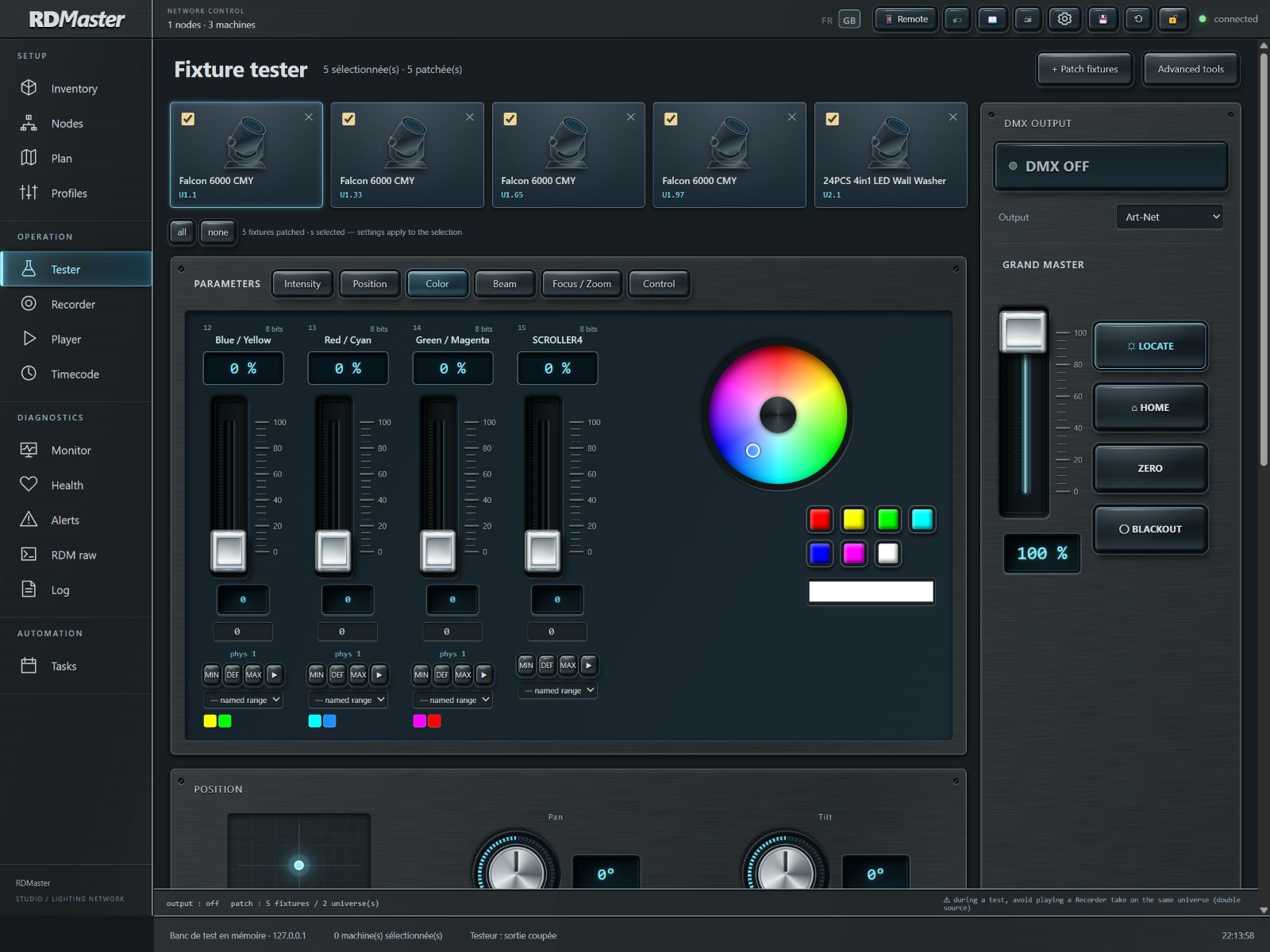
Complete interface: navigation, tester and DMX output · Click to enlarge
How to use this manual
Use the contents and search to jump directly to a function. Each chapter explains its purpose, the actions to perform and what to check. Click a screenshot to enlarge it; Escape closes it. Print / PDF uses your browser’s print facility. Search filtering is ignored when printing: the full manual is printed.
Screenshots come from the real application on an isolated demonstration setup. Names, UIDs, IPs and measurements are examples. Available commands depend on hardware and profile. These examples do not validate your physical installation.
RDMASTER / OPERATOR GUIDE
01 · Start and understand the system
RDMaster combines two workflows: bidirectional fixture configuration through RDM, and DMX output/monitoring. A fixture can receive DMX without being discovered through RDM. Conversely, appearing in the inventory does not mean that the tester is already sending values to it.
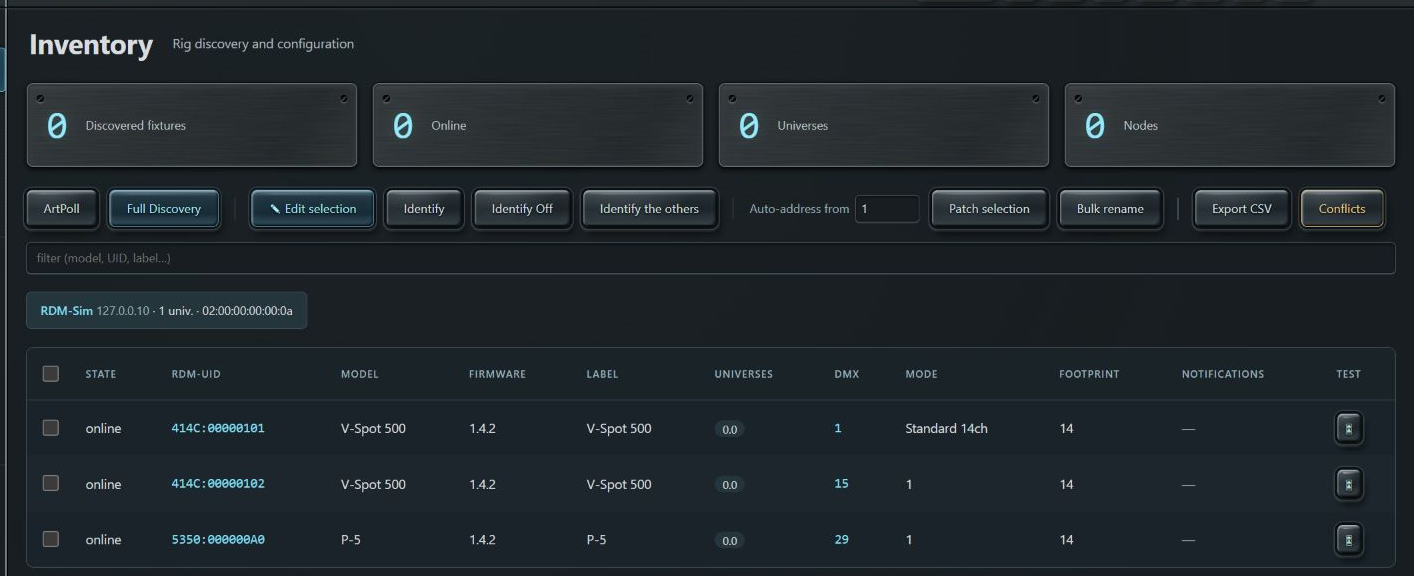
Inventory: discovery, selection, addressing and export · Click to enlargeTop bar: Remote, labels, manual, report, settings, backup and lock · Click to enlarge
Procedure and checks
Open RDMaster.exe while keeping its companion files and resources directory together. Close an older instance before launching a new build.
If activation is requested, enter your RDMaster license key. Activation and revalidation require Internet access; the lighting network can use a different adapter.
Wait for the “connected” indicator in the top bar. This refers to the interface’s connection to the RDMaster server, not the presence of fixtures.
Open settings ⚙, select the adapter connected to your lighting network and apply. Then run ArtPoll and Full Discovery in Inventory.
To output without RDM, open Tester and manually patch the fixtures’ profiles, modes, universes and addresses. Enable output only after checking the patch.
Keep in mind
This manual describes the September 2026 Studio sources. Images come from the real application running with an in-memory transport: port 4850, loopback and example fixtures are not settings to copy to your installation. The live application normally uses HTTP port 4848 unless configured otherwise.
The menu separates setup, operation, diagnostics and automation. Interface settings do not permanently occupy workspace.
Top bar: Remote, labels, manual, report, settings, backup and lock · Click to enlargeInventory: discovery, selection, addressing and export · Click to enlarge
Procedure and checks
Choose a tab in the left menu. Scroll the menu if the screen is too short to display all categories.
Use FR/GB to select the language. Profile names, fixture labels and entered data remain your own data and are not automatically translated.
Remote opens connection addresses and QR codes; the label icon opens fixture QR labels; the book opens this manual; the printer opens the installation report.
The gear immediately after the printer opens settings. The disk downloads a full backup; the circular arrow offers restore; the padlock manages the operation lock.
Read the bottom bar for connection, selection and tester output state. A hidden tab can still be outputting: changing pages does not stop an engine.
Keep in mind
On the keyboard, Tab moves focus; Enter or Space activates native buttons. Sliders accept arrow keys. Some specialized gestures, such as a memory context menu, require a right-click.
This setting selects the adapter on the PC hosting RDMaster. From a tablet Remote it does not select the tablet’s adapter. Discovery, Tester, Player and timecode use the same Art-Net network interface.
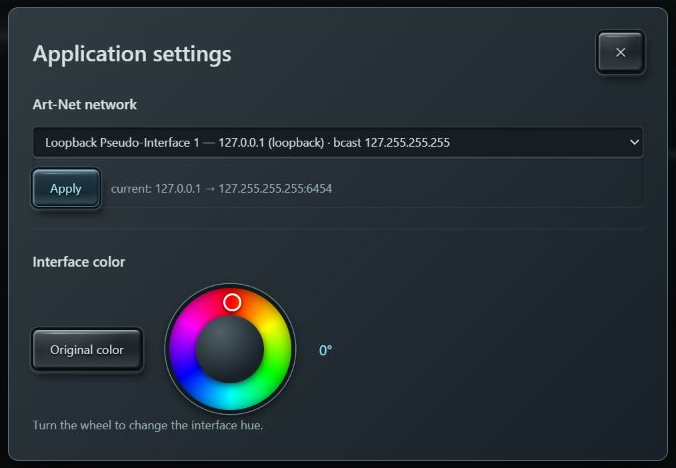
Settings: Art-Net adapter and colour wheel · Click to enlarge
Procedure and checks
Click ⚙ in the top toolbar, immediately after the printable report.
Under Art-Net network, identify the adapter by its name and especially its IPv4 address. Choose the one connected to the nodes. A virtual adapter or loopback is not a substitute for the installation’s Ethernet adapter.
Click Apply. The active address and broadcast are shown below the list: check the effective result, not just the selected menu item.
Close settings with ✕ or Escape. The network strip stays hidden from working views.
Run RDM discovery again after changing networks: the network inventory is refreshed. Check output in Monitor and then on a test fixture.
Keep in mind
“All interfaces / 0.0.0.0” leaves more routing decisions to the system; on a multi-adapter PC, prefer an explicit IP. This menu does not change the Windows IP address. If the selected interface cannot be opened, the server can fall back to 0.0.0.0: inspect the displayed active address.
The wheel changes the interface’s visual hue. It is not a DMX color control: it does not change fixture values or patching.
Settings: Art-Net adapter and colour wheel · Click to enlarge
Procedure and checks
Open settings ⚙ and find Interface color.
Click around the wheel, or hold the pointer and drag around it. The angle in degrees is displayed and the effect is immediate.
For precise changes, focus the wheel and use arrow keys: one degree per press; Shift + arrow: ten degrees. Home resets to zero.
Click Original color to restore the default appearance exactly: 0° and no hue filter.
Close and reopen the application or page: the choice is retained in this browser/machine’s local storage.
Keep in mind
The appearance preference is local, unlike the network adapter, which is a shared server setting. Two separate browsers can therefore use different hues. Manual screenshots use the original color.
A universe contains 512 channels. The start address identifies a fixture’s first channel; footprint is the number of channels occupied by its selected mode. An address alone never identifies an output: its universe is also required.
Inventory: discovery, selection, addressing and export · Click to enlargePatch: library, mode, universe and address · Click to enlarge
Procedure and checks
Read the fixture’s exact DMX mode and start address. Check that the tester uses the same mode.
Calculate the last address: start + footprint − 1. For example, 14 channels starting at 29 occupy 29 through 42 inclusive; the next fixture can start at 43.
Check that the last address does not exceed 512 and that no other fixture overlaps that range in the same universe, unless deliberately duplicated.
Compare your console/node’s universe convention with the displayed convention. Inventory shows Net.Universe; Tester uses the combined Art-Net number. Do not compensate for a universe offset by randomly changing DMX addresses.
After changing personality, recheck footprint, fine channels and collisions.
Keep in mind
The RDM UID is a hardware identity; changing a label or DMX address does not change it. Memory and pad numbers are unrelated to DMX addresses.
ArtPoll finds Art-Net gateways. Full Discovery discovers RDM devices behind compatible outputs. The two operations answer different questions.
Inventory: discovery, selection, addressing and export · Click to enlarge
Procedure and checks
First select the correct adapter in settings. Open Inventory and run ArtPoll.
Check the gateways below the action bar: name, IP and advertised universes. If none appears, check physical connectivity, subnet and node configuration.
Run Full Discovery and let the progress finish. Avoid clicking repeatedly during the scan.
Wait for rows to be enriched with model, firmware, label, address, personality and footprint. Some fields may appear after the UID.
Use the filter to find a model, UID or label. An empty inventory despite a visible node calls for checking RDM on the node port and RDM support in the fixtures.
Keep in mind
An offline device can remain in the saved inventory. Do not confuse a historical row with a current response. A DMX fixture without RDM must be manually patched in Tester; discovery cannot add RDM support to it.
Inventory checkboxes determine the targets of bulk operations. Opening a fixture sheet and selecting a fixture are separate actions. Tester has its own selection.
Inventory: discovery, selection, addressing and export · Click to enlarge
Procedure and checks
Check the fixtures to process and verify the selection count at the bottom. The header checkbox provides a bulk selection of the displayed list.
Use Identify to locate selected fixtures physically. Finish with Identify Off. With no boxes checked, Identify Off targets all known fixtures.
Identify others helps distinguish a fixture from the rest; inspect the rig and return to Identify Off when locating is complete.
Edit selection guides bulk changes to address, mode or label. Select only fixtures compatible with the requested value.
Bulk rename applies a pattern: {n} is an incrementing number and {uid4} is the end of the UID. Check selection and starting number before confirming.
Keep in mind
RDM operations write to the actual fixtures. Command success depends on manufacturer support; check feedback and the value read back, especially with mixed fixtures.
Auto-addressing reduces manual calculations; conflict checking examines occupied channel ranges. CSV export documents the patch but does not replace a full backup.
Inventory: discovery, selection, addressing and export · Click to enlargeHealth: conflicts, firmware and rig references · Click to enlarge
Procedure and checks
Check the target fixtures. Verify their personalities first: these determine the channel space to reserve.
Enter the first address under Auto-address from, then click Patch selection. This writes RDM addresses; it does not add profiles to the mini-console.
Read back assigned addresses in the table. Check universes and actual fixture order before reusing this order in a lighting console.
Click Conflicts to search for overlaps. Correct unintended ranges and check again.
Click Export CSV to download the patch. Archive it with the date and venue name; use the printable report for an easier-to-read summary.
Keep in mind
Example: for three 14-channel fixtures in one universe, starting at 1 gives 1, 15 and 29. Verify the actual mode before applying this example.
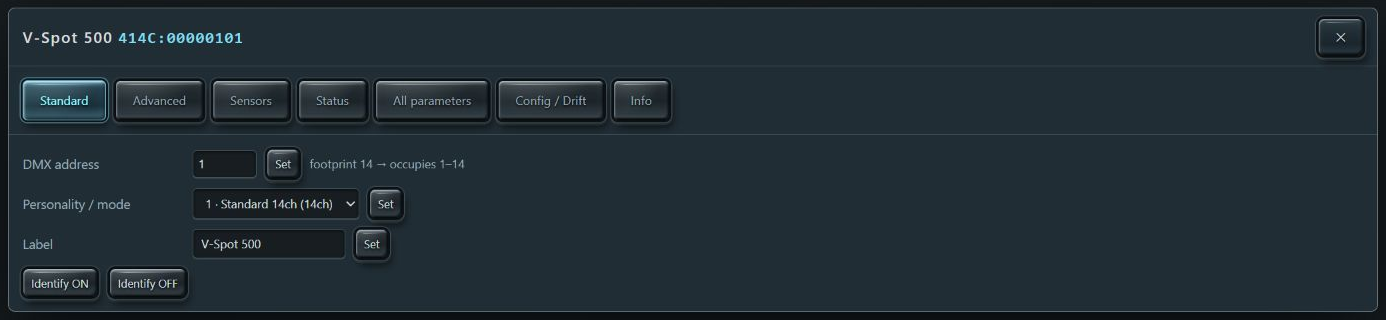
The fixture sheet groups commands for one specific UID. Standard contains common settings; Info provides technical identity and network routing details.
Fixture panel: standard parameters and value changes · Click to enlargeRDM information reported by the fixture · Click to enlarge
Procedure and checks
Click the fixture UID or row in Inventory. Verify the UID in the title before editing.
Under Standard, enter a DMX address from 1 to 512 and click its Set button. Check the occupied range shown alongside.
Choose a Personality / mode and its Set button. The list gives the channel count for each mode.
Edit the Label and click Set. Use Identify ON then OFF to confirm the intended fixture responds.
Under Info, read manufacturer, model, firmware, RDM version, model ID, footprint, personality count, sensors, sub-devices, gateway and Net/Universe. Close with ✕ to return to the table.
Keep in mind
Set buttons are independent: entering an address does not automatically apply the label or mode. A missing value means it has not been read or is unavailable, not necessarily zero.
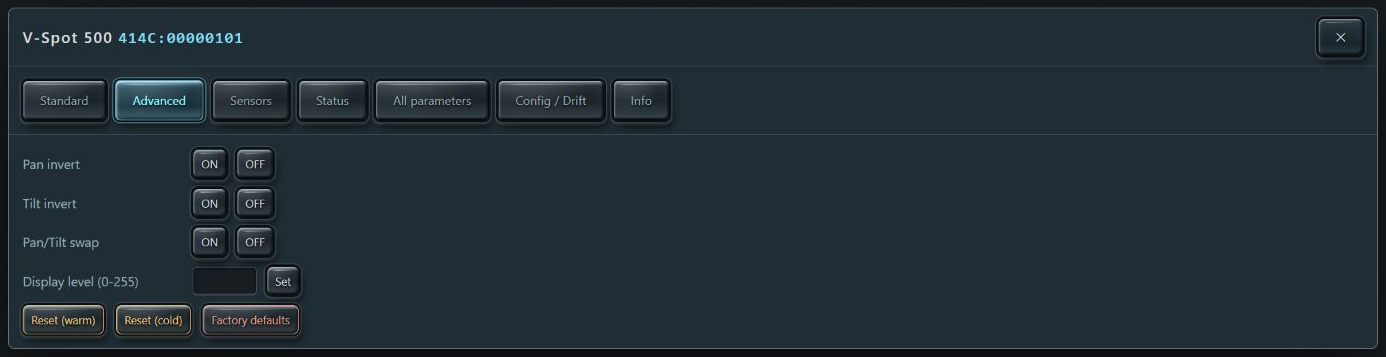
Advanced controls expose common RDM parameters. Their presence in the interface does not guarantee support on every fixture model.
Advanced settings and supported commands · Click to enlarge
Procedure and checks
Open the fixture sheet and Advanced. Check that the fixture is available and that any resulting movement is acceptable.
For a Boolean option such as Pan invert, Tilt invert or Pan/Tilt swap, use ON or OFF.
For a numeric value such as display level, enter the manufacturer-appropriate value and press Set. Check the return in the sheet or All parameters.
Use Reset warm or Reset cold only when a fixture needs restarting; these commands can interrupt light output and initiate calibration.
Factory defaults restores manufacturer settings according to the fixture’s implementation. Capture a reference or snapshot before an operation that may alter your patch.
Keep in mind
An “unsupported” rejection is not a network failure if other PIDs respond. Check supported parameters before repeating a command.
A snapshot is a saved configuration capture. A reference is the comparison point used to detect changes. Neither is a tester DMX memory.
Configuration reference and snapshots · Click to enlarge
Procedure and checks
Set the fixture to its expected state and open Config / Drift.
Click Snapshot to retain a configuration capture. Click Set as reference to define the expected state for later comparisons.
After intervention, click Check drift. For each difference, read the expected and current values.
Open Saved snapshots to see dates and names. Choose Restore only for the snapshot you intend to reapply.
After restoring, check applied and rejected parameter counts, then read the mode and address again. A partial result requires targeted correction.
Keep in mind
Restoring sends RDM SET commands to hardware. A reference captured after a mistake treats that mistake as normal: establish it only after commissioning the rig.
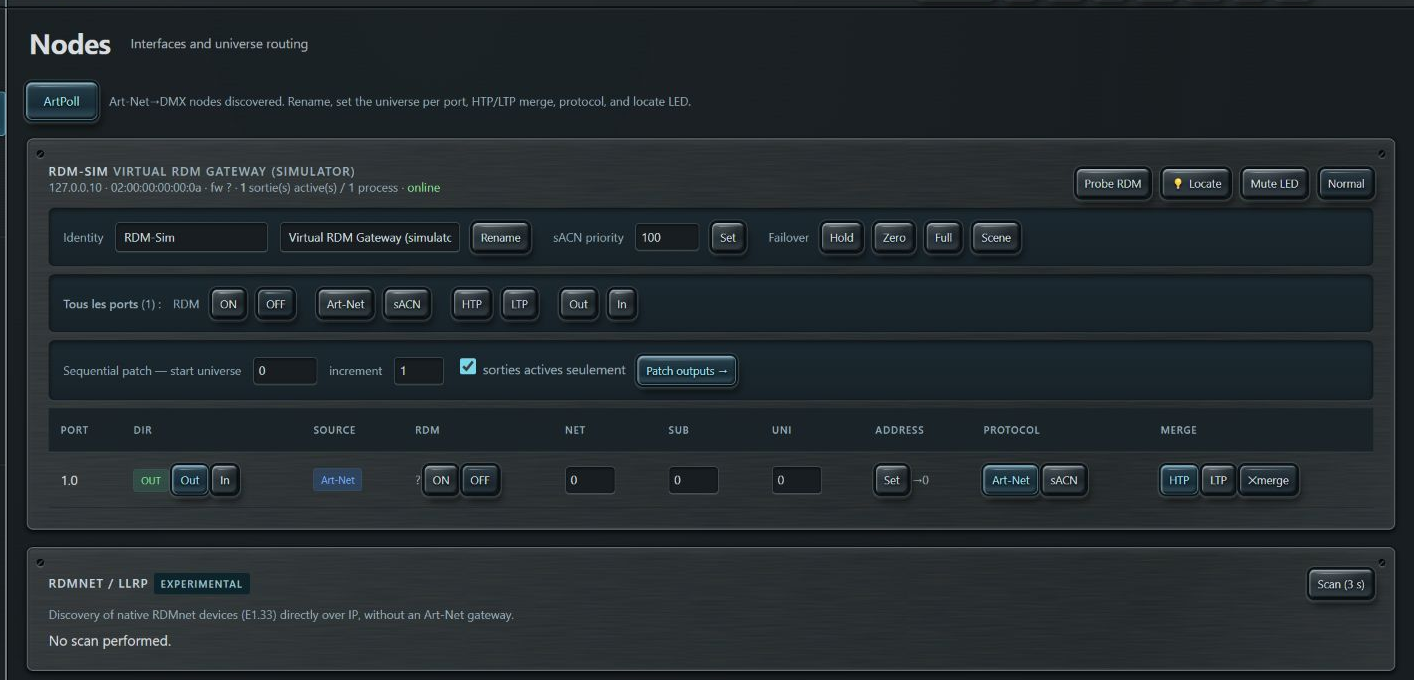
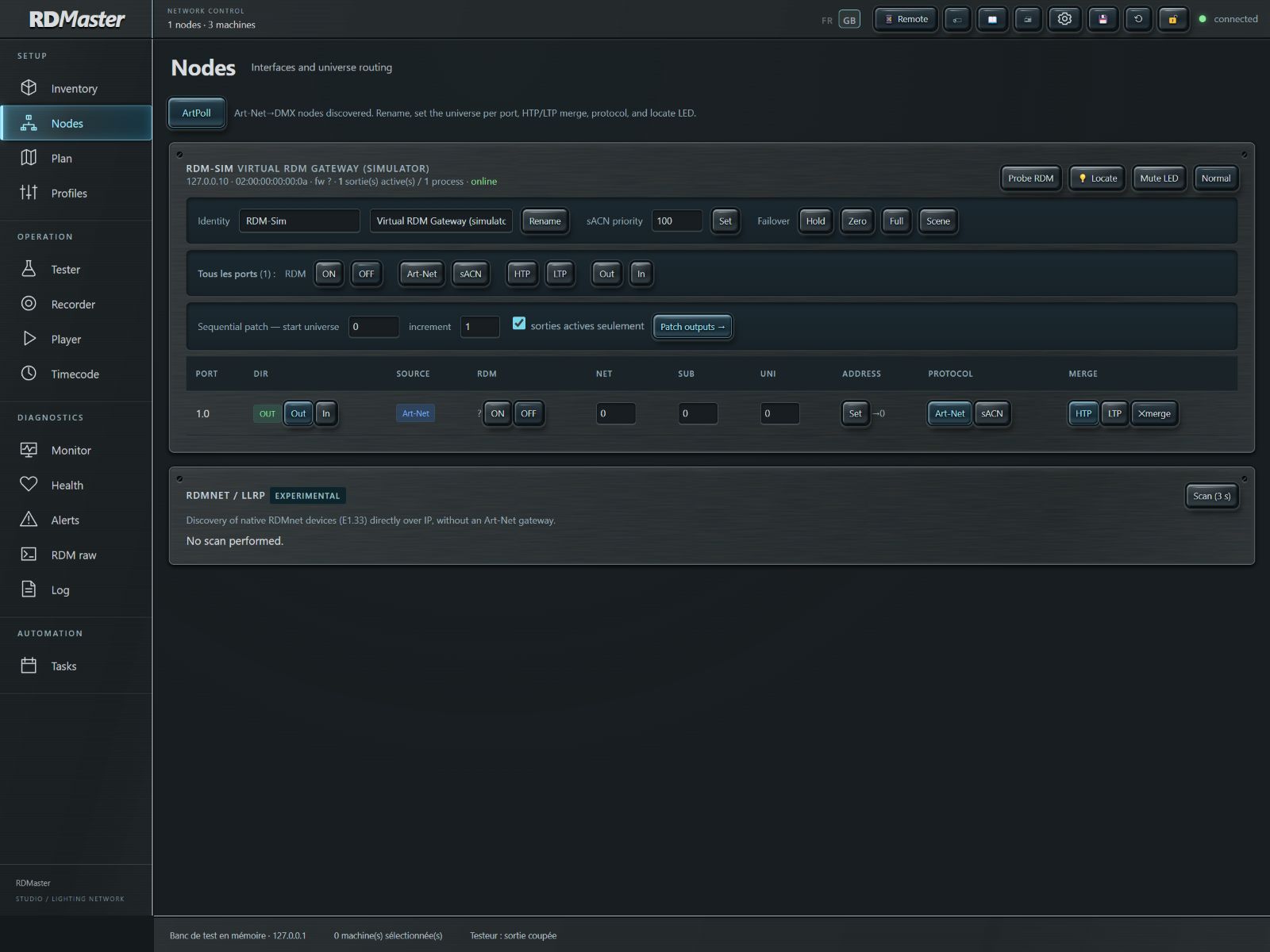
This view configures discovered gateways. Port count and available features depend on the node’s advertised information and implementation.
Nodes: ports, universes, options and LLRP discovery · Click to enlarge
Procedure and checks
Open Nodes after ArtPoll. Identify the box by name and IP; use Locate/LED to find it physically if supported.
Edit short/long names in their fields and apply. Verify the response after refresh.
For each port, set universe and input/output direction. Compare with physical wiring: a DMX output feeds fixtures, while an input receives a DMX source.
Choose the offered protocol and merge mode. Check the intended behavior when multiple sources are present.
Enable RDM on required ports. Run discovery on the relevant universe and verify that fixtures appear.
Keep in mind
Changing a node setting does not automatically change fixture DMX addresses. Keep a universe → port → DMX line table to distinguish these three patching layers.
Bulk settings speed up commissioning across ports. Failover defines behavior after source loss and must be tested on your installation.
Nodes: ports, universes, options and LLRP discovery · Click to enlarge
Procedure and checks
Before sequential patching, note the starting universe, port count and physical output order.
Use all-ports commands only for settings you intend to share. Read each port back after the operation.
Set sACN priority if supported by the node, consistently with other sources on the network.
Select the appropriate available failover mode. During a test window, simulate source loss and observe whether output holds, goes dark or follows another configured behavior.
The RDMnet / LLRP section performs an experimental search for compatible devices. Treat its results separately from RDM discovery through Art-Net.
Keep in mind
HTP/LTP, priority and failover are node/protocol behaviors, not mixing guarantees offered by every application view. LLRP control remains explicitly experimental.
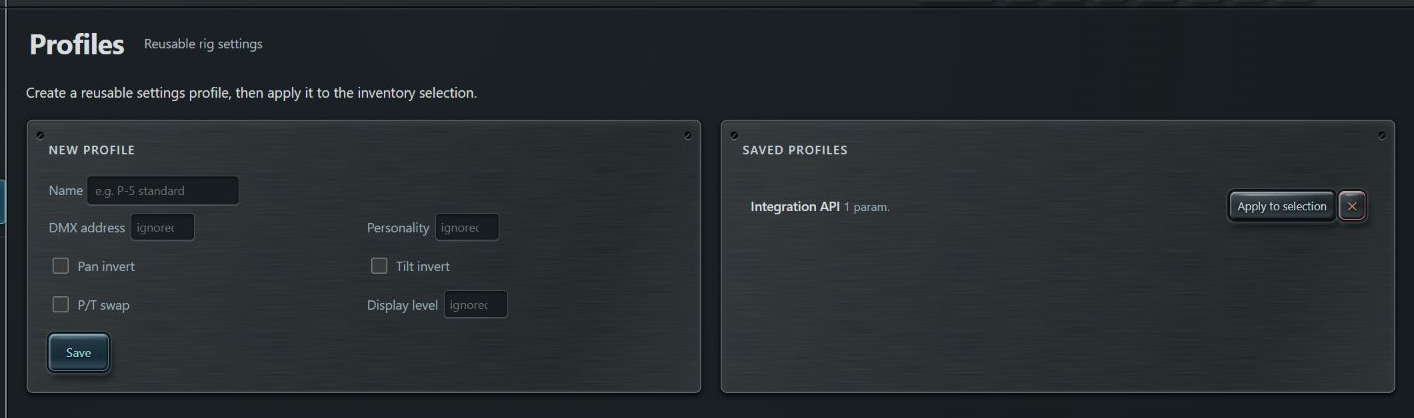
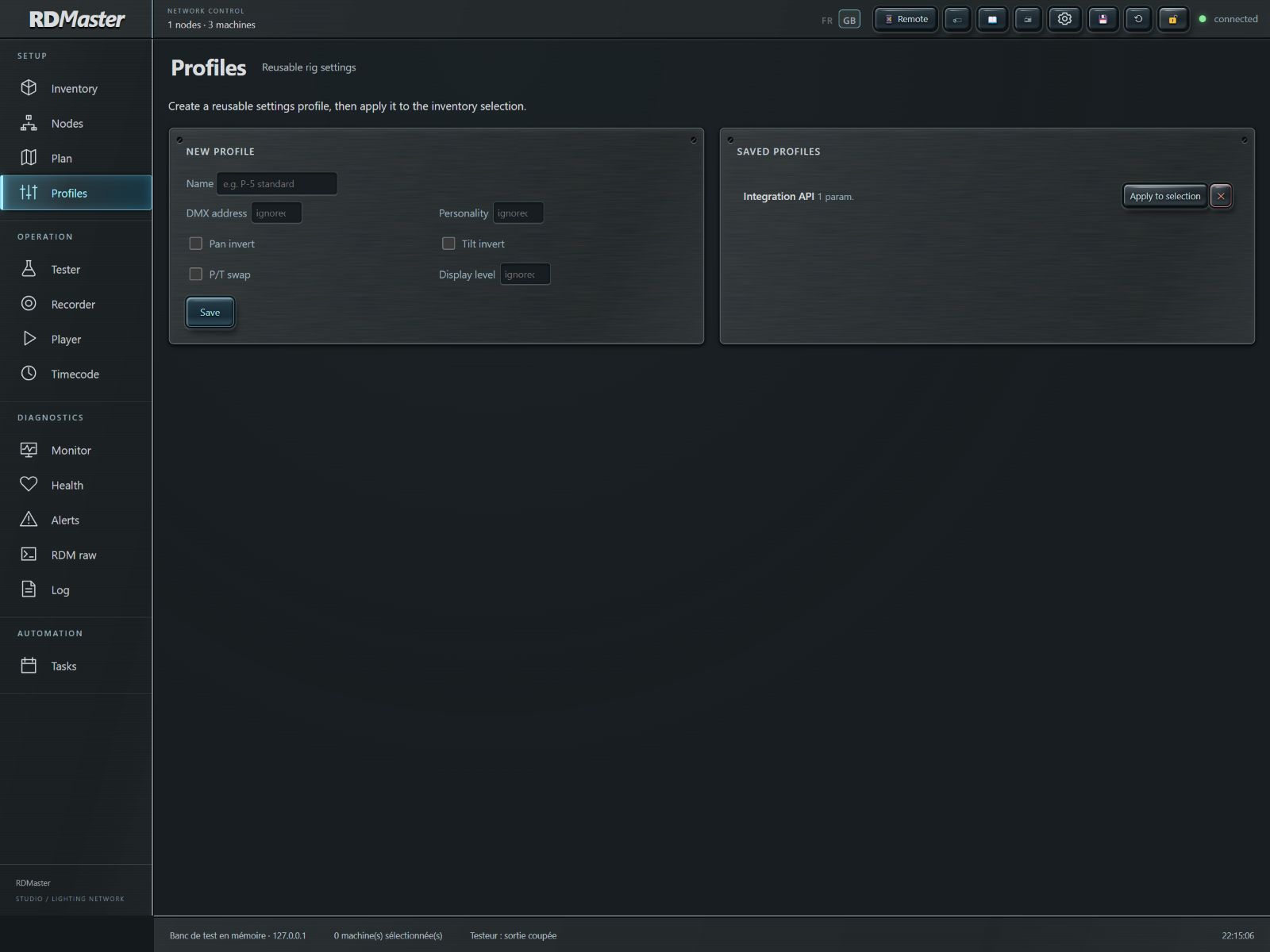
A profile in this tab is a set of RDM settings to apply to selected fixtures. It differs from a channel profile in the Tester library.
Creating and applying RDM profiles · Click to enlarge
Procedure and checks
Open Profiles and give the preset a clear name, such as “Front — standard mode”.
Enter only the numeric values you intend to impose. An empty numeric field is ignored.
Check Boolean options to enable. In this version an unchecked box is omitted from the profile: it does not force OFF.
Save the profile. Return to Inventory to check target fixtures, then apply the profile to the selection.
Check feedback and read one fixture of each model back. Use ✕ to delete an obsolete profile once replaced or backed up.
Keep in mind
Applying the same DMX address to several fixtures can create deliberate or accidental overlaps. Use auto-addressing for consecutive addresses rather than a fixed-address profile.
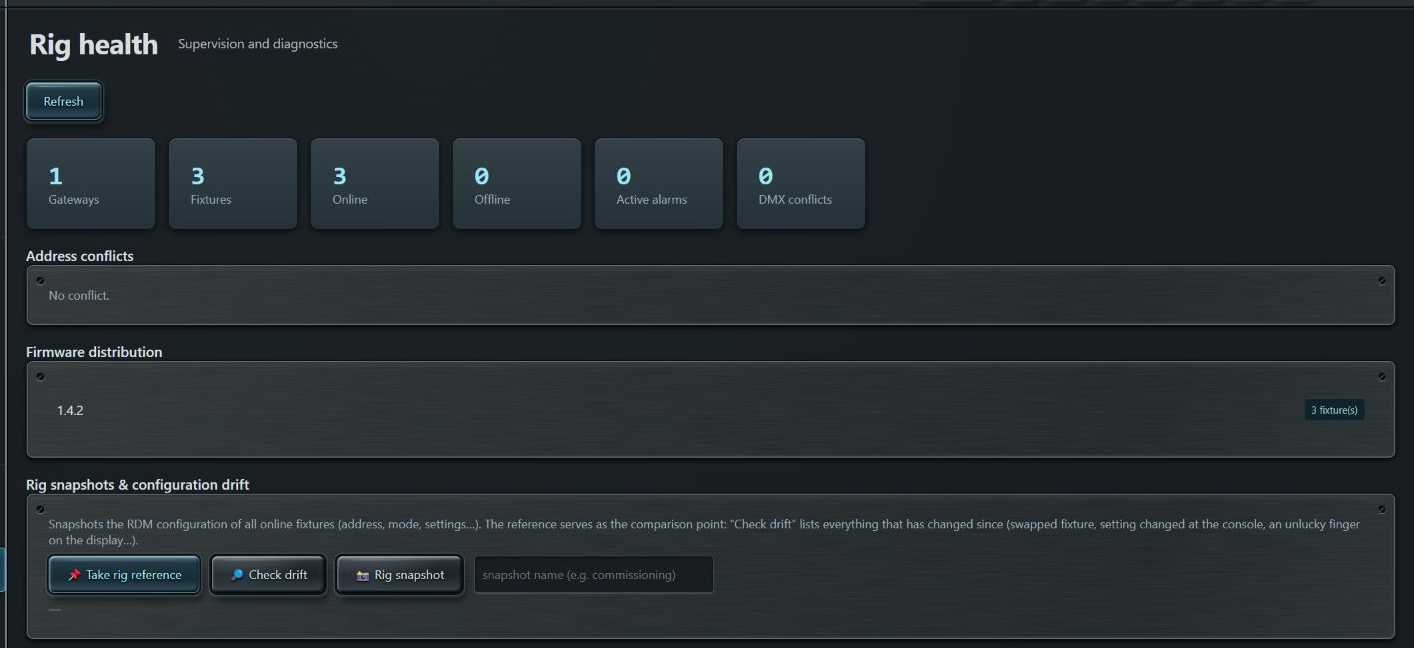
The health summary combines availability, alarms, conflicts and firmware versions. Rig tools extend the snapshot/reference workflow to multiple devices.
Health: conflicts, firmware and rig references · Click to enlarge
Procedure and checks
Open Health and refresh the report. Check gateway, fixture, online and offline counts.
Read DMX conflicts, affected ranges and universe. Correct in Inventory and refresh the summary.
Compare firmware distribution among fixtures of the same model. A version difference is maintenance information, not automatic proof of failure.
After commissioning, capture the rig reference. After intervention or before operation, use Check drift and distinguish matching devices, changed devices and devices without a reference.
Capture a named rig snapshot before major changes. Also archive a full backup and printable report.
Keep in mind
Comparison does not replace optical and mechanical testing. RDMaster displays reported firmware versions; this screen does not update firmware.
Tester turns a channel profile into readable controls. Its profile mode must match the fixture’s physical mode. Tester patching does not automatically configure a non-RDM DMX fixture.
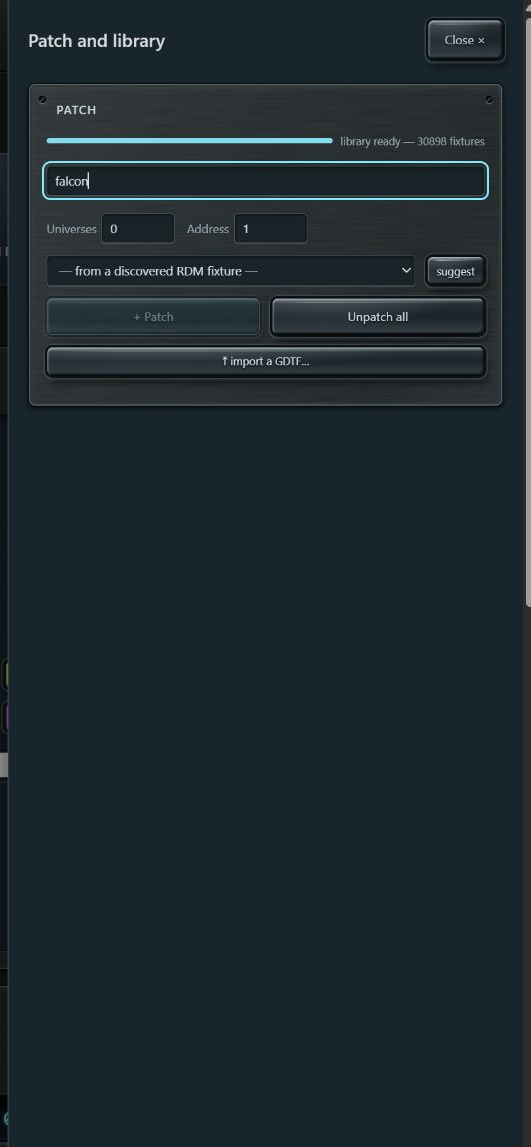
Patch: library, mode, universe and address · Click to enlarge
Procedure and checks
Open Tester and + Patch fixtures. Wait for the library to be ready; its profile count is displayed.
Search by manufacturer and model. Select the exact mode in the results and verify its footprint.
Enter universe and start address. Compare these with fixture and node settings; check the final occupied address.
Click + Patch. Repeat for each fixture with the required addresses. Close the panel to return to controls.
To start from an RDM fixture, use its Inventory Test button or the patch RDM list and Suggest. Verify the suggested profile: a text match is not validation of the physical mode.
Keep in mind
The ✕ on a fixture tile removes it from the tester patch. Unpatch all removes the whole tester patch. These actions do not physically disconnect fixtures or delete their RDM identities.
GDTF import adds modes from a manufacturer file to the local library. Use it when the required model or mode is not available in the installed library.
Patch: library, mode, universe and address · Click to enlarge
Procedure and checks
Obtain the GDTF file for the fixture model and revision from the manufacturer or your usual source.
Under + Patch fixtures, click Import a GDTF and choose the .gdtf file.
Wait for the import message; note the fixture name and number of recognized modes.
Search for that name in the library, choose a mode and patch it to a test universe/address.
Validate dimmer, position, color and special functions on one fixture before duplicating the patch.
Keep in mind
An imported file does not certify every function described by its author. Resolve import errors before patching; do not substitute a mode merely because its channel count is similar.
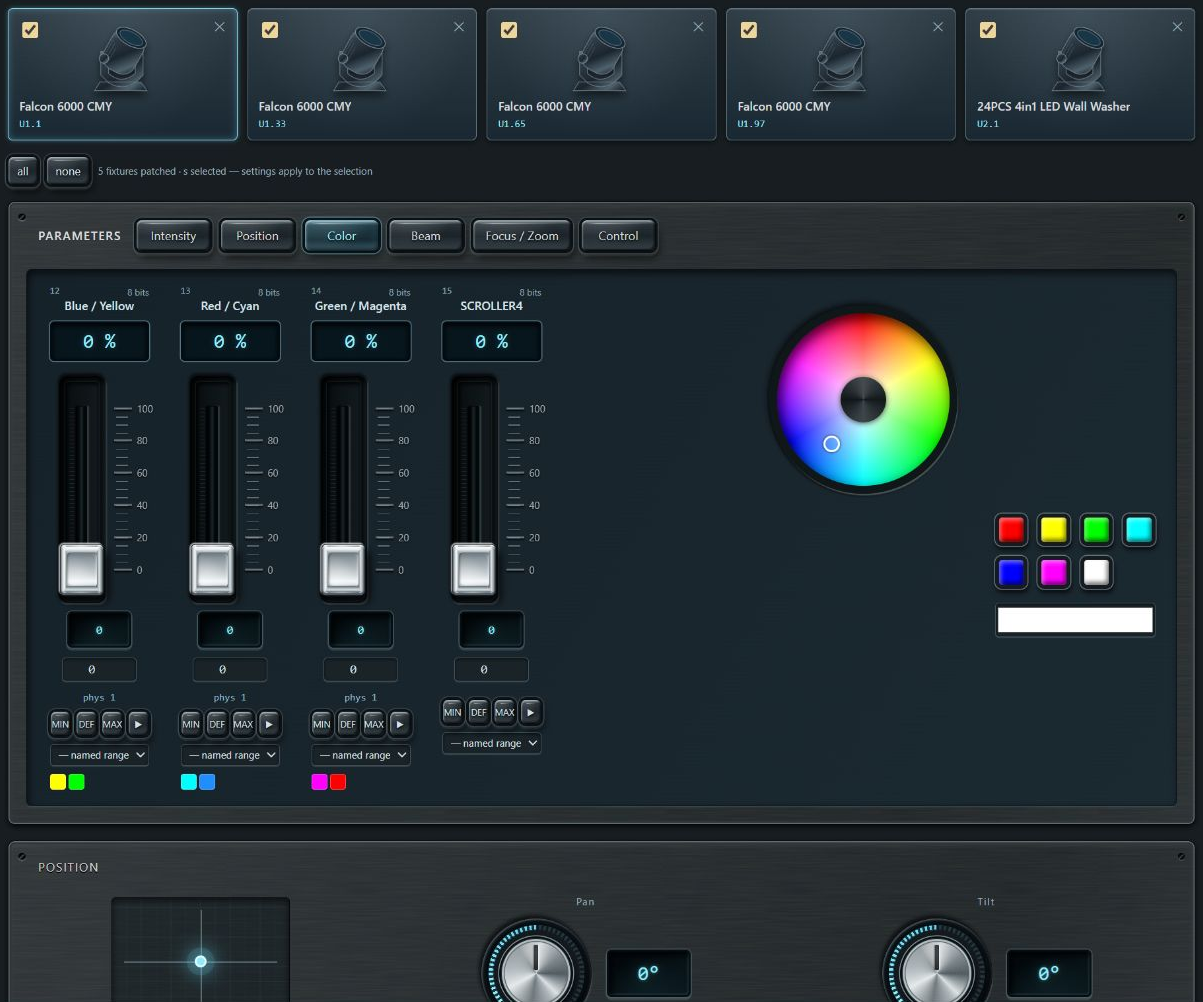
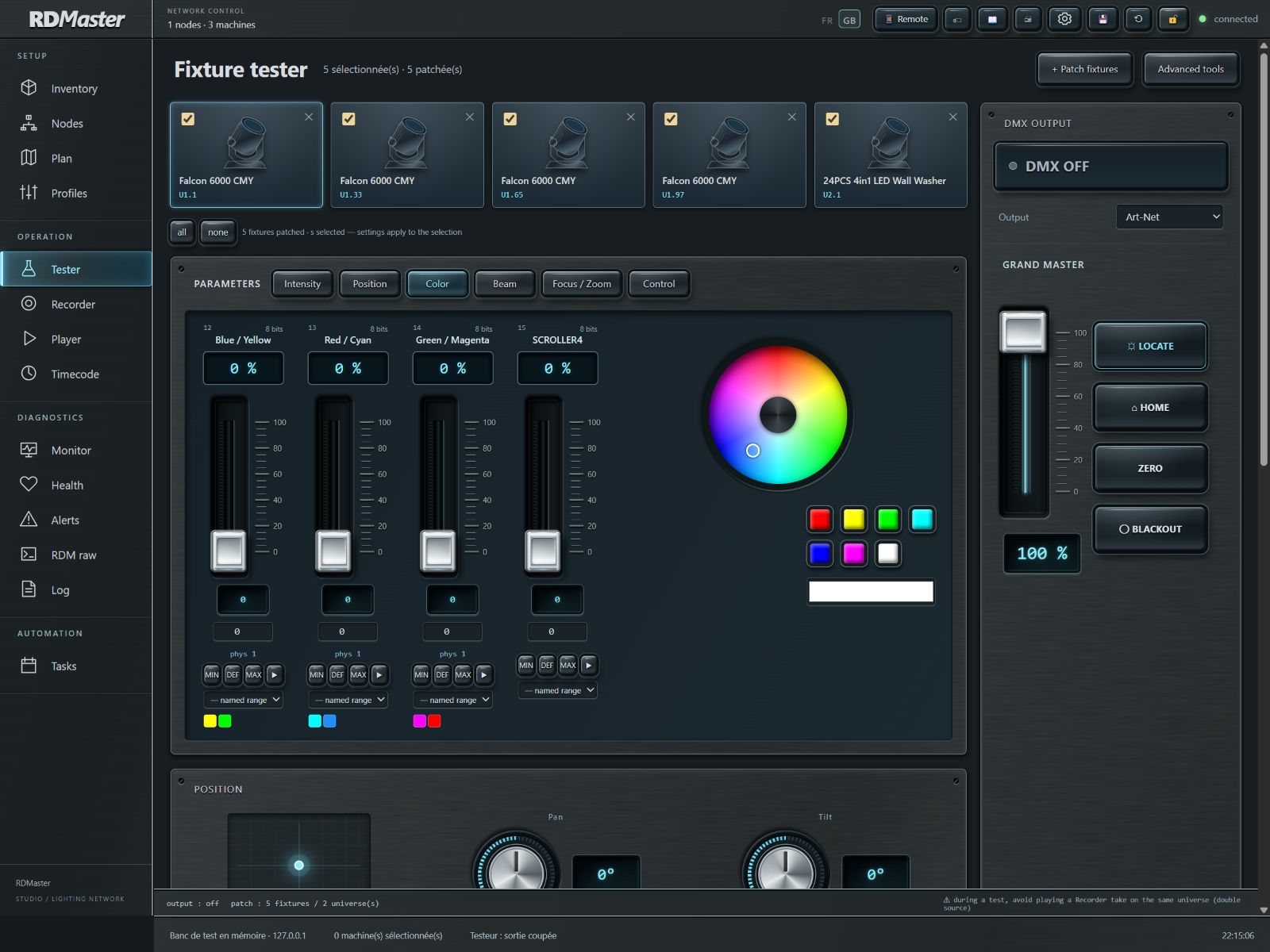
Focus determines which profile is shown by the faders. Checkboxes determine target fixtures. These separate concepts let you adjust different fixture models together.
Tester: fixture selection and colour attributes · Click to enlarge
Procedure and checks
Click a fixture tile to display its parameters. Check model, universe and address before moving a fader.
Check fixtures that should receive adjustments. All/None changes checkboxes; the counter confirms selection.
Move one simple parameter on a small group and verify the result. The application matches compatible attributes across selected fixtures.
To adjust one fixture alone, uncheck the others. Do not assume clicking its tile removed every other selection.
Before starting a macro or test sequence, recheck the boxes. A group named consistently in the rig may still contain several tester profiles.
Keep in mind
A parameter absent from a profile cannot be sent to that model by name matching alone. On a mixed rig, verify results rather than assuming identical physical ranges.
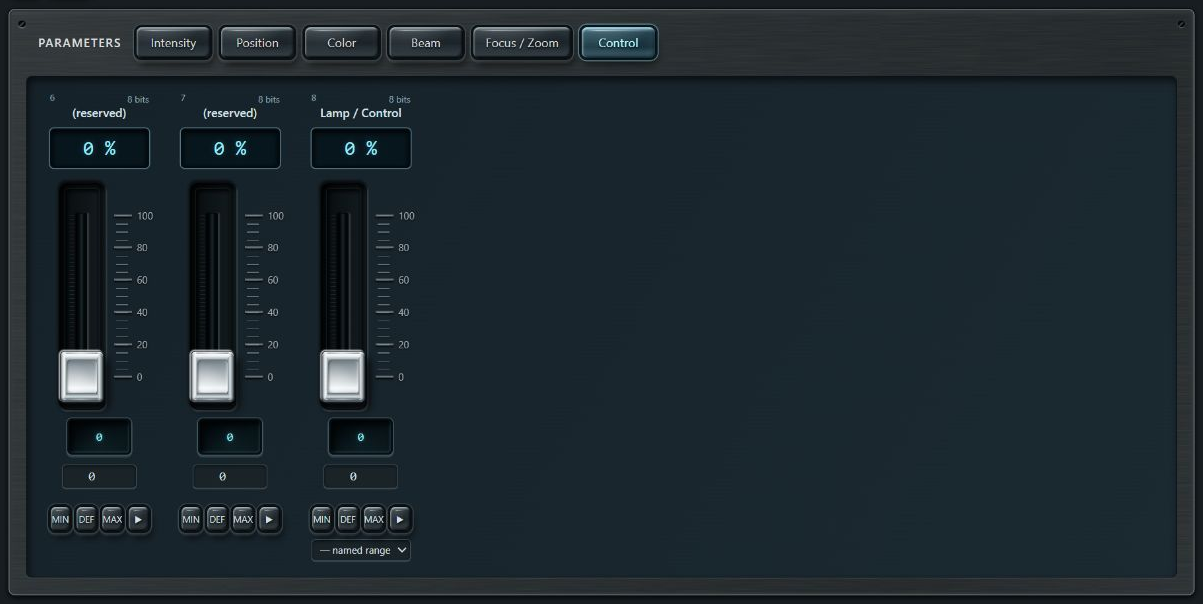
Family tabs show parameters present in the profile: Intensity, Position, Color, Beam, Focus/Zoom, Control and other families depending on the fixture.
Tester: fixture selection and colour attributes · Click to enlargeControl attributes exposed by the profile · Click to enlargeIntensity-group faders and values · Click to enlarge
Procedure and checks
Choose the relevant family. Read the channel name and 8- or 16-bit indication before entering a value.
Move the fader or use its numeric field. The application displays native value, percentage and a physical value when provided by the profile.
Use MIN for minimum, DEF for the profile default and MAX for maximum. These do not always mean closed, neutral and open: their meaning depends on the channel.
Open the named-ranges list to select a gobo, wheel position or function described in the profile.
The channel ▶ button starts an automatic sweep for the displayed fixture. Observe the result and stop automatic tests before resuming manual adjustment.
Keep in mind
An 8-bit channel uses 0–255; a 16-bit channel uses 0–65535 with coarse/fine. Control channels can include reset, lamp on/off or other consequential commands: inspect the range before applying MAX.
The Position panel offers two knobs and an XY area when Pan/Tilt attributes are available. The color mixer appears for profiles with recognized compatible color attributes.
Position: XY pad and pan/tilt controls · Click to enlargeTester: fixture selection and colour attributes · Click to enlarge
Procedure and checks
Select the fixtures to adjust and verify that they can move freely.
Move Pan and Tilt separately using the knobs, or drag the XY point for a combined move.
Use arrow keys on the XY area for keyboard adjustment. Displayed degrees are calculated from the profile, not measured on the fixture.
Under Color, choose a color from the wheel, a swatch or the free picker. Then refine the profile faders if necessary.
On a CMY fixture, check physical mixing behavior: a higher DMX value can mean more filter insertion rather than more light of that color.
Keep in mind
The tester color wheel changes values for selected fixtures. The settings Hue Rotate wheel changes software appearance only: these are different tools.
Displayed values can be prepared while output is off. DMX ON starts the tester’s continuous stream; choose its protocol under Output.
Tester output: activation, protocol, master and blackout · Click to enlarge
Procedure and checks
Check adapter, universes, addresses and selection. Choose Art-Net, sACN or Art-Net + sACN according to the receiving network.
Enable DMX ON and inspect the signal in Monitor. Tester sends approximately 30 frames per second.
Grand Master scales channels identified as dimmers by the profile. Blackout cuts them while retaining other parameters; it does not mean zero on every channel.
Locate applies profile highlight values; Home restores profile defaults; Zero sets channels to zero. Verify the intended effect on control and movement channels.
Switch to DMX OFF to stop continuous output. The engine sends a final zero frame on its universes before stopping; still check node behavior and other sources.
Keep in mind
Avoid running Recorder/Player and Tester on the same universes unless you have designed the merge behavior. Player STOP ALL does not stop Tester.
Macros repeat a movement or variation to test a function: dimmer, color, zoom, Pan/Tilt patterns and more. The list depends on the profile and available attributes.
Macros available for selected fixtures · Click to enlarge
Procedure and checks
Select fixtures to test and begin with a simple function. Check Grand Master and DMX output.
Click ▶ on the desired macro, such as color cycle, dimmer ramp or Pan/Tilt circle.
Adjust its speed slider. The × display is a speed factor, not a DMX frame rate.
Watch both software and fixture: limits, smoothness, dimming, filters and motors should respond according to the profile.
Stop the macro using its control, or use Stop all for macros. DMX output and Player transport remain independent.
Keep in mind
Two animations targeting the same channels can replace each other or alter the expected result. For reproducible diagnosis, begin with one animation.
Memories can step manually with GO or automatically using follow times. Rendering to a take converts the sequence into a recording available in Recorder/Player.
Memories: storing, recall and sequences · Click to enlarge
Procedure and checks
Create memories in the required order. Use Move up/Move down in their context menu to change that order.
Click GO to advance through the sequence; read the position indicator beside it.
In a memory’s context menu, set Follow in seconds to advance automatically. An empty field restores manual GO; an explicit zero is not an empty field.
Use Stop seq to interrupt automatic stepping. Check macros, effects and DMX output separately.
Click Record as take, provide a name, then find the result in Recorder. Check duration and playback before assigning it to a pad.
Keep in mind
Rendering produces a value sequence; it does not optically measure fixtures. Keep original memories so you can edit content and render again.
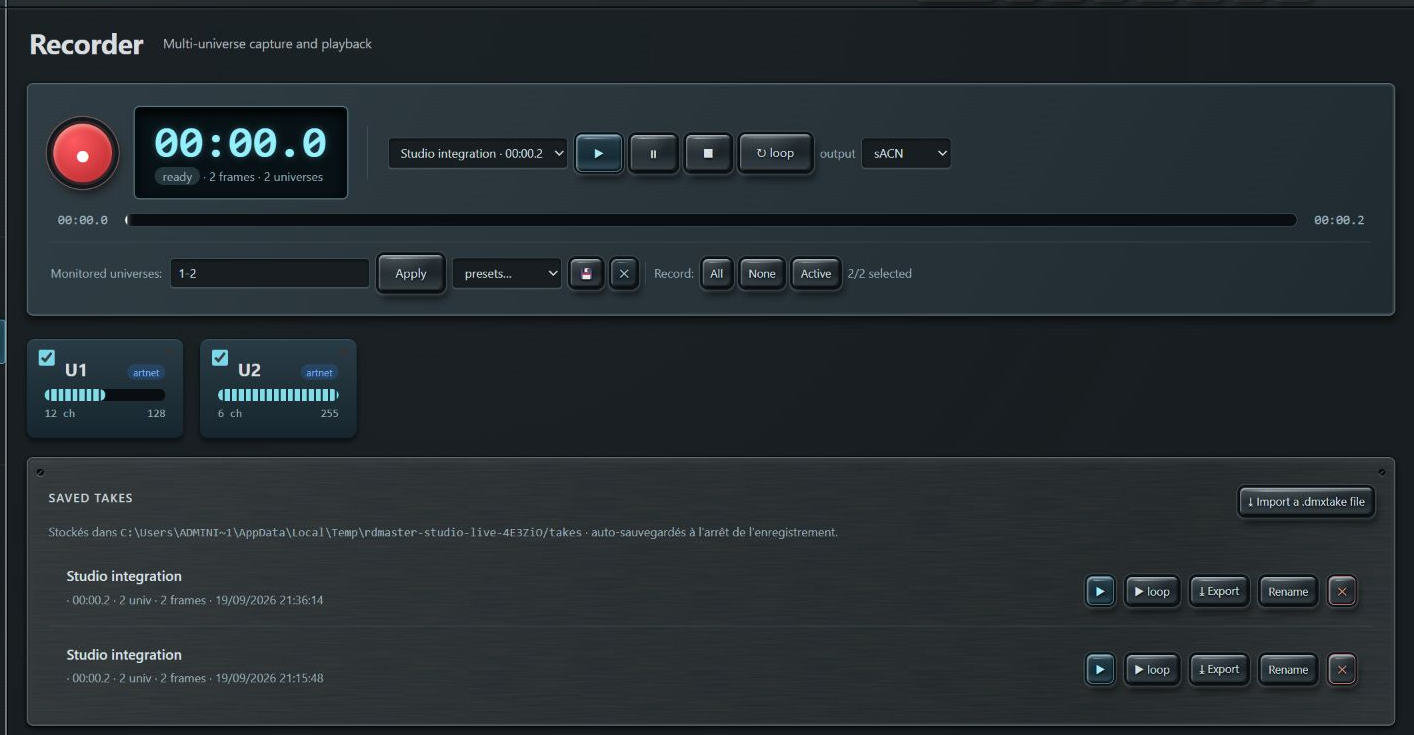
Recorder captures multi-universe DMX frames and saves them as takes. Monitoring defines tracked universes; checkboxes define the recorded subset.
Recorder: transport, universe selection and takes · Click to enlarge
Procedure and checks
Open Recorder. Enter monitored universes, such as 1,2,5-8, and Apply.
Observe universe cards and activity. Check required universes; All, None and Active speed up selection.
Save the selection as a preset with the disk icon if you want to reuse it. Choosing a preset avoids retyping a range; ✕ deletes the selected preset.
Click the red ● button to start, enter the requested name and check recording state, elapsed time and frames.
Run the source sequence, then click recording again to stop. The take is saved on stop and appears in the list.
Keep in mind
The frame counter does not necessarily behave like fixed-frame-rate video: changes and initial states are recorded. A take can contain very few changes if the source is static. Check activity before a long capture.
A take contains channel values and timing. Recorder transport and Player pads use the same engine: they are not two independent players.
Recorder: transport, universe selection and takes · Click to enlarge
Procedure and checks
Choose a take in the transport list and select Art-Net or sACN output.
Click ▶ to play. Pause suspends/resumes progression; Stop stops the player. Loop restarts the take at the end.
Click the progress track to seek during playback. The corresponding DMX state is emitted again.
Under Saved takes, rename files clearly, export .dmxtake files or import a compatible file.
Before deleting a take, check pads, playlists and tasks referencing it. A pad referencing a deleted take no longer has its content.
Keep in mind
Stop does not guarantee physical blackout: node behavior and other sources also matter. Do not substitute closing a window for a planned shutdown procedure.
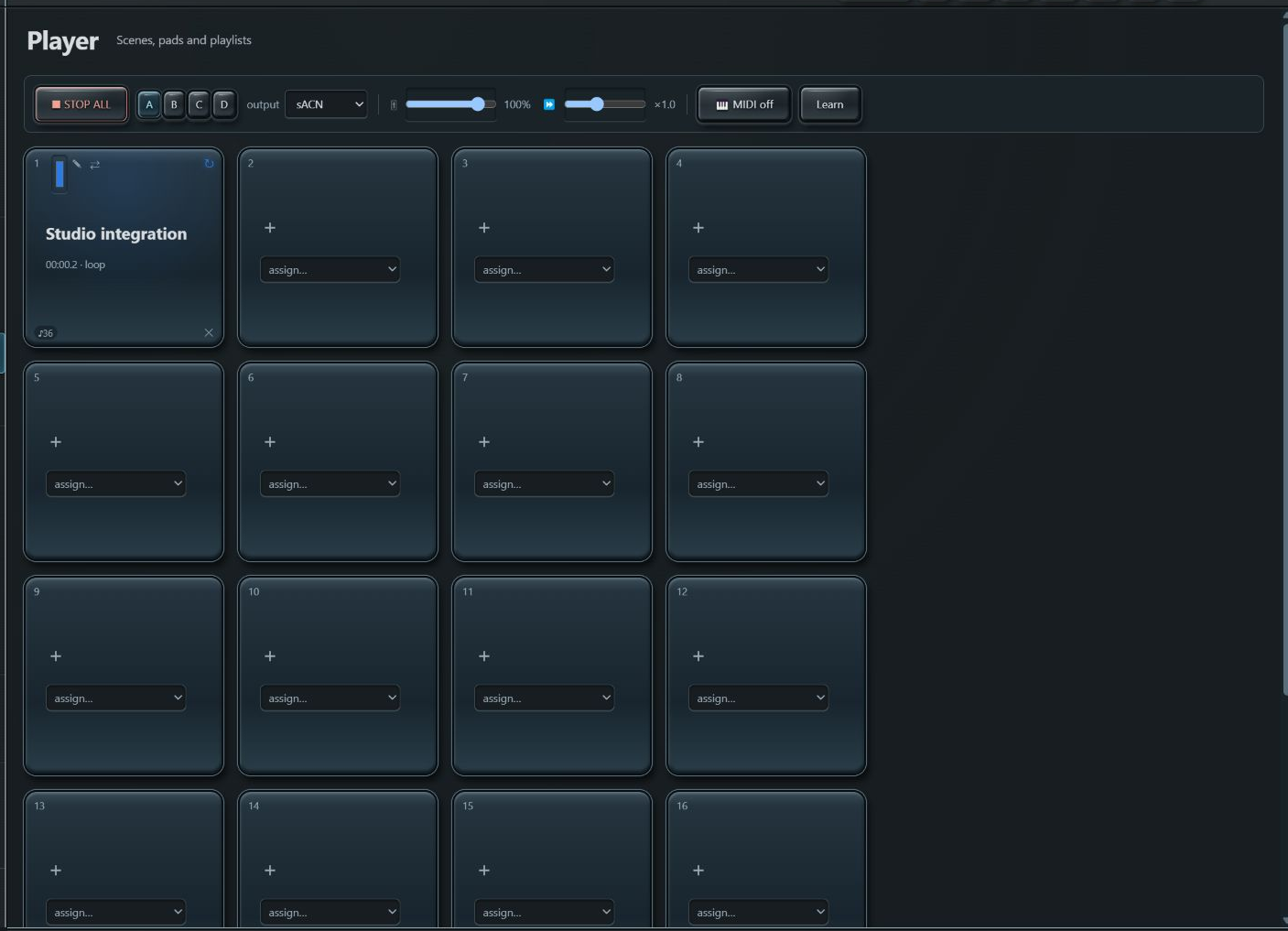
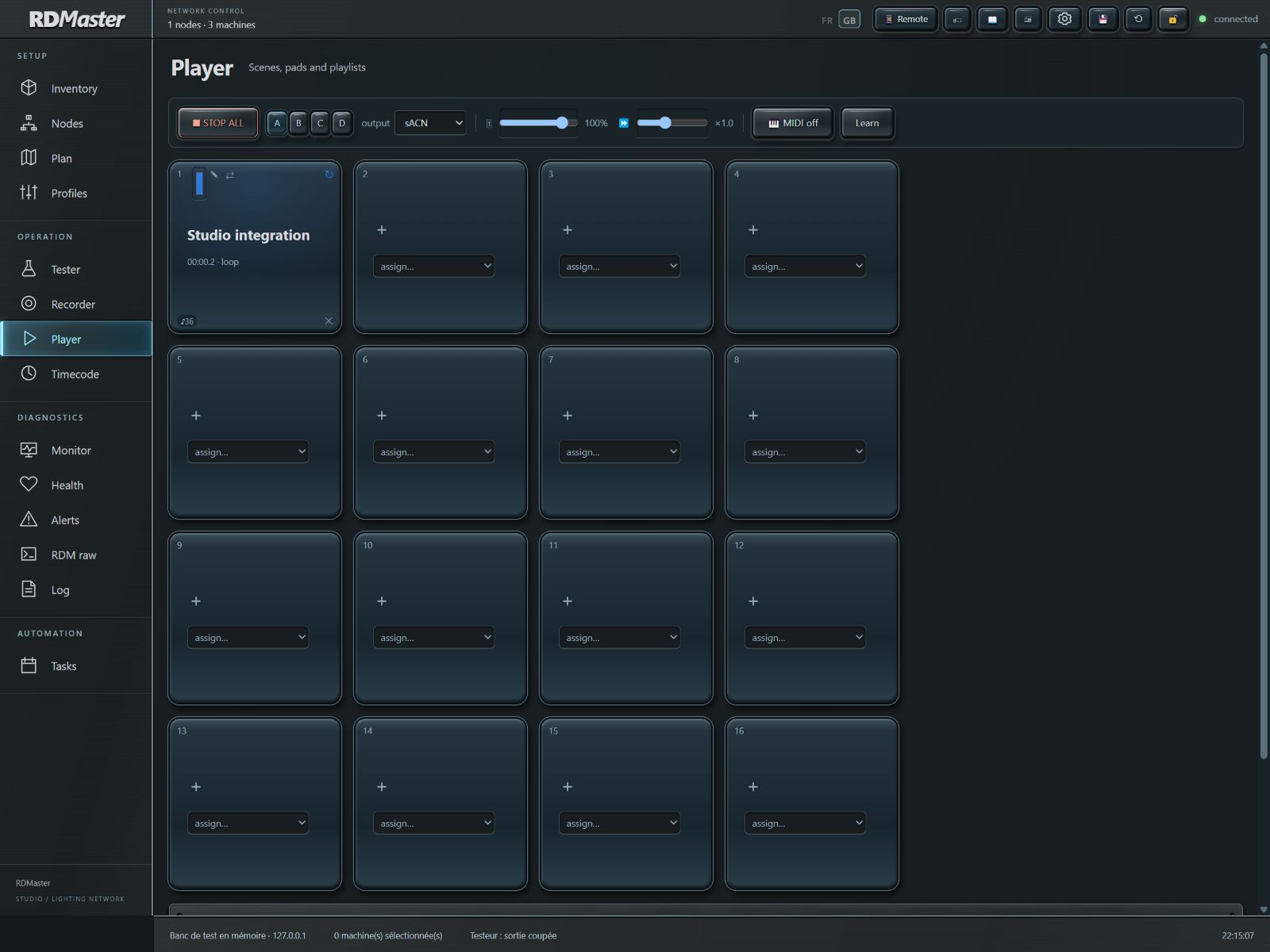
Player provides four banks A–D of assignable pads. Each pad recalls a recorded take with its own name, color, loop mode and MIDI assignment.
Player: banks, pads and playback controls · Click to enlarge
Procedure and checks
Choose a bank. On an empty slot, open Assign and select the required take.
Choose Player output before clicking a pad. The engine starts the take and its progress indicator lets you follow playback.
Use the pencil to rename, color to identify groups, ↻ for looping and ⇄ to change the assigned take.
Drag a pad onto another to swap their positions. Then verify the numbers used by your OSC/MIDI triggers.
STOP ALL stops the Player/Recorder engine. ✕ on a pad clears its assignment; it does not delete the take file.
Keep in mind
Triggering another pad replaces the current playback in this engine; do not treat the grid as sixteen layered players. Tester remains a separate output engine.
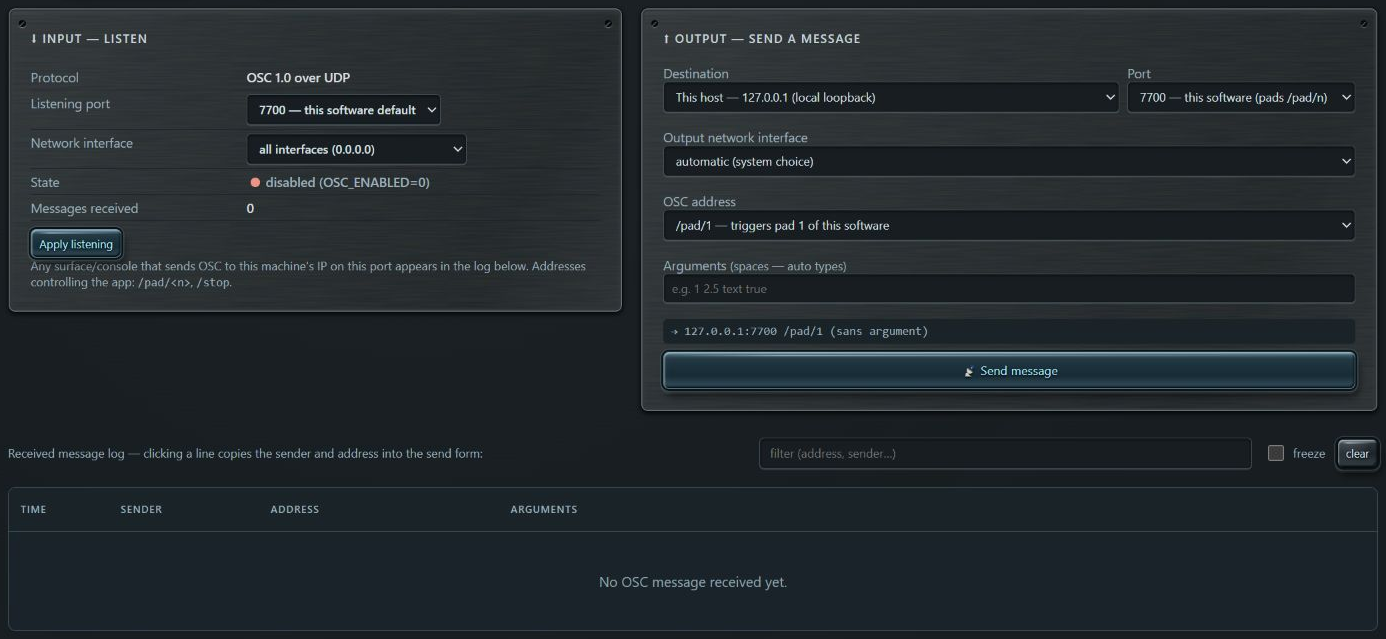
Player adjusts playback speed and a global master. Takes are raw frames: the engine does not know each channel’s role as the profile-based tester does.
Player: banks, pads and playback controls · Click to enlargeMIDI monitor: interfaces and messages · Click to enlargeOSC monitor: listening, sending and log · Click to enlarge
Procedure and checks
Set speed with the × slider: the interface offers 0.1 to 3 times nominal speed.
Use master carefully: it multiplies take channel values, including position, color and control, not just dimmers.
For MIDI, enable MIDI then Learn. Click the pad to assign and send the desired note from the controller. Verify the displayed note, then leave Learn before operation.
The ♪ symbol on a pad lets you rearm its assignment. Default notes start at 36 for consecutive pads.
For OSC, send the intended pad address to the PC’s listening IP/port and check the OSC log. /pad/1 triggers the first pad; /stop stops the player.
Keep in mind
Web MIDI devices are those available to the browser receiving permission. From a Remote, do not assume server PC MIDI ports are automatically exposed to the remote browser.
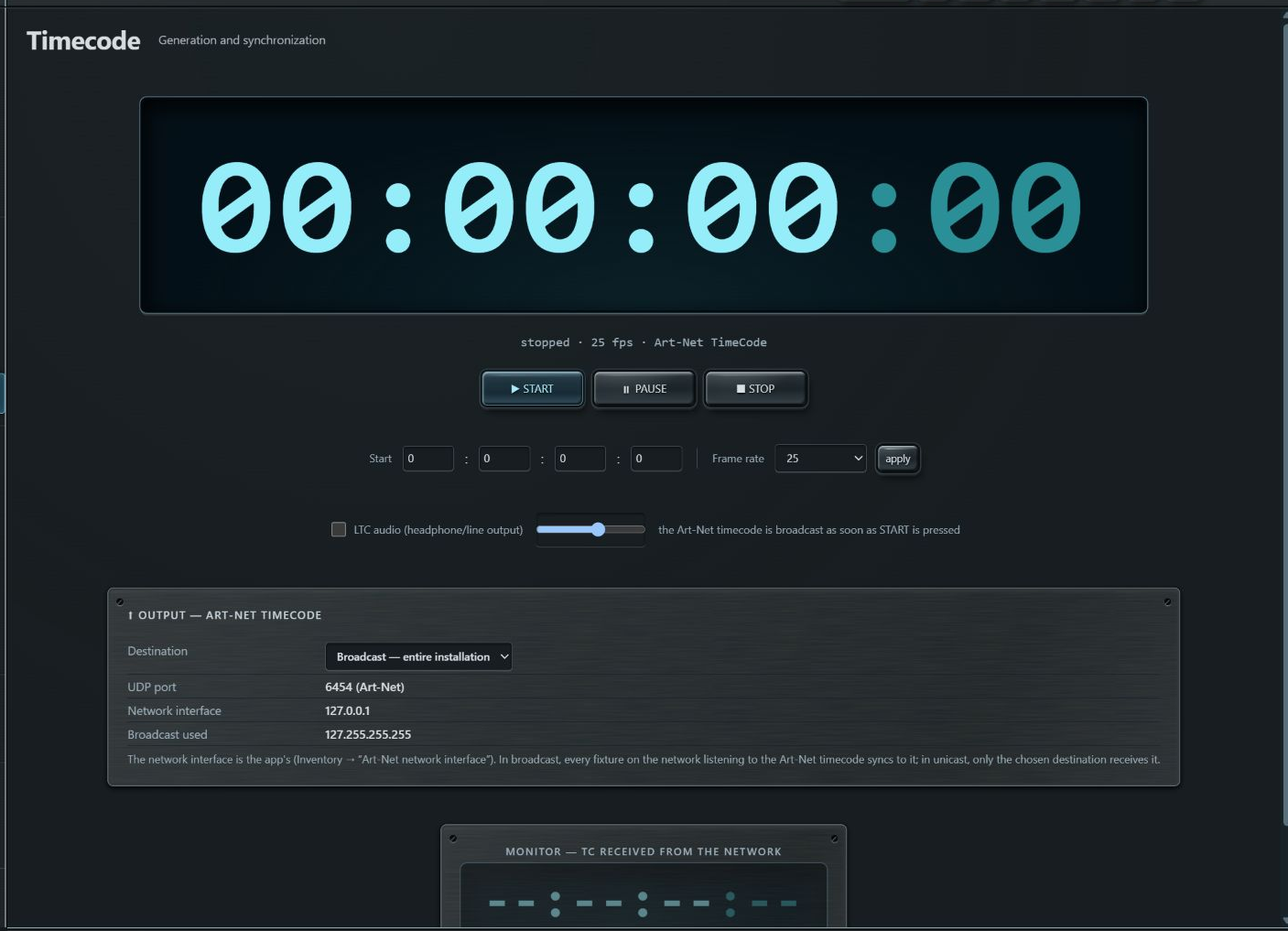
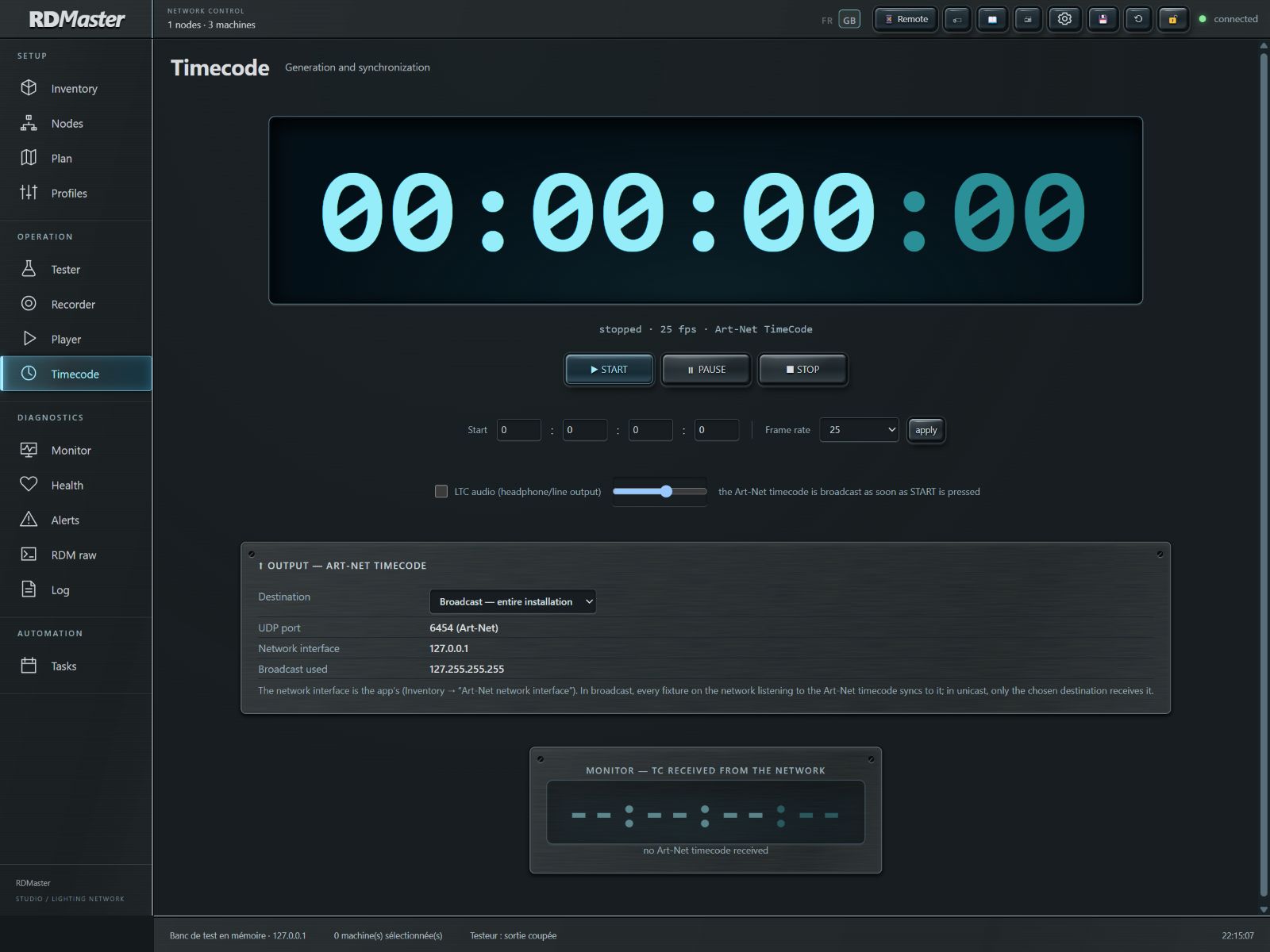
The generator sends a network time reference. It does not automatically start a Player take: each receiver must be configured to use this timecode.
Generator, destination, audio LTC and incoming timecode · Click to enlarge
Procedure and checks
Open Timecode and select the receiver’s frame rate: 24, 25, 29.97 DF or 30 frames per second.
Enter hours, minutes, seconds and frames for the start point, then apply the setting. The final field contains frames, not hundredths of a second.
Choose the Art-Net destination: broadcast for the relevant network, or the receiver’s IP address for targeted output. Check the network adapter in settings ⚙.
Start the generator. Check the transmitting indicator and advancing counter in RDMaster, then on the receiver.
Pause suspends progression; Stop stops the generator. Check the displayed position before restarting a show sequence.
Keep in mind
Use the same frame rate at both ends. 29.97 DF uses drop-frame numbering; it is not interchangeable with 30 fps.
Art-Net timecode is sent by the server. Audio LTC is produced by the open browser page: this distinction determines which device outputs the signal.
Generator, destination, audio LTC and incoming timecode · Click to enlarge
Procedure and checks
For LTC, open the Timecode page on the computer connected to the receiving device’s LTC input.
Enable audio LTC and set its level. Check the audio output actually used by this browser and its routing to the receiver.
Start the generator. Check timecode lock on the receiver before relying on synchronisation.
Keep this page open to maintain its audio generation. From a tablet Remote, audio belongs to the tablet, not automatically to the server PC.
For Art-Net timecode coming from a console, watch the input area: value, frame rate, source and signal freshness. Distinguish this input from the generator’s counter.
Keep in mind
LTC is a synchronisation signal, not an audio programme track. Its generation depends on page activity and the audio system.
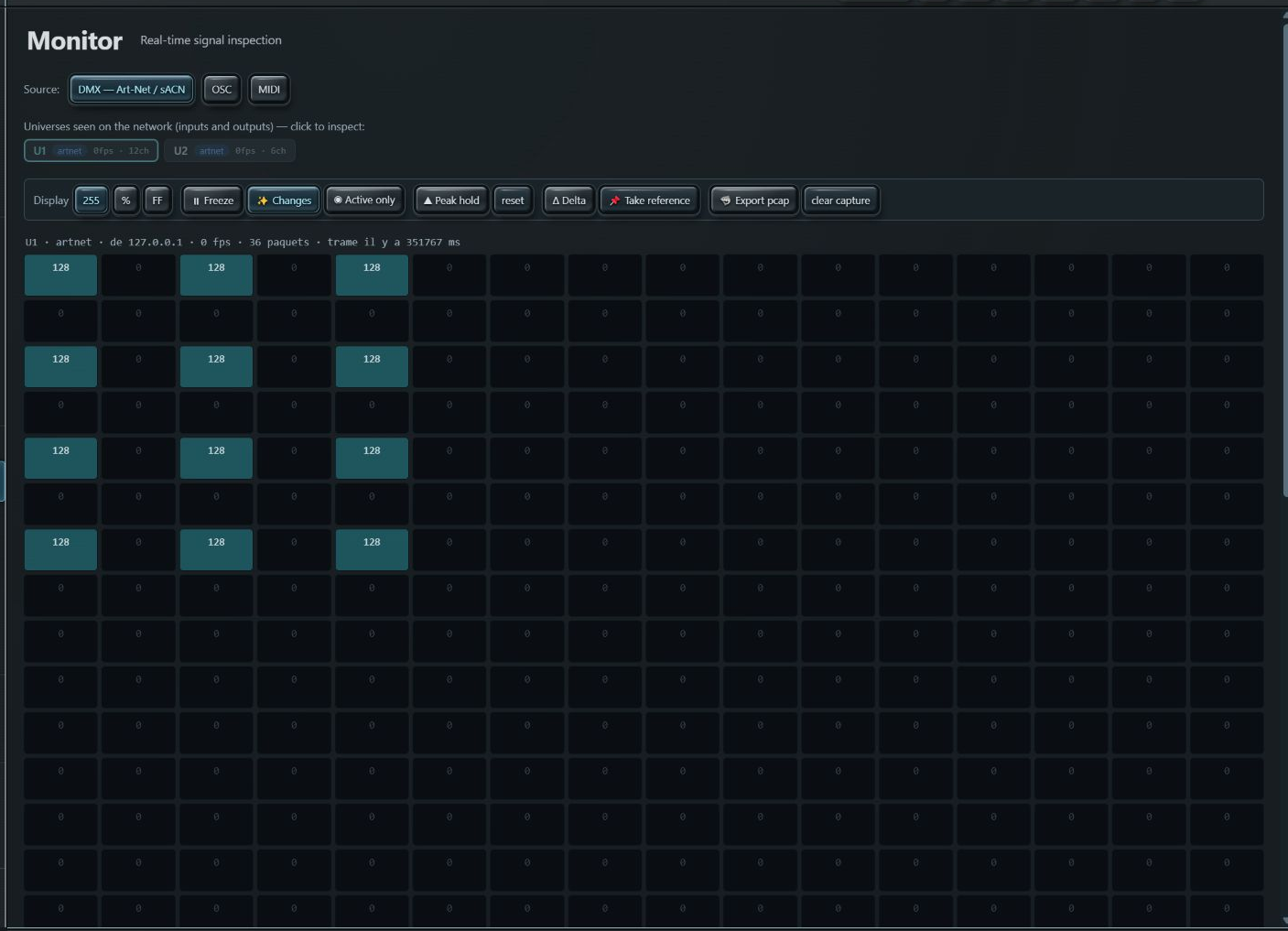
The monitor displays data received by RDMaster. Check stream presence, universe and values before investigating a fixture fault.
DMX monitor: universes, values and capture tools · Click to enlarge
Procedure and checks
Open Monitor, then DMX. Choose the universe to inspect from the available streams.
Select the appropriate value format: decimal, percentage or hexadecimal. This changes representation, not DMX content.
Use active-channel filters and change indicators to locate useful values quickly.
Freeze the display to read a stable state, then unfreeze to resume observation. Freezing the screen does not stop network streams or output.
Click a channel to open its inspector: current value, alternative formats, peak and recent history. Close it with its cross.
Keep in mind
A zero-valued channel is valid data. An empty or unchanged grid may also result from a wrong universe, a filter, missing packets or a frozen display. Receiving a stream does not prove every fixture receives it.
Web MIDI uses interfaces on the device running the page. Enabling it may require browser permission and a compatible context.
MIDI monitor: interfaces and messages · Click to enlarge
Procedure and checks
Open Monitor → MIDI and click Enable MIDI. Grant browser access if prompted, then check the detected inputs.
Play a note on the controller and check its input, channel, message type, data and hexadecimal bytes.
Hide Clock and Active Sensing to reduce display noise. Use filtering, Freeze and Clear to isolate an event.
To send, choose the MIDI output, type and channel. Fields change for Note On/Off, Control Change, Program Change, Pitch Bend or transport.
Check the preview, then send to the intended device. MIDI activation also serves notes assigned to Player pads.
Keep in mind
Selecting an Art-Net adapter cannot make a Remote browser support Web MIDI. A MIDI note, an OSC message and a DMX frame belong to three different protocols.
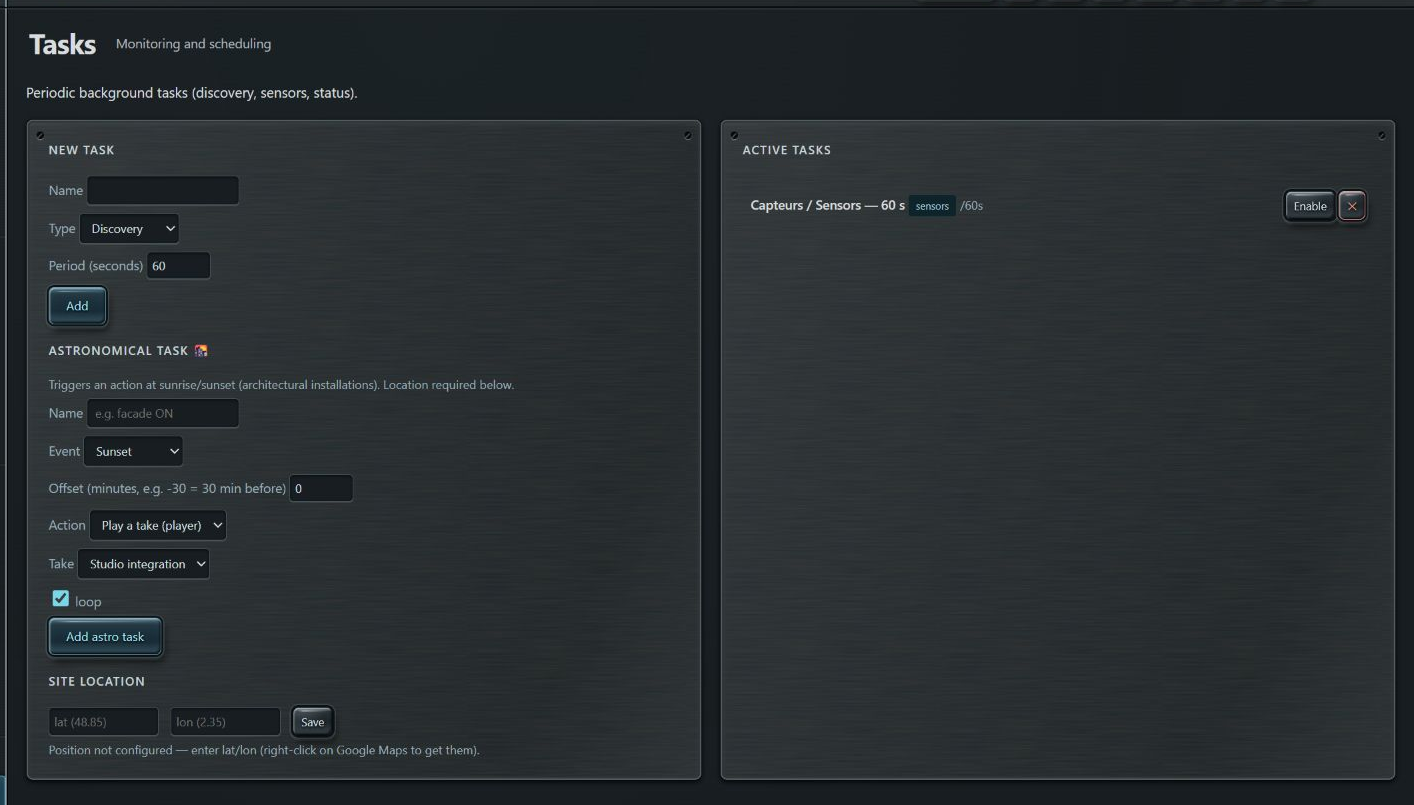
Astronomical tasks use the site location to trigger take playback or stop the Player.
Periodic tasks, astronomical scheduling and site location · Click to enlarge
Procedure and checks
In Tasks, scroll to Site location. Enter decimal latitude and longitude, then Save.
Check the calculated sunrise and sunset times and the PC clock. Use the installation site’s coordinates.
Name the astronomical task and choose Sunrise or Sunset.
Set the offset in minutes: -30 means 30 minutes before; +15 means 15 minutes after.
Choose Play take or Stop player. For playback, choose the take and looping, then add the task.
Check its enabled state and execution in the Log. Also check Player output protocol before leaving the installation running.
Keep in mind
A newly enabled task may catch up with an already elapsed occurrence depending on its history. Prepare and verify timings on a controlled installation; this mechanism does not wake a powered-off PC.
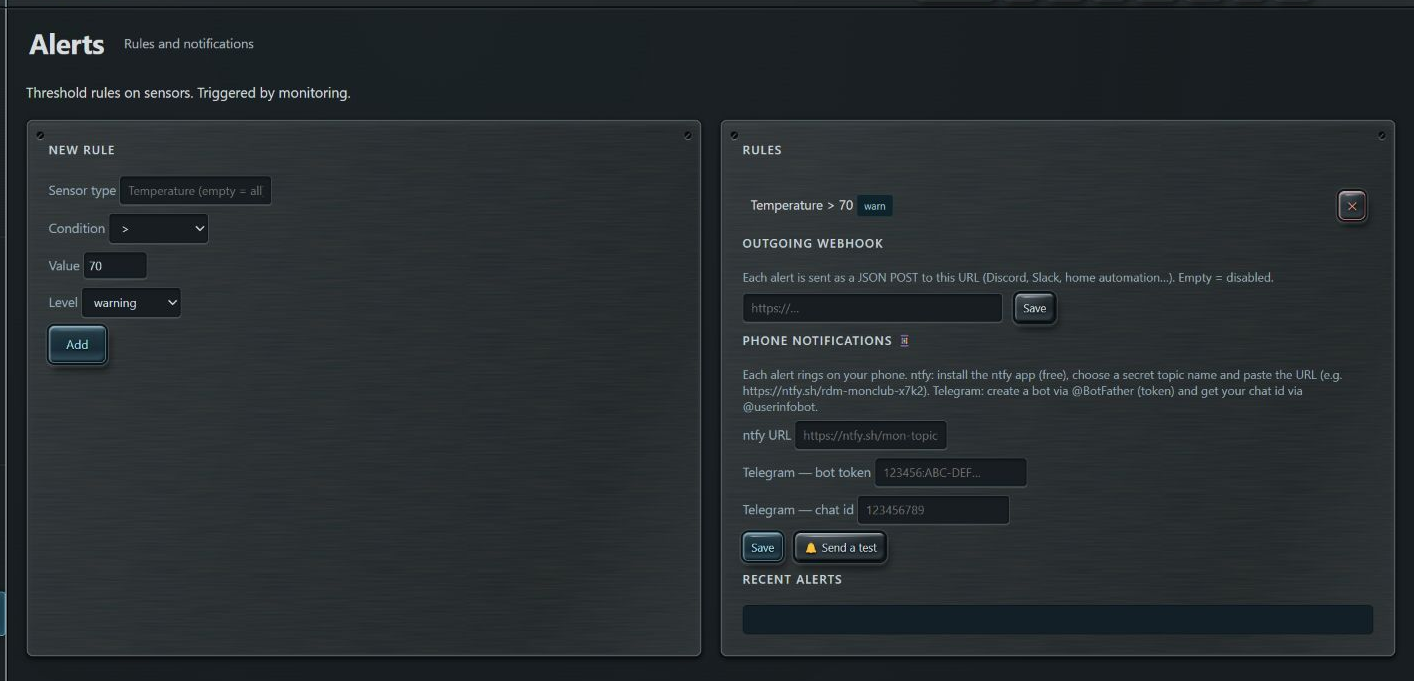
A rule compares a sensor reading with a threshold. It requires readings refreshed by monitoring or a Sensor read task.
Threshold rules, webhook and notifications · Click to enlargeSensors: type, unit, values and history · Click to enlarge
Procedure and checks
First open a fixture’s Sensors panel to check the exact type, unit and measurement range.
In Alerts, enter the sensor type. Leaving it empty applies the rule to all types: avoid mixing incompatible units.
Choose > or <, enter the threshold and warning or error level, then Add.
Enable a sensor-reading task suited to the rig. A rule alone does not create periodic measurements.
Watch recent alerts and the Log. Set thresholds according to your hardware specifications and remove test rules after validation.
Keep in mind
70 in the screenshot is an example, not a universal temperature limit. A continuously true condition can generate repeated alerts as readings arrive; the rule does not automatically shut down the fixture.
Notifications forward alerts to an external service configured by the user. They require server connectivity to that service.
Threshold rules, webhook and notifications · Click to enlarge
Procedure and checks
For a webhook, enter a URL able to receive RDMaster’s alert JSON POST, then Save. An empty URL disables this webhook.
For ntfy, enter the full URL of the topic followed on your phone. Choose a topic that is not easily guessed.
For Telegram, enter the bot token and destination chat ID in the provided fields.
Save settings before Send test. This button actually sends a message to the configured destinations.
Verify delivery at the destination, then test a real rule and also check the local Log.
Keep in mind
A generic webhook does not automatically convert JSON to every service’s required format. An adapter may be needed. Tokens and private URLs should not appear in shared screenshots or reports.
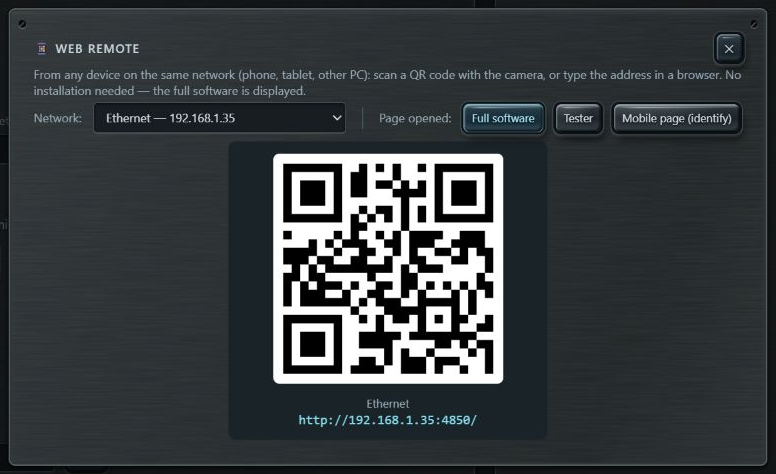
Web Remote displays the application from another device on the same network. Network operations still execute on the server PC.
Web Remote: network interface, page and QR code · Click to enlarge
Procedure and checks
Click Web Remote in the top bar. Choose the network interface reachable from the tablet.
Choose Full application, Tester or Mobile page (identify). Each choice updates the link and QR code.
On the other device, open the displayed address or scan the QR code. Do not copy 127.0.0.1: that address points to each device itself.
Check that the interface reports a server connection, then access the same installation and data.
If the page does not respond, check Wi-Fi, the PC IP address, the HTTP port and firewall network rules for RDMaster.
Keep in mind
The native Android application and Web Remote are distinct interfaces. This manual illustrates the PC interface and its Web Remote. Browser-dependent functions such as MIDI and audio LTC remain local to the page enabling them.
A complete backup archives the application data folder. Make one before migrating or significantly changing a rig.
Top bar: Remote, labels, manual, report, settings, backup and lock · Click to enlarge
Procedure and checks
Click Backup in the top bar and keep the .rdmbackup file in an identifiable location, with its date and installation name.
Also export important large takes separately. The archive skips individual files of 128 MiB or larger.
Before restoring, stop current operations and back up the present state. Leave operating lock mode if it is active.
Choose Restore and select the intended archive. Restoration writes files present in the archive; it does not first wipe the entire folder.
Restart RDMaster as requested to reload all data. Then check patch, plans, memories, takes, tasks and network settings.
When updating, keep all distribution files alongside RDMaster.exe. PC version data normally lives in the application’s user data folder.
Keep in mind
Colour and some interface preferences are stored in the browser. A server data backup does not guarantee their transfer, nor that of machine-bound license activation.
These workflows connect the functions detailed in previous chapters. Validate each step before continuing.
Inventory: discovery, selection, addressing and export · Click to enlargeTester output: activation, protocol, master and blackout · Click to enlargeRecorder: transport, universe selection and takes · Click to enlarge
Procedure and checks
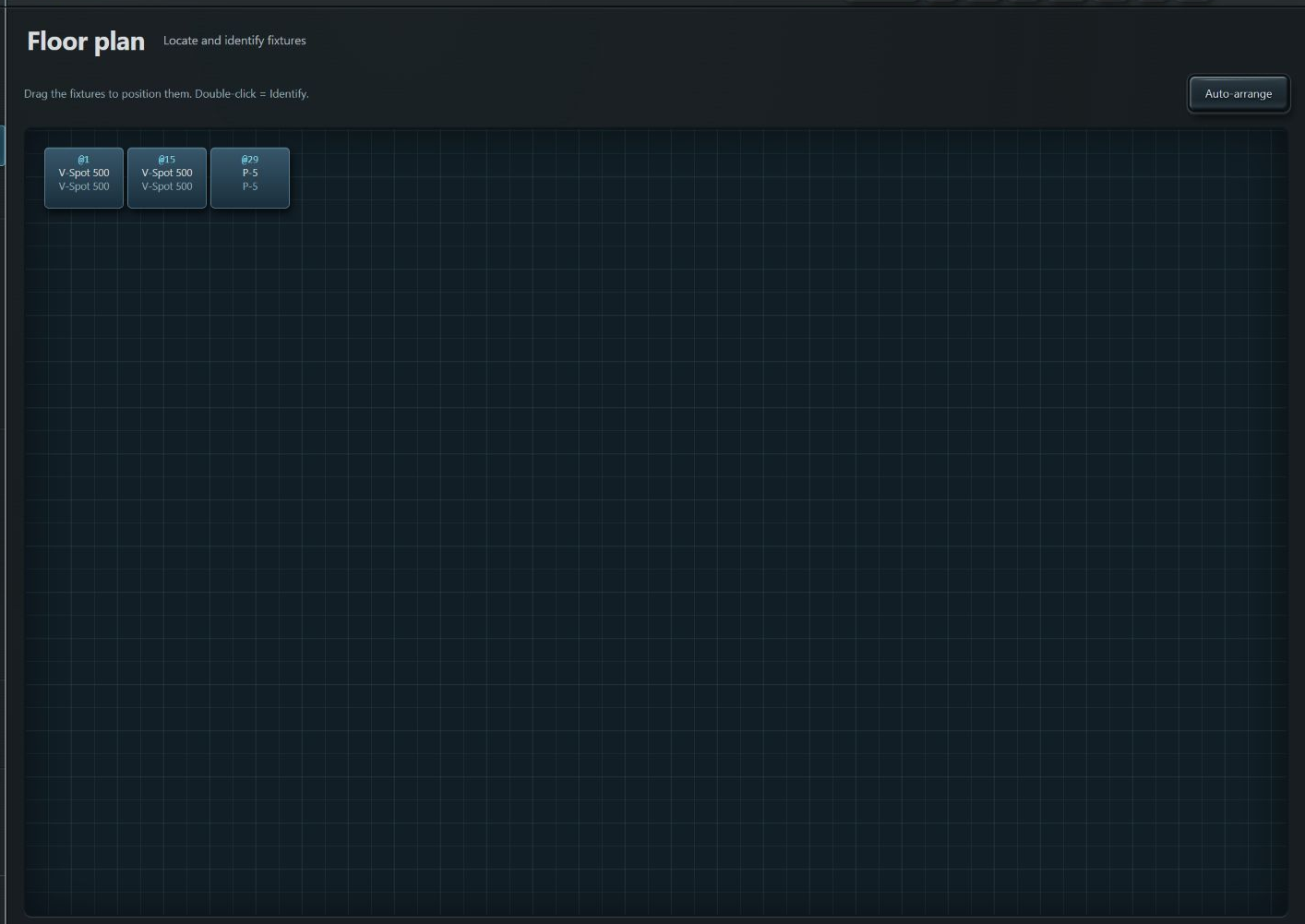
Commissioning: choose the adapter → ArtPoll → Full Discovery → verify UIDs → set modes and addresses → check conflicts → rename → position fixtures on the plan → take a rig reference → export report and backup.
Fixture testing: choose the exact profile → patch mode, universe and address → select the fixture → check destination and output → test intensity, colour and position → inspect the DMX sheet → store useful states → stop effects, sequences and output when finished.
Capture and repeat: check incoming universes in Monitor → apply the range in Recorder → check universes → record → stop and name the take → choose output → replay → assign a pad or create a playlist → export the take.
Before leaving the venue: check Tester, Player and timecode generator states; they are separate. Back up data and note which tasks need to stay active.
First identify the affected layer: page access, network discovery, RDM, DMX input or DMX output. Success in one layer does not automatically validate the others.
Settings: Art-Net adapter and colour wheel · Click to enlargeDMX monitor: universes, values and capture tools · Click to enlarge
Procedure and checks
Page unreachable: check RDMaster is running, the PC address and port are correct, and Remote is on a reachable network.
No node: check the adapter selected in ⚙, IP, subnet mask, cabling and broadcast network. Run ArtPoll again.
Node visible but no RDM fixtures: check RDM support, port enablement, DMX wiring and discovery. A DMX-only fixture remains testable through manual patching.
Fixture visible but no light: check mode and address, tester patch, selection, dimmer, shutter, master, blackout and actual output state.
Wrong colour or unexpected movement: check the profile, personality, fine channels, function ranges and possible address conflicts.
Empty take: distinguish monitored universes from universes checked for recording. Verify that a stream arrives during capture.
Playback has no effect: check output protocol, destination, universe, adapter and another possible transmitter. Player Stop does not replace checking Tester output state.
No alert: check sensor type, unit, comparison, threshold and an active reading task. For external notifications, also check the service and Internet access.
Command refused: check the padlock, hardware parameter support and detailed Log message.
No LTC or MIDI from Remote: check the remote device’s browser and peripherals; these functions are not automatically redirected to the server PC.
Keep these distinctions in mind to avoid confusion between patching, recorded data and backups.
DMX sheet for the focused fixture · Click to enlarge
Procedure and checks
UID: identifier of an RDM device. DMX address: start of its channels within a universe. Footprint: number of channels occupied by the active mode.
RDM profile: a set of settings applicable to fixtures. Tester / GDTF profile: channel and function definitions used to generate appropriate DMX values.
Memory: a stored tester state. Take: a time-based DMX capture. Playlist: an ordered list of takes and transitions.
.rdmbackup: server data backup. CSV: a readable inventory or results table. PCAP: packets for network analysis.
RDM provides configuration and diagnostic dialogue. DMX carries control values. Art-Net and sACN transport lighting data over IP; OSC and MIDI provide other controls.
Keep in mind
Demonstration screenshots: UIDs, IPs, sensor values and test names illustrate functions. They are not values to copy into a real installation.
These views put the targeted screenshots in context. They follow the sidebar navigation order.
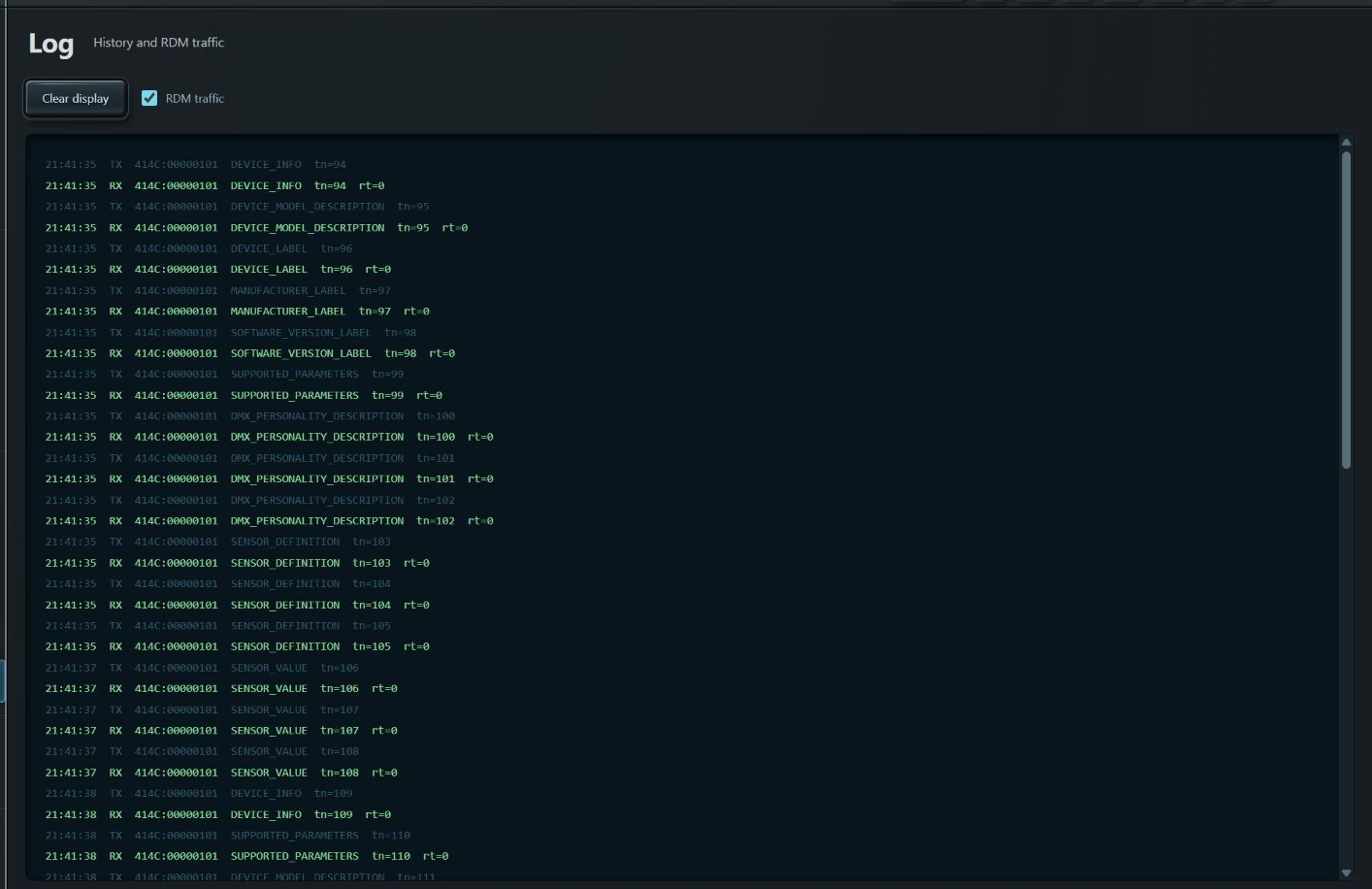
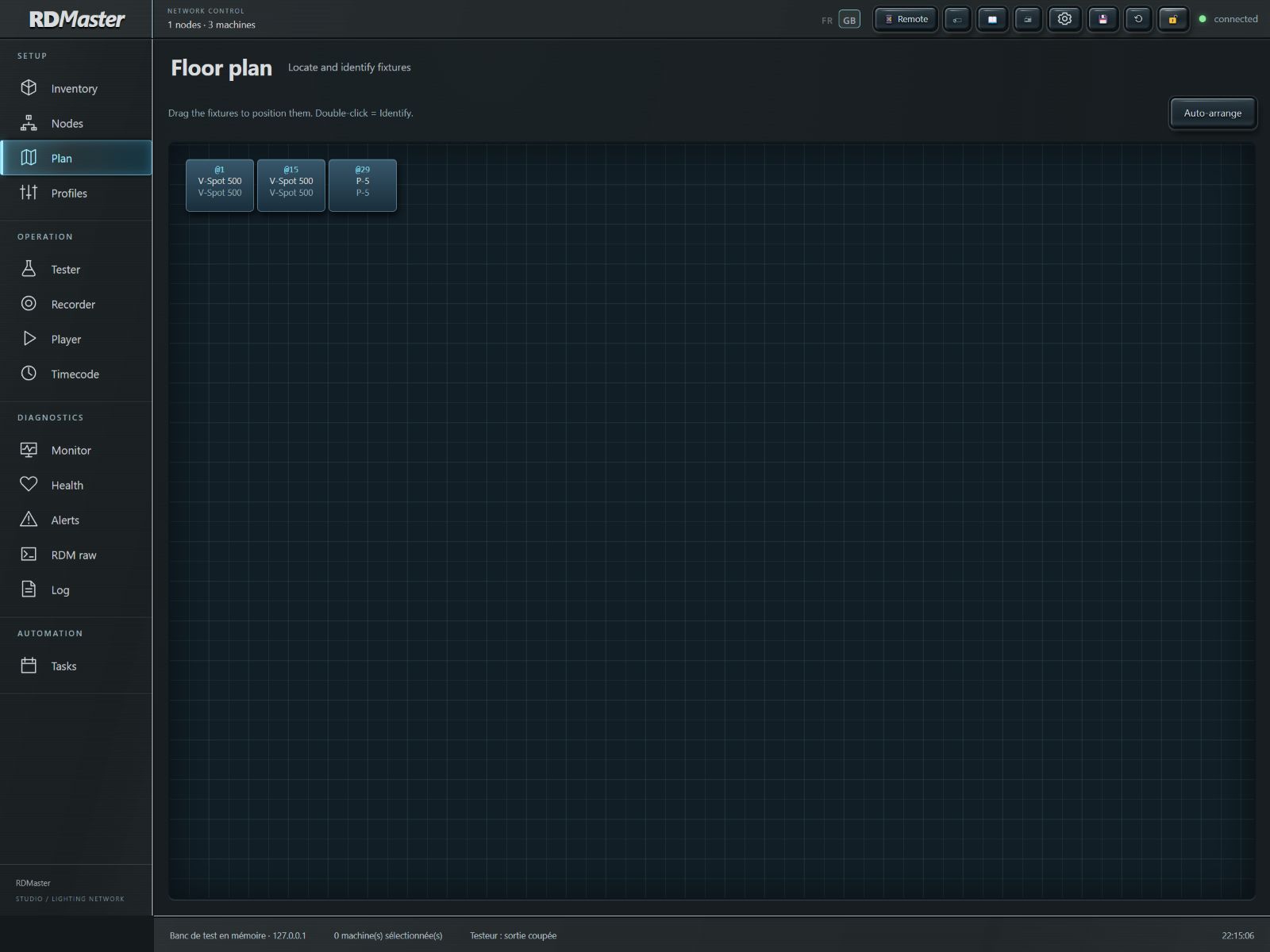
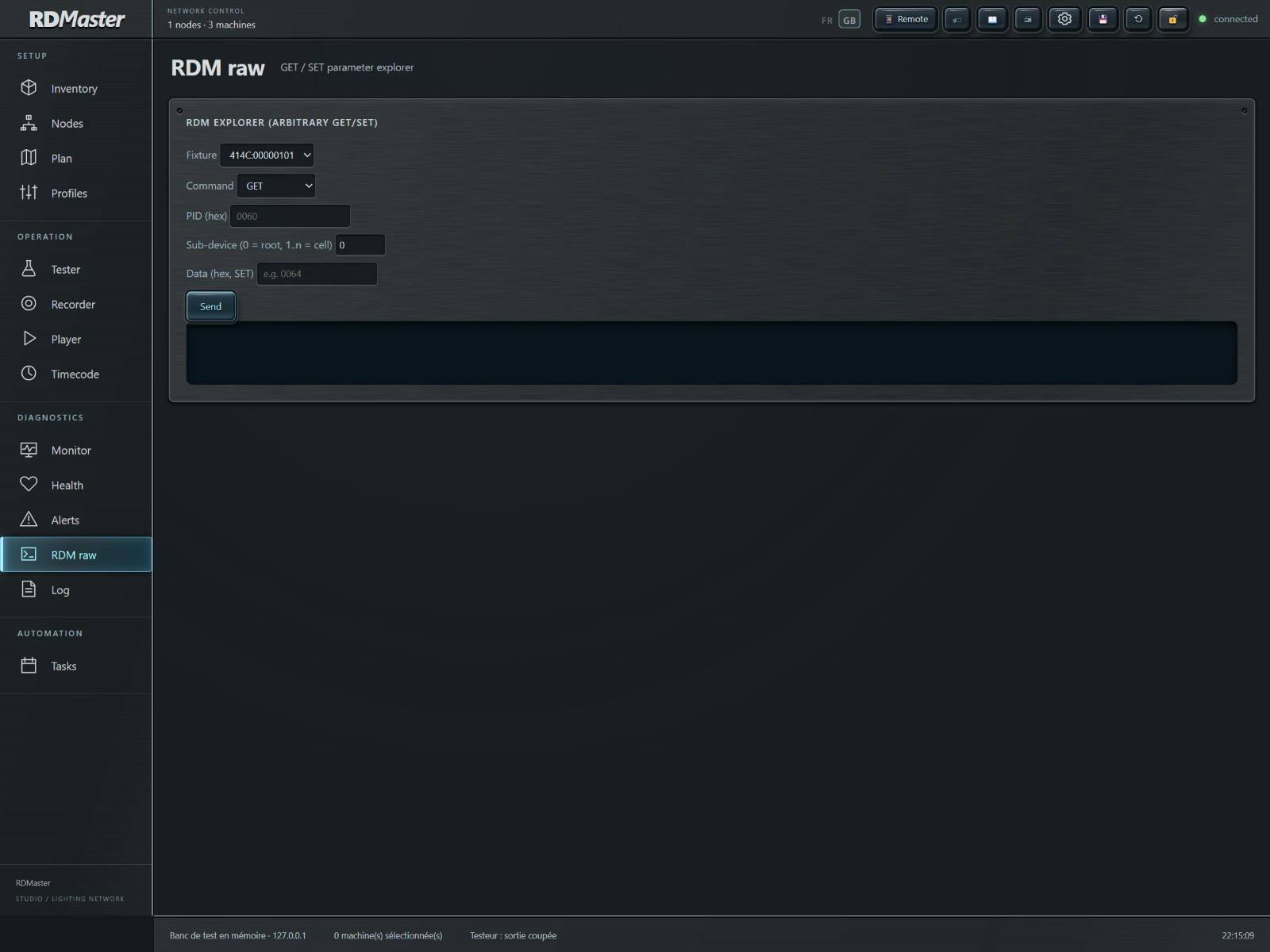
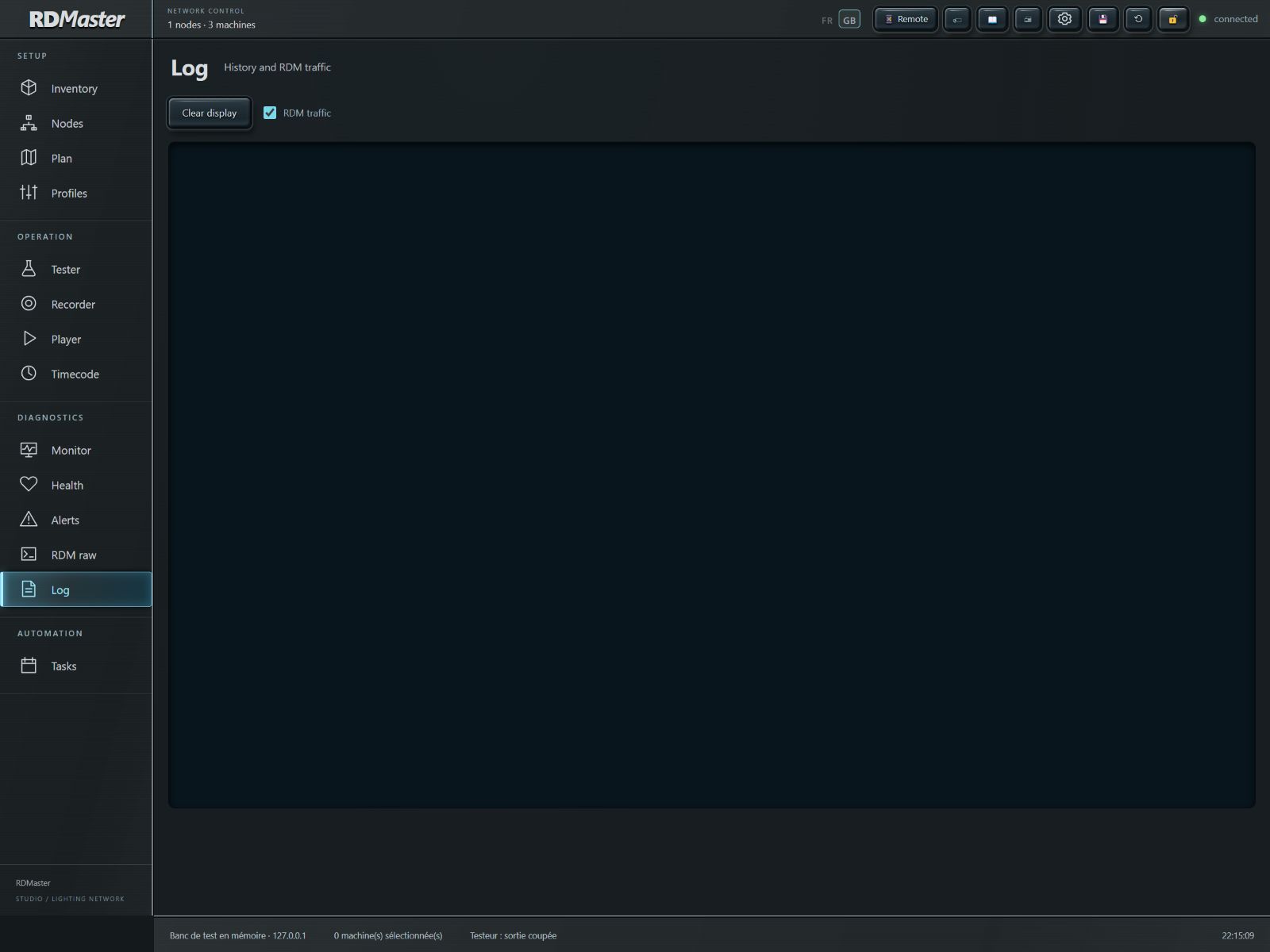
Inventory · Click to enlargeNodes · Click to enlargePlan · Click to enlargeProfiles · Click to enlargeTester · Click to enlargeRecorder · Click to enlargePlayer · Click to enlargeTimecode · Click to enlargeMonitor · Click to enlargeHealth · Click to enlargeAlerts · Click to enlargeRDM raw · Click to enlargeLog · Click to enlargeTasks · Click to enlarge