Prepare
Discover fixtures, check their addressing and organise your installation.
YOUR LIGHTING NETWORK. UNDER CONTROL.
RDM configuration, DMX testing, recording and diagnostics. RDMaster brings a lighting technician’s tools together in an interface with a character of its own.
RDMASTER / FULL TOUR
Explore all 14 tabs, from Inventory to Tasks. Click the centre image to enlarge.

RDMASTER
One application to prepare the rig, test fixtures, record streams and understand what is happening on the network.
Discover fixtures, check their addressing and organise your installation.
Work with attributes, recall memories and check how the hardware responds.
Record, play back and monitor data to repeat your tests and diagnostics.
01 / PREPARE
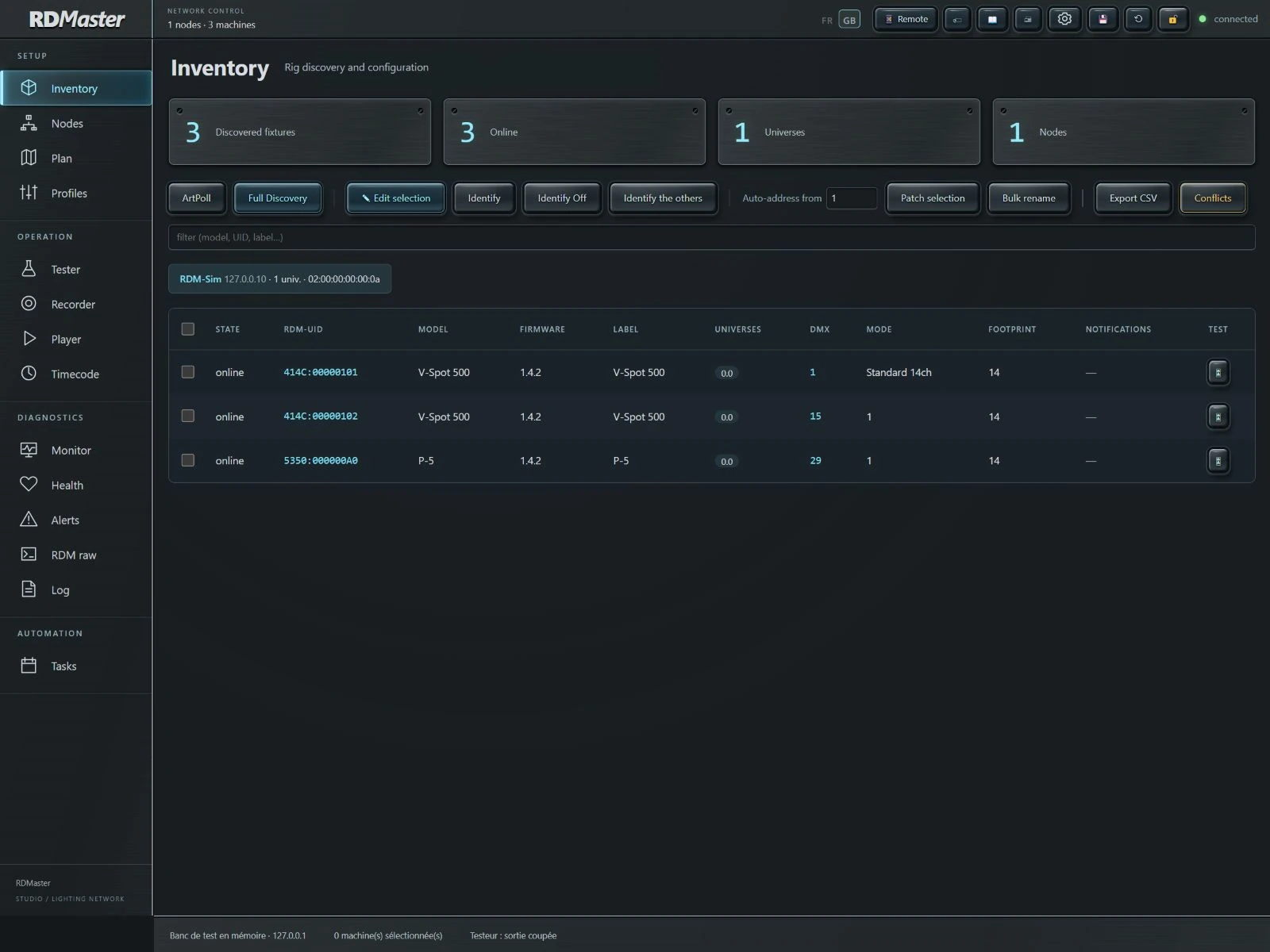
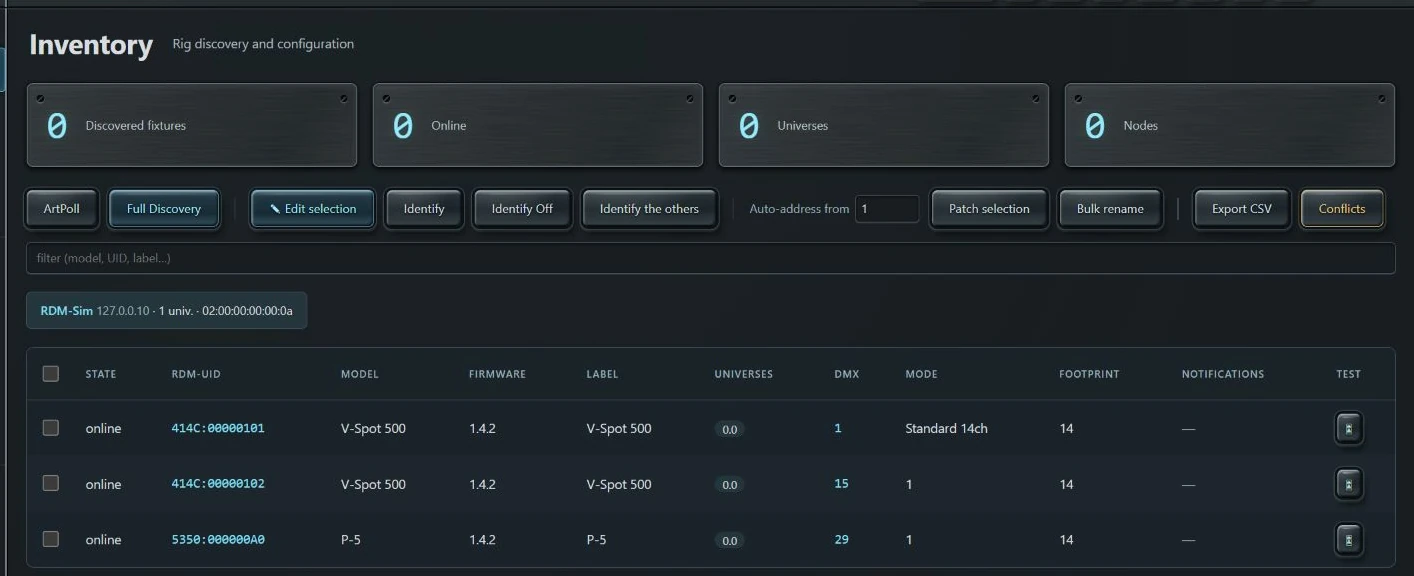
ArtPoll, RDM discovery, UIDs, addresses, modes and DMX footprints: bring the information you need into one inventory. Identify a fixture, rename a selection, prepare its addressing and export your inventory as CSV.
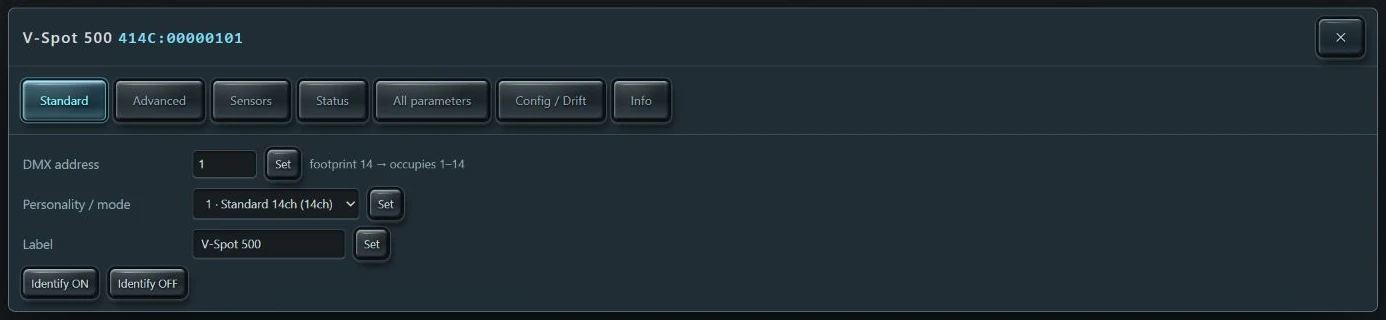
Set the label, start address and personality from the RDM fixture panel. Available parameters depend on the functions reported by each device.
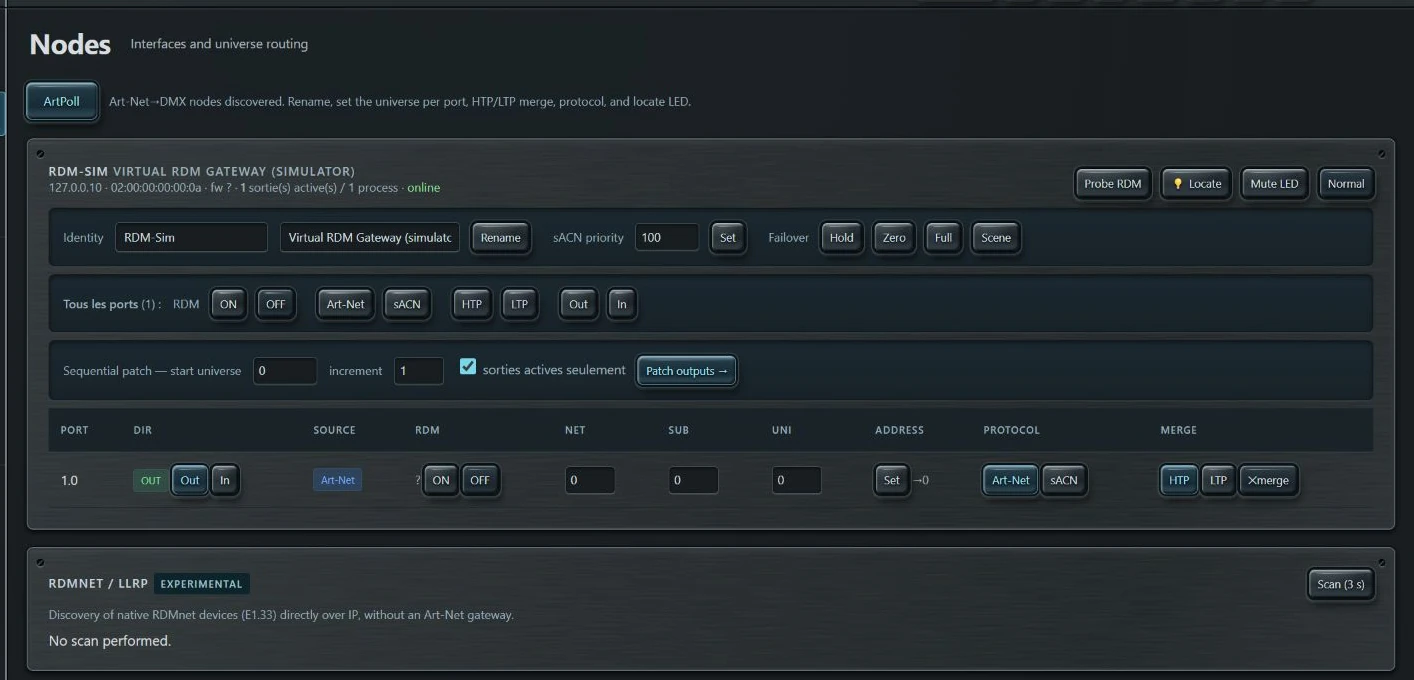
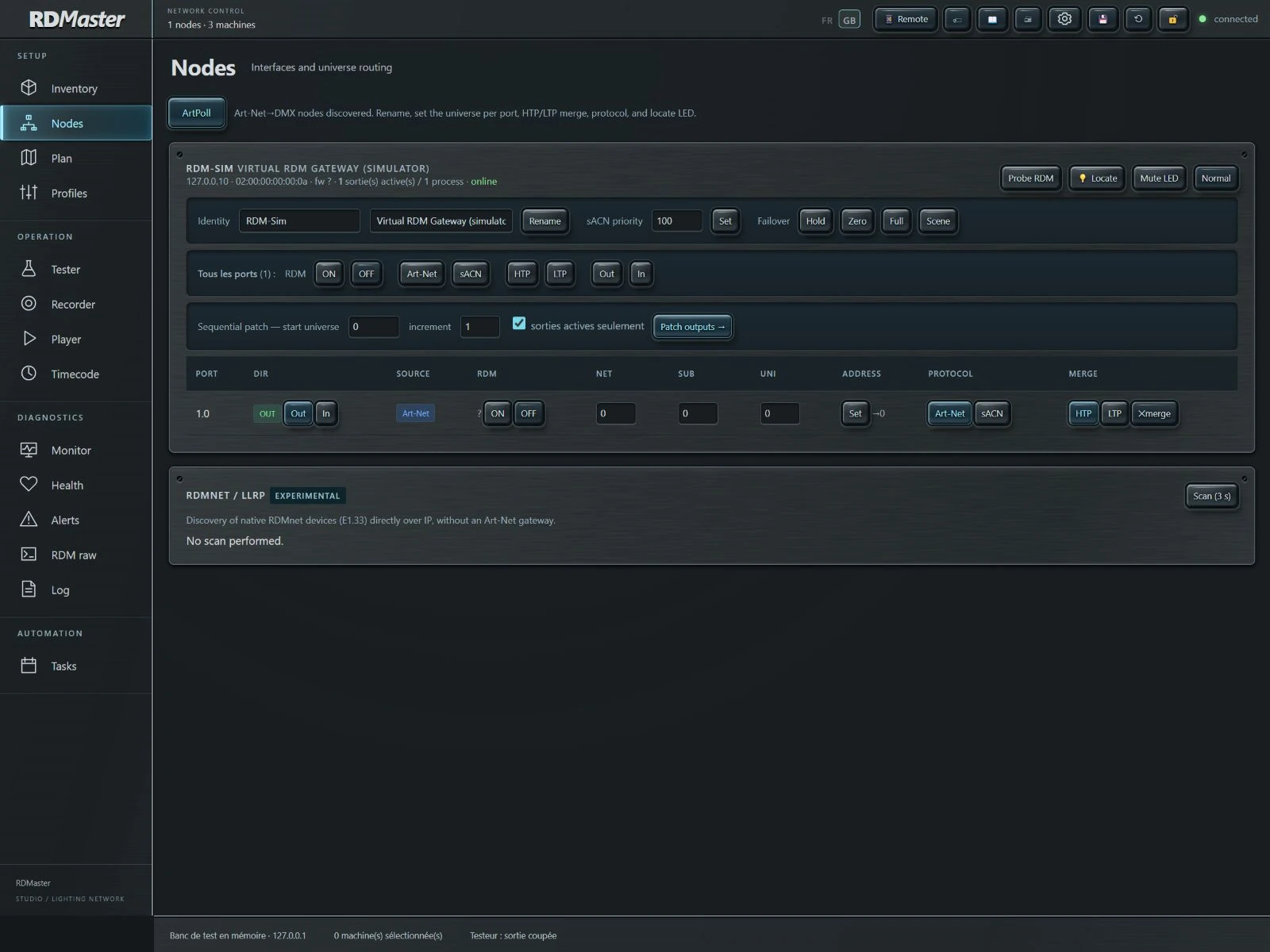
Inspect discovered Art-Net interfaces, ports and universes. Access supported node settings to prepare your lighting network distribution.
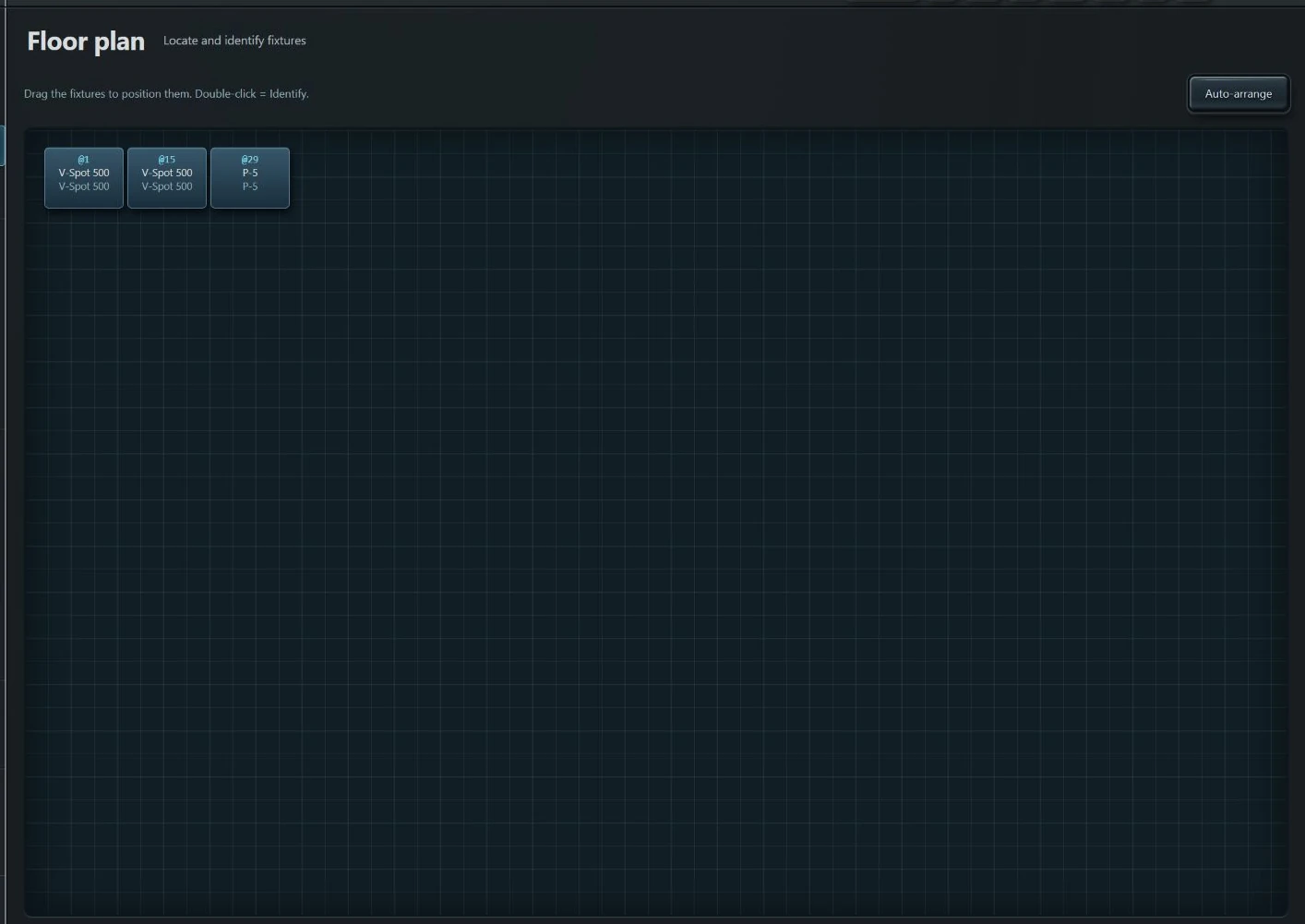
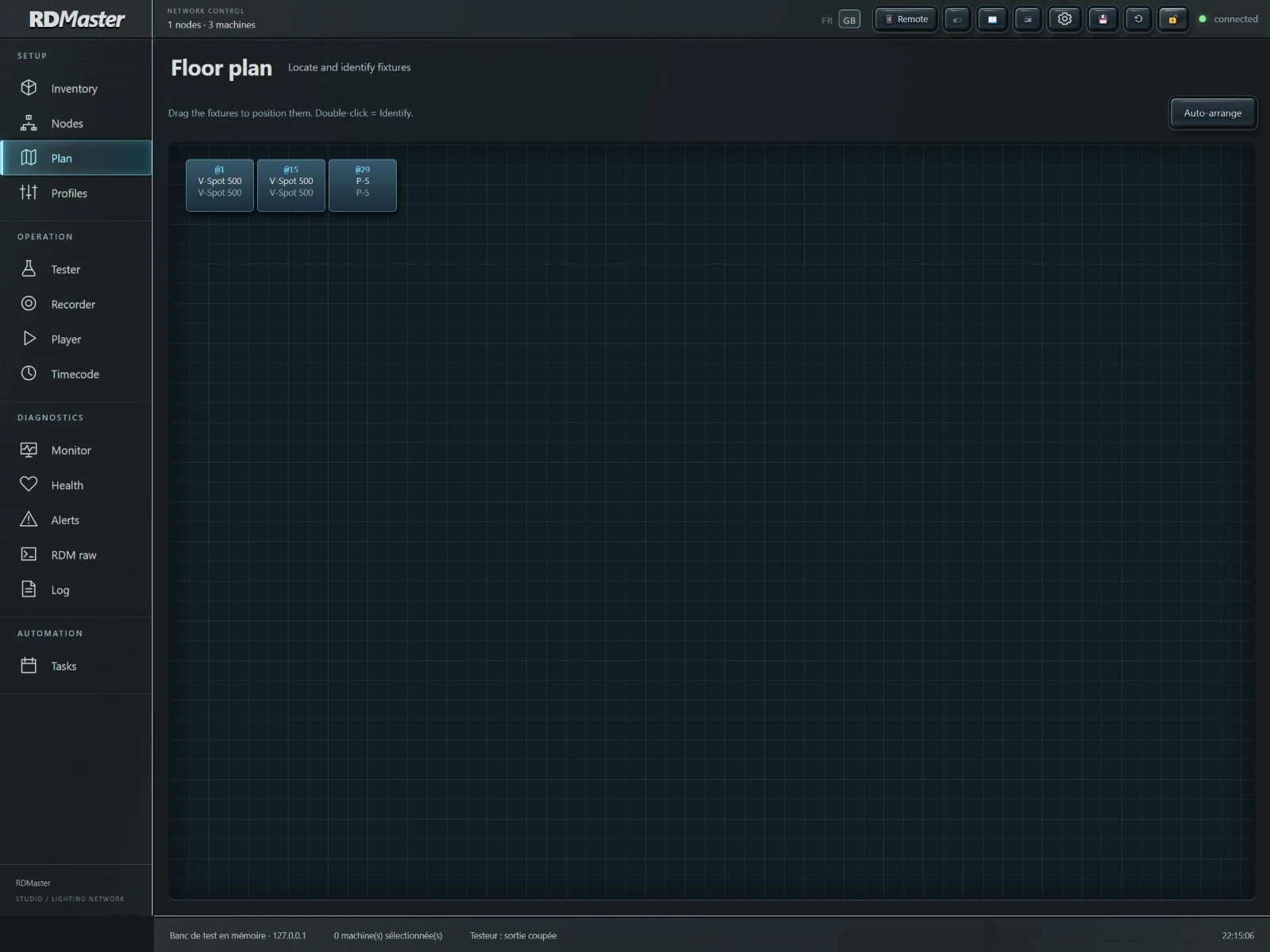
Place fixtures on a working plan, move them with a mouse or touch, then identify a fixture to locate it in the venue.
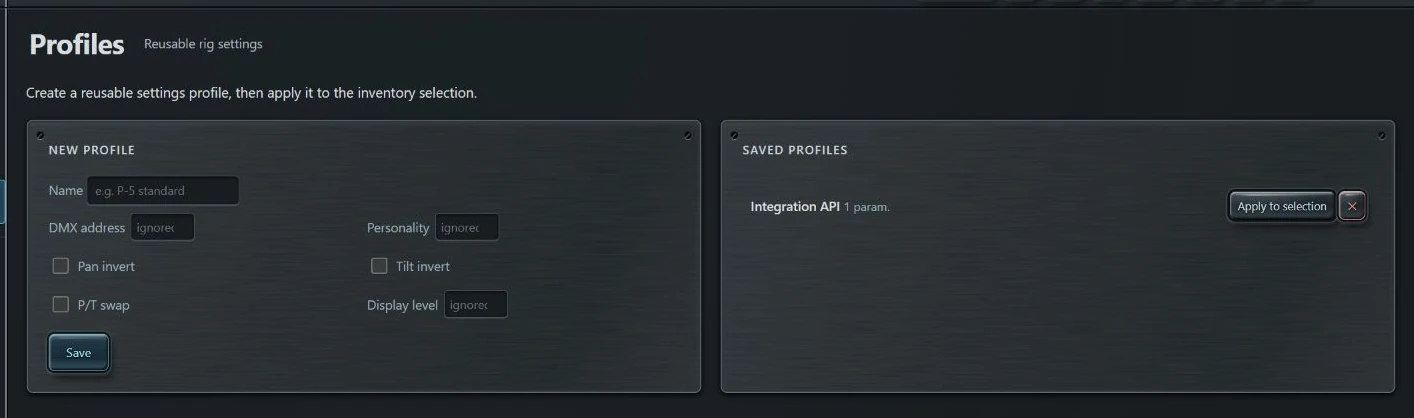
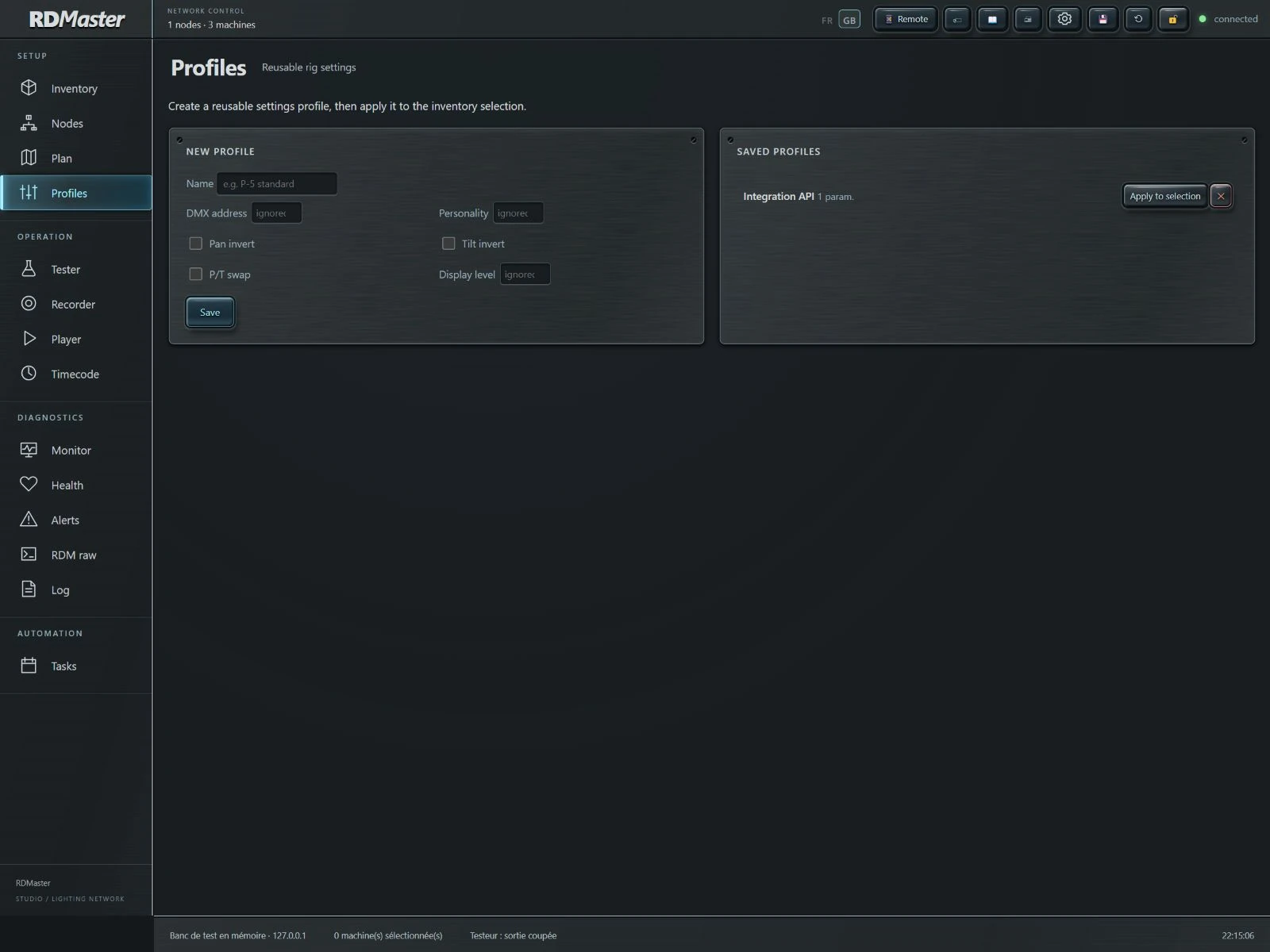
Prepare RDM setting profiles and apply them to your selection. References and snapshots help compare configurations when bringing a rig back into service.
02 / TEST
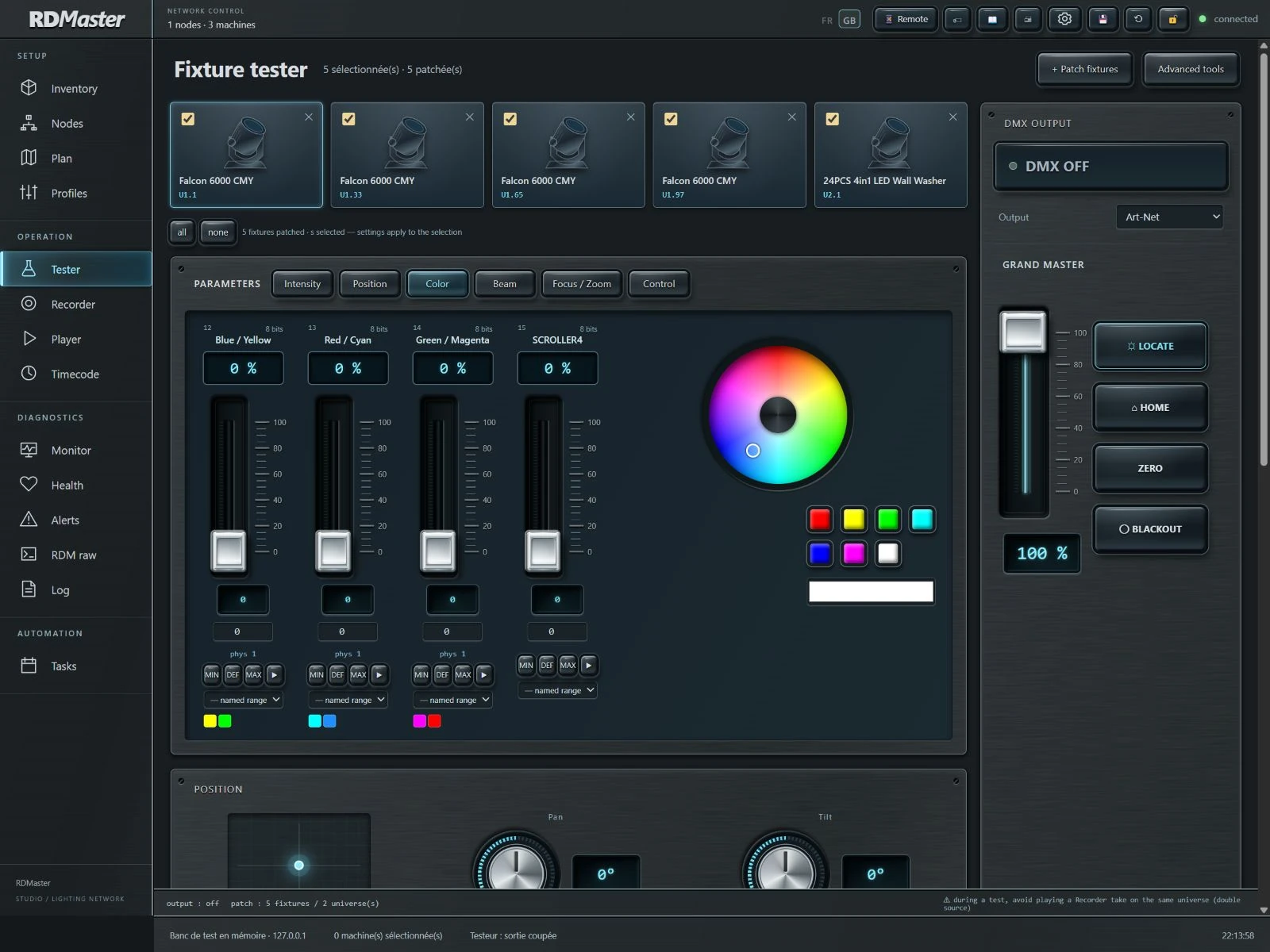
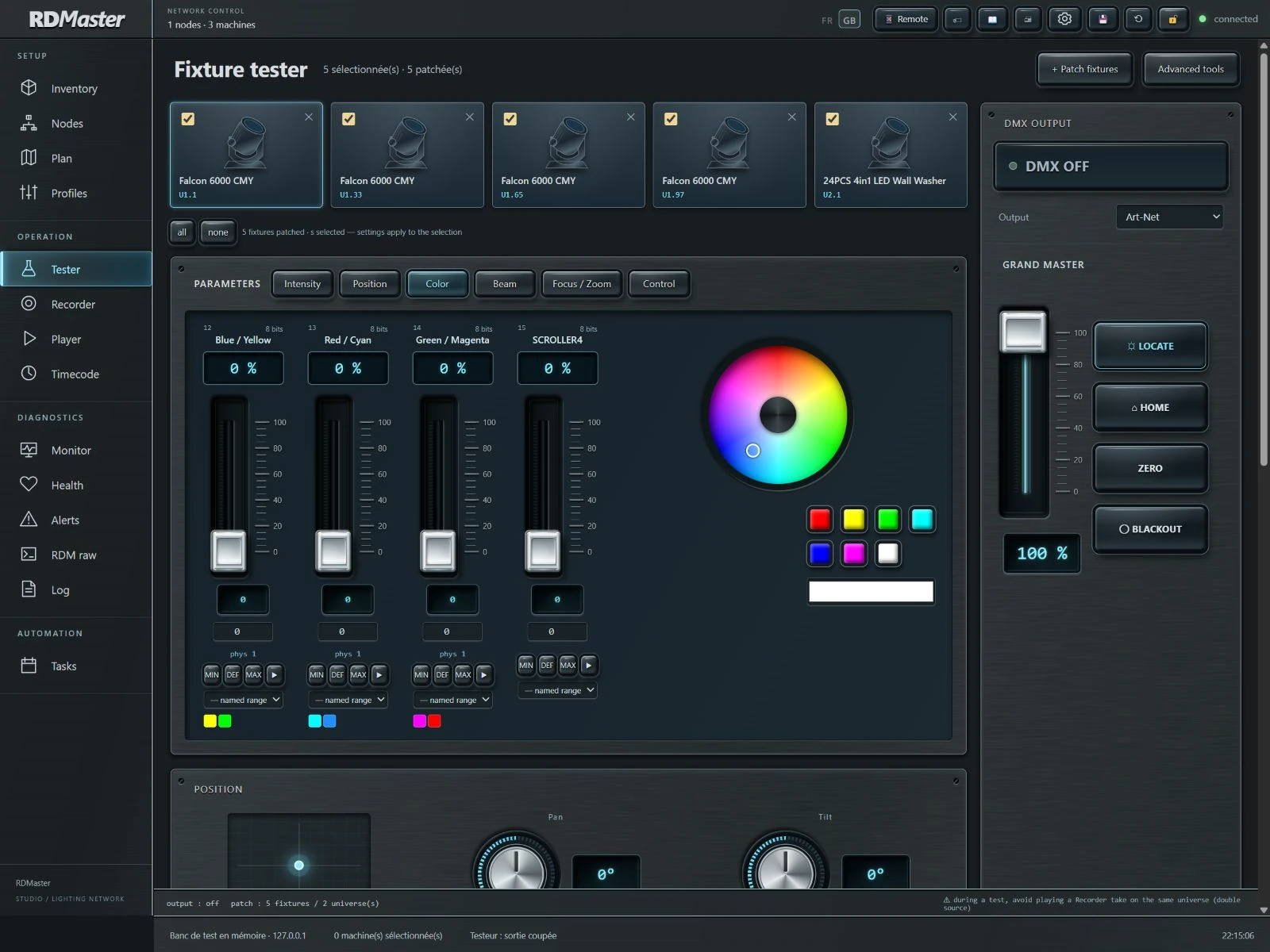
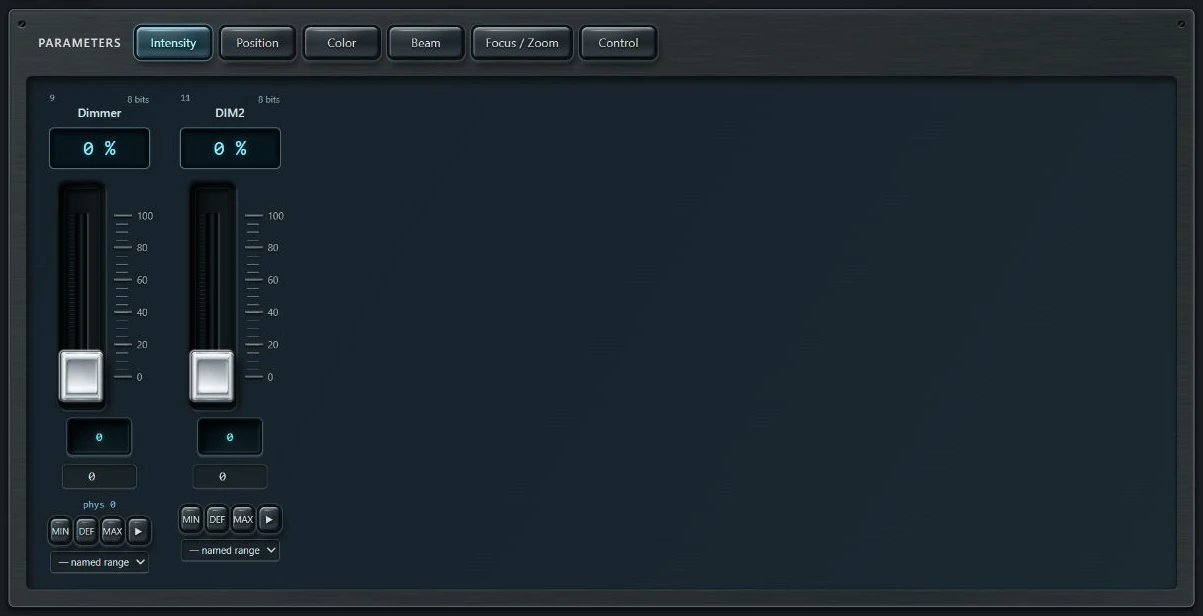
Intensity, value ranges and MIN, DEF and MAX controls: work with the attributes of your selection in an interface inspired by studio hardware.

Control pan and tilt with the XY pad and rotary controls. The fixture profile determines available attributes and resolution.
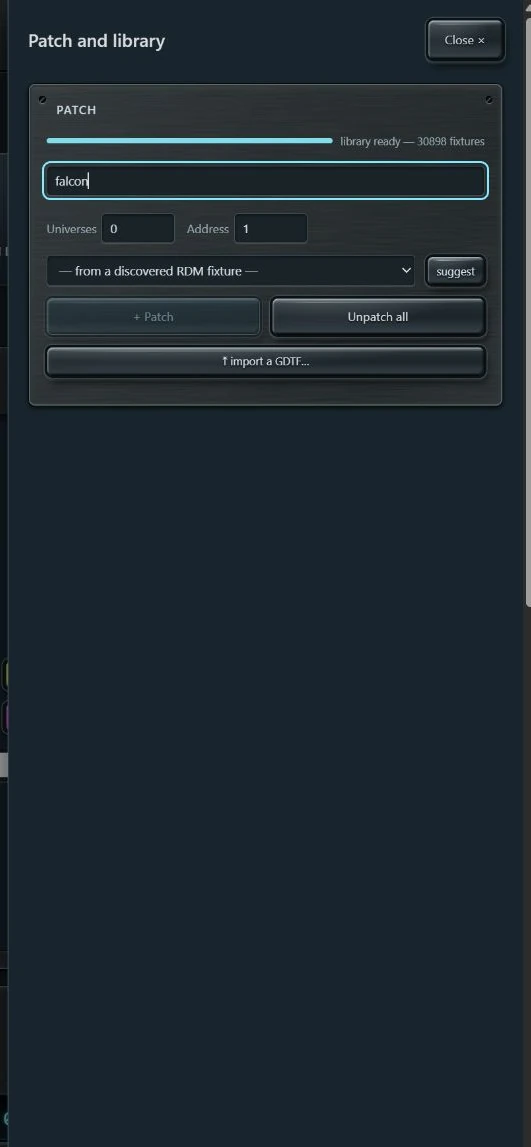
Choose the fixture, mode, universe and address. Import GDTF files to extend the library and check the behaviour of each channel.
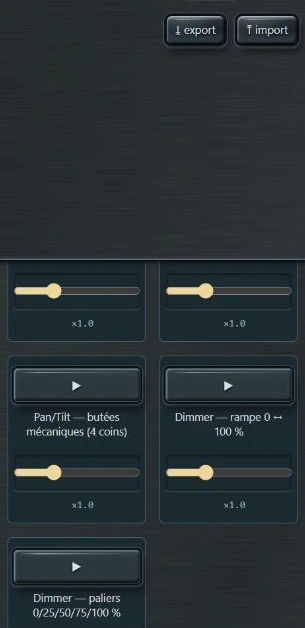
Run profile macros to test fixture functions. Extend your checks with effects and the burn-in workflow.
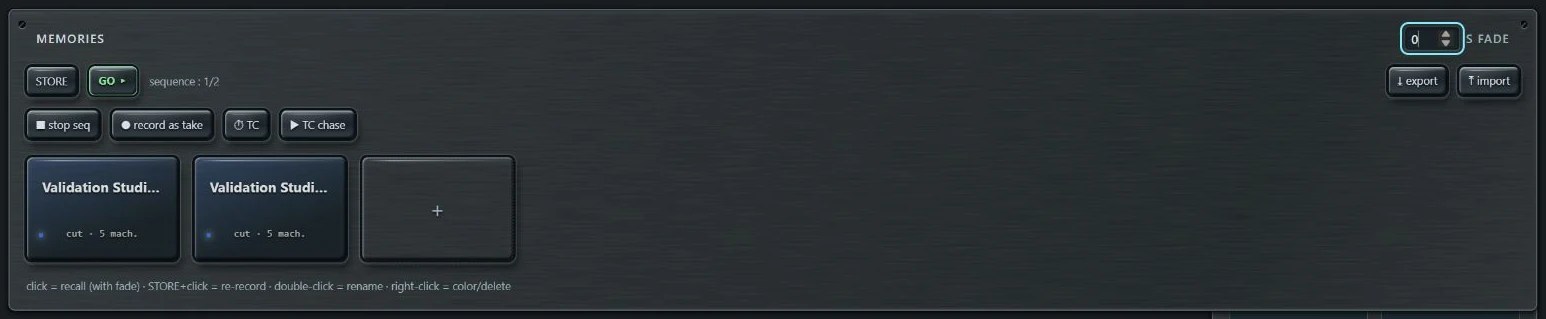
Store tester states, organise memories and prepare transitions. Sequences, follows and timecode cues help you repeat your tests.
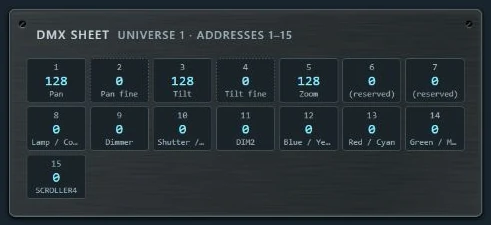
The DMX sheet displays values for the focused fixture. A precise companion to the faders for checking coarse and fine channels and profile functions.
03 / RECORD & REPLAY
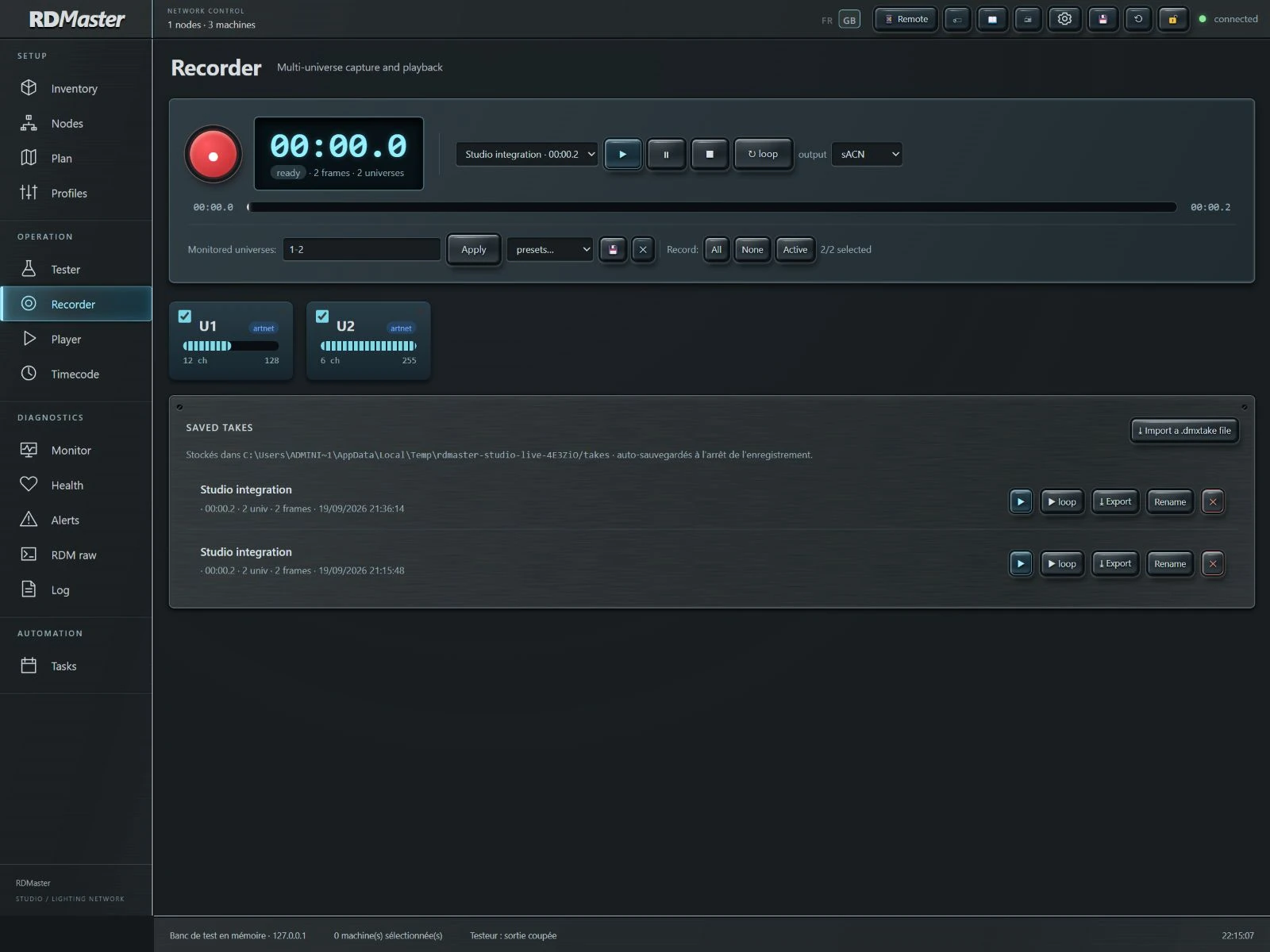
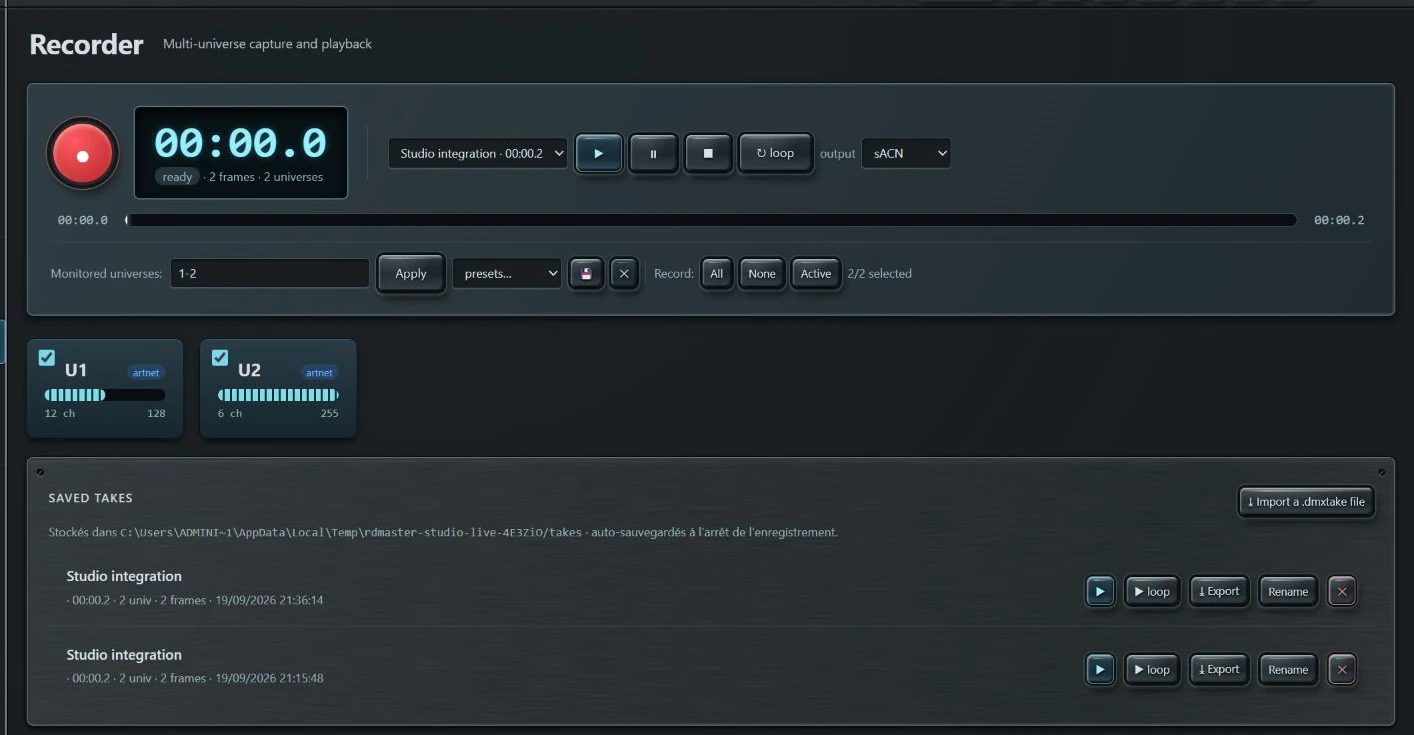
Select universes to record, start a capture, then find your takes for playback, import or export. Prepare reusable universe selections.
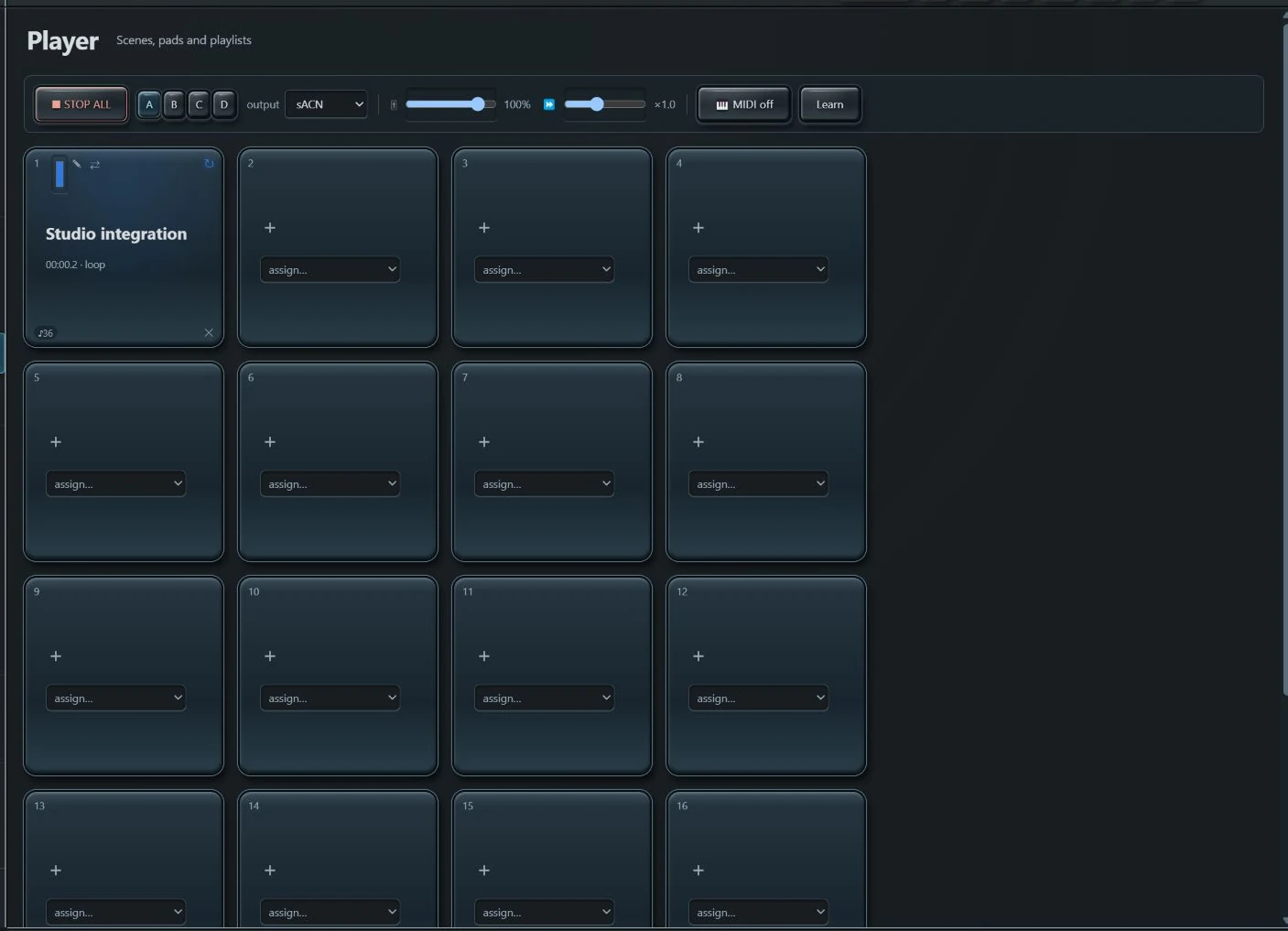
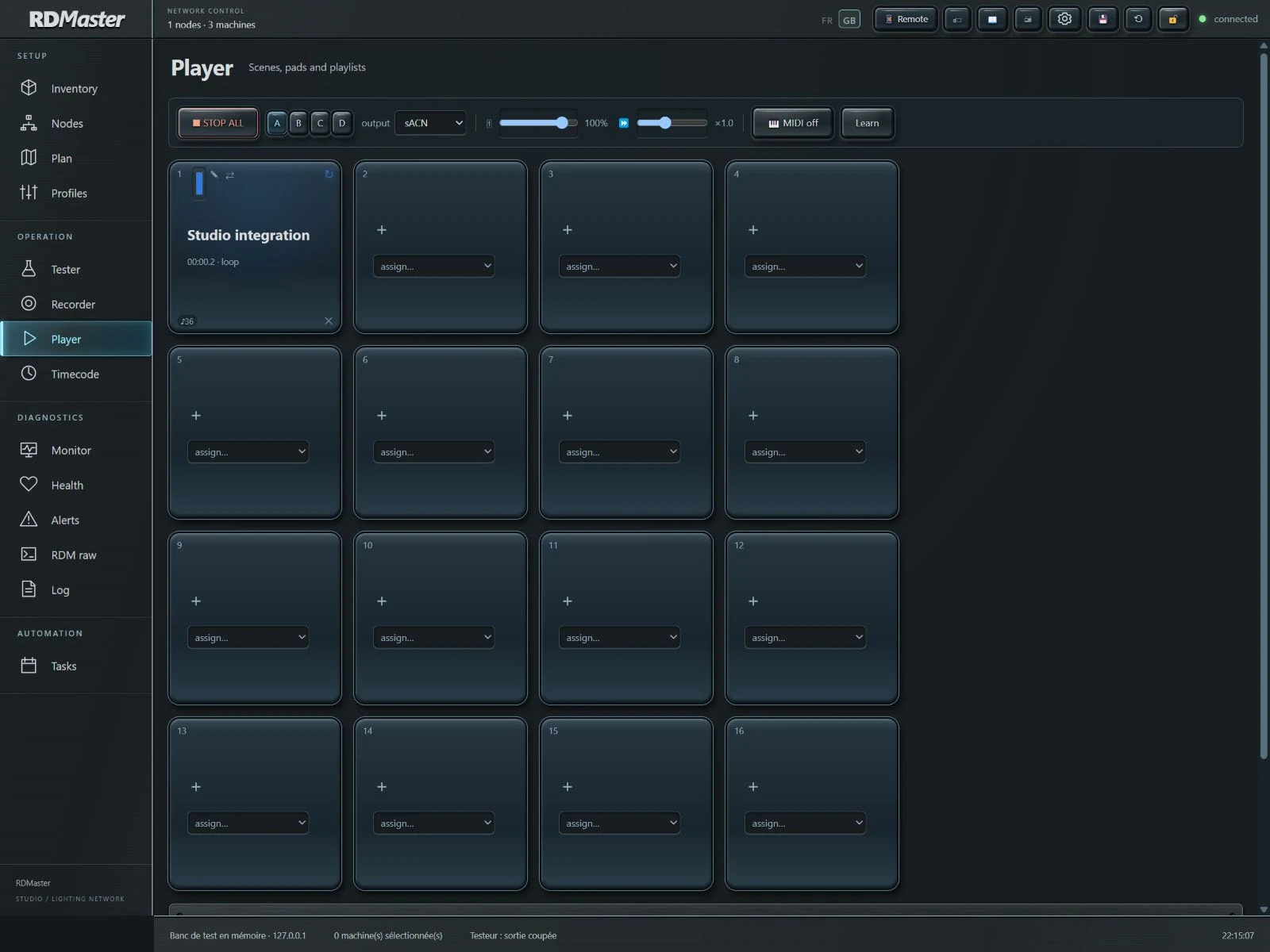
Four banks of sixteen pads to organise recalls. Assign a take, customise its pad, adjust playback and trigger your content from the Player.

Chain takes, adjust their order, speeds and fades, then save the playlist. Prepare and replay your sequences in one interface.
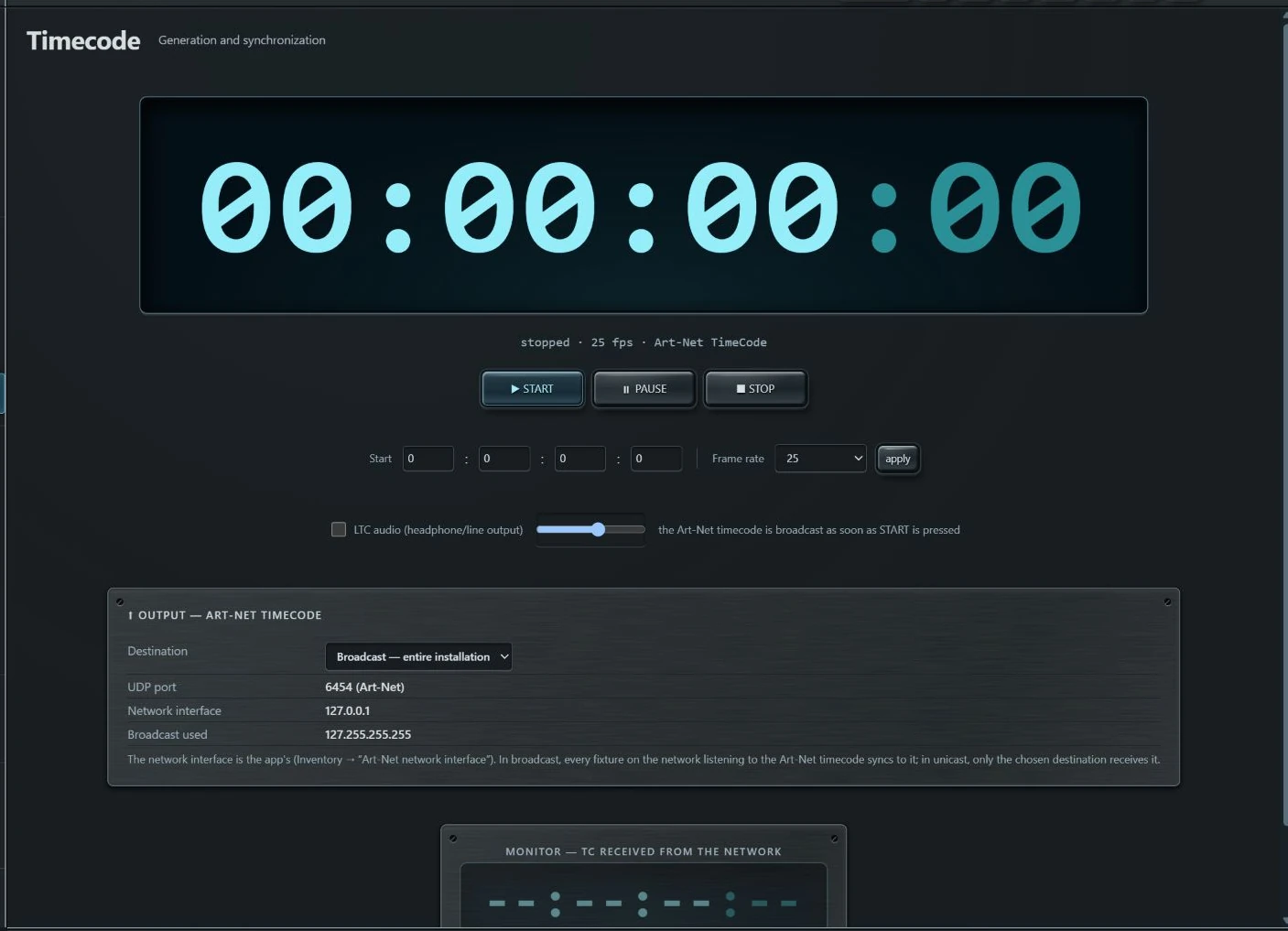
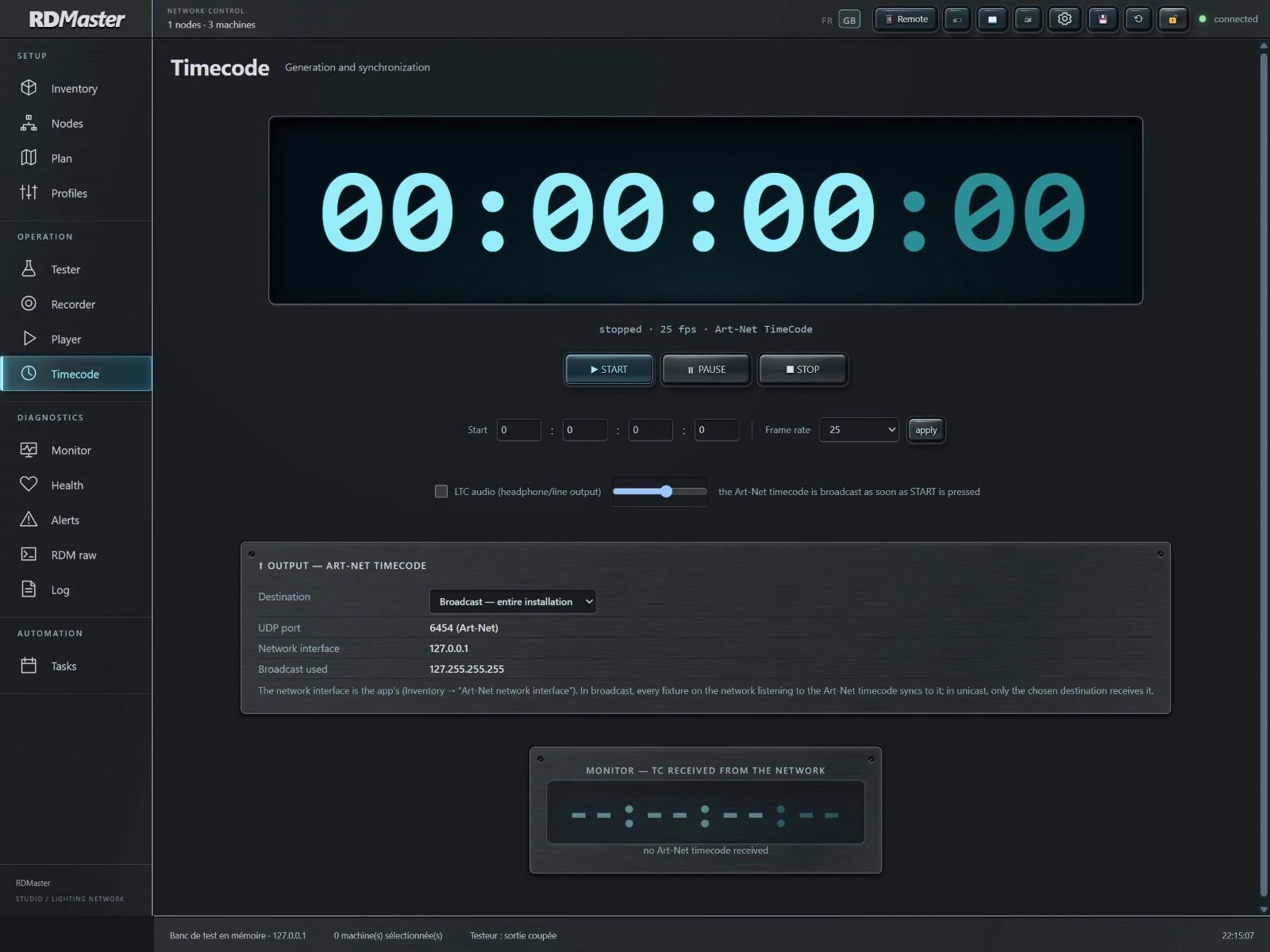
Generate Art-Net timecode, choose the frame rate and destination, and monitor incoming timecode. Audio LTC output complements the synchronisation tools.
04 / UNDERSTAND
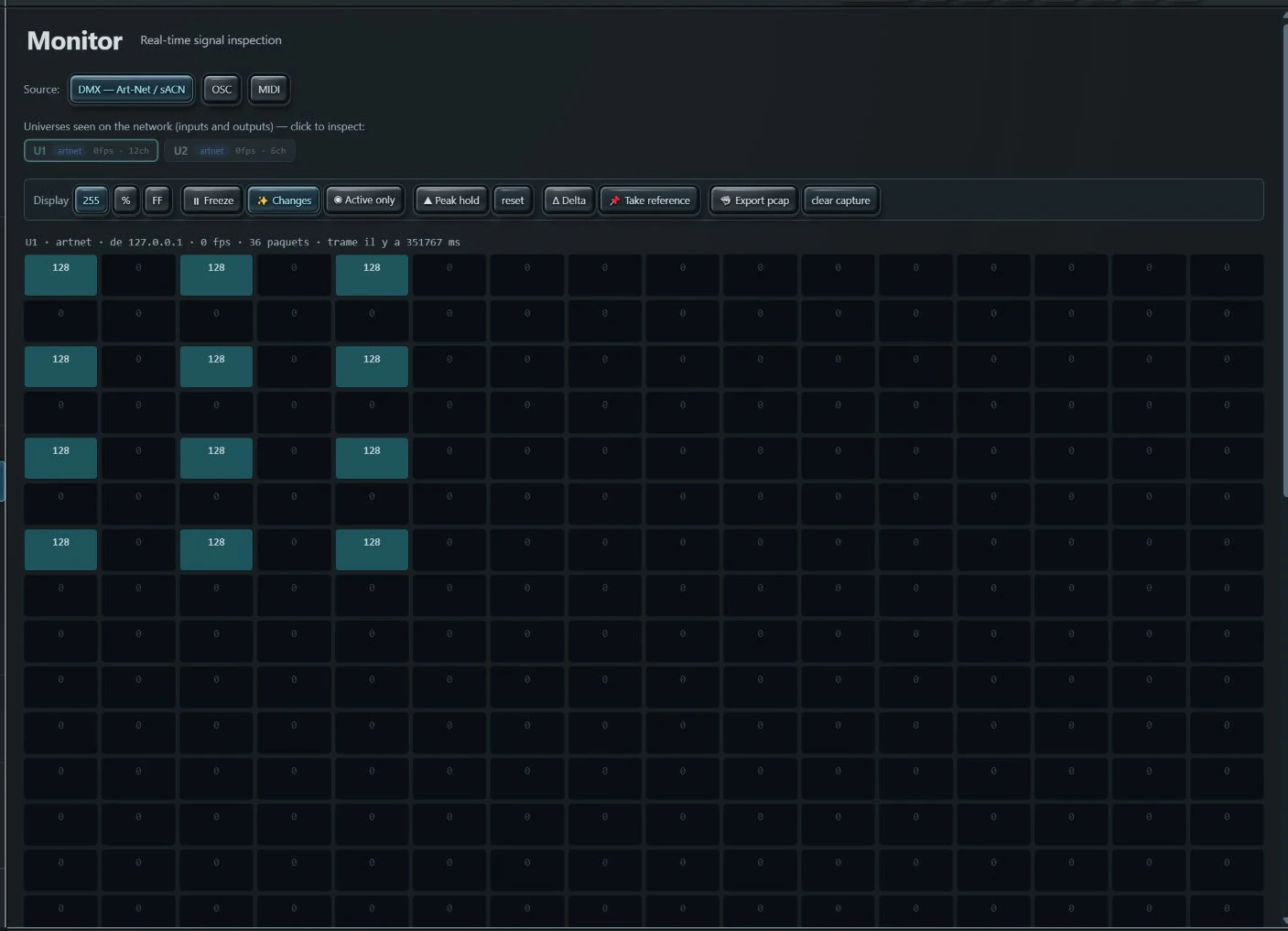
Monitor universes and DMX values, compare changes and inspect a channel. OSC and MIDI views complete your control diagnostics.
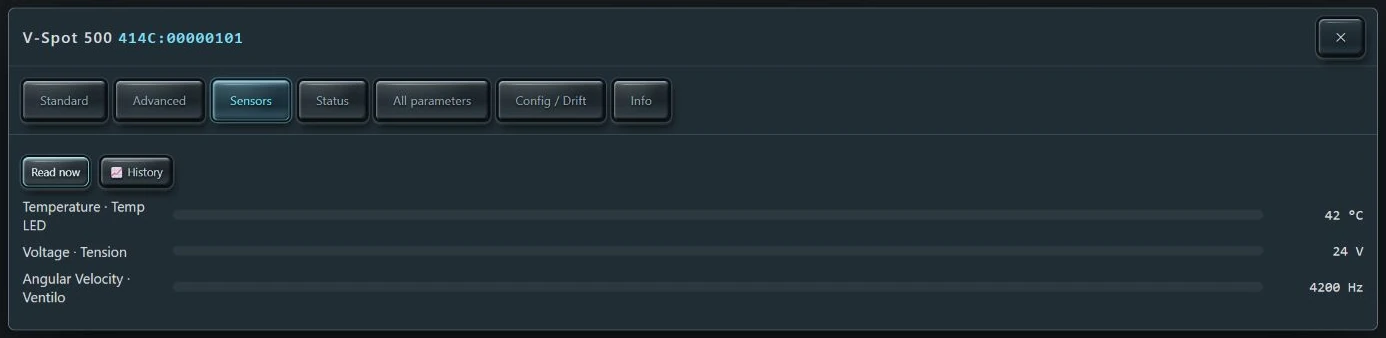
Read sensors reported over RDM, their units and values. Temperature, voltage or other measurements: the display follows the capabilities of the fixture.
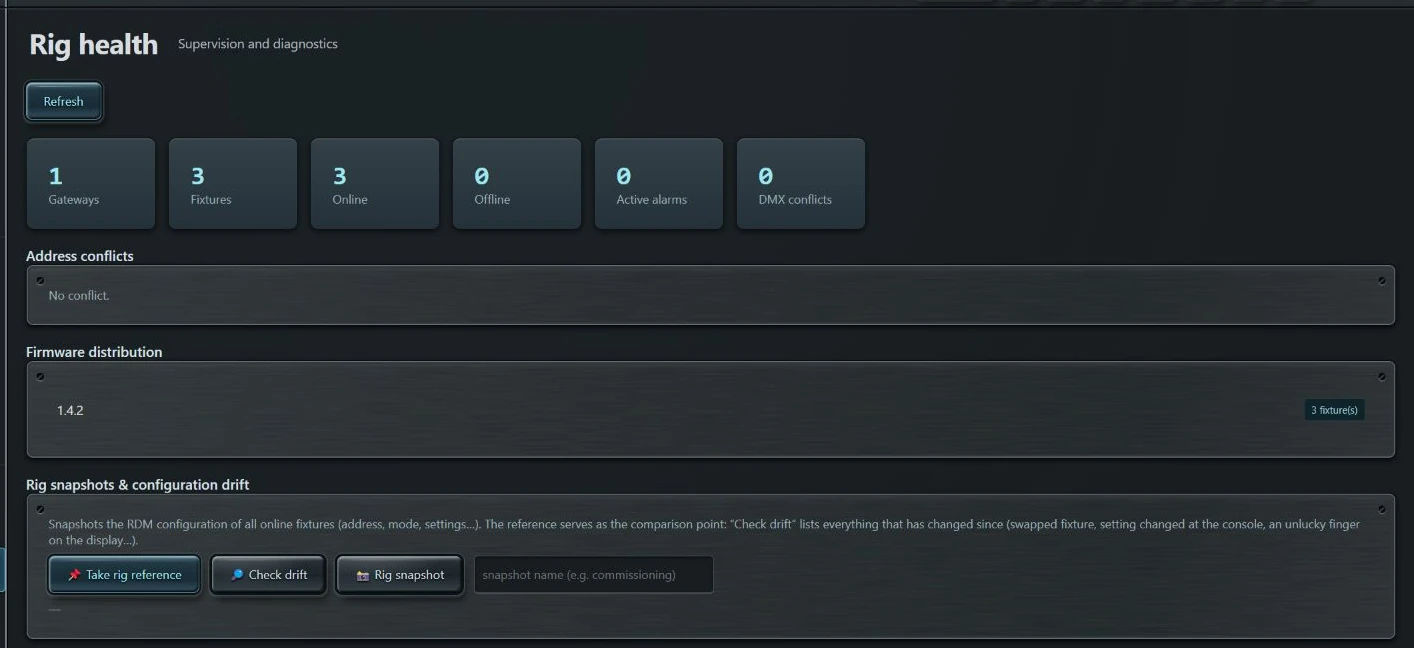
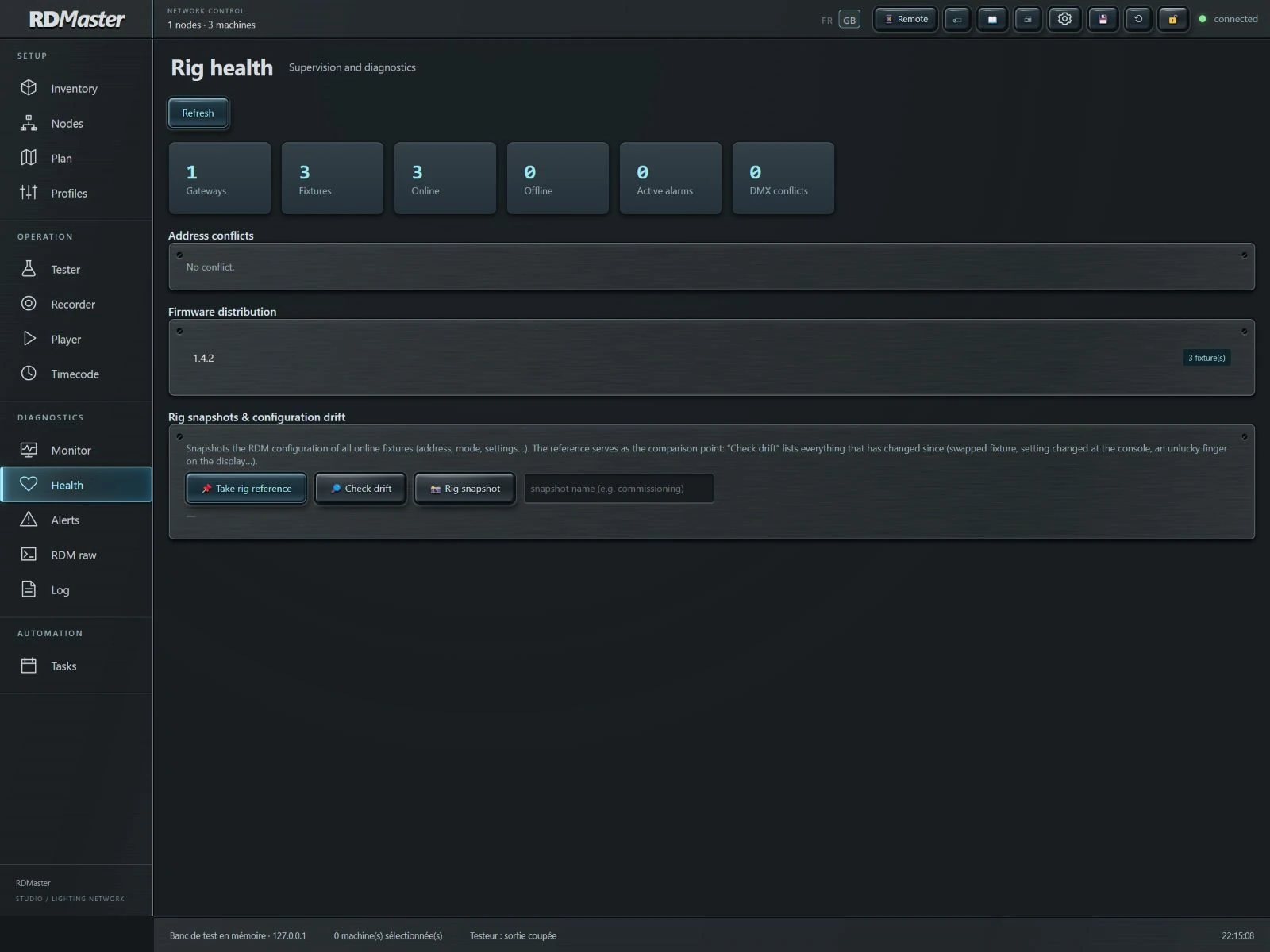
Bring together fixture status, firmware information and differences from your references. An overview to help prepare maintenance.
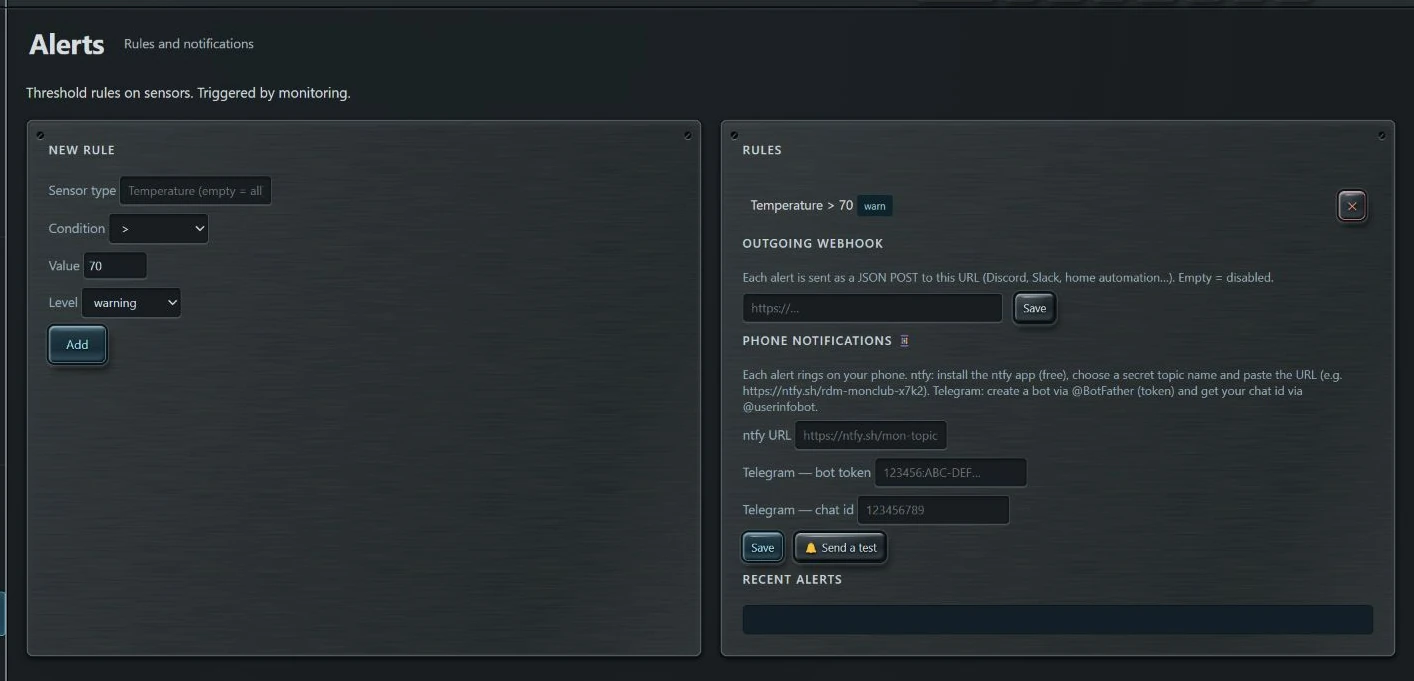
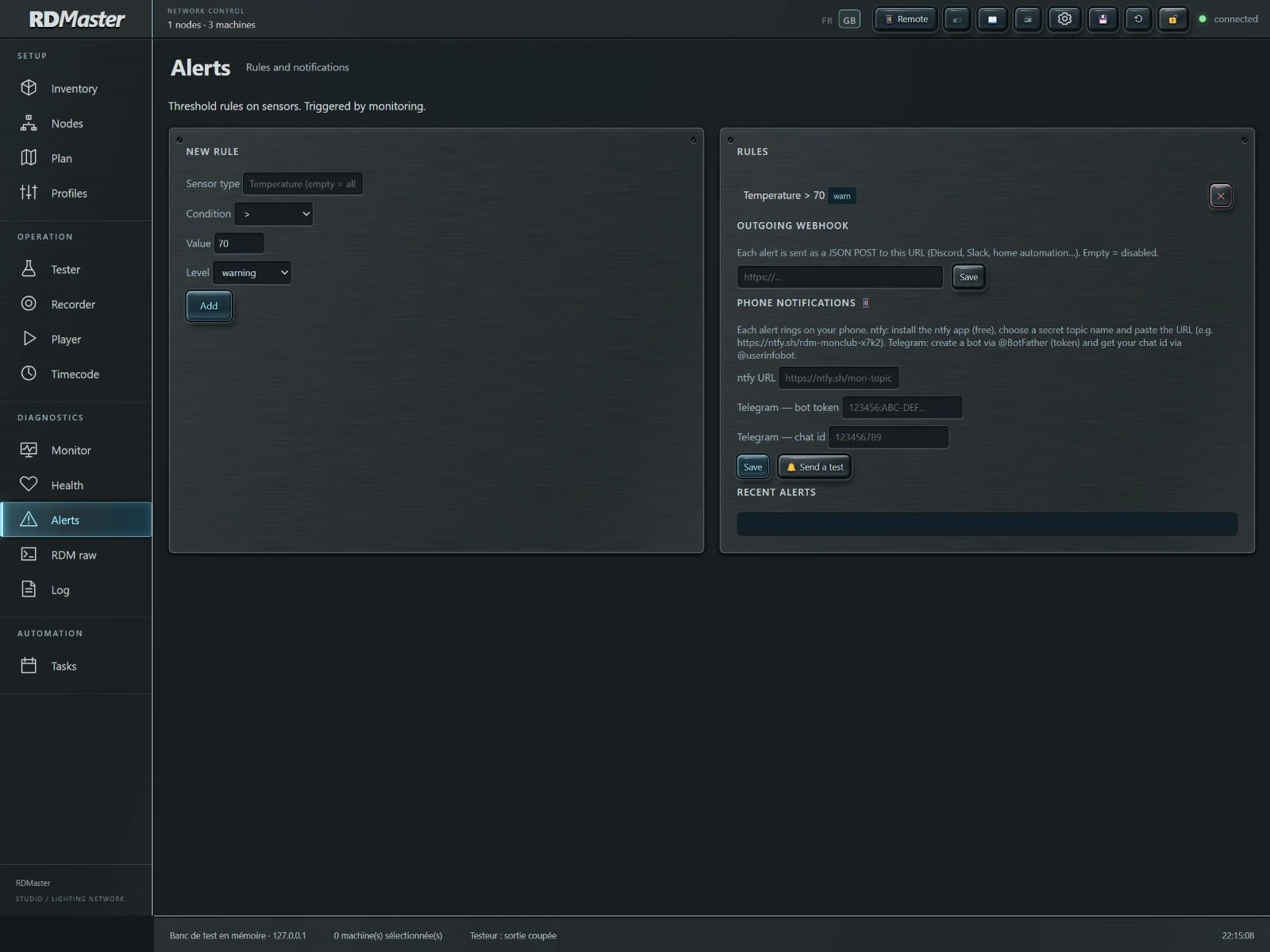
Define sensor rules and find alerts in the application. Configure notification integrations to suit your installation.
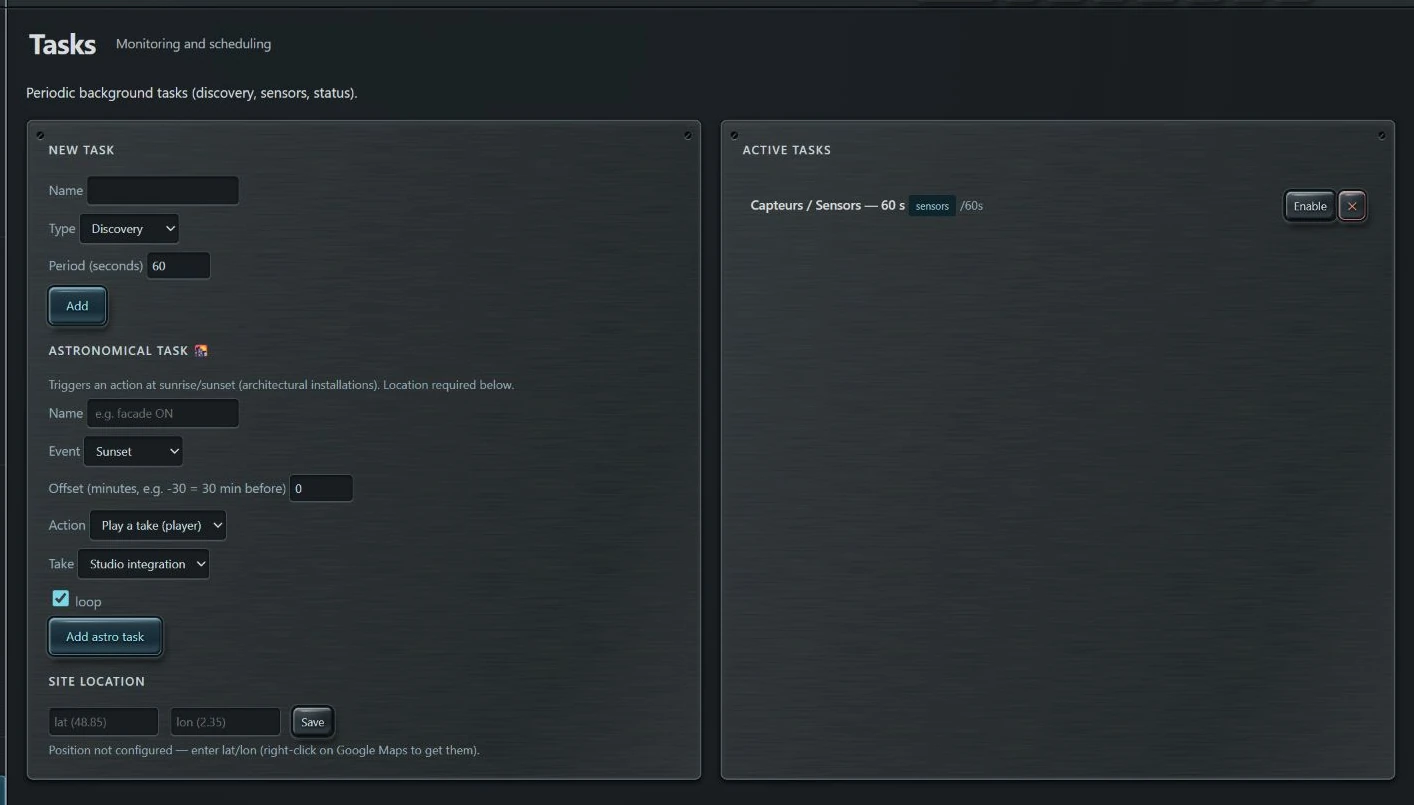
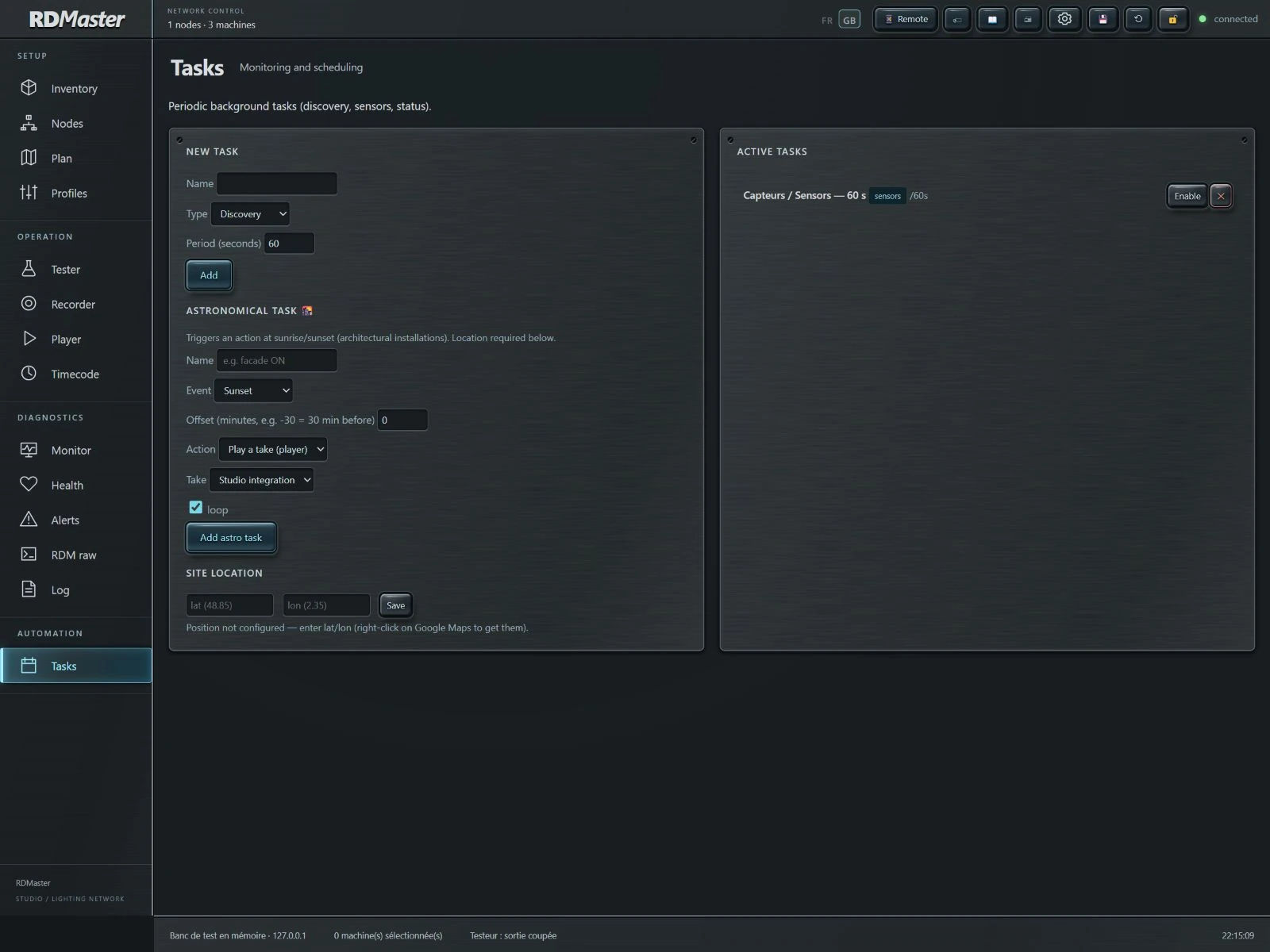
Organise periodic tasks and actions linked to sunrise or sunset. RDMaster must remain running to execute scheduled actions.
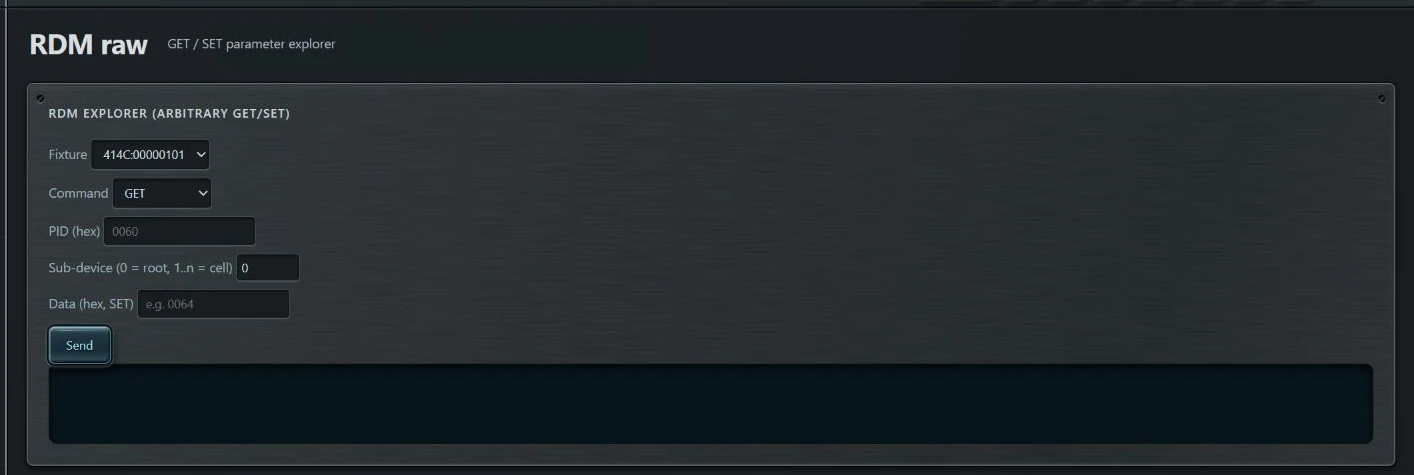
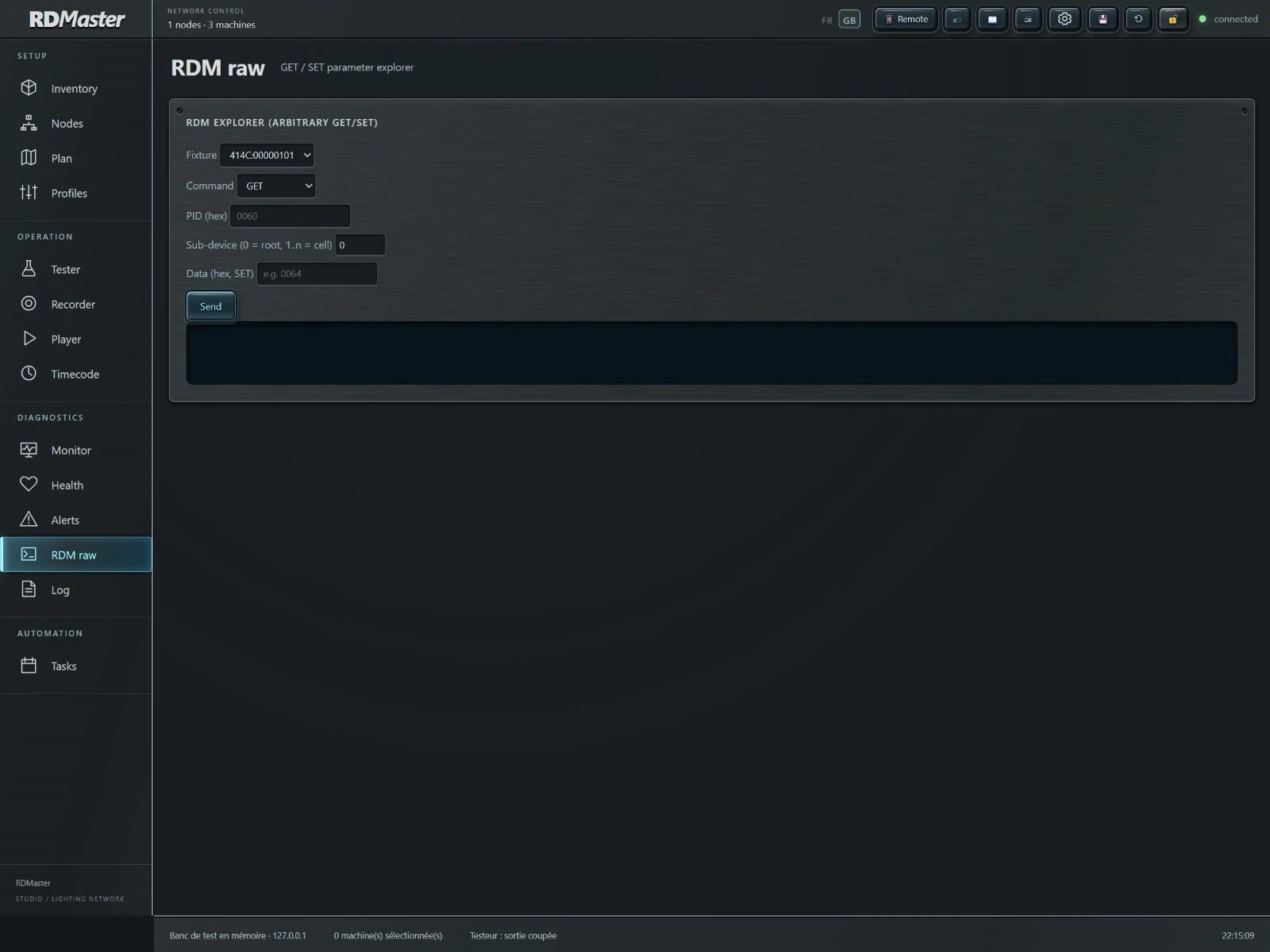
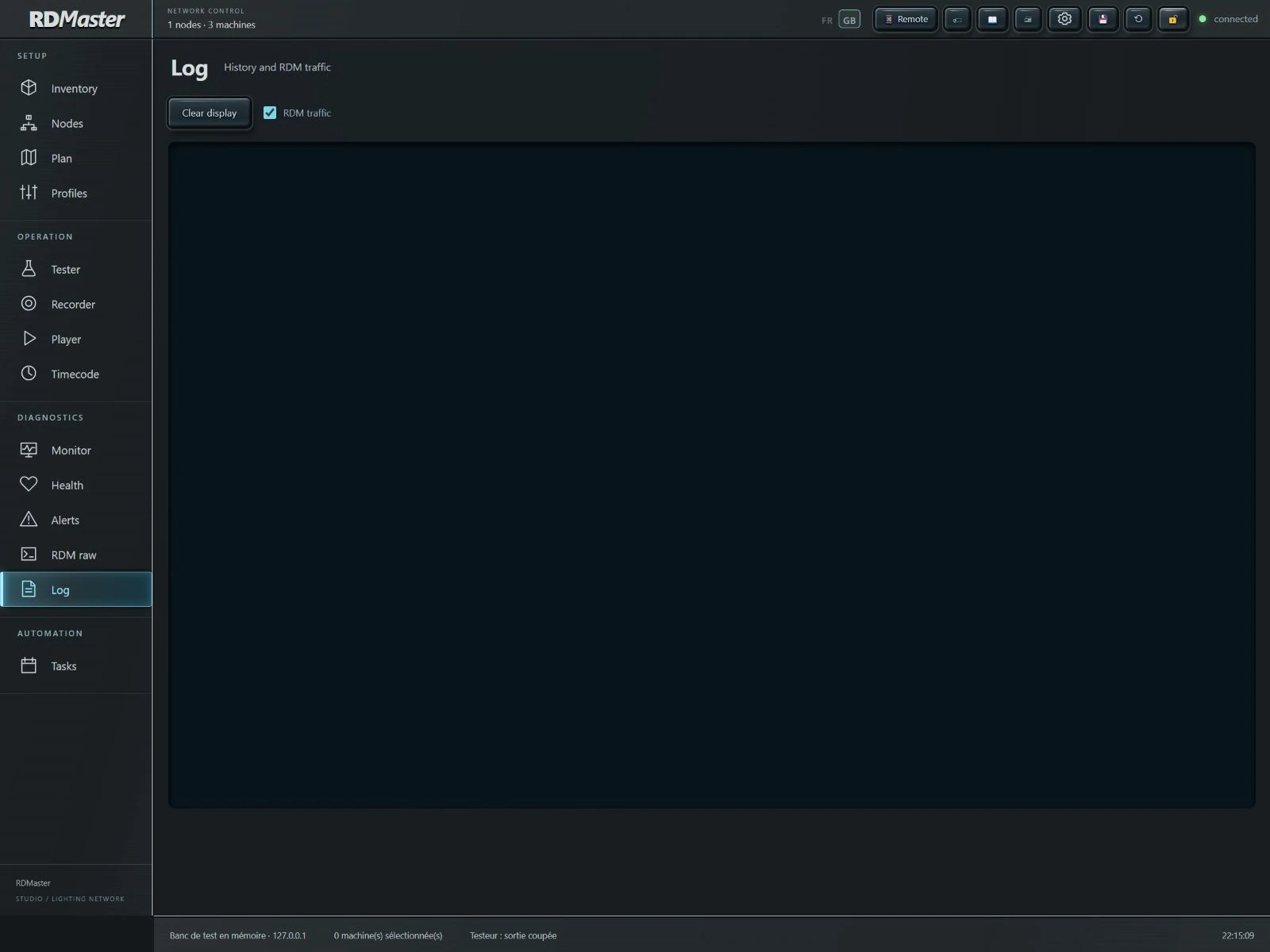
Raw RDM commands and the event log complement the diagnostic tools for users who need to inspect a specific request or response.
05 / WORK
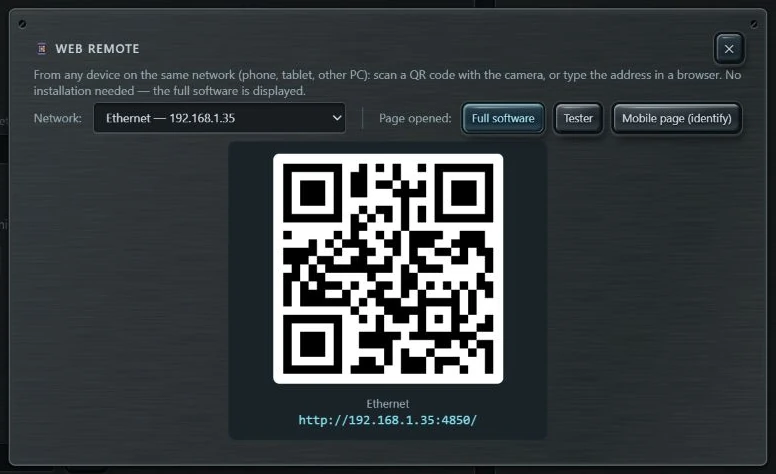
From a tablet or computer browser on the same network, Remote provides the PC interface. The RDMaster server remains the connection point to the lighting network.
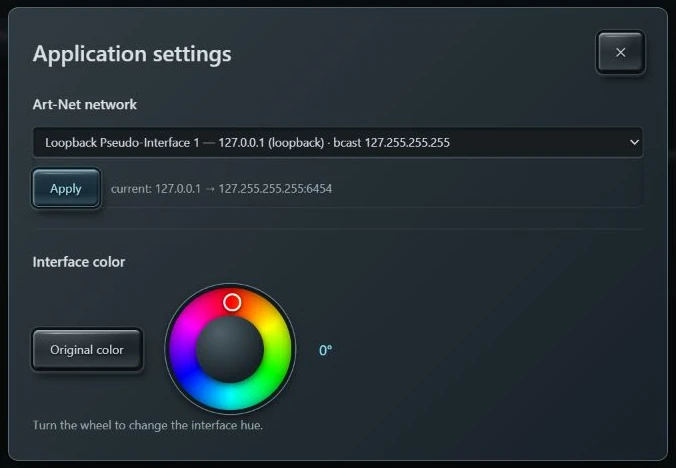
The settings button brings together network adapter selection and interface colour. Adjust Hue Rotate, then restore the original colour with one click.

Generate QR code labels and a printable installation report to support identification and commissioning.
RDMASTER / STUDIO
Actual RDMaster screenshots. Click any image to explore the details.
Launch price
Discover RDMaster at the launch price of €29.99.
RDMaster licence — secure checkout.
A PC running RDMaster, a lighting network connection and a compatible Art-Net/RDM gateway. Available functions depend on the RDM capabilities of your fixtures and nodes.
Yes. The tester supports manual patching with a profile, mode, universe and address. RDM discovery and DMX output are separate functions.
Remote runs in the browser of a device connected to the same network as the PC. RDMaster must remain running on the PC, which communicates with the lighting network.
No. Sensors, personalities and RDM settings depend on the manufacturer. Tester attributes depend on the selected profile and mode.
Pads recall takes in a shared playback engine. They organise triggers; they are not sixteen simultaneous playback layers.
Screenshots from a demonstration environment. Devices, values and available functions depend on your installation.