User guide
From your first timer to a complete network session.
01
First use
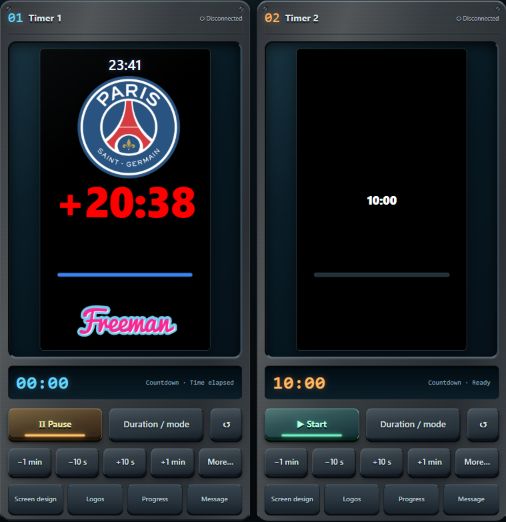
TimeMachine combines a touch control room with four independent timer outputs. A Windows PC or Android tablet hosts the session; other controllers operate that same session. Any compatible browser can display an output.
- Open Control room and select a screen.
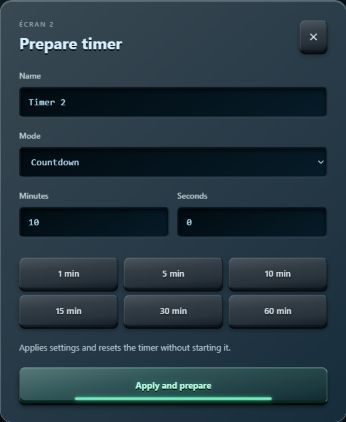
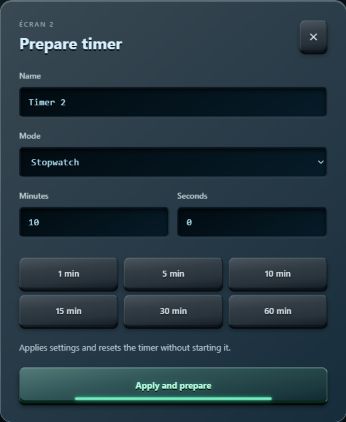
- Choose Prepare timer. Give it a name, choose countdown or stopwatch and set the duration.
- Select Apply and prepare, then Start.
- In Connection, open that screen’s link or scan its QR code with the display device’s browser.
Preparing resets the timer without starting it. Check the display before admitting your audience.
02
Install and update
Windows
- Fully extract TimeMachine-Windows.zip to a writable folder.
- Run TimeMachine.exe. The control room opens in your browser and an icon appears in the Windows notification area.
- Keep the server running: closing the control page does not stop it. Use the tray menu to reopen the control room or stop the server started by this launcher.
The Node.js runtime is included; no Node installation or command line is required. Keep the package folders beside the executable. On a trusted private network, allow the application through Windows Firewall if prompted.
Android tablet
- Copy and open TimeMachine-Android.apk on the tablet (Android 10 or later).
- Allow installation from this source if Android asks, then install the update.
- Open TimeMachine and activate your license. The local server and control room run on the tablet.
A compatible update preserves application data. Do not uninstall or clear app data to update. This APK distribution is for direct installation, not the Play Store.
Before updating
Export your shows. On Windows, keep your data folder and imported media. Stop timers before restarting the server. Back up your data before replacing an existing installation.
03
License and access
In Settings → License, check the license status, use the online purchase button or enter your existing key. After purchasing, return to the application to activate the key. Purchasing and activation require Internet access.
A remote controller checks the license of the host it joins. Browser displays do not need the app installed. To host a standalone session on another device, that device needs a valid activation.
Deactivate on this device releases the activation with the licensing service. Do not deactivate a device during a live event. For a network error, check Internet access and the device clock before retrying. An outdated device association may require reactivation; it does not necessarily mean the key is invalid.
04
Operate timers
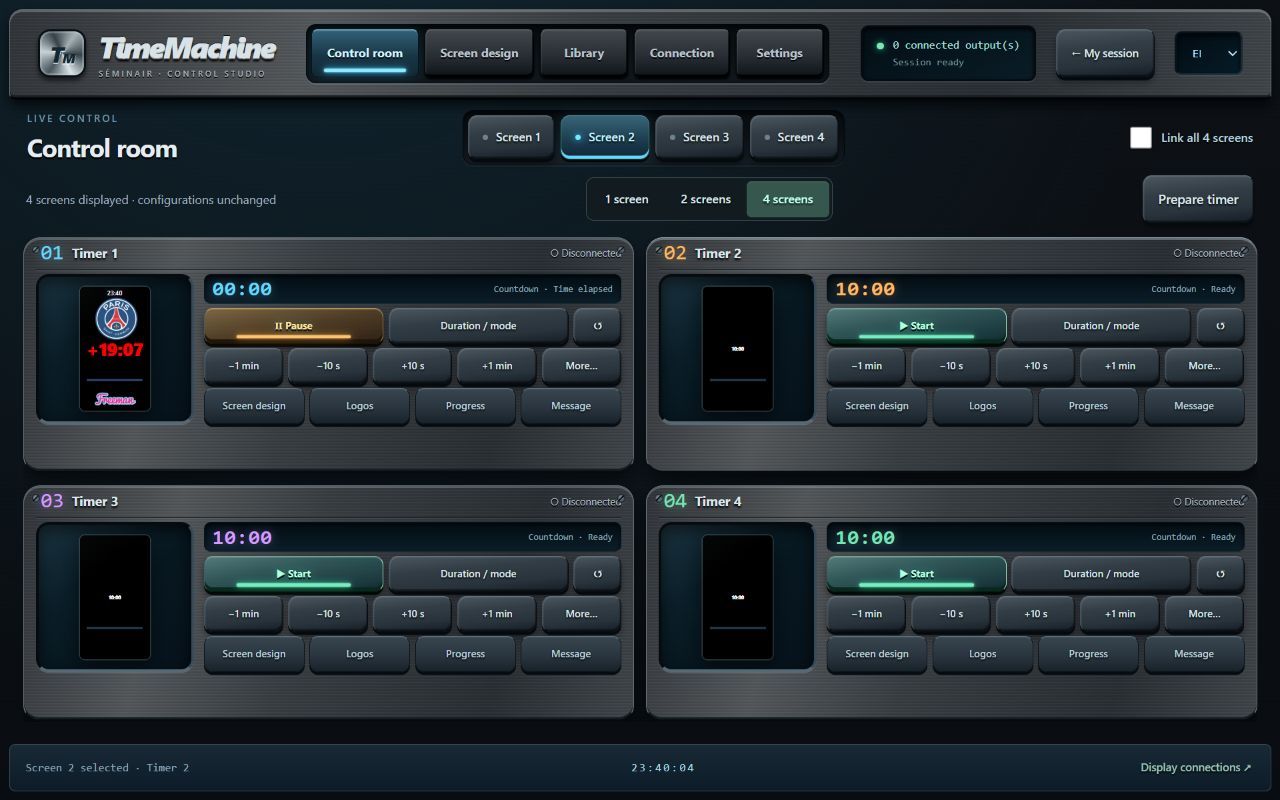
Start / Resume starts or resumes the timer. Pause keeps its current value. Reset restores the initial countdown duration, or zero for a stopwatch. Adjustment buttons add or subtract time from the relevant timer.
The 1, 2 or 4 screens choices change the control room layout: they do not create or delete configurations. All four slots remain available. The top screen selector determines which screen you are designing.
Link all 4 screens applies controls and settings to all four outputs, including screens hidden in the current layout. Turn linking off to configure each screen independently.
The host calculates time. Multiple controllers show the same state and can operate timers. Commands are applied in arrival order, so coordinate operators.
05
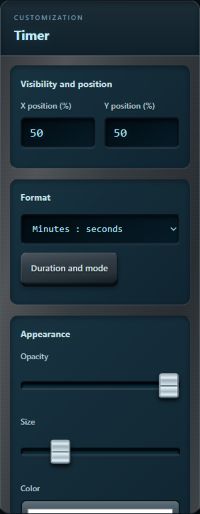
Design, logos and progress
- Open Screen design and select the screen to customize.
- Choose Timer, Clock, Logos, Progress, Background, Messages or Alerts and ending in the left rail.
- Adjust the element in the right panel. Changes are sent to connected displays.
Position and visibility
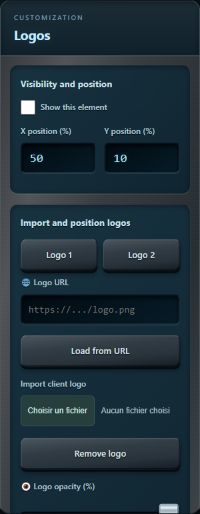
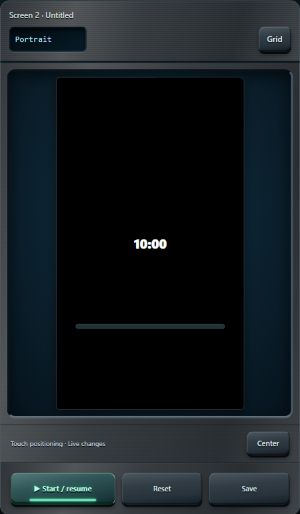
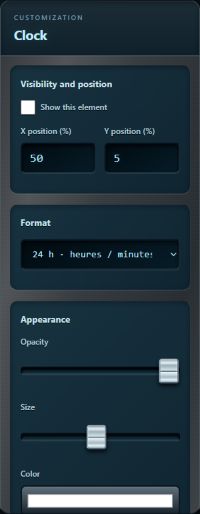
Enable the element, drag it in the preview or use X and Y percentages. The grid helps alignment. Center places the selected element at the center. Adjust orientation, size, opacity and colors as available for that element.
Client logo
Choose Logos, select the first or second logo and use Import client logo. Transparent PNG files work well for cutout logos. Check visibility, size, position and color before going live. Both logos have independent settings.
Progress bars
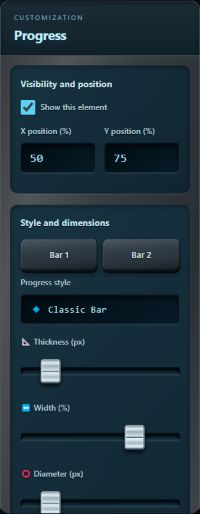
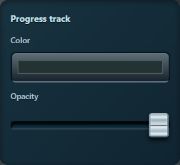
Choose Progress, then the first or second bar. Adjust style, dimensions, rotation, position, color and opacity. The Progress track section controls track color and opacity. Check the receiving screen, especially for circular designs and portrait formats.
Background, clock and timer
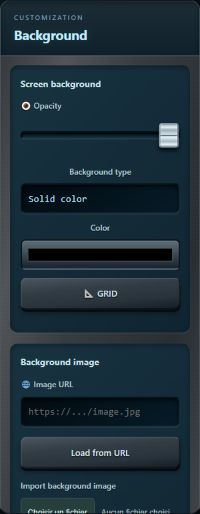
Use a color or imported image for the background; stretching options adjust its fill. The clock and timer each retain their own size, color and position. Timer formats include minutes and seconds or hours, minutes and seconds.
06
Messages, alerts and timer endings
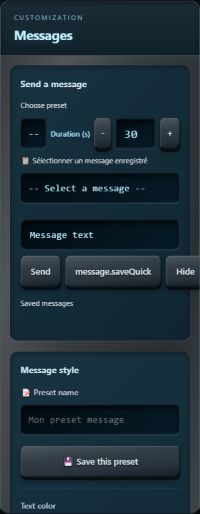
In Screen design → Messages, enter your text, choose its appearance and use the send control. The hide control removes the message without erasing your text. Adjust color, background, transparency, size, full-screen presentation, frame and effect. Saved texts and presets let you prepare cues in advance.
In Alerts and ending, enable the functions you need, set thresholds and appearance, and optionally save an ending preset. Test with a short duration to check color changes, overtime and selected effects on each display.
Calibration helps check element positioning on outputs. Turn its grid off before the event.
07
Library and backups
The Library separates designs, complete timers, favorite durations and complete shows.
- Design: a presentation preset for the selected screen.
- Complete timer: reusable timer settings and presentation.
- Favorite duration: a shortcut to a frequently used duration.
- Complete show: names, configurations and states for all four screens. Loading replaces all four screens after confirmation and leaves them stopped.
To save a show, enter its name and select Save show. To move to another device, choose Export file, then Import show on the destination. Images imported onto the server are embedded in this export. Images hosted on external websites remain links and require their source to be reachable.
On Android, exports are saved under Downloads / TimeMachine. PC browsers use their normal download preferences. Keep a backup away from the controller device. Legacy import/export remains available for older files.
Libraries belong to the current server. Joining a session shows that host’s library. Returning home does not automatically copy data from the other device.
08
Host or join a session
Host on Windows or Android
Start TimeMachine on the device that should keep time. Its local session becomes available on the network. Connect other devices to the same LAN. A tablet can host without a PC, and a PC can host without a tablet.
Automatic discovery
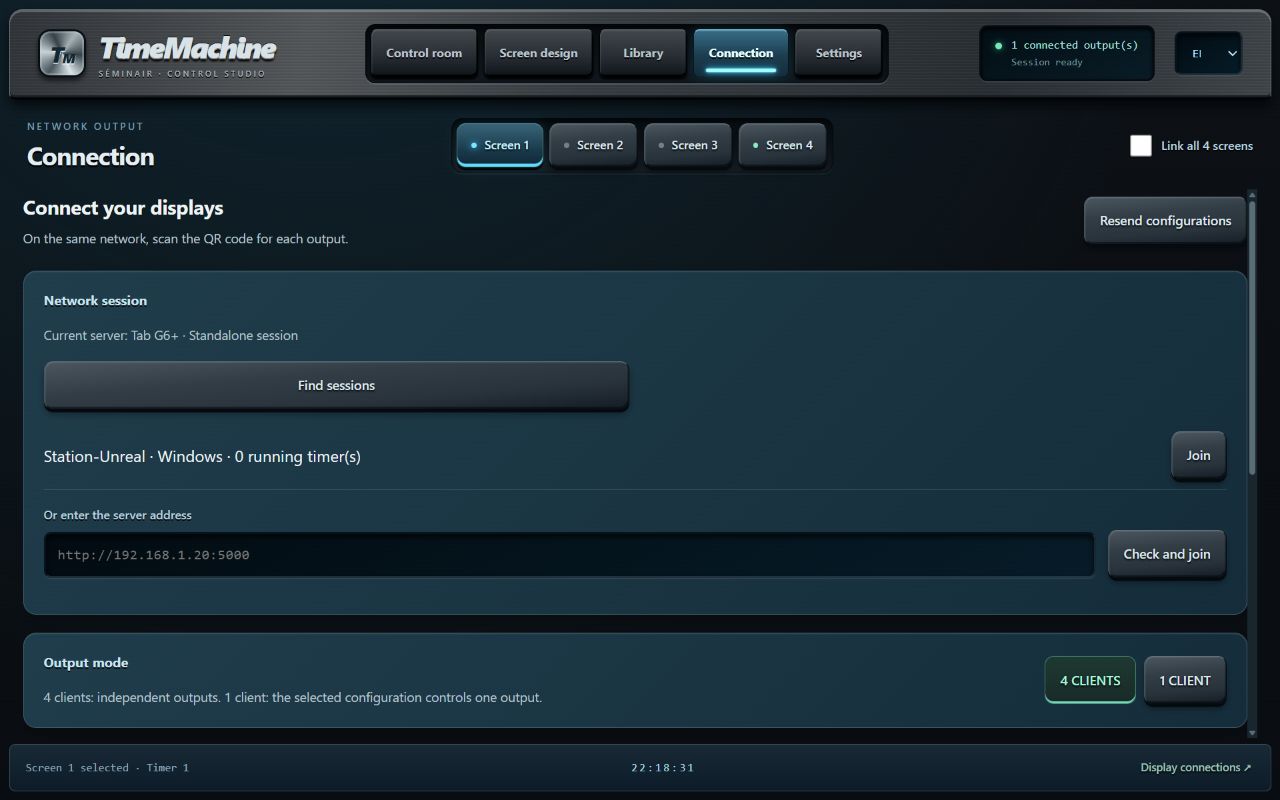
When another session is discovered, a prompt shows its name. Choose Join control room or Stay on my session. You are never forced to join. In Connection → Network session, use Find sessions to refresh the list.
Manual address
If the session is missing, enter the host’s complete local address and select Check and join. For example, a PC normally uses http://192.168.1.20:5000 and a tablet http://192.168.1.30:3000. Use the actual address shown on your network.
Remote control room
You get the host’s timers, screen design and library. My session returns to your local server. Your local server keeps running while you control another session: joining does not merge shows or move timers.
There is no automatic host failover. If the host stops, other devices wait for reconnection. To change hosts deliberately, stop timers, export the show, import it on the new host, then reconnect controllers and displays using the new links.
09
Browser display and full screen
- Open Connection on the selected host’s control room.
- Find the desired output and scan its QR code or copy its address.
- Open the link in the display phone, tablet or computer’s browser.
- Tap the full-screen button if the browser supports it. On a PC, Escape exits full screen.
The display page fills the window without controller controls. No TimeMachine installation is required on that device. Its browser must support JavaScript and WebSocket; an older TV browser may be incompatible. Some platforms restrict full screen or require a user gesture.
4 clients keeps outputs independent. The legacy 1 client mode sends the selected configuration to a single output. Choose four clients for multiple independent timers.
Keep display devices awake. Disable host sleep during events; on Android, permit background operation if battery-saving settings require it.
10
Languages and touch controls
The header’s FR / EN selector changes the control room language on PC and tablet. Your choice is saved in that browser. Show names, timer names and messages remain exactly as entered.
Buttons act without selecting their text or opening a copy/paste menu. Selection and paste remain available in editable fields. In portrait mode, some panels stack vertically; scroll to reach their settings.
11
Troubleshooting and network
The server repeatedly connects and disconnects
Install the same network release on both devices. Check that the host stays awake, its application remains running and Wi-Fi is stable. Reconnection targets the same host. After an interruption, check the displayed value before resuming live operation.
A session is not discovered
Guest networks and some access points isolate devices or block multicast. Try the manual address. If that also fails, check that devices can reach each other on the same private network and the firewall allows the required ports.
| Purpose | Default ports |
|---|---|
| PC: control, display and Socket.IO | TCP 5000 |
| Android: pages and API | TCP 3000 |
| Android: real-time connection | TCP 3001 |
| Local discovery | UDP 45321 · multicast 239.255.43.21 |
Network mode is intended for a trusted LAN: any controller that joins can operate timers. It does not provide operator authentication or encryption of local traffic. Do not expose these ports to the Internet.
A logo is missing after transfer
Use this version’s complete show export to embed imported media. External images require a reachable URL. Older files may contain paths specific to the original device: reimport the image if necessary.
The page looks outdated
Reload it after updating the server. If the browser keeps an old version, perform a full reload. Check that the address belongs to the intended host rather than an old tab.
Support
Include your version, host device, browser, failing step and a screenshot without license keys. The shop provides support contact details.