A control room built for touch
Prepare, start, pause and adjust a timer with direct controls. Choose one, two or four visible screens without losing a configuration.
Swipe through real application screenshots. Open any image for a closer look.
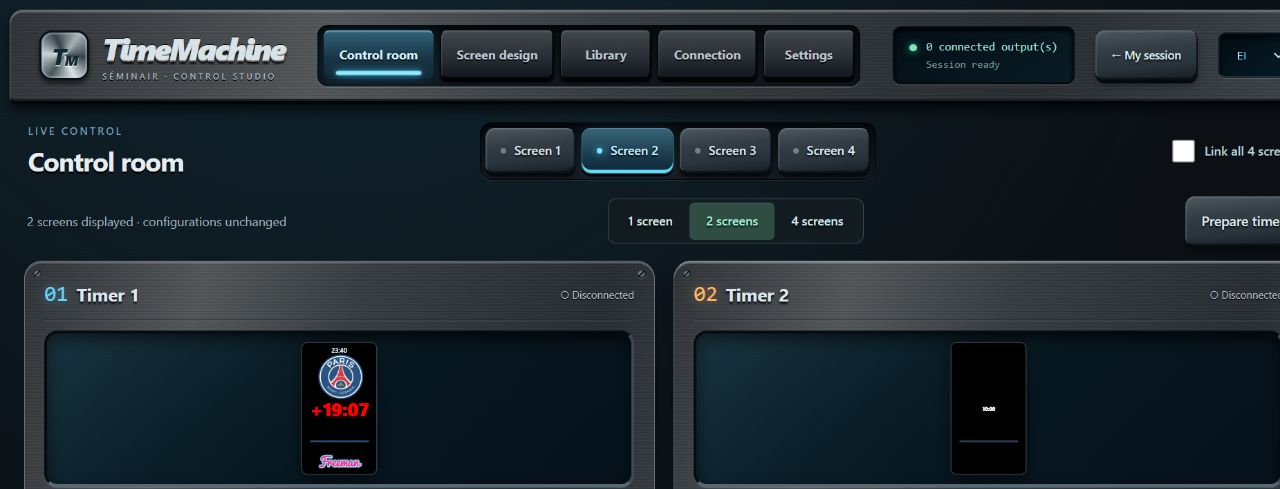
Start, pause and adjust your timers from the control room.
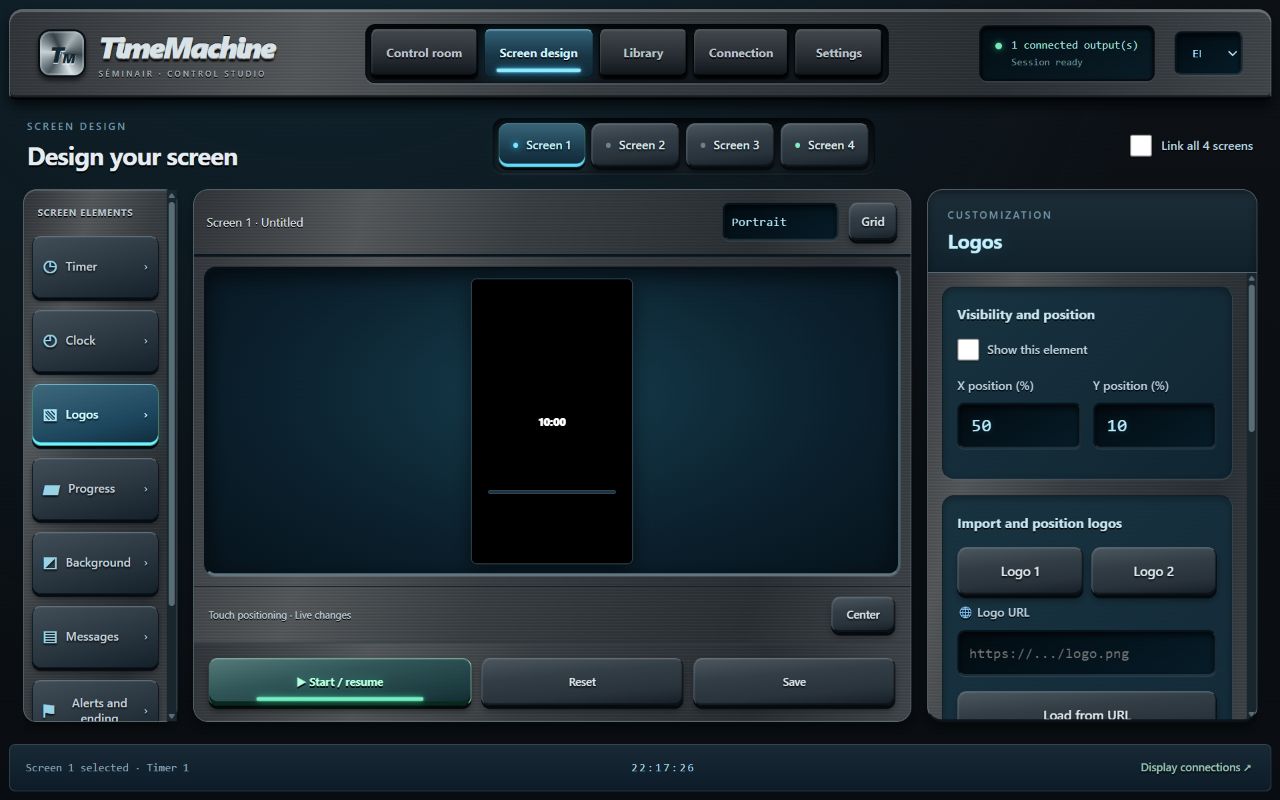
Import and place logos directly in the screen design.
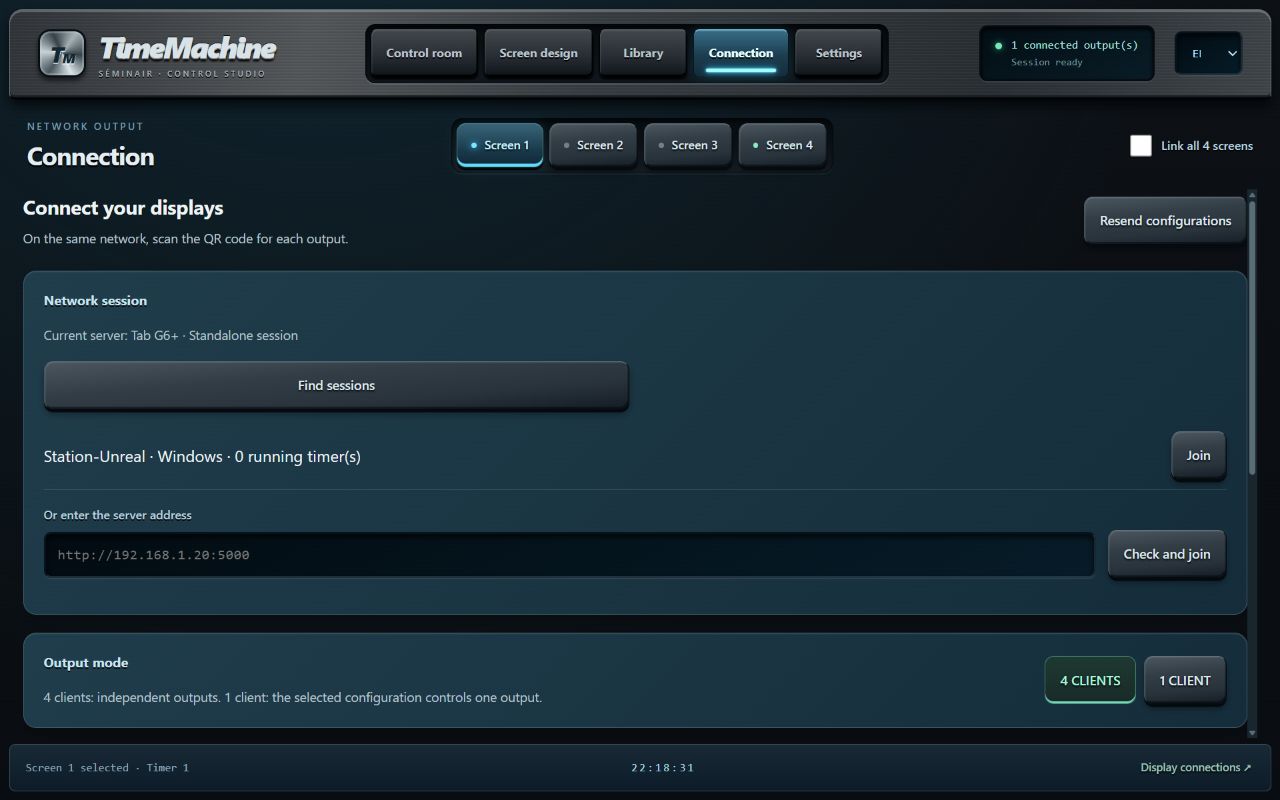
Choose the host and connect controllers and displays.
Professional timer control for Windows and Android. A tactile control room, your client’s identity and connected displays — from one host.
Immediate controls up front. Detailed design tools when you need them.
Prepare, start, pause and adjust a timer with direct controls. Choose one, two or four visible screens without losing a configuration.
Two logos, two progress bars, a clock, backgrounds and messages. Edit their positioning and appearance in the live preview.
Host on a Windows PC or an Android tablet. Join from another control room and operate the same timers.
Nearby sessions on the LAN appear with a choice to join. Keep a manual address option when discovery is restricted.
Share a screen link or QR code. The output fills the browser window, with a full-screen button where supported.
Keep designs, durations, complete timers and four-screen shows. Export shows with imported media to move between devices.
From preparing the timer to designing the display and operating a network session.
Each timer has its own start, pause and reset controls. Add or remove ten seconds or one minute to adjust a presentation without entering a new duration. The remaining time and timer status stay visible on its card, so you can monitor several presentations and act on the one that needs attention.
Open the complete guide ↗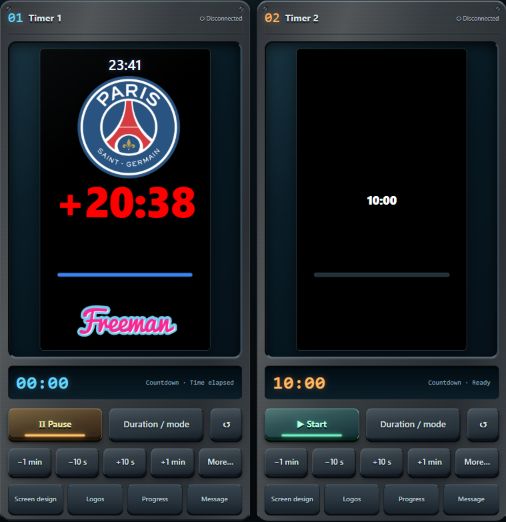
Name the timer, choose Countdown and enter minutes and seconds. Quick duration buttons reduce typing for common situations. Apply and prepare resets this timer to its starting duration without starting it, leaving you in control of the exact start time.
Open the complete guide ↗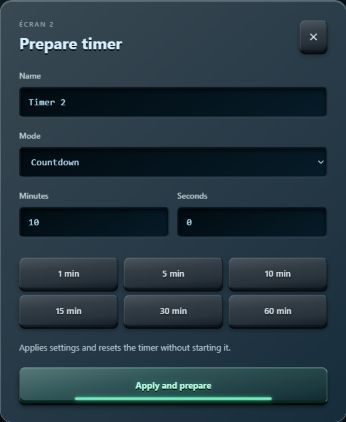
The preparation dialog also offers Stopwatch mode. The counter then measures elapsed time, with pause and resume available in the control room. Countdown and stopwatch timers can coexist in one session to suit the purpose of each display.
Open the complete guide ↗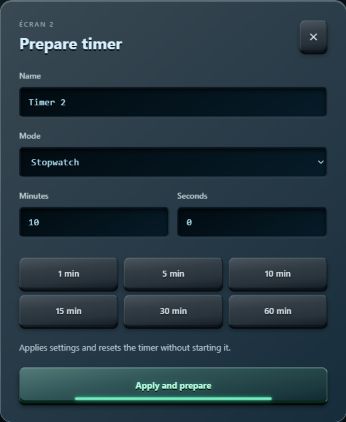
Choose how many timers you want to monitor. Changing the layout does not delete the other screens’ configurations. Select the screen you want to edit; Link all 4 screens applies shared controls and settings. Each output remains identifiable by its number.
Open the complete guide ↗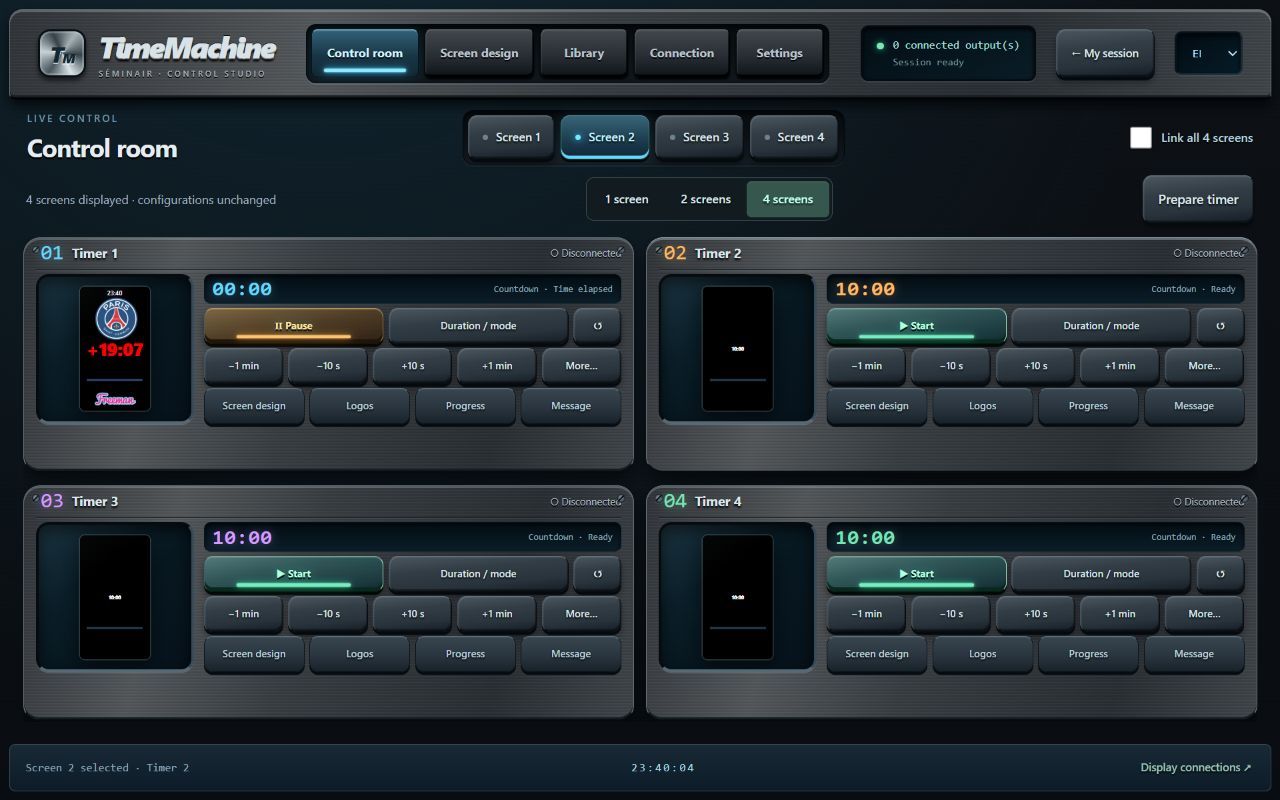
The counter supports hours, minutes and seconds, minutes and seconds, or seconds only. Adjust size, colour and opacity for the viewing distance. Position it in the preview or through coordinates, alongside a clock, logos and progress indicators.
Open the complete guide ↗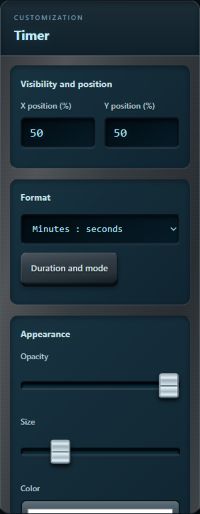
Choose the orientation of each output in Screen design. Select an element, move it in the preview and fine-tune its horizontal and vertical percentage positions. The grid helps align elements; Centre repositions the selected element. The preview shows your composition while you edit.
Open the complete guide ↗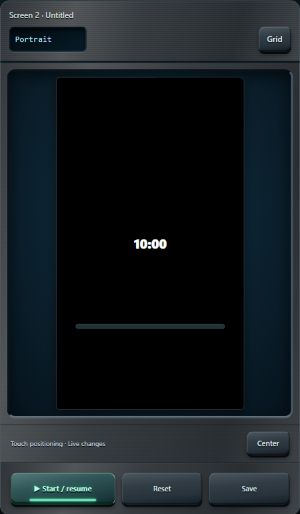
Import the client and event identities into the two logo slots. Select and adjust each logo independently: visibility, size, opacity, position and colour settings. Save these choices in a reusable design for the next event.
Open the complete guide ↗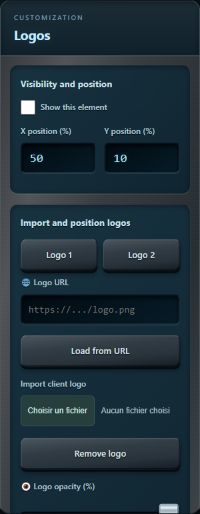
Two progress elements can accompany the counter. Select one, choose its style and adjust its dimensions, rotation and position. A linear bar provides a horizontal or vertical reference, while a circular presentation gives a different visual indication of time.
Open the complete guide ↗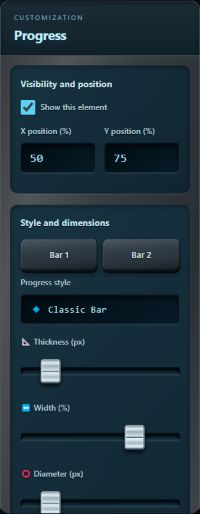
Progress colour and transparency are independent of the underlying track. A subdued track makes the full range visible without distracting from the counter. Match both elements to the background and your client’s colours.
Open the complete guide ↗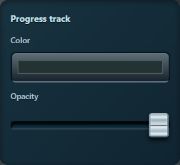
Choose a solid colour, create a gradient or import a background image. Adjust its appearance and opacity to keep the time readable. Image settings let you adapt how it fills the screen; check the result in the actual output orientation before your event.
Open the complete guide ↗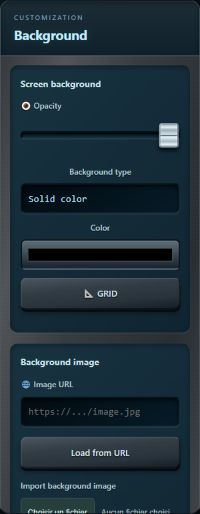
The clock complements the remaining time with the current time. Enable it on the relevant outputs, choose its format and adjust size, colour and position. It stays separate from the countdown, so the time of day can serve as a secondary reference.
Open the complete guide ↗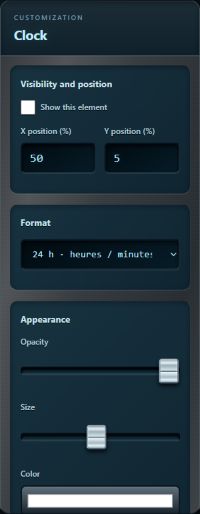
Enter text, choose its display duration and send it to the selected screen. Hide removes it immediately. Adjust text and background colours, opacity, frame, size, full-screen presentation and effects. Saved texts and style presets let you reuse this work. Controllers in the session also receive message show and hide events.
Open the complete guide ↗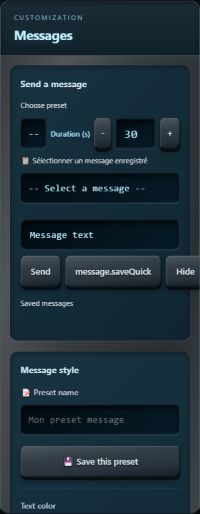
The PC or tablet can host the session. Network discovery offers available sessions and lets you choose whether to join or remain independent; manual addressing is also available. A remote controller operates the same timers. For a public display, share the output link or QR code: its browser displays the timer without installing TimeMachine. The host must stay powered on and reachable.
Open the complete guide ↗Design presets save an output’s presentation. Complete timers combine configuration and duration. Favorite durations provide quick starting points. A complete show holds all four screens; loading it asks for confirmation and leaves timers stopped. Export and import move shows between devices, including images imported onto the host. External image links still require access to their source.
The Alerts and end panel groups the threshold, end text and visual presentation settings. Prepare a reusable end-action style and check it in the preview before use. The complete guide explains the controls and how to close the end popup.
Choose the host for your event. Other controllers and browser displays follow its clock.
TimeMachine is a paid application. Your purchase includes the Windows application, the Android application and your licence.
The EXE, APK and licence are provided after payment. No application download is available on this public page.
Installation, logos, progress bars, network sessions, web displays and backups: the complete guide is available in French and English, including offline inside the application.